Can You Use Two 27 Inch Monitors Side by Side
Can you use two 27 inch monitors side by side? Absolutely. The two things that trip people up are physical desk depth and matching your GPU output to the resolution you're actually running.
Get both of those right, and it's a clean setup that'll change how you work.
Most people underestimate how much depth matters. Two 27-inch panels pushed together need roughly 52 to 56 inches of desk width minimum, plus another 24 inches of depth if you're using the stock stands. You could be fighting a wall or a window before you even plug things in.
Let's walk through exactly what determines whether this works for you.
Quick Answer
Yes, you can use two 27-inch monitors side by side. You need at least 52 inches of desk width for the panels. A dedicated GPU with two video outputs is strongly recommended.
Each monitor should be centered roughly to your head position. Matching panel types makes color consistency much easier.
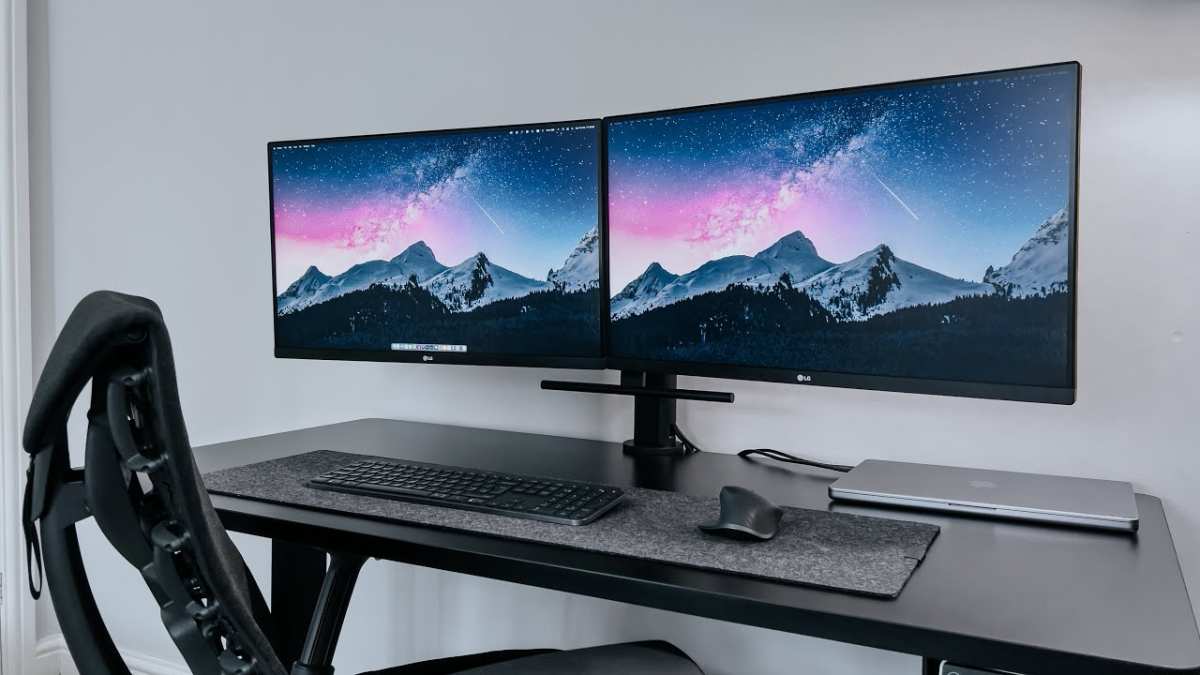
Can You Actually Fit Two 27-Inch Monitors on One Desk?
The honest answer depends on your desk, not your monitors. A standard 60-inch-wide, 30-inch-deep desk handles the width with inches to spare but cuts it close on depth with stock stands. Push the desk against a wall and you might only have 20 inches of usable depth.
Active monitor reviewing consistently shows that 30 inches of desk depth is the practical comfort threshold at the time of this writing. Below 24 inches, a 27-inch panel forces you to sit with your nose practically touching the screen, especially if you want two of them. My recommendation is clear: measure your actual flat surface before buying anything.
Here's the math that matters:
| Component | Width | Depth with stand | Depth with arm |
|---|---|---|---|
| Single 27" monitor | ~24.5 inches | ~8–10 inches | ~5–6 inches |
| Two side by side | ~50–52 inches | ~10–12 inches (overlapping in center) | ~5–6 inches |
| Minimum comfortable desk | 56+ inches | 28–30 inches | 24–26 inches |
Notice how mounting arms change the equation. They clamp to the back edge and free up the full surface below, gaining you 4 to 5 inches of effective depth per monitor. For anyone working with a desk shallower than 28 inches, arms aren't optional.
They're mandatory.
Another factor people forget: base footprint versus usable width. A 27-inch panel with a wide V-shaped stand might claim 24.5 inches of screen width but need 26.5 inches at the base. Thin-bezel models with small metal or circular stands get that number back down.
Always check the stand width in the manufacturer specs, not just the screen size.
Do You Have the Ports and Power to Run Both?
This is where most people hit the first real blocker. Your GPU and its physical ports dictate everything.
A basic integrated GPU might give you one HDMI and one DisplayPort, which technically works. It'll struggle badly with two 1440p or 4K panels under load. Dedicated GPUs from the last five years typically offer three DisplayPort and one HDMI port, making dual 27-inch setups straightforward.
Check these before anything else:
- How many outputs does your GPU physically have?
- What version are they? DisplayPort 1.4 or HDMI 2.0 minimum for 27-inch 1440p at 60Hz. HDMI 2.1 or DP 2.0 for 4K high refresh.
- Are you using a laptop? Many rely on USB-C with DisplayPort Alt Mode. A Thunderbolt 4 dock with dual DisplayPort outputs solves this cleanly.
The panel resolution changes the port requirement significantly:
| Resolution | Bandwidth per monitor | Minimum port for 60Hz | Minimum port for 144Hz |
|---|---|---|---|
| 1080p | 3.2 Gbps | HDMI 1.4 | HDMI 2.0 |
| 1440p | 5.6 Gbps | DP 1.2 / HDMI 2.0 | DP 1.4 |
| 4K | 12.5 Gbps | HDMI 2.0 | DP 1.4 / HDMI 2.1 |
If you're planning dual 4K 27-inch panels, you'll want a modern dedicated GPU with enough VRAM (8 GB or higher) to handle the roughly 16.6 million pixels total. That's not a spec to cut corners on.
For laptop users, a Thunderbolt 4 docking station handling dual DisplayPort 1.4 is the most reliable path. Daisy-chaining via DisplayPort Multi-Stream Transport also works if your monitors support it, but compatibility has been hit or miss in user reports.
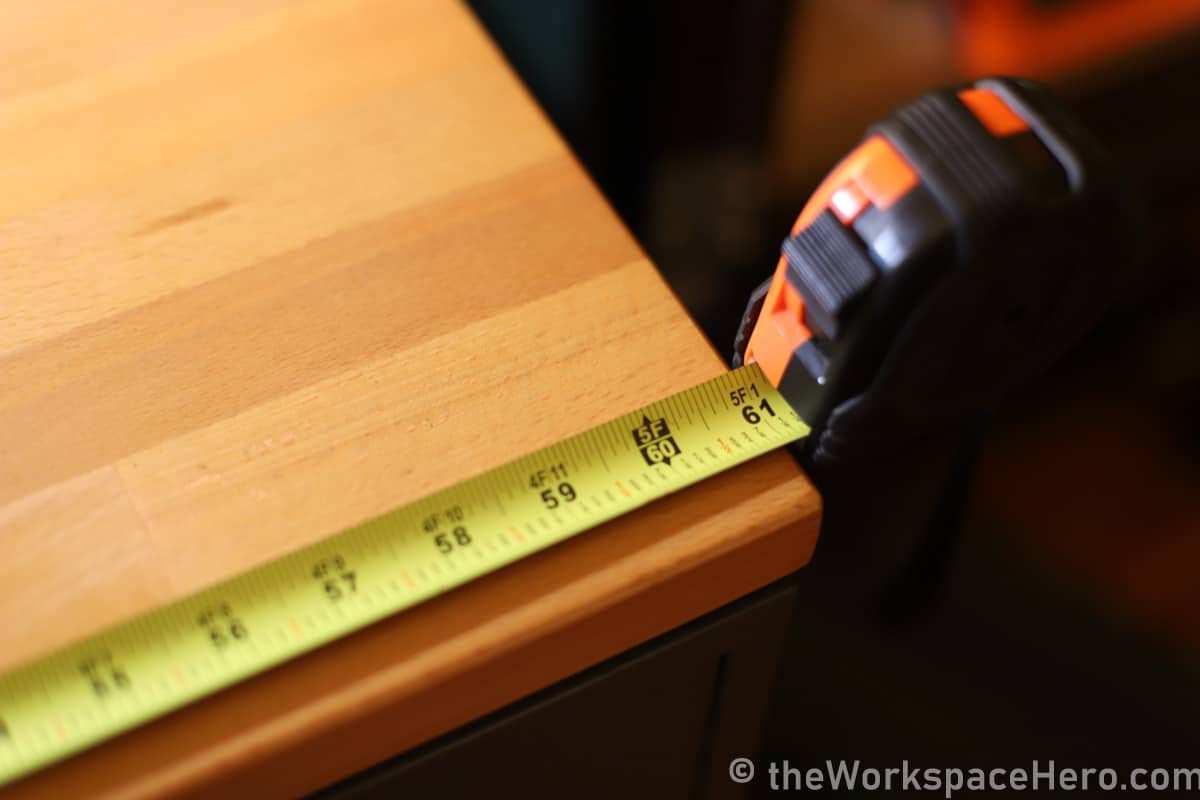
How Much Desk Space Do You Really Need
We gave quick numbers above, but here's the full reality of fitting two 27-inch monitors on a desk. You're not just doing a width check.
The three dimensions that matter:
Width. Each 27-inch 16:9 monitor is about 24 inches wide at the panel. Two thin-bezel panels sit around 50 to 52 inches total. Thick bezels add 0.5 to 1.5 inches to that gap in the center.
A desk at 60 inches or wider is the comfortable target.
Depth. This is the killer. Stock stands push the panel back roughly 8 to 10 inches from the front edge. That puts your screen around 20 inches from your face on a standard 30-inch-deep desk.
Shoving the monitor closer helps, but then you're wasting desk surface in front of you. Monitor arms are the real fix here. They reclaim 4 to 5 inches of depth compared to stock stands.
Height. Top of the screen should be at or just below eye level when seated ergonomically. On stock stands, many 27-inch monitors sit 3 to 5 inches too high for average seated positions. A stand with height adjustment, or an arm, lets you dial this in correctly.
If you look at industry ergonomic guidelines, they recommend keeping the monitor 20 to 28 inches from your eyes. With two 27-inch monitors angled slightly inward, a 30-inch desk depth puts each screen's center zone right around that 24 to 28 inch sweet spot.
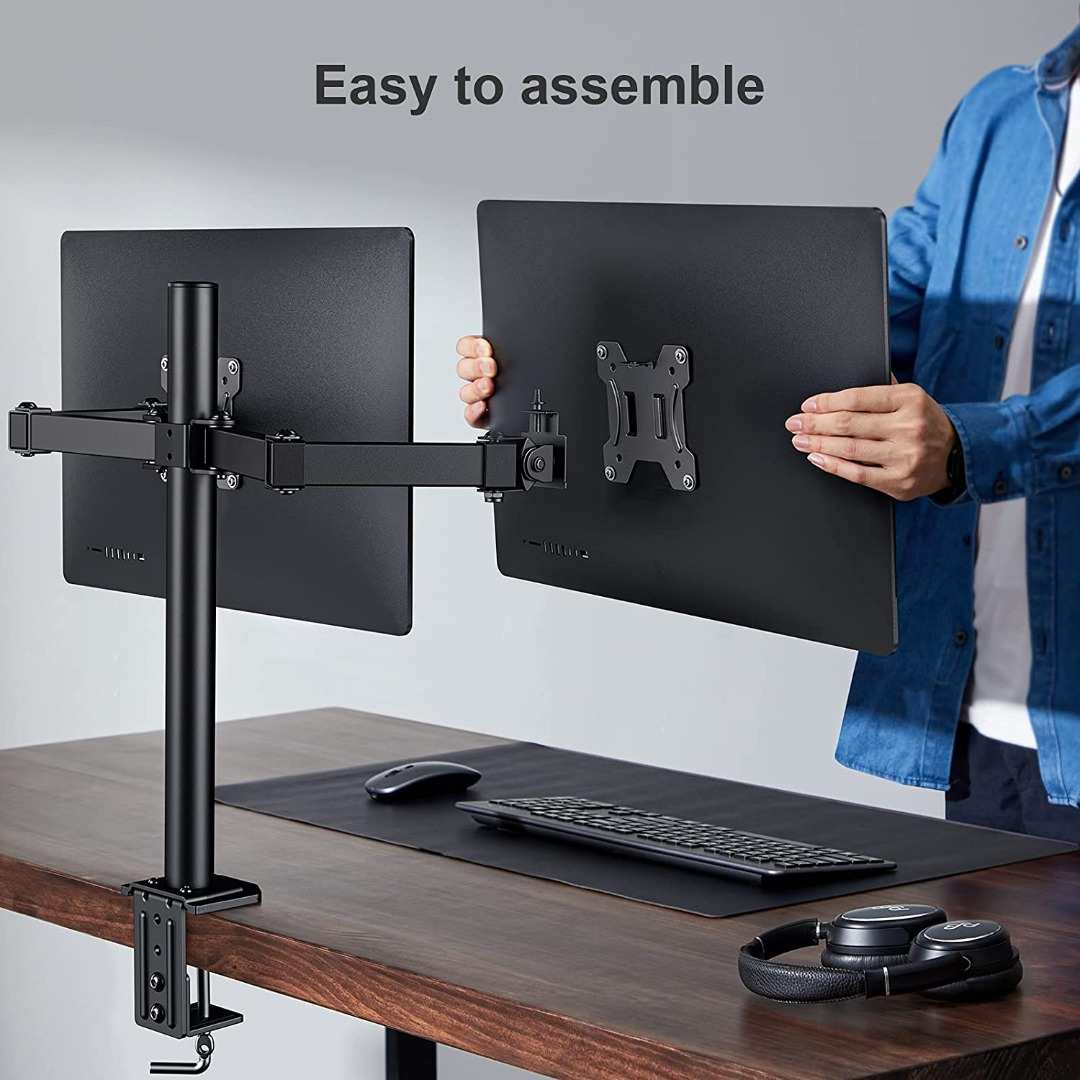
Dual monitor arms like the HUANUO or similar gas-spring arms clamp to the back edge and support up to 35 pounds per arm. They pay for themselves in reclaimed desk real estate alone.
Flat vs. Curved 27-Inch Panels Side by Side

Most curved monitors at 27 inches use a 1500R or 1800R curvature. That's a noticeable bend, subtle but real. Put two of those side by side and you get a wide U-shape that some people love for immersion.
Others find the geometry distracting when reading text across two panels.
Flat panels dominate the dual-monitor world for good reason:
- Uniform viewing geometry. No weird edge distortion on the inner bezels.
- Predictable bezel gap. The center gap stays flat and consistent. Curved inner bezels can angle toward you oddly at steep curves.
- Mixed-angle mismatches. If one panel tilts differently, flat keeps everything aligned. Curved makes angles jump out.
The exceptions are worth mentioning. If you're a day trader, video editor, or flight sim enthusiast, two 1500R curved 27-inch panels create a genuinely immersive wide field of view. The slight wrap-around keeps the left and right screen at a more consistent perceived distance.
For those specific use cases, curved side by side is a solid pick.
For everyone else, flat IPS 27-inch panels deliver cleaner geometry and fewer gotchas. They're also easier to mount in dual monitor arms since their backs are uniformly flat against VESA plates.
My honest advice: if you're not sure, go flat. You can't un-curve a monitor, but you can always feel fine with flat.
Step-by-Step: How to Set Up Two 27-Inch Monitors
Walk through these steps in order. Skipping ahead leads to frustration that usually sends someone back to one screen.
Step 1: Verify your GPU outputs physically.
Open your case or check your laptop ports. Confirm you have two usable video outputs capable of your target resolution and refresh rate. Laptop users: a Thunderbolt 4 dock with dual DisplayPort 1.4 is your best friend here.
Step 2: Measure your desk.
Check width (minimum 56 inches recommended), depth (minimum 24 inches, 30 inches preferred), and clearance behind the desk for cable routing. If you're below 30 inches deep, order arms, not stands.
Step 3: Choose mounting.
Stock stands work if your desk is 30 inches deep and you don't mind the footprint. Dual gas-spring monitor arms reclaim desk space and give you pitch, yaw, and height control. Check VESA compatibility: 100x100mm is standard on virtually all 27-inch monitors.
Step 4: Connect the cables.
Use DisplayPort for each monitor if your GPU has two DP outputs. DP 1.4 handles 1440p at 144Hz or 4K at 60Hz without compression. HDMI 2.0 or 2.1 works as the secondary cable if needed.
Don't mix cable types unless you have to, since some GPUs treat mixed connections slightly differently in multi-display mode.
Step 5: Configure the OS display layout.
In Windows, open Settings > System > Display and drag the numbered rectangles to match your physical arrangement. In macOS, go to Displays and arrange the white menu bar to the monitor you want as primary. Set the correct resolution and refresh rate for each panel in these same menus.
Step 6: Match color and brightness.
Mismatched panels look awful side by side. Set both to the same color temperature (6500K is standard), similar brightness, and the same gamma preset if available. Hardware calibration is overkill for most users, but a quick visual comparison at white and gray test pages catches glaring differences.
Step 7: Enable extended desktop, not mirrored.
This catches more people than you'd want. Extended desktop gives you two separate workspaces. Mirrored shows the same thing on both, which is rarely the point of dual monitors.
Step 8: Tidy the cables.
Under-desk trays, cable clips, and velcro bundles keep the setup clean. A single USB-C or Thunderbolt cable from your laptop to a docking station can reduce the cable chaos dramatically.
That's the physical setup done. From here, expect a few days of adjustment. Your neck and eyes need time to get used to scanning across a wider workspace.
Use window-snap shortcuts (Win+Arrow keys in Windows) to take advantage of the extra space quickly.
Ergonomics You'll Wish You Thought About Earlier
Neck strain is the number one complaint in dual monitor setups. The cause is almost always the same: people push the monitors flat side by side and end up turning their head 30 to 40 degrees to see each screen. That position held eight hours a day packs tension into your trapezius muscles and upper back fast.
The fix is geometric. Tilt each monitor inward at a 15 to 30 degree angle from center. Your primary monitor sits directly ahead, with your secondary angled in from the side.
This reduces head rotation to a comfortable 15 to 25 degrees toward each side.
Height alignment matters too. If one monitor sits higher than the other, you're constantly tilting your head up or down as you glance between screens. Aim for the top bezel of both panels at the same horizontal line.
Monitor arms make this adjustment trivial. Stock stands with mismatched bases can make it nearly impossible.
OSHA's computer workstation guidelines recommend a viewing distance between 20 and 28 inches. With two 27-inch monitors angled inward, that puts you right in the zone if your desk depth is 30 inches or more. Shallower desks force you closer, which can work for short sessions but fatigues your eyes and neck over a full workday.
If you have existing neck or shoulder issues, consider placing your primary tasks on one screen and secondary reference material on the other. This naturally reduces how often you glance toward the side screen. Your dominant eye side is a reasonable place for your main work zone.
The Best Alternative: Single Ultrawide vs. Dual 27-Inch
A single 34 to 49-inch ultrawide monitor gives you comparable screen real estate without the center bezel gap. For some people, that clean uninterrupted canvas is worth more than the flexibility of two discrete panels.
Here's how they stack up:
| Factor | Dual 27" setup | Single ultrawide (34-49") |
|---|---|---|
| Total horizontal resolution | 5120 px (1440p pair) | 3840–5120 px |
| Center bezel | Yes, visible | None |
| Cost for equivalent space | Generally lower | Higher (especially 49") |
| macOS compatibility | Mirrored behavior, treat as two | Often treated as one, less snap flexibility |
| Window management | OS controls both freely | Needs software (DisplayFusion, Magnet) |
| GPU demand | Either panel independently | Single high-res signal |
The center bezel problem is real but overstated. Thin-bezel panels (under 1mm per side) leave a gap of roughly 2mm. Your peripheral vision learns to ignore it within a week.
The bigger issue is full-screen applications spanning both panels. Video, design timelines, and spreadsheet compare tools all get interrupted by that center gap.
For programmers and writers in text-heavy workflows, dual 27-inch panels let you full-screen one app per monitor cleanly. No bezels cross your code or your document. You get hard separation between windows, which some people find cognitively easier.
If you watch a lot of video, play games across the full width, or just hate visual interruptions, an ultrawide delivers a smoother experience. Just expect to spend more for equivalent resolution. And ultrawides rarely match the vertical pixel count of a 27-inch 1440p panel, which matters for document and code vertical space.
Who Benefits Most from Two 27-Inch Screens
This setup isn't equally valuable for everyone. Some workflows gain enormously from the space. Others barely use it.
The biggest winners:
- Software developers. Code on full screen, documentation or a browser on the other. Terminal below in a tiled arrangement.
- Video editors. Timeline below, full-screen preview on the other. Media bins and effects panels take the extra space.
- Traders and financial analysts. Multi-chart monitoring beats any single larger screen for real-time data comparison.
- Graphic designers and photo editors. The main canvas goes full screen. Tool palettes, layers, and reference images fill the secondary.
Lower benefit use cases:
- Social media management. One screen does fine. You don't lose much going ultrawide.
- Gaming-centric setups. The center bezel kills immersion in most games. A single large panel or ultrawide works better.
- Laptop users who mostly undock. Carrying two 27-inch monitors between locations is impractical. A single good portable monitor makes more sense.
My straightforward advice if you're on the fence: try it for a week using a screen you already own, or using your laptop screen plus one external. The productivity gain becomes obvious very fast if your work genuinely benefits from split focus. If you never fill both screens, save the money.
One practical note for mixed-resolution users. Running a 27-inch 4K panel next to a 27-inch 1440p panel creates scaling headaches, particularly on macOS. Windows handles mixed DPI acceptably, but macOS forces some awkward compromises.
Stick to matched resolution for the smoothest experience on either platform.
Mistakes That Make Dual Monitors Worse, Not Better
Buying the monitors is the easy part. Most frustration points come from setup choices that seem minor but bite you daily.
Mistake 1: Skipping the monitor arms. Stock stands eat desk footprint and lock both screens into one fixed height and angle. If you're buying two identical monitors, buy arms while you're at it, period.
Mistake 2: Inconsistent panel types. Pairing an IPS with a VA panel creates noticeable color and viewing-angle differences. A gray background looks cool blue on one panel and warm slate on the other. Matching model numbers eliminates this immediately.
Mistake 3: Placing the secondary too far to one side. When your workspace lands a monitor entirely out of your natural comfort zone, you end up craning your neck repeatedly. Keep the secondary within a 30-degree field of comfortable view.
Mistake 4: Using the wrong cables. A cheap HDMI 1.4 cable on a 2K 140Hz monitor silently locks you to 60Hz with no obvious error message. Always verify cable version against your display's required bandwidth.
Mistake 5: Ignoring black levels in ambient light. Two screens side by side double the glare surface area. A room with overhead lighting directly above can create reflections that tank usability fast. Repositioning your desk 90 degrees or tilting the panels slightly usually solves this.
Mistake 6: Assuming your laptop GPU can drive both displays at full resolution. Most integrated GPUs grind to a halt at dual 4K. Even dual 1440p can overwhelm older chips under anything heavier than a static desktop. Check your laptop's spec sheet carefully under "multi-display resolution support" before assuming.
Mistake 7: Not setting a primary monitor in your OS. Without a designated primary, apps open on whichever screen the OS feels like that day. Spend the five seconds in Display Settings selecting your main screen, or it'll get old by lunch.
A few realities to internalize. Dual monitors improve multitasking, but split screen on a single large monitor arguably does the same with half the cost and cables. If you mainly work in one or two apps windowed side by side, evaluate whether a single 32-inch 4K panel hits the sweet spot instead.
Dual 27s shine when you need to see multiple apps simultaneously without resizing or rearranging.
Once you've committed though, get the basics right. Matching panels, proper desk depth, arms instead of stock stands, correct cables, and thoughtful ergonomic placement transform this from a clunky pile of hardware into a setup that pays for itself in efficiency within the first month.
FAQ — Dual 27-Inch Monitor Setup
Do I need a dedicated graphics card for dual monitors?
Not strictly for basic desktop use. An integrated GPU handles two 1080p or 1440p panels for office work and browsing. For gaming, video editing, or dual 4K, a dedicated GPU with at least 8GB VRAM is strongly recommended.
Can I use two different brands of 27-inch monitors?
Yes, but expect color and brightness differences. Matching panel type and model number is the easiest way to keep things looking consistent. If you mix brands, manual calibration narrows the gap but rarely eliminates it.
How far apart should the center bezels be?
Ideally as close as the bezels allow, with both panels tilted inward 15 to 30 degrees. This keeps the gap in your peripheral vision and reduces head rotation. Don't push the monitors wide apart just because your desk is wide.
Does macOS work well with dual 27-inch monitors?
macOS extends the desktop across two monitors cleanly. Each display gets its own Dock and menu bar when configured. Mixed-resolution setups cause some scaling quirks, so stick to matched panels for the smoothest experience.
Will dual monitors slow my computer down?
Increasing static desktop usage adds minor GPU load. Gaming on one screen while using the other for chat or monitoring may cause a small frame rate dip. For most office workflows, the performance impact is unnoticeable.
Final Verdict — Should You Go Dual 27-Inch?
Go for it if your desk is at least 56 inches wide and 28 inches deep, you have a dedicated GPU or a modern Thunderbolt laptop, and your work genuinely demands seeing multiple applications in full screen at once. Developers, editors, designers, and analysts get the most measurable value from this setup.
Hold off if you're on a laptop that thermal-throttles under load, your desk is shallow, or your workflow is mostly one window at a time. A single high-quality 32-inch 4K panel or an ultrawide often serves simpler setups better for less money.
The honest bottom line: this configuration isn't hype. Putting two clean 27-inch panels in front of you properly mounted, color matched, and ergonomically aligned transforms focus and workflow speed. It's one of the most cost-effective productivity upgrades you can make right now.
Just do the port check and the desk measurement first.

Similar Posts





















