Do You Need Two Graphics Cards for Dual Monitors
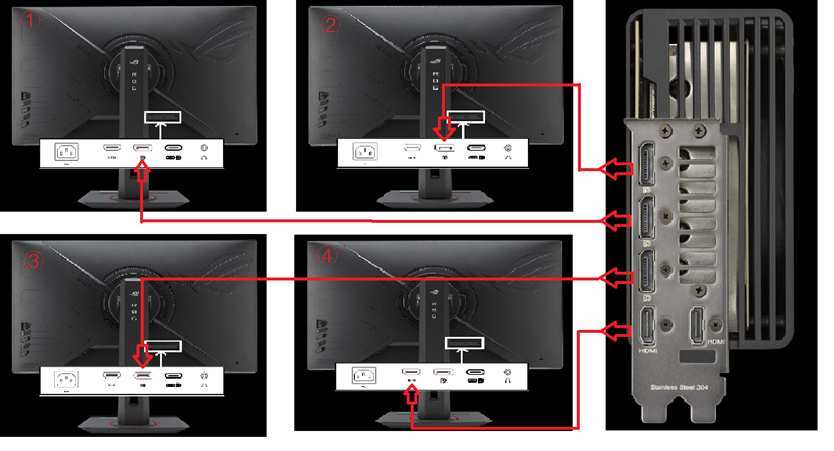
So you're setting up a dual monitor system and wondering whether you've got enough hardware to pull it off. The short answer for most people in 2025 is no, you almost certainly do not need two graphics cards to run two monitors. A single modern GPU from NVIDIA or AMD can typically drive two, three, or even four displays simultaneously without breaking a sweat.
Most mid-range and above graphics cards sold in the last several years come equipped with three or four video output ports right out of the box. That means you can plug both monitors straight into one card and be up and running within minutes. The real question isn't whether you need a second GPU at all, but whether your current specific card can handle what you're trying to do.
Quick Answer
No, you do not need two graphics cards for dual monitors. A single modern GPU can run two monitors. Most cards have at least three video output ports built in.
You simply connect each monitor directly to the same card. A second GPU is only needed in rare cases like professional multi-display workstations. For 95% of users, one card does the job perfectly.
How Modern GPUs Handle Multiple Monitors
If you're using a discrete graphics card bought anytime in the last six or seven years, there's a very strong chance it already supports multiple displays natively. Both NVIDIA and AMD design their consumer GPUs to drive several monitors at once right out of the box, no extra hardware required.
Take a look at the back of a typical card and you'll usually find a mix of DisplayPort and HDMI ports, sometimes with a USB-C virtual link thrown in. The exact combination varies by model, but three to four ports is standard across mid-range and high-end GPUs as of 2025. Even many entry-level cards now ship with at least three outputs.
Image source: Bing (Web (fair-use with source credit))
Here's a rough idea of what you can expect from each brand's consumer lineup.
| GPU Tier | Typical Number of Outputs | Typical Max Displays Supported |
|---|---|---|
| Entry-level (e.g. NVIDIA RTX 3050, AMD RX 6600) | 3 ports | 3 to 4 monitors |
| Mid-range (e.g. NVIDIA RTX 4060 Ti, AMD RX 7700 XT) | 3-4 ports | 4 monitors |
| High-end (e.g. NVIDIA RTX 4080, AMD RX 7900 XTX) | 3-4 ports | 4 monitors |
The number of physical ports doesn't always match the maximum number of displays a GPU can drive. Some cards support more monitors than they have ports through a feature called DisplayPort Multi-Stream Transport, or MST. This lets you daisy-chain multiple monitors from a single DisplayPort output, provided your monitors support it.
The distinction matters because physical port count is the hard limit if you're running cables directly. MST only works with DisplayPort-enabled monitors and can introduce minor compatibility headaches. For a simple two-monitor setup, you won't need to worry about any of this.
Just plug each monitor into its own port on the card and you're done.
The Short Answer
No, in the vast majority of cases you do not need two graphics cards to run dual monitors. One modern GPU handles it without any trouble at all. The scenario where you'd actually need a second card is narrow enough that we'll cover it separately in the next section.
For right now, the assumption is that your single-card setup is going to work just fine.
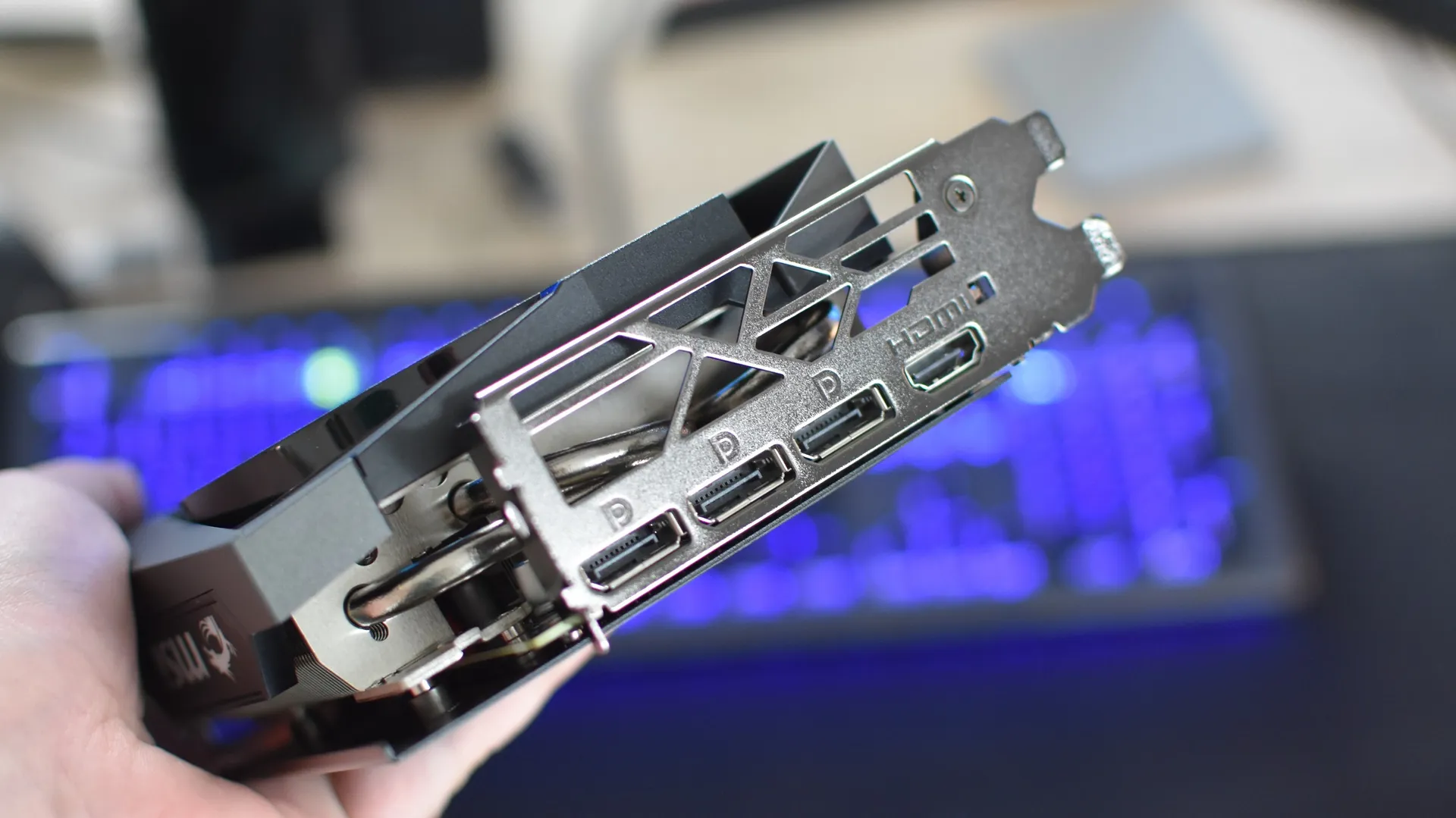
Image source: Bing (Web (fair-use with source credit))
One important caveat is worth mentioning. If your PC is relying solely on your CPU's integrated graphics rather than a dedicated card, the number of supported displays depends on your specific processor. Most modern Intel Core and AMD Ryzen processors with integrated graphics can drive at least two monitors, but you should check your processor's specifications on Intel or AMD's official product pages to confirm.
There's also a situation where someone has a dedicated GPU installed but is accidentally plugging monitors into the motherboard's video ports instead of the card's ports. The motherboard ports are connected to the integrated GPU, not the discrete card. If your dedicated GPU has ports, always use those.
Plugging into the motherboard when a discrete card is present can cause one or both monitors to display nothing at all, depending on your BIOS settings.
When You'd Actually Need a Second GPU
So when does it actually make sense to add a second graphics card? The short list of real-world scenarios is smaller than you might think.
You need more than four displays. If you're running a trading desk with six monitors, a digital signage setup, or a complex monitoring wall, a single GPU's maximum display count might not cut it. Some professional workstation cards from NVIDIA's RTX professional lineup or AMD's Radeon Pro series can handle six or eight displays, but consumer cards typically max out at four.
You're running GPU-intensive tasks on multiple screens simultaneously. Imagine doing 3D rendering on one monitor while GPU-accelerated video playback runs on another and a CUDA-based compute job runs in the background. In those boundary-pushing scenarios, adding a second GPU can offload work. This is more common in professional and creator workflows than in everyday use.
Your current card doesn't support the combined resolution or refresh rate you need across both monitors. If you're trying to run two 4K monitors at 144Hz and your card's outputs top out at DisplayPort 1.2, you might run into bandwidth limits. A newer second card with DisplayPort 1.4 or 2.1 outputs could solve this more cleanly than replacing your primary GPU.
You have an older card with only one working output. Some very old or budget cards from a decade ago shipped with a single DVI or VGA port. In that case, adding even a cheap used modern card with multiple ports is a practical solution.
For the overwhelming majority of people reading this, none of those scenarios apply. A single card with the right ports is all you need for a standard dual-monitor setup.
Can Your Current Card Run Two Monitors? How to Check
Before you buy anything, it's worth confirming what your current GPU is capable of. This check takes about two minutes and could save you from spending money you don't need to spend.
First, identify your graphics card. On Windows, open Task Manager, click the Performance tab, and select GPU from the left panel. The card name shows up in the top-right corner.
You can also use a free tool like GPU-Z or check directly in the NVIDIA Control Panel or AMD Software application.
Once you know your model, head to the manufacturer's specification page. NVIDIA lists maximum supported displays and output types in their product specifications at nvidia.com. AMD does the same at amd.com.
Look for "Maximum Displays" or similar wording in the specs table.
Here's a quick checklist to run through.
- Count the physical video ports on your card. You need at least two that work simultaneously.
- Check your monitor inputs. Make sure you have matching cable types or can use adapters (DisplayPort to HDMI is common and cheap).
- Verify the resolution and refresh rate you want are supported. Running two 1080p monitors at 60Hz is trivial for any modern card. Two 4K monitors at 144Hz is a different conversation.
- Check that both ports can be active at the same time. Nearly all cards support this, but it's worth confirming if you have an unusual or very old model.
The most common "gotcha" people hit is mismatched cable types. If your card has two DisplayPort outputs but your monitors only have HDMI inputs, you need either DisplayPort-to-HDMI cables or adapters. These are inexpensive and widely available.
Just make sure any adapter supports the resolution and refresh rate you need, since cheap passive adapters sometimes cap out at lower specs.
What to Do If You're Out of Video Ports
Say your card only has one DisplayPort and one HDMI, and both are already in use with a VR headset or some other peripheral. Or maybe your GPU only has two outputs total and you need a third screen for a specific workflow. You've got a few solid options before you ever consider adding a second GPU.
Use DisplayPort MST (Multi-Stream Transport). If your monitors support DisplayPort daisy-chaining, you can run two monitors off a single DisplayPort output. The first monitor connects to your GPU, and the second connects to the first monitor's DisplayPort Out port. Both monitors need to support MST for this to work, and you'll need to enable MST in the on-screen settings of the first monitor.
Pick up a DisplayLink USB adapter. This is probably the simplest plug-and-play solution. A DisplayLink adapter turns a USB-A or USB-C port on your computer into an additional video output. Prices run from around $40 to $100 depending on the resolution and refresh rate you need.
The adapter uses software-based rendering rather than your GPU's native output, so it's not ideal for gaming or fast-moving video. For productivity tasks, web browsing, and static content, it works remarkably well.
Add a cheap secondary GPU. If you've got an open PCIe slot, even an old $30 used card can give you the extra ports you need. A low-power card like an NVIDIA GT 710 or an AMD Radeon R5 230 will handle basic multi-monitor output without putting any meaningful load on your power supply. This is a good option when you need more physical ports and don't want to deal with USB adapter drivers.
Use your integrated graphics alongside your discrete GPU. Many Intel and AMD CPUs come with integrated graphics that can run independently from your dedicated card. Check your motherboard's manual for instructions on enabling multi-monitor support in the BIOS. Once enabled, you can plug one monitor into the card and another into the motherboard's video output.
Here's a quick comparison to help you pick the right path.
| Solution | Cost | Gaming Ready | Best For |
|---|---|---|---|
| DisplayPort MST | $0 (if monitors support it) | Yes | Clean daisy-chain setups |
| DisplayLink USB adapter | $40-$100 | No | Adding a screen for productivity without opening the PC |
| Cheap secondary GPU | $30-$80 | Limited | Extra physical ports, older systems |
| Integrated graphics + dedicated GPU | $0 | Yes | Budget builds, light dual-monitor use |
Dual GPU Setup: What It Takes and What It Costs
If you've landed on the decision that you genuinely need a second graphics card, let's walk through what's actually involved. It's not just a matter of slotting another card in and calling it done.
Your motherboard needs an available PCIe x16 or at least PCIe x8 slot with enough physical clearance. Many mid-tower cases have the slot space, but dual-GPU setups can get tight, especially with thick modern cards. Measure the clearance before you buy anything.
Your power supply needs enough headroom to handle the additional card. A low-power secondary card like a GT 710 might only draw 25 watts. That's negligible.
But if you're adding a second mid-range card, you could be looking at an extra 150 to 200 watts under load. Check your PSU's total wattage and available PCIe power connectors before committing.
Driver management is the part people overlook. Running two NVIDIA cards is straightforward since the same driver package handles both. Mixing an NVIDIA primary card with an AMD secondary card is technically possible, but you'll be running two separate driver suites simultaneously.
That can occasionally cause stability headaches or conflicts in some applications. Keeping both cards from the same manufacturer is the smoother path.
Cost-wise, adding an entry-level secondary card for extra display outputs typically runs $30 to $80 on the used market or for new budget models. A DisplayLink adapter costs roughly the same. Weigh the simplicity of a USB adapter against the reliability of a dedicated PCIe card based on your specific needs.
Step by Step: Hooking Up Two Monitors to One GPU
Once you've confirmed your card has at least two working outputs and the right cables are on hand, the physical setup is straightforward.
Step 1: Power everything down. Shut down your PC completely and turn off both monitors. Hot-plugging is generally safe with modern hardware, but starting from a clean power-off state avoids edge cases.
Step 2: Connect the first monitor. Plug one end of your cable (DisplayPort or HDMI) into your GPU's output port and the other into your monitor. If you're using an adapter, connect it to the monitor cable first, then plug the adapter into the GPU.
Step 3: Connect the second monitor. Repeat the process using a different output port on your GPU. Do not use two cables connected to the same port via a splitter. A simple HDMI or DisplayPort splitter duplicates the signal rather than extending it, so you'll get mirrored displays instead of two independent screens.
Step 4: Power everything on. Boot up your PC, turn on both monitors, and let Windows (or macOS) detect them automatically.
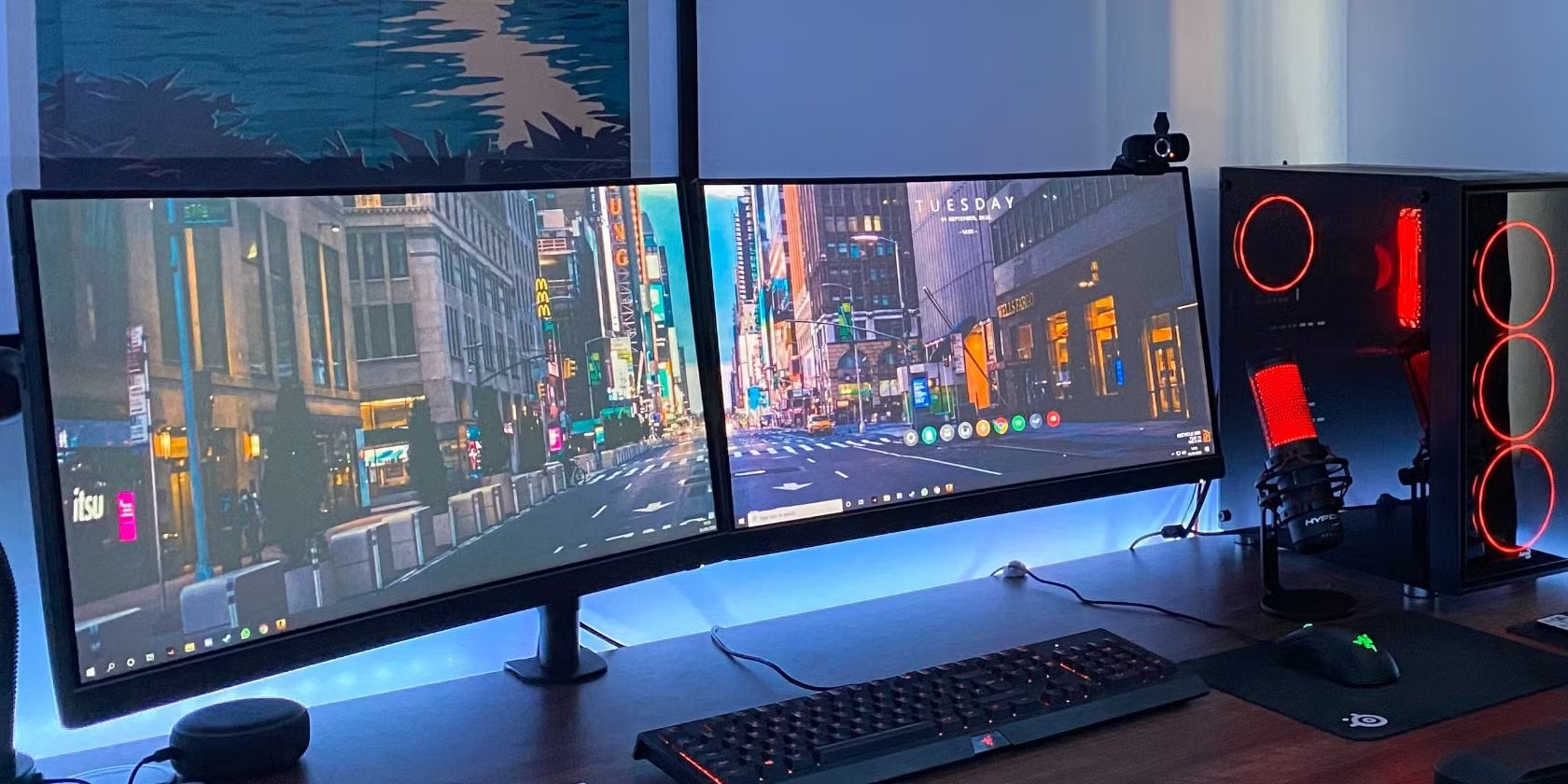
Image source: Bing (Web (fair-use with source credit))
Step 5: Configure your display settings. Right-click the desktop and select Display Settings. Windows should show both monitors as numbered boxes. Choose "Extend these displays" from the Multiple displays dropdown to get an independent workspace on each screen.
Drag the numbered boxes to match the physical arrangement of your monitors on your desk.
Step 6: Set resolution and refresh rate per monitor. Click each numbered box and set its resolution and refresh rate individually. Running mismatched monitors is perfectly fine. A 1440p 144Hz panel can sit next to a 1080p 60Hz panel without issue.
Step 7: Update your GPU drivers. Grab the latest drivers from nvidia.com or amd.com. Fresh drivers handle multi-display detection more reliably than the generic Windows drivers you get on first boot.
That's it. Most dual-monitor setups are functional within ten minutes of opening the box.
Real Scenarios: What Works and What Doesn't
Let's put this into concrete context with a few common situations people find themselves in.
The standard office setup. You've got a mid-range card like an NVIDIA RTX 4060 and two 1080p 60Hz monitors. Both have HDMI inputs. Your card has one HDMI and three DisplayPort outputs.
Grab one HDMI cable and one DisplayPort-to-HDMI cable. Both monitors run off the same card with zero issues. This is the most common scenario, and it just works.
Gaming on one screen, browsing on the other. You got a 4K 144Hz gaming monitor as your main display and plugged your old 1080p panel in as a secondary. Your GPU handles gaming on the primary display at full refresh rate while the secondary monitor runs Discord, a browser, or a YouTube video. No second GPU needed.
Modern cards dedicate output bandwidth per port, so a single high-refresh monitor doesn't starve the secondary display.
The four-output card issue. Some users report that not every port on their card works simultaneously. For example, certain cards share bandwidth between specific DisplayPort and HDMI outputs. The card might have four physical ports but only support three active at once.
Always check the manufacturer's documentation for your specific card model. NVIDIA's product pages list active display limits per card.
Trying to use two different GPUs without SLI. You've got your main RTX card and want to stick an old GTX 660 in for extra monitors. This works fine for display output. Just know that SLI (which linked two GPUs for combined gaming performance) was discontinued years ago.
Without SLI or NVLink, each card operates completely independently. Your primary GPU renders your games, and the secondary GPU drives its connected monitors. They don't share workload for gaming.
Common Mistakes People Making With Multi-Monitor Setups
Even though the process seems simple, there are a handful of recurring mistakes that trip people up.
Plugging one monitor into the graphics card and the other into the motherboard. If your processor has integrated graphics and your BIOS hasn't been configured to enable both GPUs simultaneously, that second monitor will stay black. Either plug both into the card or verify your BIOS supports multi-GPU output before relying on the motherboard ports.
Using a passive HDMI splitter thinking it extends the display. A basic HDMI splitter clones the same image to two screens. It doesn't give you an independent extended desktop.
If you want two separate workspaces, each monitor needs its own connection back to the GPU.
Forgetting to check refresh rate cap when using adapters. An HDMI-to-DisplayPort passive adapter might only support 1080p at 60Hz even if both the monitor and card could do more. Always verify that any adapter in the chain supports the resolution and refresh rate you're aiming for.
Not updating GPU drivers after connecting a second monitor. Windows will often get both screens showing something basic using its built-in display driver. But for proper multi-display support, custom resolutions, and per-monitor refresh rate control, you want the latest driver from NVIDIA or AMD installed and active.
Frequently Asked Questions
Can one GPU run two monitors at different refresh rates?
Yes. A single GPU can output different refresh rates to each connected monitor. Your 144Hz primary and your 60Hz secondary will each run at their native refresh rate independently.
Set each monitor's refresh rate individually in Windows Display Settings after connecting both.
Do I need matching monitors for dual-monitor gaming?
No, but it helps with visual consistency. Mixing a 1440p 144Hz panel with a 1080p 60Hz panel works fine for general use. If you plan to span a game across both screens (which is rare), mismatched resolutions and refresh rates create obvious issues.
Most gamers keep the game on one monitor and use the second for everything else.
How many monitors can a single graphics card support?
Most modern consumer GPUs from NVIDIA and AMD support up to four simultaneous displays. The exact number depends on the specific card model. Check the manufacturer's specification page for your card's maximum display count.
Professional workstation cards can support six or more.
Is adding a second GPU worth it just for more monitors?
Usually not. A $40 DisplayLink USB adapter or a $30 used low-end card gives you extra ports without the complexity of running two GPUs. Multiple GPUs increase power draw, heat, and driver overhead.
Only add a second card when you specifically need the additional GPU compute power or have exhausted every other port option.
What if my card only has one HDMI and one DisplayPort, and I need HDMI for both monitors?
Grab a DisplayPort-to-HDMI cable. They're cheap, widely available, and handle 1080p and 1440p without issues. Make sure the adapter supports your target resolution and refresh rate.
Active adapters are recommended for 4K or high-refresh scenarios.
Will using two monitors slow down gaming performance?
Minimally, if at all. Running a browser, Discord, or a video on your second monitor while gaming uses a small amount of additional VRAM and GPU bandwidth. For most modern cards, the performance difference is within one to three percent.
You'd be hard-pressed to notice it without a frame counter.
Final Verdict
If you're running a standard dual-monitor setup, one graphics card is all you need. The vast majority of GPUs sold in the last several years support at least three or four displays natively. Buy the right cables, plug both monitors into the same card, configure your settings, and you're done.
Only consider a second GPU if you've genuinely run out of ports and exhausted every alternative, or if your workflow specifically demands the extra compute horsepower. For everyone else, the money is better spent on a good cable, a DisplayLink adapter, or just saving it for your next GPU upgrade.

Similar Posts































