Is Dual Monitor Setup Good for Productivity
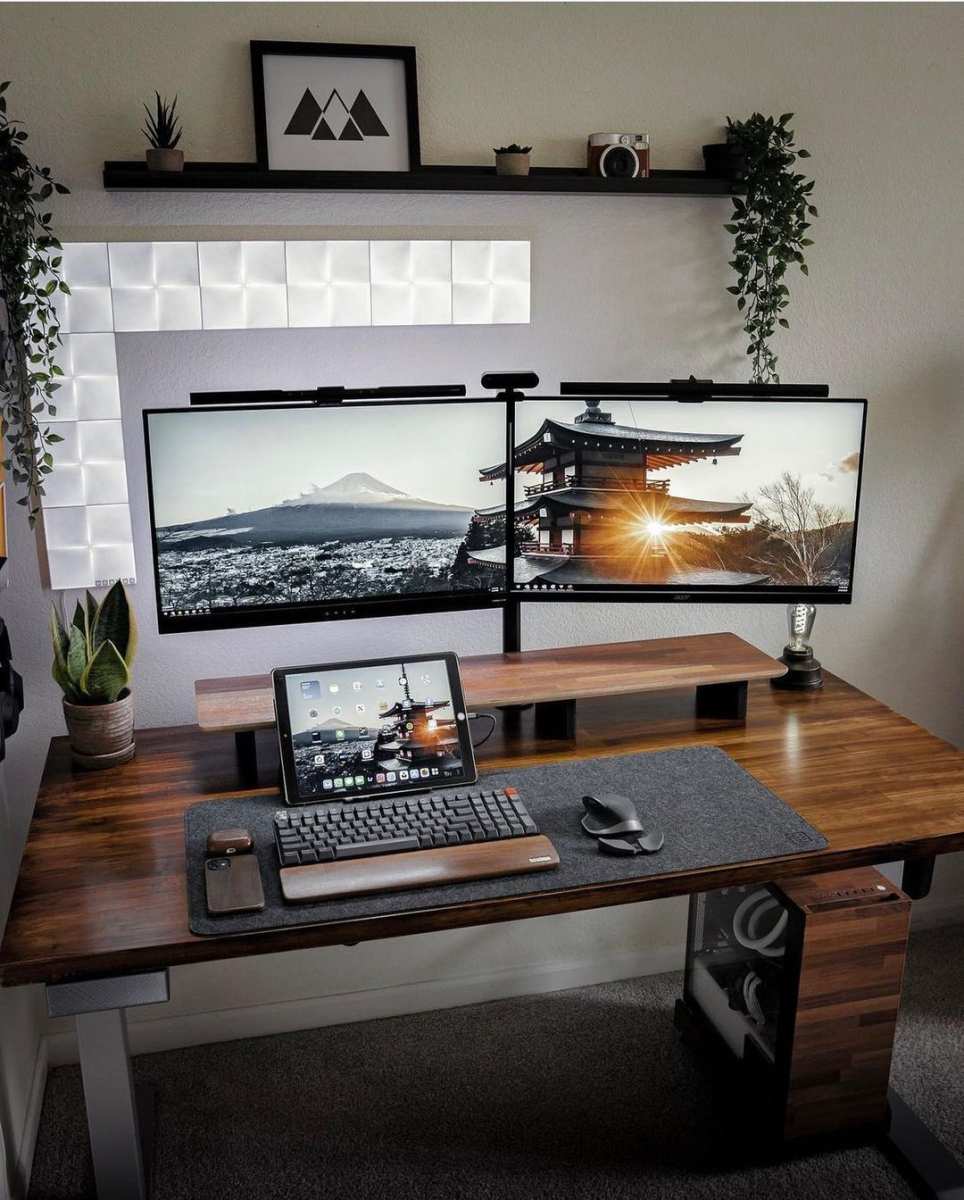
You've probably seen the setup everywhere. Two screens, keyboard centered, someone effortlessly dragging windows between displays like they're conducting an orchestra. It looks productive.
But is dual monitor setup good for productivity, or is it just desk theater?
The honest answer is more nuanced than a simple yes or no. Research from Jon Peddie Research found that dual monitor configurations can improve productivity by 20 to 30 percent for text-heavy and data-intensive tasks. But that number assumes your work actually benefits from the extra screen real estate, and that your setup is configured correctly.
Let's walk through who genuinely benefits, who doesn't, and how to make the right call for your specific situation.
Image source: Bing (Web (fair-use with source credit))
Quick Answer
A dual monitor setup improves productivity for most knowledge workers. The gain is strongest for roles involving reference material, coding, data analysis, or creative work. The benefit drops sharply if your work is primarily single-task focused.
Ergonomic placement matters as much as the hardware itself. Most modern laptops and desktops support dual displays without upgrades.
Why Dual Monitors Feel Like a Productivity Hack (And When They Don't)
The core advantage of a dual monitor setup is simple. You stop switching between windows constantly. That alt-tab reflex, the one you do dozens of times per hour, gets replaced by a glance to the other screen.
For tasks where you're constantly referencing one thing while working on another, that's a genuine workflow improvement.
Software developers are a classic example. Code on one screen, documentation or a live preview on the other. Financial analysts keep market data visible while building spreadsheets.
Writers keep research open beside their draft. In each case, the second screen eliminates the friction of toggling between applications.
But here's where it gets tricky. Not every job benefits from more screen space. If your primary work is reading emails, attending video calls, or working in a single full-screen application, a second monitor might just become a distraction magnet.
Slack, Twitter, and YouTube are a single click away, and that's not always a good thing.
The research backs this up selectively. Studies on multi-display productivity show the biggest gains in tasks that involve comparing documents, monitoring real-time data, or working across multiple applications simultaneously. For linear, single-task workflows, the productivity bump is minimal or nonexistent.
What Your Work Actually Looks Like: Jobs That Benefit the Most
Let's get specific. Here are the roles where a dual monitor setup consistently delivers measurable productivity gains:
- Software developers and engineers. Code editor on one screen, terminal output, API documentation, or browser preview on the other. This is arguably the strongest use case.
- Financial analysts and traders. Real-time data feeds, Bloomberg terminals, or multiple dashboards need constant visibility. A second screen isn't a luxury here.
- Video editors and motion designers. Timeline on one monitor, full-screen preview on the other. This is practically an industry standard.
- Graphic designers and illustrators. Canvas on the primary display, tool palettes, layers, and reference images on the secondary.
- Data analysts and BI professionals. Query editors, visualization dashboards, and raw data tables all benefit from simultaneous visibility.
- Writers and academic researchers. Source material, PDFs, or reference managers on one screen, writing environment on the other.
- Project managers and operations leads. Project boards, spreadsheets, and communication tools running side by side.
- Content creators and streamers. Stream monitoring, chat, and OBS controls on a secondary display while gaming or creating on the primary.
If your daily work involves any of these patterns, a dual monitor setup is almost certainly worth it.
Who Should Probably Stick With One Screen
On the flip side, there are situations where a second monitor adds complexity without adding value.
If your work is primarily video conferencing, you might be better off with a single high-quality display and good virtual desktop habits. If you're working on a small desk where a second monitor would force poor ergonomic positioning, the productivity gain gets wiped out by physical discomfort. And if you know you lack the discipline to resist having social media or news feeds perpetually open on that second screen, you might actually get less done.
Students on tight budgets should also think carefully. A single 27-inch 1440p monitor with good window snapping can replicate much of the dual monitor experience at half the cost. The same goes for anyone whose laptop screen already serves as a perfectly functional secondary display.
The Real Setup Ergonomics: Placement, Distance, and Neck Strain
Here's something most productivity articles skip. A poorly positioned dual monitor setup can cause real physical problems. Neck strain, eye fatigue, and headaches are common complaints when monitors aren't placed correctly.
The primary monitor should sit directly in front of you, with the top of the screen at or slightly below eye level. Your viewing distance should be around 20 to 26 inches. The secondary monitor should be angled inward, positioned to the side of your dominant hand, and tilted so you're not cranking your neck to see it.
If you're using both monitors equally, center the seam between them and angle both slightly inward in a shallow V shape. This keeps your neck in a neutral position regardless of which screen you're looking at.
Monitor arms make a significant difference here. They free up desk space and let you fine-tune the height, tilt, and angle of each display independently. A fixed stand rarely gives you the flexibility you need for a comfortable dual setup.
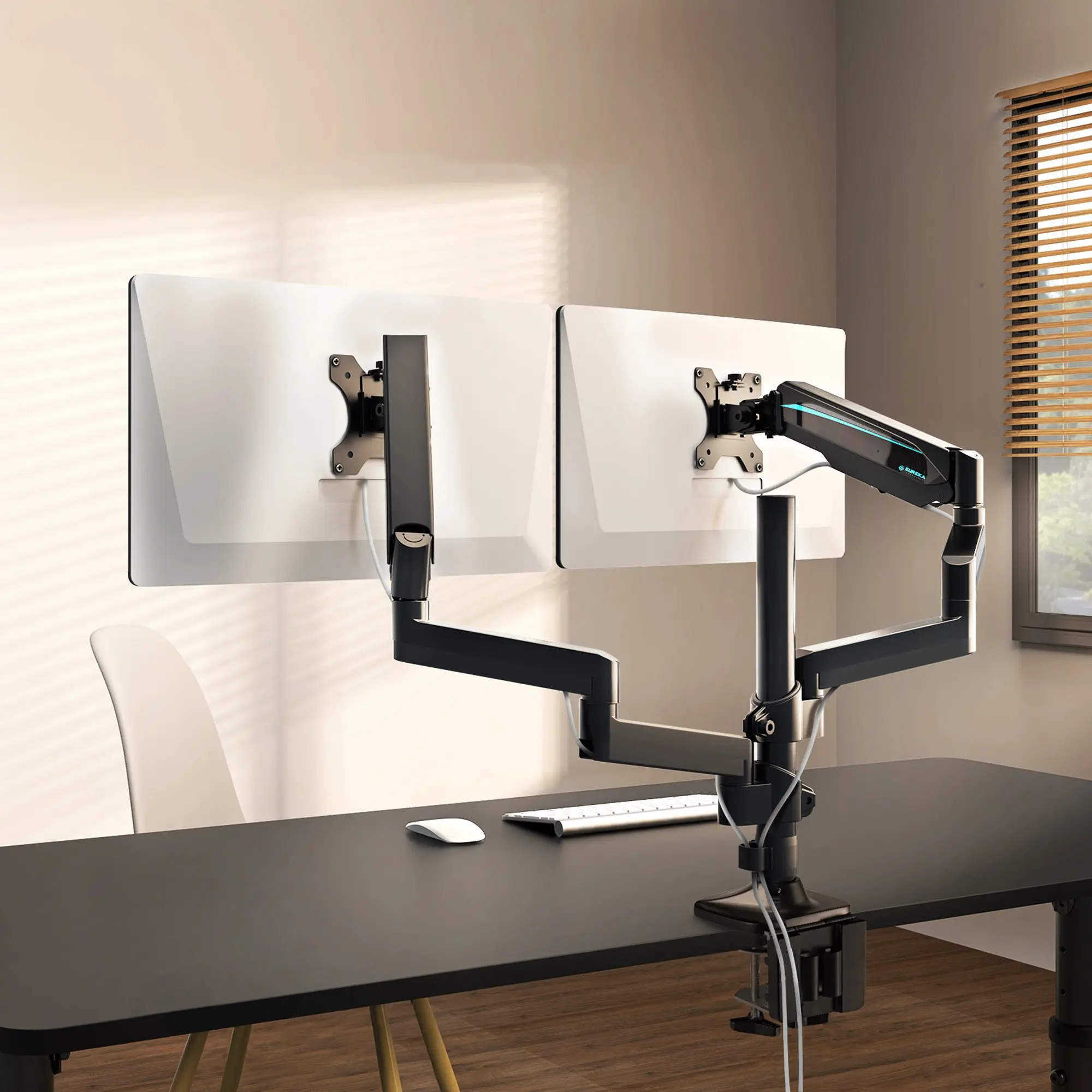
Image source: Bing (Web (fair-use with source credit))
OSHA's workstation guidelines recommend keeping your neck in a neutral position, which means no more than about 35 degrees of rotation to either side. If your secondary monitor forces you to turn your head more than that, you're setting yourself up for chronic discomfort.
How to Check If Your Current Gear Can Handle It
Before you buy anything, check what your current hardware actually supports. Most modern GPUs and integrated graphics chips can drive at least two displays, but the specifics matter.
Look at the back of your desktop or the sides of your laptop. You're looking for HDMI, DisplayPort, USB-C with DisplayPort Alt Mode, or Thunderbolt ports. Each of these can drive an external monitor.
The key question is whether you have enough ports for your desired setup.
Here's a quick reference for common connectivity options:
| Port Type | Max Resolution at 60Hz | Notes |
|---|---|---|
| HDMI 2.0 | 4K | Most common, widely compatible |
| HDMI 1.4 | 1440p | Found on older hardware |
| DisplayPort 1.4 | 8K | Best for high-refresh or high-res setups |
| USB-C (DP Alt Mode) | 4K | Common on modern laptops |
| Thunderbolt 4 | 4K (dual) | Best for single-cable laptop docking |
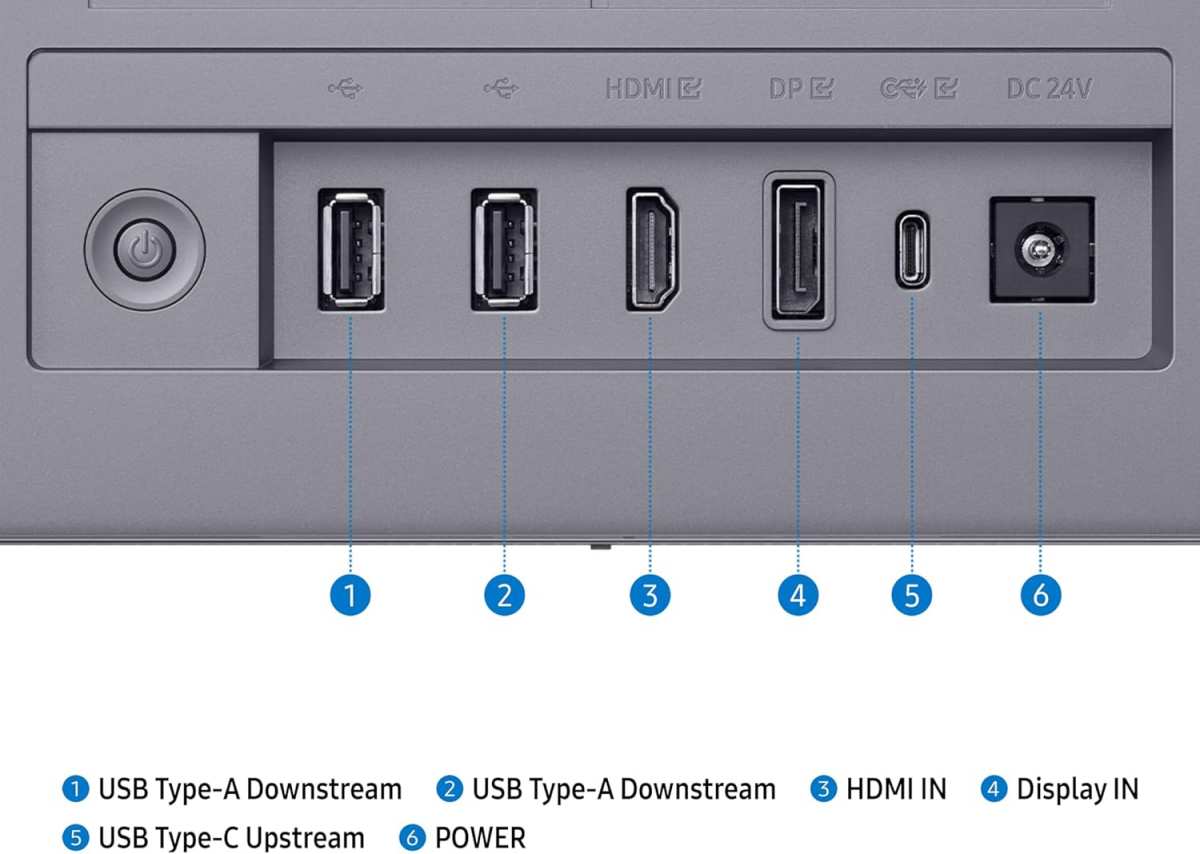
Image source: Bing (Web (fair-use with source credit))
If your laptop only has one video output and you want to run two external monitors, you'll need either a docking station or a USB display adapter. Docking stations are the cleaner solution, especially USB-C or Thunderbolt docks that handle video, power delivery, and peripherals through a single cable.
For desktop users, check your GPU specifications. Most dedicated graphics cards from NVIDIA and AMD support three to four simultaneous displays as of 2026. Integrated graphics on modern Intel and AMD processors typically support two to three displays, but verify against your specific chip's documentation.
One more thing to check. Make sure your operating system handles multi-monitor setups well. Windows 10 and 11 have solid multi-display support with improved snap layouts. macOS works well with external displays, though M-series MacBooks have specific limitations on how many external monitors they support natively.
Check Apple's official specs for your exact chip, because the base M1 and M2 chips only support one external display without workarounds.
Step-by-Step: Building a Dual Monitor Setup That Actually Works
Once you've confirmed your hardware supports it, the physical setup is straightforward. But a few decisions early on make the difference between a setup you love and one that collects dust.
Step 1: Choose your monitors wisely. Ideally, pick two identical models. Matching screens means matching resolution, color reproduction, refresh rate, and bezel width. Your eyes don't have to constantly readjust when you move content between displays.
If budget forces a mismatch, at least match the resolution and panel type. A 1080p screen next to a 4K panel is jarring.
Step 2: Decide on orientation. Most people run both screens in landscape mode. But if you're a developer, writer, or anyone who works with long documents, rotating one monitor to portrait mode is a game changer. You'll see more code, more text, more of a webpage without scrolling.
Step 3: Arrange them ergonomically. Primary monitor dead center, secondary angled 15 to 30 degrees to the side. Use a monitor arm if your budget allows. It gives you precise control over height and tilt that fixed stands simply can't match.
Step 4: Configure your operating system. In Windows, go to Settings > System > Display to arrange your monitors virtually so the mouse moves between them naturally. On macOS, go to System Settings > Displays and drag the virtual screens into the correct relative positions. Neither operating system will get the arrangement right automatically.
Step 5: Match brightness and color. Use your monitor's on-screen menu to manually adjust brightness, contrast, and color temperature so both screens look similar. Even identical models can look different out of the box due to factory variance.
Step 6: Optimize your workflow. Assign specific applications to specific monitors. Set your email client or chat app to always open on the secondary display. Most window management tools let you create these rules and enforce them automatically.
Window Management: The Hidden Skill Nobody Talks About
Having two monitors is only half the battle. Managing what actually lives on each screen determines whether the setup helps or hinders you.
Windows 11's snap layouts are genuinely useful here. Hover over a window's maximize button and you get a grid of layout options. Drag a window to the edge of a screen and it snaps to half display.
It's simple, and it works. macOS users should look into Magnet or the built-in Stage Manager feature, though opinions on Stage Manager are mixed.
For power users, Microsoft PowerToys includes FancyZones, a free tool that lets you create custom snap zones on each monitor. You can define a three-column layout on your primary screen and a single full-height zone on your secondary. It takes ten minutes to set up and saves hours of window shuffling over time.
The key principle is intentional placement. Randomly scattering windows across two screens defeats the purpose. Your primary monitor holds the task at hand.
Your secondary holds reference material, communication tools, or monitoring dashboards. Train yourself to keep that separation consistent.
Virtual desktops complement this well. Use one desktop for deep work on your primary screen and another for communication tools on your secondary. Switch between them as your work context changes throughout the day.
The Most Common Mistakes People Make With Two Monitors
Some mistakes show up again and again in dual monitor setups. Recognizing them early saves you frustration.
Mismatched resolution or scaling. Running a 4K monitor alongside a 1080p display creates inconsistent text sizing and blurry window dragging between screens. Match your resolution or use per-display scaling carefully.
Poor cable management. Two monitors means at least twice the cables. Without a plan, your desk becomes a tangled mess. Cable trays, adhesive clips, and monitor arms with built-in cable routing solve this cheaply.
Ignoring bezel gap. The physical border between two monitors disrupts visual flow. Thin-bezel monitors minimize this, but if you're working with two mismatched screens, the offset bezels feel worse than the gap itself.
Setting the secondary monitor too far away. If you have to squint or lean in to read the second screen, it's too far. Both monitors should be roughly equidistant from your eyes.
Using the second screen as a distraction machine. Keeping Twitter, Reddit, or YouTube perpetually open on your secondary monitor is a focus killer. Be honest about your self-control. If you can't resist, a second monitor might hurt more than it helps.
Forgetting to disable the laptop screen. If you're running a laptop with an external monitor, close the lid or set it to do nothing when closed. Otherwise you're managing three displays when you only wanted two.
Dual Monitors vs. Ultrawide vs. Big Single Screen: Which Wins for Your Workflow?
The dual monitor setup isn't the only path to more screen real estate. Two strong alternatives are worth considering depending on your work.
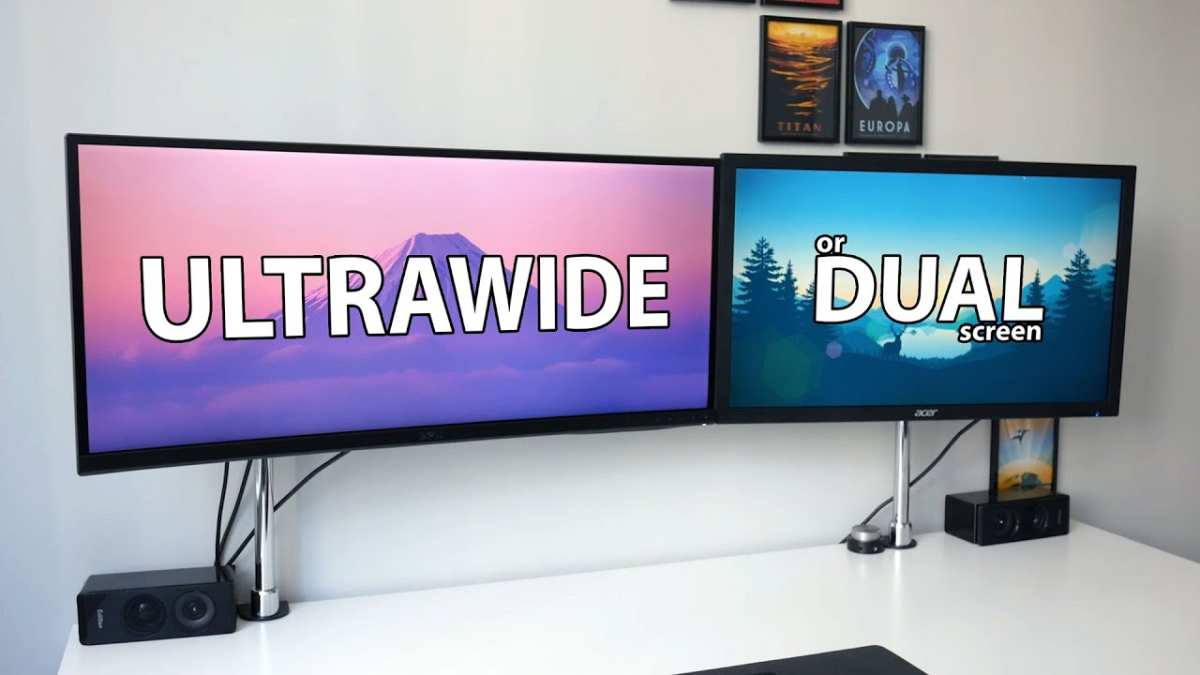
Image source: Bing (Web (fair-use with source credit))
Dual monitors (two 27-inch 1440p screens). Best for people who want clear task separation and flexibility in orientation. You can rotate one to portrait, angle each independently, and replace a single screen if one fails. The downside is the bezel gap and the slightly more complex setup.
Here's how the three main setups compare across key factors:
| Factor | Dual 27" Monitors | Single 34" Ultrawide | Single 32" 4K |
|---|---|---|---|
| Total screen area | Higher | Moderate | Moderate |
| Task separation | Two distinct zones | Virtual zones only | Window snapping required |
| Bezel interruption | Yes, center bezel | None | None |
| Orientation flexibility | One can rotate portrait | Fixed landscape | Fixed landscape |
| GPU demands | Two signal outputs | Single high-bandwidth output | Single high-bandwidth output |
| Portability/replacement | One screen at a time | Entire unit | Entire unit |
| Price (as of 2026) | $400-700 | $500-900 | $350-600 |
Single ultrawide (34-inch 3440×1440). Best for video editors who want a continuous timeline, traders who want a seamless data wall, and anyone who hates bezel gaps. The single cable is simpler. But you lose the ability to rotate one display to portrait, and window management depends entirely on software solutions.
Single large 4K display (32-inch). Best for budget-conscious users and anyone who wants the simplest setup. With a 32-inch 4K screen and good window snapping, you can comfortably run four windows in a two-by-two grid. No bezels, no mismatched colors, no extra cables.
The downside is everything shares one screen. If you full-screen an application, your reference material disappears unless you use virtual desktops.
For most knowledge workers, dual monitors offer the best balance of flexibility, comfort, and cost. Ultrawides appeal to specific workflows. Large single screens work well for minimalists and tight budgets.
Costs, Labels, and What You Actually Need to Spend
You don't need to drop a fortune to get a productive dual setup. A solid pair of 27-inch 1440p IPS monitors will run you $400 to $700 combined as of 2026. Brands like Dell, LG, and ASUS all offer reliable panels in this range with good color accuracy and thin bezels.
If you're on a tighter budget, two 24-inch 1080p monitors can be had for $200 to $300 total. That's enough for coding, writing, and general productivity work. You lose some sharpness and screen real estate, but the workflow benefit of two screens remains.
Don't forget the accessories. A dual monitor arm runs $50 to $150 and pays for itself in desk space and ergonomic flexibility within a week. A decent HDMI or DisplayPort cable is $10 to $15.
If you need a docking station for a laptop, budget $80 to $200 depending on whether you go USB-C or Thunderbolt.
One label worth looking for is TÜV Rheinland certification, which indicates the display meets specific flicker and blue light reduction standards. It's not essential, but it matters if you're staring at screens eight hours a day.
Quick Decision Guide: Should You Go Dual Monitor?
If you've read this far, you're probably close to a decision. Here's a simple framework to finalize it.
Go dual if your work involves constant reference to secondary material while producing primary output. Coding, writing, data analysis, video editing, financial modeling, and design all fall squarely in this camp. If you alt-tab more than a few times per hour, two screens will pay for itself in recovered focus within weeks.
Skip it if your work is primarily single-application, if your desk can't accommodate two screens ergonomically, or if you know your self-control around distractions is shaky. A single large monitor with good window snapping is a smarter move in those cases.
Consider ultrawide instead if you value a seamless display surface for timelines, data walls, or immersive tasks, and you don't need portrait orientation flexibility.
Frequently Asked Questions
Do dual monitors use significantly more power?
A typical 27-inch LED monitor draws 20 to 40 watts under normal use. Two monitors add roughly 40 to 80 watts to your setup. Over a full workday, that translates to less than a dollar per month in most US and UK energy markets.
It's negligible for most people.
Can I use two different sized monitors together?
You can, but it creates friction. Windows and mouse movement feel awkward when crossing between screens of different resolutions and physical sizes. If you must mix sizes, place the larger one as your primary and match the resolution as closely as possible to minimize scaling issues.
Does a dual monitor setup slow down your computer?
Driving two displays requires slightly more GPU memory and processing power. For modern integrated and dedicated graphics, the impact is imperceptible in everyday productivity tasks. Only in GPU-intensive workloads like 3D rendering or gaming across both screens would you notice a meaningful performance hit.
Is a dual monitor setup worth it for gaming?
For gaming, a single high-refresh monitor is almost always the better choice. Some flight sim and racing sim enthusiasts use triple setups for peripheral vision, but standard dual monitor gaming splits your focus and the center bezel sits right where your crosshair should be. Use the second screen for Discord, streaming tools, or system monitoring instead.
How long does it take to adjust to a dual monitor setup?
Most people report feeling comfortable within two to three days. The first day feels disorienting as your muscle memory adapts to the wider field of view. By the end of the first week, going back to a single screen feels noticeably restrictive if your workflow genuinely benefits from the extra space.

Similar Posts































