Is Dual Monitor Setup Good for Video Editing
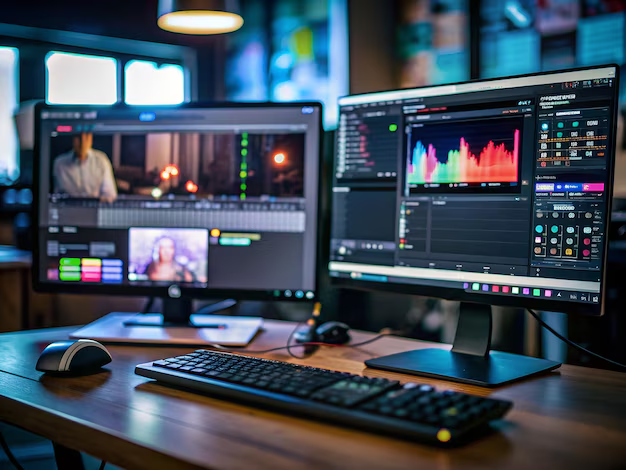
Is dual monitor setup good for video editing? The short answer is yes for most editing workflows, but the real answer depends on what you're editing, which software you use, and whether you can afford matching panels that display color consistently.
Research on multi-monitor productivity shows measurable gains for tasks requiring multiple simultaneous windows. Video editing fits that description perfectly. You've got your timeline, your preview window, your effects controls, your media bins, and often audio meters all competing for screen space.
Spreading those across two displays reduces the constant tabbing and window shuffling that kills your flow.
That said, not every editor needs two monitors. A single high-quality 4K display or an ultrawide might serve you better depending on your specific situation. Let's break down exactly when dual monitors make sense and when they're just extra clutter on your desk.
Image source: Bing (Web (fair-use with source credit))
Quick Answer
A dual monitor setup is good for video editing in most cases. It improves workflow efficiency for professional and semi-professional editors. The benefits depend on your software, project type, and hardware.
A single high-quality monitor may suit beginners or ultrawide users better.
When Dual Monitors Actually Help Video Editing Workflows
Editing Scenarios Where Dual Screens Shine
Dual monitors earn their keep when you're juggling multiple panels simultaneously. If you're doing any of the following, you'll likely see a real improvement in speed and comfort.
- Long-form editing. Documentaries, feature films, and wedding videos mean hours of footage. Having your media browser on one screen and your timeline on the other saves constant window switching.
- Color grading. DaVinci Resolve and Premiere Pro both let you dedicate a full screen to your preview monitor while keeping scopes, nodes, or Lumetri controls on the primary display.
- Motion graphics and VFX work. After Effects users benefit from keeping the composition preview on one screen while the timeline, effects panel, and project browser fill the other.
- Multi-cam editing. When you're cutting between four or more camera angles, a dedicated preview screen for the multi-cam source makes the process far less cramped.
- Audio post-production. If you're doing sound design or mixing alongside picture, a second screen for your audio meters, EQ plugins, and track layout keeps things organized.
- Client sessions. Having a clean output on the second monitor while you work on the primary lets clients see a polished preview without all your interface clutter.
The common thread here is complexity. The more panels your software offers, the more you benefit from spreading them across physical space.
When a Single Monitor Works Fine
Not every editing situation demands dual screens. You can absolutely produce professional work on a single display.
- Short-form content. If you're cutting YouTube videos, TikToks, or social media clips, your timeline is shorter and your effects are simpler. One 4K screen handles that comfortably.
- Beginners still learning. When you're first picking up Premiere Pro or Resolve, adding a second monitor can actually overwhelm you. Master the software on one screen first.
- Laptop-based editing on the go. If you're editing from a coffee shop or traveling, a single portable display makes more sense.
- Budget constraints. If buying a second monitor means getting a cheap, color-inaccurate panel, you're better off with one good display than two mismatched ones.
The key question is whether you're constantly resizing, hiding, and reopening panels. If you're not doing that, you probably don't need a second screen yet.
Workflows That Need More Than Two Displays
Some editors go beyond dual monitors entirely. Color grading suites in post-production houses often use three or more displays.
- One for the grading interface and nodes.
- One for the clean program output.
- One for scopes, waveforms, and vectors.
- Occasionally a fourth for reference material or client viewing.
If you're working in a professional color suite or doing high-end commercial work, dual monitors is actually the minimum, not the ceiling. But for most independent creators and small studios, two screens hits the sweet spot.
The Real Trade-Offs Nobody Talks About
Color Accuracy Across Mismatched Panels
Here's where dual monitor setups get tricky. If your two screens don't match in color reproduction, you're setting yourself up for frustration.
Imagine grading a scene on your primary monitor, then checking it on the secondary display and seeing completely different skin tones. That's what happens when you pair an IPS panel with a TN screen, or a wide-gamut display with a standard sRGB panel.
For color-critical work, you need both monitors to cover the same color gamut. If you're delivering in DCI-P3, both screens should ideally hit at least 95% of that space. For Rec. 709 work, same principle applies.
Matching panels means buying the same model, or at minimum the same panel technology and factory calibration level. Two different monitors from different product lines will almost certainly look different out of the box.
Desk Space and Physical Setup Reality
Two 27-inch monitors take up a significant chunk of desk real estate. You're looking at roughly 48 inches of width plus the stands.
Before you commit, measure your desk. You need enough depth to position both screens at a comfortable viewing distance, typically 24 to 32 inches from your eyes. Shallow desks force you to sit too close, which causes eye strain and makes it hard to see both displays without turning your head excessively.
VESA monitor arms free up desk space and give you much more flexibility for positioning. They let you angle the screens inward in a slight V-shape, which reduces neck rotation compared to having two flat panels side by side.
GPU and Hardware Limitations
Driving two displays requires GPU outputs. Most modern GPUs support at least three monitors, but you need to check your specific card's outputs and maximum resolution per display.
Running two 4K displays at 60Hz requires either DisplayPort 1.4 or HDMI 2.1 connections. Older GPUs might cap one screen at 30Hz if you're using HDMI 1.4, which makes editing feel sluggish.
VRAM matters too. Each frame buffer consumes memory, and two high-resolution displays eat more VRAM than one. If your GPU has less than 8GB of VRAM, you might notice playback stuttering when both screens are active with high-resolution timelines.
| Factor | Single Monitor | Dual Monitor |
|---|---|---|
| GPU output requirement | 1 | 2 minimum |
| VRAM usage | Lower | Higher |
| Power consumption | ~30-50W | ~60-100W |
| Desk space needed | ~24 inches wide | ~48 inches wide |
| Calibration maintenance | One display | Two displays |
Dual Monitor vs. Ultrawide: Which Setup Fits Your Editing Style?
This is the comparison most editors actually wrestle with. Both setups give you more screen real estate, but they deliver it differently.
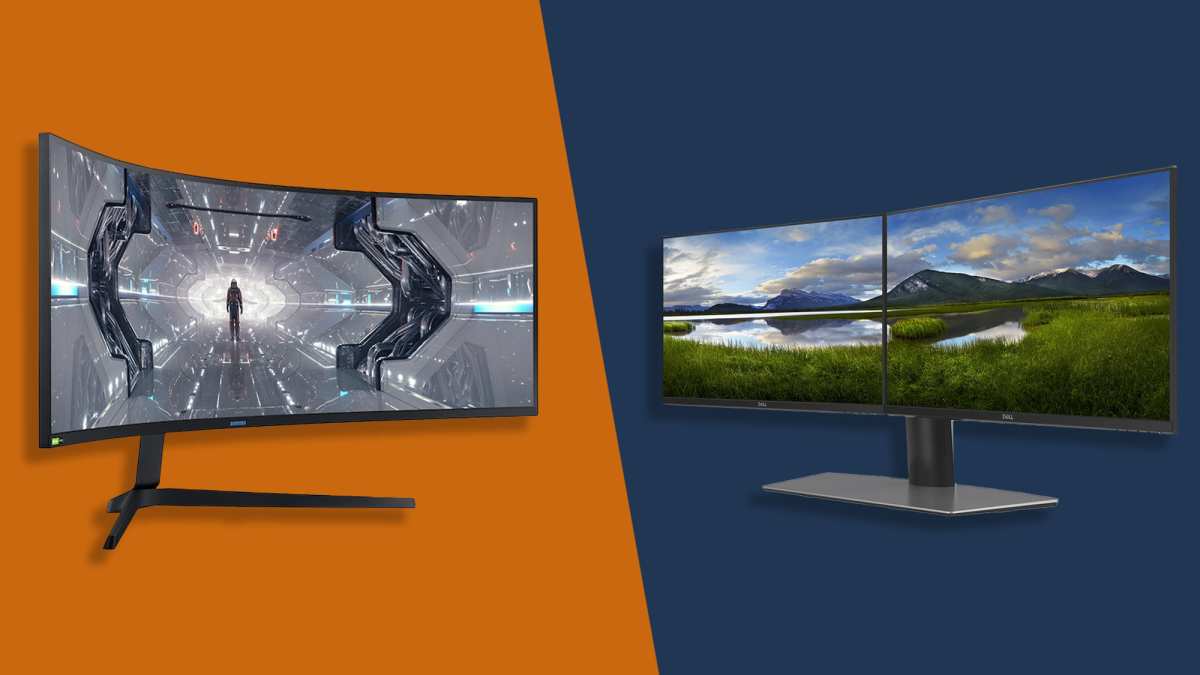
Image source: Bing (Web (fair-use with source credit))
Side-by-Side Comparison
| Feature | Dual Monitor | Ultrawide (21:9 or 32:9) |
|---|---|---|
| Total screen area | Two separate panels | One continuous panel |
| Bezel in the middle | Yes, always | No |
| Window management | OS-level snapping | Software-based splitting |
| Color consistency | Requires matching panels | Inherently consistent |
| Full-screen preview | Clean on one screen | Requires software windowing |
| Cost | Two monitors + cables | One premium monitor |
| Flexibility | Can mix sizes/resolutions | Single fixed resolution |
| GPU load | Two outputs needed | One output, high resolution |
| Portability | Heavier, more cables | Single unit |
Best Choice by Editor Type
Choose dual monitors if:
- You need a dedicated full-screen preview monitor for color grading.
- You work in software that benefits from completely separate workspace areas (After Effects, Resolve).
- You want the flexibility to upgrade one screen independently.
- You do client sessions and need a clean output display.
Choose an ultrawide if:
- You hate bezels interrupting your view.
- You work primarily in a single NLE with a straightforward layout.
- You value color consistency without calibration headaches across panels.
- Your desk space is limited but you still want horizontal room.
Choose a single large 4K display if:
- You're editing short-form content.
- You're on a tight budget and want the best single-panel quality.
- You don't need to see multiple panels simultaneously.
The honest truth is that both setups work well. The "right" choice comes down to whether you prioritize a clean, uninterrupted viewing experience or the flexibility of physically separate workspaces.
How to Choose: Decision Guide Based on Your Situation
Questions to Ask Yourself
Before spending money, run through these questions honestly.
- What software do you use most? Premiere Pro, Resolve, and After Effects all handle multi-monitor setups well. Final Cut Pro is more limited in its multi-monitor support on macOS.
- What's your project complexity? Simple cuts with minimal effects? One screen probably suffices. Complex timelines with color grading, audio mixing, and effects? Two screens will help.
- Can you afford matching panels? If your budget only covers one good monitor and one cheap one, the color mismatch will cause more problems than the extra screen solves.
- Do you have the desk space? Measure before you buy. Two 27-inch monitors need at least 50 inches of desk width for comfortable use.
- What's your GPU situation? Check your graphics card's outputs and maximum supported resolution across multiple displays.
Decision Matrix
| Your Situation | Recommendation |
|---|---|
| Professional colorist | Dual matched monitors or reference + GUI display |
| YouTuber / content creator | Single 4K or ultrawide |
| After Effects artist | Dual monitors (preview + panels) |
| Documentary editor | Dual monitors (bins + timeline) |
| Beginner learning NLE | Single good monitor, upgrade later |
| Freelance generalist | Dual monitors for versatility |
| Budget under $400 total | Single quality monitor over two cheap ones |
| Client-facing studio | Dual monitors with clean preview output |
The pattern is clear. The more complex your workflow and the more panels your software uses, the more a dual monitor setup pays off. Simple workflows on a single screen are perfectly fine.
Don't let anyone tell you that you "need" two monitors just because you edit video.
Setting Up Dual Monitors for Video Editing: What Actually Matters
Resolution and Panel Type Matching
Mismatched resolutions between two screens cause real headaches. Dragging a window from a 4K display to a 1080p panel forces the OS to rescale everything. Text and UI elements can look blurry or oddly sized on the lower-resolution screen.
For the smoothest experience, run both monitors at the same resolution. If that's not possible, Windows 11 and macOS handle per-display scaling better than they used to, but you'll still notice some inconsistency at the boundary.
Panel technology matters just as much. IPS panels offer consistent color and wide viewing angles, which matters when you're glancing at your secondary screen while editing. TN panels shift colors when viewed off-axis, making them poor choices for any color-aware work.
If you're grading color on your primary screen, that display should be IPS or OLED with hardware calibration support. The secondary screen can be more modest since it's mainly hosting bins, timelines, and effects panels.
Calibration Across Multiple Displays
Every monitor drifts over time. Backlights age, colors shift, and what looked accurate six months ago may look warm or green today.
For dual monitor setups, you want both screens targeting the same standard. If you're working in Rec. 709, calibrate both displays to that same gamma and white point. A hardware calibrator like the Calibrite Display Plus or X-Rite i1Display Pro handles this.
Operating system display settings let you load ICC profiles for each screen. Windows and macOS both support per-display profiles. However, not all software respects these profiles equally.
Professional NLEs like DaVinci Resolve have their own internal color management that can override system profiles.
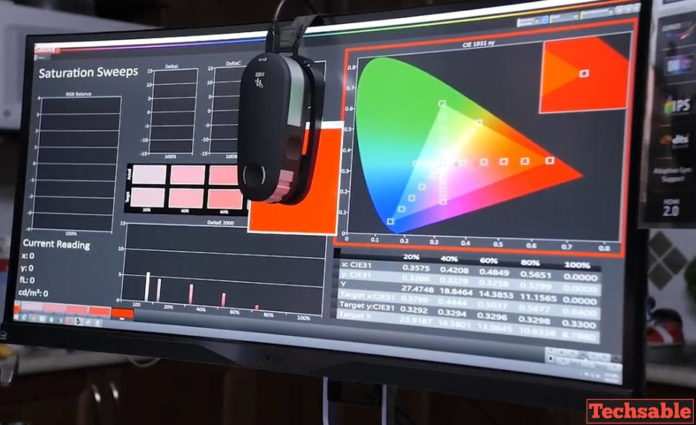
Image source: Bing (Web (fair-source with source credit))
Connectivity and GPU Requirements
Check your available GPU outputs before buying cables and monitors. DisplayPort 1.4 supports 4K at 60Hz with a single cable. HDMI 2.1 does the same.
Older HDMI 2.0 tops out at 4K 30Hz, which feels laggy for editing.
Most modern GPUs support three or four displays simultaneously. But running two 4K screens plus a laptop panel might exceed your GPU's total bandwidth capacity. Check the manufacturer specs for maximum total resolution across all outputs.
For laptop users, a docking station with DisplayPort Alt Mode over USB-C simplifies connectivity. Not all docks support dual 4K output though. Verify the dock's maximum resolution per display before buying.
Ergonomic Positioning
Physical setup affects your neck and more than people realize. The primary monitor should sit directly in front of you at arm's length. The secondary screen goes to the side, angled inward about 15 to 30 degrees.
Your eyes should naturally land on the top third of the primary display. Having a monitor too low forces you to tilt your head forward, causing neck and upper back tension during long editing sessions.
Dual monitor arms make positioning much easier. They let you adjust height, tilt, and rotation independently for each screen. VESA 100×100 mount patterns are standard on most monitors 27 inches and above.
Software-Specific Multi-Monitor Workspaces
Each NLE handles multi-monitor setups differently. Some give you granular control, while others limit where you can place panels.
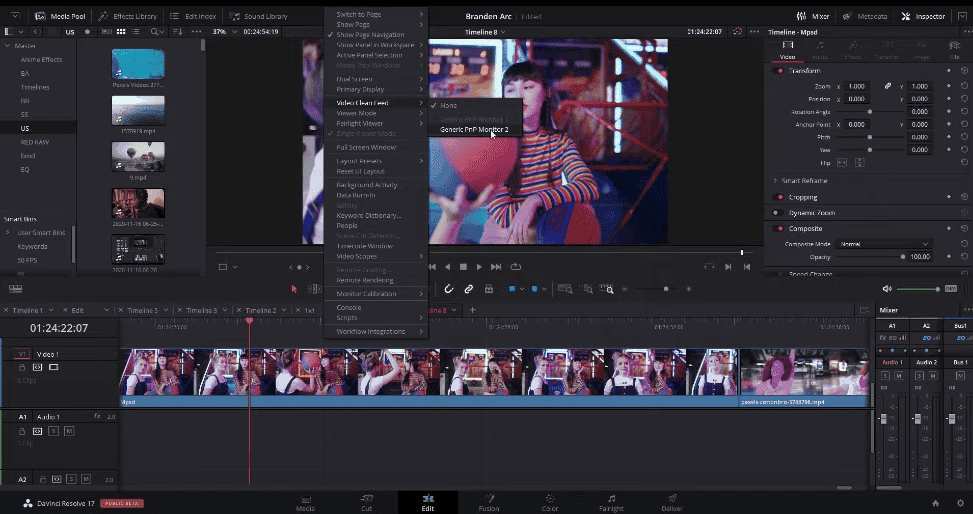
Image source: Bing (Web (fair-use with source credit))
Adobe Premiere Pro
Premiere Pro offers solid multi-monitor support through its workspace system. You can drag any panel to your secondary display and save that layout as a custom workspace.
Create one workspace with the timeline and bins on the primary screen, and the program monitor, Lumetri Color, and Essential Graphics on the secondary. Save a second arrangement for assembly or rough-cut phases where timeline real estate matters more.
Premiere's reference monitor feature lets you output a clean signal to a third display through your GPU. This is useful for client review without the editing interface visible.
DaVinci Resolve
Resolve arguably offers the best multi-monitor support among professional NLEs. The dedicated Video Clean Feed option outputs a full-screen preview to your secondary display.
In color grading workflows, one screen holds your node graph, curves, and qualifier settings while the other shows the graded output at full resolution. Resolve also supports multiple viewers on a single screen for A/B comparisons, but spreading them across two displays is cleaner.
The Studio version adds more output options, including the ability to send different viewer content to each screen simultaneously.
Final Cut Pro (macOS)
Apple's Final Cut Pro has limited multi-monitor support compared to Premiere and Resolve. The interface is designed around a single-window layout with a secondary Viewer window that can be sent to another display.
You can float the Browser, Timeline, or Viewer to a separate screen. But FCP's magnetic timeline and single-window philosophy mean you may not gain as much from dual monitors as you would in other software.
macOS Stage Manager and Spaces add complexity. Sometimes panels get lost when switching between virtual desktops. Keep your secondary display assignments consistent to avoid confusion.
Avid Media Composer
Avid has supported multi-monitor setups for years, though its interface design assumes a traditional editing room layout. The Timeline and Composer windows can live on separate screens.
Avid's Trim Mode benefits from dedicated preview displays, especially for fine-tuning edit points. Professional post houses often pair Avid with client reference monitors connected through I/O hardware like AJA or Blackmagic devices rather than relying on the GPU outputs.
Common Mistakes That Ruin Dual Monitor Editing Setups
The "Good Enough" Calibration Trap
Skipping calibration is the most common mistake. You assume both monitors look fine out of the box. They probably don't.
Factory calibration varies wildly between units, even within the same model line. One screen might run cool while the same model runs warm. Without calibration, you're making color decisions based on inaccurate preview.
Calibrate both screens at least once a month if you're doing color-critical work. Set calendar reminders. It takes 15 minutes and prevents costly mistakes.
Ignoring Scaling and Resolution Mismatches
Mixing a 4K primary screen with a 1080p secondary causes scaling headaches. Windows snaps UI elements between screens. Text may look crisp on one display and soft on the other.
Some applications don't handle per-display scaling well, resulting in blurry text or oversized interface elements on one screen. Research your primary application's scaling behavior before committing to a mixed-resolution setup.
The safest approach is matching resolution across both displays. If that's not possible, set scaling percentages to achieve similar effective screen real estate on each panel.
Poor Monitor Placement Causing Neck Strain
Placing the secondary monitor too far to the side forces constant neck rotation. Over hours of editing, this adds up to genuine discomfort.
Both displays should sit within your natural field of vision. If you're turning your head more than about 30 degrees to see the secondary screen, the setup needs adjustment.
Your forearms should reach the keyboard comfortably without leaning toward either monitor. Lean too far left or right for hours and your thoracic spine will let you know about it.
Forgetting About Audio Monitoring Space
Not every editing space accommodates dual monitors and quality audio monitoring. If you're adding speakers, subwoofers, or acoustic panels, two large displays eat into room space fast.
Consider how your speakers will sit relative to your listening position. Nearfield monitors need proper stands or isolation pads. All of this competes for desk and room real estate with your new dual screen setup.
Plan your entire workstation layout before buying. Sketch it out. Measure twice.
Your back, neck, and ears will thank you later.
Cost Breakdown: What You'll Actually Spend
Budget Setup Range
For roughly $400 to $600, you can get a capable dual monitor editing setup. Two 27-inch IPS panels at 1440p with decent factory calibration run about $200 to $300 each from brands like Dell UltraSharp or ASUS ProArt entry-level lines.
Add a basic monitor arm for around $50 to $80. Cables add another $20 to $40. A basic colorimeter like the Calibrite Display checker runs about $130.
This tier handles YouTube and short-form content editing perfectly. Color accuracy won't match professional reference monitors, but it's solid work for the price.
Professional Setup Range
Professional setups start around $2,000 and climb quickly. A single high-end editing monitor like an Eizo CG2700X or ASUS ProArt PA32UCG costs $1,500 to $4,000. Multiply by two for a matched pair.
Professional reference monitors for color grading run $3,000 to $30,000 per display. Broadcast and cinema work demands Eizo ColorEdge CG series or Sony BVM HDR monitors.
Hardware calibration tools capable of profiling wide-gamet displays run $250 to $500. Monitor arms rated for heavy professional displays cost $150 to $300 each.
Hidden Costs Most People Forget
Cables matter more than you'd expect. Cheap HDMI or DisplayPort cables may not sustain 4K 60Hz signals reliably. Certified cables cost $15 to $30 each and save hours of troubleshooting.
Electricity usage increases with two monitors. Two screens plus a workstation PC add roughly 100 to 200 watts to your system load. Over a year of daily use, that's noticeable on your power bill.
Your time spent calibrating, troubleshooting display issues, and managing window layouts across two screens has real value. Factor that into the decision, not just the purchase price.

Similar Posts































