Can Dual Monitors Reduce Eye Strain
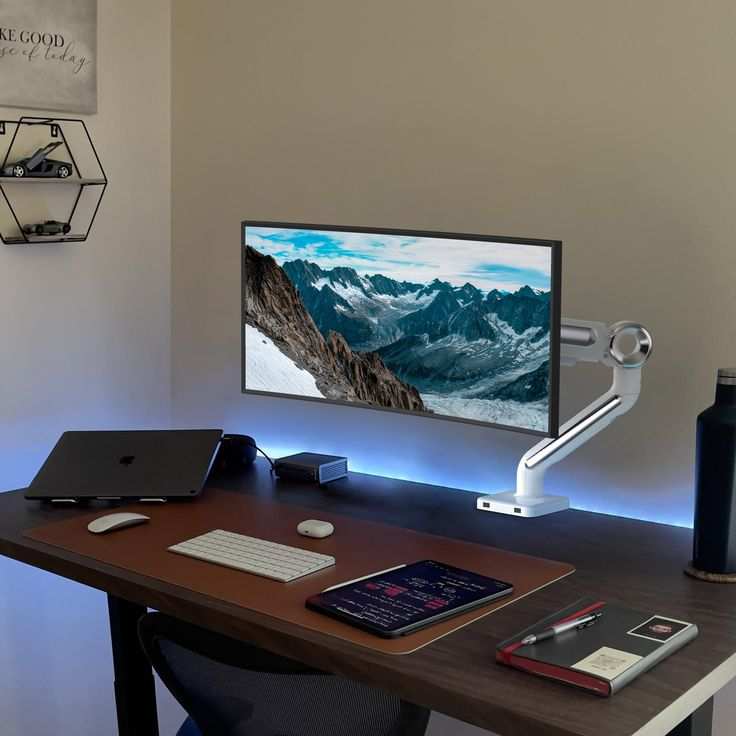
Can dual monitors reduce eye strain? It's one of those questions that sounds like it should have a simple yes-or-no answer, but the reality is more nuanced. The truth is that a dual monitor setup can either be a relief for your eyes or a recipe for headaches, and which one you get depends almost entirely on how you configure them.
Research on digital eye strain (also called computer vision syndrome) shows that screen setup, ambient lighting, and usage habits matter far more than the raw number of displays. The American Optometric Association notes that prolonged computer use affects the majority of workers, and ergonomic positioning is a key factor in reducing symptoms. So let's walk through exactly when dual monitors help, when they hurt, and how to make the right call for your situation.

Image source: Wikimedia Commons / Mack Male from Edmonton, AB, Canada (CC BY-SA)
Quick Answer
Dual monitors can reduce eye strain if they are positioned correctly and matched for brightness. They help by reducing window switching and allowing more comfortable text sizes. However, poor setup often makes eye strain worse.
The deciding factors are screen distance, brightness consistency, and room lighting.
Why Dual Monitors Can Help (or Hurt) Your Eyes
The relationship between dual monitors and eye strain isn't straightforward. Two screens introduce twice the potential for glare, flicker, and poor positioning. But they also spread your workload across a wider field of view, which can reduce the repetitive squinting and window-juggling that cause fatigue.
Think of it this way. A dual monitor setup is a tool. Used well, it reduces the micro-stressors that add up over a workday.
Used poorly, it doubles them.
When dual monitors actually reduce eye strain
You're more likely to benefit from dual monitors if your work involves constant context switching. Programmers, video editors, financial analysts, and researchers often keep reference material on one screen and active work on the other. This eliminates the need to resize, minimize, and maximize windows repeatedly throughout the day.
Here's what helps:
- Less zooming and scrolling. Spread content across two screens means you can view documents, code, or spreadsheets at readable sizes without constant adjustment.
- Reduced alt-tabbing. The cognitive and visual disruption of switching between overlapping windows adds up. Two screens let you keep everything visible.
- Better posture. When set up correctly, dual monitors encourage a more natural head position instead of craning forward to squish multiple windows onto one display.
- Lower brightness per screen. Because you're not cramming everything into one panel, you can run each screen at a moderate brightness level rather than maxing one out.
When dual monitors make eye strain worse
The problems start when the setup itself creates new stressors. Mismatched panels, bad positioning, and poor lighting turn two screens into a double headache, sometimes literally.
Watch out for these issues:
- Mismatched brightness. If one screen is noticeably brighter than the other, your eyes constantly readjust when you look back and forth. This alone can cause significant fatigue.
- Glare stacking. Two screens mean two reflective surfaces. Overhead lights or windows that wouldn't bother you with one monitor can create compound glare with two.
- One screen too close or too far. If your setup has one monitor at arm's length and the other pushed back against a wall, your eyes are constantly refocusing at different distances.
- Neck strain masquerading as eye strain. When screens are angled poorly, you turn your head repeatedly. The resulting tension often feels like eye fatigue even though the root cause is musculoskeletal.
The 5 Setup Variables That Decide Everything
Whether dual monitors help or hurt your eyes comes down to five specific factors. Get these right and you'll likely feel the benefits. Get them wrong and you'll wonder why your eyes are burning by lunch.
Screen distance and positioning
The standard recommendation is to place your monitors at arm's length, roughly 20 to 26 inches from your eyes. The top of each screen should sit at or just below eye level, with a slight backward tilt of about 10 to 20 degrees.
For a dual setup, both monitors need to follow this rule. The primary screen goes directly in front of you. The secondary screen sits to one side, angled inward so you can view it with a small head turn rather than twisting your neck.
If you use two monitors equally, center the bezel between them directly in front of you. This way both screens are equidistant and your eyes don't have to refocus when switching between them.
Image source: Bing (Web (fair-use with source credit))
Brightness matching between panels
This is the single most overlooked factor. When two screens sit side by side at different brightness levels, your pupils constrict and dilate with every glance. Over hours, this constant adjustment causes real fatigue.
Manufacturer specifications for flicker-free displays and blue light filters vary significantly between models. Two monitors from different brands, or even different product lines from the same brand, can look noticeably different at the same brightness setting.
Here's a quick matching method:
- Open a blank white document on both screens.
- Set both to the same brightness percentage.
- Step back and compare. If one looks noticeably brighter or warmer, adjust until they match.
- Also match the color temperature. If one screen has a blue light filter enabled and the other doesn't, they'll never look consistent.
If your monitors support automatic brightness adjustment via an ambient light sensor, enable it on both. This helps maintain consistency as room lighting changes throughout the day.
Panel type and blue light output
Not all screens are created equal. IPS panels typically offer wider viewing angles than TN panels, which matters when one monitor sits off to the side. VA panels have better contrast but can exhibit color shift at angles.
Blue light output also varies between panel types and manufacturers. Blue light in the 400 to 495 nanometer wavelength range has been studied for its potential to disrupt sleep cycles and contribute to eye fatigue. The ICNIRP (International Commission on Non-Ionizing Radiation Protection) provides guidelines on exposure limits, though typical monitor output falls well below harmful levels.
What matters practically is this: if you're adding a second monitor, try to match the panel type and age of your existing one. Mixing a new high-brightness IPS panel with an older dim TN panel is a recipe for mismatched output.
Room lighting and glare
Your room's lighting environment affects dual monitors more than a single setup. Two screens create more surface area for reflections, and overhead fluorescents or uncovered windows can produce glare on both panels simultaneously.
Ideal room lighting for dual monitors:
- Indirect light. Bounce light off walls or use desk lamps with diffusers rather than bare bulbs in your line of sight.
- No windows directly behind or in front of you. Side-facing windows produce the least glare on screens.
- Moderate ambient brightness. Your screen brightness should roughly match the light level in the room. A bright screen in a dark room forces your eyes to adapt constantly.
If you can't control overhead lighting, consider monitors with matte anti-glare coatings rather than glossy screens. The trade-off is slightly less vivid colors, but the reduction in reflections is usually worth it for long work sessions.
How you actually use the screens
This variable is personal and often ignored. Someone who uses both monitors equally throughout the day needs a symmetrical setup. Someone who uses 80% of the time on one screen and glances at the other occasionally can get away with an asymmetric arrangement.
Ask yourself:
- Do I read long documents or code on both screens, or is one mainly for email and chat?
- Do I move my head frequently between screens, or mostly just my eyes?
- Am I working in dim conditions or bright daylight?
Your answers determine whether you need perfect symmetry or can tolerate some asymmetry in your setup.
Decision Guide: Should You Use Dual Monitors?
This is where we get practical. The right answer depends on your specific situation, not on general advice. Below is a decision framework based on the variables we've covered.
You'll probably benefit if…
- Your work requires frequent reference to multiple documents or applications simultaneously.
- You currently spend a lot of time alt-tabbing, resizing windows, or squinting at small text on a single screen.
- You can position both monitors at the same distance and height, angled inward.
- You can match brightness and color temperature between panels.
- Your room has controllable lighting or at least no direct glare sources.
You'll probably struggle if…
- Your desk is too shallow to place both monitors at the proper distance.
- You're adding a mismatched second monitor with different panel type, brightness, or color characteristics.
- Your workspace has harsh overhead lighting or a window directly behind you.
- You already experience significant eye strain, dry eyes, or headaches with a single monitor.
- You tend to hunch forward or crane your neck when working.
The middle ground: it depends on these fixes
Many people fall into a gray area. They could benefit from dual monitors but need to address a few things first. Here's a quick checklist:
| Issue | Fix |
|---|---|
| Mismatched brightness | Manually calibrate both screens using a white reference image |
| Glare on both screens | Add an anti-glare filter or reposition to avoid light sources |
| Desk too shallow | Use a monitor arm to free up depth and improve positioning |
| One screen too far | Move both monitors to the same distance; use a dual monitor arm |
| Neck strain from turning | Center the bezel gap for equal-use setups; angle screens inward |
| Dry eyes in screen light | Follow the 20-20-20 rule and use artificial tears if needed |
If you can fix at least three of the issues in your "problem" column, a dual monitor setup will likely reduce your eye strain rather than increase it.
How to Set Up Dual Monitors for Minimum Eye Strain
If you've decided dual monitors make sense for your workflow, here's a step-by-step process to set them up in a way that protects your eyes.
Step 1: Position both screens at the right distance and height
Place your primary monitor directly in front of you, about 20 to 26 inches away. The top edge of the screen should be at or slightly below eye level. Position the secondary monitor at the same distance and height, angled inward about 15 to 20 degrees.
A dual monitor arm makes this much easier than using the stock stands. It lets you adjust height, tilt, and angle independently for each screen while freeing up desk space.
Step 2: Match brightness and color temperature
Open a plain white webpage or document on both screens. Adjust brightness on each monitor until they look equally bright to your eyes. Then match the color temperature.
If one screen looks warmer or cooler than the other, adjust the color settings in the monitor's on-screen display menu.
If your monitors support a "reading" or "low blue light" mode, enable it on both. This reduces blue light output and makes the screens easier on your eyes during long sessions.

Image source: Wikimedia Commons / USGS Bee Inventory and Monitoring Lab from Beltsville, Maryland, USA
Step 3: Fix your room lighting
Eliminate direct light sources that reflect on your screens. If you have overhead fluorescents, try using a desk lamp with a warm, diffused bulb instead. Close blinds or curtains if sunlight hits your monitors.
Aim for a room brightness that's roughly comparable to your screen brightness. If your screens look like light sources in the room, they're too bright. If they look dim and washed out, they're too dim.
Step 4: Adjust text size and scaling
One advantage of dual monitors is that you can spread content out. Take advantage of it. Increase text scaling in your operating system so you're not squinting.
On Windows, go to Settings > Display and set scaling to 125% or higher if needed. On macOS, use the Display settings to adjust resolution and scaling.
Larger text means less leaning in, which means less eye strain and less neck strain.
Step 5: Build break habits into your workflow
No monitor setup eliminates eye strain entirely. The 20-20-20 rule is the most widely recommended guideline: every 20 minutes, look at something 20 feet away for at least 20 seconds. This lets the focusing muscles in your eyes relax.
Also remember to blink. Studies show that blinking rate drops by roughly 66% during screen use, which contributes to dry eyes. Keep artificial tears handy if your eyes feel dry by mid-afternoon.
Single Ultrawide vs Dual Monitors: Which Is Easier on Your Eyes?
This is a common comparison, and the answer isn't as clear as you might think. A single ultrawide monitor (typically 34 to 38 inches with a 21:9 aspect ratio) gives you the screen real estate of two monitors without a bezel gap in the middle.
Ultrawide advantages for eye strain:
- No bezel gap means no visual interruption between content areas.
- One panel to calibrate, so brightness and color are uniform across the entire display.
- Fewer cables and less desk clutter, which can simplify positioning.
Dual monitor advantages for eye strain:
- You can angle each screen independently, which can be more comfortable for your neck.
- If one screen fails, you still have a working display.
- You can mix and match panel types or keep one screen in portrait mode for documents.
The verdict: If your priority is minimizing eye strain and you want the simplest setup, a single ultrawide is often the cleaner choice. If you need flexibility in positioning or want to dedicate one screen to a specific task, dual monitors work just as well as long as you follow the setup guidelines above.
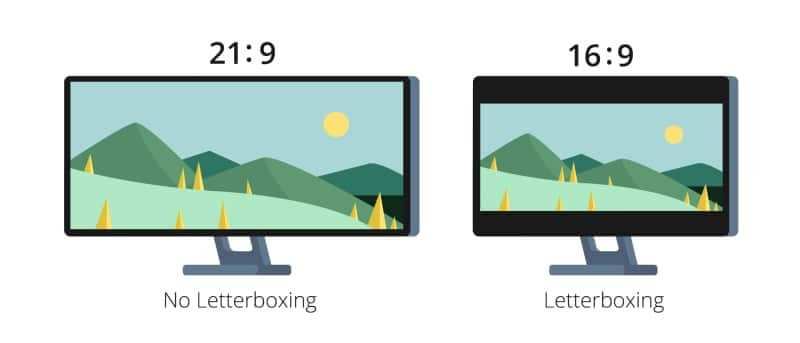
Image source: Bing (Web (fair-use with source credit))
Common Mistakes That Cause Eye Strain With Dual Monitors
Even people who know better sometimes fall into these traps. Here are the most frequent mistakes we see:
- Placing one monitor flat against the wall and one close to the face. This forces your eyes to constantly refocus between near and far distances. Both screens should be at the same distance.
- Ignoring the bezel gap position. If you use both monitors equally, the seam between them should be centered in front of you. Off-center placement forces constant head turning.
- Running one screen in night mode and the other in standard mode. The color difference is jarring and makes your eyes work harder to adjust.
- Using the stock stands without adjustment. Most stock stands don't allow proper height or angle adjustment. A monitor arm is a worthwhile investment.
- Skipping regular eye exams. If you're experiencing persistent eye strain with any monitor setup, the problem might be an uncorrected vision issue rather than a setup problem.
What the Research Actually Says
The American Optometric Association recognizes computer vision syndrome as a widespread condition affecting people who spend extended periods in front of screens. Their guidance emphasizes proper viewing distance, screen positioning, and regular breaks as primary interventions.
Studies published in optometry and ophthalmology journals consistently find that ergonomic interventions, including proper monitor positioning and scheduled breaks, reduce symptoms of digital eye strain. However, there is limited research specifically isolating dual monitor setups as a variable. Most studies focus on total screen time and viewing distance rather than the number of displays.
What we can say with confidence is this: the factors that reduce eye strain with a single monitor (proper distance, matched brightness, good lighting, regular breaks) apply equally to dual monitors. The second screen doesn't inherently help or hurt. It's the quality of the setup that determines the outcome.
When to See an Eye Doctor
If you've optimized your dual monitor setup and still experience persistent symptoms, it's time to see an optometrist. Warning signs that go beyond normal screen fatigue include:
- Blurred vision that doesn't clear when you look away from the screen.
- Double vision, even briefly.
- Frequent headaches that correlate with screen use.
- Eye pain, redness, or dryness that doesn't improve with breaks or artificial tears.
- Difficulty focusing when switching between near and far objects.
These symptoms could indicate an underlying vision problem such as uncorrected astigmatism, convergence insufficiency, or accommodative dysfunction. An eye exam can identify these issues and provide targeted treatment, including computer-specific prescription lenses.
Frequently Asked Questions
Do blue light filters help with dual monitors?
Blue light filters reduce the amount of short-wavelength light reaching your eyes, which may help with sleep quality and comfort during long sessions. Enable the filter on both monitors for consistent results. The effect on eye strain specifically is modest, but many users report subjective improvement.
Is a dual monitor setup bad for your eyes if you already have glasses?
Not necessarily. If your glasses prescription is current and correct, a properly set up dual monitor arrangement should not cause additional strain. If you wear single-vision distance glasses, you may find that computer-specific lenses with an intermediate focal length are more comfortable.
How far should dual monitors be from your eyes?
The recommended distance is 20 to 26 inches (about 50 to 65 centimeters) from your eyes to the screen surface. Both monitors should be at the same distance. If you use a monitor arm, achieving this is much easier than with fixed stands.
Does screen resolution matter for eye strain?
Higher resolution displays (1440p or 4K) can render text more sharply, which may reduce the effort required to read. However, if scaling is not properly configured, higher resolution can make text too small, causing you to lean in. Always adjust scaling so text is comfortable to read at your chosen distance.
Can dual monitors cause headaches?
Yes, if the setup creates mismatched brightness, glare, or forces you to turn your head repeatedly. Headaches from dual monitors are almost always a setup problem rather than an inherent issue with two screens. Fixing positioning, brightness, and lighting usually resolves the problem.
Is it better to use one large monitor or two smaller ones for eye health?
From a pure eye-strain perspective, either works as long as the setup follows ergonomic guidelines. A single ultrawide eliminates the bezel gap and simplifies calibration. Dual monitors offer more positioning flexibility.
Choose based on your workflow and desk space.
Costs and Pricing: What You'll Actually Spend
A decent dual monitor setup doesn't have to break the bank, but cutting corners on the wrong specs will cost you in eye comfort. As of 2026, a solid pair of 27-inch IPS monitors with flicker-free backlighting and blue light filters runs between $300 and $600 total. Stepping up to higher resolution or professional-grade panels pushes that to $800 or more.
The real investment is often the monitor arm. A quality dual-arm mount costs $60 to $200 and makes proper positioning far easier than stock stands. It's worth every penny if you're spending six or more hours a day in front of these screens.
Expert Tips for Long-Term Eye Comfort
Beyond the basics, a few lesser-known adjustments make a real difference over months and years of daily use.
- Enable dark mode where possible. Light backgrounds emit more light overall. Dark mode reduces total light output and many users find it easier on the eyes during evening work.
- Keep your screens clean. Dust and smudges reduce clarity and make your eyes work harder to read text. A microfiber cloth and screen-safe cleaner once a week is all it takes.
- Consider bias lighting. Placing a soft LED strip behind your monitors reduces the contrast between the bright screen and the dark wall behind it. This lowers the strain from your pupils constantly adjusting.
- Set a consistent sleep schedule. Blue light from screens in the evening can suppress melatonin production. Reducing screen brightness and enabling night mode after dinner helps maintain your circadian rhythm.
Maintenance and Long-Term Optimization
Your setup isn't "set it and forget it." Room lighting changes with the seasons. Monitors age and their brightness shifts over time. Your own vision can change without you noticing.
Revisit your setup every few months. Re-check brightness matching between panels. Reassess whether your viewing distance has crept closer as your desk got cluttered.
If you notice new symptoms, don't assume it's just stress. It might be time for an eye exam or a small adjustment to your display settings.
The best dual monitor setup is one you maintain. Small tweaks over time keep your eyes comfortable and your productivity high.

Similar Posts































