Are Curved Monitors Good for Dual Setup
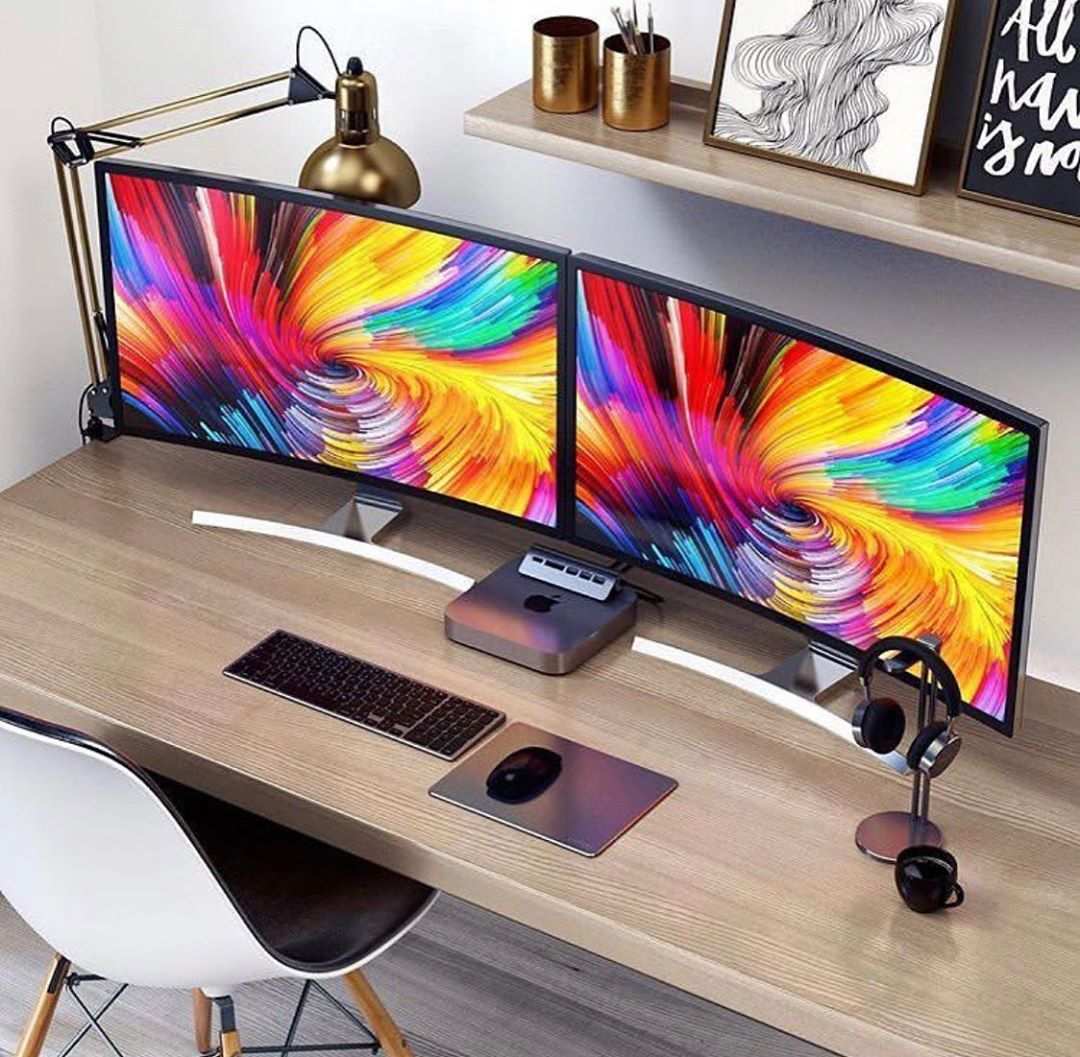
Talk to enough people who've tried running two curved monitors side by side, and you'll hear wildly different opinions. Some say it's the most comfortable setup they've ever used. Others say the bezels never line up right and they wasted their money.
The truth sits somewhere between those two extremes, and where it lands depends almost entirely on how you plan to use the setup.
Curved monitors are good for dual setup when you're replacing two flat panels with a single ultrawide curved display, or when you pair one curved primary with a flat secondary. They're less practical if you're mounting two curved panels bezel-to-bezel and expecting a seamless experience. Let's break down exactly when this works and when it doesn't.
Quick Answer
Yes and no. It depends on your exact configuration.
A single curved ultrawide replacing two flat monitors works well for most people. Two curved panels side by side introduce alignment and bezel challenges. A curved primary with a flat secondary hybrid setup is often the best middle ground.
Image source: Bing (Web)
What People Actually Mean by "Curved + Dual Setup"
This question shows up in forums, subreddits, and comment sections constantly, and it's almost always ambiguous. That's because "dual curved setup" can mean three completely different things. Before we can answer whether it's good or bad, we need to nail down the actual configuration people are asking about.
Here are the three scenarios that come up most often in discussions and reviews you'll find:
The single ultrawide replacement. Instead of running two separate 27-inch monitors, you buy one 34-inch or 49-inch curved ultrawide and treat it as your entire display. You're not technically running "dual" monitors anymore, but you're getting equivalent screen real estate in one panel. This is what most people end up meaning when they say they want "dual" functionality from a curved screen.
Two curved monitors side by side. You buy two curved panels, mount them next to each other on a dual arm or desktop stand, and run them as an extended desktop. This is the literal interpretation, and it's where most of the frustration comes from. The bezels don't curve together, the alignment feels off, and you end up with a visible gap that bothers you more than you expected.
Curved primary + flat secondary hybrid. You run one curved monitor as your main display (usually ultrawide) and a flat monitor in portrait or landscape as a secondary. This is the configuration that most experienced users land on after experimenting, because it plays to the strengths of each panel type.
Each of these setups behaves differently. The answer to "are curved monitors good for dual setup" changes depending on which one you're actually planning.
When Curved Monitors Work in a Dual Setup
Not every dual curved configuration is a bad idea. In fact, some scenarios are genuinely better than the flat-panel equivalents. The key is matching the curve to the use case and understanding what the curved panel is actually solving for you.
The Single Ultrawide Replacement (One Curved, No Second Screen)
This is the scenario where curved monitors shine. You take one 34-inch 21:9 ultrawide, or a 49-inch 32:9 super ultrawide, and you use it as your sole display. No second monitor.
No bezel in the middle. Just one continuous curved panel wrapping slightly around your field of view.
This works particularly well for several reasons. The curvature at standard desk viewing distances (roughly 24 to 36 inches) means your eyes maintain a more consistent focal distance across the entire screen. On a flat ultrawide, the edges are physically farther from your eyes than the center.
A curve pulls those edges closer, which reduces the refocusing your eyes have to do as they scan across.
Manufacturers like Samsung, Dell, and LG have leaned heavily into this category. Samsung's Odyssey G9 line (49-inch, 1000R curve) and Dell's U4025QW (40-inch curved, 2400R ultrawide) are designed specifically for this single-panel-replaces-dual use case. They include built-in picture-by-picture modes that let you split the screen into virtual zones, mimicking the window management of two separate monitors.
The main limitation is bezel management software. Windows still treats one ultrawide as one display, so without tools like DisplayFusion or Microsoft PowerToys FancyZones, you're dragging windows around manually. That's a software fix, not a hardware problem, and it's worth setting up.
Best for: Coders who want one massive canvas, traders who need horizontal spreadsheets, anyone who hates the bezel gap in the middle of their field of view.
Two Side-by-Side Curved Panels
This is where things get complicated. If you take two curved monitors and put them next to each other, you're creating a physical problem that no amount of adjustment fully solves.
Here's what actually happens. Each monitor is designed so the curve faces you. When you place two curved panels side by side, the inner edges of each panel are angled slightly toward you, but the bezels themselves are flat.
You end up with a V-shaped gap at the junction rather than a smooth continuous curve. The screens don't flow into each other. There's a visible, angular break right where you want seamlessness.
Some people genuinely don't mind this. If your workflow keeps content on each screen independently (email and Slack on one, code or documents on the other), the seam becomes invisible because you're never dragging content across it. But if you span a single window across both panels, the distortion at the junction is noticeable.
Text bends. Lines kink. It's not subtle.
Those rare cases where dual curved works well usually involve aggressive mounting arms that angle each panel inward significantly, partially compensating for the bezel gap. Ergotron and Humanstein make arms with enough articulation to make this viable, but it's fiddly to set up and requires a deep desk.
Best for: People who treat each screen as a separate workspace and never span windows across both.
Curved Primary + Flat Secondary (Hybrid Setup)
This is the configuration that tends to generate the least regret. You run one curved monitor as your main work display, usually a 34-inch ultrawide, and pair it with a flat secondary monitor mounted to the side, often in portrait orientation. The curved panel handles your primary content.
The flat panel handles reference material, communication apps, or anything static.
The logic is straightforward. Curved panels excel at immersion and reducing eye strain during active, focused work. That's where you want them.
Flat panels excel at displaying vertical content cleanly, maintaining color accuracy at off-angles, and being cheaper per inch. That's what your secondary needs to do.
Color accuracy is a real consideration here in our research. If your primary work is color-critical (photo editing, video grading, design), the slight color shift that occurs at the edges of VA-type curved panels can be a problem. Pairing that curved primary with a high-accuracy flat secondary (like an IPS panel) gives you the best of both worlds.
Reference your color work on the flat panel. Do everything else on the curved.
Best for: Developers, designers with color-critical needs, anyone who wants immersive gaming or media on the main screen plus clean utility on the side.
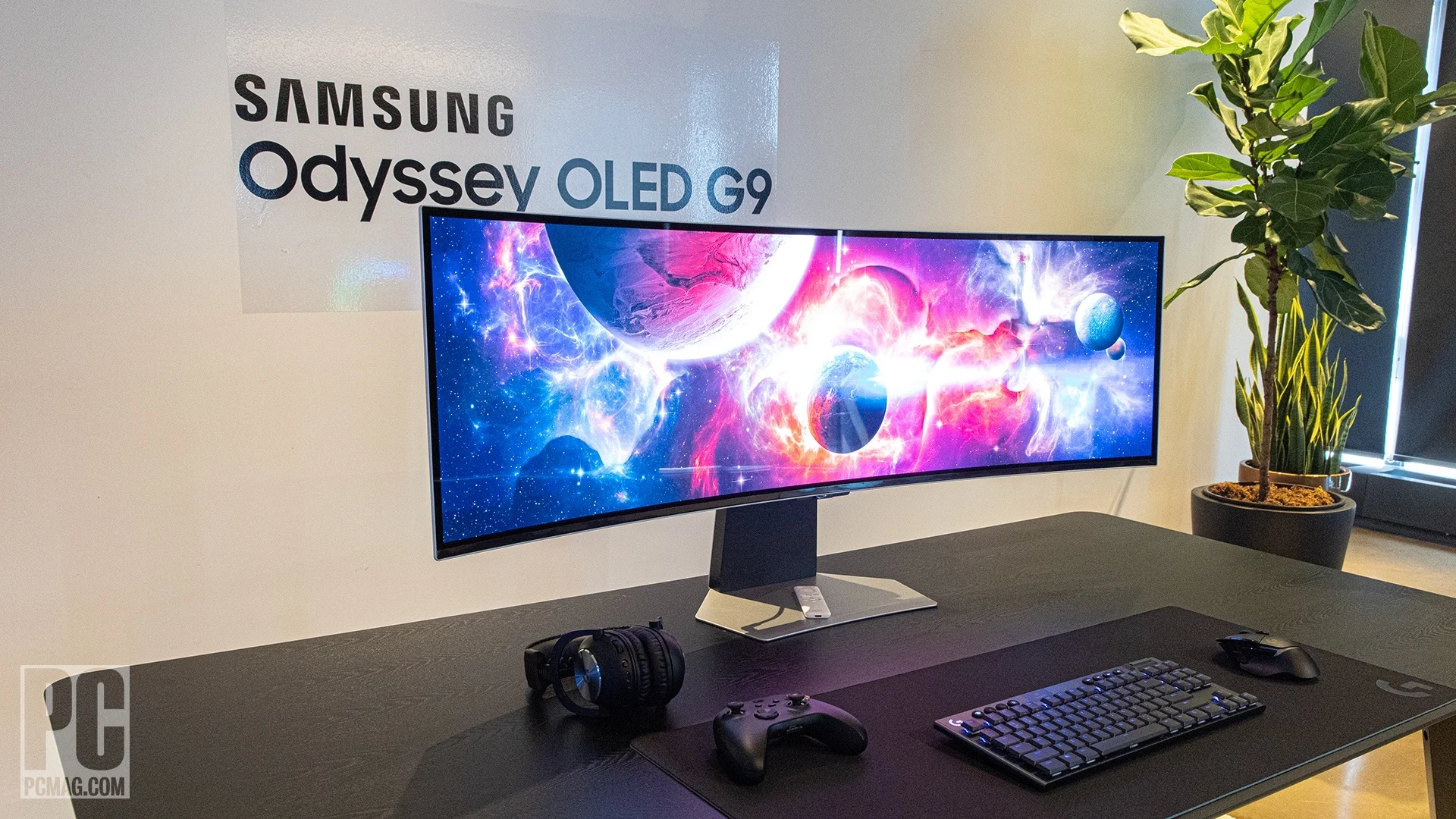
Image source: Bing (Web)
When Curved Monitors Cause Problems in Dual
For every scenario where curved works, there's at least one where it actively creates frustration. The problems aren't subtle once you notice them, and they're the reason so many people end up returning curved panels from dual setups.
Color-Critical and Design Work
If your job involves color grading, photo retouching, print design, or anything where what you see on screen has to match what comes out of a printer or another person's monitor, curved panels introduce a variable you'd rather not deal with. The geometry of a curved screen means different parts of the display are viewed at slightly different angles. On VA panels (which are the most common panel type for curved monitors, since VA manufacturers pioneered the curved glass process), this translates to visible color and gamma shift when you move your head even slightly.
This is less of an issue with IPS-based curved monitors (like Dell's U4025QW or LG's 38WN95C), but those cost significantly more and still aren't quite as color-stable across the full surface as a dedicated flat reference display. If color accuracy is your priority, keep your primary screen flat and use the curved panel for gaming, media, or general desktop work.
The Bezel Seam Issue
This comes up in nearly every discussion about dual curved setups, and it's the single most common complaint. Here's the problem in plain terms. You buy two curved monitors expecting a seamless, wraparound experience.
What you get instead is a visible, angular gap right in the middle of your field of view where the two flat bezels meet.
The bezels on most monitors are physically flat. The screen behind them is curved. When you put two curved panels next to each other, the left edge of the right monitor and the right edge of the left monitor are both angled inward, but the bezel material bridging them creates a hard, flat line.
Your eyes see the curve on each side and expect it to continue. It doesn't. That break is jarring, especially in dark scenes or full-screen content.
Thin bezels help. A 3mm bezel gap is noticeably less distracting than a 15mm one. But even the thinnest bezels don't solve the geometric mismatch.
You can minimize the visual impact by angling the monitors inward using adjustable arms, but that adds cost and complexity to your setup.
Gaming Across Two Curved Screens
Here's where it gets particularly frustrating. If you're a gamer, the whole point of a curve is immersion. A curved panel wraps the game world slightly around your peripheral vision.
It feels more natural than staring at a flat rectangle. But that immersion depends on the curve being continuous across your entire field of view.
With two curved monitors side by side, you get exactly the opposite. The game world bends inward on each panel, then gets chopped at the bezel and bends inward again from a slightly different angle. In racing games or flight sims where you're looking across the full width of both screens, this creates a visible distortion at the seam.
Straight lines in the game become kinked right at the center. It breaks the illusion the curve was supposed to create.
This is why the sim racing and flight sim communities largely single ultrawide curved panels (like Samsung's 49-inch G9 series) rather than dual curved setups. One continuous curve across 49 inches of screen real estate provides the immersion. Two 25-inch curves jammed together don't.
Bottom line: If gaming immersion is your goal, one big curved screen beats two smaller curved screens every time.
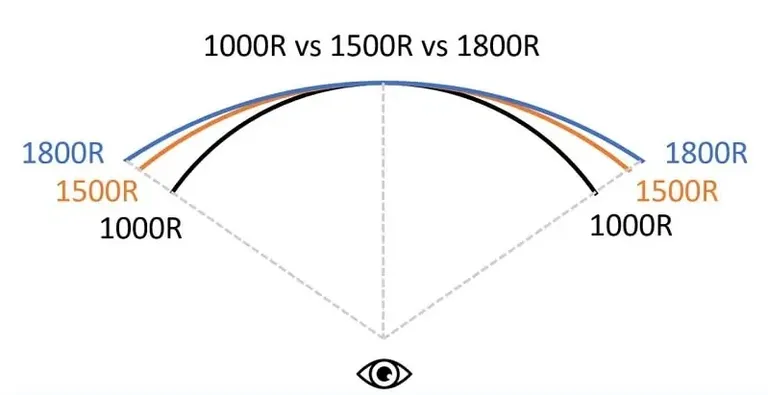
Image source: Bing (Web (fair-use with source credit))
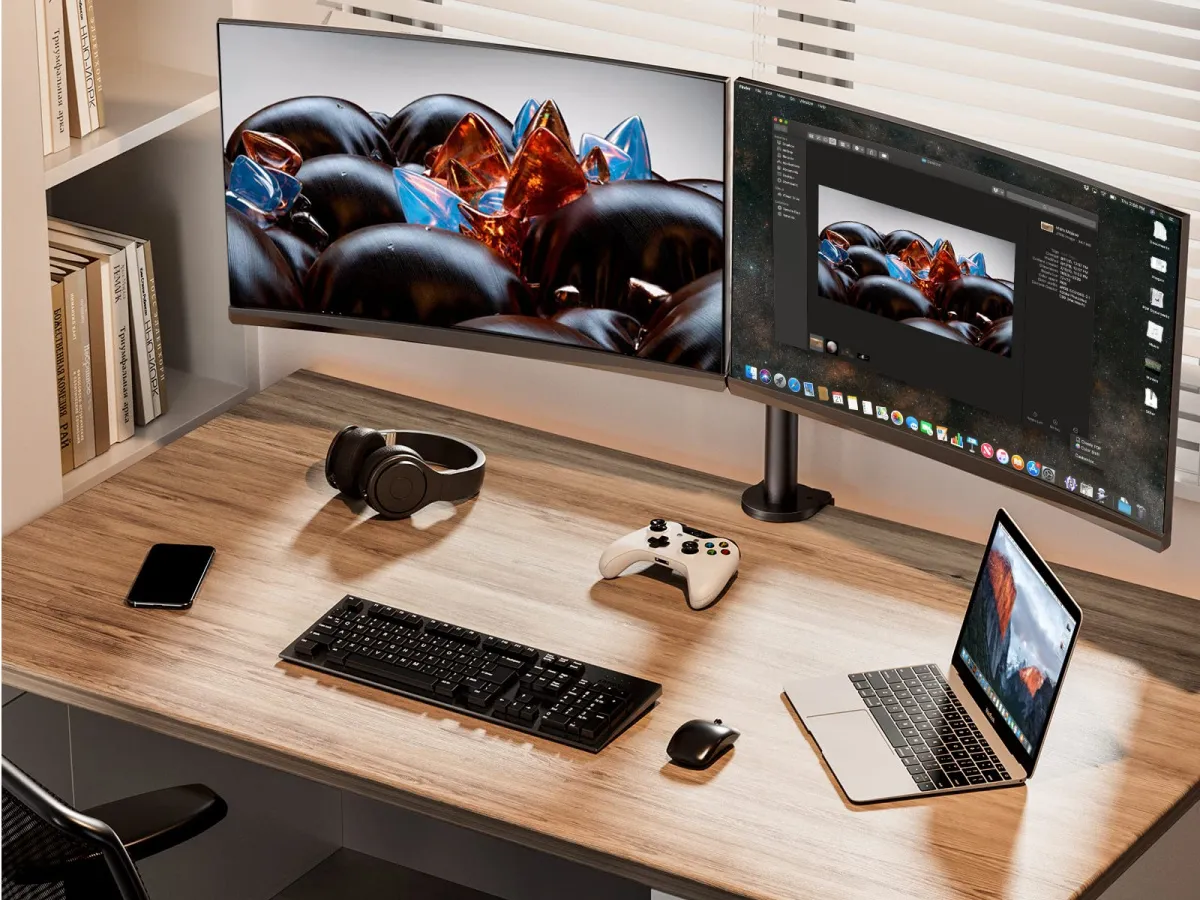
Image source: Bing (Web (fair-use with source credit))

Similar Posts































