Do Curved Gaming Monitors Reduce Eye Strain
If you've ever wrapped up a long gaming session with burning, tired eyes and wondered whether your flat screen is partly to blame, you're not alone. It's a fair question, and the answer isn't as straightforward as marketing would have you believe. A curved monitor can be easier on your eyes, but only under the right conditions, with the right setup, and with honest expectations about what it can and can't do.
Real talk: eye strain is a health concern, and getting bad advice here means weeks of unnecessary discomfort or a wasted purchase. Manufacturers love to tout curvature as a premium eye-care feature, but the actual picture is more nuanced than a spec sheet suggests. Per ISO 9241-302 ergonomic standards, display curvature is just one variable among many that determine visual comfort.
Let's walk through what actually matters.
Quick Answer
Curved gaming monitors can reduce eye strain compared to flat screens, but only if the curve radius matches your viewing distance. A mismatch between curve and seating position can actually make things worse. Curvature alone won't fix eye strain caused by incorrect brightness, poor seating position, lack of breaks, or an underlying vision problem.
For most people, proper setup and healthy screen habits reduce eye strain more than switching from flat to curved.
Why Getting This Wrong Actually Matters for Your Eyes
Eye strain from monitors, formally called computer vision syndrome or digital eye strain, isn't just a minor annoyance. It can cause headaches, dry eyes, blurred vision, neck pain, and genuinely disrupt your sleep. The American Optometric Association identifies it as one of the most common workplace and lifestyle complaints.
Here's why bad guidance on this topic actually hurts people.
First, someone might spend $400+ on a curved monitor expecting it to solve their eye problems, then discover they're still suffering because the real issue was sitting too close or working in a pitch-dark room with max brightness. That's wasted money and ongoing discomfort.
Second, the wrong curve choice can actively make things worse. A 1000R curve on your desk at arm's length is fine. That same 1000R curve mounted on the wall three feet away looks barely bent and gives you zero ergonomic benefit.
Meanwhile, a gentle 1800R curve shoved right in your face can cause peripheral distortion that makes your eyes work harder to reconcile what they're seeing.
Third, if someone is experiencing persistent eye pain or vision changes and assumes a hardware upgrade will fix it, they might delay seeing an optometrist. Some symptoms that look like regular eye strain can signal dry eye disease, uncorrected astigmatism, even elevated intraocular pressure.
This isn't about scaring you. It's about being honest. A curved monitor is a tool, not a medical device.
Understanding its actual role keeps you from making decisions you'll regret.
The Short Answer: Curved Monitors and Eye Strain
Do curved gaming monitors reduce eye strain? Sometimes. Yes, occasionally.
But not always, and not by themselves.
The honest breakdown is this: a well-chosen curved monitor, correctly positioned for your setup, can meaningfully reduce the kind of eye fatigue that comes from your eyes constantly shifting focus between the center and edges of a wide flat screen. That's a real, measurable benefit for certain users.
However, the majority of eye strain causes have absolutely nothing to do with screen curvature. Brightness, blue light, flicker, viewing distance, room lighting, blink rate, and how many hours you go without a break, these are the heavy hitters. If those are wrong, no curved panel in the world will save your eyes.
Think of it this way. A curved monitor is like a decent pair of running shoes. They help, but they won't fix a knee injury or replace proper training.
How Curved Monitors Actually Interact with Your Eyes
To understand whether a curved screen helps, you need to understand the actual problem it's trying to solve.
The focal distance problem with flat screens
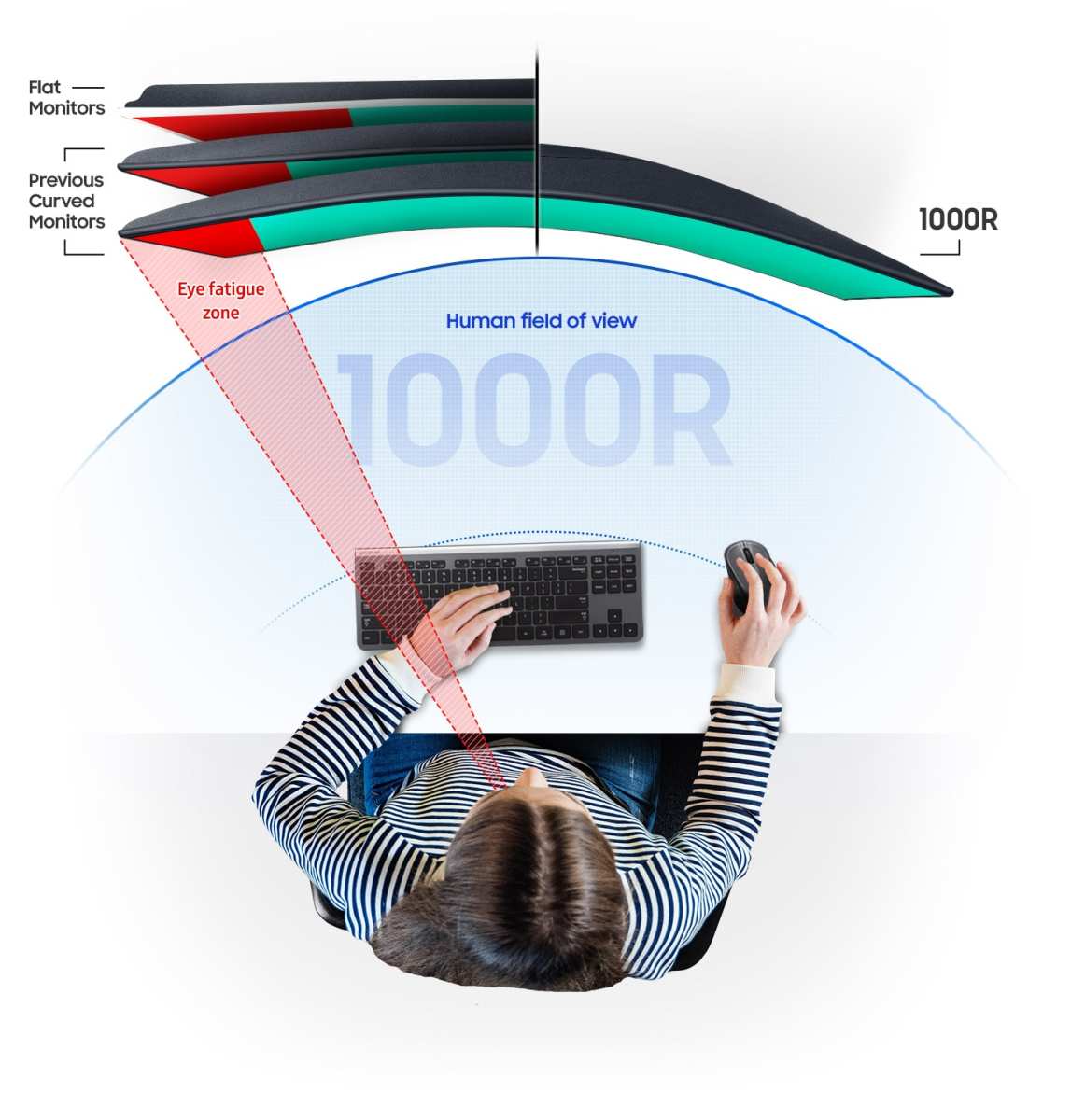
When you stare at a flat monitor, the center of the screen is closer to your eyes than the edges. On a small 24" display, this difference is trivial. But stretch that to a 34" ultrawide or a 49" super ultrawide, and the edges might be several inches farther away than the center.
Your eyes have to constantly pivot and subtly refocus as your gaze moves across that surface. It's called accommodative microfluctuation. You don't notice it consciously, but over a three-hour gaming session, that extra micro-adjustment load adds up.
Studies published in Applied Ergonomics have documented this effect, showing measurable differences in visual fatigue after extended use of wide flat displays versus matched curved ones.
The curve, when properly matched to your seating position, brings the edges closer in line with the center. Now the entire screen sits at roughly the same focal distance. Your eyes don't have to work as hard to reconcile geometry.
That's the core argument.
How curvature theoretically reduces accommodative effort
The human eye isn't flat, and neither is your visual field. Curved displays are designed to match the natural arc of your peripheral vision more closely than a flat plane can. The idea is straightforward: if the screen bends the same way your eyes do, there's less optical conflict for your brain to process.
Some research supports this. Studies in peer-reviewed journals have found that participants using curved monitors reported lower subjective visual fatigue scores during extended tasks compared to flat equivalents. The key phrase there is "extended tasks".
You're unlikely to feel a dramatic difference in twenty minutes of browsing. The benefit compounds over hours.
Manufacturers have built real ergonomic programs around this. Samsung's curvature engineering, for example, ties specific radius values like 1000R and 1500R to intended viewing distances based on human factors research.
What the curvature radius means and why 1000R isn't automatically better
The "R" number refers to the radius of the curve in millimeters. A 1000R monitor, if you continued the arc all the way around, would form a circle with a radius of 1,000 mm, roughly one meter or 3.3 feet. Lower numbers mean more aggressive curvature.
Here's where people get tripped up. A 1000R curve is "better" only if you're sitting about a meter away. That happens to be the typical desk distance for most desktop gaming setups, which is why 1000R has become the sweet spot for 27" to 32" curved gaming monitors as of 2026.
But mount that same 1000R monitor in a living room setup where you're sitting two meters away, and the curve is wasted. The screen would need to be enormous or you'd need to sit much closer for the geometry to matter. Conversely, an 1800R curve on the same close desk might feel slightly less enveloping but won't push your peripheral vision into unnatural territory.
The takeaway: match the curve to where you actually sit, not to what sounds most impressive on a spec sheet.
| Radius | Curve Aggressiveness | Best For Viewing Distance | Typical Screen Size |
|---|---|---|---|
| 1000R | Very curved | ~1 meter (3.3 ft) | 27"–32" |
| 1500R | Moderately curved | ~1.2–1.5 meters (4–5 ft) | 32"–43" |
| 1800R | Mildly curved | ~1.5 meters (5 ft) | 34" ultrawide+ |
| 1900R | Slightly curved | Variable | 34"–49" ultrawide |
| 3800R | Barely curved | Distance-tolerant | 27"–34" |
What the Research Says About Curvature and Visual Fatigue
This is where we separate marketing claims from actual evidence.
Peer-reviewed findings on curved displays
Several studies have examined curved screens and visual fatigue with mixed but generally supportive results for specific scenarios.
Research published in the journal Displays and in Optometry and Vision Science has investigated how curved monitors affect accommodation, convergence, and subjective comfort. Some controlled experiments found that participants reported less eye fatigue during prolonged curved-screen use compared to flat equivalents of the same size. Objective measures like critical flicker fusion frequency and pupil response have shown subtle but measurable differences favoring curvature in certain configurations.
A recurring finding in this body of research is that the benefit scales with screen width. On small displays, especially 24" and 27" flat models, the edge-to-center distance variation is minimal enough that curvature offers negligible advantage. Once you move into 34" ultrawide territory and beyond, the ergonomic argument strengthens.
That said, many studies use relatively short testing windows, often under two hours. Real gaming sessions frequently run three to six hours, sometimes longer. We simply don't have massive longitudinal studies tracking curvature effects over months of daily use.
Where the evidence holds up and where it falls short
What the evidence reasonably supports: curved monitors reduce the accommodative workload for wide displays at appropriate distances. The geometry argument is solid and verifiable. Subjective comfort reports consistently favor curvature for extended ultrawide gaming and productivity use.
What the evidence does NOT strongly support: any claim that curvature prevents or cures eye strain on its own. The research typically controls for brightness, ambient lighting, and task type. In the real world, those factors dominate.
There's also a notable gap in research around users with pre-existing vision conditions. If you have astigmatism, convergence insufficiency, or chronic dry eye, your response to a curved display may differ from what studies on typical-vision participants suggest. The curved image surface interacts differently with an already imperfect optical system.
The honest summary is: the research supports curvature as one helpful factor among several, not as a standalone solution.
The Real Factors That Cause Eye Strain (Most People Ignore These)
Before you even think about buying a new monitor, address these. They cause the vast majority of eye strain, and no curved panel fixes them if they're wrong.
Brightness mismatch with your room
This is the single biggest contributor most people overlook. Your monitor brightness should roughly match your ambient room light. A blazing screen in a dark room is brutal on your eyes, regardless of curve.
The constant contraction and dilation of your pupils creates fatigue fast.
A useful quick test: open a plain white document or webpage. If the screen feels like a light source in the room, it's too bright. If it looks gray or dull, it's probably well-calibrated for your lighting.
Viewing distance matters more than shape
OSHA and ISO ergonomic guidance consistently recommends sitting about 50 to 70 cm (20 to 28 inches) from your screen, with the top of the display at or just below eye level. Most people sit too close, which forces excessive convergence and accommodation. A flat monitor at the correct distance will almost always beat a curved monitor shoved up against your nose.
Flicker from PWM dimming
Many monitors dim their backlight using pulse-width modulation (PWM), which rapidly flickers the LEDs on and off. At lower brightness levels, this flicker can fall into a range that causes headaches and eye strain in sensitive individuals, even if you can't consciously see it.
Look for monitors certified as Flicker-Free. TÜV Rheinland's Flicker-Free certification requires that the display backlight operates without perceptible stroboscopic flicker. As of 2026, most mid-range and premium gaming monitors from major brands carry this certification, but budget models may not.
Blue light exposure and circadian disruption
Blue light, particularly in the 400-490 nm wavelength range, suppresses melatonin production and can interfere with sleep if you're gaming late at night. It also contributes to overall digital eye fatigue, though the exact mechanism is debated.
Modern monitors address this with Low Blue Light modes, often labeled in the on-screen display as Reading Mode, Eye Saver, or ComfortView. TÜV-certified Low Blue Light modes require specific spectral filtering that reduces harmful wavelengths without making the screen unusably yellow.
Lack of breaks and the 20-20-20 rule
You can have the best monitor in the world, perfectly curved, perfectly positioned, and you'll still strain your eyes if you game for four straight hours without looking away. The American Optometric Association recommends the 20-20-20 rule: every 20 minutes, look at something 20 feet away for at least 20 seconds. It sounds almost too simple, but it genuinely resets your accommodative system.
Blinking matters too. Studies show that screen use reduces blink rate by up to 66%. Consciously reminding yourself to blink more, or using lubricating eye drops for dry eye, can do more for comfort than any hardware change.
Pre-existing vision conditions
If you already have uncorrected or under-corrected astigmatism, even a small curvature mismatch between what your eyes expect and what the screen presents can amplify strain. The same goes for convergence insufficiency, where your eyes struggle to maintain alignment on near targets.
This is precisely why a persistent eye strain problem warrants an eye exam before a monitor upgrade. An accurate glasses prescription, prism correction, or vision therapy might solve what no display curve can.
Choosing the Right Curvature for Your Setup
Getting the curve right is where most people either find relief or waste their money.
Matching curvature radius to your viewing distance
Pull out a tape measure. Sit in your normal gaming position and measure from your eyes to where the monitor will sit. That number determines your ideal radius range.
If you sit around 20 to 28 inches away, which is the standard arm's-length recommendation, a 1000R curve on a 27" to 32" display will feel natural. The curve wraps into your field of view without demanding head turns.
Deeper desk, say 30 to 36 inches? A 1500R curve gives you the ergonomic benefit of reduced edge distance without feeling like the screen is wrapping around you. This is the comfort zone for many living-room-desk hybrid setups and larger screens.
Living room gaming from a couch or deeper seating position? Consider 1800R to 1900R on a 34" or larger ultrawide. The gentler curve works better when you're farther back, and the screen size compensates for the less aggressive geometry.
Screen size and aspect ratio considerations
Size changes everything. A 27" 1000R monitor curves noticeably and works well up close. Put 1000R on a 49" super ultrawide and you need to sit very close to appreciate it, or the curve feels wasted.
For 21:9 ultrawides at 34" to 38", 1500R or 1800R hits the sweet spot for most desks. The width rewards the curve without demanding an aggressive bend.
If you're on a standard 16:9 display at 27" or smaller, honestly, curve gives minimal eye strain benefit. The edge distance difference is just too small to matter when the screen isn't wide enough.
VA vs. IPS vs. OLED and how panel type affects comfort
Curvature isn't the only panel variable that touches eye comfort. VA panels, which dominate the curved gaming market, typically offer the deepest blacks and highest contrast ratios. That means less perceived harshness when dark content dominates your screen, which can reduce pupil strain in dim environments.
IPS panels hold better color accuracy and viewing angles, and some curved IPS options exist. If you do color-critical work alongside gaming, an IPS curved display trades some contrast for more uniform edge-to-edge image quality.
OLED and QD-OLED curved monitors are entering the market with perfect blacks and instant response times. The self-emitting pixels eliminate backlight bleed, which removes one common visual irritation source. OLED's per-pixel dimming means bright UI elements never flood the whole screen with excess light.
For pure eye fatigue reduction, OLED has theoretical advantages. But the current crop of curved OLED models tends to command a significant premium, and burn-in risk over years is still a practical consideration.
Setting Up a Curved Monitor to Actually Protect Your Eyes
Buying the right monitor is step one. Setting it up correctly is where the real eye-strain reduction happens.
Correct positioning and ergonomics
The center of your screen should sit at or slightly below eye level. When you look straight ahead, your gaze should land roughly in the upper third of the display. This lets your eyes angle slightly downward, which exposes less of the ocular surface and reduces dryness.
Distance matters more than any spec on the box. Start at 50 cm (about 20 inches) and adjust from there. If you need to lean in to read text, something's wrong, either the resolution is too low, the scaling is off, or you need your vision checked.
Angle the monitor so it faces you directly. Curved screens show their worst color and brightness shifts viewed from off-axis, a phenomenon called gamma shift. This is more pronounced on VA panels.
Centering yourself to the curve's focal point gives the most uniform image.
OSD settings that reduce eye strain
Your monitor's on-screen display holds a surprising number of comfort controls. The ones worth adjusting:
- Brightness: Match it to your room. 120-150 cd/m² works well in averagely lit rooms. Darker spaces need lower.
- Contrast: Leave this around default unless the image looks washed out or crushed. Pushing contrast too high increases the light-dark differential your eyes process.
- Color temperature: Shift toward warmer (6500K or lower) during evening use. Cooler temperatures emit more blue light.
- Low Blue Light / Eye Saver mode: Enable this for extended sessions or late-night use. The TÜV-certified modes filter the problematic wavelengths without destroying color usability entirely.
- Flicker-Free: If your monitor offers this setting, turn it on. It typically switches from PWM dimming to DC dimming.
Ambient lighting and bias light considerations
Room lighting is the unsung hero of eye comfort. Gaming in a dark room forces your pupils to constantly adjust between the bright screen and the dark surround. Add some ambient light behind or around the display.
Bias lighting, a soft white light placed behind the monitor facing the wall, is particularly effective. It raises the perceived ambient brightness of the wall without adding glare to the screen. The wall's reflected luminance reduces the contrast differential your pupils deal with.
For best results, bias lighting should sit around 6500K color temperature and not be too bright. You're aiming for a soft glow, not a spotlight. Purpose-built USB-powered bias light strips designed for monitors have become widely available and integrate cleanly behind most displays.
Independent of the curve. Even partial steps in this direction can reduce eye strain more than switching from flat to curved.
Side-by-Side: Curved vs. Flat for Eye Comfort
Here's a practical breakdown for real scenarios.
When a curved monitor genuinely helps
You'll feel the difference if you're using a 34" or wider display and sitting within the recommended radius distance. Racing sims, flight sims, immersive open-world games, all benefit. The curve places the action across your visual field more naturally, and you notice the reduced need to turn your head.
For any ultrawide gaming setup where you're sitting between 50 and 80 cm from the screen, a matched curve reduces that edge-to-center focal shift meaningfully.
When a flat monitor is actually the better choice
Multi-monitor arrays make more sense flat. Curved panels adjacent to each other create awkward bezels and geometric conflicts in the seam between displays.
If you share the screen for collaborative work, or if you do precise photo/video editing where straight lines need to render as straight, flat remains the safer professional choice. Curvature introduces geometric distortion that can affect color-critical decisions along screen edges.
Users with certain binocular vision disorders may find curved screens disorienting. If a curved monitor makes you feel nauseous or gives you headaches during the first few days, revert to flat. Your visual system is telling you something specific.
Ultrawide scenarios and multi-monitor setups
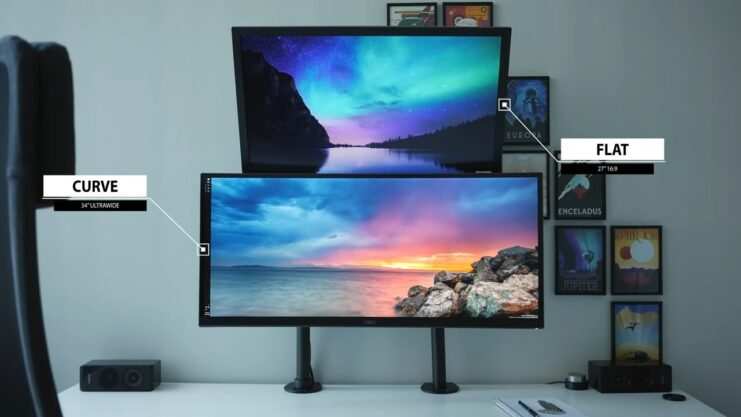
A single 34" curved ultrawide often beats a dual 27" flat setup for eye comfort if space and budget allow. Two flat panels mean a gap in the middle where your eyes constantly refocus across bezel boundaries.
A single curved ultrawide eliminates that break. Your gaze flows across a continuous surface. For productivity that spans multiple windows and gaming that benefits from expanded peripheral awareness, this is a legitimate ergonomic win.
Curved Monitors Aren't Enough: What Else Actually Helps
Hardware is only part of the equation. The full list of things that relieve eye strain is longer than most people think.
Eye care features that make a real difference
Modern monitors bundle several features worth paying attention to beyond curvature:
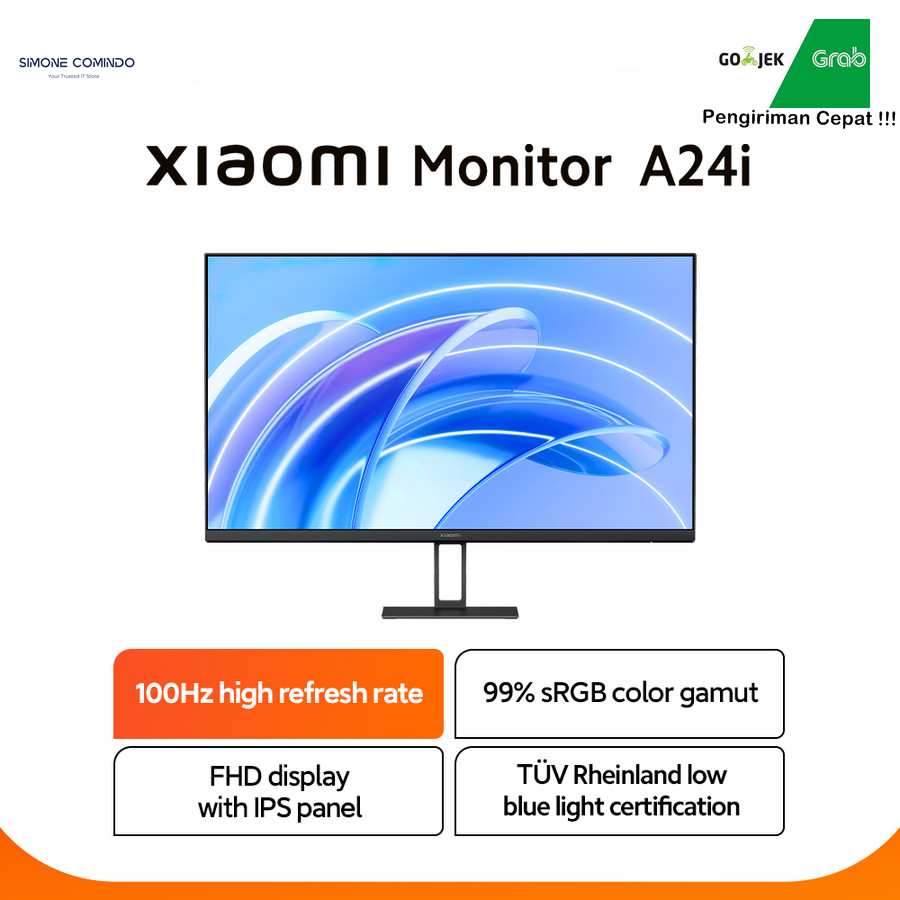
- TÜV Rheinland Flicker-Free certification: Confirms the backlight doesn't use harmful PWM modulation patterns.
- TÜV Rheinland Low Blue Light certification: Verifies the display filters a meaningful portion of the blue light spectrum while maintaining usability.
- TÜV Eye Comfort Mark: A broader certification evaluating flicker, blue light, reflection, and image quality as a package.
These certifications are standardized and verified by a third party. They carry more weight than a manufacturer's in-house "Eye Care" label that isn't independently tested.
External solutions worth considering
Several non-monitor interventions stack well with a good curved display:
- Blue light filtering glasses: Useful if you can't control the display environment, like at work or in a shared living space. Look for lenses that target the 455 to 490 nm range specifically, as these are the wavelengths most linked to melatonin suppression.
- Artificial tears or lubricating eye drops: If dry eyes are part of your problem, preservative-free lubricating drops used during long sessions help maintain a stable tear film.
- Computer glasses: An optometrist can prescribe lenses optimized for your exact monitor distance. Standard progressive lenses are often too weak or too strong for the intermediate range where a monitor sits.
- Software blue light filtering: Windows Night Light, macOS Night Shift, and third-party tools like f.lux reduce systemically across all applications. These work regardless of monitor choice.
When you need a specialist, not a monitor upgrade
Some symptoms go beyond what any hardware change resolves. If you experience any of the following, schedule an optometrist appointment rather than shopping for a new monitor:
- Persistent headaches that start during or after screen use and don't respond to basic adjustments.
- Blurred or double vision that continues after you step away from the screen.
- Dry, gritty eyes that don't improve with artificial tears or environmental changes.
- Sudden changes in how you perceive color or contrast.
- Eye strain accompanied by nausea or dizziness, particularly with curved monitors.
These can indicate uncorrected refractive errors, convergence insufficiency, dry eye disease, or other conditions that require professional evaluation. No monitor curve prescription replaces an eye exam.
The Biggest Mistakes People Make With Curved Gaming Monitors
Let's round up the errors we see most often.
Choosing maximum curve without checking distance. A 1000R monitor on a shallow desk is fine. The same curve with your monitor pushed back against a deep wall will show barely any benefit and may cause odd reflections and peripheral distortion.
Ignoring the panel type. A curved VA panel and a curved OLED panel at the same radius and size produce different visual experiences. Contrast differences, gamma shift patterns, and brightness uniformity all affect eye comfort.
Sitting too far back. If your 34" ultrawide sits 100 cm or more from your eyes, you're outside the range where curvature provides its primary benefit. You might as well use a flat panel at that distance.
Running maximum brightness. Curved screens don't get a pass on brightness mismatch. Many users crank brightness because they perceive the curve as making the image feel more immersive, then wonder why their eyes hurt.
Expecting adaptation to solve everything. Most users adjust to a curved monitor within a few days. But if you're still feeling strained after a week or two, the monitor isn't the solution. Something else in your setup or your vision needs attention.
Neglecting ambient lighting entirely. This remains the most common setup error across all monitor types. A curved screen in a dark room with a lit-anywhere monitor is asking for trouble.
What to Buy: Recommendations by Situation
Rather than naming specific models that'll date quickly, here's what to look for based on your actual situation. Monitor lineups shift every few months. The principles below stay current.
Best for deep gaming sessions and immersion
You want a 32" 1000R VA panel with at least 1440p resolution, TÜV Flicker-Free certification, and a TÜV Low Blue Light mode. Look for 144Hz or higher refresh rate. This combo gives matched curvature for typical desk distance, deep blacks that reduce harshness in dark games, and both major eye-care certifications.
If your budget allows, a curved QD-OLED at 34" ultrawide with 175Hz is a premium option. The per-pixel dimming eliminates backlight flood, which genuinely reduces the light bombardment your eye surfaces deal with during dark-in-bright scenes.
Best for long work-plus-play days
Prioritize a 34" 1500R IPS ultrawide at 1440p. The milder curve handles both close-up productivity tasks and moderate-distance gaming comfortably. IPS viewing angles help if you frequently glance at the screen from slightly off-center during long spreadsheet or coding sessions.
Make sure the model includes a USB hub and an ergonomic stand with height, tilt, and swivel adjustment. Posture-related neck pain feeds into perceived eye strain more than people realize.
Best for users with existing eye conditions
Get an eye exam first. Seriously. If your optometrist confirms specific issues like convergence insufficiency or dry eye disease, follow their hardware and lens recommendations over any monitor buying guide.
That said, a flat IPS with TÜV Eye Comfort mark certification is often a safer starting point than an aggressive curve if you have binocular vision quirks. Some users with astigmatism report that moderate curves help, while others find them disorienting. If possible, try before you commit, or buy from a retailer with a solid return policy.
Frequently Asked Questions
Does a curved monitor eliminate eye strain entirely?
No. A curved monitor can reduce one specific contributor to edge-of-screen focal inconsistency. It does nothing about brightness mismatch, blue light exposure, flicker, blink rate, viewing distance errors, or underlying vision conditions.
It's one helpful factor in a much larger picture.
Is 1000R better than 1500R for gaming?
Only if you sit close enough to benefit from that aggressive curve. At 50 to 70 cm (arm's length), 1000R delivers the full geometric advantage. At 80 cm or more, 1500R or 1800R will feel more natural and provide similar ergonomic benefit without wrapping too tightly into your peripheral vision.
Can a curved monitor make eye strain worse?
Yes. If the curve radius doesn't match your viewing distance, if you sit too far back, or if you have certain binocular vision disorders, a curved display can increase distortion and actually force your eyes to work harder. Some users report headaches, nausea, or increased fatigue on aggressive curves that don't suit their physiology.
Do I still need blue light filtering on a curved monitor?
Absolutely. Curvature and blue light address completely different mechanisms. The curve affects focal geometry.
Blue light affects circadian rhythm and potentially retinal stress. You need both: a properly curved screen that matches your setup, and a Low Blue Light mode for evening or extended use.
How long should I try a curved monitor before deciding if it helps?
Give it a solid week of normal use. The first day or two involve adaptation as your visual system adjusts to the new geometry. If eye strain, headaches, or nausea persist beyond seven days of proper setup at the correct distance, that specific curve doesn't suit you, and flat is the better choice for your eyes.
The Bottom Line: Should You Switch to a Curved Monitor for Eye Comfort?
Here's the honest verdict.
If you're gaming on a 34" or wider display at a typical desk distance of 50 to 80 cm, a correctly curved monitor with matched radius is likely to reduce the specific eye fatigue that comes from edge-to-center focal mismatch. The geometry benefit is real, measurable, and widely supported.
But curvature alone is not an eye-strain solution. It won't rescue bad habits, wrong brightness, lack of breaks, uncorrected vision problems, or poor ambient lighting. Those factors dominate for most people.
The practical order of operations: fix your viewing distance and ambient lighting first. Enable a Low Blue Light mode. Take breaks.
Get an exam if symptoms persist. Then, if you're in the right screen size and viewing distance range for it, a curved monitor becomes a reasonable upgrade that on top of all that foundation can make things noticeably more comfortable.

Similar Posts





















