Do 27 Inch Monitors Reduce Eye Strain
No, not automatically. A 27-inch monitor running 1400p at arm's length with proper scaling can reduce eye strain. The same size screen running 1080p on a shallow desk often makes it worse.
The answer depends on resolution, viewing distance, and how you configure the display.
So let's walk through exactly when a 27-inch display helps your eyes and when it works against you.
When a 27-Inch Monitor Is Easier on Your Eyes
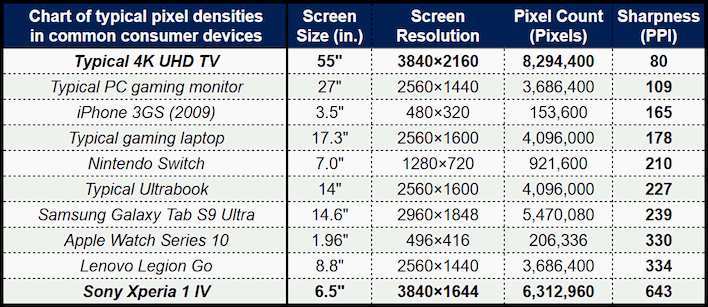
Here's the scenario where bigger actually wins. A 27-inch monitor using its native 2560×1440 resolution delivers around 109 pixels per inch at a typical viewing distance of 24 to 30 inches. That pixel density keeps text sharp without forcing you to lean in or squint.
Compare that to a 24-inch 1080p panel running roughly 92 PPI. The difference sounds small on paper, but over an 8-hour workday, those extra pixels add up to less effort from your eye muscles. Your eyes aren't working as hard to resolve fine text edges, and that reduces cumulative fatigue.
There's also the real estate factor. A 27-inch panel lets you run two documents side by side at readable sizes, which means less time zooming, scrolling, and refocusing. That constant refocusing between a tiny window and full screen is one of those invisible drains people don't connect to their end-of-day headache.
Why Monitor Size Alone Doesn't Cause or Cure Eye Strain
People tend to think "bigger screen = less squinting = happier eyes." That sounds logical, but it misses what actually drives digital eye strain. The main culprits are pixel density mismatch, improper viewing distance, blue light exposure, poor ambient lighting, and infrequent blinking. Screen size only matters when you factor in how it interacts with resolution and how far away you're sitting.
A 27-inch 1080p monitor actually delivers around 82 PPI. That's noticeably softer than a 24-inch 1080p panel. You're spreading the same number of pixels across more physical space.
If you're used to sharp text, you'll notice the difference immediately, and your eyes will compensate by working harder. Not ideal.
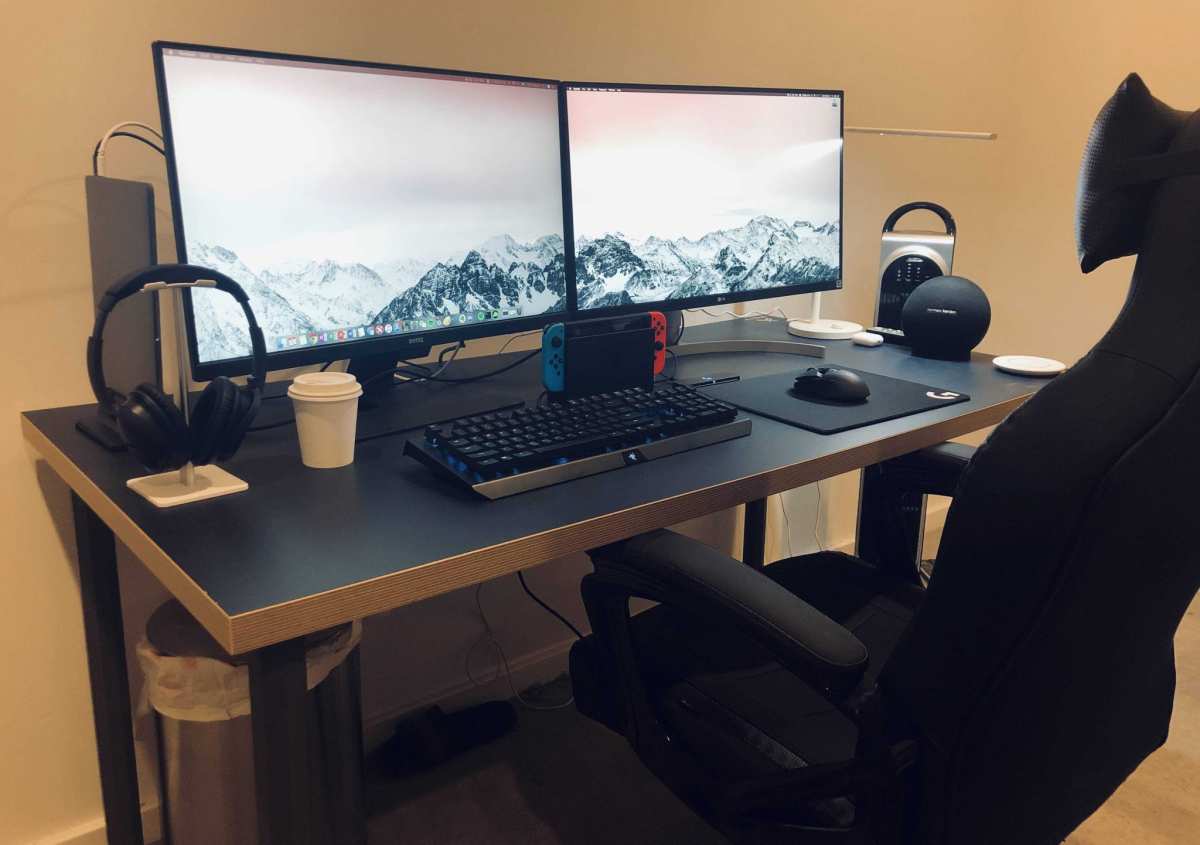
The Resolution–Size–Distance Triangle
This is the core concept that determines whether a 27-inch monitor helps or hurts. Three variables work together.
Resolution is the total pixel count the panel renders. Physical size determines how spread out those pixels are. Viewing distance determines how dense those pixels appear to your eyes. Change any one of those and the comfort equation shifts.
Here's a practical example. A 27-inch 1440p monitor viewed at 26 inches gives you sharp text without needing aggressive OS scaling. Take that same 27-inch panel down to 1080p, and same distance, everything gets noticeably softer.
Same size, same position, genuinely different experience.
Why PPI Matters More Than Inches
Pixel density is what your eyes actually respond to. Higher PPI means smoother text edges, finer detail in images, and less visible grid structure. Below roughly 90 PPI at a standard desk distance, most people start noticing pixelation.
Below 80 PPI, it becomes a real problem for extended reading.
It's the same reason a 6-inch phone screen often looks sharper than a 27-inch desktop monitor. The phone packs more pixels into a smaller area. Your eyes don't care about the diagonal measurement.
They care about angular resolution. That's pixels per degree of your field of view, and PPI at a given distance determines it.
| Setup | PPI | Viewing Distance | Perceived Sharpness | Eye Strain Risk |
|---|---|---|---|---|
| 24" 1080p | 92 | 24 inches | Good | Low |
| 27" 1080p | 82 | 24–26 inches | Soft, visible pixels | Moderate to high |
| 27" 1440p | 109 | 24–30 inches | Sharp, crisp text | Low |
| 27" 4K | 163 | 20–28 inches | Very sharp | Low (scaling permitting) |
| 32" 4K | 138 | 28–36 inches | Sharp | Low |
When a 27-Inch Monitor Actually Helps Your Eyes
Let's get specific about the situations where going 27 inches is a genuine upgrade for comfort.
Scenario 1: You Sit at a Proper Distance (24–30 Inches)
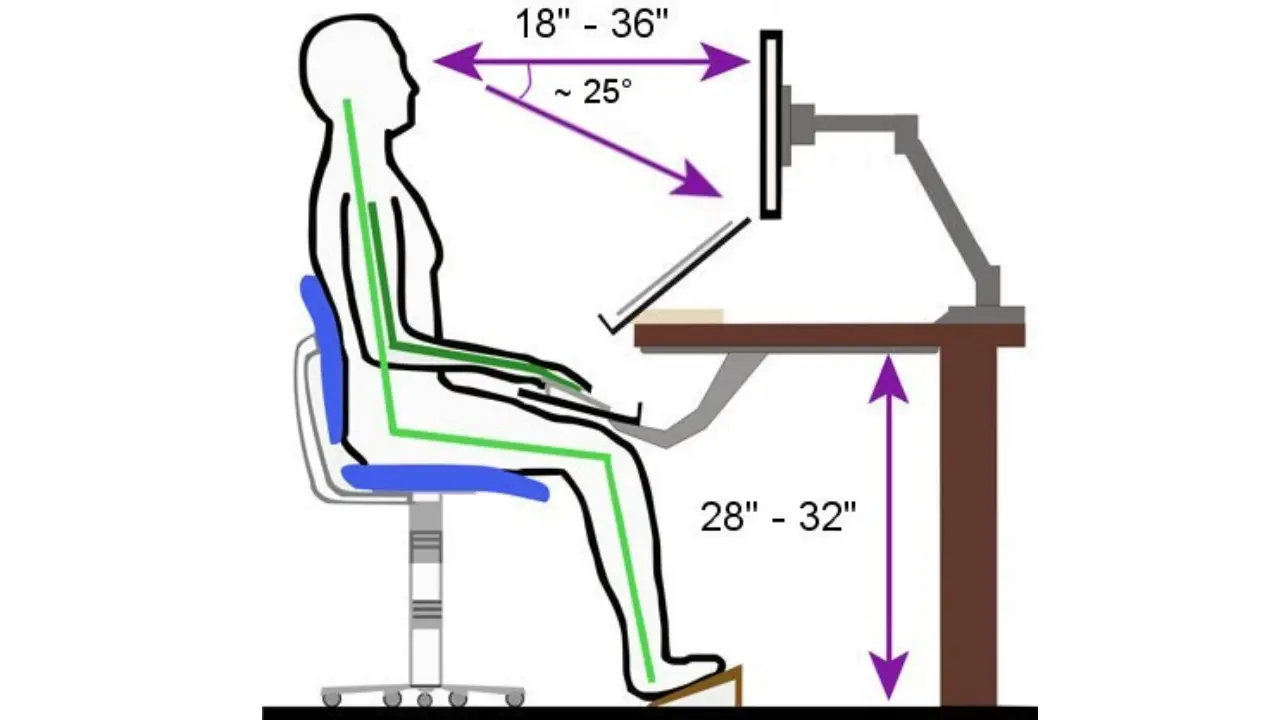
This is the sweet spot. At 24 to 30 inches from a 27-inch panel, your eyes take in the full screen without excessive head turning. Ergonomic guidelines from occupational health bodies recommend a viewing distance of roughly one arm's length.
That translates to about 20 to 28 inches for most adults. A 27-inch display fills a comfortable portion of your field of view at that range. You're not craning your neck or constantly shifting focus between far edges and center.
The key here is that the screen is large enough to read comfortably without being so wide that your eyes have to travel excessive distances across it. There's a Goldilocks zone, and 27 inches at proper distance sits right in it for most desks.
Scenario 2: You Run 1440p (QHD) at Native Resolution
This is the ideal pairing as of 2026. A 27-inch 1440p panel gives you roughly 20% more screen area than a 24-inch 1080p display while maintaining a higher pixel density than a 27-inch 1080p panel. That extra space means you can run applications at comfortable sizes without sacrificing multitasking ability.
Windows and macOS handle 1440p at 27 inches reasonably well out of the box. Most users find 100% scaling in Windows workable, though some prefer 125% for readability. The result is text that stays sharp and UI elements that remain legible without forcing you to lean forward.
It's become the default recommendation for office work, coding, and general productivity for good reason.
Scenario 3: You Do Multitasking or Window-Heavy Work
If your workflow involves multiple applications visible simultaneously, a 27-inch panel genuinely reduces cognitive and visual load. You can place two documents side by side at full width, or run a communication app alongside your main workspace without either feeling cramped.
The practical benefit is fewer window switches, less scrolling, and less squinting at tiny split-screen panes. Eye strain isn't just about sharpness. It's also about how often your eyes have to refocus, adjust to different brightness zones within a screen, and track moving elements.
A larger, well-configured display reduces all three.
When a 27-Inch Monitor Makes Eye Strain Worse
Now the flip side. These are the situations where a 27-inch panel actively works against you.
Scenario 1: You're Running 1080p at 27 Inches
This is the most common mistake we see in budget setups. A 27-inch 1080p monitor at typical desk distance delivers around 82 PPI. Text looks noticeably soft, individual pixels become visible, and your eyes constantly try to sharpen the image.
Over hours, that extra effort contributes to fatigue, tension headaches, and the gritty-eye feeling by late afternoon.
Some people don't notice it consciously. But their eyes do. The ciliary muscles that control lens shape stay slightly engaged when the image isn't crisp.
It's subtle, but over 6 to 8 hours of work, the cumulative load is real. If you're running 1080p at 27 inches and experiencing unexplained eye fatigue, this is likely why.
Scenario 2: Your Desk Is Too Shallow
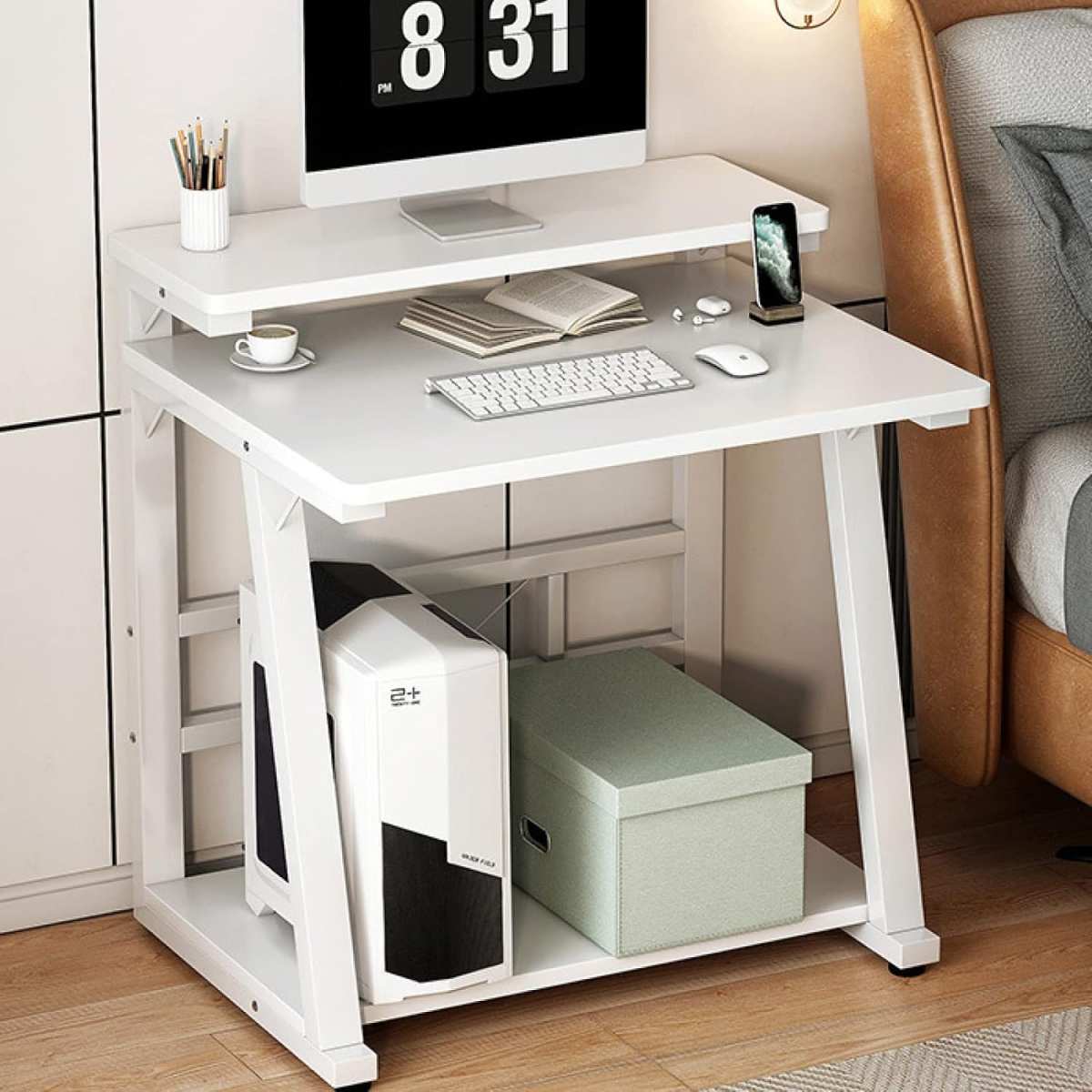
A standard office desk is about 24 to 30 inches deep. If yours falls on the shorter end, that 27-inch panel ends up too close to your face. At under 20 inches, your eyes have to converge more sharply and work harder to take in the full image.
The edges of a large screen fall into your peripheral vision at awkward angles, causing you to turn your head more frequently or strain to catch details.
This is especially common with wall-mounted monitors on shallow floating desks or shared workspace setups where depth was an afterthought. If your monitor is more than 90 degrees of your field of view, it's likely too close and too large for the space.
Scenario 3: OS Scaling Is Set Incorrectly
At 27 inches and 1440p, some operating systems and applications handle scaling poorly. Set scaling too high and you lose the benefit of the extra resolution. Set it too low and UI elements become microscopic.
Third-party applications, especially older ones, may render blurry text at non-native scaling factors. And mixed-DPI multi-monitor setups can create jarring transitions whenever your eyes move between screens.
This isn't the monitor's fault exactly, but it's a real-world consequence that gets blamed on the panel. The combination of a large display with poorly supported scaling forces your eyes to constantly adapt. That adaptation overhead is exactly the kind of low-grade stress you don't notice until you're rubbing your temples at 4 PM.
The Decision Framework: Is 27 Inches Right for You?
Before you buy or keep a 27-inch monitor, run through these four checks. If most of them align with your situation, a 27-inch panel can genuinely help your eyes. If several don't, you may be better served with something else.
We'll continue with the remaining comparisons, alternatives, and setup recommendations in the sections that follow.
Step 1: Measure Your Desk Depth
Grab a tape measure. Find the distance from the wall (or the back edge of your desk) to where your eyes naturally sit when you're working. That number determines everything.
- Under 24 inches: 27 inches is likely too big for your space. Consider 24 inches at 1080p or 1440p instead.
- 24 to 30 inches: 27 inches works well with 1440p. This is the comfortable zone.
- Over 30 inches: You have flexibility. Both 27-inch and even 32-inch panels become viable options.
This isn't a minor detail. Viewing distance is arguably more important than screen size when it comes to eye comfort. A smaller monitor at the right distance beats a larger one crammed onto a shallow desk.
Step 2: Match Resolution to Screen Size
This is where most setups go wrong. Pairing the wrong resolution with a 27-inch panel negates any benefit of the larger display. Here's how the combinations break down.
- 27" 1080p (~82 PPI): Avoid for text-heavy work. Gets photos and video production use where you're viewing at distance or prioritizing raw screen real estate over sharpness.
- 27" 1440p (~109 PPI): The sweet spot for most office workers, developers, and general productivity users. Sharp enough for extended reading, enough space for multitasking.
- 27" 4K (~163 PPI): Excellent sharpness, but you'll need scaling at 125% to 150% for comfortable UI size. Works well if your OS and primary applications handle scaling cleanly. Some older software gets blurry.
- 32" 4K (~138 PPI): The natural step up if you want more space than 27 inches. Needs about 28 to 32 inches of viewing distance for best results.
The takeaway is simple. At 27 inches, 1440p is the default recommendation. 1080p only makes sense with specific use cases. 4K works but introduces scaling variables worth considering before you commit.
Step 3: Check Your Typical Viewing Distance
Even with the right resolution, seeing depends entirely on where you sit. Position your chair where you normally work. Rest your back against the chair back and measure to the screen.
Adjust the monitor arm or stand so the top edge sits at or slightly below eye level. Your gaze should tilt gently downward. At that distance, set OS scaling accordingly: 100% for 1440p at 27 inches if you have normal vision and standard text sizes, 125% if you prefer everything slightly larger.
The most important factor is that you never lean in to read text. If you're leaning in, moving the screen further away or bumping up scaling. At 24 to 30 inches, a 27-inch 1440p panel with correct scaling provides a genuinely comfortable reading experience for most adults.
Below 20 inches, problems begin: your eyes converge more sharply, the screen edges stretch into peripheral vision, and you instinctively turn your head to track content. The 20/20/20 law remains valid here. Every 20 minutes, look at something roughly 20 feet away for at least 20 seconds.
That gives the ciliary muscles controlling your lens a genuine break. Longer sessions of concentrated screen work typically suppress blink rate and exacerbate dry eye symptoms, so this small practice helps substantially over time. If you find yourself leaning in and your measured distance checks out, double-check your display scaling settings.
Quite often the pixel density is fine but the OS is rendering elements too small, causing unnecessary visual stress.
Step 4: Factor in Your Primary Use Case
Not all screen time taxes your eyes equally. The type of work you do determines which setup suits you best.
- Coding or writing: You need extended sessions of reading small text. Higher PPI and proper scaling are essential. 27-inch 1440p works well here. Avoid 1080p at this size.
- Photo/video editing: Color accuracy and real estate matter more than raw sharpness. A 27-inch 1440p or 4K panel gives you resolution for detail work and space for timelines and toolbars.
- Gaming: Refresh rates matter alongside resolution. Many 27-inch 1440p panels now ship with 120Hz or higher, which can reduce perceived flicker. It's a solid combination.
- General web browsing and email: Less demanding on resolution, but font rendering differences between panels still matter. A 27-inch 1440p display handles this comfortably at proper distance.
Quick Comparison: Common 27-Inch Configurations
| Configuration | PPI | Best For | Watch Out For |
|---|---|---|---|
| 27" 1080p 60Hz | ~82 | Casual video viewing, secondary display | Soft text, visible pixels at desk distance |
| 27" 1080p 144Hz | ~82 | Competitive gaming prioritizing frame rate | Same sharpness issues for productivity work |
| 27" 1440p 60Hz | ~109 | Office work, coding, writing | None significant for this use case |
| 27" 1440p 120Hz+ | ~109 | Gaming + productivity combo | Higher price, needs capable GPU |
| 27" 4K 60Hz | ~163 | Design work, text-heavy workflows | Scaling complexity, port requirements |
Common Mistakes People Make With 27-Inch Monitors
Buying a 27-inch 1080p panel for desk work. It's the single most common eye-strain trap. The price difference between 1080p and 1440p at 27 inches is small enough that there's little reason to compromise here.
Ignoring viewing distance entirely. Placing a 27-inch display on a 20-inch-deep desk and wondering why your eyes hurt. Size without proper distance is just visual overload.
Cranking brightness to maximum. A high-brightness large display in a dim room creates excessive contrast, which fatigues eyes faster. Match your screen brightness to your ambient room lighting. If your monitor is the brightest object in the room, it's too bright.
Skipping OS scaling configuration. Running a 27-inch 4K panel at 100% scaling makes everything microscopic. Running 1440p at 150% wastes the resolution advantage. Spend five minutes dialing this in properly.
Expecting the monitor to fix everything. No display solves eye strain by itself. Screen breaks, ambient lighting, blink rate, and viewing distance all matter. A good monitor is one part of the system.
Practical Setup Tips to Reduce Eye Strain at Any Size
These apply whether you're running 24 inches or 37 inches and are routinely recommended by occupational health guidelines.
- Follow the arm's-length rule. Position the screen roughly 20 to 28 inches from your eyes. Adjust based on your visual comfort and resolution.
- Set the top edge at eye level or just below. Your natural gaze should angle slightly downward, around 15 to 20 degrees. This reduces exposed eye surface area and slows tear evaporation.
- Match brightness to room lighting. Your monitor should feel like a comfortable light source in the room, not a beacon.
- Enable a warm color temperature at night. Most modern panels include a low-blue-light or night mode setting. Use it after sunset.
- Follow the 20-20-20 rule. Every 20 minutes, look at something 20 feet away for 20 seconds. Set a reminder if you tend to forget.
- Reduce glare at its source. Reposition to avoid windows reflecting in the panel. Close blinds if needed. An anti-glare monitor finish helps, but addressing the light source directly works better.
When to Consider Alternatives to a 27-Inch Display
If after working through the decision factors above, 27 inches doesn't fit your situation, these are the alternatives worth considering.
24-inch 1080p: Best for desks under 24 inches deep or users prioritizing pixel density on a budget. Approximately 92 PPI keeps text sharp at shorter distances.
24-inch 1440p: Noticeably sharper than 1080p at the same size, around 122 PPI. Text rendering is excellent. The tradeoff is smaller physical workspace and the need for OS scaling around 125%.
32-inch 4K: The natural upgrade path when 24 inches feels cramped but 27 inches at close range is uncomfortable. Delivers roughly 138 PPI with a more immersive workspace. Requires at least 28 inches of viewing distance.
Ultrawide (34 to 38 inch) 3440×1440: Replaces dual monitor setups. Curved models reduce edge distortion and head-turning. Pixel density is lower than 27-inch 1440p at around 109 to 110 PPI, similar sharpness to a 27-inch QHD panel.
Frequently Asked Questions
Is 27 inches too big for a computer monitor?
Not at standard desk distances. At around 24 to 30 inches of viewing distance, 27 inches fills a comfortable portion of your field of view without the head-turning required by ultrawide panels. It only becomes a problem when the desk is too shallow.
What resolution is best for a 27-inch monitor?
For most people, 2560×1440 (1440p). It provides the right balance of sharpness and usable screen space without demanding aggressive OS scaling. 4K is viable if you're comfortable with scaling, and 1080p is a compromise that only makes sense for video content or secondary displays.
Does a bigger monitor cause eye strain?
It can, if the resolution doesn't match the size or if you're sitting too close. A large low-PPI panel forces your eyes to work harder to resolve details. But a properly configured larger monitor at the right distance can actually reduce strain by letting you read comfortably without leaning in.
What monitor size is best for reducing eye strain?
The answer depends on your desk depth, resolution preference, and primary tasks. For a typical office desk around 24 to 30 inches deep, a 27-inch 1440p monitor at arm's length is widely regarded as the sweet spot. Smaller desks benefit from 24 inches.
Larger desks can accommodate 32 inches or ultrawide panels comfortably.
The Bottom Line: Making Your Decision
Here's the plain assessment. A 27-inch monitor reduces eye strain when three conditions align: you're running 1440p or higher, you're sitting at least 24 inches away from the screen, and your OS scaling is configured properly. Miss any one of those and a 27-inch panel can genuinely make things worse instead of better.
Before you buy or keep one, measure your desk depth. Check your current resolution against the PPI table above. Watch whether you're leaning in during long sessions.
If your setup checks out, a 27-inch 1440p display is one of the most comfortable configurations available for everyday desk work.

Similar Posts





















