Is 27 Inch 4K Monitor Worth It
is 27 inch 4k monitor worth it is one of those questions that seems like it should have a simple answer. It doesn't. The honest answer depends on what you do with your computer, how close you sit to the screen, and whether your hardware can actually push that many pixels.
Let's break it down so you can make the right call for your situation.
A 27-inch 4K UHD monitor packs 3840 x 2160 resolution at roughly 163 pixels per inch. That's the sharpness sweet spot according to VESA's display performance standards, but raw specs don't tell the whole story. What actually matters is how all of that resolution performs in your real-world workflow.
Quick Answer
A 27 inch 4K monitor is worth it for creative work and productivity at close viewing distances. It's overkill for casual gaming or general browsing. Most users sit farther than three feet away.
At that distance, the sharpness difference over 1440p becomes much less noticeable. Your specific use case determines whether the upgrade makes sense.
What 4K at 27 Inches Actually Gives You
The pixel density story is where this conversation starts. At 27 inches diagonal with a 3840 x 2160 resolution, you're looking at approximately 163 pixels per inch. Apple's RetinaDisplay standard defines the threshold where individual pixels become indistinguishable at roughly 120 PPI viewed from 19 inches away.
Using HiDPI scaling at 150%, a 27-inch 4K monitor delivers an effective workspace equivalent to a 2560 x 1440 grid. That means you get noticeably sharper text than a native 1440p display, but the same usable screen real estate. You're essentially getting the workspace of a good 1440p monitor with crisper rendering.
That density translates directly into screen real estate, which matters more than most people realize before they experience it. Without any scaling, you can fit four full HD windows on one screen, each legible. Without scaling, a 27-inch 4K screen makes text extremely small, typically requiring 150% scaling.
At 150%, you're working with the equivalent space of roughly 2560 x 1440 pixels. Developers who live in code editors love this. Spreadsheet users who scroll through hundreds of rows love this.
Anyone running dual-monitor setups often finds a single 4K panel eliminates the need for a second screen entirely.
Image clarity and 4K content playback shine at native resolution. When you watch 4K video on YouTube, stream Netflix in Ultra HD, or edit 4K footage in Premiere Pro, every pixel maps one-to-one with the display. Downscaled 1080p content improves too, as the monitor's upscaling filters handle the interpolation.
Console gamers benefit here as well. The PlayStation 5 and Xbox Series X output natively at 4K, giving you the full experience without the blurry compromise of running 1080p on a 4K screen.
The Critical Question: How Far Do You Sit From Your Monitor?
This variable changes everything, and it's the one most buying guides skip entirely. The distance between your eyes and the screen determines you actually perceive that extra resolution.
At a typical desk setup, desktop monitors sit between 24 and 30 inches from your eyes. This is close enough to appreciate the detail increase from 4K without leaning forward.
Under 2.5 feet: You'll immediately see the difference in text rendering. This is the sweet spot. If your desk forces the monitor close, 4K at 27 inches is transformative.
2.5 to 3 feet: Most people fall in this range. Look for a 27-inch 4K model if you do text-heavy work, photo editing, or video work. The sharpness gain over 1440p is mild but present.
For general use and gaming, 1440p still makes sense.
Over 3 feet: At this range, 4K's advantage over 1440p becomes subtle for most tasks. You'll need a 32-inch or 36-inch 4K display to notice the same sharpness improvement at that distance. For many people, a 27-inch 1440p or even 1080p monitor works fine.
Measure your actual setup. Pull out a tape measure. Sit in your working position, then measure from your eyes to where the monitor will sit.
That single number does more to determine your ideal resolution than any specs sheet ever will.
What Are You Actually Using It For?
This is where the decision tree really matters. Different use cases have completely different answer s to "is 27 inch 4k monitor worth it."
Productivity & Office Work
If your daily workflow revolves around spreadsheets, documents, email, and web browsing, a 27-inch 4K monitor performs well here. With Windows or macOS HiDPI scaling at 150%, text becomes sharp enough to reduce eye strain over long sessions. You can open a Word document side-by-side with a web browser, both readable without resizing.
Software developers benefit particularly from this setup. A full IDE occupies one half of the screen. Documentation or a terminal fills the other half.
No more constant window switching. A 4K monitor at 27 inches effectively replaces a dual 1440p monitor configuration for many programmers.
Creative Work
Photo editing and graphic design benefit enormously from 4K at 27 inches. Adobe Photoshop, Lightroom, and Illustrator display more detail without zooming in and out constantly. High DPI reveals fine details in textures, edges, and color transitions. Color-accurate 4K IPS panels like those covering 95% or more of the sRGB gamut are readily available. Models with DCI-P3 coverage, such as the Dell UltraSharp line, are purpose-built for this task.
Video editors gain a real workflow advantage. Timeline editing uses the extra horizontal pixels. 4K preview windows can run at native resolution while keeping panels visible. For Premiere Pro or DaVinci Resolve, this means a less cramped interface during editing sessions.
Gaming
Here's where the math gets demanding. If you want to game at native 4K resolution, you need serious hardware. Average benchmarks show you'll want an NVIDIA RTX 4070 or AMD Radeon RX 7800 XT or above for 4K gaming at acceptable frame rates in demanding titles.
On lighter games like Fortnite or Rocket League, a less powerful GPU can work if you turn settings down.
For casual gaming, most people don't require a 4K display with high refresh rates at this size. You'll often be happier with a 1440p high-refresh monitor unless 4K competitive shooters are your focus.
Playing at 1440p on a 4K screen triggers the monitor's upscaling. Mixed reviews confirm this looks noticeably softer than a native 1440p panel. If you primarily game, consider a 27-inch 1440p monitor with a higher refresh rate or a 32-inch 4K that better suits the resolution.
General Use & Media
Web browsing, YouTube, Netflix, and social media. A 27-inch 4K monitor handles all of this well. 4K video streams at full quality, typically requiring at least a stable 15 Mbps connection. Browser text renders cleanly with no extra effort.
If this is your primary use case, a 27-inch 4K display is a comfortable and enjoyable experience, although a 1440p monitor would serve you at a lower price.
The Scaling Problem Most People Don't Expect
This is the section that saves you from a costly mistake. Windows scaling issues with 4K monitors are real, frustrating, and not always obvious when you're shopping.

Windows handles high DPI scaling through a built-in system. When scaling works well, everything looks crisp and properly sized. When scaling breaks, you get blurry text or tiny interfaces.
Windows 11 has improved, but older or poorly optimized apps can still misbehave. Electron-based apps like Slack and Discord handle high DPI displays smoothly. Some older accounting software or niche tools may not support high DPI correctly and look blurry at 125% or 150% scaling.
Windows provides a "Fix scaling for apps" option in settings, but you may need to manually override high DPI scaling behavior per app for some programs.
macOS handles this more elegantly due to its HiDPI implementation. Apple's Retina displays have been using these techniques for years. On a 27-inch 4K display with macOS, you get a HiDPI mode that renders at doubled resolution and then scales cleanly.
Linux users should check their desktop environment. GNOME and KDE Plasma have caught up recently. Support for mixed DPI setups with multiple monitors still lags behind macOS.
The bottom line is this. If you rely on older specialty software for work, verify that the software handles high DPI scaling before buying a 27-inch 4K monitor. Ask in user forums for that specific app.
Check the developer's documentation. A blurry app you use eight hours a day makes that beautiful 4K panel feel like a downgrade, not an upgrade.
27-Inch 4K vs the Real Alternatives
Let's put the 27-inch 4K monitor against the options you're probably also considering. Each one wins for a different type of user.
vs 27-Inch 1440p (The Sweet Spot for Most People)
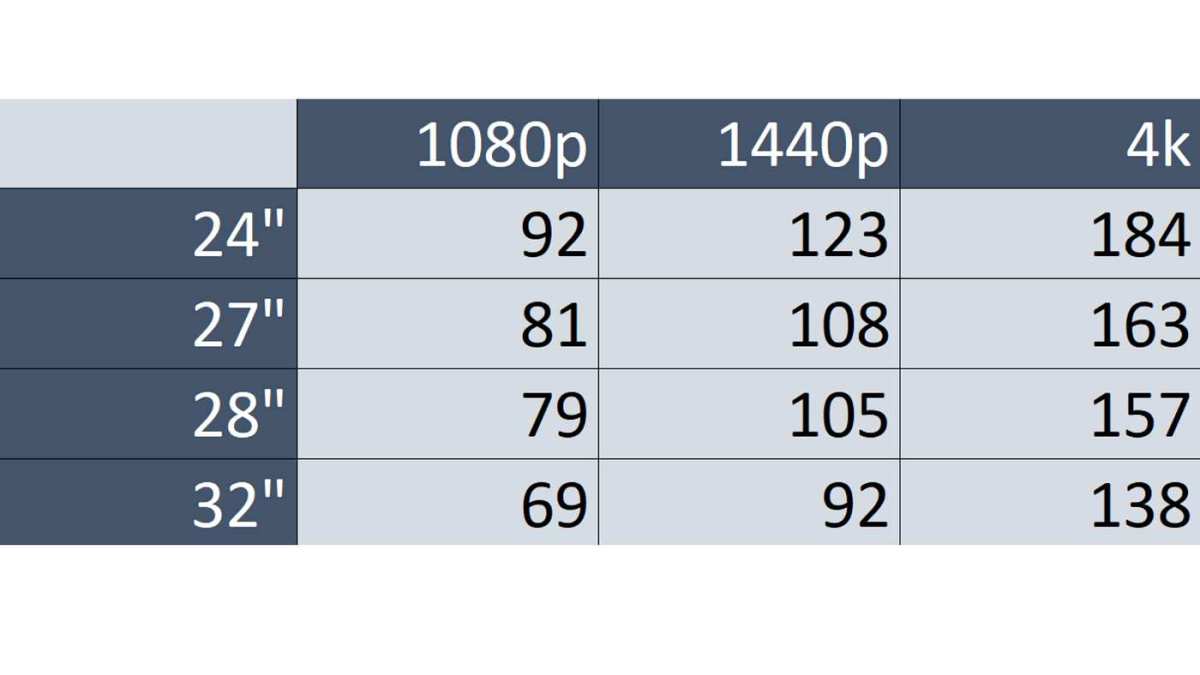
This is the comparison that matters most. A 27-inch QHD monitor at 2560 x 1440 gives you roughly 109 PPI. That's sharp enough for comfortable use at normal desk distances.
You get lower GPU demands, typically lower cost, and fewer scaling headaches.
27" 1440p is better if you primarily game, want higher refresh rates on a budget, or rely on older Windows software that struggles with scaling.
27" 4K is better if you do creative work, prioritize text sharpness above all else, or want maximum screen real estate for multitasking.
vs 32-Inch 4K (Larger Workspace, Lower PPI)
A 32-inch 4K monitor drops you to around 138 PPI. Text won't look quite as razor-sharp at close range. You gain significant physical screen space and a more immersive experience for media consumption.
Many people who try 32-inch 4K prefer it for general productivity. The larger panel feels more like a TV on your desk. For photo and video editing at professional color accuracy, a 32-inch 4K display like the ASUS ProArt line gives you more room for timelines and panels.
vs 27-Inch 1080p (Just Don't)
We need to address this one directly. A 27-inch 1080p monitor runs at approximately 82 PPI. At typical desk viewing distances, you'll see pixels.
Text looks jagged. Photos look soft. Aggregate reviews consistently flag this combination as a poor experience.
No matter how tight the budget gets, skip a 27-inch 1080p monitor. Either go 27-inch 1440p or step down to a 24-inch 1080p display.
Quick Comparison Table
| Monitor | Resolution | PPI | Best For | Typical Price |
|---|---|---|---|---|
| 27" 1080p | 1920 x 1080 | ~82 | Nothing at this size | $150-200 |
| 27" 1440p | 2560 x 1440 | ~109 | Gaming, general use | $250-400 |
| 27" 4K | 3840 x 2160 | ~163 | Creative work, productivity | $350-700 |
| 32" 4K | 3840 x 2160 | ~138 | Immersive use, multitasking | $400-800 |
What You Actually Need to Run It
Before you buy anything, make sure your hardware can output 4K. This catches people off guard more than you'd think.
For Productivity and Office Work
Most modern hardware handles 4K at 60Hz. Intel integrated graphics from 11th gen onward supports 4K via HDMI 2.0 or DisplayPort. Apple M1 and later chips support 4K natively through USB-C.
A basic DisplayPort 1.2 cable handles 4K at 60Hz. A standard HDMI 2.0 cable also handles 4K at 60Hz.
Check your laptop's output specs. Many budget laptops only support 4K at 30Hz through HDMI 1.4. That's usable for documents, but you'll notice mouse cursor lag and uncomfortable motion.
Insist on 60Hz minimum for any use case.
For Gaming
This is where the GPU requirements hit hard. To game at native 4K with modern AAA titles at medium to high settings, you need at minimum an NVIDIA RTX 4070 or AMD Radeon RX 7800 XT. For high refresh rate 4K gaming at 120Hz or 144Hz, you're looking at an RTX 4080 or above.
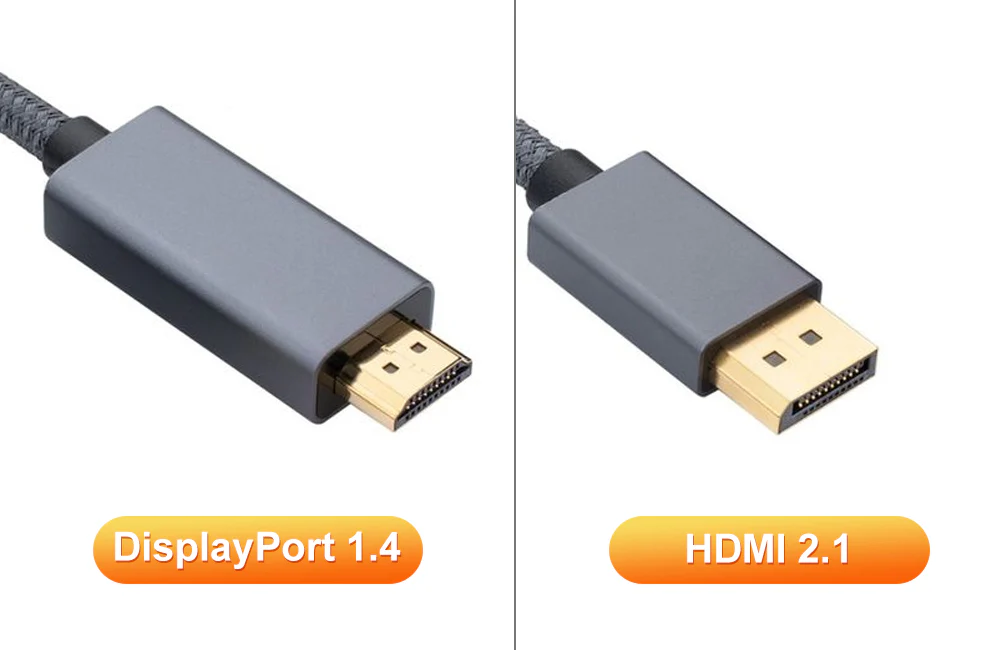
You'll also need DisplayPort 1.4 with DSC or HDMI 2.1 to push those frame rates.
Console gamers have it easier. The PS5 and Xbox Series X support 4K output natively through HDMI 2.1. Any 4K monitor with an HDMI 2.1 port works, although not all monitors include HDMI 2.1 by default.
Check the specs carefully. HDMI 2.0 caps out at 4K 60Hz, which is fine for most console games but limits PC connectivity.
Cable and Connection Checklist
- DisplayPort 1.4: Supports 4K at 120Hz with DSC. Best choice for PC gaming.
- HDMI 2.1: Supports 4K at 120Hz. Required for PS5 and Xbox Series X high refresh rate.
- USB-C with DisplayPort Alt Mode: Common on laptops. Handles 4K at 60Hz on most implementations.
- HDMI 2.0: Limited to 4K at 60Hz. Fine for productivity, limiting for gaming.
- HDMI 1.4: Maximum 4K at 30Hz. Avoid for desktop monitor use entirely.
The Real Costs
A quality 27-inch 4K monitor runs between $350 and $700 as of 2026. Budget options exist around $250, but often cut corners on color accuracy, build quality, or connectivity. The $450 to $550 range tends to offer the best balance of features and reliability.
Hidden costs add up fast. If your GPU can't handle 4K gaming, you might need a GPU upgrade costing $500 to $1,200. A proper DisplayPort 1.4 cable runs $15 to $25 if your monitor doesn't include one.
Laptop users often need a USB-C docking station with 4K output support, adding another $50 to $200.
Compared to a solid 27-inch 1440p monitor at $300, the 4K route often costs $150 to $400 more upfront. Factor in any hardware upgrades to get a true picture of what you're spending.
5 Mistakes People Make Buying a 27-Inch 4K Monitor
1. Buying Without Checking Windows Scaling Compatibility
If your daily workflow relies on older or niche Windows software, verify high DPI support first. A blurry accounts package or design tool that you eight hours daily ruins the entire experience. Check the developer's documentation.
Search user forums for high DPI complaints. Some apps require you to manually disable display scaling in compatibility settings, which defeats the purpose of a sharp monitor.
2. Underestimating GPU Requirements for Gaming
Plugging a $500 4K monitor into a mid-range GPU doesn't give you 4K gaming. It gives you a very expensive display running at 1080p upscaled or struggling at 30fps. Upgrade your GPU first, or accept that you'll game at lower resolutions and the monitor's sharpness advantage disappears for that use case.
3. Ignoring Viewing Distance
If your desk pushes the monitor three or more feet from your eyes, 4K's sharpness advantage over 1440p diminishes significantly. You might spend more money for a difference you barely perceive. Budget desks with shallow depth force the monitor closer, which favors 4K.
Deeper desks push it back, favoring larger displays.
4. Skimping on a Monitor With Poor Scaling Support
Some budget 4K monitors handle internal scaling poorly. This shows up as input lag in games or soft text even when your operating system scaling is configured correctly. Read reviews that specifically mention scaling performance.
Professional and enthusiast reviews test for this. Generic user reviews often miss it entirely.
5. Paying for HDR400 When They Think It Means "Good HDR"
VESA's DisplayHDR certification tiers matter here. HDR400 is the lowest tier. It barely delivers a noticeable improvement over standard dynamic range.
True HDR performance requires DisplayHDR 600 at minimum, with HDR1000 for genuine impact. Many monitors carry an HDR400 badge as a marketing checkbox. If you want actual HDR, budget for a higher certification tier, or skip HDR entirely and put that money toward better color accuracy instead.
The Decision Guide: Should You Buy One or Not?
Yes, if you do photo or video editing professionally, write code for hours daily, sit closer than 2.5 feet from your screen, or want a single monitor that replaces a dual-screen setup.
No, probably not, if you only game and lack a high-end GPU, sit farther than 3 feet from your desk, primarily use older Windows apps with poor high DPI support, or are on a tight budget where that extra $200 goes further elsewhere.
It's a maybe, if you do general productivity work and want a noticeably sharper daily experience. The upgrade from 1440p to 4K at 27 inches is real but subtle for non-creative tasks. If the price difference doesn't sting, go for it.
If every dollar matters, 1440p serves most people well.
Frequently Asked Questions
Is 27 inches too big for 4K?
No. At typical desk distances, 27 inches is an excellent size for 4K. The pixel density lands at roughly 163 PPI, which produces sharp text and crisp images.
Problems only arise if you sit unusually far away from your desk.
Can my laptop handle a 4K monitor?
Most laptops made after 2019 handle 4K at 60Hz through USB-C DisplayPort Alt Mode or HDMI 2.0. Check your laptop's specs for 4K output support. Gaming at 4K from a laptop requires a dedicated GPU, which most ultrabooks lack.
Does 4K at 27 inches cause eye strain by making text too small?
Only if you run it at 100% scaling with no adjustment. Set Windows or macOS scaling to 125% or 150% and text becomes comfortably sized while retaining its sharpness. Most operating systems default to appropriate scaling automatically.
Is a 27 inch 4K monitor good for PS5 gaming?
Yes, the PS5 outputs 4K natively through HDMI 2.1. Make sure the monitor has an HDMI 2.1 port for 4K at 120Hz. Monitors with only HDMI 2.0 limit you to 4K at 60Hz, which still works fine for most console games.
Should I get 27 inch 4K or 32 inch 4K?
Choose 27 inches if you sit close and want maximum sharpness. Choose 32 inches if you prioritize screen real estate and physical size. The 32-inch option spreads the same resolution over a larger area, resulting in lower pixel density.
How much should I spend on a 27 inch 4K monitor?
Budget $400 to $550 for a quality model with good color accuracy, solid build quality, and reliable connectivity. Reliable options from Dell UltraSharp, LG, and BenQ dominate this range. Spending less often means sacrificing color performance or build quality.
Final Verdict: Who Should Walk Away Happy
A 27-inch 4K monitor is a smart purchase for creative professionals, developers, and close-range productivity users with appropriate hardware. It's a luxury overkill for everyone else. If you sit close, do detail-oriented work, and your wallet allows it, you'll appreciate the sharpness daily.
If not, a quality 1440p display saves money and sidesteps scaling complications.

Similar Posts





















