Is 27 Inch Ultrawide Better Than 24 Inch Dual
When you're staring at your current single screen and feeling the crunch, the question hits fast. is 27 inch ultrawide better than 24 inch dual? It's one of those decisions that seems simple until you actually sit down and weigh the trade-offs.
The truth is, neither setup is universally "better." It depends on your desk, your workflow, and what annoys you more, a bezel gap in the middle or a curved screen that takes getting used to. As of 2026, both options sit in a similar price bracket too, so budget alone won't settle this for you. Let's break down what actually matters so you can pick the right one for your situation.
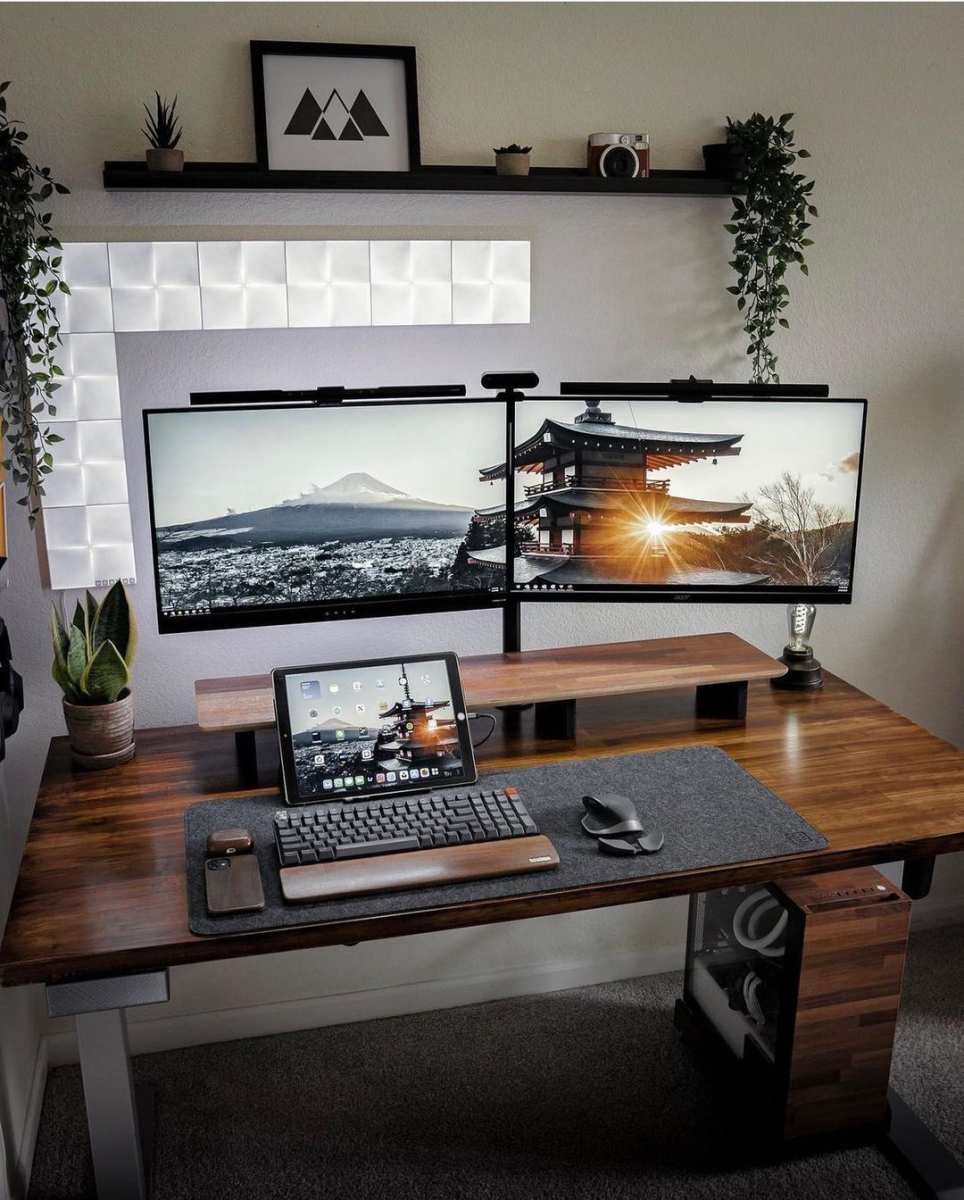
Quick Answer
Neither setup is better across the board. A 27-inch ultrawide gives you one seamless screen with no bezel interruption. A dual 24-inch setup gives you hard separation and more flexible arrangement options.
Your desk space, workflow habits, and tolerance for bezels will decide which one wins for you. Choose the ultrawide if you hate visual gaps. Choose dual monitors if you prefer dedicated full-screen zones.
Why This Comparison Actually Matters
Both setups solve the same core problem: you need more screen space than a single monitor gives you. The dispute is really about form factor, not performance. A 27-inch ultrawide packs everything into one panel.
A dual 24-inch rig uses two separate displays. Each approach has real strengths and real annoyances that only show up after you've lived with them for a week or two.
| Factor | 27" Ultrawide | Dual 24" Monitors |
|---|---|---|
| Total screen area | ~3440×1440 pixels (typical) | ~3840×1080 pixels (combined) |
| Bezel interruption | None (single panel) | Visible gap between screens |
| Curvature | Usually curved (1500R–1800R) | Flat |
| Window management | Software-based splitting | Natural physical separation |
| Desk depth needed | Deep desk recommended | Works on shallower desks |
| Typical price range | $280–$650 (2026 market) | $200–$500 (two panels) |
Most people don't think about desk depth until the monitor arrives. Ultrawides, especially curved ones, sit further back from your eyes than a flat panel does. If your desk is shallow, closer than about 20 inches from the wall, a 27-inch ultrawide can feel like it's pushing into your face.
Dual 24-inch monitors, mounted on a dual arm, give you way more freedom to position them comfortably.
Another thing people overlook is resale and flexibility. A pair of 24-inch monitors can move to a secondary desk, a living room setup, or a laptop companion arrangement. An ultrawide is one unit.
It goes where it goes.
How Each Setup Actually Works in Real Life
The 27-Inch Ultrawide Experience
A 27-inch ultrawide typically runs at 3440×1440 resolution (UWQHD). That gives you about 30% more horizontal pixels than a standard 1440p monitor. It's roughly the width of a 27-inch 16:9 display with a 24-inch 16:9 display tacked onto the side.
You get one continuous desktop with no physical break in the middle.
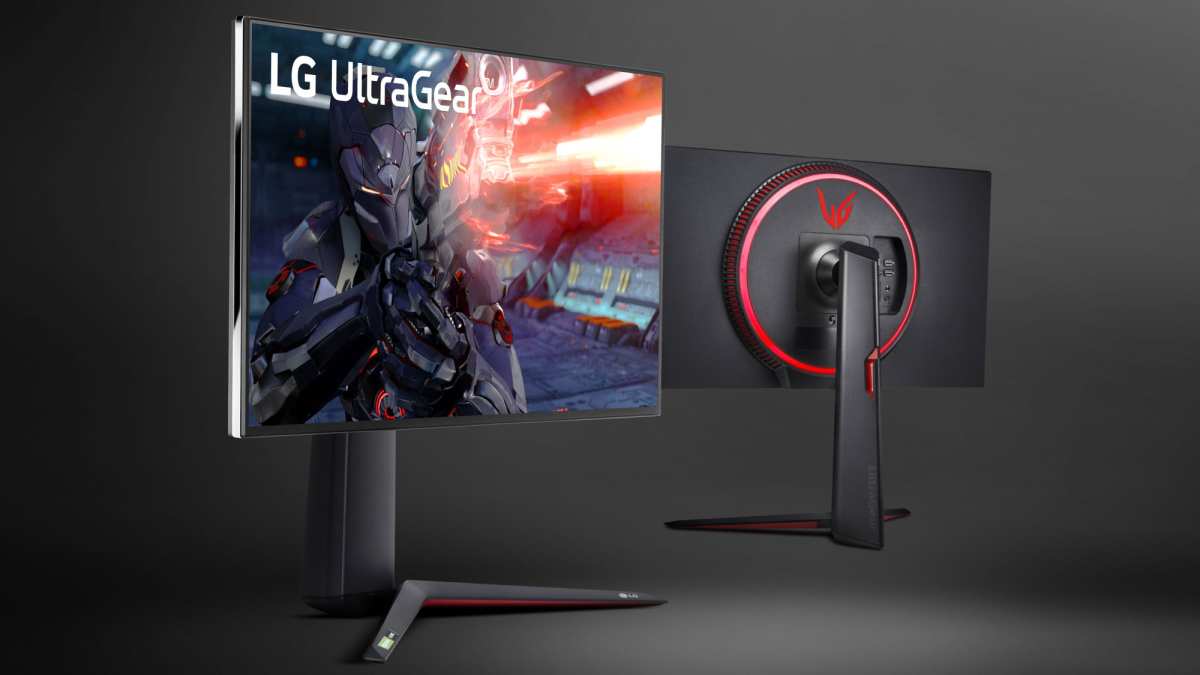
The curve, usually 1500R or 1800R, pulls the edges slightly closer to your eyes. This reduces the head-turning you'd otherwise do on a flat panel this wide. For gaming and movie watching, it creates awraparound feel that a flat dual setup can't match.
For productivity, most people rely on window management tools like Microsoft PowerToys FancyZones or DisplayFusion to snap windows into organized zones.
Here's the thing nobody tells you before buying. If you're coming from dual monitors, the first few days with an ultrawide feel weird. You lose that hard boundary between "work screen" and "everything else screen." Some people love the freedom.
Others feel scattered because there's no physical divider telling their brain which window belongs to which task.
The Dual 24-Inch Experience
A pair of 24-inch 1080p monitors gives you 3840×1080 pixels arranged as two distinct 1920×1080 zones. The bezel sits right down the middle, creating a natural split. This physical separation is genuinely useful for certain workflows.
You put your email and communication apps on one screen. You keep your main task on the other. No software needed to organize anything.
The bezels are usually 3, 8mm on each side, so the gap between usable screen areas is about 6, 16mm depending on the monitors. Some people never notice it after a few days. Others find it permanently irritating, especially when watching video or working on wide documents that span across the divide.
Dual monitors also let you orient one in portrait mode. A 24-inch 1080p monitor turned vertical gives you a tall 1080×1920 display. That's fantastic for reading long documents, scrolling through code, or viewing full-page layouts.
You can't rotate an ultrawide. It's landscape or nothing.
| Aspect | 27" Ultrawide | Dual 24" |
|---|---|---|
| Physical window separation | None (software only) | Natural bezel barrier |
| Portrait mode option | Not possible | One or both monitors |
| Mounting complexity | Single arm or stand | Dual arm recommended |
| Cable count | 1–2 display cables | 2–4 display cables |
| Cross-screen content | Seamless | Interrupted by bezel |
Head-to-Head: 27" Ultrawide vs. Dual 24" Compared
Screen Real estate and Resolution Breakdown
Resolution numbers don't tell the whole story, but they set the baseline. A 3440×1440 ultrawide delivers about 4.95 million pixels. A pair of 1920×1080 monitors delivers about 4.15 million pixels.
The ultrawide has roughly 19% more total screen real estate.
What matters more is how that space is shaped. The ultrawide gives you a wide canvas. The dual setup gives you two square-ish canvases with a gap between them.
For tasks that benefit from horizontal spreadsheets, video editing timelines, or code editors with side panels, the ultrawide's continuous width is a genuine advantage.
For tasks that work better in full-screen applications. IDEs, design tools, or presentation previews, the dual setup's physical separation makes a real difference when you want each app to have its own dedicated display. You can't replicate that feeling with software window snapping on a single panel.
Bezel vs. Curve: The Trade-Offs Nobody Talks About
These are the two physical factors that decide whether you'll love or hate your choice within the first week.
The bezel gap (dual monitor drawback) interrupts any content that spans both screens. Video walls, wide spreadsheets, and full-page documents all hit that dead zone. Some tasks are constantly disrupted by a bezel in the wrong place.
Others, the bezel becomes an invisible divider for work zones. You adapt. The gap stops bothering you.
The curve (ultrawide drawback) introduces slight geometric distortion at the edges. For graphic design work or CAD, where straight lines matter, this can be a real problem. For general productivity and gaming, most people adjust within a few days.
Flat-panel purists sometimes never adjust.
Ergonomics, Desk Space, and Your Neck
This is where personal physiology matters more than specs. A 27-inch ultrawide spans roughly 25.5 inches wide. That's a lot of horizontal space for your eyes and neck to traverse.
If you sit close, under 30 inches from the screen, you'll turn your head more than you would with a single 24-inch panel. The curve helps by keeping the edges at a more consistent focal distance, but it doesn't eliminate head movement entirely.
Dual 24-inch monitors let you angle each panel inward in a V-shape. This creates a curved viewing effect without any actual panel curvature. Each screen sits directly in front of one half of your visual field.
Less head turning. More natural focal distance. The trade-off is that the center of your visual field lands on a plastic bezel rather than screen content.
Desk depth matters more than width here. An ultrawide with its stand needs at least 10 inches of depth just for the screen and base. Add your viewing distance and you're looking at desks 24 inches deep or more.
Dual monitors on arms can mount to shallower desks since each individual panel is smaller and lighter.
GPU Requirements and Connectivity
A single 3440×1440 display needs one DisplayPort 1.2+ or HDMI 2.0+ connection. One cable. One GPU output.
Simple.
Dual 1080p monitors need two connections. That's usually fine on any modern GPU, even integrated graphics, but if you're running a laptop dock or a compact PC with limited outputs, two displays can push the limits of what the hardware supports. Check your available ports before committing to either setup, but especially before committing to dual monitors.
For laptop users, this is a real consideration. Many business laptops only support one external display natively. Running dual external monitors may require a DisplayLink dock or a USB-C hub with dual display support.
Pricing Reality: What You'll Actually Spend
As of 2026, a solid 27-inch 3440×1440 ultrawide from a reputable brand like Dell, LG, or Samsung runs about $280 to $450 for productivity-focused models. The Samsung Odyssey G6 and LG 27GP950 sit in this range. Higher-end options with better panels or gaming features push toward $600+.
Dual 24-inch 1080p monitors can be surprisingly affordable. The Dell P2422H runs around $180 each, so a pair costs roughly $360 total. Budget options like the ASUS VY249HGE bring that down further.
On the other end, color-accurate 24-inch panels like the Dell UltraSharp U2424H command a premium. Two of those push closer to $500.
You'll also want to factor in mounting. A dual monitor arm, which almost a necessity for two displays, adds $40 to $150 depending on quality. A single ultrawide arm is optional but ergonomically recommended.
| Setup | Monitor Cost | Mount Cost | Total Estimate |
|---|---|---|---|
| Budget dual 24" | $200–$300 | $40–$80 | $240–$380 |
| Mid-range dual 24" | $350–$500 | $60–$120 | $410–$620 |
| 27" ultrawide (mid) | $300–$450 | $0–$100 | $300–$550 |
| Premium either option | $500–$800+ | $80–$150 | $580–$950+ |
The price gap between these setups has narrowed significantly. Neither one gives you a clear financial advantage anymore. The decision really comes down to form factor, not cost.
The Bezel Problem: Why Dual Monitors Annoy People
That plastic strip dead center in your field of vision. It's the single biggest complaint aggregate reviews mention about dual monitor setups. The usually firm response: you stopped noticing it after a while.
The honest follow-up: a lot of people genuinely never stop noticing it.
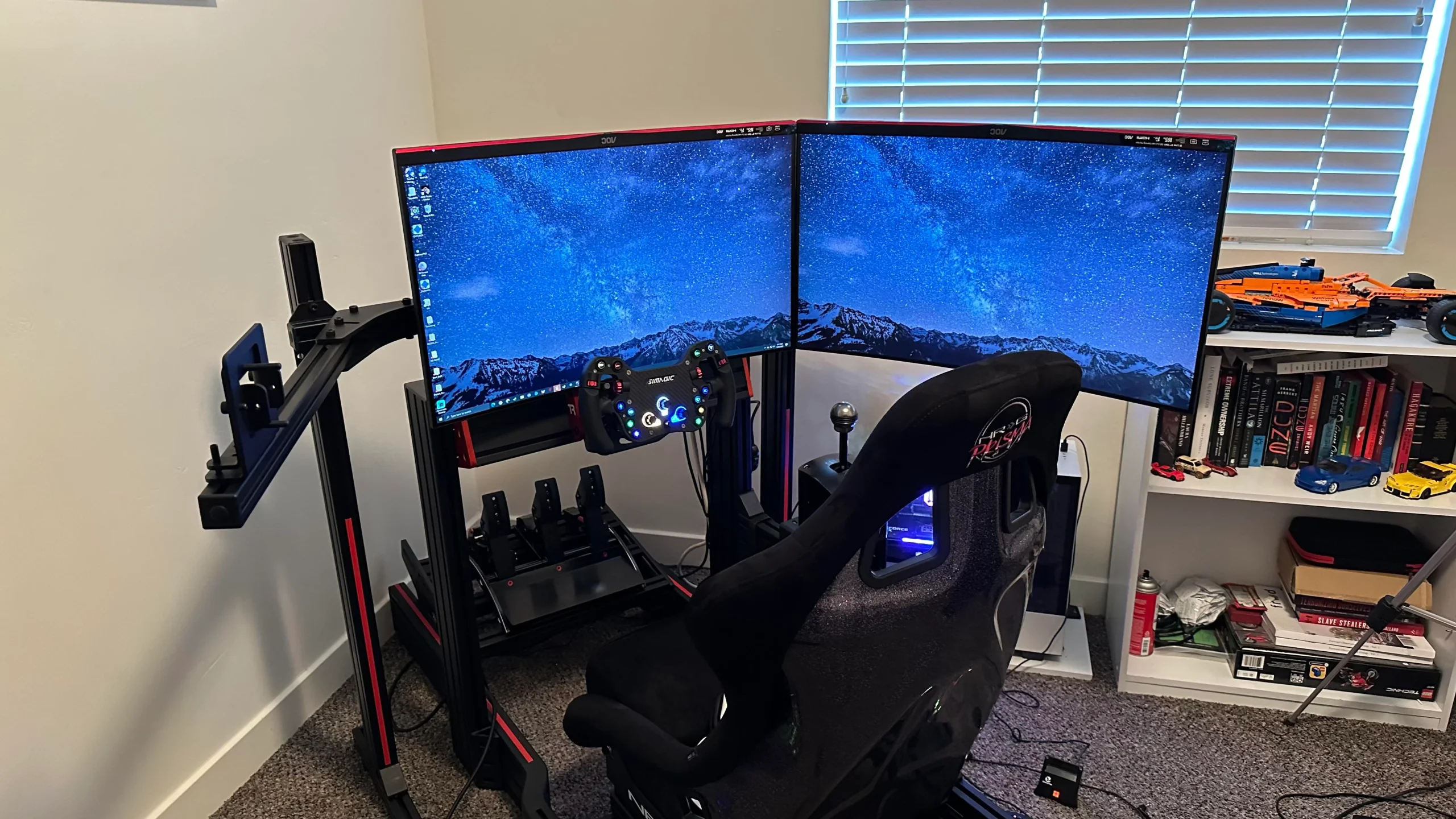
When your mouse crosses from one screen to the other, it disappears into that gap for a split second. When you drag a window across both monitors, the content behind the bezel visually "hides" for the width of the gap. Spreadsheets with merged data cells.
Video timelines. Wide PDF documents. All of them get bisected by a strip of black plastic.
Thin-bezel monitors help. Models like the Dell UltraSharp U2422H have bezels as thin as 3mm, which shrinks the total gap to around 6-8mm. But "thin" and "invisible" aren't the same thing.
Some bezels are thin on three sides but retain a chunky bottom chin. That asymmetric look bothers perfectionists, and when two of these monitors sit flush against each other, the combined gap is still very much present.
The psychological effect matters more than the physical measurement. Your brain partitions the two screens into distinct zones. For many users, this is exactly the point: email stays left, code stays right, and the bezel serves as a natural organizational boundary.
For others, the bezel feels like a scar across their digital workspace. Neither reaction is wrong. Just know which camp you're in before you buy.
Curve Distortion and Other Ultrawide Complaints
Curved monitors solve a real viewing-distance problem across such a wide panel frame. They don't suit every user, though. And some people never adapt.
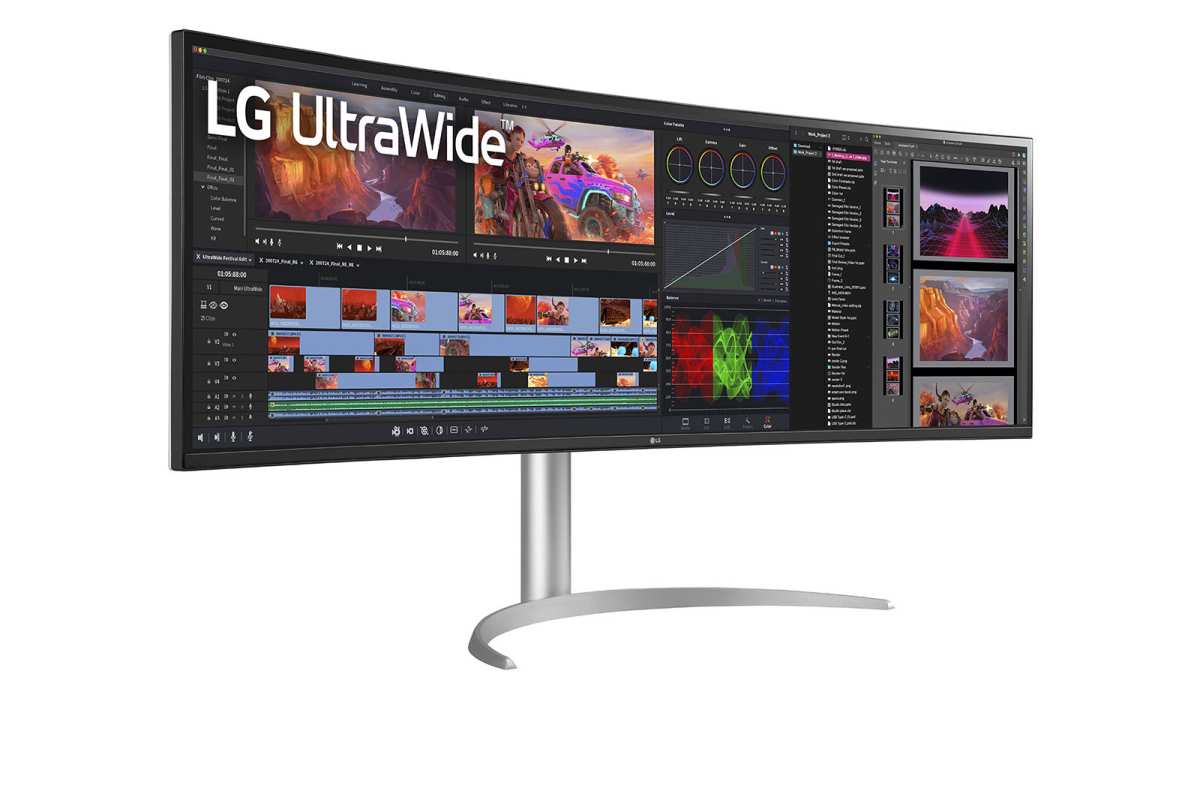
CAD designers and precision drafters report the most issues. A line that should look straight can appear slightly bowed on a curved display, especially near the outer edges. This is a known phenomenon called pincushion effect (or its reverse, depending on curvature).
It's subtle, but for professionals who verify measurements on-screen, it can be disqualifying.
Photographers and video editors sometimes share this concern, but the reality is more nuanced. Most modern curve radii, 1800R being common in mid-range models, are gentle enough that the distortion is negligible for content consumption and even for most editing tasks. Color accuracy across the curve can vary between panels, especially on VA-type panels versus IPS.
Gaming is where curves genuinely shine. Racing sims, flight sims, and first-person games all feel more immersive on a curved display. Your peripheral vision curves too.
Your brain accepts the warped geometry more readily when you're in motion than when you're staring at a static spreadsheet.
One more complaint that comes up: reflections. A curved surface can catch ambient light differently than a flat one. If your desk faces a window, you'll get reflections spread across a wider arc.
Matte coatings help, but they don't eliminate the issue.
Desk Depth and Viewing Distance: The Hidden Dealbreaker
If your desk is shallower than about 24 inches from wall to edge where your hands sit, an ultrawide creates a real ergonomic problem. Most 27-inch ultrawide stands need 10-12 inches of depth for the screen and base alone. Add another 20-26 inches for comfortable viewing distance, and you're looking at a total need of 30-38 inches of desk depth.
The math doesn't work on a lot of standard desks. Many office desks ship in at 24-30 inches deep. An ultrawide crammed onto a shallow desk forces you to sit too close, then you're turning your head to see the edges and straining to focus.
Mounting the monitor on a VESA arm helps reclaim a few inches of effective depth by letting you push the screen further back toward the wall.
Dual 24-inch monitors have a smaller footprint per screen. On a similarly shallow desk, you can push each monitor closer to the wall and still have room for your keyboard in front. They're physically more compact units to work with.
This is worth measuring before you spend money, even with a tape measure. Check your desk depth. If it's under 24 inches, dual monitors give you more flexibility.
And if you're stuck with a fixed built-in desk that you can't modify or drill into for a wall mount, dual monitors on their own stands are often the more workable option.
| Desk Depth | 27" Ultrawide Feasibility | Dual 24" Feasibility |
|---|---|---|
| Under 20 inches | Not recommended | Works with small stands |
| 20–24 inches | Tight, arm mount required | Works well |
| 24–30 inches | Comfortable with arm | Ideal |
| 30+ inches | Comfortable with stand | Ideal |
Common Mistakes People Make Choosing Between These
Measuring width but not depth. Ample width is necessary but not sufficient. Desk depth matters just as much for comfort. Check both dimensions before buying either setup.
Ignoring GPU port count. A lot of buyers realize after the fact that their GPU only has one HDMI and that running dual monitors requires two discrete outputs, or that a USB-C dock doesn't support dual extended displays without DisplayLink.
Assuming bezels disappear with thin-bezel monitors. Current marketing creates a mistaken impression that bezels have been effectively eliminated. A narrower gap isn't no gap.
Forgetting about window management software. Ultrawide users who don't invest time into setting up zone-based window managers with tools like FancyZones have a reason to reconsider their choice. The full horizontal span becomes clumsy to organize without it.
Matching two monitors that don't match. Non-matching brightness, color temperature, or resolution can make dual monitors produce a visually jarring mismatch. Buying a matching pair is recommended for a good reason.
Buying an ultrawide without considering curve radius. If a return policy is important to you, treat it as essential when trying a curved display. Some curve radii may cause discomfort that no reasonable return window can fix.
Can You Mix Both? Hybrid Setups Worth Considering
Yes, and it's more common than you'd think. A popular arrangement is one 27-inch ultrawide as the primary display, paired with a single 24-inch monitor mounted vertically to the side. The ultrawide handles your main workspace.
The vertical monitor holds Slack, email, documentation, or a terminal window. This combination addresses the physical separation that many ultrawide-only users miss, without requiring a full dual-panel rig.
Another hybrid approach: dual 27-inch monitors. A huge canvas if you have the desk space and GPU headroom, though many buyers find that a 4K 32-inch display collapses two 16:9 panels into one device without the central bezel and sets a foundation comparable to the ultrawide-plus-vertical setup.
Hybrid configurations do require more cables, more desk space, and a better GPU. They also give you the most flexibility. If you can't commit fully to one setup or the other, mixing both gives you the benefits of each while hedging against the drawbacks.
Best Setup for Each Use Case
Your workflow should drive this decision, not specs on a box. Different tasks reward different form factors.
Software Developers and Programmers
Dual monitors win here for most developers. The physical separation maps naturally to a mental model. Code on one screen.
Documentation, terminal, or browser tools on the other. a feature, not a bug.
Ultrawides work well if you run multiple panels inside a single IDE. VS Code with an integrated terminal, file explorer, and editor all visible simultaneously benefits from the extra horizontal space. You'll want PowerToys FancyZones or a similar tool to keep things organized without dragging windows around manually.
Video Editors and Content Creators
Ultrawides have the edge for timeline-based editing. Premiere Pro, DaVinci Resolve, and Final Cut Pro all spread their timelines horizontally. That extra width means you see more of your edit without scrolling.
A 3440×1440 display gives you roughly 50% more timeline width than a standard 16:9 1440p monitor.
Dual monitors suit multi-panel workflows better. Keep your preview window on one screen and your media browser, effects controls, and audio mixer on the other. This separation keeps the preview clean and full-screen, which matters for color-accurate output.
Office Workers and Spreadsheet Traders
Financial analysts and spreadsheet-heavy users tend to prefer ultrawides. Wide spreadsheets with dozens of columns benefit enormously from continuous horizontal space. You can see Columns A through Z without splitting the view or scrolling, and the lack of a bezel in the middle means merged headers never disappear into a gap.
Dual monitors earn their keep when you need to compare two full documents side by side. A contract on one screen and reference material on the other, each at native 16:9, is hard to replicate on an ultrawide without shrinking both windows below comfortable reading sizes.
Gamers
Ultrawides dominate for immersive gaming. The 21:9 aspect ratio fills more of your peripheral vision. Racing sims, open-world RPGs, and flight sims all feel more enveloping on a curved ultrawide.
Most modern titles support 3440×1440 natively as of 2026.
Competitive FPS players often prefer a single flat 24-inch or 27-inch 16:9 monitor at high refresh rates (240Hz or 360Hz) instead. Ultrawides with panels that can hit those refresh times often come at a significant price premium. For competitive play, raw speed beats immersion.
Final Verdict: The Decision Framework
Pick the 27-inch ultrawide if you sit at a desk that's at least 24 inches deep, you hate bezels cutting through content, you work with wide spreadsheets or timelines, and you game or watch video regularly. The seamless single-panel experience is worth the curve adjustment period for most people.
Pick the dual 24-inch setup if your desk is shallow, you want physical separation between work zones, you need a portrait-oriented display for documents or code, you prefer flat panels, or you value the flexibility to repurpose one monitor later.
Pick a hybrid ultrawide-plus-vertical setup if you want the best of both worlds and have the desk space and budget for it.
Frequently Asked Questions
Can I use two 27-inch monitors instead of an ultrawide?
Yes. Dual 27-inch 1440p monitors give you 5120×1440 total resolution. That's significantly more screen space than any single ultrawide.
The trade-off is the bezel gap in the center and the need for more desk width and a stronger GPU.
Is a curved ultrawide bad for photo editing?
Gentle curves (1800R) cause minimal distortion for most editing work. Flat-panel devotees and CAD professionals may find even slight curves unacceptable. IPS panels with 1800R curvature rarely cause visible distortion in standard photo editing workflows.
Do I need a special monitor arm for an ultrawide?
A VESA arm is strongly recommended. The included stand on most ultrawides eats up 10-12 inches of desk depth. An arm lets you push the screen closer to the wall and adjust height and tilt more precisely.
Most ultrawides use 100×100mm VESA mounting.
Which setup uses less power?
A single 27-inch ultrawide typically draws 25-45W under normal use. Two 24-inch monitors combined draw 30-50W. The difference is small enough that electricity cost shouldn't factor into your decision.
Can a laptop drive both setups?
Most modern laptops can drive a single ultrawide via USB-C DisplayPort Alt Mode or HDMI. Dual external monitors may require a Thunderbolt dock or USB-C hub with dual display support. Check your laptop's display output specs before committing to either setup.

Similar Posts





















