How Wide Is a 34 Inch Ultrawide Monitor
This guide demystifies the physical dimensions of a 34-inch ultrawide monitor. We’ll break down its width, explain how to measure it, and help you determine if it fits your workspace. Understand the screen’s actual dimensions, including aspect ratio, and make an informed decision before you buy.
- Diagonal Measurement vs. Actual Width: A 34-inch ultrawide refers to its diagonal screen size, not its physical width.
- Common Aspect Ratios: Most 34-inch ultrawides use a 21:9 aspect ratio, influencing their overall shape and width.
- Calculating True Width: You can estimate the physical width using its diagonal measurement and aspect ratio.
- Desk Space Considerations: Understanding the monitor’s width is crucial for ensuring it fits comfortably on your desk.
- Viewing Distance Matters: The ideal viewing distance for an ultrawide can also affect how its width feels in your setup.
- Curved vs. Flat Panels: Curved ultrawides can feel wider but take up slightly different desk space than their flat counterparts.
How Wide Is a 34 Inch Ultrawide Monitor
So, you’re eyeing a 34-inch ultrawide monitor. Fantastic choice! They offer an immersive experience for gaming, productivity, and multitasking. But one of the biggest questions before you hit “buy” is often: “Just how wide is this thing, really?” It’s not as simple as it sounds. The “34 inch” spec refers to the diagonal measurement of the screen itself, not the full physical width of the monitor, including bezels and stand. This guide is here to clear up all the confusion. We’ll walk you through exactly how wide a 34-inch ultrawide monitor is, what factors influence its width, and how you can ensure it’s the perfect fit for your desk. By the end, you’ll have a crystal-clear understanding of the physical footprint of these impressive displays.Understanding Ultrawide Monitor Measurements
When we talk about monitor sizes, we’re almost always referring to the diagonal measurement of the *screen* itself. Think of a standard rectangular TV or monitor; a measuring tape stretched from one corner to the opposite corner gives you that advertised size. For a 34-inch ultrawide, this means the diagonal distance across the active display area is 34 inches. However, a 34-inch ultrawide is much more than just a simple rectangle. Its defining characteristic is its *aspect ratio*.The Importance of Aspect Ratio
The aspect ratio tells you the proportional relationship between the width and height of a display. For most 34-inch ultrawide monitors, the standard aspect ratio is 21:9. This means for every 21 units of width, there are 9 units of height. Compare this to a standard 16:9 monitor (like most TVs and older monitors). A 16:9 screen is squarer. A 21:9 ultrawide is significantly wider and shorter in comparison to its width. This wider format is what gives you that expansive, panoramic view. So, while the diagonal is 34 inches, the width will be considerably more than half of that. The 21:9 aspect ratio is the key to understanding its impressive width. If you’re considering how much desk space you’ll need, you might also want to check out our guide on how much desk space an ultrawide monitor needs.Calculating the Actual Width of a 34 Inch Ultrawide
Let’s get down to the nitty-gritty. How do we translate that 34-inch diagonal and 21:9 aspect ratio into a tangible physical width? We can use a bit of geometry.The Pythagorean Theorem at Play
The diagonal of a rectangle, its width, and its height form a right-angled triangle. The Pythagorean theorem (a² + b² = c²) helps us relate these. Let: * `d` be the diagonal (34 inches) * `w` be the width * `h` be the height For a 21:9 aspect ratio, we can say `w = 21x` and `h = 9x` for some scaling factor `x`. So, the equation becomes: `(21x)² + (9x)² = 34²` `441x² + 81x² = 1156` `522x² = 1156` `x² = 1156 / 522` `x² ≈ 2.214559` `x ≈ √2.214559` `x ≈ 1.488` Now we can find the width: `w = 21 * x` `w ≈ 21 * 1.488` `w ≈ 31.25 inches` This calculation gives us the *diagonal screen width* (the active display area). So, the actual image you see is roughly 31.25 inches wide.Accounting for Bezels and Stand
It’s important to remember that the 31.25 inches is just the screen. The overall physical width of the monitor will be larger due to: * Bezels: The frames around the screen. Modern monitors often have very thin bezels, but they still add to the total width. * Stand: The base and neck that support the monitor. Stands can vary greatly in width and design. To get a more accurate idea of the *total* monitor width, you’ll need to check the manufacturer’s specifications. They usually provide dimensions for the monitor including the stand.Practical Measurement and Comparison
Let’s put this into perspective. How wide is 31.25 inches really?Visualizing the Width
* Desk Real Estate: Imagine three standard sheets of 8.5″ x 11″ paper laid end-to-end. That’s about 25.5 inches. A 34-inch ultrawide’s screen alone is wider than that. * Arm Span: For most adults, 31.25 inches is a significant portion of their arm span when arms are extended outwards.Comparing to Other Monitor Sizes
Let’s compare the screen width of a 34-inch ultrawide (21:9) to other common monitor sizes and aspect ratios: * 34-inch Ultrawide (21:9): ~31.25 inches (screen width) * 27-inch Standard Monitor (16:9): A 27-inch monitor (diagonal) with a 16:9 aspect ratio has a screen width of about 23.5 inches. * 34-inch Standard Monitor (16:9): A 34-inch monitor with a 16:9 aspect ratio would have a screen width of about 29.7 inches. Notice how the 21:9 ultrawide is wider than a 16:9 monitor of the *same* diagonal measurement. This is the power of the ultrawide format. This comparison highlights that a 34-inch ultrawide offers a substantial increase in horizontal screen real estate over even a larger standard monitor. If you’re wondering whether such a large screen is necessary for your workflow, especially in creative fields, you might find our article on whether an ultrawide monitor is necessary for video editing helpful.Desk Space and Ergonomics: Will It Fit?
This is where the “how wide” question becomes critical. You don’t want to buy a monitor only to find it doesn’t fit your desk or makes your setup feel cramped.Measuring Your Desk
Before you buy, grab a tape measure and measure your desk. Pay close attention to: 1. Overall Desk Width: Ensure you have enough space for the monitor, keyboard, mouse, and any other peripherals. 2. Depth: How far does the monitor (especially if curved) extend from the wall or your seating position? 3. Height: While less critical for width, ensure there’s enough vertical space if you plan to use a monitor arm or have items on your desk.Checking Manufacturer Specifications
Always, always check the official specifications from the manufacturer. They will list: * Dimensions (W x H x D): This usually includes the stand. * VESA Mount Compatibility: If you plan to use a monitor arm, this is crucial. Monitor arms can offer more flexibility in positioning and can sometimes save desk space compared to bulky stands. A typical 34-inch ultrawide monitor might have a total width (including stand) of around 31-33 inches. This can vary, so always verify.The Impact of Curved vs. Flat Ultrawides
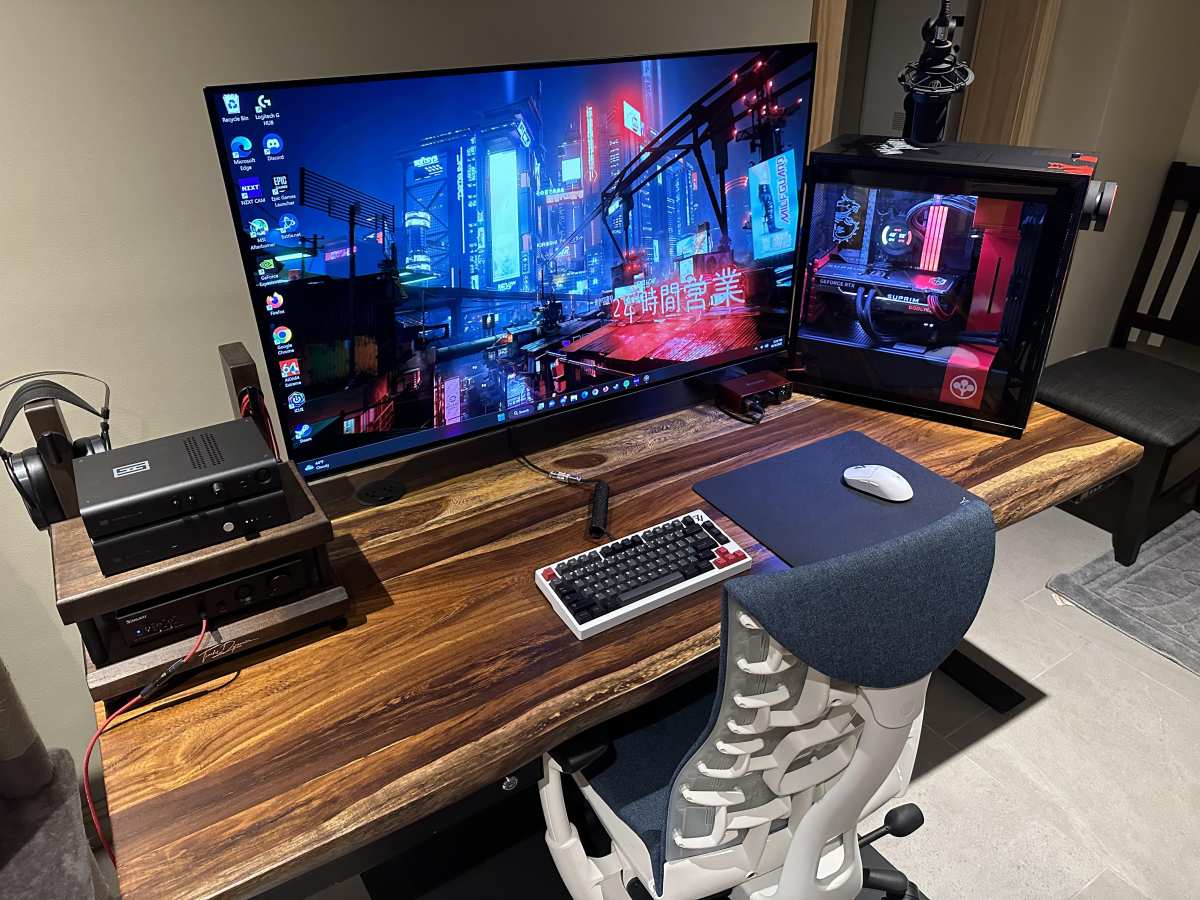
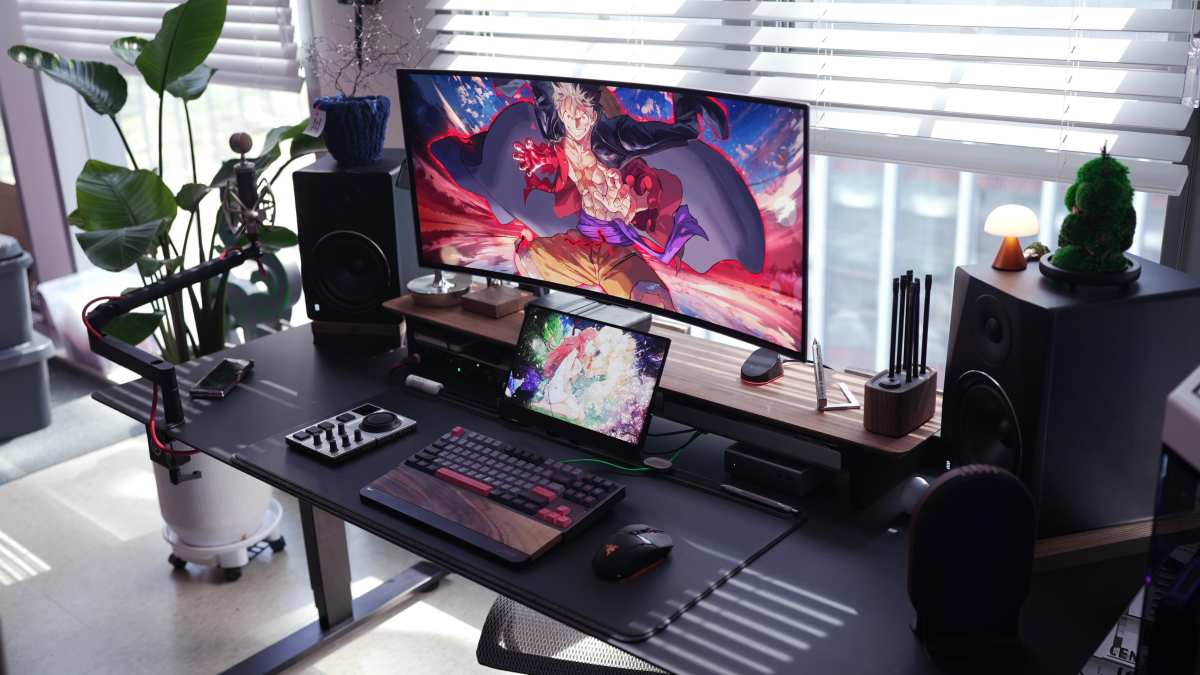
Many 34-inch ultrawides come with a curved screen. This curvature can affect perceived width and desk placement: * Perceived Width: A curved monitor can feel even more immersive and wrap around your field of view more dramatically, making it feel wider. * Desk Footprint: While the curved screen might have a maximum width, the stand for a curved monitor might have a different footprint than a flat one. Some stands are more compact, while others spread out more. The curve can also mean the edges of the monitor are closer to you than the center. When measuring your desk, consider the widest point of the monitor. If it’s curved, the widest measurement might be at the front edge of the screen or the stand. For those using their setup for development or programming, understanding ergonomics is key—learn more in our post on whether ultrawide monitors are good for coding.Tips for Setting Up Your 34 Inch Ultrawide
Once you’ve confirmed it fits, here are some tips for optimal placement:Optimal Viewing Distance
For an ultrawide monitor, especially a curved one, the ideal viewing distance is usually closer than you might think. You want the edges of the screen to be within your peripheral vision without excessive head or eye movement. * **General Rule:** Aim for an arm’s length away, roughly 25-35 inches. * **Adjust as Needed:** If you feel you’re craning your neck or missing information at the edges, adjust your seating position or the monitor’s placement.Using a Monitor Arm
A VESA-compatible monitor arm can be a game-changer. * Space Saving: It frees up desk space usually occupied by the monitor stand. * Flexibility: You can easily adjust height, tilt, and swivel, allowing you to find the perfect viewing angle and distance. * Positioning: Arms can help position the monitor more ergonomically, especially for curved models, bringing the edges closer.Software and Task Management
The extra width is for more than just looking pretty. Make sure your operating system and software can take advantage of it. * Window Snapping: Windows 10/11 and macOS have excellent built-in window snapping features. You can easily tile multiple applications side-by-side. * Third-Party Tools: Utilities like DisplayFusion can offer even more advanced window management and multi-monitor setups, even on a single ultrawide. * Gaming: Ensure your games support ultrawide resolutions (21:9 is common, but 32:9 is also out there).Troubleshooting: What If It Doesn’t Fit?
Despite careful planning, sometimes things don’t go as expected. If your 34-inch ultrawide is proving to be too wide for your current desk setup: * **Consider a Monitor Arm:** As mentioned, this is the most common and effective solution to regain desk space and improve ergonomics. * Desk Reconfiguration: Can you rearrange your existing desk or furniture to create more space? * Return or Exchange: If the monitor is simply too large for your intended space and a monitor arm doesn’t solve it, most retailers have return policies. It’s better to find out within the return window. * Alternative Monitor Size: While you might love the idea of a 34-inch ultrawide, a slightly smaller ultrawide (like a 30-inch or 32-inch) or a wider standard monitor might be a better fit for your desk.Conclusion
A 34-inch ultrawide monitor, with its common 21:9 aspect ratio, offers a screen that is approximately 31.25 inches wide in terms of its active display area. When you factor in bezels and the stand, the total physical width of the monitor will typically range from 31 to 33 inches. This substantial width provides an incredibly immersive and productive viewing experience. However, it’s crucial to measure your desk space accurately and consult manufacturer specifications before purchasing. By understanding the geometry of ultrawide displays and considering practical setup factors like viewing distance and monitor arms, you can ensure your new 34-inch ultrawide monitor is not just a visually stunning upgrade, but also a perfect and comfortable fit for your workspace. Enjoy that panoramic view!
Similar Posts