How Close Should You Sit to a Curved Monitor
Determining the right seating distance for your curved monitor is crucial for comfort and immersion. This guide will walk you through understanding curvature, screen size, and personal preference to find your sweet spot. By following our expert advice, you’ll learn how to minimize eye strain and maximize your viewing experience. Get ready to enjoy your curved monitor like never before! 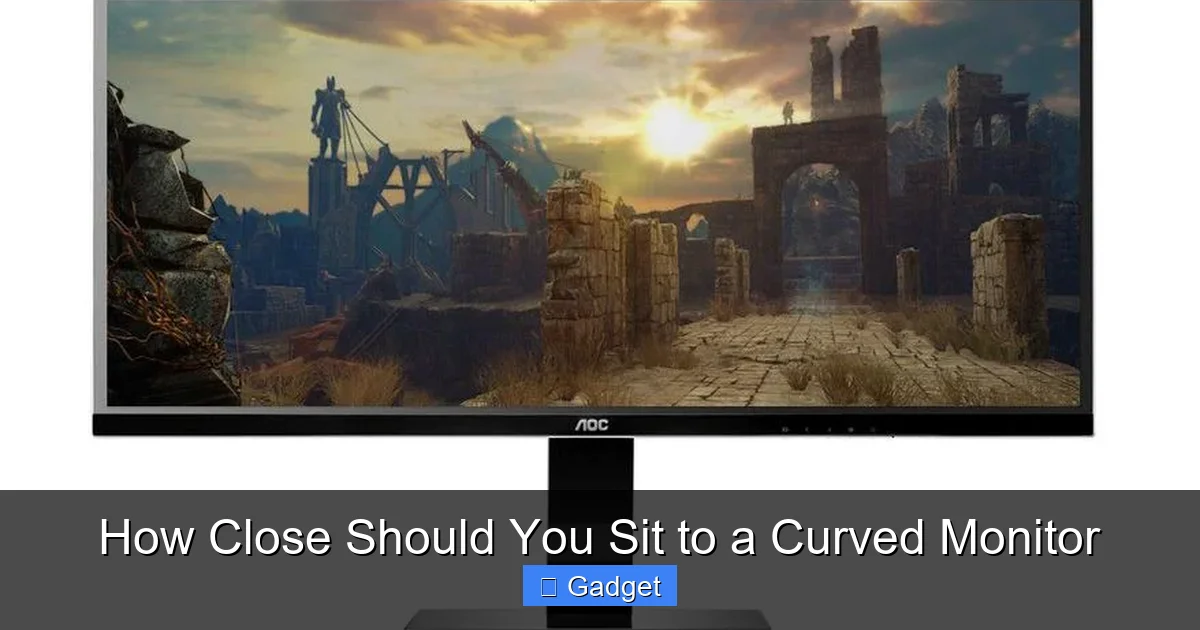 Sitting too far from a curved monitor can diminish its immersive qualities. You might find yourself constantly turning your head to see everything, negating the very purpose of the curve. On the other hand, sitting too close can feel overwhelming, making the edges of the screen appear distorted or distant, and potentially causing eye strain. The goal is to position yourself so that the monitor’s curve naturally aligns with your natural field of vision. This creates a sense of depth and envelopment, making your content feel more engaging, whether you’re battling dragons in a game or analyzing spreadsheets.
  There are several approaches to finding your perfect seating distance. We’ll explore a few methods, from simple formulas to practical experimentation.
 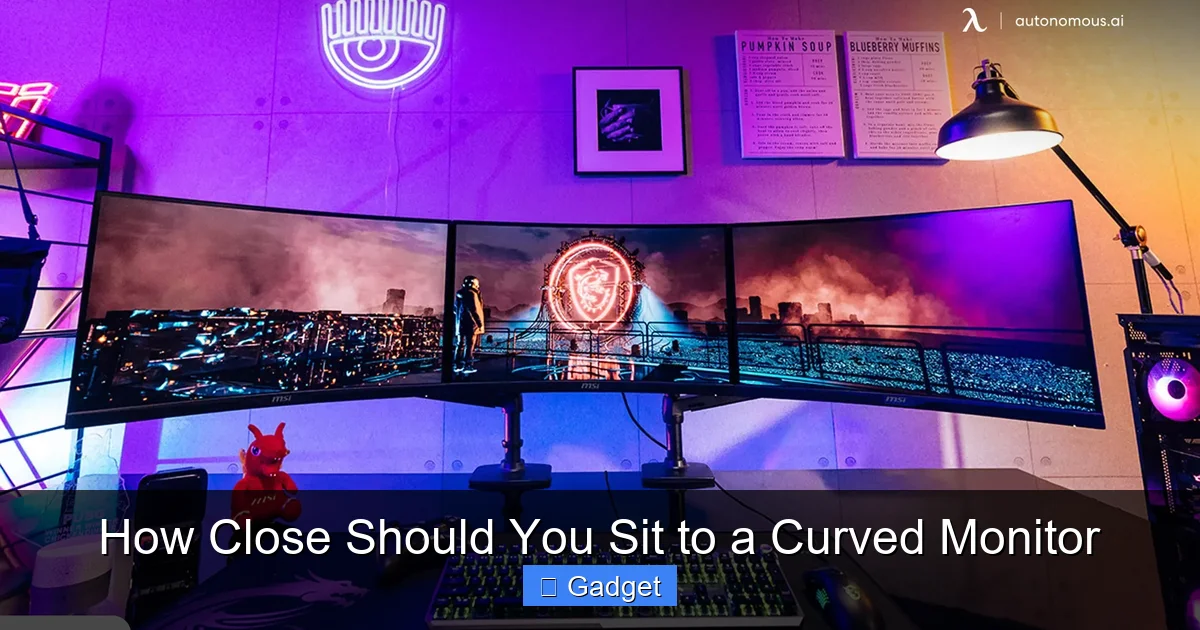 While the “R” value is a primary driver, several other factors play a role in determining your ideal seating distance.
How Close Should You Sit to a Curved Monitor
Welcome to the ultimate guide on finding the perfect viewing distance for your curved monitor! You’ve likely invested in a curved display for its immersive qualities and potential to reduce eye strain. But are you actually getting the most out of it? The answer often lies in how close you sit. This guide is designed to demystify the optimal seating distance for curved monitors. We’ll break down the factors that influence this decision, provide practical advice, and help you find that perfect “sweet spot.” By the end of this article, you’ll know exactly how to position yourself to maximize comfort, enhance your viewing experience, and truly appreciate the benefits of your curved display.Key Takeaways
- Understand Your Monitor’s Curvature (R Value): The ‘R’ value indicates how deeply curved your monitor is. Lower ‘R’ values mean a more pronounced curve, influencing the ideal viewing distance.
- Screen Size Matters: Larger curved monitors generally require you to sit further back to take in the entire screen comfortably without excessive head movement.
- The “Sweet Spot” is Personal: While general guidelines exist, your individual comfort, desk setup, and how you use the monitor (gaming, work, general browsing) will ultimately dictate the perfect distance.
- Aim for Immersion, Not Strain: The goal is to have the edges of the screen naturally fall within your peripheral vision, creating an immersive experience without causing eye fatigue.
- Experimentation is Key: Don’t be afraid to adjust your seating position. Try sitting closer and further away to find what feels best for your eyes and neck.
- Consider Your Desk Depth: The physical dimensions of your desk play a significant role. Ensure there’s enough space for the monitor and for you to sit at the optimal distance.
- Test with Different Content: What feels right for gaming might differ from reading long documents. Test your chosen distance with various tasks.
Understanding Curved Monitor Technology
Before we dive into seating distances, let’s briefly touch on what makes curved monitors different. Unlike their flat counterparts, curved monitors feature a subtle arc. This curvature is designed to wrap around your field of vision, aiming to provide a more consistent viewing experience across the entire screen. The degree of this curvature is measured by an “R” value. For example, a 1800R monitor has a radius of curvature of 1800mm. A lower “R” value (like 1000R or 1500R) means a more aggressive, deeper curve. A higher “R” value (like 3000R or 4000R) indicates a gentler, wider curve. This “R” value is a crucial piece of information when determining your ideal seating distance.Why Seating Distance Matters
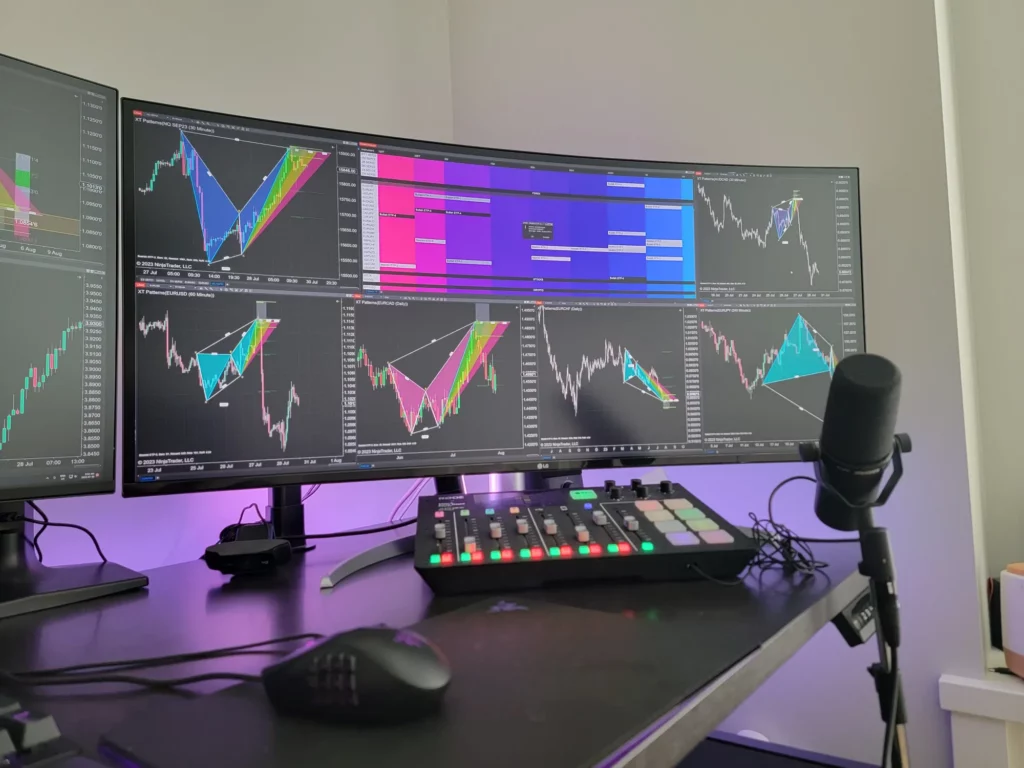
Visual guide about How Close Should You Sit to a Curved Monitor
Calculating Your Ideal Viewing Distance
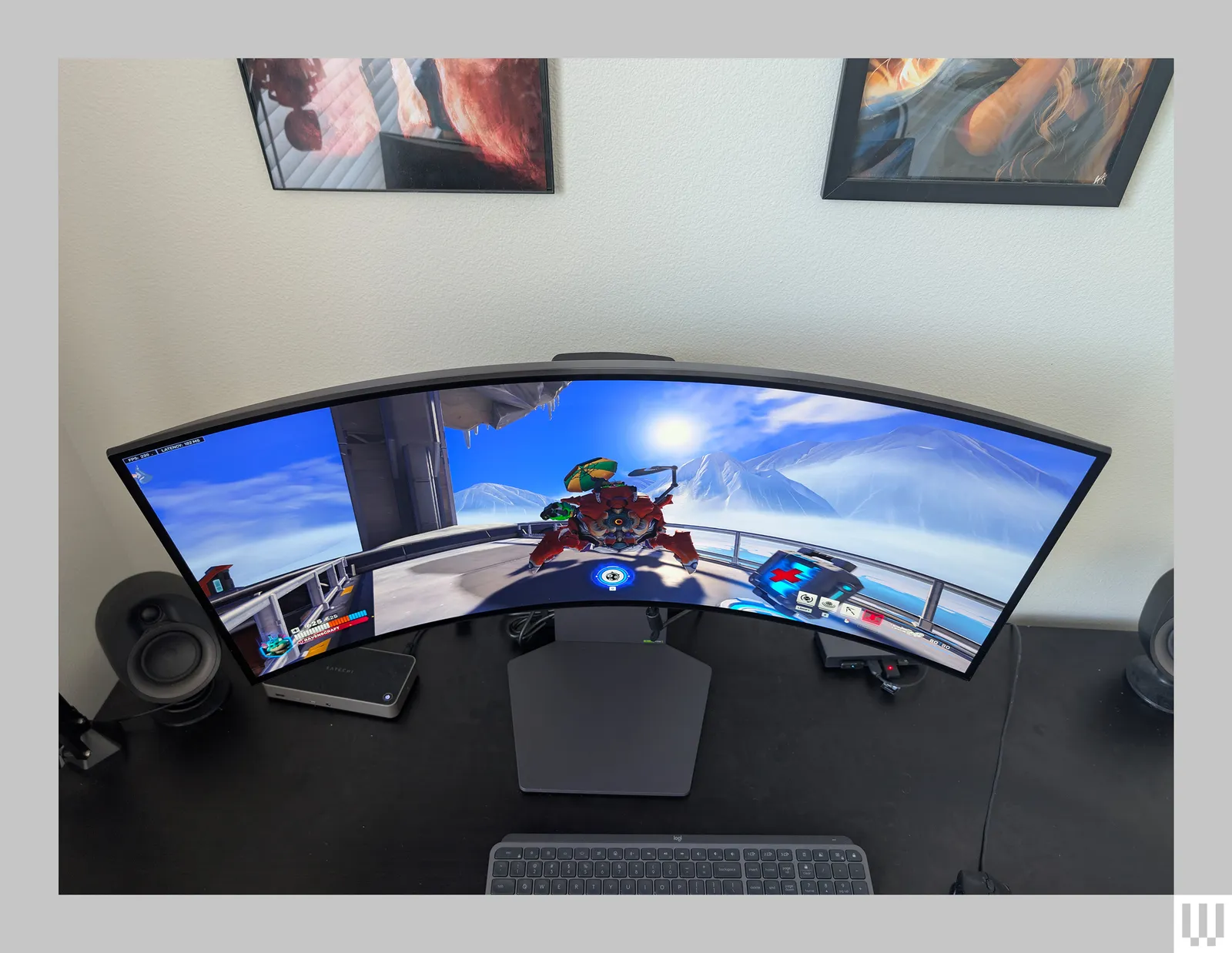
Visual guide about How Close Should You Sit to a Curved Monitor
Method 1: The “R” Value Formula
This is a more technical approach, but it provides a good starting point. The general idea is to sit at a distance that is roughly 1 to 1.5 times the monitor’s “R” value, measured in meters.- * **Step 1: Identify your monitor’s R value.** This is usually found in the product specifications or on the monitor’s box. Common values are 1000R, 1500R, 1800R, 3000R, and 4000R. * **Step 2: Convert the R value to meters.** Remember, 1000mm = 1 meter. So, a 1000R monitor has an R value of 1 meter. A 1800R monitor has an R value of 1.8 meters. * **Step 3: Multiply by a factor of 1 to 1.5.** * For a more immersive experience, aim for the lower end (1x the R value). * For general use and comfort, aim for the higher end (1.5x the R value).
- * **Monitor with 1800R curvature:** * R value in meters = 1.8 meters. * For immersion: 1.8 meters * 1 = 1.8 meters (approximately 5.9 feet). * For general comfort: 1.8 meters * 1.5 = 2.7 meters (approximately 8.9 feet). * **Monitor with 1000R curvature:** * R value in meters = 1 meter. * For immersion: 1 meter * 1 = 1 meter (approximately 3.3 feet). * For general comfort: 1 meter * 1.5 = 1.5 meters (approximately 4.9 feet).
Method 2: The Field of Vision Approach
This method is less about numbers and more about your natural perception. The ideal distance is when the edges of the monitor naturally fall within your peripheral vision without you having to strain or move your head excessively.- * **Step 1: Sit at your typical desk position.** * **Step 2: Look straight ahead at the center of the screen.** * **Step 3: Observe the edges of the monitor.** * If you can easily see the edges without turning your head, you might be a bit too far away, especially with a deeply curved monitor. * If you feel like you have to strain or turn your head significantly to see the edges, you might be too close. * The sweet spot is when the monitor feels like it’s naturally encompassing your view.
Method 3: The “Arm’s Length” Rule (with a twist)
A common guideline for flat monitors is to sit at arm’s length. For curved monitors, this rule needs adjustment based on curvature and size.- * **Step 1: Extend your arm forward.** * **Step 2: Measure the distance from your eye to your outstretched fingertips.** This is your “arm’s length.” * **Step 3: Adjust based on curvature.** * For **gentler curves (e.g., 3000R, 4000R)**, your arm’s length might be a good starting point, perhaps slightly further. * For **deeper curves (e.g., 1000R, 1500R)**, you will likely need to sit *closer* than arm’s length to experience the full immersion.
Factors to Consider Beyond the Curve
Visual guide about How Close Should You Sit to a Curved Monitor
Screen Size
Larger monitors, even curved ones, will naturally require you to sit further back. A 34-inch curved monitor will feel different at the same distance as a 49-inch curved monitor.- * **Smaller Curved Monitors (27-32 inches):** These are often designed for closer viewing, especially those with a more aggressive curve (e.g., 1000R or 1500R). You might find yourself sitting within 2-3 feet. * **Larger Curved Monitors (34-49 inches and beyond):** These ultrawide displays benefit from being placed at a distance where you can comfortably take in the entire panoramic view without excessive eye or head movement. This might be 3-5 feet or even more, depending on the curvature.
Your Desk Depth and Setup
The physical limitations of your desk are undeniable.- * **Shallow Desks:** If you have a shallow desk, you might be forced to sit closer than ideal for a very wide or deeply curved monitor. In such cases, consider a monitor with a gentler curve (higher R value) or one that’s not as wide. * **Deep Desks:** A deep desk offers more flexibility. You can easily position a large, curved monitor at a comfortable distance. Make sure you can still reach your keyboard and mouse comfortably.
Your Vision and Comfort
Everyone’s eyes are different.- * **Vision Issues:** If you have vision problems, you might need to sit closer or further away to achieve comfortable focus. * **Neck Strain:** If you find yourself constantly craning your neck to see different parts of the screen, you’re likely too close or the monitor is too low or too high. Adjust your seating height and monitor position. * **Eye Strain:** If your eyes feel tired or dry after using your monitor, experiment with sitting further back. Ensure proper lighting in your room as well.
Your Primary Use Case
How you use your monitor significantly impacts the ideal distance.- * **Gaming:** Gamers often prefer to sit closer to maximize immersion and reaction times. Deeper curves (1000R-1500R) are particularly popular here. * **Productivity and Work:** For tasks involving reading long documents, coding, or using multiple windows, you might prefer a slightly further distance to reduce eye strain and make it easier to switch focus between applications. A gentler curve (1800R-4000R) might be more suitable. * **Media Consumption:** Watching movies or videos can be very immersive on a curved monitor. Sitting at a distance where the screen fills a good portion of your view, but you can still comfortably see the entire frame, is ideal.
Putting it All Together: Experimentation is Key
While formulas and guidelines provide a starting point, the most effective way to find your perfect viewing distance is through experimentation.Step-by-Step Experimentation
- 1. **Start with a Baseline:** Position yourself at what feels like a reasonable distance – perhaps a little further than your usual flat monitor position. 2. **Check for Immersion:** Look at the edges of the screen. Do they feel like they’re naturally part of your view? Or do you have to consciously look towards them? 3. **Test for Comfort:** Spend 5-10 minutes doing a typical task (reading, browsing, playing a game). How do your eyes and neck feel? 4. **Adjust Inward:** Move your chair 6-12 inches closer to the monitor. Repeat steps 2 and 3. Does it feel too close? Overwhelming? Are you noticing distortion? 5. **Adjust Outward:** If the initial position felt too far, move your chair 6-12 inches further away. Repeat steps 2 and 3. Do you feel like you’re missing out on the curve? Are you turning your head too much? 6. **Fine-Tune:** You’ll likely find a zone that feels “just right.” Continue making small adjustments (a few inches at a time) until you achieve a balance of immersion and comfort.
Troubleshooting Common Issues
Even with careful positioning, you might encounter some problems.Issue: Eye Strain or Fatigue
- * Possible Cause: Sitting too close, screen too bright, glare, insufficient breaks. * Solutions: * Move slightly further away from the monitor. * Adjust monitor brightness to match ambient room lighting. * Use anti-glare screen protectors if you have significant reflections. * Take regular breaks using the 20-20-20 rule (every 20 minutes, look at something 20 feet away for 20 seconds). * Ensure your monitor has a flicker-free backlight and blue light filtering features.
Issue: Neck Pain or Discomfort
- * **Possible Cause: ** Monitor too low, too high, or you’re positioned too close and craning your neck. * **Solutions:** * Adjust your chair height so your feet are flat on the floor and your arms are at a comfortable angle when typing. * Ensure the top of your monitor is at or slightly below eye level. Use monitor stands or arms if needed. * If you’re sitting too close to achieve immersion and experiencing neck strain, consider a monitor with a gentler curve or a slightly smaller size.
Issue: Content Seems Distorted or Stretched
- * **Possible Cause: ** You are likely too close to the monitor, especially if it has a very aggressive curve. * **Solutions:** * Move your chair further away. * Ensure your graphics drivers are up to date and your display resolution is set correctly. * Check your monitor’s settings for any “aspect ratio” or “picture mode” settings that might be distorting the image.
Issue: Not Feeling Immersed Enough
- * **Possible Cause: ** You are sitting too far away. * **Solutions:** * Move your chair closer to the monitor. * For monitors with gentle curves (higher R value), you may need to sit closer than you’d expect to truly feel the wrap-around effect. * Consider a monitor with a more aggressive curve (lower R value) if immersion is your top priority.
Conclusion
Finding the perfect seating distance for your curved monitor isn’t a one-size-fits-all scenario. It’s a blend of understanding the technical specifications of your monitor, considering your physical environment, and, most importantly, listening to your own body. By using the “R” value as a starting point, considering your screen size and desk depth, and engaging in thorough experimentation, you’ll discover that sweet spot. This optimal distance will unlock the full potential of your curved monitor, delivering unparalleled immersion, reducing eye strain, and enhancing your overall computing experience. So, pull up a chair, adjust your position, and enjoy the view!
Similar Posts