How Much Desk Space Does an Ultrawide Monitor Need

Thinking about an ultrawide monitor? This guide breaks down the essential desk space requirements, from basic dimensions to optimal viewing distances and accessories. Learn how to measure your desk and plan your setup to avoid clutter and ensure a comfortable, productive experience. Discover practical tips for maximizing even smaller desks.
How Much Desk Space Does an Ultrawide Monitor Need?
So, you’re eyeing up that glorious ultrawide monitor. The panoramic view, the immersive experience – it’s a tempting upgrade for productivity and entertainment. But before you click “add to cart,” there’s a crucial question you need to answer: how much desk space does an ultrawide monitor actually need? It’s not as simple as just looking at the diagonal screen size. Factors like monitor depth, your preferred viewing distance, and even the type of stand it comes with play a significant role.
This guide is here to demystify the space requirements for ultrawide monitors. We’ll walk you through everything you need to know, from understanding the basic dimensions to practical tips for optimizing your workspace, no matter its size. By the end, you’ll have a clear picture of whether your current desk can accommodate your ultrawide dream setup.
Key Takeaways
- Ultrawide monitor depth is crucial: Don’t just focus on width; the distance from the screen’s edge to the back of the stand can significantly impact desk real estate.
- Viewing distance matters: A proper viewing distance ensures comfort and reduces eye strain, directly influencing how far back the monitor needs to be placed.
- Consider monitor curvature: Curved ultrawides can sometimes feel more compact on the desk due to their wrap-around effect, but still require ample depth.
- Accessories add to the footprint: Keyboards, mice, speakers, and other peripherals will take up additional space, so factor these in.
- Ergonomic considerations are key: Proper monitor height and tilt adjustments, along with comfortable seating, are vital for a healthy workspace.
- Desk mount solutions can save space: Monitor arms offer flexibility and can free up significant surface area compared to traditional stands.
- Measure twice, buy once: Always verify the exact dimensions of your chosen monitor and its stand before purchasing.
Understanding Ultrawide Monitor Dimensions
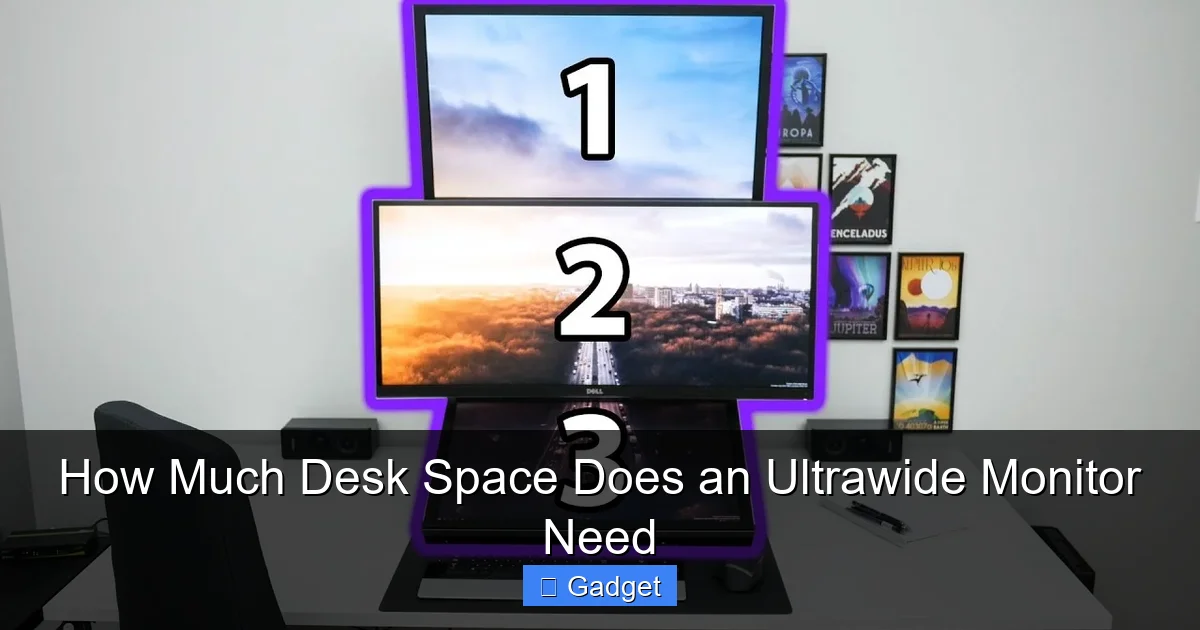
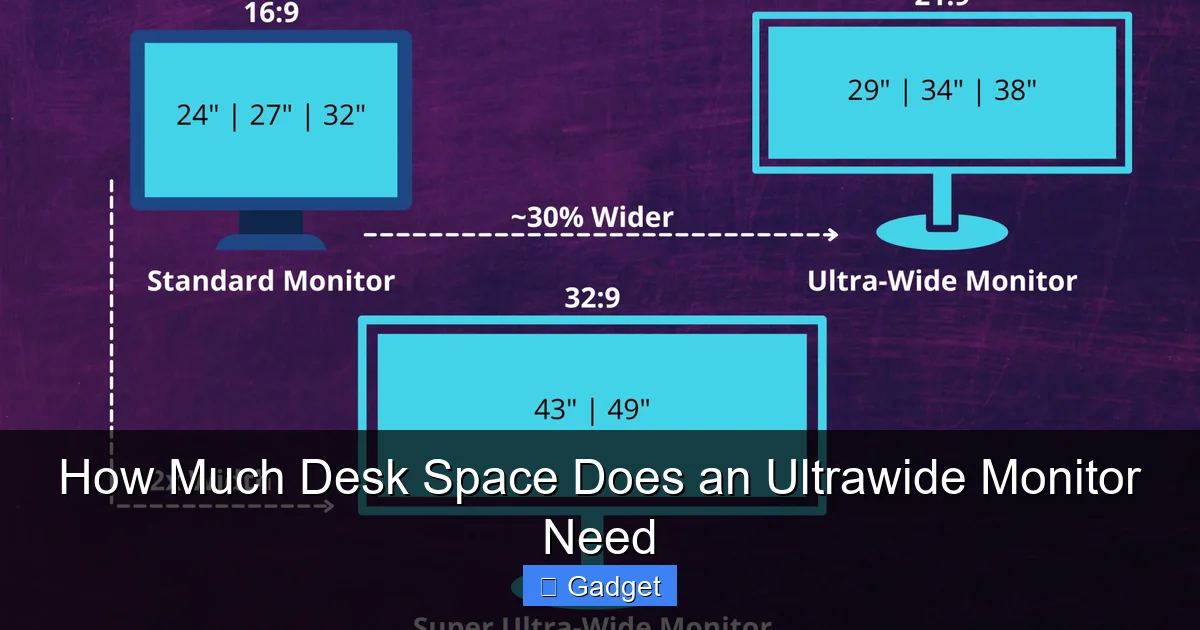
Ultrawide monitors are defined by their aspect ratio, typically 21:9 or even 32:9, meaning they are significantly wider than they are tall compared to standard 16:9 displays. This width is where the “extra” space requirement comes in. However, it’s not just about the screen’s width.
H2: Measuring Your Monitor’s Footprint
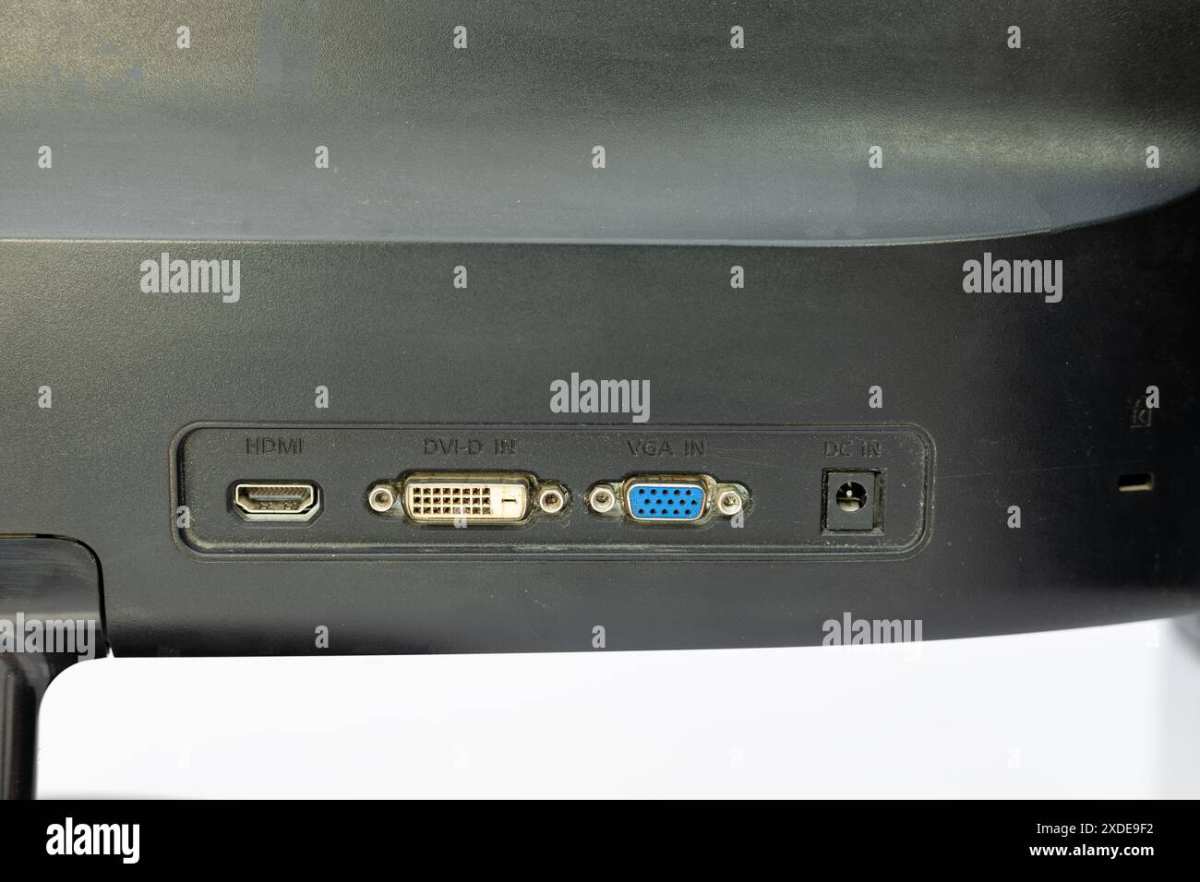
Visual guide about How Much Desk Space Does an Ultrawide Monitor Need
Image source: teahub.io
When we talk about desk space, we’re referring to the physical area the monitor occupies. This includes the screen itself, but critically, the stand or base it rests on.
H3: Width Requirements
The advertised width of an ultrawide monitor usually refers to the diagonal screen measurement. To get the actual physical width, you need to consider the bezel (the frame around the screen) and the stand’s width.
* Screen Width: While not directly needed for desk space, understanding the screen’s proportions helps visualize the space. An ultrawide monitor’s width is almost double its height.
* Stand Width: This is the most critical measurement for your desk. Many ultrawide stands are designed to be wide to provide stability for the larger screen. Some have a simple rectangular base, while others have more elaborate designs that might extend further forward or backward. Always check the product specifications for the stand’s exact dimensions.
* Example: A 34-inch ultrawide monitor might have a screen width of around 32 inches. However, its stand could add another 2-4 inches to each side, making the total width requirement closer to 36-40 inches.
H3: Depth Requirements
This is often the most overlooked dimension, and it’s crucial for ultrawides. The depth of the monitor and its stand dictates how far back it will sit on your desk.
* Monitor Depth: This includes the back of the panel and any mounting mechanisms.
* Stand Depth: This is the part that rests on your desk. Many monitor stands have a base that extends forward and backward. For ultrawides, this base can be substantial to prevent tipping.
* Curvature Factor: If you’re considering a curved ultrawide, the curvature can sometimes make the monitor feel less imposing on your desk width-wise, but the depth remains a key factor. The edges of a curved screen will sit further back relative to the center.
* **Example:** A typical ultrawide stand might have a depth of 8-12 inches. This means that from the front edge of your desk to the back of the monitor stand, you might need up to a foot of space.
H2: Determining Your Optimal Viewing Distance
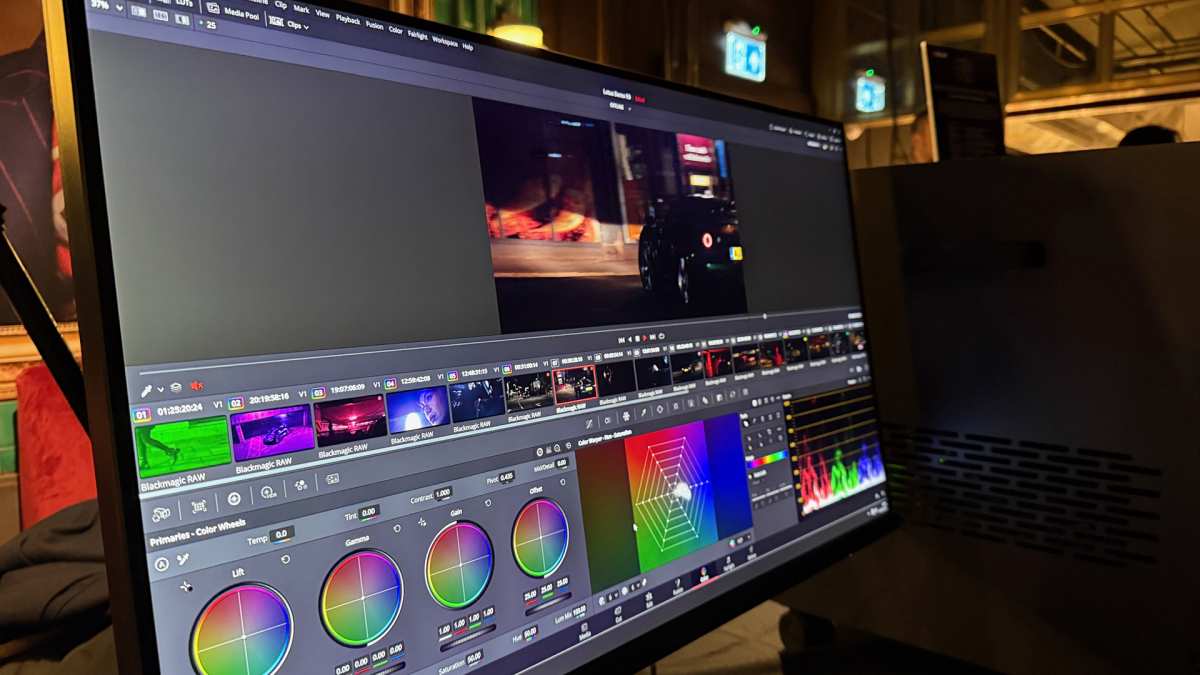
Visual guide about How Much Desk Space Does an Ultrawide Monitor Need
Image source: gamingpcdesks.com
Your viewing distance – how far you sit from the screen – is a fundamental aspect of setting up any monitor, but it’s especially important for ultrawides. Sitting too close can lead to eye strain and neck discomfort, while sitting too far away diminishes the immersive experience.
H3: The “Arm’s Length” Rule of Thumb
A common guideline is to sit at a distance where your arm can comfortably reach the screen. For standard monitors, this is often around 2-3 feet. For ultrawides, especially those with a significant curve, this distance might be slightly closer to take full advantage of the peripheral vision.
H3: Calculating Viewing Distance for Ultrawides
* **Screen Size and Resolution:** Larger screens and higher resolutions generally allow for slightly closer viewing without pixelation becoming noticeable.
* **Curvature:** A curved monitor allows you to sit closer because the edges are brought closer to your eyes, reducing the distortion that would occur with a flat panel. A good starting point for a 34-inch curved ultrawide might be 2.5-3 feet (75-90 cm).
* **Personal Comfort:** Ultimately, this is subjective. Experiment with different distances to find what feels most comfortable and allows you to see the entire screen without excessive head or eye movement.
H2: Practical Desk Space Planning

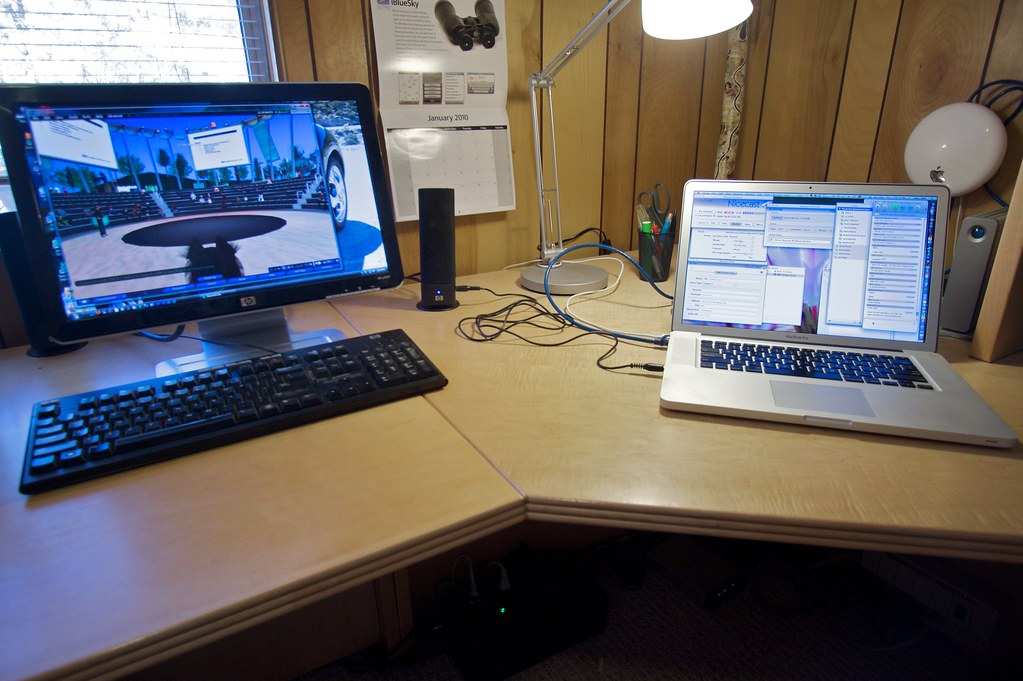
Visual guide about How Much Desk Space Does an Ultrawide Monitor Need
Image source: cdn.autonomous.ai
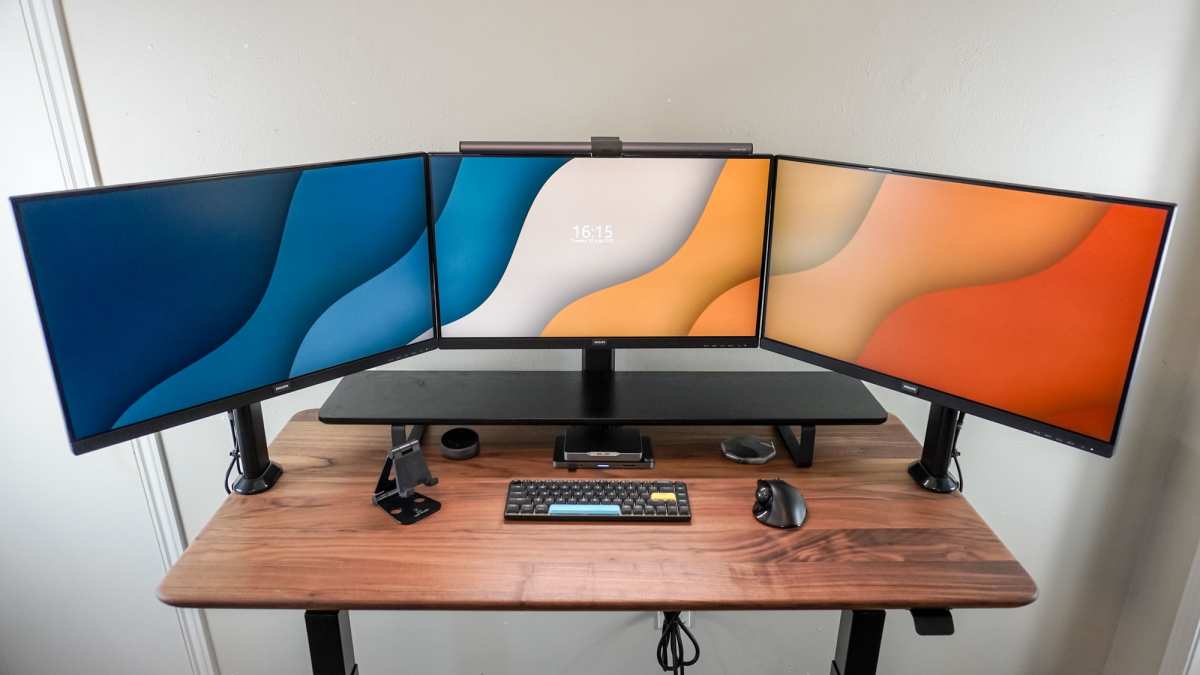
Now, let’s translate these dimensions into practical desk space requirements. You’ll need to account for the monitor’s footprint, your viewing distance, and all your other essentials.
H3: Minimum Desk Depth
This is arguably the most critical measurement. You need enough depth to place the monitor at your desired viewing distance and still have space for your keyboard and mouse in front of it.
* **Formula:** Minimum Desk Depth = Monitor Stand Depth + Viewing Distance + Keyboard/Mouse Space.
* **Example:** If your monitor stand is 10 inches deep, you prefer a viewing distance of 30 inches, and you need 6 inches for your keyboard and mouse, you’d need a desk at least 10 + 30 + 6 = 46 inches deep. This is a significant amount of depth.
H3: Minimum Desk Width
The width of your desk needs to accommodate the monitor’s total width (including stand) and any peripherals on either side.
* **Formula:** Minimum Desk Width = Monitor Total Width + Space for Peripherals on Sides.
* **Example:** If your ultrawide monitor with its stand is 38 inches wide, and you want a few inches of clearance on each side, you’d ideally want a desk at least 44-48 inches wide. This doesn’t include space for speakers or other desk items.
H3: Considering Your Current Desk
Before buying an ultrawide, measure your existing desk.
1. **Measure Depth:** Start from the front edge of your desk and measure straight back to the wall or any obstructions.
2. **Measure Width:** Measure the usable surface area from one side to the other.
3. **Assess Your Needs:** Do you have enough depth for your monitor’s stand *and* to sit comfortably with your keyboard and mouse? Is there enough width for the monitor’s stand *and* your other essential items?
H2: Factors Influencing Space Requirements
Several other elements can affect how much space your ultrawide monitor needs.
H3: Monitor Stand Type
The stock stand that comes with your monitor is a major factor.
* **Traditional Stands:** These often have wide bases for stability. Some are elegant and minimalist, while others are more robust and take up more room.
* **Y-Shaped or V-Shaped Stands:** These can be more compact in terms of their footprint on the desk, but sometimes their legs can interfere with keyboard placement.
* **Centralized Pedestal Stands:** These often offer height and tilt adjustments but can still have a significant base depth.
H3: Monitor Curvature
As mentioned, curved monitors can change the perceived space.
* **Immersive Effect:** The curve brings the edges of the screen closer to your peripheral vision, allowing for a comfortable viewing distance that’s slightly less than a comparable flat ultrawide.
* **Depth Impact:** While the curve can feel more compact width-wise, the physical depth of the stand remains a primary consideration.
H3: Desk Setup and Peripherals
What else do you keep on your desk?
* **Keyboard and Mouse:** Standard full-size keyboards and gaming mice require a dedicated area. Consider a compact keyboard if space is tight.
* **Speakers:** Desktop speakers can take up significant space on either side of the monitor.
* **Webcams and Microphones:** These often sit on top of the monitor or on a separate stand.
* **Other Accessories:** Desk lamps, phone stands, notebooks, and personal items all add to the overall desk real estate requirement.
H2: Maximizing Space with Ultrawide Monitors
Don’t have a massive desk? Don’t despair! There are ways to make an ultrawide work even in smaller spaces.
H3: Monitor Arms and Mounts
This is where you can reclaim a lot of desk surface.
* **Desk Clamps:** Most monitor arms clamp onto the back edge of your desk. This immediately frees up the space where the original stand would have been.
* **Flexibility:** Monitor arms offer incredible flexibility in terms of positioning. You can adjust the height, tilt, and swivel of your monitor precisely where you need it, allowing you to push it further back if needed.
* **Vesa Mounting:** Ensure your ultrawide monitor has VESA mounting holes (most do) and check the weight capacity of the monitor arm. Heavier ultrawides require sturdier arms.
* **Types of Arms:** Single monitor arms, dual monitor arms (if you’re pairing your ultrawide with another display), and gas-spring arms for smooth adjustment are all options.
H3: Ergonomic Placement
Proper placement isn’t just about fitting the monitor; it’s about comfort and health.
* **Eye Level:** Position the top of the screen at or slightly below eye level to prevent neck strain. A monitor arm excels at this.
* **Arm’s Length Distance:** Reiterate the importance of the comfortable viewing distance. Don’t push the monitor too close just to make it fit if it compromises ergonomics.
* **Tilted Back Slightly:** A slight backward tilt of the monitor can improve comfort, especially for prolonged use.
H3: Cable Management
A tidy desk feels larger.
* **Cable Ties and Sleeves:** Bundle cables together neatly.
* **Desk Grommets or Cable Trays:** If your desk has them, use them. Otherwise, consider attaching cable management solutions underneath or to the back of the desk.
* **Wireless Peripherals:** Consider wireless keyboards and mice to reduce cable clutter.
H2: Troubleshooting Common Space Issues
Encountering problems fitting your ultrawide? Here are some solutions.
H3: “My Monitor Stand is Too Deep!”
* **Solution 1: Monitor Arm:** This is the most effective solution. It completely removes the stand’s footprint from your desk.
* **Solution 2: Reposition Peripherals:** Can you move your keyboard further forward or backward? Can speakers sit on shelves above the desk?
* **Solution 3: Consider a Wall Mount:** If you have a suitable wall behind your desk, a wall mount is another excellent space-saving option.
H3: “My Desk Isn’t Wide Enough!”
* **Solution 1: Compact Keyboard:** Switch to a tenkeyless (TKL) or 60% keyboard.
* **Solution 2: Rethink Peripherals:** Do you *need* speakers on the desk? Can you use headphones? Can a webcam be mounted on the monitor itself?
* **Solution 3: Desk Arrangement:** Can you rearrange other items on your desk or potentially use adjacent surfaces (like shelving) for less frequently used items?
H3: “I Can’t Get the Viewing Distance Right!”
* **Solution 1: Monitor Arm:** Adjusting the arm’s position is key to achieving the perfect viewing distance without sacrificing desk space.
* **Solution 2: Desk Depth:** If your desk is genuinely too shallow for comfortable viewing, you might need to consider a deeper desk or a different monitor size. However, with careful placement and a monitor arm, many shallow desks can work.
H2: Making the Final Decision
Before you commit to an ultrawide monitor, take these final steps:
1. **Check Manufacturer Specifications:** Always look up the exact dimensions (width, height, depth) of the monitor *and* its stand.
2. **Measure Your Desk:** Don’t guess. Use a tape measure to get accurate readings of your desk’s depth and width.
3. **Visualize the Setup:** Imagine your keyboard, mouse, and other essentials in place. Does it feel cramped?
4. **Consider a Monitor Arm:** Factor in the cost and space-saving potential of a monitor arm. For many ultrawide users, it’s an essential accessory.
5. **Read Reviews:** Look for user reviews mentioning desk space and setup experiences with the specific monitor you’re interested in.
H2: Conclusion
An ultrawide monitor can be a game-changer for your digital life, but it demands careful consideration of desk space. It’s not just about the screen size; the depth of the stand, your preferred viewing distance, and the layout of your existing peripherals are paramount. By understanding the dimensions involved, planning your setup, and exploring options like monitor arms, you can ensure your ultrawide monitor enhances, rather than overwhelms, your workspace. Measure twice, plan thoroughly, and you’ll be well on your way to enjoying that expansive, immersive view without sacrificing practicality.

Similar Posts