Are Ultrawide Monitors Good for Coding
Are ultrawide monitors a game-changer for coding? This guide dives deep into the benefits and drawbacks of ultrawide displays for developers. You’ll learn how to leverage the extra screen real estate for improved workflow and understand potential challenges. Get ready to decide if an ultrawide monitor is the right upgrade for your coding setup. 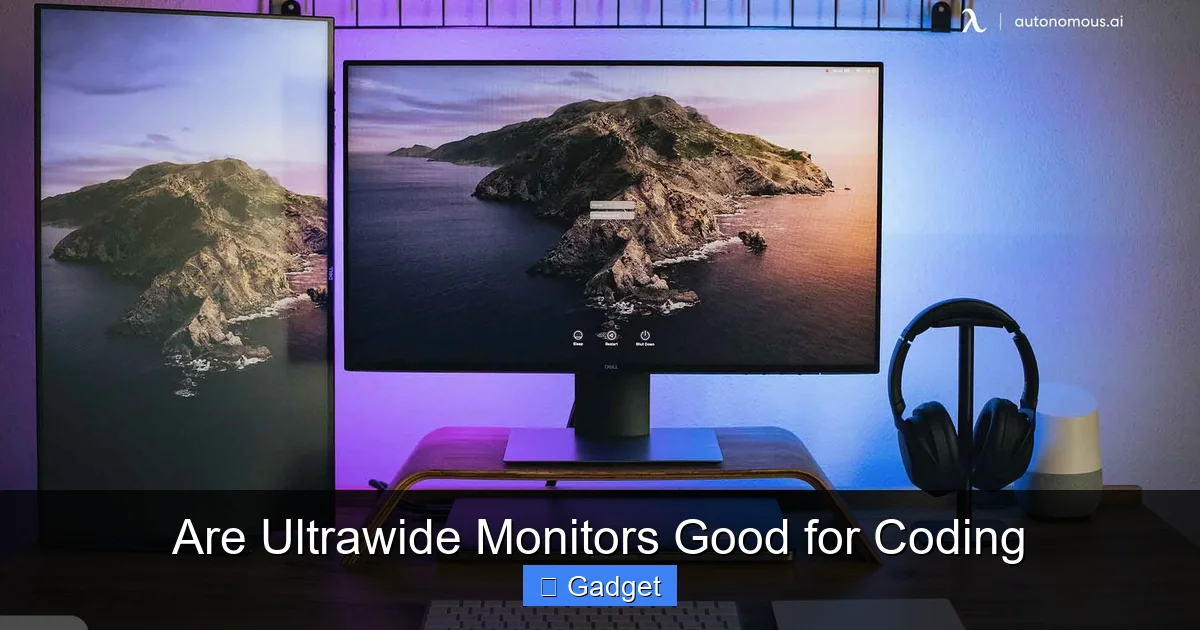 The appeal of ultrawide monitors for coding is immediately apparent due to the sheer amount of screen real estate they provide. Let’s break down the key benefits:
 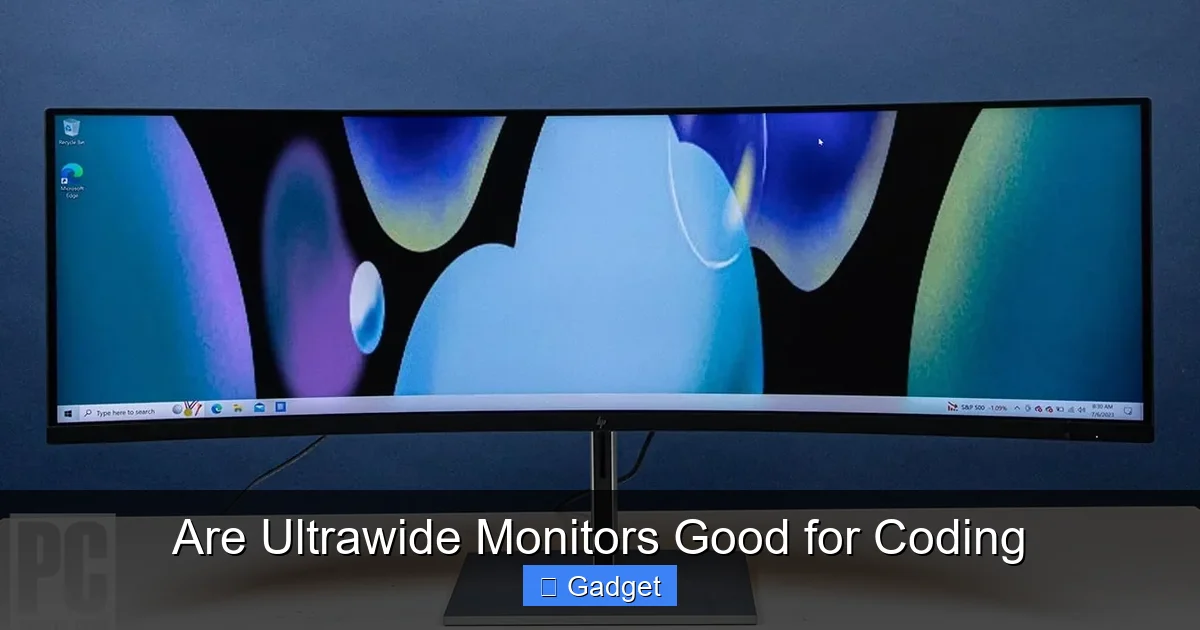 This is the most significant advantage. Imagine being able to have your code editor open on one side of the screen, your documentation or web browser in the middle, and your terminal on the other side, all without any overlap or the need to constantly Alt+Tab.
 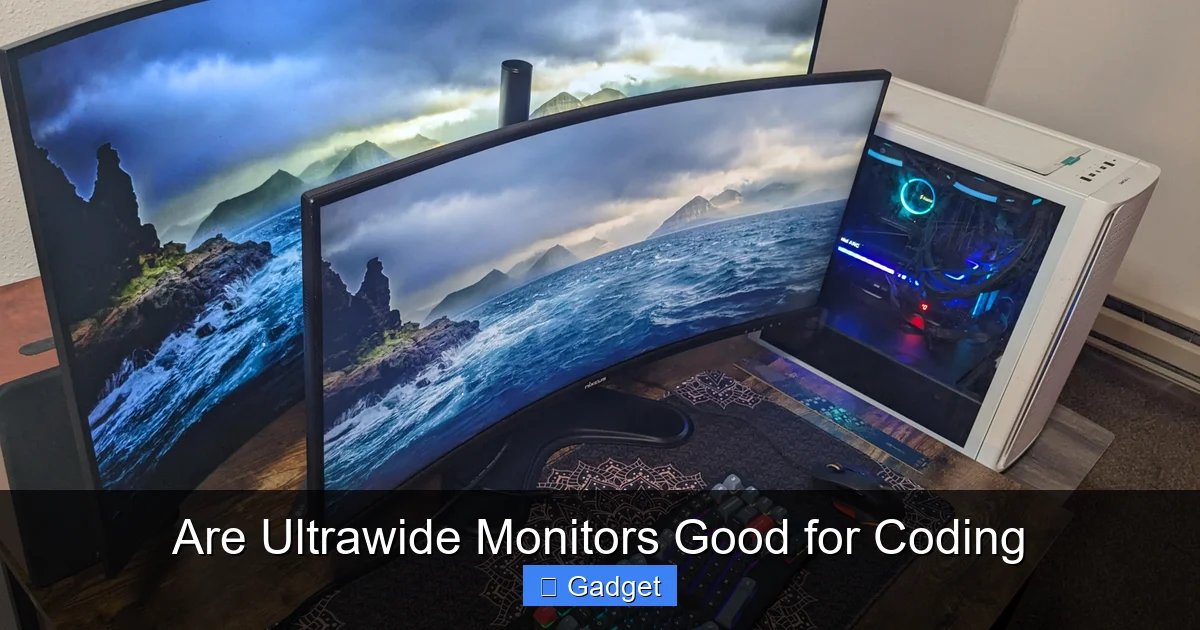 The ability to see more at once naturally leads to better multitasking. Instead of creating virtual desktops and switching between them, you can arrange your essential tools directly on your single, expansive display.
Are Ultrawide Monitors Good for Coding
As a developer, your monitor is arguably one of the most critical tools in your arsenal. It’s where you spend hours crafting elegant solutions, debugging complex problems, and collaborating with your team. With the constant evolution of display technology, you’ve likely encountered or at least heard about ultrawide monitors. But are these expansive displays actually *good* for coding? This guide will walk you through everything you need to know to make an informed decision. We’ll explore the advantages, the disadvantages, and how to best utilize an ultrawide monitor if you decide to make the leap.Key Takeaways
- Increased Screen Real Estate: Ultrawide monitors offer significantly more horizontal space, allowing for multiple windows side-by-side without feeling cramped.
- Enhanced Multitasking: Developers can easily view code editors, documentation, terminals, and chat applications simultaneously, boosting productivity.
- Immersive Development Experience: The expansive view can lead to a more focused and immersive coding environment, reducing the need to constantly switch tabs or windows.
- Potential Ergonomic Challenges: The wide nature of these monitors can sometimes lead to neck strain if not positioned correctly.
- Software and OS Support: While most modern operating systems handle ultrawide resolutions well, some older applications or games might not display optimally.
- Cost Consideration: Ultrawide monitors generally come with a higher price tag compared to standard aspect ratio displays of similar quality.
- Effective Window Management is Key: To truly benefit, you’ll need good habits and potentially software to manage your windows efficiently across the ultrawide canvas.
Understanding Ultrawide Monitors
Before we dive into their coding suitability, let’s clarify what an ultrawide monitor is. Typically, standard monitors have an aspect ratio of 16:9. Ultrawide monitors, on the other hand, boast a wider aspect ratio, most commonly 21:9, but you can also find 32:9 or even 49:9 options (often referred to as super ultrawide). This increased width translates to a much larger horizontal screen space, offering a panoramic view.The Advantages of Ultrawide Monitors for Coding
Visual guide about Are Ultrawide Monitors Good for Coding
More Space for Your Code and Tools
Visual guide about Are Ultrawide Monitors Good for Coding
- Code Editor and Preview: You can keep your code editor wide open, showing more lines of code at once, while simultaneously having a live preview of your web application or UI. This reduces the mental overhead of imagining how changes will look.
- Documentation and Research: Having your primary coding window on one side and your reference materials or Stack Overflow tabs on the other is incredibly efficient. No more squinting at tiny browser windows or switching constantly.
- Terminal and Logs: Developers often juggle multiple terminal windows for running servers, tests, or monitoring logs. An ultrawide can comfortably accommodate several of these side-by-side, or one large, persistent terminal window.
Enhanced Multitasking and Workflow
Visual guide about Are Ultrawide Monitors Good for Coding
- IDE and Browser Together: For web developers, seeing the code and the rendered output simultaneously is a massive productivity booster.
- Version Control and IDE: You can have your code editor open alongside your Git client or commit history, making it easier to track changes and manage your codebase.
- Collaboration Tools: If you’re working with a team, you can keep your IDE on one section of the screen and your chat application (like Slack or Teams) visible on another, ensuring you don’t miss important messages.
Reduced Eye Strain and Neck Movement
While it might seem counterintuitive given the width, an ultrawide monitor can actually reduce eye strain and neck movement *if used correctly*.- Fewer Window Switches: Constantly Alt+Tabbing or clicking between windows can be disorienting and lead to mental fatigue. With everything visible, you can simply glance.
- Focused View: By arranging your essential windows within your natural field of vision, you can reduce the need to turn your head significantly, which is especially beneficial if you’re used to multiple monitors.
A More Immersive Development Experience
The expansive, almost cinematic view of an ultrawide monitor can make the act of coding feel more engrossing. It creates a sense of a dedicated workspace, pulling you into your work.The Downsides of Ultrawide Monitors for Coding
While the benefits are compelling, it’s important to be realistic about the potential drawbacks. Ultrawide monitors aren’t a perfect fit for everyone or every situation.Ergonomic Considerations and Potential Neck Strain
The sheer width of these monitors means you need to be mindful of your setup.- Peripheral Vision: If the monitor is too far away or too large for your desk, you might find yourself turning your head significantly to see the edges. This can lead to neck strain over time.
- Desk Depth: Ensure your desk is deep enough to accommodate the monitor at a comfortable viewing distance. You don’t want to be too close or too far.
- Placement: Centering the monitor directly in front of you is crucial. Avoid placing it off to one side, as this will exacerbate the neck-turning issue.
Software and Operating System Support
While most modern operating systems and applications are designed to handle ultrawide resolutions gracefully, there can still be occasional hiccups.- Older Applications: Some older or less frequently updated software might not scale correctly to ultrawide aspect ratios, leading to stretched or oddly formatted interfaces.
- Gaming: If you plan to use your monitor for gaming as well, be aware that not all games support ultrawide resolutions natively. This can lead to black bars on the sides or stretched images. Learn more about ultrawide monitors for racing games to see how they perform in immersive scenarios.
- Window Management: While the space is there, you still need a strategy to manage your windows effectively. Relying on Windows Snap Assist or using third-party window management tools can be very helpful.
Cost
Ultrawide monitors generally come with a higher price tag than their 16:9 counterparts. The larger panels, more complex manufacturing, and advanced features contribute to this increased cost. For insights into why these displays are priced higher, check out our article on why ultrawide monitors are more expensive.Potential for Distraction
While the extra space is great for productivity, a very wide display can sometimes feel overwhelming or even distracting if not organized properly. It’s easy to open too many things and lose focus.How to Maximize Your Ultrawide Coding Setup
If you decide an ultrawide monitor is the right choice for you, here’s how to make the most of it:1. Position for Comfort
This is paramount.- Center the Monitor: Place the monitor directly in front of you.
- Optimal Distance: Aim for an arm’s length away. You should be able to comfortably see the entire screen without excessive head turning.
- Monitor Arm: Consider using a VESA mount or monitor arm. This can free up desk space and allow for more precise positioning and adjustments.
2. Master Window Management
The true power of an ultrawide is unlocked with effective window management.- Operating System Features:
- Windows Snap Assist: Utilize Windows’ built-in snapping feature (dragging windows to the edges or corners) to quickly arrange them. You can snap multiple windows to different sections of the ultrawide screen.
- macOS Split View: Similar to Windows Snap, macOS allows you to easily set up two applications side-by-side.
- Third-Party Tools:
- DisplayFusion: A popular Windows tool that offers advanced multi-monitor and ultrawide management, including custom snapping rules and taskbars.
- Magnet (macOS): A highly-rated app for snapping and arranging windows on macOS.
- FancyZones (Part of PowerToys): A Windows utility that lets you create custom snap layouts.
3. Embrace the Layout
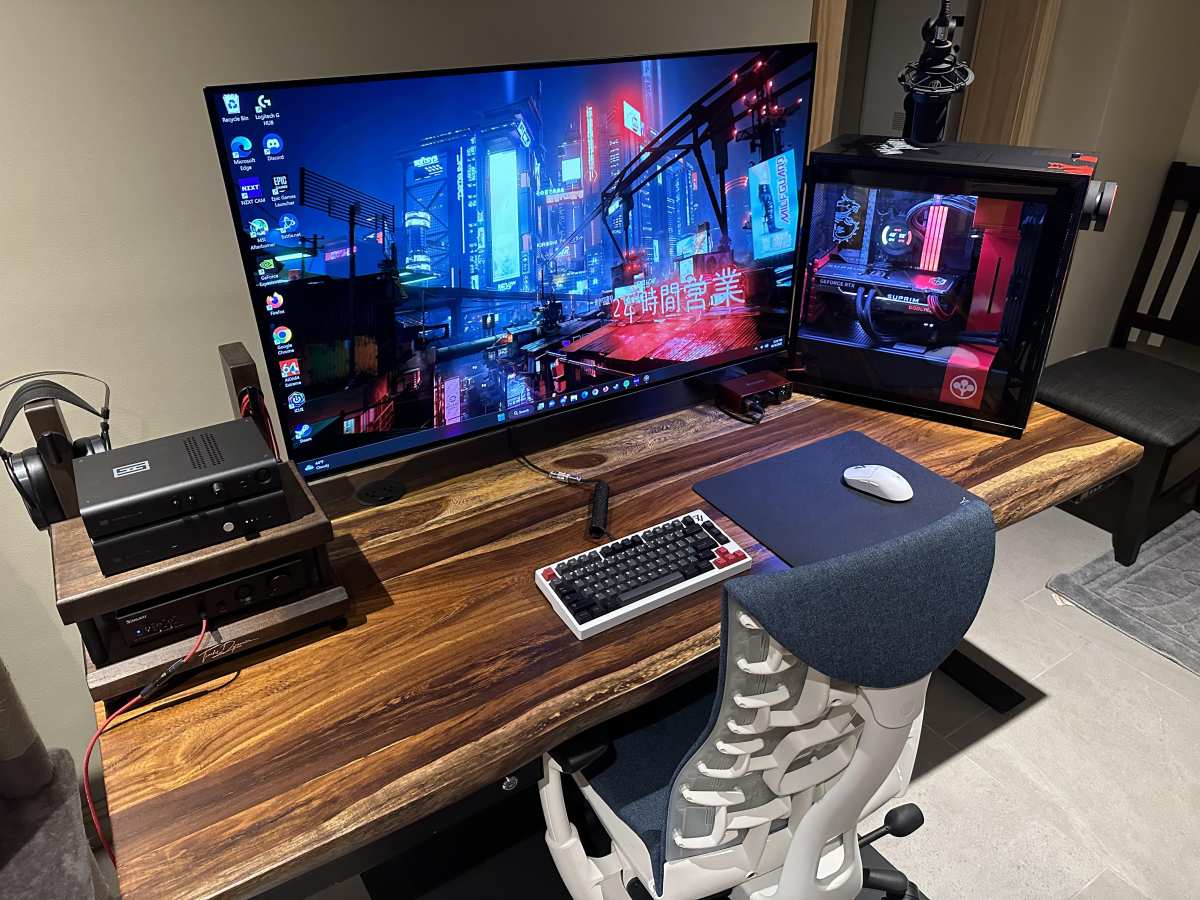
Think about how you naturally work and arrange your windows accordingly.- Code Editor Focus: A common setup is a large code editor on one side, a browser or preview in the middle, and a terminal or documentation on the other.
- Split Your Screen Logically: Don’t just fill the screen aimlessly. Divide it into logical zones based on your workflow. For example, have three equal vertical panes for code, terminal, and browser.
4. Consider Your Resolution
Ultrawide monitors come with specific resolutions. A common one for 21:9 is 3440×1440. Ensure your graphics card can comfortably drive this resolution, especially if you plan to game or run demanding graphical applications. Wondering if your setup supports higher resolutions? Read our guide on whether ultrawide monitors support 4K resolution.5. Think About Curve
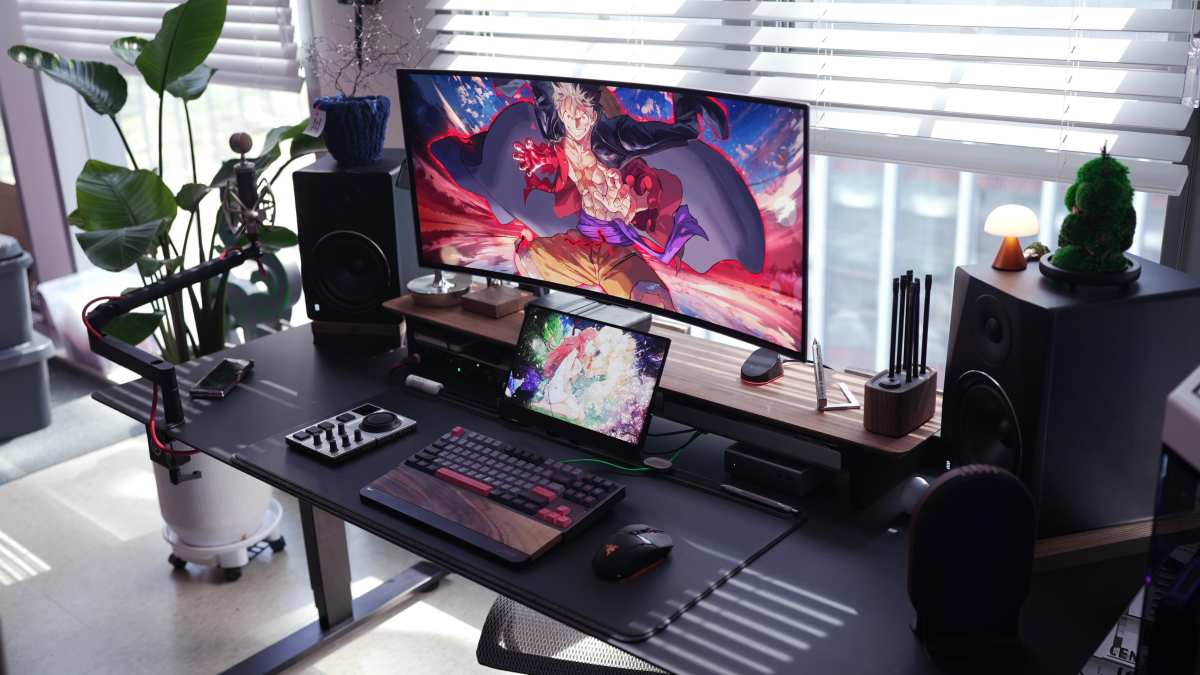
Many ultrawide monitors come with a curved panel. For coding, a gentle curve (e.g., 1800R or 1500R) can actually be beneficial as it brings the edges of the screen closer to your eyes, creating a more uniform viewing experience and reducing the perceived distance to the edges. Flat ultrawides are also available if you prefer.Alternatives to Ultrawide Monitors
If an ultrawide monitor doesn’t seem like the right fit, don’t worry. There are excellent alternatives for enhancing your coding setup.Dual or Triple Monitor Setup
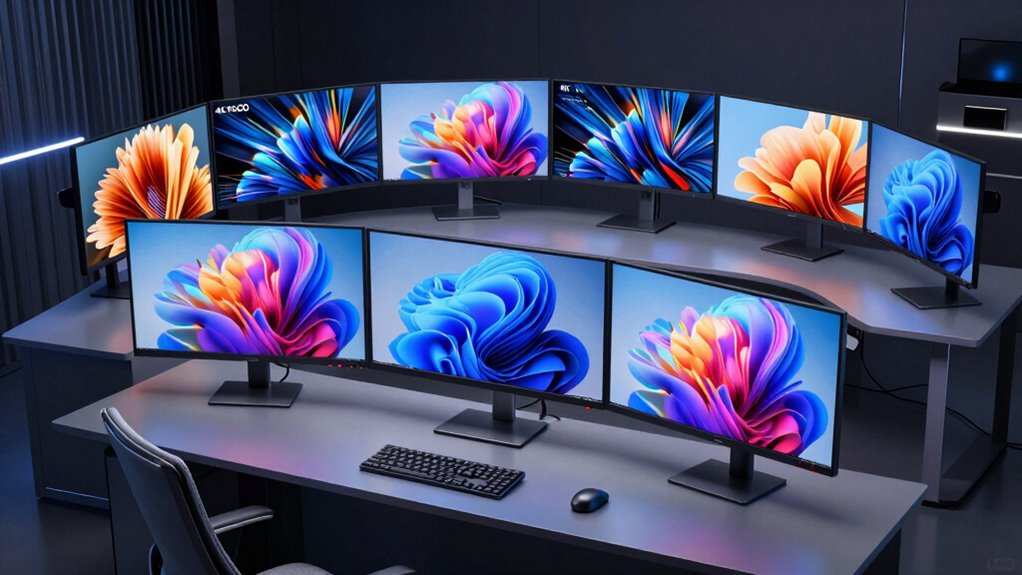
This is the classic approach. Two or three standard 16:9 monitors can offer similar screen real estate and multitasking capabilities.- Pros: More flexibility in arrangement, potentially lower cost for equivalent screen area, easier to manage window snapping across discrete displays.
- Cons: Bezels between monitors can be distracting, takes up more desk space.
Larger Standard Aspect Ratio Monitors
A single, large 27-inch or 32-inch 16:9 monitor at a high resolution (like 4K) can also provide a lot of usable space.- Pros: Simpler setup, no bezel issues, often more affordable than ultrawides.
- Cons: Less horizontal space for side-by-side multitasking compared to an ultrawide.
Conclusion
So, are ultrawide monitors good for coding? The answer is a resounding **yes, with caveats**. For many developers, the increased screen real estate, enhanced multitasking capabilities, and immersive experience offered by ultrawide monitors can significantly boost productivity and make the coding process more enjoyable. The ability to see more code, documentation, and tools simultaneously without constant window switching is a powerful advantage. However, it’s crucial to be aware of the potential ergonomic challenges and the importance of proper setup and window management. If you’re prone to neck strain or have a shallow desk, an ultrawide might not be ideal. Similarly, if your workflow involves a lot of older software that doesn’t play well with ultrawide resolutions, you might encounter frustrations. Ultimately, the best monitor for coding is the one that fits your personal workflow, budget, and physical comfort. If you’re looking to upgrade and can accommodate the space and potential cost, an ultrawide monitor is definitely worth considering. Experiment with window management techniques, ensure proper positioning, and you might just find it to be the most productive upgrade you’ve ever made.
Similar Posts