Are Ultrawide Monitors Bad for Your Eyes
Many users wonder: Are ultrawide monitors bad for your eyes? This guide delves into the potential impacts of these expansive displays on your vision. We’ll explore the science behind eye strain and how ultrawide monitors can contribute, along with practical strategies to mitigate risks and ensure comfortable, healthy viewing experiences. Learn how to set up your ultrawide monitor for maximum eye comfort.
Key Takeaways
- Ultrawide monitors themselves are not inherently bad for your eyes. Any monitor, regardless of size or aspect ratio, can cause eye strain if not used correctly.
- Eye strain is the primary concern with ultrawide monitors. This is due to factors like increased viewing distance, excessive head and eye movement, and improper brightness or contrast settings.
- Ergonomics play a crucial role in eye comfort. Proper monitor placement, viewing distance, and desk setup can significantly reduce strain.
- Adjusting display settings is vital. Optimizing brightness, contrast, refresh rate, and using blue light filters can make a big difference.
- Regular breaks are essential. Following the 20-20-20 rule and taking longer breaks helps prevent eye fatigue and discomfort.
- Environmental factors matter. Lighting conditions, glare, and screen resolution can all impact your eye health when using an ultrawide monitor.
- Pre-existing eye conditions may be exacerbated. If you already experience dry eyes or other vision issues, an ultrawide monitor might require more careful management.
Are Ultrawide Monitors Bad for Your Eyes? Understanding the Risks and Solutions
The allure of an ultrawide monitor is undeniable. That expansive, immersive field of view can transform your workspace, enhance gaming experiences, and offer a new perspective on productivity. But as you’re settling in for a long session, a nagging question might arise: Are ultrawide monitors bad for your eyes?
The answer, like many things in life, isn’t a simple yes or no. Ultrawide monitors, with their extended aspect ratios, present unique challenges that can contribute to eye strain if not managed properly. However, they aren’t inherently more harmful than any other display. The real culprit is often how we interact with these larger screens and the environment we use them in.
This guide will equip you with the knowledge to understand the potential risks associated with ultrawide monitors and, more importantly, provide practical, actionable steps to ensure your eye health remains a top priority. We’ll explore everything from optimal viewing distances and ergonomics to display settings and the importance of taking breaks. By the end, you’ll be well-prepared to enjoy the benefits of your ultrawide monitor without compromising your vision.
Understanding Eye Strain and Ultrawide Monitors
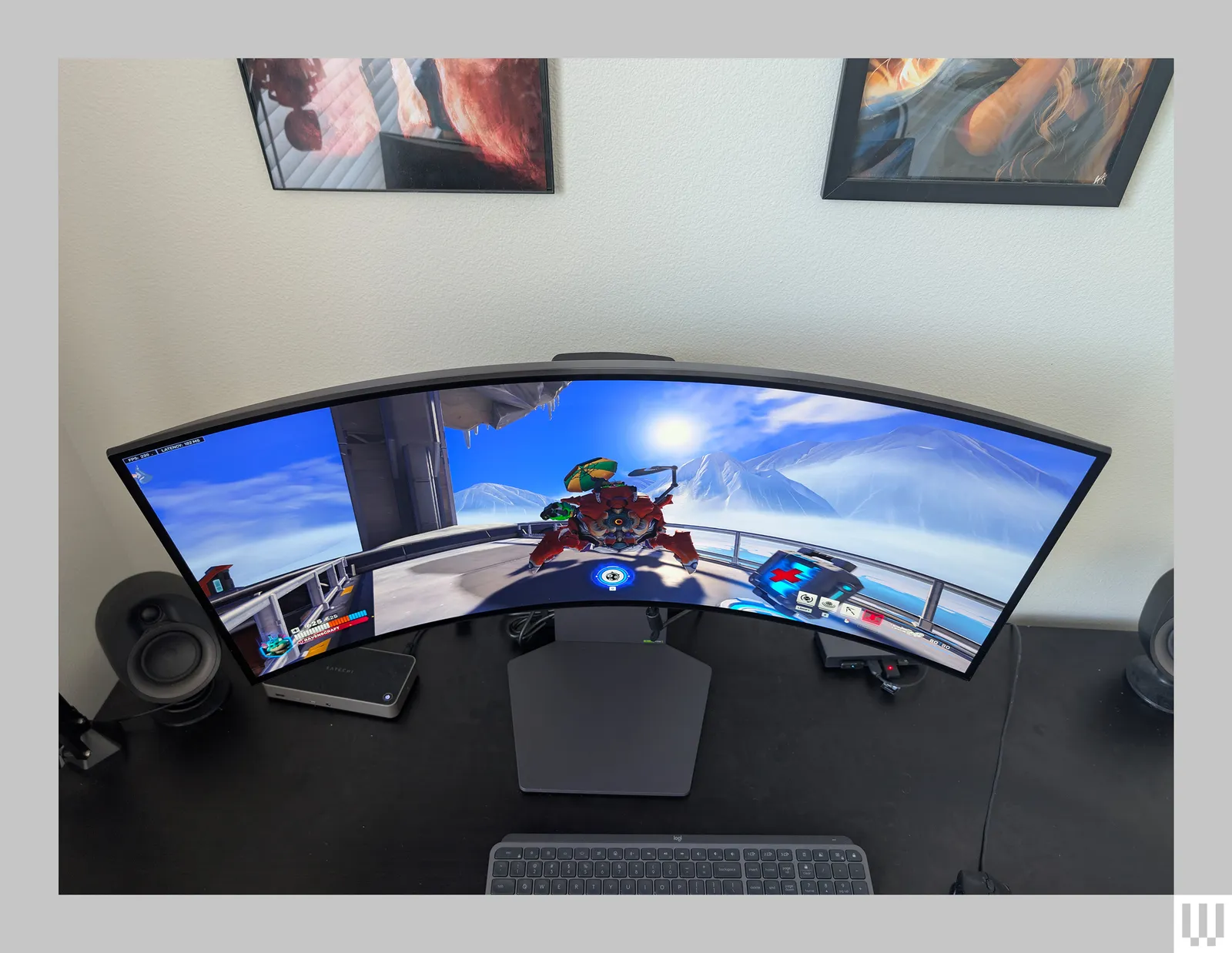
Visual guide about Are Ultrawide Monitors Bad for Your Eyes
Before we dive into solutions, let’s understand why ultrawide monitors might cause eye strain. Eye strain, also known as digital eye strain or computer vision syndrome, is a collection of symptoms that result from prolonged use of digital screens. These symptoms can include:
* Headaches
* Blurred vision
* Dry eyes
* Irritated eyes
* Difficulty focusing
* Increased sensitivity to light
* Neck and shoulder pain (often related to posture while viewing)
While these symptoms can occur with any monitor, the sheer size and width of ultrawide monitors can amplify them due to a few key factors:
Increased Field of View and Peripheral Vision
Ultrawide monitors occupy a larger portion of your visual field. This means your eyes have to work harder to scan across the entire screen. If you’re constantly moving your eyes from one edge to the other, it can lead to fatigue.
Viewing Distance and Head Movement
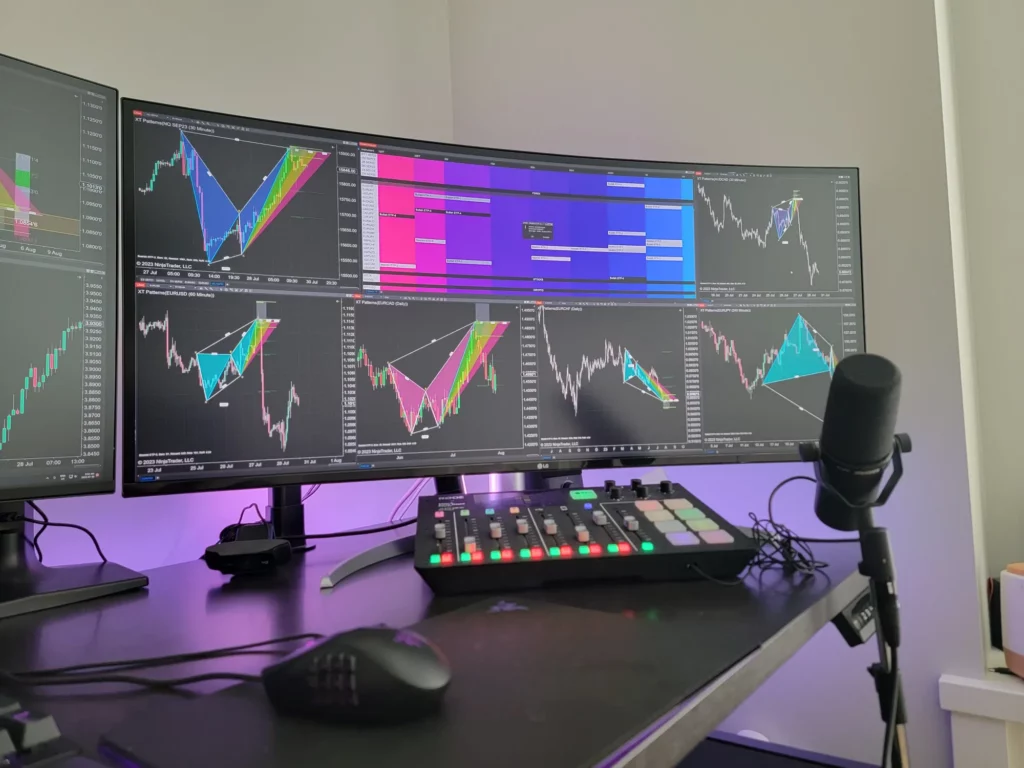
To comfortably view an entire ultrawide monitor without excessive head turning, you might need to position it further away than a standard monitor. However, if you’re sitting too close, you’ll find yourself constantly swiveling your head or darting your eyes, leading to neck strain and visual fatigue. Finding that sweet spot for viewing distance is crucial.
Content Consumption Patterns
If you’re accustomed to standard 16:9 content on a narrower screen, fitting that content onto a very wide display might create large empty spaces on the sides, encouraging you to strain your eyes to find something engaging. Conversely, if you’re actively using the entire width for productivity or gaming, the sheer expanse can be demanding.
Blue Light Exposure
Like all digital screens, ultrawide monitors emit blue light. Prolonged exposure, especially in the evening, can disrupt sleep patterns and potentially contribute to eye strain.
Optimizing Your Ultrawide Monitor Setup for Eye Health
Visual guide about Are Ultrawide Monitors Bad for Your Eyes
The good news is that most of the issues related to ultrawide monitors and eye strain can be addressed with a few smart adjustments. It’s all about creating an ergonomic and visually comfortable setup.
Step 1: Finding the Right Viewing Distance

Visual guide about Are Ultrawide Monitors Bad for Your Eyes
This is arguably the most critical step. Too close, and you’re straining to take it all in. Too far, and you might be squinting.
H3: The Arm’s Length Rule
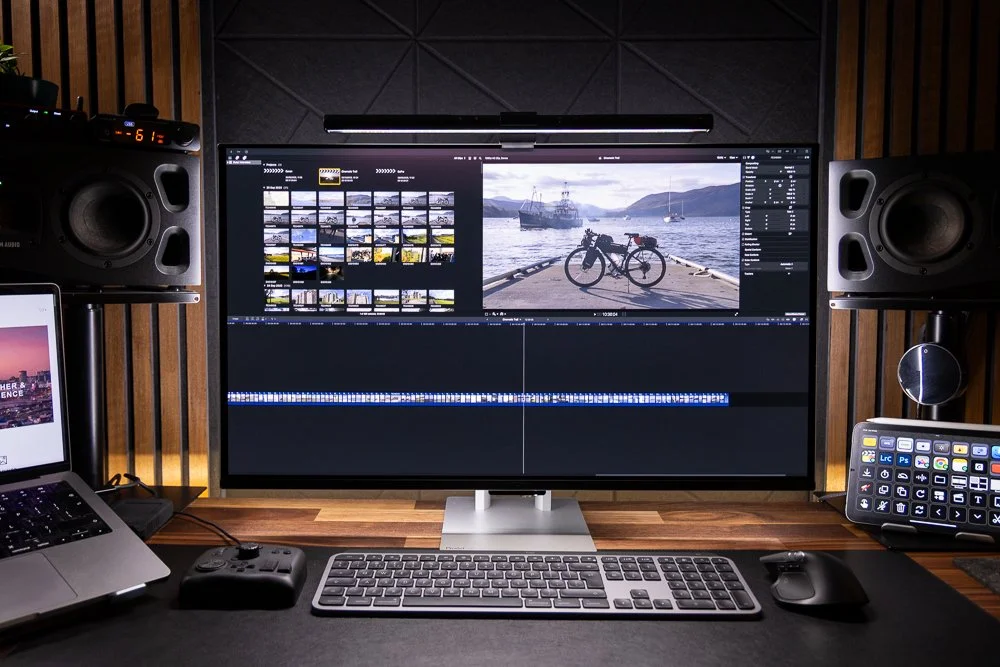
A general guideline is to position the monitor at an arm’s length away. For an ultrawide monitor, this might mean pushing your desk back or using a monitor arm to achieve the necessary distance. This distance allows you to see the entire screen comfortably without excessive eye or head movement.
H3: Consider the Screen Size
Larger ultrawide monitors will naturally require a greater viewing distance than smaller ones. If you have a 34-inch ultrawide, you might need to be further away than with a 29-inch model. Experiment to find what feels natural for your specific monitor and desk setup.
H3: Avoid Extreme Head Movements
The goal is to minimize the need to constantly turn your head. If you find yourself repeatedly swiveling your head to read text or view different parts of the screen, your monitor is likely too close or too wide for your current seating position.
Step 2: Adjusting Monitor Height and Angle
Proper positioning of the monitor’s height and tilt can significantly impact your posture and the angle at which you view the screen, both crucial for reducing strain.
H3: Eye Level is Key
The top of your screen should ideally be at or slightly below your eye level. This encourages you to look slightly downward, which is more comfortable for your eyes and neck than looking up.
H3: Using a Monitor Arm
A monitor arm is an excellent investment for ultrawide users. It allows for precise adjustments in height, distance, and angle, making it easier to achieve the perfect ergonomic setup. It also frees up desk space, potentially allowing you to position the monitor further back.
H3: The Tilt Factor
Slightly tilting the monitor upward (about 10-20 degrees) can often improve comfort by aligning it better with your natural viewing angle and reducing glare from overhead lights.
Step 3: Optimizing Display Settings
The built-in settings of your ultrawide monitor play a huge role in its impact on your eyes. Don’t just use the default!
H3: Brightness and Contrast
* Brightness: Your monitor’s brightness should match the ambient lighting in your room. If it’s too bright, it can feel like staring into a lightbulb. If it’s too dim, you might strain to see details. Aim for a brightness level that feels comfortable and doesn’t cause glare.
* Contrast: A good contrast ratio makes text and images easier to distinguish, reducing the effort your eyes need to make. Ensure your contrast is set appropriately so that details aren’t lost in shadows or blown out highlights.
H3: Refresh Rate
While not directly tied to eye strain in the same way as brightness, a higher refresh rate (e.g., 144Hz or more) can result in smoother motion and a more fluid visual experience, which can indirectly reduce visual fatigue, especially in gaming or fast-paced applications.
H3: Color Temperature and Blue Light Filters
* Color Temperature: Cooler (bluer) light can be more stimulating, while warmer (redder) light is generally more relaxing for the eyes. Many monitors have a “warm” or “night mode” setting that reduces blue light.
* Blue Light Filters: Dedicated blue light filtering software or built-in monitor features can significantly reduce the amount of blue light emitted. This is especially beneficial if you use your monitor late into the evening, as it can help regulate your sleep cycle and reduce eye strain. Look for features like “Reader Mode” or “Eye Saver Mode.”
H3: Resolution and Scaling
Ensure you’re using your ultrawide monitor at its native resolution. If text appears blurry or too small, don’t just zoom out on the display’s scaling settings in your operating system. Instead, consider adjusting the text size in your OS or application preferences to maintain crispness and readability.
Step 4: Implementing Good Viewing Habits
Even with the perfect setup, your habits are paramount to preventing eye strain.
H3: The 20-20-20 Rule
This is a simple yet highly effective technique. Every 20 minutes, look at something 20 feet away for at least 20 seconds. Set a timer, use an app, or simply make it a conscious habit. This gives your eye muscles a much-needed break.
H3: Take Longer Breaks
In addition to the 20-20-20 rule, aim for longer breaks every couple of hours. Get up, walk around, stretch, and give your eyes a complete rest from the screen.
H3: Blink More Often
When you’re focused on a screen, you tend to blink less. Consciously make an effort to blink more frequently to keep your eyes lubricated and prevent dryness.
H3: Avoid Working in Complete Darkness
While you might think a dark room with a bright screen is immersive, it can actually increase eye strain because of the stark contrast. Ensure your workspace has adequate, comfortable ambient lighting. Avoid direct light sources that cause glare on your screen.
Step 5: Managing Environmental Factors
Your surroundings can have a significant impact on your eye comfort.
H3: Minimize Glare
Glare from windows or overhead lights is a major contributor to eye strain. Position your monitor so that light sources don’t reflect directly on the screen. Consider using an anti-glare screen protector or adjusting blinds and curtains.
H3: Control Room Lighting
The ideal lighting is soft and diffused, providing enough illumination to see without creating harsh shadows or glare. Avoid using a single, bright overhead light.
H3: Consider Screen Resolution and Clarity
While not an issue with most modern ultrawide monitors, if you’re using a very large or older model, ensure the resolution is sufficient for its size. A pixelated or blurry image will always be more taxing on your eyes.
Step 6: Hydration and Eye Care
Don’t underestimate the importance of overall health for your eyes.
H3: Stay Hydrated
Dehydration can contribute to dry eyes. Drink plenty of water throughout the day.
H3: Artificial Tears
If you experience persistent dry eyes, over-the-counter artificial tears can provide relief. Consult with an eye doctor for personalized recommendations.
H3: Regular Eye Exams
It’s crucial to get regular eye exams from a qualified optometrist or ophthalmologist. They can detect any underlying vision problems and offer professional advice tailored to your specific needs, especially if you’re experiencing discomfort with your ultrawide monitor.
Troubleshooting Common Ultrawide Monitor Eye Issues
Even with the best intentions, you might encounter specific problems. Here are some common ones and their solutions.
Problem: My eyes feel dry and gritty.
Solution:
- Increase your blinking rate.
- Use artificial tears.
- Ensure your monitor isn’t too close, forcing you to strain your eyes.
- Check for drafts or air vents blowing directly on your face, which can dry out eyes.
Problem: I’m getting headaches, especially after a long session.
Solution:
- Re-evaluate your viewing distance and monitor height.
- Ensure your display settings (brightness, contrast) are optimized and not too harsh.
- Make sure you’re taking regular breaks using the 20-20-20 rule.
- Check your posture; neck and shoulder tension can manifest as headaches.
Problem: Text is hard to read, even at native resolution.
Solution:
- Adjust your operating system’s text scaling.
- Experiment with your monitor’s sharpness settings (use sparingly, as over-sharpening can create artifacts).
- Ensure your monitor is clean and free from smudges.
- If the issue persists, it might indicate a need for an eye exam.
Problem: I feel like I’m constantly turning my head.
Solution:
- Your monitor is likely too close. Move it further back.
- Consider using a monitor arm to position it at the correct distance and height.
- If you’re using the entire ultrawide for multiple windows, explore tiling software or virtual desktop solutions to keep related information closer together.
Conclusion: Enjoying Your Ultrawide Monitor Safely
So, are ultrawide monitors bad for your eyes? No, not inherently. They are powerful tools that, like any technology, require mindful usage. By understanding the potential for eye strain and implementing the ergonomic adjustments, display optimizations, and healthy viewing habits outlined in this guide, you can transform your ultrawide monitor experience into one that is both productive and comfortable for your eyes.
Remember, consistency is key. Make these practices a regular part of your workflow, and your eyes will thank you. Embrace the immersive world of your ultrawide monitor, but always prioritize your vision health.

Similar Posts