Can Curved Monitors Be Used Vertically
Yes, curved monitors can absolutely be used vertically, often referred to as portrait mode. While less common than horizontal use, this setup offers unique benefits for specific tasks. This guide will walk you through how to set up your curved monitor vertically, explore its advantages and disadvantages, and provide practical tips for a seamless experience. You’ll learn if this configuration is right for your workspace and how to make the most of it.
Key Takeaways
- Setup is Possible But Requires Care: While many curved monitors can be rotated for vertical use, it’s not a universal feature and might require specific monitor stands or mounts.
- Benefits for Productivity: Vertical orientation excels for tasks like coding, writing, browsing long web pages, and viewing documents, offering a more natural scroll without excessive horizontal movement.
- Curvature Impact Varies: The degree of curvature affects the vertical experience. Moderate curves can be quite immersive, while extreme curves might introduce some distortion or an awkward field of view in portrait mode.
- Potential Visual Adjustments: Text and images might appear slightly stretched or distorted at the extreme edges of the curve when vertical, though this is often minimal and can be adjusted.
- Ergonomics Matter: Proper monitor height, tilt, and distance are crucial for comfort and preventing eye strain, regardless of orientation, but become even more important with vertical setup.
- Software Considerations: You’ll need to rotate your display’s output via your operating system’s display settings to match the physical orientation of the monitor.
- Not Ideal for All Content: While great for text-heavy tasks, vertical orientation isn’t optimal for media consumption like movies or gaming, where horizontal viewing is standard. For those interested in gaming performance, understanding whether monitor response time matters for gaming can help inform your overall display choices.
Can Curved Monitors Be Used Vertically
The modern desk setup is constantly evolving. We’re always looking for ways to maximize our screen real estate and improve our workflow. For years, the standard has been the flat monitor, but the curved monitor has gained significant traction. These displays offer a more immersive viewing experience, wrapping around your field of vision. But a common question arises: can these curved beauties be used vertically, in what’s often called portrait mode?
The short answer is: yes, many curved monitors can be used vertically. However, it’s not as straightforward as simply flipping them around. There are considerations, potential drawbacks, and specific benefits to be aware of. This comprehensive guide will equip you with all the knowledge you need to understand, set up, and utilize your curved monitor in a vertical orientation. We’ll cover everything from the physical setup to software adjustments and explore if this unique configuration is the right fit for your needs.
Understanding Curved Monitors and Vertical Orientation
Before diving into the “how-to,” let’s clarify what we mean by a curved monitor and vertical orientation.
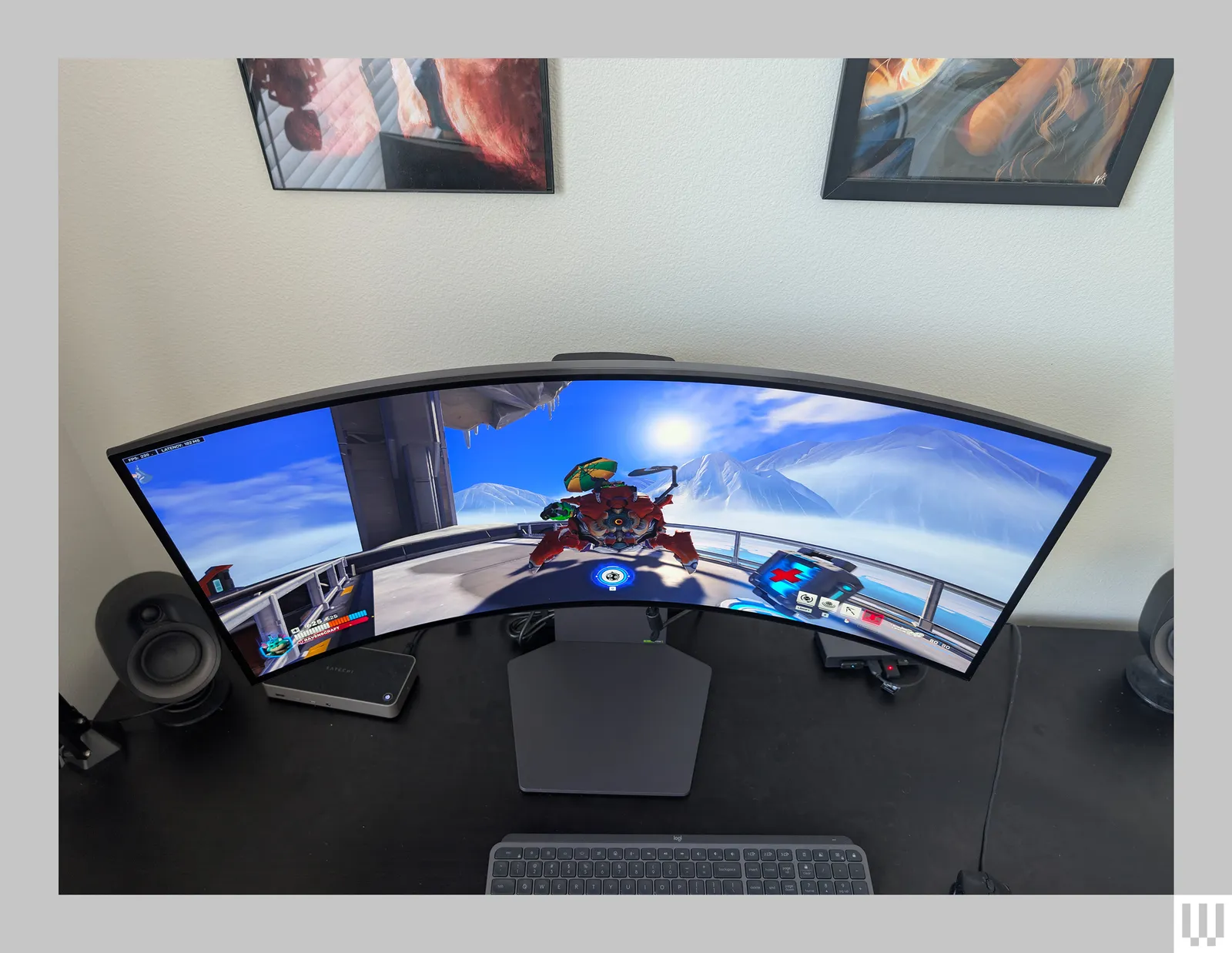
A curved monitor is designed with a screen that arcs inwards, mimicking the natural curve of the human eye. This design aims to reduce eye strain and provide a more engaging viewing experience, especially on larger displays. The curvature is typically measured by a “radius” value (e.g., 1800R, 1500R, 1000R), where a smaller number indicates a tighter, more pronounced curve.
Vertical orientation, or portrait mode, means the monitor is rotated 90 degrees so that its height is greater than its width. This is the opposite of the standard landscape orientation.
Why Would You Use a Curved Monitor Vertically?
You might be wondering why anyone would want to rotate a curved monitor, especially given its intended immersive, landscape experience. The reasons are often rooted in productivity and specific use cases:
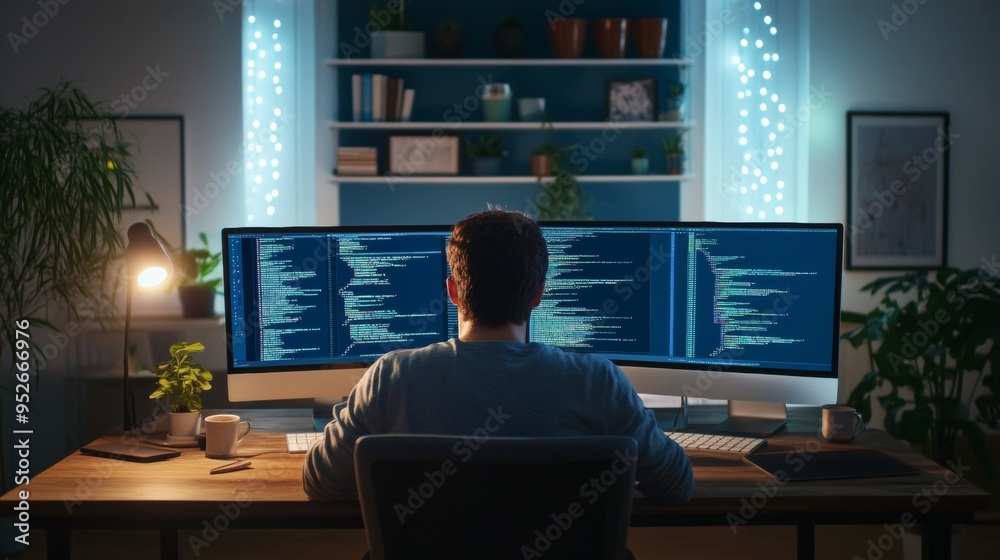
- Coding and Programming: Long lines of code are much easier to read and manage when displayed vertically. You can see more lines of code at once, reducing the need for constant scrolling. If you’re exploring monitor options for development work, you might also wonder whether ultrawide monitors are good for coding, as they offer similar benefits in horizontal space.
- Writing and Document Editing: For authors, journalists, or anyone working with lengthy documents, a vertical monitor presents text in a way that mimics reading a book or a scroll. This can feel more natural and allow you to see more of your content without excessive scrolling.
- Web Browsing: Scrolling through websites, especially those with a lot of text or long articles, becomes much smoother and less demanding on your wrists and eyes.
- Reading PDFs and E-books: Similar to documents, PDFs and e-books are often designed for a vertical page. A vertical monitor displays these perfectly, with minimal dead space.
- Spreadsheets: While horizontal is often preferred for wide spreadsheets, a vertical orientation can be beneficial for very long spreadsheets with many rows, allowing you to see more data entries at once.
- Social Media Feeds: Platforms like Twitter or Instagram are inherently vertical in their content flow. A vertical monitor can provide a more natural browsing experience.
Can All Curved Monitors Be Used Vertically? The Stand and Mount Factor
This is a crucial point. Not all curved monitors are designed with vertical rotation in mind. The primary limiting factor is the stand that comes with the monitor.
Most monitors, especially budget-friendly ones, come with stands that only allow for tilt adjustments. Some might offer height adjustment and swivel. For vertical use, you need a stand or mount that supports pivot functionality, meaning it can rotate the monitor 90 degrees.
- Check Your Monitor’s Stand: The first step is to examine your monitor’s included stand. Look for a mechanism that allows it to swivel beyond just left and right or tilt forward and backward. If it has a strong central column that can rotate, you might be in luck.
- VESA Mount Compatibility: Most modern monitors have VESA mounting holes on the back. This allows you to attach them to aftermarket monitor arms or wall mounts. If your monitor is VESA compatible, your options for vertical use expand significantly. A good VESA mount with pivot capability is often the most reliable solution.
- Monitor Arms: Invest in a VESA-compatible monitor arm that explicitly states it supports pivot (vertical rotation). These arms offer flexibility in positioning and are generally robust enough to handle the weight of curved monitors. Brands like Ergotron, AmazonBasics, and StarTech offer excellent options.
- Consider the Monitor’s Weight and Curve: While most VESA mounts can handle a good amount of weight, it’s always wise to check the specifications of both your monitor and the mount. Extremely large or heavily curved monitors might require a sturdier mount. The curvature itself, while less of a mechanical issue, can affect the viewing experience.
Step-by-Step Guide: Setting Up Your Curved Monitor Vertically
Assuming your monitor stand or a compatible VESA mount allows for it, here’s how to set up your curved monitor in portrait mode:
Step 1: Assess Your Current Setup and Gather Tools
- Check Your Stand: As mentioned, see if your current stand supports pivot. If not, proceed to the next steps.
- Determine VESA Compatibility: Look for four screw holes in a square pattern on the back of your monitor. Check your monitor’s manual or the manufacturer’s website for its VESA pattern (e.g., 75x75mm, 100x100mm).
- Acquire a VESA Mount with Pivot: Purchase a monitor arm or wall mount that supports your monitor’s VESA pattern and explicitly allows for 90-degree rotation (pivot).
- Tools: You’ll likely need a screwdriver (usually Phillips head) and possibly an Allen wrench, which usually comes with the mount.
Step 2: Detach the Original Stand (If Necessary)
- Power Down: Always unplug your monitor and any connected cables before starting.
- Placement: Gently lay the monitor face down on a soft surface (like a microfiber cloth or a blanket) to protect the screen.
- Unscrew: Locate the screws that attach the monitor to its original stand. Carefully unscrew them. You might need to hold the stand steady.
- Remove the Stand: Once unscrewed, carefully detach the stand. Keep the screws in a safe place; you might need them if you ever revert to landscape mode.
Step 3: Attach the VESA Mount
- Follow Mount Instructions: Each monitor mount has its own specific instructions. Carefully read them.
- Attach Bracket to Monitor: Usually, you’ll attach a mounting bracket to the back of the monitor using the screws provided with the mount and the VESA holes. Ensure it’s snug but don’t overtighten.
- Attach Mount to Desk/Wall: Secure the monitor arm to your desk using its clamp or grommet mount, or attach the wall mount to the wall according to its instructions. Ensure it’s stable and secure.
Step 4: Mount the Monitor Vertically
- Lift and Attach: Carefully lift the monitor and attach it to the monitor arm or wall mount. Most arms have a quick-release mechanism or require you to hook the monitor onto the arm and then secure it.
- Initial Adjustment: Gently rotate the monitor to its vertical position. Most pivot-capable arms will click or lock into place at 90 degrees.
- Connect Cables: Reconnect your power cable, display cable (HDMI, DisplayPort), and any other peripherals.
Step 5: Adjust Display Settings in Your Operating System
This is a critical software step. Your operating system needs to know the monitor is now in a different orientation.
- Windows:
- Right-click on your desktop and select “Display settings.”
- Scroll down to the “Display orientation” section.
- Select the correct monitor if you have multiple displays.
- Choose “Portrait” from the dropdown menu.
- Click “Keep changes” when prompted to confirm the new orientation.
- macOS:
- Go to “System Settings” (or “System Preferences” on older macOS versions).
- Click on “Displays.”
- Select your curved monitor from the display list.
- Look for the “Rotation” or “Orientation” dropdown menu.
- Choose “90°” or “Portrait.”
- Confirm the changes.
- Linux (GNOME Example):
- Open “Settings.”
- Go to “Displays.”
- Select your curved monitor.
- Under “Orientation,” choose “Portrait.”
- Apply the changes.
You might need to adjust the resolution and scaling for optimal viewing in portrait mode, especially if text appears too small or too large.
Step 6: Fine-Tune Your Ergonomics
- Height: Position the top of the screen at or slightly below eye level.
- Distance: Keep the monitor at arm’s length.
- Tilt: Even in portrait mode, a slight tilt forward or backward can improve comfort. Experiment to find what works best.
- Curve Consideration: With a curved monitor in portrait, the extreme edges might feel a bit further away or present a slightly different viewing angle. Adjust your position or monitor angle to minimize any discomfort.
The Impact of Curvature on Vertical Use
The degree of your monitor’s curve plays a significant role in how it feels in portrait mode.
- Mild Curves (e.g., 1800R, 2000R): These are generally the easiest to adapt to in vertical orientation. The curvature is subtle enough that it doesn’t introduce much distortion or feel overly aggressive in the taller format. The benefit of a slightly more immersive feel for text can be quite noticeable.
- Moderate Curves (e.g., 1500R, 1000R): These might require a little more adjustment. The tighter curve can lead to a more pronounced effect at the top and bottom edges when vertical. Text or images near these edges might appear slightly stretched or distorted to some users. However, for many, the benefits of seeing more content vertically outweigh this minor effect.
- Extreme Curves (e.g., 400R, 600R): While less common in larger monitors, very tightly curved displays in portrait mode can sometimes feel a bit too “wrapped” around the viewer. This can be disorienting for some and might not offer the productivity benefits as much as a less curved or flat panel would in this orientation. The edges might feel quite distant.
It’s highly subjective, and what one person finds distracting, another might not notice or might even appreciate. Experimentation is key.
Practical Tips for Using a Curved Monitor Vertically
- Experiment with Position: Don’t be afraid to slightly angle your monitor. Sometimes a small tilt can correct perceived distortions.
- Adjust Text Size and Scaling: If text looks too small or too big, adjust the text scaling in your operating system’s display settings.
- Use Multiple Monitors: A vertical curved monitor can be an excellent secondary display next to a larger landscape monitor, offering a dedicated space for code, chat, or reference material.
- Consider Your Primary Use Case: If your main goal is watching movies or playing graphically intensive games, keeping your curved monitor in landscape is likely best. Vertical orientation shines for productivity tasks.
- Software Support: Most modern applications adapt well to portrait mode. However, some older or specialized software might not display optimally.
Troubleshooting Common Issues
- Monitor Won’t Pivot:
- Check the Stand: Confirm your stand actually supports pivot. If not, you need a VESA mount.
- Mounting Incorrectly: Ensure the VESA mount is securely attached and correctly oriented for pivot.
- Display Output is Wrong (Shows Landscape):
- OS Settings: Double-check your operating system’s display settings. Ensure you’ve selected “Portrait” and applied the changes.
- Graphics Drivers: Sometimes, outdated graphics drivers can cause issues. Update your graphics card drivers.
- Text Looks Stretched or Distorted:
- Curve Degree: This is often inherent to the curve degree. For extreme curves, it’s more likely.
- Monitor Settings: Explore your monitor’s On-Screen Display (OSD) menu for any sharpness or aspect ratio settings that might help.
- Acceptance: For some users, a slight distortion at the edges is an acceptable trade-off for the increased vertical screen real estate.
- Ergonomics Cause Neck Strain:
- Height Adjustment: Ensure the monitor isn’t too high or too low.
- Distance: Make sure it’s not too close or too far.
- Monitor Arm Stability: If using an arm, ensure it’s stable and doesn’t sag.
Conclusion: Embracing the Vertical Curved Experience
Can curved monitors be used vertically? Absolutely. With the right setup – typically involving a VESA-compatible monitor arm or a stand that supports pivot – you can transform your curved display into a powerful portrait-mode productivity tool. While it might not be ideal for everyone or for every task, the benefits for coders, writers, and avid readers are undeniable.
The key is understanding your monitor’s capabilities, ensuring you have the correct mounting hardware, and performing the necessary software adjustments. Don’t be afraid to experiment with the setup and your posture to find the most comfortable and efficient configuration. Embracing a vertical curved monitor can open up new avenues for focused work and a more streamlined digital experience. So, if you’re looking to boost your productivity and have a curved monitor, giving it a vertical spin might be one of the best upgrades you can make to your workspace. For those considering broader monitor upgrades, you may also want to explore what makes a monitor good for gaming to ensure your display meets all your needs.

Similar Posts