What Makes a Monitor Good for Gaming
Choosing the right gaming monitor can dramatically improve your gameplay experience. This guide breaks down the essential features to look for, including refresh rate for smooth visuals, response time to eliminate motion blur, and the impact of resolution and panel type. We’ll also explain how adaptive sync technologies synchronize your monitor with your graphics card for tear-free gaming.
Welcome, gamer! Are you ready to elevate your gaming experience from “okay” to “absolutely awesome”? The monitor you choose plays a massive role in how you see and interact with your favorite virtual worlds. A great gaming monitor can make the difference between a victory royale and a frustrating defeat, all thanks to its technical prowess. But with so many jargon-filled specifications out there, how do you know what truly matters?
Fear not! This comprehensive guide is here to demystify the world of gaming monitors. We’ll walk you through every crucial feature, explaining in simple terms what each one does and why it’s vital for a superior gaming session. By the end, you’ll be equipped with the knowledge to pick a monitor that perfectly suits your gaming needs and budget.
Understanding the Core Components of a Gaming Monitor
Before we dive into specific features, let’s get a basic understanding of what makes a monitor tick. It all comes down to how it displays images, how quickly it can update those images, and how smoothly it renders fast motion.
1. Refresh Rate: The Key to Smoothness
Imagine watching a flipbook. If you flip the pages slowly, the animation looks choppy. But if you flip them rapidly, it becomes smooth. That’s essentially what refresh rate does for your gaming monitor.
What is Refresh Rate?
Refresh rate is measured in Hertz (Hz). It tells you how many times per second the monitor updates the image on the screen. A 60Hz monitor refreshes the image 60 times per second, a 144Hz monitor refreshes it 144 times per second, and so on.
Why it Matters for Gaming
In fast-paced games like first-person shooters (FPS) or racing games, your on-screen action changes constantly. A higher refresh rate allows your monitor to display more frames per second (FPS) from your graphics card. This means:
- Smoother Motion: Everything on screen, from character movement to explosions, will appear much smoother and more fluid.
- Reduced Motion Blur: While response time is the primary factor for motion blur, a higher refresh rate also contributes to a clearer image during fast movement.
- Better Responsiveness: You’ll see the action as it happens with less delay, giving you a competitive edge.
What to Aim For
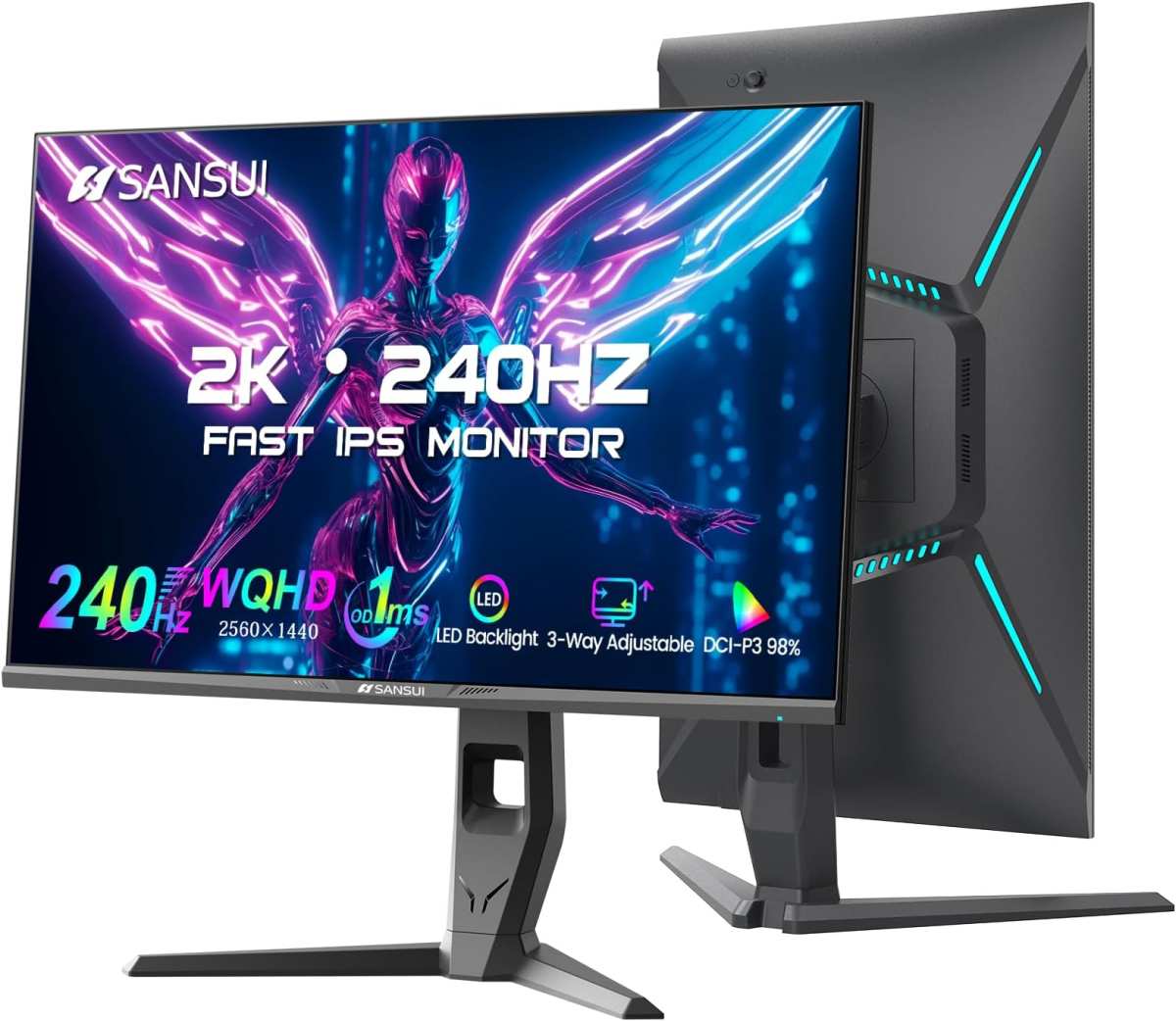
For a noticeable improvement over a standard 60Hz monitor, aim for at least 120Hz or 144Hz. Many high-end gaming monitors now offer 240Hz or even 360Hz for the most competitive players. If your PC can push that many frames, these ultra-high refresh rates offer the ultimate in visual fluidity. To understand the real-world difference between high refresh rates like 144Hz and 240Hz, check out our detailed comparison.
Practical Tip: Even if your PC can’t consistently push frames to match a high refresh rate monitor, it’s still beneficial. When your PC outputs more frames than the monitor can display, the monitor will show the most recent frame, leading to a more up-to-date image compared to a lower refresh rate display.
2. Response Time: Eliminating Ghosting and Smearing
When objects move quickly across your screen, sometimes they leave behind a faint “ghost” or trail. This is called motion blur or ghosting, and it’s where response time comes in to save the day.
What is Response Time?
Response time is the time it takes for a single pixel on your screen to change from one color to another. It’s typically measured in milliseconds (ms), and the most common metric is Grey-to-Grey (GtG). A lower number means pixels can switch colors faster.
Why it Matters for Gaming
Fast-paced games demand quick reactions. If pixels are slow to update, moving objects will appear blurry, making it hard to track enemies or details. Low response times ensure:
- Clearer Action: Fast-moving targets will be sharper and easier to identify.
- Reduced Ghosting: You won’t see annoying trails behind characters or vehicles.
- Crisper Visuals: Overall image clarity is maintained, even during intense action sequences.
What to Aim For
For most gaming scenarios, a response time of 1ms (GtG) is ideal. You might see monitors advertised with 4ms or even 8ms. While these might be acceptable for slower-paced games or general use, serious gamers will want to target that 1ms mark to minimize motion artifacts. For a deeper dive into how response time impacts gameplay, read our expert analysis.
Note: Be wary of manufacturers advertising incredibly low response times (e.g., 0.1ms) without specifying the measurement metric (like GtG). These can sometimes be achieved through “overdrive” settings which can introduce their own artifacts like inverse ghosting. Look for reputable reviews that test these settings.
3. Resolution: The Detail of Your World
Resolution determines how many pixels make up the image on your screen. More pixels mean a sharper, more detailed picture.
What is Resolution?
Resolution is expressed as a width-by-height number of pixels. Common resolutions include:
- 1080p (Full HD): 1920 x 1080 pixels. Still a popular choice, especially for budget builds or when aiming for very high frame rates.
- 1440p (QHD/2K): 2560 x 1440 pixels. Offers a significant step up in detail from 1080p without being as demanding on your hardware as 4K.
- 4K (UHD): 3840 x 2160 pixels. The sharpest and most detailed resolution, providing incredibly lifelike visuals.
Why it Matters for Gaming
Higher resolutions bring games to life with finer details. Textures appear more realistic, distant objects are clearer, and the overall immersion is greatly enhanced. A sharper image also makes it easier to spot enemies at a distance.
What to Aim For
This is a balance between visual fidelity and performance.
- 1080p: Great for competitive gamers who prioritize maximum frame rates with mid-range hardware.
- 1440p: Often considered the sweet spot for many gamers, offering a fantastic balance of detail and performance that works well with most modern GPUs.
- 4K: For the ultimate visual experience if you have a powerful, high-end graphics card that can maintain smooth frame rates at this resolution. Wondering if a 4K monitor is worth the investment? We break down the pros and cons in this guide.
Important Consideration: Running games at higher resolutions requires a more powerful graphics card. Make sure your PC’s hardware is up to the task before opting for a 1440p or 4K monitor, especially if you want high refresh rates too.
4. Panel Type: The Foundation of Your Display
The type of panel used in your monitor significantly impacts its color reproduction, viewing angles, contrast, and response times. The three main types are TN, IPS, and VA.
TN (Twisted Nematic) Panels
Pros: Generally the fastest response times and highest refresh rates available, often at a lower cost. Excellent for competitive gamers who need every millisecond of advantage.
Cons: Poor color reproduction and contrast compared to other panel types. Viewing angles are also quite narrow, meaning colors and brightness can shift significantly if you’re not looking directly at the screen.
IPS (In-Plane Switching) Panels
Pros: Excellent color accuracy and wide viewing angles. This means colors look consistent and vibrant from almost any position. Great for games that rely on stunning visuals and for multitasking.
Cons: Historically, IPS panels were slower and more prone to ghosting. While modern IPS panels have improved dramatically, they might still be a hair slower than the best TN panels and can be more expensive. Curious whether an IPS monitor is better than TN for your gaming style? We compare them head-to-head here.
VA (Vertical Alignment) Panels
Pros: Offer the best contrast ratios and deepest blacks among the three panel types, leading to more vibrant images. Viewing angles are generally better than TN but not as wide as IPS.
Cons: Response times can be slower than TN and some IPS panels, leading to potential motion blur or ghosting, especially in darker scenes. They can also exhibit “black smearing” where dark colors don’t transition smoothly.
What to Aim For
- Competitive Esports Players: TN panels might still be the choice for pure speed.
- Visual Enthusiasts & General Gamers: IPS panels offer a fantastic all-around experience with great colors and decent speed.
- Movie Buffs & Those Who Value Deep Blacks: VA panels excel here, especially if motion blur isn’t your absolute top priority.
Tip: Many new gaming monitors use “Fast IPS” or “Nano IPS” technologies, which significantly improve response times while retaining the color and viewing angle benefits of IPS. These are often excellent choices.
5. Adaptive Sync Technology: The End of Screen Tearing
Ever seen your game image split into two or more parts, with one part appearing slightly out of sync with the other? That’s screen tearing, and it’s a common frustration for gamers. Adaptive sync technologies are designed to fix this.
What is Adaptive Sync?
Adaptive sync is a technology that synchronizes your monitor’s refresh rate with your graphics card’s frame rate output in real-time. This ensures that your monitor only refreshes when a new frame is ready to be displayed, eliminating tearing.
The Two Main Flavors
- NVIDIA G-Sync: Developed by NVIDIA, G-Sync requires a specific G-Sync module built into the monitor. This often means G-Sync monitors are more expensive.
- AMD FreeSync: Developed by AMD, FreeSync is an open standard that works with most modern graphics cards (AMD and sometimes NVIDIA). Monitors with FreeSync are generally more affordable.
Compatibility Note: NVIDIA GPUs can now also work with “G-Sync Compatible” monitors, which are essentially FreeSync monitors that NVIDIA has tested and certified to work well with their cards. Look for this certification if you have an NVIDIA GPU.
Why it Matters for Gaming
- Tear-Free Gaming: The most obvious benefit is the complete elimination of screen tearing.
- Smoother Gameplay: Adaptive sync helps to reduce stuttering and ensures a much more consistent and fluid visual experience, even when your frame rate fluctuates.
What to Aim For
Always look for a monitor with adaptive sync. Whether it’s G-Sync, FreeSync, or G-Sync Compatible, this technology is a game-changer for smooth visuals. If you have an AMD GPU, FreeSync is a no-brainer. If you have an NVIDIA GPU, look for G-Sync or G-Sync Compatible monitors.
6. HDR (High Dynamic Range): Enhancing Color and Contrast
HDR is a relatively newer technology that aims to provide a more realistic and vibrant visual experience by expanding the range of colors and brightness levels a display can produce.
What is HDR?
HDR allows for a wider range of colors and a greater difference between the brightest whites and the darkest blacks. This results in images that look more lifelike, with greater depth and detail in both highlights and shadows.
Why it Matters for Gaming
- More Lifelike Visuals: Explosions will be brighter and more dazzling, shadows will be deeper and more detailed, and colors will pop with more vibrancy.
- Increased Immersion: The enhanced contrast and color can draw you deeper into the game world.
What to Look For
HDR performance can vary greatly. Look for VESA DisplayHDR certifications (e.g., DisplayHDR 400, 600, 1000). Higher numbers indicate better performance. DisplayHDR 400 is a basic level, while DisplayHDR 600 and above offer a much more noticeable and impactful HDR experience. Keep in mind that true HDR performance also depends on your GPU’s ability to output HDR signals and the game supporting it.
7. Other Important Considerations
Beyond the core gaming features, a few other aspects can make a monitor great.
Size and Aspect Ratio
- Size: Common sizes range from 24 inches for competitive setups to 27 inches for a good balance of immersion and desk space, up to 32 inches or larger for maximum immersion. Choosing the right size is crucial—learn what works best for your setup.
- Aspect Ratio: Most monitors are 16:9. Ultrawide monitors (21:9 or 32:9) offer a more immersive, cinematic experience, but not all games support them well.
Connectivity
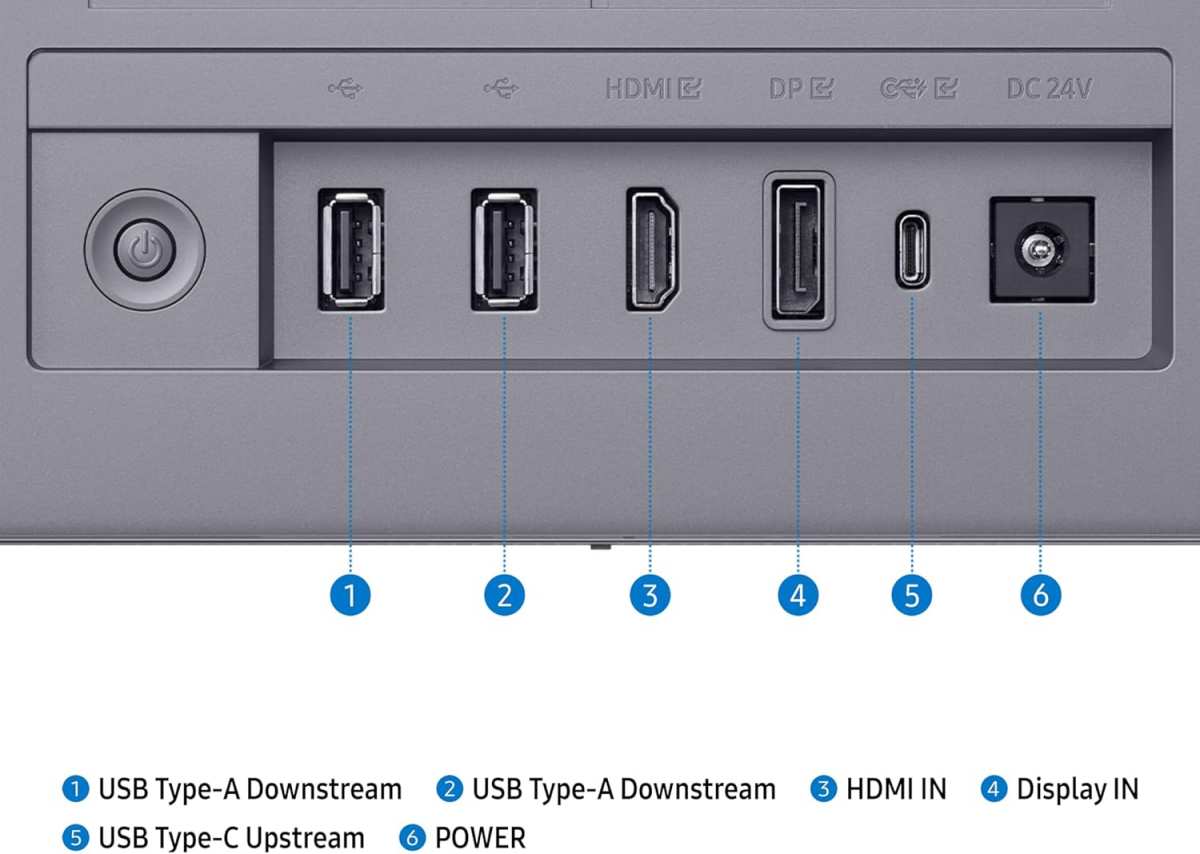
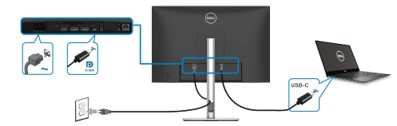
Ensure the monitor has the right ports for your needs. DisplayPort is generally preferred for high refresh rates and adaptive sync with PCs. HDMI is also common, especially for consoles. Check the version of HDMI and DisplayPort supported.
Ergonomics and Design
A monitor with an adjustable stand (height, tilt, swivel, pivot) will allow you to find the most comfortable viewing position, which is important for long gaming sessions. VESA mount compatibility is also a plus if you plan to wall-mount your display.
Curved vs. Flat
Curved monitors can enhance immersion by wrapping the screen around your field of vision. They are generally preferred for larger or ultrawide displays. Flat monitors are perfectly fine and are the standard for most users.
Putting It All Together: Finding Your Perfect Gaming Monitor
Now that you understand the key features, let’s put it into practice.
Step 1: Define Your Gaming Needs
- Competitive FPS/Esports: Prioritize high refresh rates (144Hz+) and low response times (1ms). Resolution might be less critical than speed.
- RPGs/Adventure Games: Focus on resolution (1440p or 4K) and color quality (IPS or VA panels). Refresh rate is still important, but maybe not as extreme as for esports.
- Simulators/Strategy Games: Good clarity and detail are key. 1440p or 4K with a decent refresh rate and adaptive sync will enhance the experience.
Step 2: Set Your Budget
Gaming monitors can range from a few hundred dollars to over a thousand. High refresh rates, 4K resolution, G-Sync Ultimate, and advanced HDR will all drive up the price. Determine how much you’re willing to spend to narrow down your options.
Step 3: Prioritize Features
- Must-Haves: Adaptive Sync, at least 120Hz refresh rate, 1ms response time (GtG).
- Highly Recommended: 1440p resolution for a good balance, IPS or fast IPS panel for great colors.
- Bonus: 4K resolution, high-end HDR, ultrawide aspect ratio.
Step 4: Research and Read Reviews
Once you have a few potential models in mind, dive into professional reviews from reputable tech websites. Look for benchmarks, real-world gaming tests, and comparisons that go beyond the marketing specifications. User reviews can also offer valuable insights into long-term performance and potential issues.
Troubleshooting Common Gaming Monitor Issues
Even with the best monitor, you might encounter occasional problems.
Screen Tearing
Solution: Ensure adaptive sync (G-Sync or FreeSync) is enabled in your monitor’s OSD (On-Screen Display) settings and in your graphics card control panel (NVIDIA Control Panel or AMD Radeon Software). Also, make sure your game’s frame rate is within the monitor’s variable refresh rate (VRR) range.
Ghosting or Smearing
Solution: Check your monitor’s OSD for “Overdrive” settings. Experiment with different levels (e.g., Normal, Fast, Fastest). Too high an overdrive can cause inverse ghosting, while too low can result in motion blur. Find the sweet spot.
Input Lag
Solution: Input lag is the delay between your input (mouse click, keyboard press) and the action appearing on screen. Ensure “Game Mode” is enabled on your monitor if it has one, as this often bypasses unnecessary image processing. Avoid using features like motion interpolation or extensive image enhancement settings.
Conclusion
Choosing a good gaming monitor is a crucial step in optimizing your gaming setup. By understanding the importance of refresh rate, response time, resolution, panel type, and adaptive sync, you can make an informed decision that will significantly enhance your gaming experience. Remember to balance these technical specifications with your personal preferences, the types of games you play, and your budget. With the right monitor, you’ll be immersed in your games like never before, enjoying smoother visuals, sharper details, and a more responsive gameplay experience. Happy gaming!
Key Takeaways
- Refresh Rate is King for Smoothness: A higher refresh rate (measured in Hz) means more frames per second can be displayed, resulting in smoother on-screen motion, crucial for fast-paced games. Aim for at least 144Hz for a significant upgrade.
- Response Time Minimizes Motion Blur: This measures how quickly a pixel can change color. Lower response times (1ms or 2ms GTG) reduce ghosting and motion blur, keeping your visuals sharp and clear during action.
- Resolution Dictates Detail: Higher resolutions like 1440p (QHD) or 4K (UHD) offer sharper, more detailed images, making textures and fine details pop. However, they require more powerful GPUs to run games at high frame rates.
- Panel Type Influences Color and Contrast: IPS panels offer excellent color accuracy and wide viewing angles, while TN panels provide the fastest response times but sacrifice color quality. VA panels strike a balance with deep blacks and good contrast.
- Adaptive Sync Technology Prevents Tearing: Technologies like NVIDIA G-Sync and AMD FreeSync synchronize your monitor’s refresh rate with your graphics card’s frame rate, eliminating distracting screen tearing for a fluid experience.
- HDR Enhances Visual Realism: High Dynamic Range (HDR) offers a wider range of colors and brighter highlights, making games look more vibrant and lifelike. Look for VESA DisplayHDR certifications for validated performance.
- Ergonomics and Connectivity Matter: Adjustable stands, VESA mount compatibility, and ample ports (HDMI, DisplayPort) contribute to a comfortable and versatile gaming setup.

Similar Posts