Is 144hz Monitor Good for Gaming
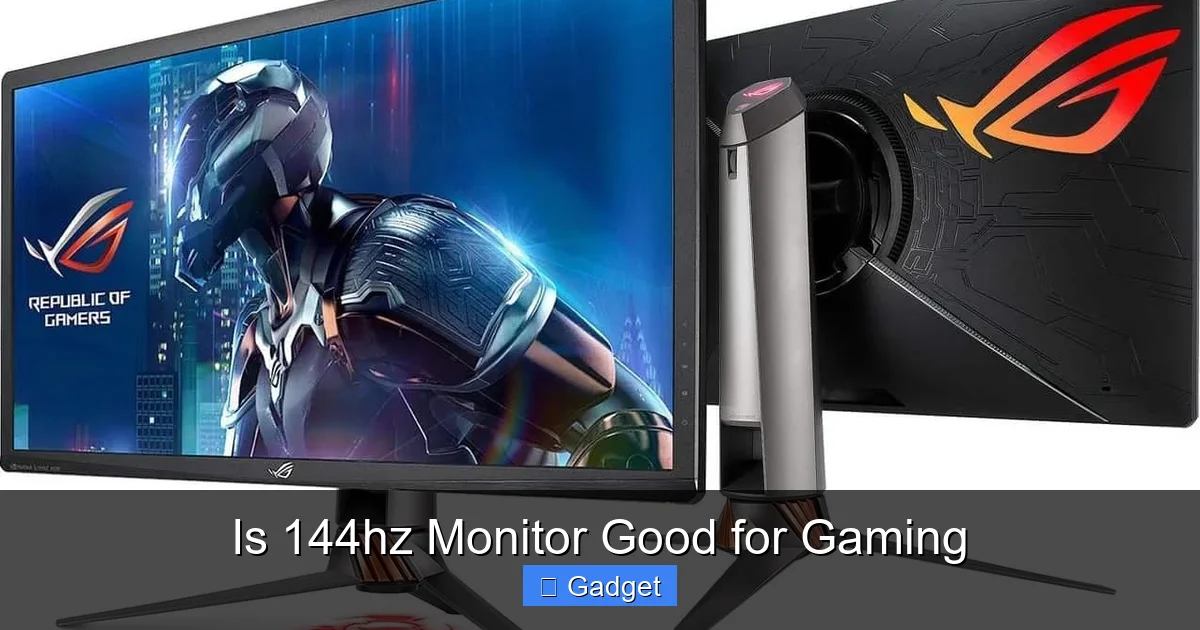
Wondering if a 144Hz monitor is good for gaming? This guide dives deep into the advantages of a higher refresh rate, explaining how it translates to smoother visuals and a more responsive gaming experience. We’ll cover what you need to know to make an informed decision and get the most out of your setup. A 144Hz monitor offers a significant upgrade for gamers, and we’re here to tell you why. 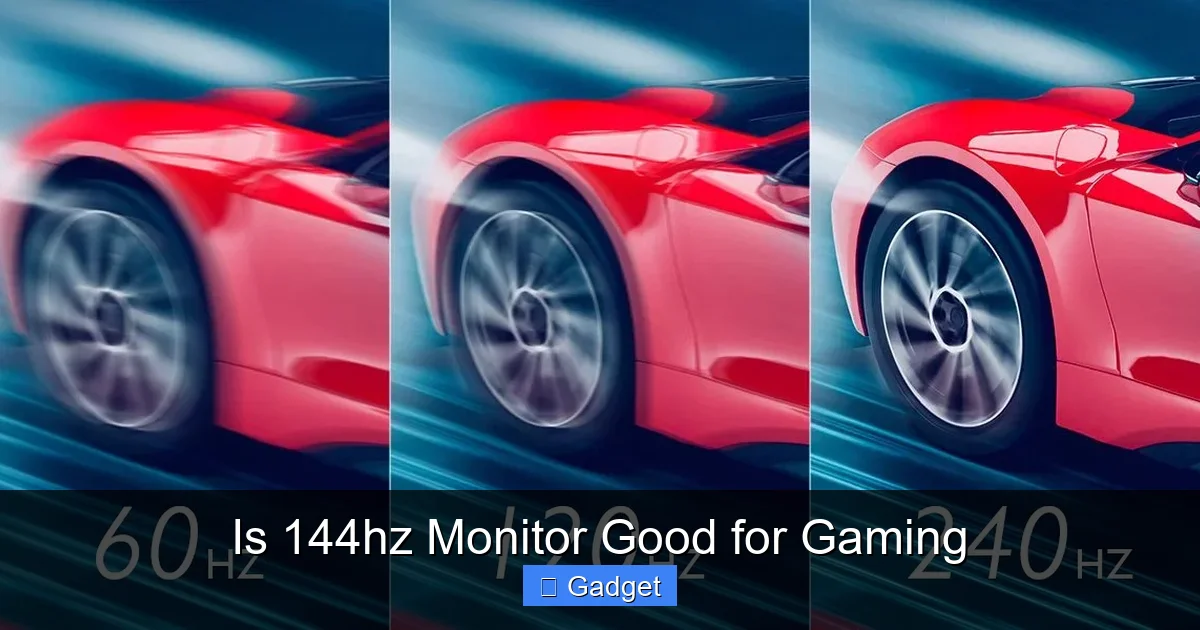
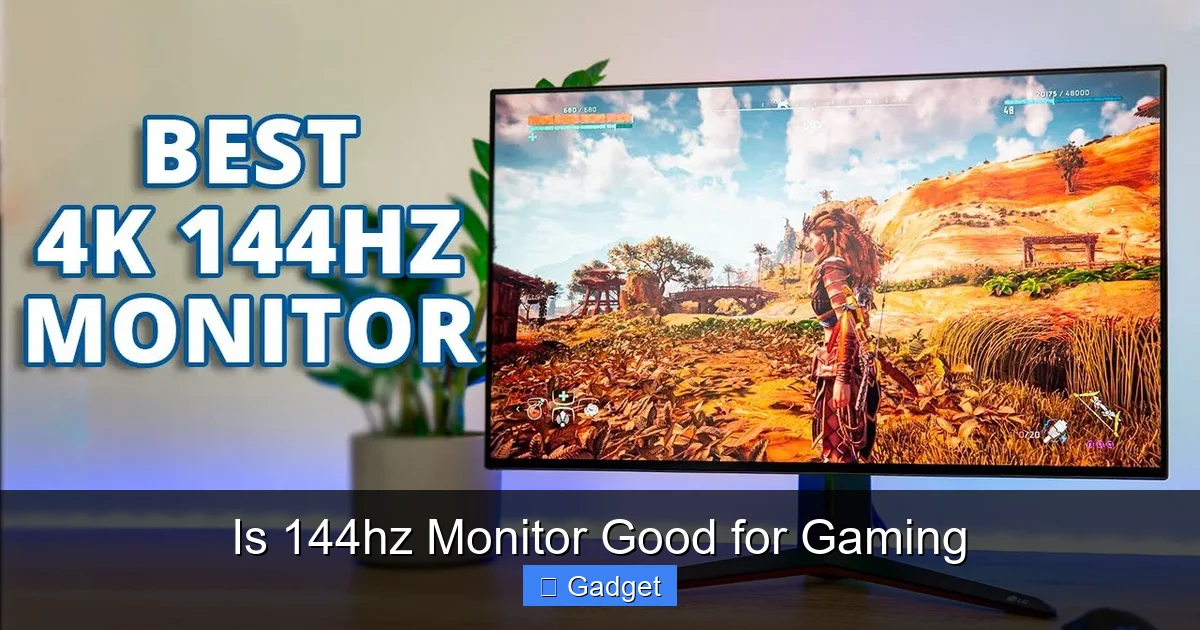
Is 144Hz Monitor Good for Gaming?
You’re probably here because you’ve seen terms like “144Hz,” “high refresh rate,” and “smoother gameplay” thrown around when talking about gaming monitors. And you’re wondering: is a 144Hz monitor actually good for gaming? The short answer is a resounding yes. But like most things in technology, the full story is a bit more nuanced. In this comprehensive guide, we’ll break down exactly what 144Hz means, why it’s a game-changer for gamers, what you need to get the most out of it, and whether it’s the right upgrade for you. By the end of this guide, you’ll have a clear understanding of how a 144Hz monitor can elevate your gaming experience, the technical requirements involved, and how to choose the best 144Hz monitor for your needs.Key Takeaways
- 144Hz offers significantly smoother motion: A higher refresh rate means the monitor updates the image on screen much more frequently, resulting in noticeably smoother visuals, especially in fast-paced games.
- Improved responsiveness and reduced input lag: The faster screen updates contribute to lower input lag, allowing you to react quicker to in-game events, giving you a competitive edge.
- Reduced motion blur: With more frames displayed per second, the perceived blur during rapid movements is greatly diminished, leading to clearer images and a more immersive experience.
- Not all games benefit equally: While most games look better, the difference is most pronounced in fast-paced titles like first-person shooters, racing games, and MOBAs.
- Hardware requirements are crucial: To fully experience 144Hz, your PC’s graphics card (GPU) must be powerful enough to generate enough frames per second (FPS) to match or exceed the refresh rate.
- Consider your display panel type: While refresh rate is key, the panel type (TN, IPS, VA) also impacts visual quality, color accuracy, and response times.
- It’s a worthwhile upgrade for serious gamers: For those who play competitively or simply want the best visual experience, a 144Hz monitor is a significant and often essential upgrade.
Understanding Refresh Rate: The Heart of Smoothness
Before we dive into the specifics of 144Hz, let’s quickly cover what a refresh rate actually is. In simple terms, the refresh rate of a monitor is how many times per second it updates the image displayed on the screen. It’s measured in Hertz (Hz).Standard Refresh Rates
Most standard monitors today operate at 60Hz. This means they refresh the image 60 times every second. While this is perfectly adequate for everyday tasks like browsing the web, watching videos, and even casual gaming, it can become a limitation when it comes to fast-paced action.What 144Hz Means
A 144Hz monitor, on the other hand, refreshes the image 144 times every second. That’s more than double the refresh rate of a standard 60Hz monitor. This significant increase in refresh rate has a direct and noticeable impact on your gaming experience.The Benefits of 144Hz for Gaming
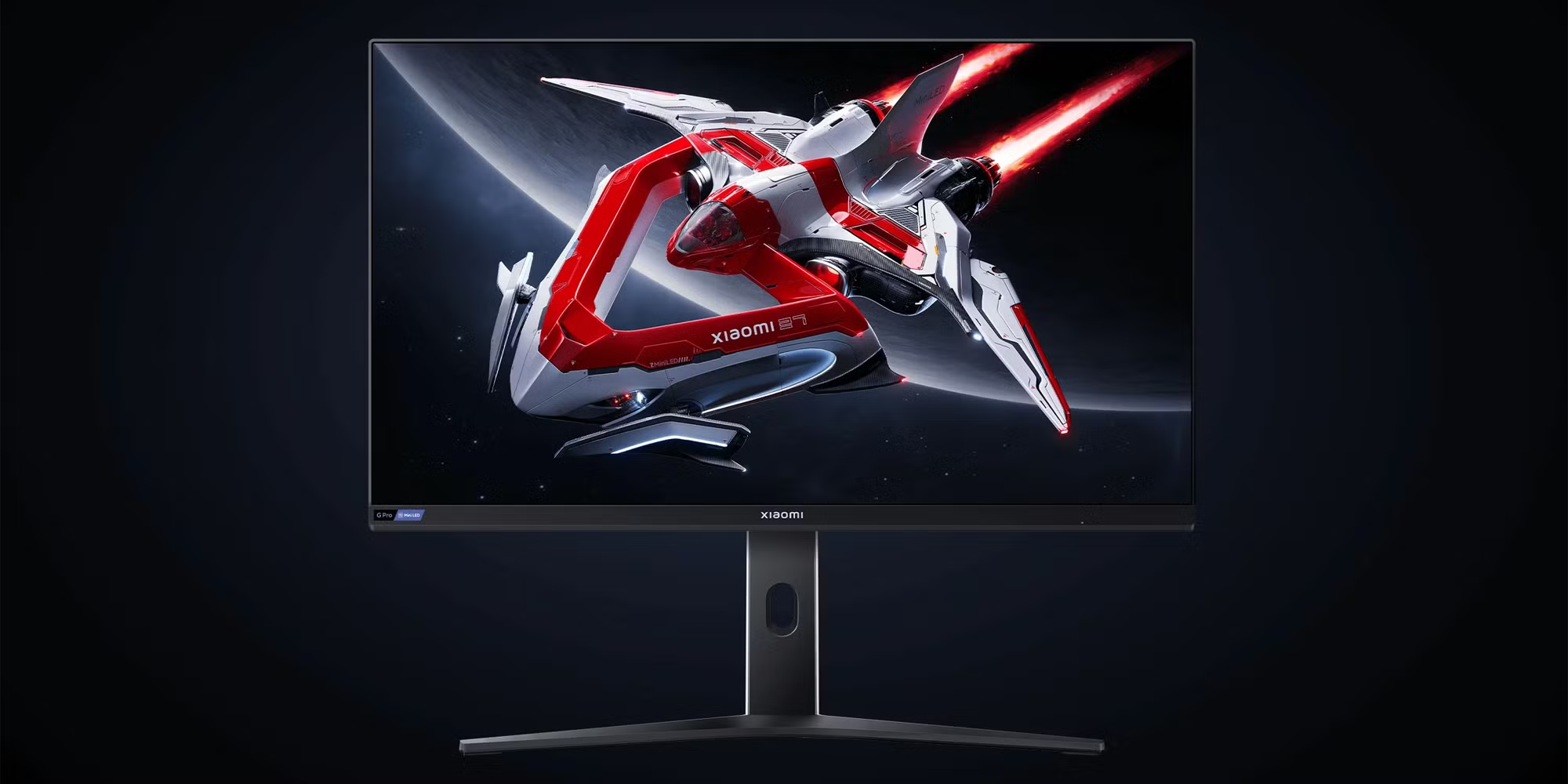
So, why is this doubling of screen updates such a big deal for gamers? The advantages are numerous and directly contribute to a more enjoyable and competitive gaming experience.Visual guide about Is 144hz Monitor Good for Gaming
Image source: devx.com
Smoother Visuals and Reduced Motion Blur
This is perhaps the most immediate and noticeable benefit. In fast-paced games, when objects move quickly across the screen, a 60Hz monitor can struggle to keep up. This can lead to choppy motion and a phenomenon called motion blur, where fast-moving objects appear smeared or indistinct. A 144Hz monitor, by refreshing the image so much more frequently, presents a much smoother, clearer, and more fluid visual experience. You’ll see less stuttering and significantly reduced motion blur, allowing you to track enemies and environments with greater clarity.Example: First-Person Shooters (FPS)
Imagine playing a fast-paced FPS game like “Apex Legends” or “Call of Duty: Warzone.” When you’re quickly turning your character or tracking a fast-moving opponent, a 144Hz monitor will display that movement with far greater smoothness than a 60Hz monitor. This clarity allows you to acquire targets faster and react more effectively.Improved Responsiveness and Reduced Input Lag
Input lag is the delay between you performing an action (like clicking your mouse or pressing a key) and that action appearing on screen. While a monitor’s refresh rate isn’t the sole cause of input lag, it plays a significant role. A higher refresh rate means the monitor is ready to display new information more often. This reduces the time it takes for your input to be registered and shown, resulting in a more responsive feel.How it helps:
- Quicker Reactions: In competitive games, milliseconds matter. A more responsive display means you can react to enemy movements or in-game events fractions of a second sooner, giving you a crucial advantage.
- More Precise Control: You’ll feel a more direct connection between your physical actions and what happens in the game, leading to more precise aiming and control.
Enhanced Competitive Edge
Combining smoother visuals and improved responsiveness, a 144Hz monitor can genuinely give you a competitive edge. The ability to see enemy movements more clearly, track targets with less blur, and react faster can make a significant difference in online multiplayer games where split-second decisions are the norm.A More Immersive Experience
Beyond the competitive aspect, the sheer smoothness and fluidity offered by a 144Hz monitor simply make games more enjoyable. The world feels more alive, animations are more lifelike, and the overall visual experience is significantly more pleasing and immersive. Even for single-player games, the enhanced visual fidelity can pull you deeper into the game world.Do You Need a 144Hz Monitor? Considering Your Gaming Habits
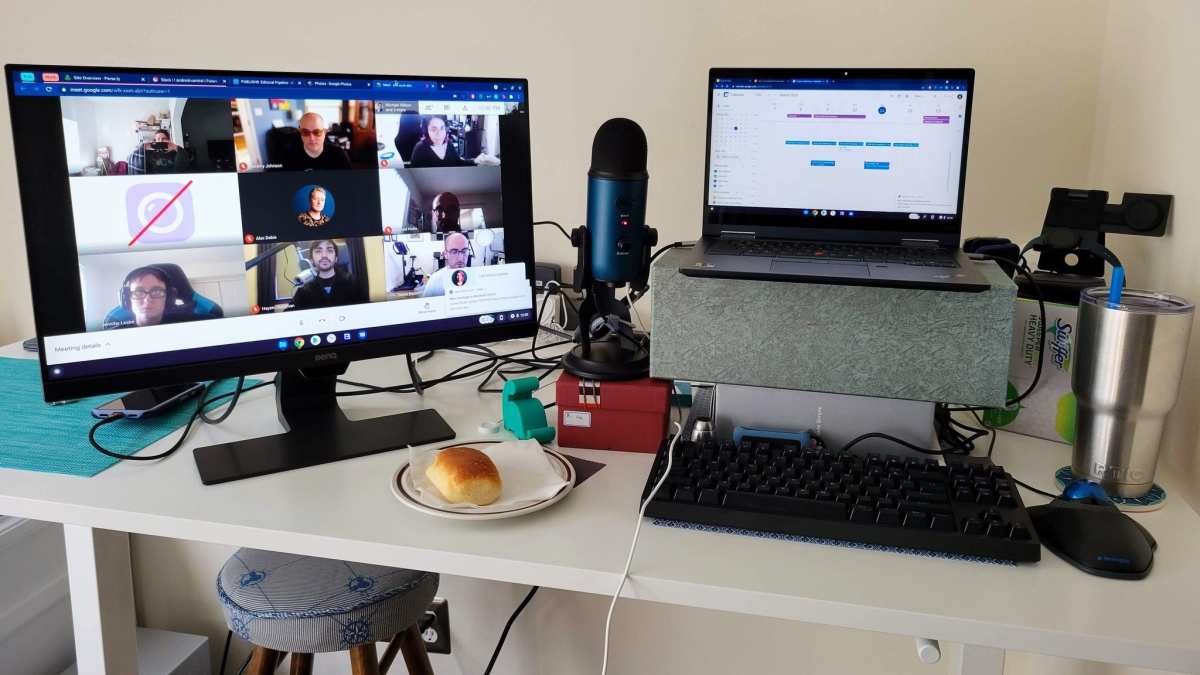
The benefits of a 144Hz monitor are clear, but it’s not necessarily a must-have for every single gamer. Your personal gaming habits and the types of games you play will heavily influence whether this upgrade is worthwhile for you.Visual guide about Is 144hz Monitor Good for Gaming
Image source: i.ytimg.com
Who Benefits Most?
- Competitive Gamers: If you play esports titles like FPS games (CS:GO, Valorant, Overwatch), MOBAs (League of Legends, Dota 2), or racing simulators, the advantages of a 144Hz monitor are most pronounced. The speed and reaction times are critical.
- Fast-Paced Game Enthusiasts: Even if you’re not strictly competitive, if you enjoy games with rapid action, high framerates, and quick reflexes, you’ll appreciate the smoother visuals.
- Those Seeking a Premium Experience: If you’re looking to upgrade your gaming setup and want to experience the best visual fidelity, a 144Hz monitor is a significant step up from standard 60Hz displays.
Who Might Not See a Huge Difference?
- Casual Gamers: If you primarily play slower-paced games like turn-based strategy titles, narrative-driven adventures, or puzzle games, the benefits of 144Hz might be less noticeable, though still present.
- Those Primarily Watching Movies or Working: While a 144Hz monitor will still display video smoothly, it’s an overkill for static content or standard office tasks.
The Crucial Hardware Requirements: Can Your PC Handle 144Hz?
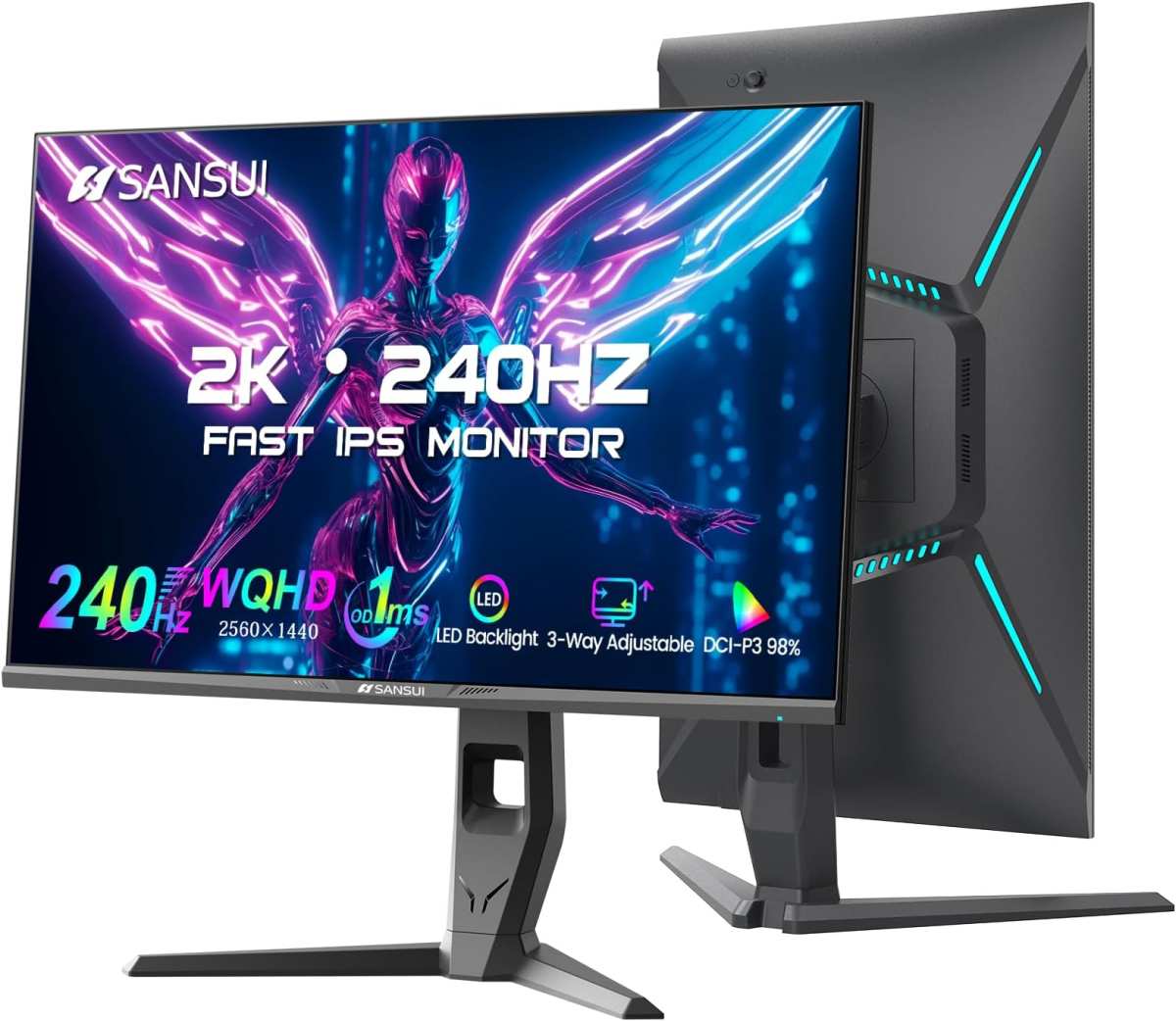
This is where many people run into issues. A 144Hz monitor is only as good as the frames per second (FPS) your PC can produce. If your graphics card can only generate 60 FPS, then a 144Hz monitor will still only display 60 images per second. To truly take advantage of a 144Hz monitor, your PC needs to be able to output at least 144 FPS consistently in the games you play.Visual guide about Is 144hz Monitor Good for Gaming
Image source: m.media-amazon.com
Understanding Frames Per Second (FPS)
FPS refers to the number of frames (individual images) your graphics card renders each second. Higher FPS means smoother animation. A 144Hz monitor is designed to display up to 144 frames per second.Checking Your Current FPS
Most PC games have an in-game option to display your current FPS. Alternatively, you can use monitoring software like MSI Afterburner or the built-in GeForce Experience overlay (for NVIDIA cards) or Radeon Software (for AMD cards). Play your favorite games and observe the FPS counter.Graphics Card (GPU) Considerations
Your GPU is the primary component responsible for generating FPS. To achieve 144 FPS or more in modern games, especially at higher resolutions and graphics settings, you’ll generally need a mid-range to high-end graphics card.What to aim for:
- For 1080p: A decent mid-range GPU (e.g., NVIDIA GeForce RTX 3060/4060 or AMD Radeon RX 6600 XT/7600) might achieve 144 FPS in many games at medium to high settings.
- For 1440p: You’ll likely need a more powerful GPU (e.g., NVIDIA GeForce RTX 3070/4070 or AMD Radeon RX 6700 XT/7700 XT) to maintain 144 FPS, especially at higher settings.
- For 4K: Achieving 144 FPS at 4K resolution is extremely demanding and typically requires top-tier GPUs (e.g., NVIDIA GeForce RTX 4080/4090 or AMD Radeon RX 7900 XTX).
CPU and RAM also play a role
While the GPU is paramount for FPS, your CPU and RAM are also important. A CPU bottleneck can limit how many frames your GPU can push, even if the GPU itself is very powerful. Similarly, insufficient RAM can lead to stuttering and performance issues.What About Other Display Technologies? (TN, IPS, VA)
When choosing a 144Hz monitor, you’ll encounter different display panel types: TN, IPS, and VA. Each has its own strengths and weaknesses that can impact your gaming experience beyond just the refresh rate.TN (Twisted Nematic) Panels
- Pros: Historically, TN panels have been the go-to for high refresh rates because they offer very fast response times and are generally the most affordable.
- Cons: They typically have weaker color reproduction and viewing angles compared to IPS and VA panels. Colors might appear washed out, and the image quality degrades significantly when viewed from an angle.
IPS (In-Plane Switching) Panels
- Pros: IPS panels are known for their excellent color accuracy and wide viewing angles. They offer vibrant and consistent colors.
- Cons: Traditionally, IPS panels were slower than TN panels, leading to higher response times. However, modern gaming IPS panels have significantly improved, offering 1ms response times and high refresh rates, often at a higher price point.
VA (Vertical Alignment) Panels
- Pros: VA panels offer a great balance between color reproduction and contrast ratios. They provide deep blacks and vibrant colors, often surpassing IPS in contrast.
- Cons: They can sometimes suffer from slower response times, particularly in darker transitions, which can lead to some ghosting (trailing images behind moving objects).
Which is best for gaming?
For pure speed and competitive gaming, TN panels were once the undisputed champion. However, advancements in IPS technology mean that many 144Hz IPS monitors now offer both excellent color and response times, making them a popular choice for a well-rounded gaming experience. VA panels are a good compromise if deep blacks and contrast are important to you, but be mindful of potential ghosting in fast-paced action.Adaptive Sync Technologies: G-Sync and FreeSync
One of the most significant advancements in gaming displays is adaptive sync technology. These technologies synchronize the monitor’s refresh rate with your GPU’s frame rate, eliminating screen tearing and reducing stuttering.Screen Tearing Explained
Screen tearing occurs when your GPU is rendering frames at a different rate than your monitor is refreshing. The result is that you see parts of two different frames on the screen at once, creating a “torn” effect. This is particularly noticeable during fast motion.G-Sync (NVIDIA)
NVIDIA’s G-Sync technology is designed to work with NVIDIA GeForce graphics cards. G-Sync monitors have a dedicated hardware module that allows for variable refresh rates. This offers the smoothest experience but typically comes at a premium price and requires a compatible NVIDIA GPU.FreeSync (AMD)
AMD’s FreeSync is an open standard that is royalty-free for monitor manufacturers. It works with AMD Radeon graphics cards and, in many cases, can also work with NVIDIA GPUs (often referred to as “G-Sync Compatible”). FreeSync monitors are generally more affordable than G-Sync monitors and are widely available across different price points.Why is this important for 144Hz?
Even with a 144Hz monitor, if your FPS fluctuates (which it often does), you can still experience tearing if you don’t use adaptive sync. Using G-Sync or FreeSync with your 144Hz monitor ensures that the display is always refreshing in sync with your GPU, providing the smoothest possible visual experience without tearing or stuttering.Setting Up Your 144Hz Monitor for Optimal Gaming
Once you’ve purchased your 144Hz monitor and confirmed your PC can handle it, there are a few steps to ensure you’re getting the most out of it.1. Connect with DisplayPort
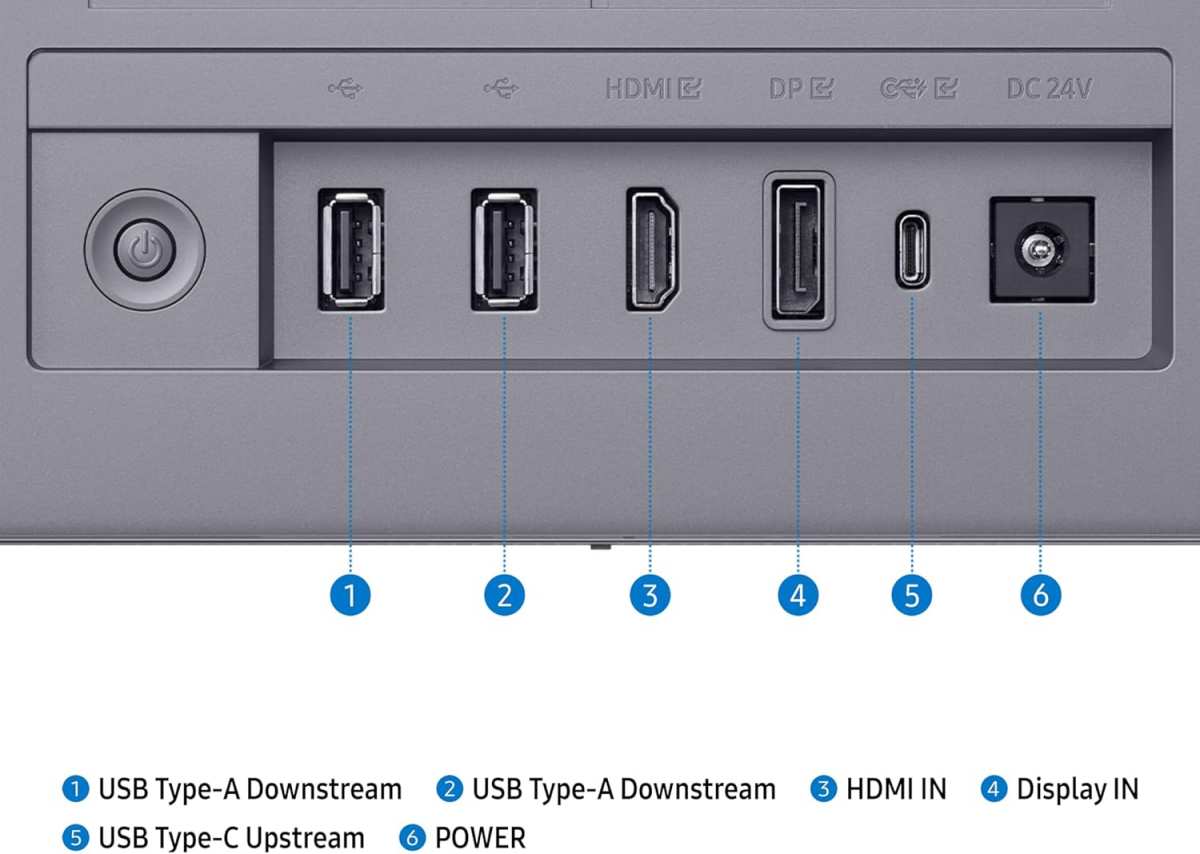
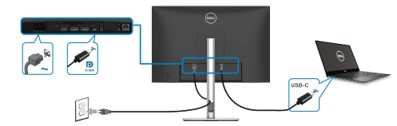
For high refresh rates like 144Hz (especially at resolutions like 1080p and 1440p), it’s crucial to use a DisplayPort cable. HDMI cables, especially older versions, might be limited in their bandwidth and may not support 144Hz at your desired resolution. Always check your monitor’s specifications and use the recommended cable type.2. Enable 144Hz in Windows Display Settings
By default, Windows might still set your monitor to 60Hz even if it’s a 144Hz panel. You need to manually change this:Steps:
- Right-click on your desktop and select “Display settings.”
- Scroll down and click on “Advanced display settings.”
- Under “Choose a refresh rate,” select the highest available option, which should be 144Hz (or close to it).
3. Update Graphics Drivers
Outdated graphics drivers can cause performance issues, compatibility problems, and prevent you from accessing higher refresh rates. Make sure you have the latest drivers installed for your NVIDIA, AMD, or Intel graphics card. You can download these directly from the manufacturer’s website.4. Enable G-Sync or FreeSync in Graphics Control Panel
After enabling 144Hz in Windows, you’ll want to configure your adaptive sync technology:For NVIDIA (G-Sync/G-Sync Compatible):
- Open the NVIDIA Control Panel.
- Navigate to “Set up G-SYNC.”
- Ensure “Enable G-SYNC, G-SYNC Compatible” is checked.
- Select “Enable for windowed and full-screen mode” or “Enable for full-screen mode” based on your preference.
For AMD (FreeSync):
- Open the AMD Radeon Software.
- Go to the “Display” tab.
- Ensure “AMD FreeSync” is turned “On.”
5. Adjust In-Game Settings
Finally, ensure your in-game settings are optimized to achieve the FPS needed to leverage the 144Hz refresh rate. You might need to slightly lower some graphics settings to consistently hit or exceed 100-144 FPS.Troubleshooting Common Issues
Even with the best setup, you might encounter a few hiccups. Here are some common problems and their solutions:Issue: Monitor Stuck at 60Hz
Solution:- Verify you’re using a DisplayPort cable.
- Check Windows display settings to ensure 144Hz is selected.
- Update your graphics drivers.
- Ensure the monitor itself is set to 144Hz in its OSD (On-Screen Display) menu, if applicable.
Issue: Screen Tearing Despite 144Hz
Solution:- Ensure G-Sync or FreeSync is enabled in your graphics control panel AND in the game settings (if the game has its own V-Sync option, it might need to be turned off or set to adaptive if available).
- Check if your FPS is consistently above 144. If it drops significantly below 144 and then bounces back up, you might still see some minor stuttering.
Issue: Ghosting or Motion Blur on a 144Hz Monitor
Solution:- This can sometimes be related to the panel type (VA panels are more prone). Look for “Overdrive” settings in your monitor’s OSD menu. Experiment with different overdrive levels (e.g., Normal, Fast, Faster). Be careful, as too high an overdrive can cause inverse ghosting (bright trails).
- Ensure your graphics drivers are up to date.
Conclusion: Is 144Hz Worth the Investment?
So, is a 144Hz monitor good for gaming? Absolutely. For anyone serious about their gaming experience, especially in competitive or fast-paced titles, the upgrade from a standard 60Hz monitor is substantial and highly recommended. The smoothness, responsiveness, and clarity it provides fundamentally change how you perceive and interact with games. However, it’s crucial to remember the hardware requirements. A 144Hz monitor is an investment that pays off when your PC can actually deliver the frames to match. If you’re on a budget, consider if upgrading your GPU to reliably hit higher FPS might be a more impactful first step. But if your rig is up to the task, a 144Hz monitor is one of the most significant and enjoyable upgrades you can make to your gaming setup. The difference is palpable, turning good gameplay into great gameplay and making every session more fluid, responsive, and immersive. Happy gaming! Curious how 144Hz stacks up against even higher refresh rates? Learn more in our guide on 144Hz vs 240Hz monitors.
Similar Posts