Is 144Hz Monitor Worth It for Casual Gaming
For casual gaming, a 144Hz monitor is often worth it. Even non-competitive games feel smoother at 144Hz. Budget 144Hz 1080p monitors start around $120 to $180 as of 2026.
Your GPU must push high帧 rates to benefit fully. Without compatible hardware, you won't see the advantage.
So here's the real answer: yes for most people, but the "why" depends on your specific setup and habits.
When you're asking is a 144Hz monitor worth it for casual gaming, the answer hinges less on the monitor itself and more on what you're playing, what hardware you already own, and what you're upgrading from. Manufacturer specifications list 144Hz as the refresh rate, but that spec alone doesn't guarantee you'll actually feel a difference. Your GPU needs to be pushing close to 144 frames per second for you to see the full benefit.
If your graphics card can only manage 60 to 80 FPS in the games you play, you're essentially paying for performance you can't use yet. But if you're upgrading from a standard 60Hz display and your rig can push at least 100-plus frames, you'll notice the difference almost immediately. Everything from scrolling through menus to moving the camera in a game feels less sluggish.
Even desktop use feels smoother, which is a bonus you don't think about until you go back to 60Hz and it suddenly feels choppy.
The jump from 60Hz to 144Hz is roughly a 144% increase in how many times your screen refreshes per second. That translates to a frame time of about 6.94 milliseconds compared to 16.67 milliseconds at 60Hz. Your eyes pick up on that even if you can't consciously articulate why.
The real question isn't whether 144Hz is better. It is. The question is whether it's better for you, right now, with your current setup and budget.
Let's figure that out.
30-Second Gut Check: Should You Even Keep Reading?
Before we get into the weeds, here's a fast way to figure out where you stand. If you check two or more of these boxes, a 144Hz monitor is probably a smart buy for you.
- You currently use a 60Hz monitor and have felt motion blur or choppiness.
- Your GPU is at least an NVIDIA GTX 1660 Super or AMD RX 6600 (or newer).
- You play any fast-paced games like Fortnite, Apex Legends, Call of Duty, or Rocket League.
- You also use your PC for general tasks and want a smoother desktop experience.
- You can spend $120 to $200 without stressing about it.
If you checked one or fewer, you might be fine sticking with what you have, or a cheaper 75Hz upgrade could be the smarter move. We'll break down why in the sections below.
How Refresh Rate Actually Works (And Why 144Hz Feels Different)
Let's get the basics out of the way, because understanding this makes every other decision easier.
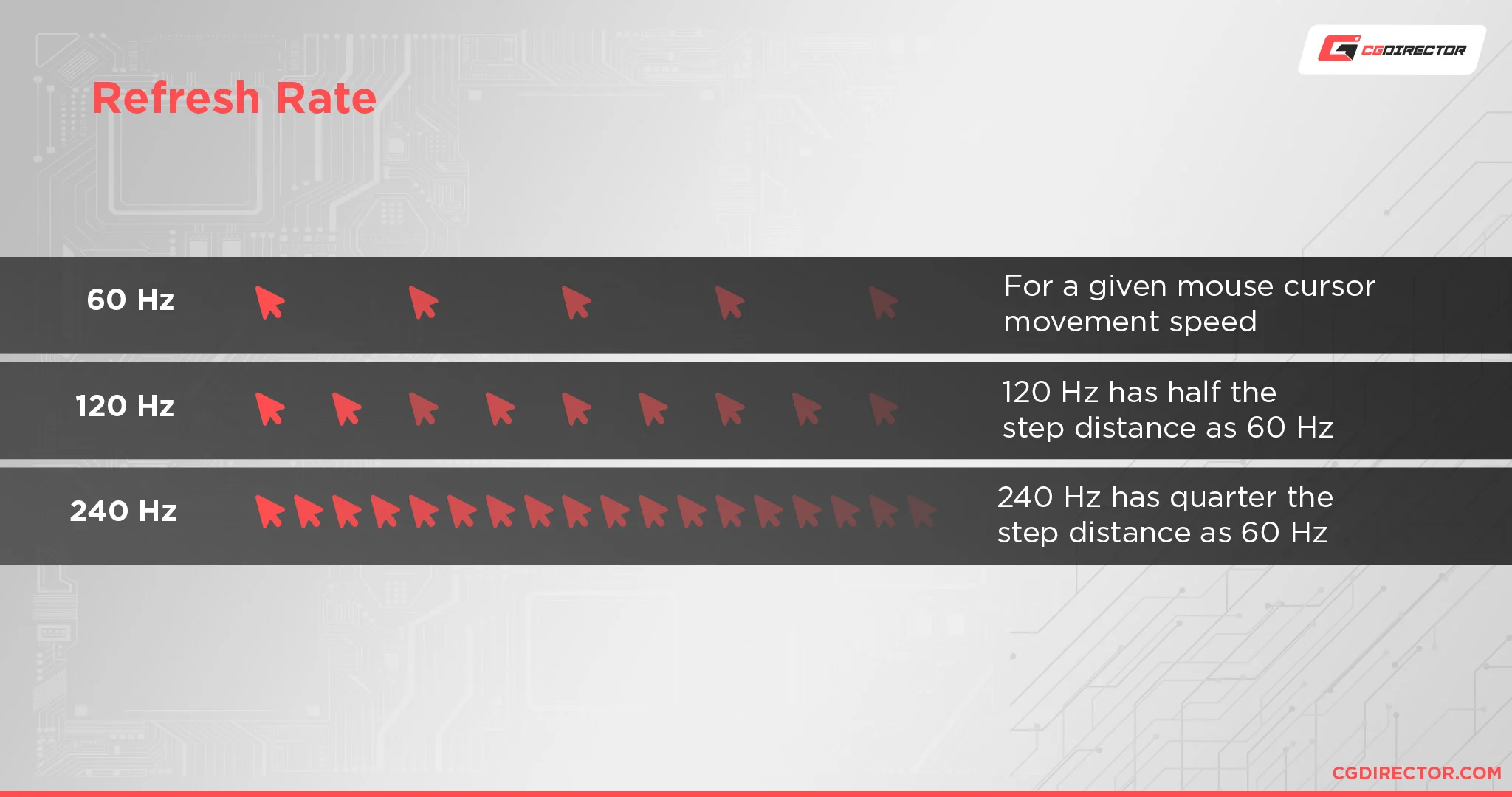
Refresh rate is how many times per second your monitor draws a new image. Measured in hertz (Hz). A 60Hz monitor refreshes 60 times per second.
A 144Hz monitor refreshes 144 times per second.
Frame rate (FPS) is how many frames your GPU produces per second. These two numbers need to be in the same ballpark for you to actually benefit. If your GPU outputs 60 FPS but your monitor refreshes 144 times, you're still only seeing 60 unique frames.
The monitor just refreshes with duplicates.
Here's where it gets interesting. Even when your FPS doesn't perfectly match the refresh rate, a higher refresh rate monitor still reduces input lag. That's the delay between your mouse click or keypress and the action appearing on screen.
At 144Hz, that delay drops to roughly 6.94 milliseconds compared to 16.67 milliseconds at 60Hz. You feel that more than you see it.
Adaptive sync technologies like NVIDIA G-Sync and AMD FreeSync help bridge the gap when your FPS fluctuates. They let the monitor adjust its refresh rate on the fly to match what your GPU is outputting. This eliminates screen tearing without adding the input lag that traditional V-Sync introduces.
Most 144Hz monitors support at least one of these, and many budget models support both through "G-Sync Compatible" certification.
The bottom line: refresh rate is the ceiling, frame rate is what you actually hit, and adaptive sync keeps everything in sync. All three matter.
What Type of Casual Gamer Are You?
This is where the decision tree really kicks in. "Casual gaming" covers a huge range of activities, and not all of them benefit equally from 144Hz.
The Slow-Paced Gamer
You play games like Stardew Valley, The Sims 4, Civilization VI, Hearthstone, or Minecraft (without heavy shader mods). These games are turn-based, strategy-focused, or just not fast enough to demand high frame rates. Most of them are capped at 60 FPS by the game engine itself.
Verdict: 144Hz is not worth it for you based on gaming alone. You'll still get a slightly smoother desktop experience, but you're paying for a spec you won't fully use. A good 75Hz IPS panel would serve you just as well for less money.
The Mixed Casual Gamer
You play a bit of everything. Maybe some single-player RPGs like Elden Ring or Baldur's Gate 3 during the week, but you hop into Fortnite or Call of Duty Warzone on weekends. You're not grinding ranked, but you enjoy the smoothness when things get hectic.
Verdict: 144Hz is absolutely worth it for you. Even if half your gaming life is slow-paced, the other half will feel noticeably better. And here's the thing: once you experience 144Hz in a fast game, going back to 60Hz in your slow games feels worse than it used to. You can't un-feel it.
The "I Mostly Watch Stuff but Sometimes Game" User
You use your PC primarily for YouTube, Netflix, browsing, and maybe some light photo editing. Gaming is an occasional thing, maybe a few sessions a month.
Verdict: 144Hz is a nice-to-need, not a need-to-have. If the price difference between a 60Hz and 144Hz monitor is small (and in 2026, it often is), grab the 144Hz model. If there's a meaningful price gap, save the money. You won't miss what you haven't experienced.
The Console Gamer Moving to PC
You've been gaming on a PS5 or Xbox Series X at 60Hz and you're building or buying a PC. You're wondering if you need to prioritize a high refresh rate monitor.
Verdict: It depends on your GPU and the games you're targeting. If you're building a mid-range PC with an RTX 4060 or RX 7600, you'll hit 144 FPS in many esports titles at 1080p. For AAA single-player games, you'll likely land in the 60 to 100 FPS range, where 144Hz with adaptive sync still helps. Either way, a 144Hz monitor gives you room to grow.

The 5 Signs a 144Hz Monitor Is Worth Your Money
If you're still on the fence, these five practical indicators can help you decide. Each one points to a real, measurable benefit that you'll actually notice in daily use.
1. Your GPU Can Push at Least 100 FPS in Your Main Games
This is the single most important factor. Check your GPU's performance in the games you actually play. You can look up benchmarks for your specific card at 1080p resolution.
If you're consistently hitting above 100 FPS, a 144Hz monitor will show you frames your current 60Hz display literally cannot.
Here's a quick reference for what popular mid-range GPUs can push at 1080p:
| GPU | Fortnite (Medium) | Valorant (Low) | Elden Ring (High) | Cyberpunk 2077 (Medium) |
|---|---|---|---|---|
| GTX 1650 | ~70 FPS | ~140 FPS | ~45 FPS | ~50 FPS |
| GTX 1660 Super | ~100 FPS | ~200 FPS | ~55 FPS | ~70 FPS |
| RTX 3060 | ~120 FPS | ~250 FPS | ~60 FPS | ~90 FPS |
| RTX 4060 | ~140 FPS | ~300 FPS | ~60 FPS | ~100 FPS |
| RX 6600 | ~110 FPS | ~220 FPS | ~55 FPS | ~80 FPS |
| RX 7600 | ~130 FPS | ~280 FPS | ~60 FPS | ~95 FPS |
Approximate figures based on aggregate review benchmarks at 1080p. Actual results vary by system configuration and driver version.
If your card lands in the 100-plus FPS range for games you play often, the monitor will pay for itself in how much better everything feels.
2. You Play Any Fast-Paced Multiplayer Games
Even casually. Even once a week. Games like Fortnite, Apex Legends, Overwatch 2, Rocket League, Call of Duty, and Valorant all feel dramatically smoother at 144Hz.
The reduced input lag alone gives you a slight edge, and the motion clarity makes tracking enemies easier.
You don't have to be competitive to benefit. Even just enjoying the game more counts.
3. You're Currently on a 60Hz Monitor and It Bothers You
Maybe you've noticed stuttering during fast camera movements. Maybe scrolling through web pages feels sluggish. Maybe you can't quite put your finger on it, but something feels "off." If you've already felt the limitations of 60Hz, you're the perfect candidate for an upgrade.
4. The Price Difference Is Under $30
As of 2026, 1080p 144Hz monitors have gotten remarkably affordable. Many solid IPS-panel models sit in the $120 to $180 range. When the gap between a decent 60Hz and a decent 144Hz is that small, the upgrade is a no-brainer even if you only benefit part-time.
5. You Want Your Setup to Be Somewhat Future-Proof
Maybe you'll get more serious about gaming later. Maybe you'll upgrade your GPU. Maybe a friend will convince you to try competitive shooters.
A 144Hz monitor gives you headroom for all of that. You won't need to upgrade your display again for a long time.
When 144Hz Is a Waste for Casual Gaming
Let's be honest about the flip side. A 144Hz monitor is not always the right call. Here's when you should skip it.
Your GPU Can't Keep Up
If you're running a GTX 1050 Ti, GTX 1650, or integrated graphics, you're likely pushing 40 to 70 FPS in most modern games at 1080p. A 144Hz monitor won't magically make your GPU faster. You'd be paying for a spec you can't use.
In that case, either upgrade your GPU first or save the money on a 75Hz monitor and put the savings toward a better graphics card.
You Only Play Frame-Capped or Slow Games
Some games are hard-capped at 60 FPS by their engine. Many turn-based games, card games, and older titles fall into this category. If your entire library consists of games that can't exceed 60 FPS, a 144Hz monitor gives you zero in-game benefit.
You're on a Very Tight Budget
If spending $150 on a monitor means sacrificing your GPU budget or skipping an SSD upgrade, prioritize those components first. A faster GPU and an SSD will improve your overall experience far more than a higher refresh rate ever could on a weak system.
You're Using HDMI 1.4 or Older
This is a sneaky one. Older HDMI cables and ports can technically support 144Hz, but only at 1080p and sometimes with reduced color quality (chroma subsampling). If your system only has HDMI 1.4 and you want 144Hz at 1440p, you'll need a DisplayPort 1.2 or HDMI 2.0 connection.
Check your GPU and monitor ports before buying.
Simple Setup Checklist: Making Sure You Actually Get 144Hz
Here's something most people don't realize until after they've bought the monitor: plugging in a 144Hz monitor doesn't automatically give you 144Hz. Windows often defaults to 60Hz, and you have to change it manually. If you skip this step, you've wasted your money.
Follow this checklist after you've connected your new monitor.
Step 1: Use the Right Cable
- DisplayPort 1.2 or higher: Supports 144Hz at 1080p and 1440p. This is the preferred connection.
- HDMI 2.0 or higher: Supports 144Hz at 1080p. HDMI 2.1 supports 144Hz at 1440p and 4K.
- HDMI 1.4: Supports 144Hz at 1080p only, often with chroma subsampling (reduced color quality). Not ideal but workable.
Most 144Hz monitors ship with a DisplayPort cable. Use it.
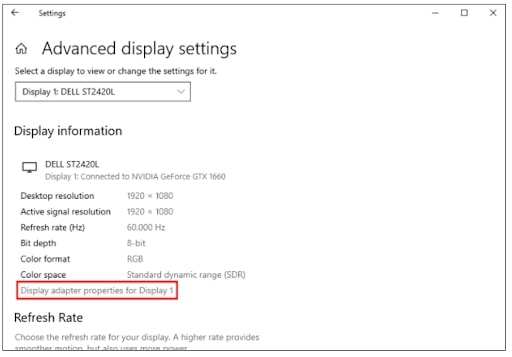
Step 2: Change the Refresh Rate in Windows
- Right-click on your desktop and select Display settings.
- Scroll down and click Advanced display settings.
- Select your monitor (if you have more than one).
- Click Display adapter properties for Display X.
- Go to the Monitor tab.
- Under Screen refresh rate, select 144Hz from the dropdown.
- Click Apply and then OK.
If 144Hz doesn't appear in the dropdown, your cable, port, or GPU driver is the bottleneck. Check all three.
Step 3: Enable Adaptive Sync
- NVIDIA users: Open NVIDIA Control Panel > Display > Set up G-Sync > Enable G-Sync (or G-Sync Compatible).
- AMD users: Open AMD Radeon Software > Display > Enable FreeSync.
Step 4: Verify It's Working
Visit testufo.com in your browser. It shows your current refresh rate in real time. If it reads 144Hz, you're good.
If it reads 60Hz, go back and check your settings.
Step 5: Disable In-Game V-Sync (Optional)
V-Sync caps your frame rate to your monitor's refresh rate and adds input lag. With adaptive sync enabled, you don't need it. Turn it off in your game's graphics settings for the lowest possible input lag.
Common Mistakes That Waste Your Money
Even when 144Hz is the right choice, people trip up in predictable ways. Here are the ones we see most often.
Buying a 144Hz monitor with a TN panel to save money. TN panels have fast response times but poor color accuracy and narrow viewing angles. For casual gaming where visual quality matters, an IPS panel is worth the small price premium. The color difference is immediately noticeable.
Ignoring the cable situation. Showing up with an old HDMI 1.4 cable and wondering why 144Hz isn't available. Check your cable version and your port version before the monitor even arrives.
Expecting 144Hz to fix a weak GPU. A high refresh rate monitor doesn't improve your frame rate. It only displays more of the frames your GPU already produces. If your card can't push high FPS, the monitor spec is wasted.
Forgetting to change the Windows refresh rate. This is the single most common mistake. The monitor is capable of 144Hz out of the box, but Windows won't use it unless you tell it to. Always check after setup.
Buying 144Hz at 1440p on a budget. 1440p 144Hz monitors cost more, and your GPU needs to be significantly stronger to push 144 FPS at that resolution. If you're on a mid-range card, 1080p 144Hz is the smarter pairing. You'll actually hit the frame rates that make the refresh rate worthwhile.
Overlooking adaptive sync compatibility. If you have an NVIDIA GPU, make sure the monitor is at least "G-Sync Compatible." If you have AMD, confirm FreeSync support. Without adaptive sync, you'll get screen tearing whenever your FPS doesn't match the refresh rate exactly.
Budget Breakdown: What You'll Actually Spend
Let's talk real numbers. As of 2026, here's what you can expect to pay for a quality 144Hz gaming monitor.
| Category | Resolution | Panel Type | Price Range | Example Specs |
|---|---|---|---|---|
| Budget 144Hz | 1080p | IPS or VA | $120 – $180 | 24", 1ms VRB, FreeSync |
| Mid-Range 144Hz | 1080p | IPS | $180 – $280 | 24"–27", 1ms GTG, HDR10 |
| 1440p 144Hz | 1440p | IPS | $200 – $400 | 27", 1ms GTG, FreeSync Premium |
| Premium 144Hz | 1440p | IPS or Mini-LED | $400 – $600 | 27"–32", HDR400+, G-Sync Compatible |
For most casual gamers, the budget 1080p 144Hz tier hits the sweet spot. You get an IPS panel for good colors, adaptive sync support, and a genuine 144Hz experience without overspending. The jump from $120 to $280 gets you build quality and extras, not necessarily a better gaming experience.
If you're also doing photo editing, video watching, or general productivity, the extra screen real estate of a 27" 1440p 144Hz model is worth considering. But that requires a stronger GPU to game at that resolution.
Don't forget to factor in the cost of a DisplayPort cable if you don't already have one. A decent DP 1.4 cable runs about $8 to $15. Some monitors include one in the box, but not all.
Real Scenarios: Who Upgrades and Who Stays Put
Let's walk through a few common situations. These should help you see where you fit.
Scenario A: Sarah plays Stardew Valley, The Sims 4, and Civilization VI. She has a GTX 1650 and a 60Hz monitor.
Sarah doesn't need 144Hz. Her games are either capped at 60 FPS or don't benefit from higher refresh rates. Her GPU also struggles to push beyond 60 FPS in most titles.
She'd be better off saving her money or upgrading her GPU first. A 75Hz IPS monitor would be a modest improvement for desktop use without overspending.
Scenario B: Marcus plays Fortnite and Apex Legends a few nights a week. He also plays single-player RPGs. He has an RTX 3060 and a 60Hz monitor.
Marcus should absolutely get a 144Hz monitor. His GPU can push well over 100 FPS in his competitive games at 1080p. He'll feel the difference immediately.
A $150 1080p 144Hz IPS monitor would be a massive upgrade for his setup. Even his single-player games will benefit from reduced input lag and smoother camera movement.
Scenario C: Priya just built her first PC with an RTX 4060. She's not sure what games she'll play yet. She has a 60Hz TV she's been using as a monitor.
Priya should get a 144Hz monitor. She has a capable GPU and no established gaming habits yet. A 144Hz display gives her room to explore any genre.
If she ends up loving competitive shooters, she's covered. If she prefers slow-paced games, the smoother desktop experience is still a win. The $120 to $180 investment makes sense for her situation.
Scenario D: Tom has a laptop with a GTX 1050 Ti. He plays Minecraft and occasionally Valorant. He wants to buy an external 144Hz monitor.
Tom should reconsider. His laptop GPU will struggle to push 144 FPS in most scenarios. He'd see some benefit in Valorant at low settings, but Minecraft without shaders runs at variable frame rates depending on render distance.
Tom would get more value from a 75Hz external monitor and putting the saved money toward a future laptop upgrade.
Final Decision Guide: Yes or No in Under a Minute
Here's the fastest way to make your decision. Answer these three questions honestly.
1. Can your GPU push at least 100 FPS in the games you play most at 1080p?
- Yes → Keep going.
- No → Upgrade your GPU first, or save your money.
2. Do you play any fast-paced games (shooters, racing, sports, platformers)?
- Yes → 144Hz is worth it for you.
- No, only slow/turn-based games → 144Hz is a luxury, not a necessity.
3. Is the price difference between a 60Hz and 144Hz monitor $30 or less?
- Yes → Get the 144Hz. No reason not to.
- No → Make sure the benefits justify the extra cost for your specific use case.
If you answered yes to all three, buy the 144Hz monitor. You'll notice the difference and you won't regret it.
If you answered yes to 1 and 2 but no to 3, it's still probably worth it if you can afford it comfortably.
If you answered no to 1, hold off. Fix the GPU bottleneck first.
If you answered no to 2, a 75Hz monitor is the smarter, cheaper choice.
Frequently Asked Questions
Can you actually see the difference between 60Hz and 144Hz?
Yes. Most people notice the difference immediately, especially in motion. Scrolling, camera movement, and cursor tracking all feel smoother.
The jump from 60Hz to 144Hz is more noticeable than 144Hz to 240Hz.
Is 144Hz good for PS5 and Xbox Series X?
Yes, but with a caveat. The PS5 and Xbox Series X support 120Hz output over HDMI 2.1. A 144Hz monitor with HDMI 2.1 can accept a 120Hz signal from these consoles.
However, many 144Hz monitors only have HDMI 2.0, which limits console output to 60Hz. Check the monitor's HDMI version if you're a console gamer.
Is 144Hz enough for Fortnite?
Absolutely. Fortnite at 144Hz on a 1080p monitor is a great experience, even for casual players. Most mid-range GPUs can push 100 to 200 FPS in Fortnite at competitive settings (low to medium).
The smoother motion makes building, editing, and aiming feel more responsive.
Do I need DisplayPort for 144Hz?
Not always, but it's the safest bet. DisplayPort 1.2 supports 144Hz at 1080p and 1440p. HDMI 2.0 supports 144Hz at 1080p.
HDMI 2.1 supports 144Hz at 1440p and above. If your GPU and monitor both have DisplayPort, use it.
Is a 144Hz monitor better for your eyes?
Indirectly, yes. Higher refresh rates reduce perceived flicker and motion blur, which can reduce eye strain during long sessions. Many 144Hz monitors also carry TÜV Rheinland Low Blue Light and flicker-free certifications.
The smoother motion is simply more comfortable to look at.
Should I get 144Hz or 165Hz?
For casual gaming, the difference between 144Hz and 165Hz is negligible. You're paying a small premium for a spec bump you likely won't perceive. If the price is similar, 165Hz is fine.
If 144Hz is noticeably cheaper, go with 144Hz and put the savings toward a better panel or a larger size.

Similar Posts





















