What Cable Do I Need for 144Hz Monitor
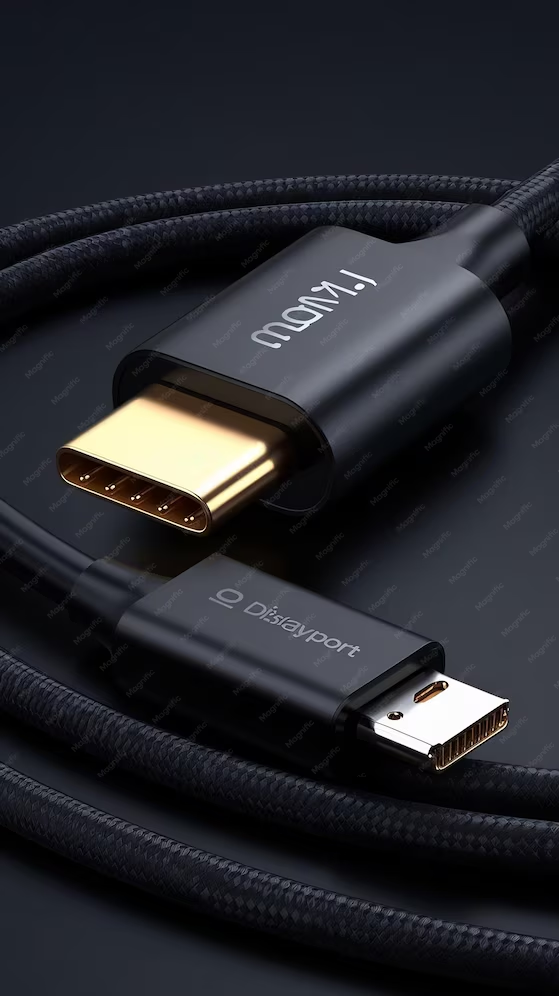
So you've got a 144Hz monitor ready to go, but you're staring at a drawer full of cables wondering which one actually unlocks that smooth refresh rate. The answer to what cable do I need for 144hz monitor depends entirely on the ports on your graphics card, the ports on your monitor, and what resolution you're running. Grab the wrong cable and you'll be stuck at 60Hz without knowing why.
The good news is this isn't complicated once you know what to look for. DisplayPort 1.4 and HDMI 2.1 are the two standards that matter most as of 2026, but older versions can still work in certain situations. Let's walk through exactly what you need based on your specific setup.
Quick Answer
DisplayPort 1.4 is the safest choice for 144Hz gaming on PC. It handles every common resolution at 144Hz without compromise. HDMI 2.1 also works perfectly if both your GPU and monitor support it. For 1080p 144Hz, even DisplayPort 1.2 or HDMI 1.4 can get the job done.
Always match your cable version to the lowest-spec port in your chain.
Quick Reference: Cable Requirements by Resolution and Refresh Rate
Before we dig into the details, here's a fast reference table. Find your resolution and refresh rate, then check which cable standards support it.
| Resolution & Refresh Rate | Minimum Cable Standard | Recommended Cable Standard | Notes |
|---|---|---|---|
| 1080p @ 144Hz | DisplayPort 1.2 or HDMI 1.4 | DisplayPort 1.4 | HDMI 1.4 works but with limited headroom |
| 1440p @ 144Hz | DisplayPort 1.2 (with reduced blanking) | DisplayPort 1.4 | HDMI 2.0 also works at 1440p 144Hz |
| 4K @ 144Hz | DisplayPort 1.4 with DSC | DisplayPort 2.1 or HDMI 2.1 | DSC required for DP 1.4 at 4K 144Hz |
| 1080p @ 240Hz | DisplayPort 1.2 | DisplayPort 1.4 | HDMI 2.0 also supports this |
| 1440p @ 240Hz | DisplayPort 1.4 | DisplayPort 2.1 | HDMI 2.1 works with DSC |
Manufacturer specifications from VESA and the HDMI Forum confirm these bandwidth limits. Your specific monitor may have additional limitations, so always check its manual too.
Step 1: Check What Ports Your GPU and Monitor Actually Have
This is where most people go wrong. They buy a cable without checking what their hardware actually supports. The cable is only as good as the weakest link in the chain.
You need to look at two things: the output ports on your graphics card and the input ports on your monitor. The cable you need depends on matching the highest standard that BOTH devices share.
How to Check Your GPU Ports
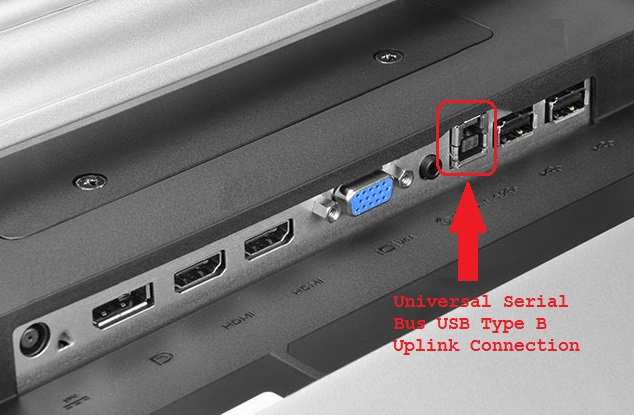
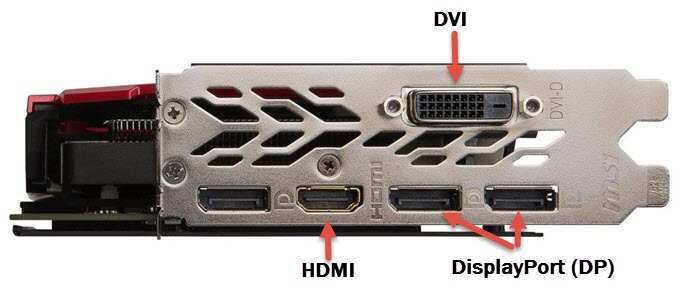
Look at the back of your PC where the monitor cables plug in. Those ports are on your graphics card, not your motherboard. You'll typically see some combination of DisplayPort, HDMI, and maybe USB-C.
Here's how to identify what you have:
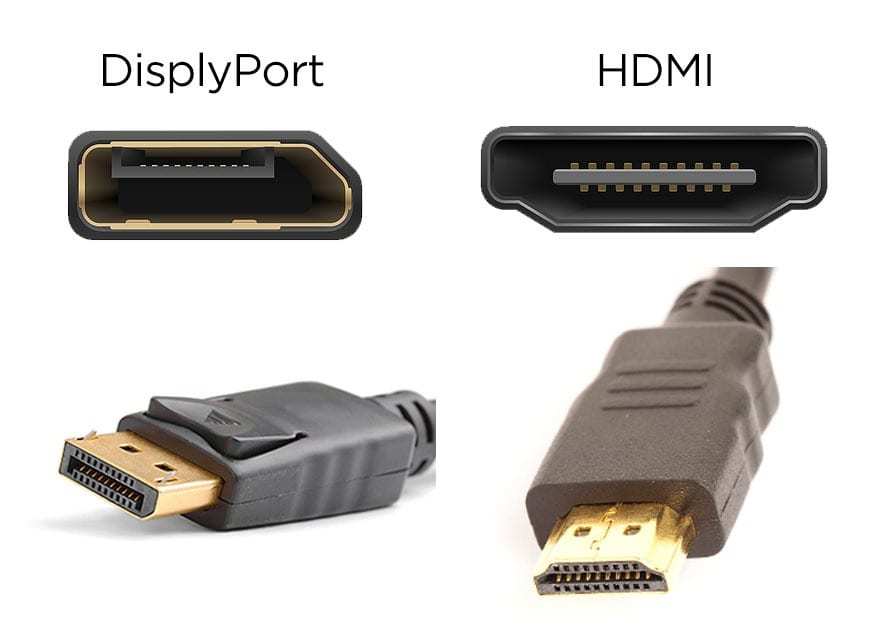
- DisplayPort: Trapezoid-shaped connector, usually labeled "DP." Most gaming GPUs have one to three of these.
- HDMI: Wider, flat connector. Looks like a USB port but wider and not rectangular.
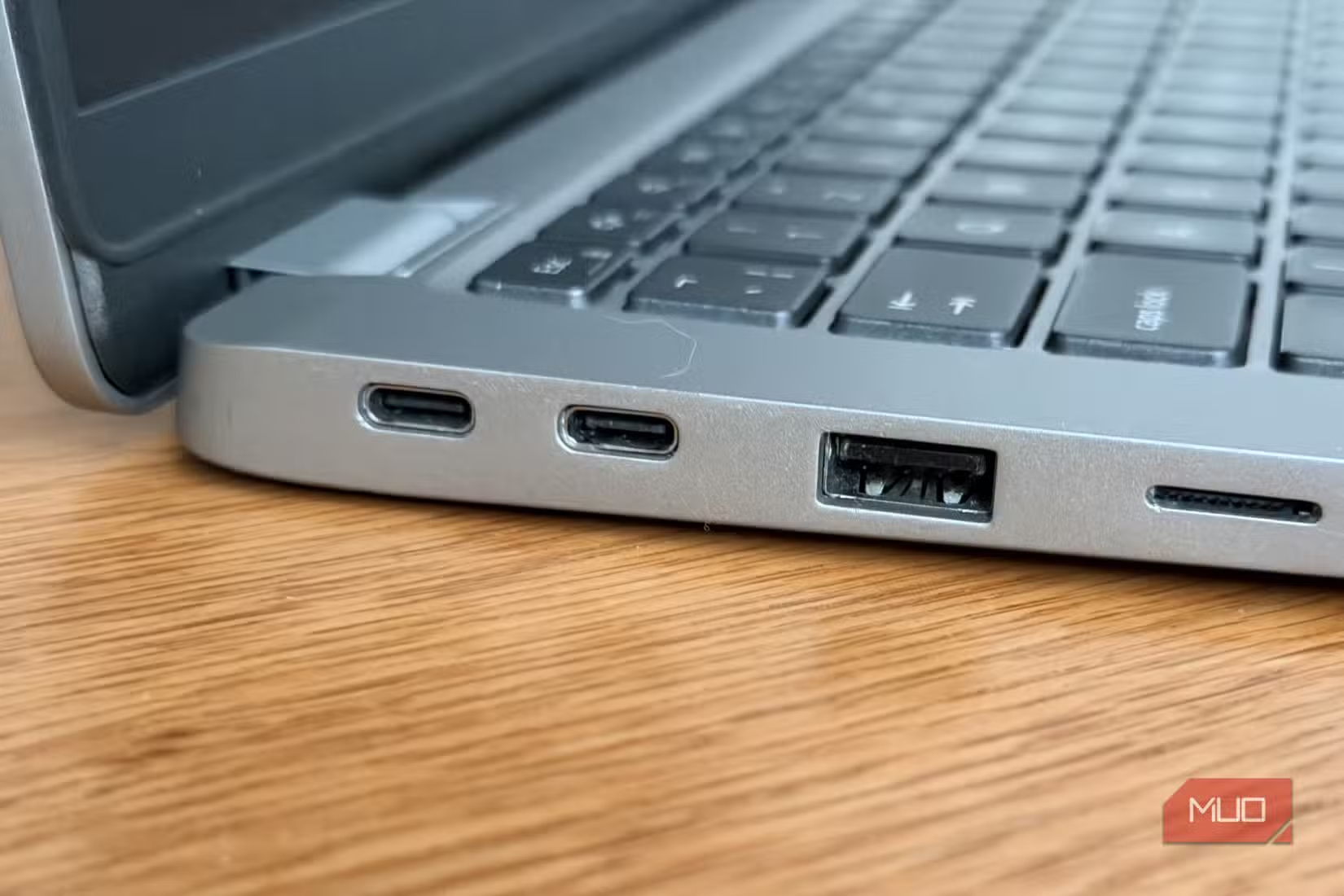
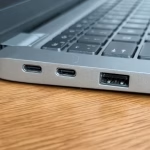
- USB-C / Thunderbolt: Small oval port. Some modern GPUs include this, especially compact models.
If you're not sure which generation your ports support, check your GPU model's specs on the manufacturer's website. An NVIDIA RTX 3060, for example, has DisplayPort 1.4a and HDMI 2.1. An older GTX 1060 might only have DisplayPort 1.2 and HDMI 2.0.
How to Check Your Monitor Ports
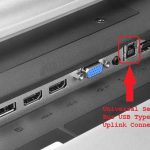
Look at the back or bottom of your monitor. The input ports should be labeled, either with text or in the user manual. Many 144Hz monitors ship with both DisplayPort and HDMI, but the versions vary wildly by model and year.
A budget 144Hz monitor from 2019 might only have HDMI 1.4 and DisplayPort 1.2. A premium 2024 model could have HDMI 2.1 and DisplayPort 1.4 with DSC. You need to know both before buying any cable.
Step 2: Match Your Cable to Your Setup
Now that you know what ports you have, here's how to pick the right cable. We'll break this down by resolution because that's the biggest factor.
1080p at 144Hz
This is the most common 144Hz scenario and the most forgiving. You have several options:
- DisplayPort 1.2: Handles 1080p at 144Hz easily. This is the minimum you should use.
- DisplayPort 1.4: Ideal choice. Plenty of bandwidth headroom for HDR and Adaptive Sync.
- HDMI 1.4: Technically supports 1080p at 144Hz with reduced blanking, but it's tight on bandwidth. Not recommended if you have DisplayPort available.
- HDMI 2.0: Works perfectly fine for 1080p 144Hz with full RGB color.
- DVI-D Dual Link: Can do 1080p at 144Hz, but it's an aging standard. Only use this if you have no other option.
For 1080p 144Hz, DisplayPort 1.4 is your best bet. It's widely available, affordable, and leaves room for G-Sync or FreeSync without any compromises.
1440p at 144Hz
This is where things get more specific. 1440p at 144Hz requires more bandwidth, so your cable choice matters more:
- DisplayPort 1.2: Can handle 1440p at 144Hz with reduced blanking, but it's at the limit. You may lose full RGB color depth.
- DisplayPort 1.4: The sweet spot. Handles 1440p 144Hz with full 8-bit RGB and Adaptive Sync. No compromises.
- DisplayPort 1.4 with DSC: Supports 1440p at 144Hz with 10-bit color and HDR simultaneously.
- HDMI 2.0: Supports 1440p at 144Hz with 8-bit RGB. Works well if your monitor has HDMI 2.0.
- HDMI 2.1: Overkill for this resolution at 144Hz, but works perfectly if you have it.
If you're gaming at 1440p 144Hz, grab a DisplayPort 1.4 cable. It's the standard recommendation across the board and handles everything without breaking a sweat.
4K at 144Hz
This is the demanding end of the spectrum. 4K at 144Hz requires serious bandwidth:
- DisplayPort 1.4 with DSC: Works, but relies on Display Stream Compression. The image quality loss is imperceptible, but not every monitor handles DSC well.
- DisplayPort 2.1: The ideal choice if your GPU and monitor both support it. Handles 4K 144Hz without compression.
- HDMI 2.1: Supports 4K at 120Hz natively. For 4K at 144Hz, you'll need DSC or drop to 4:2:0 chroma subsampling on some monitors.
For 4K 144Hz gaming, you need either DisplayPort 2.1 or HDMI 2.1 with DSC support. Check both your GPU and monitor specs carefully before buying.
DisplayPort vs HDMI: Which Should You Use for 144Hz?
This is the question that causes the most confusion. Both can work, but one is usually better for your situation.
DisplayPort: The PC Gaming Standard
DisplayPort was designed for computer monitors. It's been the go-to for PC gaming for over a decade, and for good reason.
Pros of DisplayPort for 144Hz:
- Native Adaptive Sync support (both G-Sync and FreeSync)
- Higher bandwidth at every generation compared to equivalent HDMI
- Latching connectors that stay plugged in
- Supports daisy-chaining multiple monitors
- DSC available from DP 1.4 onward
Cons of DisplayPort:
- Not found on consoles (PS5, Xbox only have HDMI)
- Cable quality varies wildly; cheap cables may not meet spec
- Longer cable runs can cause signal issues beyond 3 meters
HDMI: The Universal Option
HDMI is everywhere. Your TV, console, laptop, and monitor all have it. For 144Hz gaming, it works but with some caveats.
Pros of HDMI for 144Hz:
- Universal compatibility across devices
- HDMI 2.1 supports 4K 120Hz and 1440p 240Hz
- Better for cable runs up to 5 meters with certified cables
- eARC support for audio setups
Cons of HDMI:
- Adaptive Sync support over HDMI is inconsistent (HDMI 2.1 VRR works but implementation varies)
- No daisy-chaining support
- Connectors don't latch, so cables can wiggle loose
- HDMI 2.0 and earlier are limited for high refresh rates at higher resolutions
The Verdict
For PC gaming at 144Hz, use DisplayPort if you have it. It's the more reliable choice for Adaptive Sync and high refresh rates. HDMI 2.1 is a solid alternative, especially if you're connecting a laptop via USB-C (which often outputs DisplayPort over USB-C anyway).
For console gaming, you're stuck with HDMI since the PS5 and Xbox Series X only have HDMI outputs. HDMI 2.1 is required for 4K 120Hz on both consoles.
The Cable Length and Quality Problem Nobody Talks About
Here's something that trips up even experienced builders. Not all cables are created equal, and length matters more than you'd think.
A DisplayPort 1.4 cable rated for full 25.92 Gbps bandwidth might work perfectly at 1 meter but fail at 3 meters. The signal degrades over distance, and cheaper cables often can't maintain the full spec even at shorter lengths.
Cable Length Guidelines
- Under 2 meters: Most decent cables will handle full bandwidth without issues.
- 2 to 3 meters: Stick with VESA-certified cables. Look for the DisplayPort logo on the packaging.
- Over 3 meters: You need an active cable or optical DisplayPort cable. Passive cables at this length often can't maintain signal integrity.
What Makes a Good Cable
You don't need to spend a fortune, but you do need to buy smart:
- Look for certification: VESA-certified DisplayPort cables and Ultra High Speed HDMI cables have been tested to meet their rated specs.
- Check the connector quality: Gold-plated connectors resist corrosion. Latching DisplayPort connectors prevent accidental disconnection.
- Avoid the cheapest options: A $3 no-name cable from an unknown brand might claim DP 1.4 but fail to deliver it. Stick with reputable manufacturers.
- Don't overspend either: A $15 to $20 certified cable is all you need. Cables priced at $50 or more rarely offer real performance benefits for typical gaming setups.
Active vs Passive Cables
For runs under 3 meters, passive cables are fine. They're just wires with connectors, no electronics involved. Active cables contain signal boosters that maintain integrity over longer distances.
You only need active cables if you're running 3 meters or more, or if you're experiencing flickering or dropouts with a passive cable.
Why Your 144Hz Monitor Is Stuck at 60Hz (Even With the Right Cable)

Image source: Wikimedia Commons / OS: Microsoft Corporation Screenshot: PantheraLeo1359531 😺 (talk)
You bought the right cable. You plugged it in. But your monitor is still running at 60Hz.
This is one of the most common frustrations, and it's almost always a settings issue rather than a hardware problem.
Windows Display Settings
Windows doesn't always default to the highest refresh rate. You need to set it manually:
- Right-click on your desktop and select Display settings.
- Scroll down and click Advanced display settings.
- Select your monitor if you have multiple displays.
- Click Display adapter properties for Display 1.
- Go to the Monitor tab.
- Under Screen refresh rate, select 144Hz from the dropdown.
- Click Apply and then OK.
If 144Hz doesn't appear in the dropdown, your cable, driver, or port isn't being detected correctly. We'll cover that next.
GPU Control Panel Settings
Both NVIDIA and AMD have their own control panels where you can set the refresh rate:
NVIDIA:
- Right-click desktop and select NVIDIA Control Panel.
- Under Display, click Change resolution.
- Select your monitor and set the refresh rate to 144Hz.
- Click Apply.
AMD:
- Right-click desktop and select AMD Software.
- Go to Display settings.
- Set the refresh rate to 144Hz.
Driver Issues
Outdated GPU drivers can prevent higher refresh rates from appearing. Make sure your drivers are current:
- NVIDIA: Download from nvidia.com or use GeForce Experience.
- AMD: Download from amd.com or use the AMD Software app.
- Intel Arc: Download from intel.com.
After updating drivers, restart your PC and check the refresh rate settings again.
The Wrong Port Problem
This catches people constantly. If your motherboard has display outputs AND your graphics card has display outputs, make sure your monitor cable is plugged into the graphics card. The motherboard ports connect to the integrated GPU, which often doesn't support 144Hz.
Look at the back of your PC. The graphics card ports are lower down, usually in the expansion slot area. The motherboard ports are higher up near the USB and audio jacks.
Plug into the card, not the board.
Common Mistakes That Waste Your Money
Let's save you from the errors that send people returning cables and leaving frustrated reviews.
Buying HDMI when DisplayPort is available. If your GPU and monitor both have DisplayPort, use it. DisplayPort handles Adaptive Sync more reliably and has been the PC gaming standard for years.
Assuming all DisplayPort cables are the same. A DP 1.2 cable won't give you DP 1.4 performance just because the connector fits. The cable is rated for the bandwidth it was built for. Check the packaging or product listing for the version number.
Buying a cable based on the monitor's maximum spec. Your cable needs to match the lowest spec in the chain. If your GPU has DP 1.2 and your monitor has DP 1.4, a DP 1.4 cable won't help. You're limited by the GPU's DP 1.2 output.
Ignoring the monitor's user manual. Some monitors have specific port limitations. One HDMI port might be 2.0 while another is 1.4. The manual tells you which port supports the highest refresh rate.
Forgetting to enable Adaptive Sync. Getting 144Hz is only half the battle. If you want G-Sync or FreeSync, you need to enable it in both your GPU control panel and the monitor's on-screen display menu.
Using adapters unnecessarily. DisplayPort to HDMI adapters can work, but they add a potential point of failure and may limit your refresh rate. Use a direct connection whenever possible.
Console Gaming: PS5 and Xbox Series X at High Refresh Rates
Console players have fewer options since the PS5 and Xbox Series X only have HDMI 2.1 outputs. But you can still hit high refresh rates with the right setup.
PS5 at 120Hz
The PS5 supports up to 4K 120Hz over HDMI 2.1. For 1080p or 1440p at 120Hz, you need:
- An HDMI 2.1 cable (the one included with the PS5 is HDMI 2.1)
- A monitor with HDMI 2.1 input
- Game settings that allow 120Hz output
Not all PS5 games support 120Hz. Check each game's settings. Competitive titles like Call of Duty and Fortnite typically offer 120Hz modes.
Xbox Series X at 144Hz
The Xbox Series X supports up to 120Hz at 4K and 144Hz at 1080p/1440p over HDMI 2.1. The setup requirements are similar to PS5:
- HDMI 2.1 cable
- Monitor with HDMI 2.1 or DisplayPort 1.4 with an adapter
- Xbox display settings configured for the desired refresh rate
The Console Cable Recommendation
For console gaming, use the HDMI 2.1 cable that came in the box. If you need a longer one, buy a certified Ultra High Speed HDMI cable. Don't buy a random HDMI cable and assume it supports 2.1 speeds.
Look for the "Ultra High Speed" certification label on the packaging.
Quick Decision Flowchart: Pick Your Cable in 60 Seconds
If you want the fastest possible answer without reading everything above, follow this:
- Do you have DisplayPort on both GPU and monitor? Use DisplayPort 1.4 cable. Done.
- No DisplayPort but both have HDMI 2.1? Use HDMI 2.1 cable. Works great.
- Running 1080p 144Hz with only HDMI 1.4? It'll work but DisplayPort is better if available.
- Laptop with USB-C only? Use a USB-C to DisplayPort cable or USB-C to HDMI 2.1 cable, depending on your monitor.
- Console gaming? Use the included HDMI 2.1 cable or a certified Ultra High Speed replacement.
That covers 95% of situations. The remaining 5% involves unusual hardware combos that the detailed sections above will help you sort out.
Frequently Asked Questions
Can I use HDMI for 144Hz?
Yes, HDMI supports 144Hz depending on the version. HDMI 2.0 handles 1080p 144Hz and 1440p 144Hz. HDMI 2.1 handles up to 4K 120Hz and 1440p 240Hz.
For PC gaming, DisplayPort is generally preferred for better Adaptive Sync support.
Does cable brand matter for 144Hz?
To an extent. You don't need an expensive brand, but you do need a cable that actually meets its rated specification. Stick with VESA-certified DisplayPort cables or Ultra High Speed certified HDMI cables from known manufacturers.
Will a DisplayPort 1.2 cable work for 144Hz?
At 1080p, yes. At 1440p, it works with reduced blanking but it's at the bandwidth limit. For 1440p 144Hz with full color depth and Adaptive Sync, DisplayPort 1.4 is the better choice.
Why does my monitor say 60Hz when I have a 144Hz monitor?
This is almost always a settings issue. Check Windows display settings, your GPU control panel, and make sure you're plugged into the graphics card rather than the motherboard. Also verify your cable supports the required bandwidth.
Do I need a special cable for G-Sync or FreeSync?
G-Sync works best over DisplayPort. FreeSync works over both DisplayPort and HDMI, though HDMI VRR support varies by monitor. For the most reliable Adaptive Sync experience, use DisplayPort 1.4.
Can I use a USB-C cable for 144Hz?
Yes, if your USB-C port supports DisplayPort Alt Mode. A USB-C to DisplayPort 1.4 cable can carry a full 144Hz signal. This is common for laptops and some modern GPUs that include USB-C outputs.
The Real Answer: It Depends on Your Ports and Resolution
We've covered the cable standards, the common mistakes, and the settings that trip people up. But let's be direct about the core answer.
If you're a PC gamer with a modern setup, buy a DisplayPort 1.4 cable. That single cable handles 1080p 144Hz, 1440p 144Hz, and even 4K 144Hz with DSC. It supports Adaptive Sync without compatibility headaches.
It's the closest thing to a universal answer for high-refresh PC gaming.
The only reason to choose HDMI instead is if your hardware doesn't have DisplayPort, or if you're connecting a console. In those cases, HDMI 2.1 is your best option.
Quick Reference: Cable Requirements by Resolution and Refresh Rate
Here's the table again for quick reference. Bookmark this or screenshot it for the next time you're shopping for cables.
| Resolution & Refresh Rate | Minimum Cable Standard | Recommended Cable Standard |
|---|---|---|
| 1080p @ 144Hz | DisplayPort 1.2 or HDMI 1.4 | DisplayPort 1.4 |
| 1440p @ 144Hz | DisplayPort 1.2 (with reduced blanking) | DisplayPort 1.4 |
| 4K @ 144Hz | DisplayPort 1.4 with DSC | DisplayPort 2.1 or HDMI 2.1 |
| 1080p @ 240Hz | DisplayPort 1.2 | DisplayPort 1.4 |
| 1440p @ 240Hz | DisplayPort 1.4 | DisplayPort 2.1 |
Keep this handy. It covers the vast majority of gaming monitor setups out there.
Step 1: Check What Ports Your GPU and Monitor Actually Have
We covered this in detail earlier, but it's worth repeating because it's the step most people skip. Before you buy anything, identify the exact ports on both your graphics card and your monitor.
Check your GPU specs on the manufacturer's website. Look at the physical ports on the back of your PC. Then check your monitor's manual or the labels next to its input ports.
The cable you need is determined by the highest standard that both devices share.
Don't guess. A quick check takes two minutes and saves you from buying the wrong cable.
Step 2: Match Your Cable to Your Setup
We broke this down by resolution earlier. Here's the short version for each common scenario.
1080p 144Hz: DisplayPort 1.4 is ideal. DP 1.2 and HDMI 2.0 also work. Avoid HDMI 1.4 if you have better options.
1440p 144Hz: DisplayPort 1.4 is the sweet spot. HDMI 2.0 works too. DP 1.2 is at its limit here.
4K 144Hz: You need DisplayPort 1.4 with DSC, DisplayPort 2.1, or HDMI 2.1. There's no way around the bandwidth requirement.
Match your cable to your specific resolution and refresh rate. Don't assume a cable that works for one setup will work for another.
DisplayPort vs HDMI: Which Should You Use for 144Hz?
The short version: use DisplayPort for PC gaming, use HDMI for consoles.
DisplayPort handles Adaptive Sync more reliably across different monitors and GPUs. It's been the PC standard for years for good reason. HDMI 2.1 is excellent for bandwidth, but VRR implementation can be inconsistent between monitor models.
If you're gaming on a PC and both your GPU and monitor have DisplayPort, there's really no contest. Go with DisplayPort.
The Cable Length and Quality Problem Nobody Talks About
Signal degradation is real, and it catches people off guard. A cable that works perfectly at 1 meter might cause flickering or dropouts at 3 meters.
Stick with VESA-certified DisplayPort cables or Ultra High Speed certified HDMI cables. Keep passive cable runs under 3 meters. If you need a longer cable, invest in an active or optical cable rated for your required bandwidth.
Don't cheap out on no-name cables. A $15 certified cable is a better investment than a $3 cable that claims to support specs it can't actually deliver.
Why Your 144Hz Monitor Is Stuck at 60Hz (Even With the Right Cable)
This almost always comes down to one of three things: Windows settings, GPU drivers, or plugging into the wrong port.
Check Windows display settings first. Then update your GPU drivers. Finally, make sure your monitor cable is connected to the graphics card, not the motherboard.
These three fixes resolve the vast majority of "stuck at 60Hz" complaints.
Common Mistakes That Waste Your Money
We covered the big ones earlier. To recap: don't buy HDMI when DisplayPort is available. Don't assume all cables with the same connector are equal.
Don't buy based on your monitor's max spec if your GPU can't match it. And always check your monitor's manual for port-specific limitations.
Console Gaming: PS5 and Xbox Series X at High Refresh Rates
Console players are limited to HDMI since neither the PS5 nor Xbox Series X has a DisplayPort output. Both consoles ship with HDMI 2.1 cables, so use the included cable or replace it with a certified Ultra High Speed HDMI cable if you need more length.
The PS5 maxes out at 4K 120Hz. The Xbox Series X can do up to 144Hz at lower resolutions. Check each game's settings to see if it supports high refresh rates.
Quick Decision Flowchart: Pick Your Cable in 60 Seconds
One more time for anyone who jumped straight to the bottom: DisplayPort 1.4 for PC gaming, HDMI 2.1 for consoles or when DP isn't available. Check your ports, match the cable to your resolution, and set the refresh rate in Windows. That's it.
Frequently Asked Questions
Can I use HDMI for 144Hz?
Yes. HDMI 2.0 handles 1080p and 1440p at 144Hz. HDMI 2.1 handles higher resolutions and refresh rates.
DisplayPort is preferred for PC gaming due to better Adaptive Sync support.
Does cable brand matter for 144Hz?
Stick with certified cables from known manufacturers. VESA-certified DisplayPort and Ultra High Speed HDMI cables have been tested to meet their rated specs. Avoid the cheapest no-name options.
Will a DisplayPort 1.2 cable work for 144Hz?
At 1080p, yes. At 1440p, it works but at the bandwidth limit. For reliable 1440p 144Hz with full color and Adaptive Sync, DisplayPort 1.4 is the better choice.
Why does my monitor say 60Hz when I have a 144Hz monitor?
Check Windows display settings, update your GPU drivers, and verify you're plugged into the graphics card rather than the motherboard. These three steps fix most cases.
Do I need a special cable for G-Sync or FreeSync?
G-Sync works best over DisplayPort. FreeSync works over both DisplayPort and HDMI, though HDMI VRR support varies by monitor. DisplayPort 1.4 is the safest choice for either technology.
Can I use a USB-C cable for 144Hz?
Yes, if your USB-C port supports DisplayPort Alt Mode. A USB-C to DisplayPort 1.4 cable carries a full 144Hz signal. This is a common solution for laptops and compact PCs.
The Real Answer: It Depends on Your Ports and Resolution
We've covered a lot of ground. But if you want the straight answer without all the context, here it is.
For PC gaming at 144Hz, buy a DisplayPort 1.4 cable. It handles every common resolution at 144Hz without compromise. It supports Adaptive Sync reliably.
It's the closest thing to a one-size-fits-all solution.
The only reason to choose HDMI instead is if your hardware lacks DisplayPort or you're on a console. In those cases, HDMI 2.1 is your best bet.
Quick Reference: Cable Requirements by Resolution and Refresh Rate
Here's the reference table one more time. Keep it bookmarked for future cable purchases.
| Resolution & Refresh Rate | Minimum Cable Standard | Recommended Cable Standard |
|---|---|---|
| 1080p @ 144Hz | DisplayPort 1.2 or HDMI 1.4 | DisplayPort 1.4 |
| 1440p @ 144Hz | DisplayPort 1.2 (with reduced blanking) | DisplayPort 1.4 |
| 4K @ 144Hz | DisplayPort 1.4 with DSC | DisplayPort 2.1 or HDMI 2.1 |
| 1080p @ 240Hz | DisplayPort 1.2 | DisplayPort 1.4 |
| 1440p @ 240Hz | DisplayPort 1.4 | DisplayPort 2.1 |
This covers the vast majority of gaming monitor setups. Match your cable to your resolution and refresh rate, and you'll be set.
Step 1: Check What Ports Your GPU and Monitor Actually Have
We've said it before, but it bears repeating. Before buying any cable, check the exact ports on your graphics card and your monitor. The cable you need is determined by the highest standard that both devices share.
Look at the back of your PC. Check your GPU specs on the manufacturer's website. Check your monitor's manual or the labels next to its input ports.
Two minutes of checking saves you from buying the wrong cable.
Step 2: Match Your Cable to Your Setup
Here's the quick breakdown by resolution.
1080p 144Hz: DisplayPort 1.4 is ideal. DP 1.2 and HDMI 2.0 also work fine.
1440p 144Hz: DisplayPort 1.4 is the recommended choice. HDMI 2.0 works too.
4K 144Hz: You need DisplayPort 1.4 with DSC, DisplayPort 2.1, or HDMI 2.1.
Match your cable to your specific setup. Don't assume one cable works for every scenario.
DisplayPort vs HDMI: Which Should You Use for 144Hz?
Use DisplayPort for PC gaming. Use HDMI for consoles or when DisplayPort isn't available.
DisplayPort handles Adaptive Sync more reliably across different monitors and GPUs. HDMI 2.1 offers excellent bandwidth but VRR implementation varies between monitor models. For PC gaming, DisplayPort 1.4 remains the safest choice.
The Cable Length and Quality Problem Nobody Talks About
Signal degradation over distance is real. A cable that works at 1 meter might cause issues at 3 meters.
Stick with VESA-certified DisplayPort cables or Ultra High Speed certified HDMI cables. Keep passive cable runs under 3 meters. For longer runs, invest in an active or optical cable rated for your required bandwidth.
A $15 certified cable from a known manufacturer is a better investment than a $3 cable that claims specs it can't deliver.
Why Your 144Hz Monitor Is Stuck at 60Hz (Even With the Right Cable)
This usually comes down to Windows settings, outdated GPU drivers, or plugging into the motherboard instead of the graphics card. Check Windows display settings first. Then update your drivers.
Finally, verify your cable is connected to the GPU. These three steps resolve most cases.
Common Mistakes That Waste Your Money
Don't buy HDMI when DisplayPort is available. Don't assume all cables with the same connector are equal. Don't buy based on your monitor's max spec if your GPU can't match it.
And always check your monitor's manual for port-specific limitations.
Console Gaming: PS5 and Xbox Series X at High Refresh Rates
Both consoles ship with HDMI 2.1 cables. Use the included cable or replace it with a certified Ultra High Speed HDMI cable if you need more length. The PS5 maxes out at 4K 120Hz.
The Xbox Series X can do up to 144Hz at lower resolutions. Check each game's settings for high refresh rate support.
Quick Decision Flowchart: Pick Your Cable in 60 Seconds
DisplayPort 1.4 for PC gaming. HDMI 2.1 for consoles or when DP isn't available. Check your ports, match the cable to your resolution, and set the refresh rate in Windows.
That's all there is to it.
Frequently Asked Questions
Can I use HDMI for 144Hz?
Yes. HDMI 2.0 handles 1080p and 1440p at 144Hz. HDMI 2.1 handles higher resolutions and refresh rates.
DisplayPort is preferred for PC gaming due to better Adaptive Sync support.
Does cable brand matter for 144Hz?
Stick with certified cables from known manufacturers. VESA-certified DisplayPort and Ultra High Speed HDMI cables have been tested to meet their rated specs. Avoid the cheapest no-name options.
Will a DisplayPort 1.2 cable work for 144Hz?
At 1080p, yes. At 1440p, it works but at the bandwidth limit. For reliable 1440p 144Hz with full color and Adaptive Sync, DisplayPort 1.4 is the better choice.
Why does my monitor say 60Hz when I have a 144Hz monitor?
Check Windows display settings, update your GPU drivers, and verify you're plugged into the graphics card rather than the motherboard. These three steps fix most cases.
Do I need a special cable for G-Sync or FreeSync?
G-Sync works best over DisplayPort. FreeSync works over both DisplayPort and HDMI, though HDMI VRR support varies by monitor. DisplayPort 1.4 is the safest choice for either technology.
Can I use a USB-C cable for 144Hz?
Yes, if your USB-C port supports DisplayPort Alt Mode. A USB-C to DisplayPort 1.4 cable carries a full 144Hz signal. This is a common solution for laptops and compact PCs.

Similar Posts