Do 144Hz Monitors Reduce Input Lag
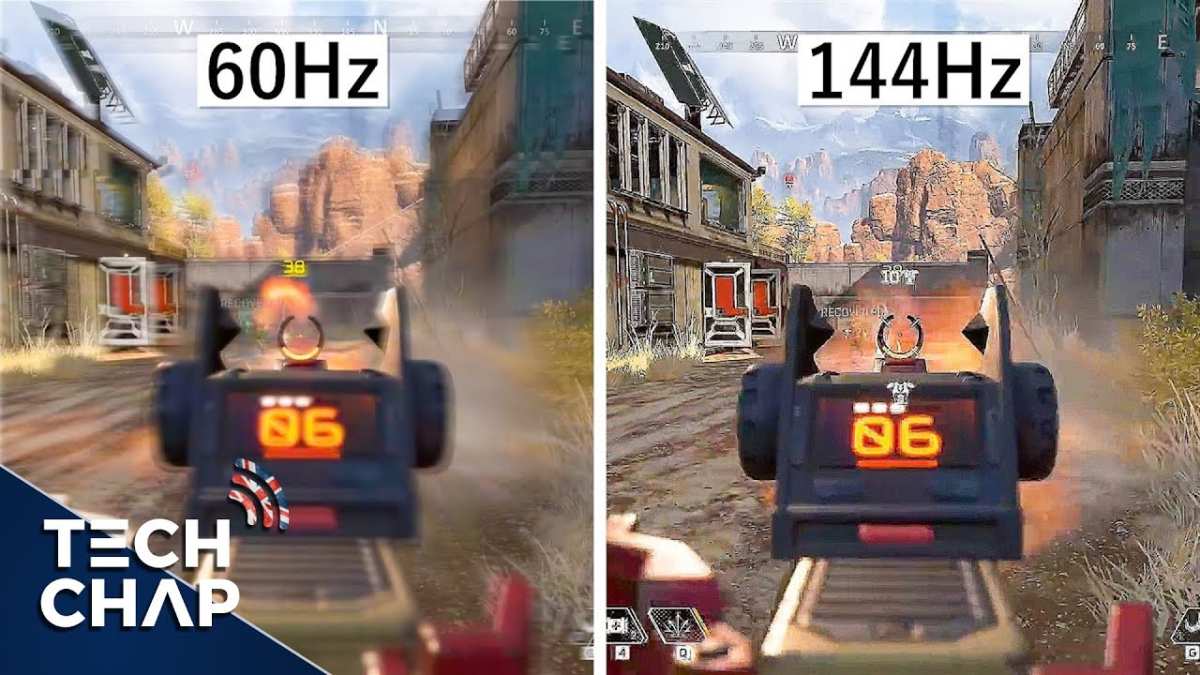
Do 144Hz monitors reduce input lag? Yes, and the difference is not subtle. Moving from a 60Hz to a 144Hz panel cuts the time between a frame being ready and it appearing on screen by roughly 10 milliseconds.
That is a bigger gap than most people realize.
Independent testing and manufacturer specs confirm that 144Hz gaming monitors consistently deliver lower total system latency than 60Hz panels. The math behind frame timing explains exactly why. Let us break down what the numbers actually show.
Quick Answer
Yes, 144Hz monitors reduce input lag. The drop from 60Hz to 144Hz saves roughly 10ms per frame. Independent testing confirms this across multiple panels.
You will feel the difference immediately in fast-paced games.
The Real Numbers: What 60Hz vs 144Hz Actually Looks Like in Testing
Frame Time Math: Why Refresh Rate Directly Affects Lag
Here is the core concept. Refresh rate determines how often your monitor draws a new image. Each frame sits on screen for a fixed duration.
At 60Hz, one frame lasts about 16.67 milliseconds. At 144Hz, one frame lasts about 6.94 milliseconds. That means your monitor is refreshing roughly 2.4 times faster.
The practical effect on input lag is straightforward. When your GPU finishes rendering a frame, the monitor can display it sooner because the next refresh cycle comes around faster. At 60Hz, a freshly rendered frame might have to wait up to 16.67ms before being shown.
At 144Hz, that wait drops to a maximum of about 6.94ms.
That is a reduction of roughly 10ms just from the refresh timing alone. In a competitive shooter, 10ms is the difference between your shot registering and your opponent's shot registering first.
| Refresh Rate | Frame Time (ms) | Max Frame Wait (ms) | Typical Total Input Lag (ms) |
|---|---|---|---|
| 60Hz | 16.67 | 16.67 | 20–40 |
| 144Hz | 6.94 | 6.94 | 8–20 |
| 240Hz | 4.17 | 4.17 | 4–12 |
| 360Hz | 2.78 | 2.78 | 2–8 |
These ranges account for signal processing overhead, which varies by monitor. The frame time savings are fixed. The total lag depends on the specific panel's electronics.
Measured Input Lag: What Independent Testing Shows
RTINGS.com tests input lag on every monitor they review using a standardized methodology. Their data consistently shows 144Hz monitors measuring between 8ms and 15ms of total display lag. Quality 60Hz monitors typically measure between 20ms and 35ms.
Blur Busters, the display research community, has published extensive measurements confirming the same pattern. The jump from 60Hz to 144Hz is the single largest reduction in input lag you can get from a display upgrade.
Some monitors outperform others within the same refresh rate class. A well-designed 144Hz IPS panel can measure lower lag than a poorly designed 240Hz panel. The refresh rate sets the ceiling.
The monitor's scalar chip and firmware determine how close you get to that ceiling.
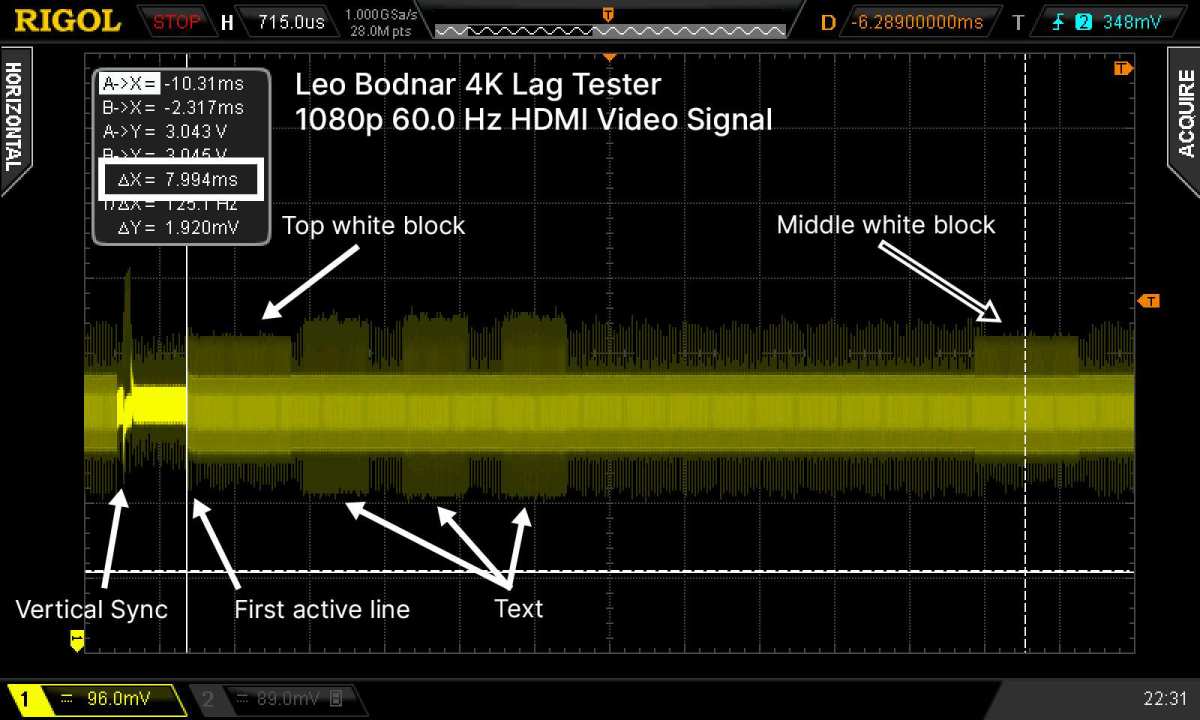
Manufacturer specs rarely list true input lag figures. When they do, the numbers often reflect best-case scenarios. Independent testing with tools like the Leo Bodnar latency tester or high-speed camera methods gives you the real picture.
The Full System Latency Chain (Where 144Hz Actually Helps)
Input lag is not just one number. It is a chain of delays from your finger to your eyes.
The chain looks like this: mouse polling, CPU processing, GPU rendering, display processing, and finally pixel response. Each stage adds time. The monitor's contribution is the last two stages.
Your mouse typically polls at 125Hz (8ms), 500Hz (2ms), or 1000Hz (1ms). Your GPU render time depends on the game and your hardware. At 144fps, the GPU finishes a frame in about 6.94ms.
At 60fps, it takes about 16.67ms.
Here is where people get confused. If your GPU can only push 60fps, a 144Hz monitor will not reduce render time. But it will still reduce display lag because the monitor refreshes faster and can show each completed frame sooner.
The biggest gains come when your GPU can actually push 144fps or higher. Then both the render pipeline and the display pipeline are running fast. Total system latency drops significantly.
NVIDIA Reflex and AMD Anti-Lag can further reduce the CPU and GPU stages of the chain. These technologies work alongside a high-refresh monitor to minimize the total click-to-photon time.
What Most People Get Wrong About Input Lag vs Response Time
Response Time (GtG) ≠ Input Lag
This is the single biggest confusion in the monitor market. Manufacturers advertise "1ms response time" on the box. Buyers assume that means 1ms input lag.
It does not.
Response time, specifically gray-to-gray (GtG), measures how quickly a pixel changes color. It affects motion clarity and ghosting. It has almost nothing to do with how long it takes for your mouse click to appear on screen.
A monitor can have a 1ms GtG response time and still have 30ms of input lag. That happens when the panel pixels change fast but the monitor's internal processing holds the frame before displaying it.
Think of it this way. Response time is how fast the paint dries. Input lag is how long the painter takes to pick up the brush.
Both matter for the final experience, but they are completely different things.
Why a "Fast" Panel Can Still Feel Laggy
Some monitors use aggressive overdrive to hit fast GtG numbers. This can cause inverse ghosting, where pixels overshoot their target color and create bright trails behind moving objects. The panel looks fast on paper but looks worse in motion.
Other monitors have high-quality panels but slow scalar chips. The scalar handles input signal processing, scaling, and feature processing like HDR tone mapping. A slow scalar adds milliseconds of delay regardless of how fast the panel itself is.
This is why independent testing matters more than spec sheets. A monitor with a "5ms GtG" rating and a fast scalar can feel more responsive than a "1ms GtG" monitor with a slow scalar.
VESA's Adaptive-Sync standard helps address some of this by standardizing how displays handle variable refresh rates. But it does not regulate input lag directly. You still need real measurements.
Signal Processing: The Hidden Lag Nobody Talks About
Every monitor processes the incoming signal before displaying it. This includes deinterlacing, scaling, color processing, and overdrive calculation. Each step takes time.
Cheap monitors often use basic scalar chips that add minimal processing lag. Expensive monitors sometimes add more lag because they run more complex processing for features like HDR, local dimming, or motion interpolation.
Motion interpolation, often marketed as "motion smoothing" or "motion rate," is the worst offender. It adds frames to make motion look smoother but introduces significant input lag. If you are gaming, turn this feature off immediately.
Some gaming monitors include a "Game Mode" or "FPS Mode" that bypasses most processing. This is the single most impactful setting for reducing input lag. Always enable it when gaming.
How to Actually Get the Input Lag Reduction You're Paying For
Step 1: Set 144Hz in Windows (It Doesn't Always Default Correctly)
This catches more people than you would expect. You buy a 144Hz monitor, plug it in, and Windows defaults to 60Hz. You never change it.
You get 60Hz lag on a 144Hz panel.
Right-click your desktop. Go to Display Settings. Click Advanced Display Settings.
Set the refresh rate to 144Hz. On some monitors, you also need to enable it in the monitor's on-screen display (NVIDIA) or AMD Radeon Software (AMD).
If 144Hz is not available as an option, check your cable. DisplayPort 1.2 or HDMI 2.0 is required for 144Hz at 1080p. HDMI 1.4 tops out at 120Hz at 1080p.
For 1440p at 144Hz, you need DisplayPort 1.2+ or HDMI 2.0+.
Step 2: Disable V-Sync (Unless You Need It)
V-Sync forces your GPU to wait for the monitor's refresh cycle before sending a new frame. This eliminates screen tearing but adds significant input lag. We are talking 15 to 50ms of additional delay depending on the game.
If you have a G-Sync or FreeSync monitor, use that instead. Adaptive sync eliminates tearing without the input lag penalty. In the NVIDIA Control Panel, you can enable G-Sync and V-Sync together.
This combination uses V-Sync only as a backup for when frames exceed the refresh range, which minimizes lag.
For competitive gaming where every millisecond counts, many players disable sync entirely and accept some tearing. The input lag reduction is worth it.
Step 3: Check Your GPU Is Pushing Enough FPS
A 144Hz monitor only reduces display lag. If your GPU is only pushing 60fps, you still have 16.67ms of render time in the chain. The monitor helps on the display side, but the total lag is still bottlenecked by frame rate.
Use an in-game FPS counter or a tool like MSI Afterburner to check your frame rates. If you are not hitting close to 144fps in your game, you need to lower settings or upgrade your GPU.
The ideal scenario is matching or exceeding the monitor's refresh rate. At 144fps on a 144Hz monitor, you get the full benefit of both the fast render pipeline and the fast display pipeline.
Step 4: Verify With a Measurement Method
If you want to confirm your actual input lag, you can test it. The most accessible method is the high-speed camera technique. Point a camera at your monitor and a stopwatch simultaneously.
Count the frames between the stopwatch changing and the monitor displaying the change.
Dedicated tools like the Leo Bodnar Input Lag Tester give you a direct numerical reading. It is a small device that plugs between your PC and monitor and measures the delay in milliseconds. It is the standard tool used by professional monitor reviewers.
HDFury devices also offer latency measurement along with a range of other display analysis tools. These are more expensive but provide extremely accurate readings.
For most people, the high-speed camera method is sufficient. A smartphone shooting at 240fps or 480fps slow motion can give you a reasonable estimate. Just remember that the measurement includes the camera's own delay, so it is not perfectly precise.
144Hz vs 240Hz vs 360Hz: Where the Diminishing Returns Hit
The Jump From 60 to 144Hz: Massive
This is the upgrade that changes everything. Going from 60Hz to 144Hz cuts frame time from 16.67ms to 6.94ms. The reduction in input lag is immediately noticeable.
Mouse movement feels more direct. Aiming feels more responsive. Everything feels smoother.
Aggregate reviews and user feedback consistently rank this as the single most impactful monitor upgrade for gaming. If you are still on 60Hz, 144Hz is the target. It hits the sweet spot of performance and value.
The Jump From 144 to 240Hz: Noticeable (If You're Competitive)
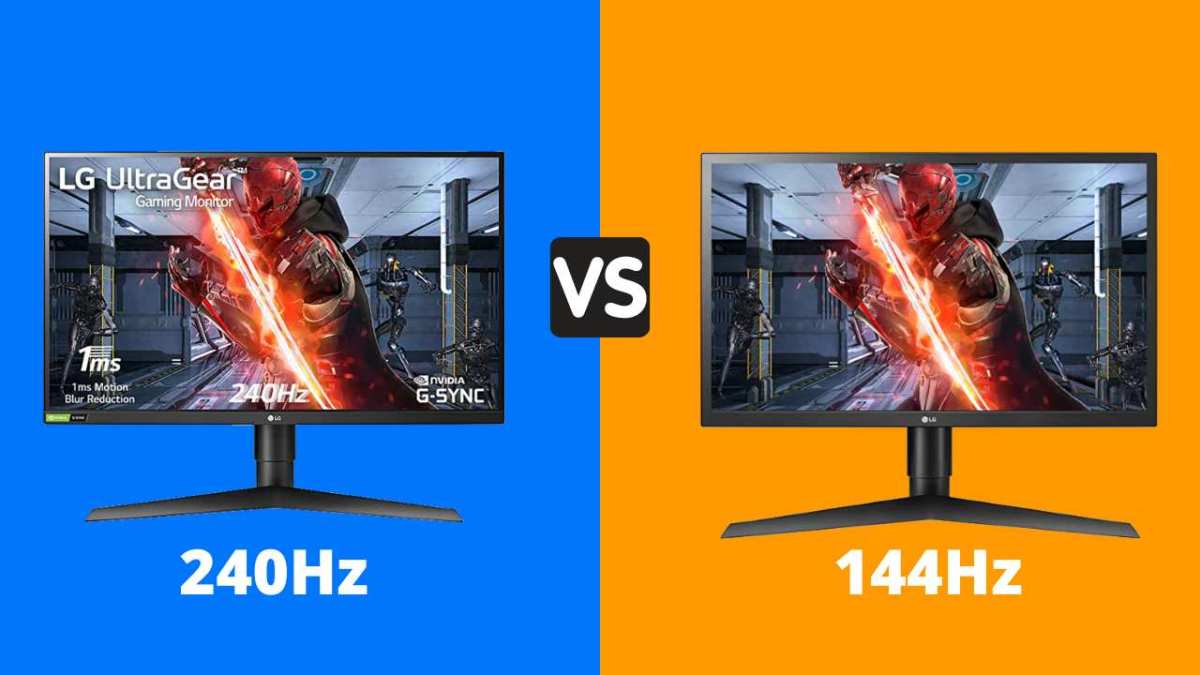
The frame time drops from 6.94ms to 4.17ms. That is a further reduction of about 2.77ms per frame. You can feel it, but the difference is much smaller than the 60 to 144 jump.
Competitive FPS players who play titles like CS2, Valorant, or Apex Legends at high frame rates will benefit. The smoother motion and slightly lower lag provide a marginal advantage. For everyone else, the difference is subtle.
The cost also increases significantly. 240Hz monitors are more expensive, and you need a GPU that can push 240fps consistently to see the benefit. Make sure your hardware can keep up before investing.
The Jump From 240 to 360Hz: Marginal for Almost Everyone
Frame time drops from 4.17ms to 2.78ms. That is a savings of about 1.39ms per frame. At this point, you are chasing single-digit milliseconds that most humans cannot reliably perceive.
Professional esports players sometimes prefer 360Hz panels. At the highest levels of competition, even tiny advantages matter. But for the vast majority of gamers, the difference between 240Hz and 360Hz is imperceptible.
The cost premium is also steep. 360Hz monitors are expensive, and the GPU requirements to push 360fps are extreme. You need top-tier hardware to even approach those frame rates in modern titles.
| Upgrade | Frame Time Savings (ms) | Perceived Difference | Recommended For |
|---|---|---|---|
| 60Hz → 144Hz | ~10 | Very noticeable | All gamers |
| 144Hz → 240Hz | ~3 | Subtle | Competitive FPS players |
| 240Hz → 360Hz | ~1.4 | Barely perceptible | Professional esports |
The data is clear. 144Hz is the sweet spot. It delivers the largest real-world improvement in input lag for the lowest cost. Going higher has diminishing returns that only competitive players will appreciate.
Who Actually Benefits From 144Hz Input Lag Reduction
Competitive FPS Players: This Is Your Edge
If you play CS2, Valorant, Apex Legends, Overwatch 2, or Call of Duty competitively, 144Hz is the baseline. The reduced input lag directly improves your reaction time and aim precision. Your mouse movements translate to on-screen action faster.
At the professional level, players use 240Hz or 360Hz. But for ranked play and tournament competition, 144Hz is the minimum standard. The difference between 60Hz and 144Hz in a gunfight is enormous.
The combination of 144Hz, low-lag panel technology, and a high polling rate mouse creates the most responsive setup available to most consumers. This is where competitive gaming lives.
Casual Gamers: You'll Feel It, But It Won't Carry You
If you play single-player games, RPGs, or slower-paced titles, you will still notice the improved responsiveness. Mouse movement in menus, camera panning, and general desktop use all feel smoother.
But you will not suddenly become a better player. The input lag reduction improves feel, not skill. If you are happy with your current experience and do not play competitive shooters, 144Hz is a nice upgrade rather than a necessary one.
Console Gamers: Check Your HDMI Version First
The PS5 and Xbox Series X support 120Hz output. But your monitor needs HDMI 2.1 to run 4K at 120Hz. Many 144Hz gaming monitors only have HDMI 2.0, which limits you to 1080p at 120Hz or 4K at 60Hz.
If you are gaming on a console at 1080p, a 144Hz monitor with HDMI 2.0 will work fine for 120Hz. For 4K 120Hz, you need HDMI 2.1. Check your monitor's specs before assuming it will work.
The Xbox Series S is limited to 1440p at 120Hz, which works well over HDMI 2.0. The PS5 can output 4K 120Hz, but only over HDMI 2.1. Match your monitor to your console's capabilities.
Common Mistakes That Kill Your Input Lag on a 144Hz Monitor
Leaving V-Sync On
This is the most common mistake. V-Sync adds massive input lag. If you have a 144Hz monitor and V-Sync enabled, you are throwing away the responsiveness you paid for.
Disable V-Sync in your game settings. Use G-Sync or FreeSync instead if your monitor supports it. If you do not have adaptive sync, accept some screen tearing in exchange for lower lag.
Running 60fps on a 144Hz Panel
If your game is locked at 60fps, your GPU is still taking 16.67ms per frame. The 144Hz monitor reduces the display lag portion, but the render time is still slow.
Cap your frame rate at or near your monitor's refresh rate. Use in-game limiters or driver-level frame rate caps. Running 144fps on a 144Hz monitor gives you the full benefit.
Buying a 144Hz Monitor With a Slow Scalar
Not all 144Hz monitors are created equal. Some have fast panels but slow processing chips. The scalar adds lag that the panel cannot overcome.
Check independent reviews for actual input lag measurements. RTINGS.com provides input lag numbers for most monitors they review. Look for total display lag under 15ms at 144Hz.
Ignoring Overdrive Settings
Overdrive controls how aggressively pixels change color. Too little and you get ghosting. Too much and you get inverse ghosting.
Both affect perceived responsiveness.
Most monitors have an "Optimal" or "Normal" overdrive setting that balances speed and artifacts. Avoid the "Extreme" setting unless testing shows it performs well on your specific panel.
Expert Tips: Squeezing Every Millisecond Out of Your Setup
NVIDIA Reflex and AMD Anti-Lag
NVIDIA Reflex reduces render queue latency on supported games. It works at the driver level to minimize the time between your click and the GPU processing it. Many competitive titles support it, including Valorant, CS2, Apex Legends, and Fortnite.
AMD Anti-Lag (now Anti-Lag+) performs a similar function for AMD GPUs. It reduces the CPU-side queue to keep frames flowing efficiently.
Both technologies work best when your GPU is not bottlenecked. If your GPU is at 99% utilization, there is less queue to reduce. Lowering settings to increase headroom can actually reduce total lag even if the GPU is already fast.
Mouse Polling Rate Matters Too
Your mouse adds its own delay. At 125Hz (standard USB), the mouse reports position every 8ms. At 1000Hz (gaming mice), it reports every 1ms.
Use 1000Hz polling for gaming. The difference is small but measurable. Combined with a 144Hz monitor, it completes the low-lag chain from hand to screen.
Some gaming mice advertise 4000Hz or 8000Hz polling. These reduce mouse-side lag to fractions of a millisecond. The benefit is real but only noticeable if the rest of your chain is already optimized.
G-Sync + V-Sync Combo for Tear-Free Low Lag
In the NVIDIA Control Panel, enable G-Sync and set V-Sync to "On" in the driver (not in-game). This combination uses G-Sync for normal operation and V-Sync only as a safety net when frames exceed the refresh range.
The result is tear-free gaming with minimal input lag. It is the best setup for most gamers who want smoothness and responsiveness.
Cap your frame rate 3 to 5 fps below your monitor's maximum refresh rate. For a 144Hz monitor, cap at 141fps. This keeps G-Sync active and prevents the V-Sync backup from engaging, which would add lag.
Frequently Asked Questions
Is 144Hz good enough for competitive gaming?
Yes, 144Hz is the standard baseline for competitive gaming. Most ranked players and tournament competitors use 144Hz or 240Hz monitors. The input lag reduction from 60Hz to 144Hz is the single biggest improvement you can make for competitive play.
Does 144Hz reduce input lag on PS5?
Yes, but with caveats. The PS5 supports 120Hz output. Your monitor needs HDMI 2.0 for 1080p 120Hz or HDMI 2.1 for 4K 120Hz.
If your monitor only supports 60Hz over HDMI, you will not get the benefit.
How much input lag does a 144Hz monitor have?
Typical 144Hz gaming monitors measure between 8ms and 15ms of total display lag in independent testing. The exact number depends on the specific monitor's scalar chip and processing. Check independent reviews for measured numbers on your specific model.
Is 144Hz better than 60Hz for non-gaming use?
For general desktop use, 144Hz makes scrolling and mouse movement feel smoother. The input lag reduction is less noticeable outside of gaming, but the improved motion clarity is visible in everyday use. Most people who switch to 144Hz never go back to 60Hz.
Does HDMI limit 144Hz performance?
HDMI 2.0 supports 144Hz at 1080p and 120Hz at 1440p. For 4K at 144Hz, you need HDMI 2.1 or DisplayPort 1.4 with Display Stream Compression. Using the wrong cable or port can limit you to 60Hz even on a 144Hz monitor.
Final Verdict: Is 144Hz Worth It for Input Lag Alone?
Yes, absolutely. The reduction in input lag from 60Hz to 144Hz is the most impactful display upgrade you can make for gaming. You save roughly 10ms per frame.
That is a massive improvement that you will feel immediately.
For competitive gaming, 144Hz is the minimum standard. For casual gaming, it is a significant quality-of-life improvement. For general desktop use, it makes everything feel smoother and more responsive.
The sweet spot in 2026 is a 144Hz monitor with low measured input lag, adaptive sync support, and a fast scalar. Pair it with a 1000Hz polling mouse and a GPU that can push 144fps, and you have the most responsive setup available to consumers.
Going beyond 144Hz has diminishing returns. 240Hz is worth it for competitive FPS players. 360Hz is for professionals. For everyone else, 144Hz delivers the best balance of performance, value, and real-world benefit.

Similar Posts





















