Are 144Hz Monitors Good for Video Editing
Are 144Hz monitors good for video editing? The short answer is yes, but with some important caveats that most "gaming monitor" marketing won't tell you. A 144Hz panel can make your editing interface feel noticeably smoother, but whether it's the right choice depends entirely on what kind of editing you do and what you're giving up to get that refresh rate.
Here's the thing most people miss. Refresh rate and color accuracy are two completely different specs, and many 144Hz monitors prioritize speed over the color precision that editing work demands. Let's break down exactly what you need to know before you spend your money.
Quick Answer
144Hz monitors work well for video editing. They provide smoother timeline playback and UI responsiveness. However, color accuracy matters more than refresh rate for professional editing.
Many 144Hz panels sacrifice color depth for speed. Choose a 144Hz IPS panel with 95% or higher sRGB coverage. That gives you the best of both worlds.
Why This Question Isn't as Simple as It Sounds
Most monitor reviews treat refresh rate as a straightforward "higher is better" situation. That logic holds for gaming. It falls apart for video editing.
Here's why. When you're editing video, your eyes are tracking color gradients, shadow detail, and subtle exposure shifts across frames. A panel that refreshes 144 times per second but only covers 90% of the sRGB gamut will look smooth.
It will also display inaccurate colors. That's a real problem if you're delivering content for broadcast, streaming platforms, or client work where color fidelity matters.
The panel technology underneath the refresh rate spec is what actually determines your editing experience. A 144Hz TN panel with poor viewing angles and 6-bit color depth is a terrible choice for editing, no matter how smooth the timeline feels. Meanwhile, a 60Hz IPS panel with true 10-bit color and 99% DCI-P3 coverage will serve you far better for color-critical work.
So the real question isn't whether 144Hz is good. It's whether the specific 144Hz monitor you're looking at has the panel quality, color accuracy, and bit depth your editing workflow requires. That's what we're going to help you figure out.
What 144Hz Actually Does for Video Editing
Let's get specific about what a higher refresh rate changes in an editing context. Not all of it is equally useful.
Smoother Timeline Scrubbing and Playback
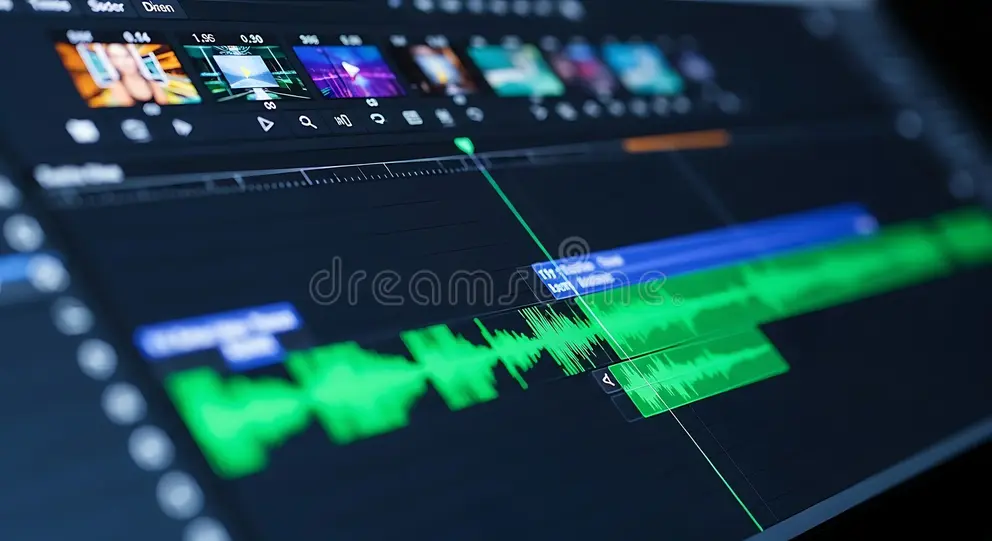
This is the most immediately noticeable benefit. When you drag the playhead across your timeline in Premiere Pro, DaVinci Resolve, or Final Cut Pro, a 144Hz display updates the frame preview more than twice as often as a 60Hz panel. That translates to smoother visual feedback while scrubbing.
At 60Hz, frame persistence sits at about 16.7 milliseconds. At 144Hz, it drops to roughly 6.9 milliseconds. That's a meaningful reduction in perceived motion blur when you're quickly scanning through footage.
The effect is subtle but real, especially when you're working with high-frame-rate content like 60fps or 120fps footage.
For editors who spend hours scrubbing through timelines daily, the reduced eye strain and smoother visual experience can make long sessions more comfortable. It's not a game-changer in the way it is for gaming, but it's a genuine quality-of-life improvement.
UI Responsiveness and Multitasking Feel
This one surprises people. A 144Hz refresh rate doesn't just affect video playback. It affects everything on your screen.
Mouse cursor movement, window dragging, panel switching in your editing software, even scrolling through file browsers. Everything feels more responsive.
If you're running a multi-panel editing setup with your timeline, program monitor, source monitor, and effects panels all visible at once, the smoother UI interaction reduces the micro-stutters that can make a 60Hz display feel sluggish. It's the same reason people who use high-refresh-rate monitors for office work often say they can never go back.
Motion Graphics and High-Frame-Rate Footage Review
If your work involves motion graphics in After Effects or editing high-frame-rate footage for slow-motion sequences, 144Hz gives you a clearer preview of motion. You can review 60fps footage at native speed with frame-accurate playback, and 120fps content plays back at half speed with smooth motion.
For motion designers specifically, the smoother preview helps evaluate easing curves, timing, and animation fluidity without needing to constantly render previews. It won't replace a proper color-calibrated reference monitor, but it does make the creative process more intuitive.
Where 144Hz Falls Short for Editing Work
Now let's talk about the trade-offs, because there are real ones.
Color Accuracy Often Takes a Back Seat
This is the biggest issue. Most 144Hz monitors are designed for gaming first. Manufacturers optimize for response time and refresh rate, not color precision.
Factory calibration is often nonexistent or basic, with Delta E values averaging 3 to 5 when professional work demands under 2.
Many gaming-focused 144Hz panels ship with wide gamuts but poor sRGB clamping. That means colors can look oversaturated and inaccurate when editing for web or sRGB delivery. Without a proper sRGB mode, you're essentially guessing at your final output colors.
Bit Depth and Panel Quality Trade-Offs
True 10-bit color depth is standard on professional editing monitors. It's required for HDR work and smooth gradient reproduction. Most 144Hz gaming monitors use 8-bit + FRC (frame rate control) to simulate 10-bit.
For many editing tasks, this works fine. For color grading with subtle gradients like skies or skin tones, banding can appear.
VA panels at 144Hz often have slower pixel response times in dark transitions, which can cause smearing in shadow areas. TN panels have fast response times but terrible viewing angles and limited color gamut. IPS panels at 144Hz hit a better sweet spot, but they're typically more expensive and may still lag behind dedicated editing monitors in color accuracy.
You Might Be Paying for Specs You Won't Use
If your final deliverable is 24fps or 30fps content for YouTube or broadcast, your editing software is primarily displaying at those frame rates. The 144Hz capability of your monitor isn't adding anything to the actual output. You're paying a premium for smoothness in the interface, not in the final product.
A $400 professional 60Hz editing monitor with factory calibration and true 10-bit color will give you more accurate results than a $400 144Hz gaming monitor for the majority of editing work. The refresh rate tax is real, and it funds the panel speed rather than the panel quality.
60Hz vs 144Hz vs 240Hz: Honest Comparison for Editors
Let's lay out the practical differences so you can see where each refresh rate lands for editing work.
| Factor | 60Hz | 144Hz | 240Hz |
|---|---|---|---|
| Timeline Smoothness | Adequate | Noticeably smoother | Marginally better than 144Hz |
| UI Responsiveness | Standard | Clearly improved | Slightly better |
| Color Accuracy Potential | Highest (pro panels available) | Good (IPS models) | Limited (few pro options) |
| Price Range (27" IPS) | $250–$600 | $250–$500 | $400–$700+ |
| Best For | Color-critical editing | Hybrid editing + gaming | Gaming-first, editing secondary |
| Motion Preview Quality | Good at 24/30/60fps | Excellent at 60/120fps | Best for 120/240fps content |
| Professional Calibration Options | Abundant | Limited | Very rare |
The diminishing returns hit hard above 144Hz for editing. Going from 60Hz to 144Hz is a clear, noticeable improvement in interface smoothness. Going from 144Hz to 240Hz is barely perceptible for timeline work.
The jump matters for gaming at high frame rates, not for editing.
If you're choosing purely for editing quality and color accuracy, a calibrated 60Hz professional monitor wins every time. If you want a single monitor that handles both editing and gaming well, 144Hz is the practical sweet spot. The 240Hz tier offers almost nothing extra for editors while limiting your options for color-accurate panels.
The key takeaway here is that 144Hz sits in a useful middle ground. It gives you a genuinely smoother editing experience without forcing you into the compromises that 240Hz gaming panels often demand on color quality. For most hybrid users, that's the right balance.
Side-by-Side: Gaming Monitors vs Professional Editing Monitors
This comparison is where the buying decision really comes down to earth. Let's look at what each type of monitor prioritizes.
| Spec / Feature | Typical 144Hz Gaming Monitor | Typical 60Hz Professional Monitor |
|---|---|---|
| Refresh Rate | 144Hz | 60Hz |
| Panel Type | IPS, VA, or TN | IPS or OLED |
| Color Depth | 8-bit + FRC | True 10-bit |
| sRGB Coverage | 95–100% | 100% |
| DCI-P3 Coverage | 80–90% | 95–99% |
| Factory Calibration | Rare or basic | Yes, Delta E under 2 |
| HDR Support | HDR400 common | HDR600 or higher |
| Price Range | $200–$600 | $400–$1,500+ |
| Best For | Gaming + casual editing | Color-critical work |
| Adaptive Sync | G-Sync or FreeSync | Not prioritized |
| Response Time | 1ms advertised | 4–8ms (less emphasis) |
Gaming monitors win on speed and value. You get a smooth display with good-enough color for most YouTube and social media work. Models like the LG 27GP950-B or Gigabyte M28U offer 4K resolution at 144Hz for around $400 to $500.
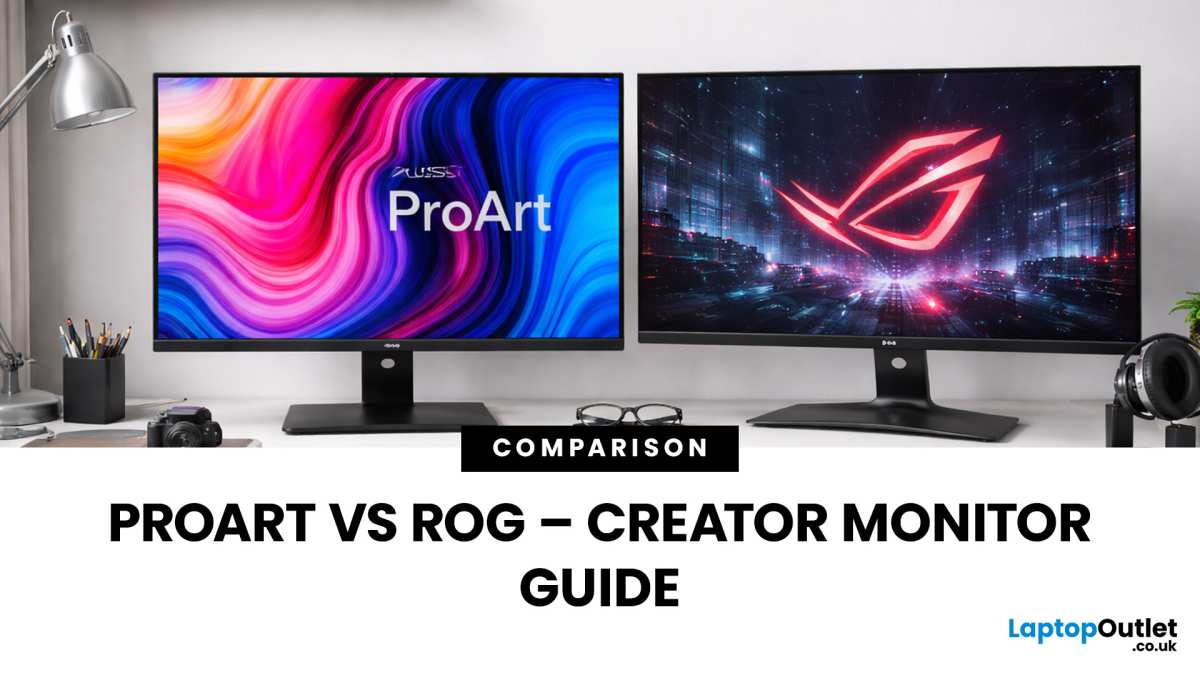
That's solid value if you edit and game on the same machine. ASUS ProArt and BenQ SW series monitors deliver reference-grade color accuracy out of the box. They come factory calibrated with included ICC profiles.
They cost more, sometimes significantly more, but they show you exactly what your audience will see.
The gap is narrowing though. Several 144Hz IPS panels now ship with 98% DCI-P3 coverage and factory calibration. The ASUS ROG Swift PG27UQ and LG 27GP950-B both hit that mark.
They're not perfect for broadcast-level color work, but they're perfectly capable for most freelance and content creation work.
If you do any client work where color accuracy is specified in your contract, stick with a professional monitor. If your work is primarily viewed on consumer screens and phones, a well-chosen gaming monitor will serve you just fine.
Who Should Actually Buy a 144Hz Monitor for Editing
Let's get specific about who benefits most from this purchase.
Great Fit: Hybrid Creators and Motion Graphics Artists
If you split your time between gaming and video editing, a 144Hz IPS panel gives you the best of both worlds. You get smooth gaming performance and a genuinely improved editing experience. Motion designers working in After Effects benefit the most from the higher refresh rate because the smoother UI makes keyframe adjustments and preview playback feel more responsive.
Content creators who produce YouTube videos, TikToks, and Instagram Reels also fall into this category. The final deliverable is viewed on consumer screens where perfect color accuracy matters less than engaging content.
Overkill: Solo Editors Doing Color-Critical Work
If your primary work is color grading for film, broadcast, or commercial delivery, a 144Hz gaming monitor is the wrong tool. You need a calibrated 60Hz professional monitor with true 10-bit color, wide gamut coverage, and hardware LUT support. Monitors like the ASUS ProArt PA279CV, BenQ SW272U, or Eizo ColorEdge CS2420 exist specifically for this reason.
The refresh rate is irrelevant when your clients are judging your work on reference displays in calibrated environments.
Sweet Spot: 144Hz 1440p IPS with Good Color Specs
The current sweet spot for most editors who want one monitor is a 27-inch 1440p IPS panel at 144Hz with at least 95% sRGB and 90% DCI-P3 coverage. Models in the $300 to $500 range hit this spec consistently. You get enough resolution for comfortable timeline layout, smooth enough refresh rate for responsive editing, and good-enough color for most non-broadcast work.
It's the practical choice that doesn't force major compromises in either direction.
Best 144Hz Monitors for Video Editing (by Use Case)
Here are specific models worth considering based on your situation.
Best Overall Hybrid
The LG 27GP950-B offers 4K resolution at 144Hz with 98% DCI-P3 coverage and a Nano IPS panel. It handles SDR editing well and supports HDR10. At around $450 to $550, it's a strong value for hybrid use.
The LG 27GP850-B is its 1440p sibling at a lower price point, and it's arguably the better value if you don't need 4K.
Best Budget Option
The AOC Q27G2S offers 1440p at 144Hz with an IPS panel for under $250. Color accuracy is acceptable for content creation work, though it lacks factory calibration. For editors on a tight budget who also want to game, this panel punches well above its price.
The BenQ MOBIUZ EX2710Q sits at a slightly higher price with better build quality and audio.
Best for 4K plus 144Hz
The Gigabyte M28U delivers 4K at 144Hz with HDMI 2.1, making it ideal if you're also on a PlayStation 5 or Xbox Series X. It covers 94% DCI-P3 and supports VESA DisplayHDR 400. The ASUS ROG Swift PG27UQ is another strong option with local dimming zones that give it a genuine HDR advantage.
That matters if you're doing any HDR grading work.
Best Professional Alternative
If you're leaning toward color accuracy over speed, the ASUS ProArt PA279CV gives you 4K at 60Hz with factory-calibrated Delta E under 2 and 100% sRGB plus 100% Rec. 709. It's the monitor that professional editors trust for accurate work. It costs around $400 to $500.
You'll give up the smooth refresh rate, but you'll gain confidence that your colors are right.
Common Mistakes When Choosing a Monitor for Editing
People make the same handful of mistakes every time. Here's what to watch for.
Prioritizing Refresh Rate Over Panel Quality
A 240Hz TN panel is useless for editing. The viewing angles alone make color shift visible just by moving your head. Always check the panel type, color depth, and gamut coverage before you look at refresh rate.
Speed means nothing if the colors are wrong.
Ignoring Factory Calibration and Delta E Ratings
If a monitor doesn't list a Delta E spec or mention factory calibration, assume the colors are uncalibrated out of the box. You can fix this with a colorimeter, but that's an extra $150 to $250 investment and your time. Professional monitors include calibration.
Gaming monitors generally don't.
Assuming All 144Hz Panels Are Equal
Two monitors can both say 144Hz and perform completely differently. The LG 27GP950-B covers 98% DCI-P3. A cheaper 144Hz TN panel might only cover 60% of that gamut.
Always check the specific panel specifications, not just the refresh rate headline. Verify the color gamut, bit depth, and whether the panel is IPS, VA, or TN. Those details matter more than the Hz number on the box.
Forgetting About Cable and Port Limitations
Running 144Hz at 4K requires HDMI 2.1 or DisplayPort 1.4 with Display Stream Compression. If your GPU only has HDMI 2.0 or DisplayPort 1.2, you'll be limited to 144Hz at 1080p or 60Hz at 4K. Check your graphics card's output specifications before you buy.
Running 144Hz at 1440p works on DisplayPort 1.2 and above, so that's the lower-risk resolution if your hardware is older.
How to Test and Calibrate a 144Hz Monitor for Editing Work
Once you've got the monitor, set it up correctly. Otherwise you're not actually seeing 144Hz or accurate colors.
Step 1: Verify You're Actually Running at 144Hz
Windows doesn't always default to the maximum refresh rate. Right-click your desktop, go to Display Settings, then Advanced Display Settings. Check that the refresh rate dropdown shows 144Hz.
If it only shows 60Hz, you may need a better cable or a driver update. On macOS, hold Option while clicking System Preferences, then check the Displays panel for refresh rate options. Nvidia and AMD control panels also show the active refresh rate and let you create custom resolutions if needed.
Step 2: Check Color Gamut and Bit Depth
Use your GPU control panel to confirm the output color depth and format. Nvidia Control Panel lets you set output color depth to 8-bit or 10-bit under Change Resolution. AMD Radeon Software has the same setting under Display.
Make sure you're outputting at least 8-bit color with RGB full range (0-255). If your monitor supports 10-bit, enable it. But confirm your cable and GPU actually support the bandwidth for 10-bit at your target resolution and refresh rate.
Step 3: Calibrate with a Colorimeter
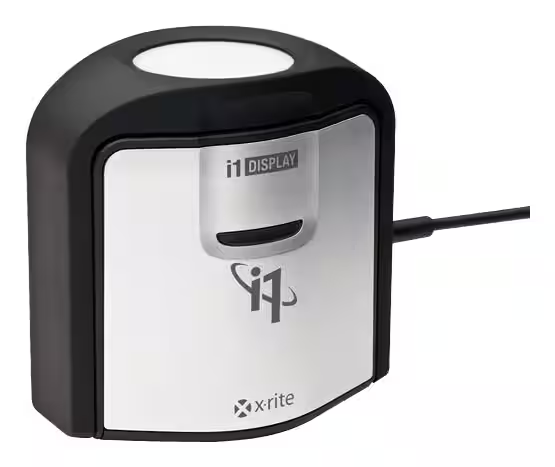
A colorimeter like the X-Rite i1Display Pro or Datacolor SpyderX Pro measures what your monitor actually displays versus what it should display. Software like DisplayCAL (free) or Calman (professional) generates an ICC profile that corrects the color output. Budget around $170 to $250 for a colorimeter if you don't already own one.
Factory-calibrated professional monitors still benefit from periodic recalibration as panels drift over time.
Step 4: Test Playback in Your Editing Software
Open your editing application and load a project with known reference footage. Scrub through the timeline and watch for smoothness. Play back 60fps footage and confirm it displays without stutter.
If you're using DaVinci Resolve, check that the viewer matches your project frame rate. In Premiere Pro, verify that Mercury Playback Engine is using GPU acceleration. Test with both SDR and HDR content if your monitor supports HDR.
Real-World Scenarios: When 144Hz Shines vs When It Doesn't
Let's put this in context with three common editing situations.
Scenario 1: YouTube Creator Who Also Games
A 144Hz IPS monitor is ideal here. You get smooth editing for YouTube content and full gaming performance. Color accuracy requirements are moderate since most viewers watch on uncalibrated screens.
A monitor like the LG 27GP850-B or Gigabyte M28U handles this workload perfectly. This is the use case where 144Hz makes the most sense.
Scenario 2: Freelance Editor Delivering to Broadcast
A 60Hz professional monitor is the right choice. Broadcast clients expect accurate color that matches their reference environments. Refresh rate is irrelevant when the deliverable is 23.976fps or 29.97fps.
Invest in an ASUS ProArt or BenQ SW series with factory calibration. Your clients will judge the output on calibrated reference monitors, not on your timeline smoothness.
Scenario 3: Motion Designer Working in After Effects
A 144Hz monitor provides genuine value here. The smoother UI makes keyframe animation and motion preview more intuitive. You'll spend less time waiting for previews and more time refining motion.
Pair a 144Hz IPS panel with good DCI-P3 coverage for the best balance. Color accuracy still matters for final output, but the workflow benefits of higher refresh are real in this scenario.
Frequently Asked Questions
Will I notice the difference between 60Hz and 144Hz in Premiere Pro?
Yes, primarily in timeline scrubbing and UI responsiveness. The effect is subtle but consistent. Once you've used 144Hz for a few days, 60Hz feels noticeably less smooth.
The difference is most apparent when dragging the playhead quickly or moving panels around the interface.
Can I use a 144Hz monitor for color grading?
You can, but only if the panel covers at least 95% of your target color space and you calibrate it with a colorimeter. For broadcast or cinema grading, a dedicated reference monitor is still the standard. Many 144Hz gaming monitors lack the color depth and calibration accuracy for professional grading work.
Is 144Hz worth it if I only edit and don't game?
Honestly, probably not. A calibrated 60Hz professional monitor will give you better color accuracy for the same money. The smoothness benefit of 144Hz is nice, but it doesn't improve your output quality.
If color accuracy matters for your work, put the money toward a better panel, not a faster one.
Do I need HDMI 2.1 for 144Hz at 4K?
Yes. HDMI 2.0 tops out at 4K 60Hz. For 4K at 144Hz, you need HDMI 2.1 or DisplayPort 1.4 with Display Stream Compression.
Check that both your GPU and monitor support the correct standard before buying cables. Using the wrong cable will limit you to lower refresh rates or chroma subsampling that degrades image quality.
Final Verdict: Should You Buy a 144Hz Monitor for Video Editing?
Here's the bottom line. If you're a hybrid user who games and edits, a 144Hz IPS panel with good color coverage is one of the best all-around choices you can make in 2026. You get a genuinely smoother editing experience without sacrificing the color quality needed for content creation work.
If you're a professional editor doing color-critical work for broadcast, film, or commercial clients, stick with a calibrated 60Hz professional monitor. The refresh rate won't save you from inaccurate colors, and your clients won't care how smooth your timeline felt during editing.
For everyone in between, the 1440p 144Hz IPS tier hits the sweet spot. You get enough resolution for comfortable editing, smooth enough refresh for responsive UI work, and good-enough color for streaming and social media delivery. Models from LG, Gigabyte, and ASUS in the $300 to $500 range deliver this balance without forcing painful compromises.
The refresh rate is a feature, not the feature. Let your actual editing needs drive the decision, not the biggest number on the spec sheet.

Similar Posts





















