Are Ips Monitors Good for Video Editing
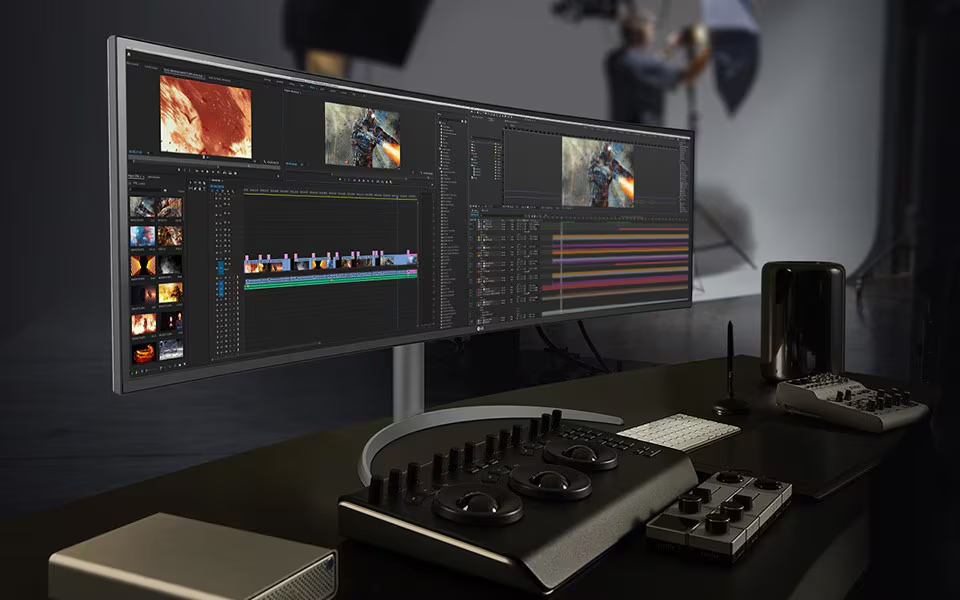
Are IPS monitors good for video editing? Yes, for most editing work they're the safest bet you can make. But the full answer depends on what you're editing, where you're working, and how much you're willing to spend.
IPS panels deliver consistent color accuracy and wide viewing angles that professionals rely on. A well-calibrated 4K IPS display covering 95% or more of DCI-P3 handles the vast majority of editing tasks without breaking a sweat. That said, not every IPS monitor earns its place on an editing desk.
Let's walk through what actually matters so you can make the right call for your situation.
Quick Answer
IPS monitors are excellent for video editing in most cases. They offer strong color accuracy and consistent viewing angles. Professional-grade IPS panels cover wide color gamuts like DCI-P3 and Adobe RGB.
They work well for collaborative editing environments. However, they have lower contrast than VA and OLED panels. Your specific workflow determines whether IPS is the best choice.
What Makes IPS Panels Different for Video Work
IPS stands for In-Plane Switching. It's a type of LCD panel technology where the liquid crystals align horizontally and rotate in the same plane when voltage is applied. This design is what gives IPS its signature strength: color consistency no matter where you're sitting relative to the screen.
For video editing, that matters more than you might think. If you've ever leaned to the side to show a client your timeline and watched the colors shift on a TN panel, you already understand the problem IPS solves. The image stays accurate at wide angles, typically rated at 178 degrees both horizontally and vertically.
Here's what sets IPS apart in practical editing terms:
- Color accuracy out of the box. Most IPS panels ship with a Delta E below 2, which means the color difference is barely perceptible to the human eye. Professional models hit Delta E below 1.
- Uniform brightness across the screen. The center and edges look nearly identical, which is critical when you're making color decisions for a full frame.
- Wide gamut availability. IPS technology supports panels that cover 100% of sRGB, 95%+ of DCI-P3, and significant portions of Adobe RGB. This is the standard for web, broadcast, and cinema work.
The trade-off? Contrast ratio. A typical IPS panel sits around 1000:1.
That's fine for a bright room but noticeable when you're grading footage in a dark environment. Blacks look slightly gray compared to VA panels (3000:1 or higher) or OLED (effectively infinite).
The Four Factors That Determine if IPS Is Right for You
This is where the decision gets personal. Not every editor needs the same thing, and buying the wrong monitor wastes money. Walk through these four factors honestly before you spend anything.
Factor 1: What Type of Video Editing Do You Actually Do?
Your workflow dictates everything. Here's how to think about it:
- YouTube, social media, corporate video. You need solid sRGB accuracy and decent resolution. A mid-range IPS monitor in the $300 to $600 range handles this comfortably.
- Independent filmmaking, documentary work. You need wide gamut coverage (DCI-P3 minimum) and 10-bit color depth. Budget $800 to $1,500 for a professional IPS with hardware calibration support.
- Broadcast and commercial production. You need a reference-grade display that meets SMPTE standards. Expect to spend $1,500 to $3,500 on a top-tier IPS or consider stepping to a dedicated reference monitor.
- Motion graphics and animation. Resolution and color consistency matter more than contrast. A 4K IPS panel works well here.
Factor 2: What Color Standards Does Your Output Require?
If you're delivering content for broadcast or cinema, you need to work in specific color spaces. Consumer sRGB monitors won't cut it.
| Standard | Color Space | Where It's Used | Minimum Gamut Coverage |
|---|---|---|---|
| Rec. 709 | sRGB equivalent | HD broadcast, web | 100% sRGB |
| DCI-P3 | Wider than sRGB | Digital cinema, HDR streaming | 95% DCI-P3 |
| Rec. 2020 | Very wide | UHD/HDR mastering | 75%+ Rec. 2020 |
| Adobe RGB | Wider than sRGB | Print, photography crossover | 95%+ Adobe RGB |
IPS panels are the most common technology that covers DCI-P3 at accessible prices. OLED does it too but at a premium and with burn-in risk for static UI elements.
Factor 3: What's Your Working Environment Like?
This factor trips people up. IPS panels perform best in well-lit or moderately lit rooms. The technology's lower contrast ratio becomes a liability in dark editing suites.
If you edit in a bright room with windows, IPS is ideal. The wide viewing angles help when you're not sitting dead center, and the lower contrast isn't noticeable against ambient light.
If you edit in a dark or dimly controlled room, you'll notice IPS glow. That's a brightening in the corners of the screen visible on dark content. It's a physical characteristic of the panel technology, not a defect.
For dark-room color grading, OLED or a high-contrast VA panel might serve you better.
Factor 4: What's Your Budget, Really?
IPS monitors span a huge price range. Here's what gets you what:
- $200 to $400. Entry-level IPS with good sRGB coverage. Fine for hobbyist and beginner work. May lack calibration controls and wide gamut.
- $400 to $800. Solid mid-range IPS with 4K resolution, 95%+ sRGB, and decent DCI-P3 coverage. Good for serious hobbyists and semi-professional work.
- $800 to $1,500. Professional IPS with hardware calibration, wide gamut, and factory calibration. This is the sweet spot for working professionals.
- $1,500 to $3,500+. Reference-grade IPS with 10-bit panels, extensive calibration controls, and uniformity compensation. For broadcast, cinema, and high-end commercial work.
Don't overspend on specs you won't use. A YouTuber doesn't need a $2,000 reference display. A colorist delivering Netflix content shouldn't cut corners on a $300 panel.
Where IPS Monitors Excel for Video Editing
Let's be clear about why IPS became the default recommendation for video work. These strengths are real and they matter day to day.
Color accuracy and consistency. This is the headline feature. An IPS panel looks the same from center to edge, top to bottom. When you adjust skin tones at your desk, a colleague standing behind you sees the same thing.
That's not guaranteed with TN or even VA panels.
Collaborative workflows. If you review footage with clients, directors, or other editors, wide viewing angles are non-negotiable. IPS handles this naturally. Everyone sees an accurate image regardless of their position relative to the screen.
Availability and price accessibility. IPS technology is mature. You can find IPS monitors at every price point, from budget 1080p panels to flagship 8K reference displays. No other panel technology offers this range.
Reliable calibration support. Most professional IPS monitors support hardware calibration through tools like the Calibrite ColorChecker Display or X-Rite i1Display Pro. The calibration data loads into the monitor's internal LUT (look-up table), bypassing your graphics card's limited calibration. This means accurate color at the system level, not just in your editing software.
10-bit color depth availability. Many professional IPS panels support true 10-bit color or 8-bit plus FRC (frame rate control) that approximates 10-bit. This matters for HDR grading and any work where banding in gradients would be visible.
Where IPS Falls Short You Should Know About
IPS isn't perfect. Knowing the limitations helps you decide whether they're dealbreakers for your specific work.
Contrast ratio limitations. The 1000:1 typical contrast ratio means blacks aren't truly black. In a dark room, you'll see a grayish tint in shadow areas. For color grading where shadow detail matters, this is a genuine disadvantage compared to VA (3000:1+) or OLED.
IPS glow. This is a brightening effect visible in the corners of the screen when viewing dark content in a dim environment. It's inherent to the IPS design, not a manufacturing defect. Some panels have it worse than others, but every IPS display exhibits it to some degree.
Backlight bleed. Related to IPS glow but distinct. Backlight bleed appears as light leaking from the edges or corners of the panel, visible as uneven brightness on a fully black screen. Quality varies significantly between models and even between individual units of the same model.
Response time. IPS panels typically have slower response times than TN panels. For gaming, this matters. For video editing, it's rarely an issue unless you're working with very fast motion content and need to judge motion blur accurately.
Power consumption. IPS panels generally consume more power than TN equivalents and can generate more heat. In a small editing suite, this contributes to ambient temperature over long sessions.
The entry-level trap. Here's the big one. Just because a monitor uses an IPS panel doesn't mean it's good for color-critical work. Many budget IPS displays cover only sRGB, lack calibration controls, and have poor uniformity out of the box.
The panel type is one factor among many. A well-calibrated VA panel can outperform a cheap IPS for color work.
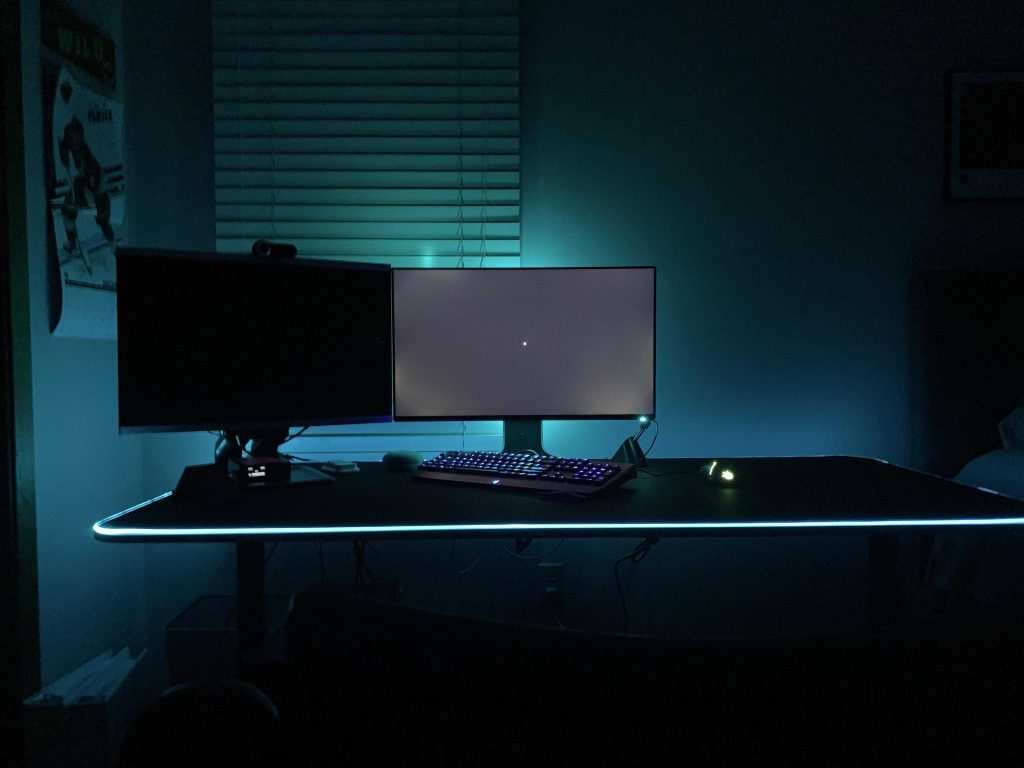
Image source: Bing (Web (fair-use with source credit))
The photo above shows what IPS glow looks like in a dark room. Notice the brightening in the corners against a black background. This is normal behavior for IPS technology, not a defect.
IPS vs TN vs VA vs OLED: Which Panel Type Fits Your Workflow?
Panel technology makes a real difference in daily editing work. Each type prioritizes different strengths. Here's how they stack up for video editing:
| Panel Type | Color Accuracy | Contrast Ratio | Viewing Angles | Response Time | Best For |
|---|---|---|---|---|---|
| IPS | Excellent | 1000:1 typical | 178° both axes | 5-8ms typical | General editing, collaborative work |
| TN | Poor to decent | 600-1000:1 | Color shift at angles | 1-5ms | Budget gaming, not recommended for color work |
| VA | Good | 3000:1+ | Narrower than IPS | 4-8ms | Dark-room viewing, high-contrast needs |
| OLED | Excellent | Near infinite | Wide but can shift | <1ms | High-end grading, HDR mastering |
TN panels: avoid for serious color work
Twisted Nematic panels are cheap and fast. But they shift color dramatically when you move even slightly off-center. If you lean in to check exposure, the image changes.
That makes them unreliable for any color-dependent editing.
VA panels: the middle ground with caveats
Vertical Alignment panels offer contrast that IPS can't touch. Blacks look actually black. But viewing angles are narrower than IPS, and color shift is visible off-center.
VA works well for editors who work alone in dim rooms and prioritize shadow detail accuracy over collaboration.
OLED: impressive but not without risk
OLED delivers perfect blacks, incredible contrast, and fast response times. For HDR grading and cinema work, it's the gold standard. But two concerns remain for editors.
Burn-in risk exists with static elements like timelines and tool panels displayed for hours every day. Price is also significantly higher than IPS at equivalent sizes and resolutions.
The verdict by situation
- Need reliable color for client reviews and team sessions? IPS.
- Grading HDR in a controlled dark room? OLED, with burn-in management.
- On a tight budget but need better contrast than IPS? VA.
- Gaming monitor that occasionally edits? TN, but only for non-color-critical work.
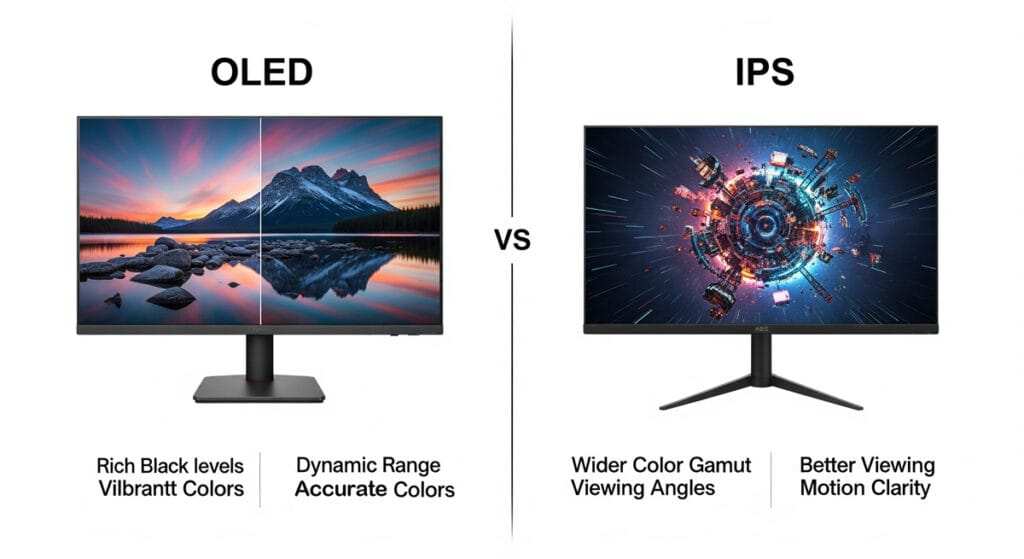
Image source: Bing (Web (fair-use with source credit))
How to Choose the Right IPS Monitor for Your Editing Needs
Not all IPS monitors deserve a spot on an editing desk. Follow these steps to match your needs to the right display.
Step 1: Define your color accuracy requirements
Start with your output. Web-only content needs full sRGB coverage at minimum. Broadcast or streaming delivery requires DCI-P3.
Print or photography crossover work demands Adobe RGB. Match the monitor's gamut to your delivery format, not the other way around.
Step 2: Set your resolution and size priorities
Resolution affects how much timeline and how many panels you can see at once. Common pairings:
- 27 inches at 4K (3840×2160). The sweet spot for most editors. Sharp pixel density with readable UI at native scaling.
- 24 inches at 1080p (1920×1080). Budget option. Works for simple edits but limits screen real estate.
- 32 inches at 4K. Good for multi-panel workflows without dual monitors. Requires more desk depth.
- 27 inches at 1440p (2560×1440). Middle ground between sharpness and GPU demands.
Step 3: Check gamut coverage, not just panel type
Manufacturer specs tell the real story. Look for these minimums in the specifications:
- 100% sRGB. Mandatory for any editing work.
- 90%+ DCI-P3. Needed for HDR content and cinema delivery.
- 95%+ Adobe RGB. Relevant only if your work crosses into print.
- 10-bit color depth or 8-bit + FRC. Required for smooth gradients without banding.
A monitor that says "IPS" but only covers 85% of sRGB is not an editing monitor. It's a general-use display with an IPS label.
Step 4: Factor in calibration hardware and workflow
Hardware calibration separates professional displays from consumer ones. Look for monitors with:
- Hardware LUT support. Stores calibration data in the monitor, not your GPU.
- Regular calibration compatibility. Works with tools like Calibrite ColorChecker or X-Rite i1Display.
- Factory calibration report. Shows measured Delta E values for your specific unit.
Without hardware calibration, you're relying on your graphics card's output LUT, which has limited precision and can drift between reboots.
Step 5: Match your budget to the right tier
Spend what your work demands, not a dollar more. Professional calibration hardware adds $150 to $300 to your total investment. Factor that in from the start.
Calibrating Your IPS Monitor for Reliable Results
Factory calibration drifts over time. Backlights age unevenly, color response shifts, and ambient conditions change. Regular calibration keeps your display accurate.
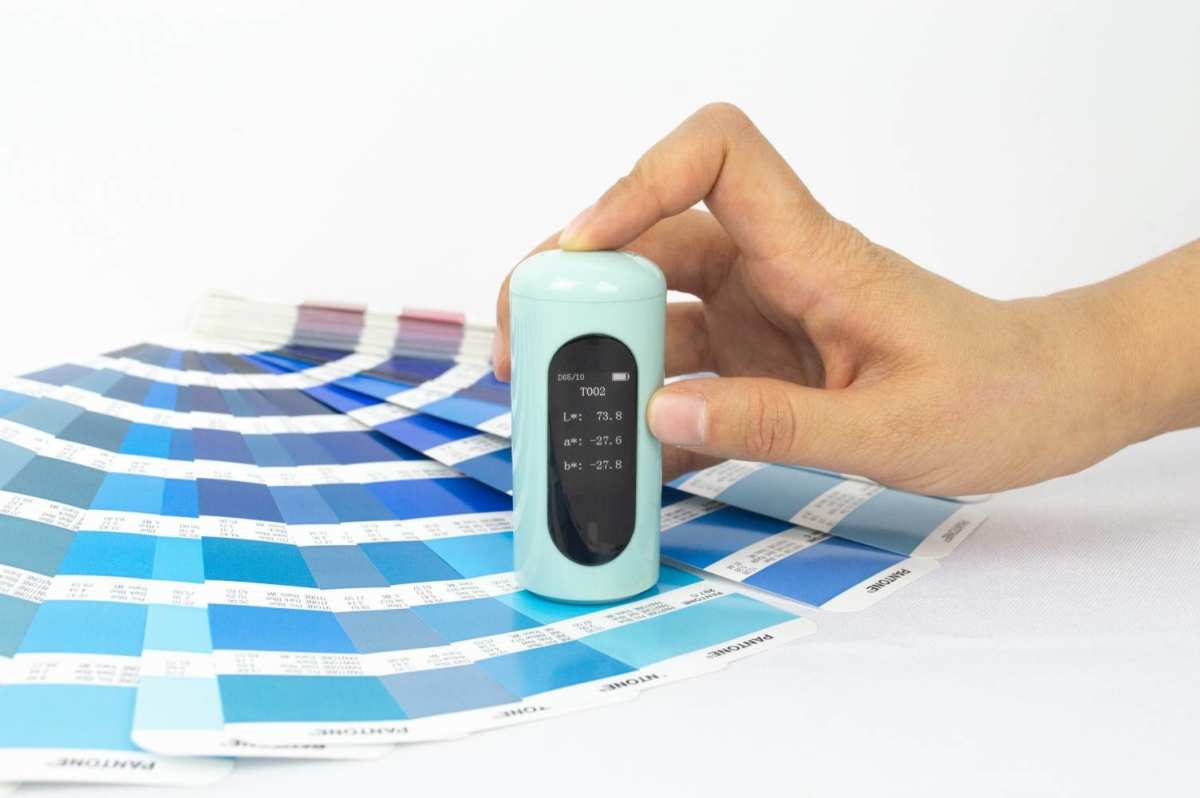
Image source: Bing (Web (fair-use with source credit))
Why factory calibration isn't enough
Most professional IPS panels ship with a calibration report. That report reflects the state of the monitor on the day it left the factory. Within 200 to 500 hours of use, most displays show measurable drift.
For color-critical work, that drift matters.
What calibration tools you actually need
You can't eyeball color accuracy. Human perception adapts to errors without realizing it. You need a hardware colorimeter or spectrophotometer:
- Calibrite ColorChecker Display Pro. Around $170. Covers most editing needs.
- X-Rite i1Display Pro Plus. Around $250. Better for wide-gamut displays.
- ** Calibrite ColorChecker Display Plus.** Around $270. Spectrophotometer-grade for reference work.
Software alone won't work. Monitor calibration requires measuring actual light output from the screen. That's what a hardware sensor does.
How often to recalibrate
Industry practice suggests:
- Professional reference displays. Every 2 to 4 weeks.
- Mid-range editing monitors. Monthly.
- General-use IPS displays. Every 2 months, or before important client delivery.
If your monitor runs many hours daily, calibrate more frequently. Heavy use ages the backlight faster.
Hardware LUT support explained
When you calibrate through software only, the calibration curve loads into your graphics card's LUT. That LUT has limited precision, typically 8-bit. Gradients can show banding.
Hardware LUT support means the monitor stores the calibration data internally in a 12-bit, 14-bit, or 16-bit LUT. The correction is more precise. Banding is reduced.
This feature separates professional editing monitors from consumer displays.
Common Mistakes People Make When Buying an IPS Editing Monitor
These errors waste money and deliver worse results than necessary. Avoid them before you click checkout.
Assuming all IPS panels are the same
This is the most common mistake. "IPS" describes the panel technology, not the quality level. A $150 IPS monitor and a $2,000 IPS monitor share a technology family but deliver completely different performance.
Check gamut coverage, bit depth, calibration support, and uniformity specifications individually.
Ignoring uniformity issues
Even within professional IPS panels, brightness and color vary across the screen. Uniformity specifications tell you how much variation to expect. Good professional displays keep variation under 5%.
Cheaper panels can show 10% to 15% variation, meaning the center of your screen looks different from the edges.
Look for monitors with uniformity compensation built in. This feature adjusts brightness across zones to improve consistency.
Skipping calibration entirely
Some editors buy a $1,500 professional IPS monitor and never calibrate it. That's like buying a precision instrument and never zeroing it. Factory calibration drifts.
Regular hardware calibration is mandatory for any color-dependent work.
Overpaying for specs you won't use
If you deliver only to YouTube in sRGB, you don't need a monitor covering 98% of DCI-P3. If you edit at 1080p for final delivery, a 4K panel adds cost without proportional benefit. Match the monitor to your actual workflow requirements, not marketing specifications.
Choosing the wrong resolution for your viewing distance
A 32-inch 4K panel viewed from 18 inches away requires interface scaling that some editing applications handle poorly. A 24-inch 1080p panel viewed from three feet away looks soft and pixelated. Match resolution and size to your typical sitting distance:
- 2 to 3 feet. 27 inches at 4K or 24 inches at 1080p.
- 2.5 to 4 feet. 32 inches at 4K or 27 inches at 1440p.
Forgetting about connectivity
Make sure your computer's graphics output matches the monitor's input capabilities. 4K at 60Hz with 10-bit color requires DisplayPort 1.4 or HDMI 2.1. Older connections limit refresh rate or force chroma subsampling, which affects text clarity and color accuracy.
Real-World Scenarios: Which Setup Works for Which Editor
The YouTube content creator
You need solid sRGB accuracy, 4K resolution for timeline space, and a price under $600. A 27-inch 4K IPS with 95%+ sRGB and 8-bit plus FRC covers your needs. Calibrate monthly with a Calibrite ColorChecker Display.
Skip wide gamut, you won't use it for web delivery.
The independent filmmaker
You need DCI-P3 coverage, 10-bit color depth, and hardware calibration. Budget $1,000 to $1,500 for a professional IPS panel. Look for models with hardware LUT support and uniformity compensation.
Calibrate every two weeks during active projects. Consider a viewing distance of 2.5 to 3 feet for a 27-inch display.
The beginning hobbyist
Start with a 27-inch 1440p IPS in the $250 to $400 range. Prioritize sRGB accuracy over resolution or gamut. Use free calibration tools initially, then invest in a colorimeter as your skills develop.
This setup grows with you for two to three years before an upgrade makes sense.
The professional colorist on a budget
You need reference-quality output but can't spend $3,500 on a flagship display. A mid-range professional IPS with 98% DCI-P3, hardware calibration, and a recent factory calibration report gets you 80% of the way there. Pair it with a quality colorimeter and calibrate weekly.
The remaining 20% gap matters only for final sign-off on high-budget projects.
Frequently Asked Questions
Can I use an IPS monitor for professional color grading?
Yes, with caveats. Professional IPS panels with hardware LUT support, wide gamut coverage, and regular calibration handle most grading work. For final HDR mastering in a controlled dark environment, OLED or a dedicated reference monitor may still be preferred.
How long do IPS monitors last for color-critical work?
Backlight lifespan is typically 30,000 to 50,000 hours. Color accuracy drifts before the backlight fails. Plan to recalibrate regularly and expect meaningful accuracy for 3 to 5 years under professional use.
Is IPS better than OLED for video editing?
Not universally. IPS offers better long-term reliability for static UI elements and lower cost. OLED offers superior contrast and HDR performance.
Your working environment and budget determine which is better for your specific situation.
Do I need a 4K IPS monitor for video editing?
4K provides more timeline space and sharper text. For 1080p deliveries, 1440p is sufficient. For 4K deliveries, editing at 4K lets you view your output at native resolution without scaling artifacts.
What size IPS monitor is best for video editing?
27 inches at 4K is the current sweet spot for most editors. It balances pixel density, physical size, and desk space requirements. Go larger only if your viewing distance exceeds 3 feet.
The Final Verdict: Making Your Decision
IPS monitors are good for video editing in the majority of cases. They deliver reliable color accuracy, wide viewing angles, and accessible pricing across skill levels. The technology is mature, well-supported, and available at every budget tier.
The decision tree is straightforward. If you edit in a collaborative or well-lit environment and need consistent color, IPS is your best option. If you grade HDR in a dark room and budget allows, consider OLED.
If contrast matters more than viewing angles and you work alone, VA deserves a look.
Match the monitor to your actual workflow, not aspirational specs. Calibrate regularly. Replace the display when drift exceeds your tolerance.
That's the practical path to reliable color in your editing work.

Similar Posts





















