Are HDR Monitors Good for Video Editing
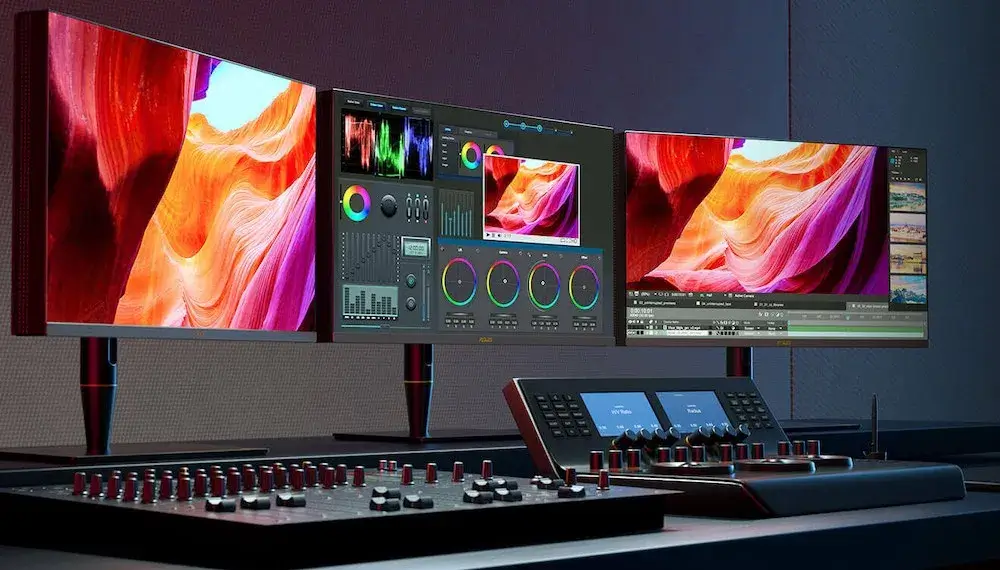
Here's the deal: HDR monitors can absolutely be good for video editing, but only if you're actually delivering HDR content and you've got a monitor that can genuinely handle it. The problem is that "HDR" on a spec sheet and "actually usable for color-accurate HDR work" are two very different things. Most of the confusion comes from that gap.
If you're editing video that ends up on Netflix, Apple TV+, YouTube HDR, or any platform with HDR delivery specs, you need some form of HDR monitoring. But if your final output is SDR web content, a broadcast legal SDR reference monitor will serve you better than a flashy consumer HDR panel. The Society of Motion Picture and Television Engineers defines the PQ curve in SMPTE ST 2084, and proper HDR mastering requires displays that track that curve accurately.
Let's break down when it makes sense and when it doesn't.
The Honest Answer: It Depends on What You're Delivering
This isn't a cop-out answer. It's genuinely the only honest one.
If you're color grading HDR for streaming delivery, yes, you need HDR monitoring, or at minimum a reliable way to preview what that HDR grade looks like. But if you're editing corporate videos, social media content, or anything that ends up as SDR Rec. 709, an HDR monitor adds complexity without adding value to your final output. In fact, it can introduce problems with tone mapping and preview accuracy if your software pipeline isn't set up correctly.
The real question underneath your question is: "Do I need to invest in HDR monitoring for my editing work?" And that answer splits cleanly based on your delivery format, your client requirements, and whether your editing software supports proper HDR monitoring. Let's walk through each scenario.
Two Completely Different Questions: Editing in HDR vs. Editing HDR Content
These sound the same. They're not.
Question one: Should my editing interface run in HDR mode on my operating system? Generally, no. Running Windows or macOS in HDR desktop mode while working in your NLE creates a whole mess of tone mapping issues, washed-out previews in SDR scopes, and inconsistent color across UI elements.
Most professional editors keep the OS in SDR mode and let the editing software or an external monitoring device handle HDR preview separately.
Question two: Should I use an HDR reference display to preview and grade HDR content? If your deliverables include HDR formats (HDR10, HDR10+, Dolby Vision, or HLG), then yes, absolutely. You need to see what you're doing in the target color space and luminance range.
Grading HDR on an SDR monitor by guessing is like mixing audio on headphones and hoping it translates to a sound system. You're flying blind.
Here's the practical split. Editors working on SDR-only deliverables should skip HDR monitoring entirely. Editors handling HDR delivery need real HDR preview capability, either through proper software monitoring in DaVinci Resolve or through an external I/O device feeding a reference display.
That's the whole decision right there.
What Actually Makes an HDR Monitor Worth Using for Video Editing
Not all HDR monitors are created equal. The term "HDR" on a product listing tells you almost nothing about whether that display is useful for professional video work. Let's look at what matters.
- Peak brightness. True HDR mastering needs at least 1000 nits of sustained peak brightness. Many consumer monitors hit that number in a one-inch window for a split second, then throttle down. Sustained brightness is what you're grading to, not a momentary spec spike.
- Local dimming. This is the single biggest factor that separates usable HDR from marketing HDR. Full Array Local Dimming (FALD) with hundreds or thousands of zones gives you meaningful contrast between bright highlights and dark areas. Edge-lit local dimming or no local dimming at all? You're barely getting true HDR separation.
- Color gamut coverage. For P3 theatrical delivery, you want 99%+ DCI-P3 coverage. For Rec. 2020 content (the wider HDR color space), most current displays only hit around 76-80% coverage, and that's a hardware limitation of current panel technology, not something firmware can fix.
- Color bit depth. True 10-bit panels matter for HDR grading because the expanded luminance range means banding shows up more easily in gradients. An 8-bit panel with FRC (frame rate control) dithering is not the same as native 10-bit, and on HDR content, you'll see the difference in skies, shadows, and soft gradients.
- EOTF curve tracking. PQ (Perceptual Quantizer) and HLG (Hybrid Log-Gamma) are the two main HDR transfer functions. Your monitor needs to track the correct curve accurately across the full brightness range, or your HDR preview is lying to you.
Understanding VESA DisplayHDR Tiers
The VESA DisplayHDR certification gives us a rough framework, but it's not the whole picture for video editing use.
| Tier | Peak Brightness | Black Level | Color Gamut | What It Actually Means for Editing |
|---|---|---|---|---|
| DisplayHDR 400 | 400 cd/m² | 0.4 cd/m² | 85% sRGB | Not suitable for HDR grading. Basic HDR awareness only. |
| DisplayHDR 600 | 600 cd/m² | 0.1 cd/m² | 99% sRGB | Okay for tentative HDR preview. Not accurate enough for final delivery decisions. |
| DisplayHDR 1000 | 1000 cd/m² | 0.05 cd/m² | 99% DCI-P3 | Entry point for legitimate HDR grading work. Needs proper calibration. |
| DisplayHDR 1400 | 1400 cd/m² | 0.02 cd/m² | 99% DCI-P3+ | Solid HDR mastering capability. Approaching reference-grade luminance range. |
Here's what matters beyond the table. A DisplayHDR 1000 certification still doesn't guarantee accurate EOTF tracking, proper tone mapping behavior, or consistent performance across the screen. It's a minimum threshold, not a guarantee of professional accuracy.
For actual HDR mastering work, most professionals end up looking at professional reference displays from Flanders Scientific, Sony (BVM series), or Canon (DP series), which go well beyond what VESA certification tests.
When an HDR Monitor Is the Right Choice for Your Workflow
Let's get specific about who actually benefits from HDR monitoring.
- You're delivering content for HDR platforms. Netflix, Amazon Prime, Apple TV+, Disney+, and YouTube all accept and promote HDR content. If your work ends up on these platforms in HDR, you must have HDR monitoring. Netflix's Post Technology Alliance specifically recommends calibrated reference displays for approved workflows.
- You're doing HDR color grading as your primary service. If you're a post house or freelance colorist billing for HDR finishing, clients will expect deliverables that pass QC on professional HDR displays. You can't deliver that without monitoring in that space.
- Your clients require HDR deliverables as standard. Some production companies and agencies have shifted to HDR-first delivery specs even for content that also ships in SDR. If your contract specifies a Dolby Vision or HDR10 master, you need the tools to create it properly.
- You need on-set or location HDR preview monitoring. If you're working on set and need to evaluate how HDR elements will look in the final grade, a portable HDR display with accurate monitoring capability is genuinely useful for DP and director reviews.
- You're future-proofing your setup as HDR delivery grows. The percentage of content delivered in HDR has been climbing steadily as of 2026. If you're building out a studio or making a long-term investment, having HDR monitoring capability in the pipeline makes strategic sense.
The common thread here is that HDR monitoring is valuable when the HDR image is your deliverable, not just when you want a prettier screen on your desk.
When an HDR Monitor Is Overkill or Even Counterproductive
Now let's look at the flip side, because this is where most people waste money.
If you're editing SDR content for web, corporate communications, social media, broadcast TV in Rec. 709, or anything where the final output is standard dynamic range, an HDR monitor adds zero value to your deliverables. Worse, it actively creates problems. You'll spend time managing HDR-to-SDR tone mapping in your preview, second-guessing colors that look different on an HDR panel, and potentially grading content that translates poorly back to SDR because you were viewing it in the wrong luminance space.
Budget matters here too. A solid calibrated SDR reference monitor in the $800 to $1500 range will give you more accurate results for SDR work than a $2000 consumer HDR panel with mediocre color accuracy. If your work is 90% SDR and 10% HDR, invest in the SDR reference first and handle the HDR projects with an external monitoring solution or by posting those jobs to a proper suite.
The Consumer HDR vs. Professional Reference HDR Gap
This is where the price difference really shows up and where a lot of confusion lives.
Consumer HDR monitors: what you actually get
Consumer HDR monitors are designed for gaming, media consumption, and general use. They typically hit decent peak brightness, cover a reasonable color gamut, and look great streaming Netflix on your desktop. That's fine for those purposes.
But they rarely track the PQ or HLG EOTF curve with professional accuracy. Their local dimming algorithms prioritize punchy visuals over faithful reproduction. Calibration options are limited, and sustained brightness often falls well below peak specs.
For casual HDR preview or rough evaluation, they work. For final delivery decisions, they're not trustworthy.
Professional reference HDR monitors: what the pros use
Professional reference displays are built to track specific standards with verified accuracy. They undergo individual calibration at the factory, support 3D LUT correction, maintain sustained brightness without throttling, and their local dimming is tuned for color accuracy, not visual punch.
Displays like the Sony BVM-HX3110 or Flanders Scientific XM31K deliver verified Delta E performance below 1.0 across the full HDR range. They support proper Dolby Vision monitoring, correct metadata handling, and stable performance over thousands of hours. They're also significantly more expensive.
And external I/O devices like Blackmagic Design DeckLink or UltraStudio cards are often needed to output a clean HDR signal from your NLE to these reference displays. The total cost of a proper HDR mastering setup frequently exceeds $15,000 when you factor in the monitoring chain, calibration tools, and software.
Real Workflow: How HDR Monitoring Works in Practice
For editors who do need HDR monitoring, the practical workflow matters more than the hardware specs alone. Let's walk through the most common professional path.
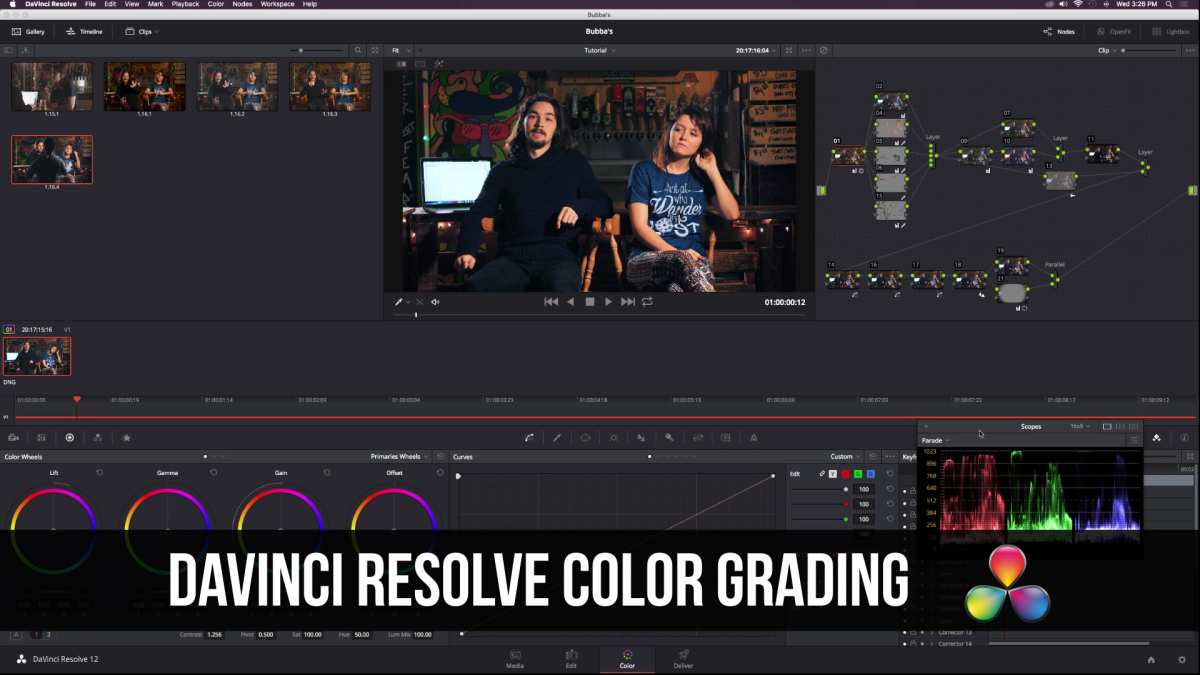
DaVinci Resolve offers the most mature HDR monitoring workflow among NLEs as of 2026. Its color management system lets you set a timeline color space (like DCI-P3 or Rec. 2020), choose your HDR output format, and apply tone mapping to a preview output. This means you can grade in HDR while monitoring through an external device or a compatible HDR display.
Key workflow steps
- Set up your color management. In Resolve, use DaVinci YRGB Color Managed or ACES. Define your timeline color space to match your delivery spec (Rec. 2020 ST 2084 for HDR10, or P3 ST 2084 for DCI deliverables).
- Configure your external I/O device. Use a Blackmagic DeckLink or UltraStudio to output a clean, unprocessed signal to your reference display. This bypasses your OS desktop compositing, which can interfere with HDR accuracy.
- Set your tone mapping. If you need to preview how your HDR grade maps back to SDR (for dual delivery), use Resolve's RCM or output transform features rather than relying on the monitor's built-in tone checking.
- Manage your metadata. HDR delivery requires MaxCLL and MaxFALL metadata. Resolve can embed this on export, but you need to verify the numbers with a tool like HDR Scopes or a dedicated metadata inspector on your reference display.
Premiere Pro's HDR monitoring support has improved but still lacks Resolve's flexibility. Most Premiere-heavy workflows rely on external preview monitors for accurate HDR evaluation. Final Cut Pro handles HDR well on Apple's Pro Display XDR and via I/O devices, but it's still best practice to verify on a calibrated external reference regardless of what you see on your built-in display.
The HDR trim pass workflow is worth mentioning here. Many projects require both an HDR and SDR master. The trim pass workflow lets you grade your HDR master first, then create an SDR version with targeted adjustments, previewing both simultaneously when your monitoring chain supports it.
It's the most efficient approach for dual delivery, but it requires accurate HDR monitoring to work properly.
Common Mistakes Editors Make with HDR Monitors
Even when editors have good hardware, a few recurring mistakes cause real problems in the final output.
- Buying an HDR400 monitor and expecting accurate HDR editing work. DisplayHDR 400 panels lack the brightness, contrast, and color depth needed for meaningful HDR evaluation. They're fine for gaming and casual viewing, but not for professional color decisions.
- Skipping calibration because "it's already HDR." HDR doesn't mean accurate. Untracked EOTF curves, incorrect white balance, and uncalibrated color gamuts are common even on expensive panels. Hardware calibration with a colorimeter is essential for any HDR work you'd stake your name on.
- Not verifying EOTF curve tracking in your NLE. Your monitor might be capable of tracking the PQ curve accurately, but if your editing software isn't sending the right signal, you won't see it. Always confirm that your full pipeline, from software to cable to display, is correctly configured for HDR output.
- Ignoring metadata requirements. MaxCLL and MaxFALL values directly affect how streaming platforms and devices tone map your content. Getting these wrong means your HDR master will display incorrectly on end-user devices, regardless of how accurate your monitor looked during grading.
- Grading HDR on OLED without managing burn-in risk from static UI elements. OLED panels deliver unmatched per-pixel contrast and true blacks, which is fantastic for HDR evaluation. But DaVinci Resolve's UI has a lot of static elements, timelines, node graphs, and toolbars. Extended OLED sessions at high brightness with static content can contribute to uneven aging over time. Many professional OLED users shift UI brightness, use screen rotation, or limit full-screen white elements during long grading sessions.
Quick Decision Framework: Should You Use an HDR Monitor?
Let's cut through everything and give you a clear way to decide.
Ask yourself these questions
- What format is my final delivery? If it's SDR Rec. 709 only, skip HDR monitoring. If it includes any HDR format (HDR10, HDR10+, Dolby Vision, HLG), you need it.
- What does my client or platform require? Netflix, Apple TV+, and most major streaming services have specific delivery specs. Read them. They'll tell you exactly what monitoring standards they expect.
- Can I afford a properly calibrated HDR reference display? If your budget is under $1500, a calibrated SDR monitor will serve most editors better. If your budget allows $3000+ for the display plus I/O and calibration tools, a proper HDR setup is a legitimate investment.
- Does my editing software support HDR monitoring? DaVinci Resolve handles it natively. Premiere Pro works with external devices. Final Cut Pro is improving but still benefits from external reference. Choose your tools accordingly.
The decision tree
If your answer to the first question includes any HDR format, and your budget supports proper equipment, HDR monitoring is the right choice. If not, invest in a solid SDR reference monitor first. Come back to HDR monitoring when your projects or clients demand it.
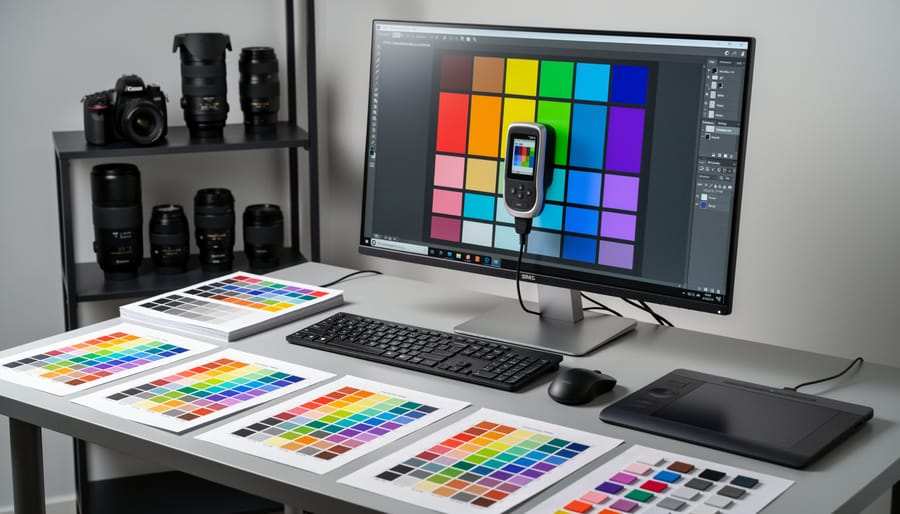
Best choices based on your situation
- Freelance editor, mostly SDR web content. Invest in a calibrated SDR reference monitor. Handle the occasional HDR project at a post house or rent suite time.
- Freelance editor, growing HDR client base. Look at Mini-LED panels with good local dimming in the $1500 to $3000 range. Pair with an external I/O device and calibrate regularly.
- Post house or studio, HDR delivery as core service. Professional reference displays are non-negotiable. Budget for Flanders Scientific, Sony BVM, or Canon reference monitors. Factor in the full monitoring chain including I/O devices, calibration hardware, and ongoing recalibration costs.
- Content creator making HDR YouTube videos. A good Mini-LED or OLED display with HDR capability is practical. You don't necessarily need a full reference setup, but you do need something that tracks the PQ curve reasonably well and covers DCI-P3 accurately.
Why "Just Trusting the Monitor" Isn't Enough
Even with a great HDR display, professional editors rely on scopes and measurement tools rather than relying solely on what they see. Waveform monitors, vectorscopes, HDR histogram displays, and metadata inspectors give you objective data about your image that your eyes, no matter how well trained, can't provide.
Your eyes adapt to brightness. A scene that looks too bright after staring at a dark one might read differently after watching it for five minutes. Scopes don't adapt.
They show you exactly where your luminance levels sit, whether you're clipping highlights or crushing shadows, and where your color values fall relative to legal limits.
Always use scopes alongside your HDR monitor. The monitor shows you the subjective image. The scopes confirm the objective accuracy.
Together, they give you confidence in your grade.
Frequently Asked Questions
Can I edit HDR video on an SDR monitor?
You can edit the timeline, but you can't accurately evaluate the HDR grade. You'd be working blind on luminance and color decisions that only matter in the HDR space. You'd need to check your work on an HDR display before delivery.
Is OLED or Mini-LED better for HDR video editing?
OLED gives you perfect per-pixel blacks and zero light blooming, which is ideal for HDR contrast evaluation. Mini-LED gives you higher sustained peak brightness and no burn-in risk, which is better for long grading sessions. Professional workflows use both, each for different strengths.
Do I need HDR monitoring for Dolby Vision work?
Yes. Dolby Vision has specific metadata and tone mapping requirements that differ from standard HDR10. Dolby's own certification process expects monitoring on approved reference displays.
Consumer HDR monitors won't give you accurate Dolby Vision evaluation.
How important is calibration for HDR monitoring?
Critical. An uncalibrated HDR display will give you incorrect EOTF tracking, wrong white balance, and inaccurate color reproduction. You need hardware calibration with a spectroradiometer or high-end colorimeter at minimum.
Will an HDR monitor help me make better SDR content?
Not directly. A well-calibrated SDR reference monitor will serve SDR content better than an HDR panel viewed in SDR mode, because the HDR panel's calibration and characteristics are optimized for a different luminance range.
Notable HDR Monitoring Options at Different Price Points
Without naming specific products as recommendations, here's how the market tiers break down for HDR monitoring in video editing.
Consumer HDR ($400-$1,000): These panels work for getting familiar with HDR content and doing rough previews. Most hit DisplayHDR 400 or 600. They're not accurate enough for final delivery decisions, but they let you see the general character of your HDR grade if that's all you've got.
Prosumer and Semi-Professional ($1,000-$3,500): Mini-LED displays with good FALD coverage and DisplayHDR 1000 or higher start getting useful for real HDR evaluation. They need calibration. They don't match reference accuracy.
But for freelancers and small studios delivering HDR content on a tighter budget, this tier represents the practical minimum.
Professional Reference ($5,000-$30,000+): These are the displays that pass Netflix Post Technology Alliance evaluation and meet broadcast standards. They ship with individual calibration reports. They sustain their rated brightness.
They track PQ and HLG curves with verified accuracy. When your contract specifies a client-approved reference monitor, this is what they mean.
External I/O devices add $500-$2,000+ on top of the display cost. You need them for clean HDR output from DaVinci Resolve, Premiere Pro, or Final Cut Pro regardless of which display tier you choose. Don't budget for a reference panel without budgeting for the signal path to it.
Final Verdict: HDR Monitors in Video Editing — Who Needs What
HDR monitors are genuinely good for video editing when you deliver in HDR and you have equipment that can actually do the job. They're a waste of money when you don't deliver HDR or when the monitor can't provide accurate enough evaluation to justify the investment.
If you're still on the fence, here's the simplest version. Audit your last twelve months of projects. Count how many had HDR deliverables.
If that number is growing or already significant, invest in HDR monitoring. If it's zero or close to it, put your budget toward a better-calibrated SDR reference monitor and revisit the question when your workflow actually demands it.
The technology will only become more relevant as HDR delivery expands across platforms. But buying the right tool at the right time for your actual work beats buying impressive spec sheets that don't match what you're delivering. Start with what your projects require today.
Scale up when tomorrow's projects ask for it.

Similar Posts





















