Do HDR Monitors Support G Sync
do hdr monitors support g sync
If you've just picked up an HDR monitor and you're wondering whether G-Sync will actually work with it, you're not alone. This is one of those questions that sounds like it should have a straightforward answer, but the reality is messier than the marketing suggests. The short version: some HDR monitors support G-Sync perfectly, some support it with caveats, and others don't support it at all.
The confusion comes from the fact that "HDR" and "G-Sync" are two completely separate technologies that have to work together through your specific monitor, cable, GPU, and settings. NVIDIA's own certification system has three tiers, and each one handles HDR differently. Let's break down exactly what you need to know so you can figure out your specific situation.
The Short Answer: It Depends on Your Specific Monitor
Yes, many HDR monitors support G-Sync. But the type of G-Sync support varies wildly.
Your experience depends on which G-Sync tier your monitor falls into. There are three levels, and each one guarantees different things about HDR and VRR working together.
Why This Question Doesn't Have a Simple Yes or No
HDR and G-Sync solve completely different problems. HDR expands the range of brightness and color your display can show. G-Sync eliminates screen tearing by syncing your monitor's refresh rate to your GPU's output.
They don't inherently depend on each other. A monitor can have HDR without any adaptive sync at all. A monitor can have G-Sync without any HDR capability.
The overlap only happens when a manufacturer builds a monitor that includes both features, and even then, the implementation quality varies.
Here's where it gets tricky. VESA's DisplayHDR certification has nothing to do with adaptive sync. NVIDIA's G-Sync certification has specific requirements that don't always align with HDR performance.
So a monitor can carry both logos and still deliver a mediocre experience in one area or the other.
The real answer lives in the details: which G-Sync tier, which DisplayHDR level, which connection standard, and which GPU you're running.
The Three Tiers of G-Sync and What Each Means for HDR
NVIDIA doesn't just have one G-Sync. They have three distinct levels, and understanding the difference between them solves about 80% of the confusion around this topic.
G-Sync Ultimate: HDR + VRR Guaranteed Out of the Box
This is the premium tier. Monitors with a dedicated G-Sync hardware module and NVIDIA's Ultimate certification have been tested to deliver both HDR and variable refresh rate simultaneously without issues.
What you get:
- A proprietary NVIDIA scaler chip built into the monitor
- Mandatory support for HDR (typically DisplayHDR 1000 or higher)
- VRR range that usually starts at 1Hz and goes to the panel's maximum
- Full NVIDIA driver integration with no guesswork on your end
These monitors are expensive. The G-Sync module adds roughly $100 to $200 to the manufacturing cost. But if you want guaranteed HDR + G-Sync performance with zero troubleshooting, this is the path.
Examples include high-end models from ASUS, Acer, and Dell/Alienware with the Ultimate badge.
G-Sync Compatible: Software-Level, No Guaranteed HDR Experience
This is where most people land, and where most confusion starts. G-Sync Compatible monitors don't have the dedicated hardware module. Instead, NVIDIA's drivers enable adaptive sync over DisplayPort using the VESA Adaptive-Sync standard.
Here's the critical part: G-Sync Compatible certification does not require HDR support. A monitor can be G-Sync Compatible with a basic SDR panel. Conversely, an HDR monitor can be G-Sync Compatible, but NVIDIA hasn't necessarily validated that HDR and VRR work together on that specific model.
What this means for you:
- If your monitor is on NVIDIA's G-Sync Compatible list, adaptive sync should work
- HDR functionality depends entirely on the monitor's own HDR implementation
- You may need to manually enable both features and test for issues
- Some combinations work flawlessly; others flicker or drop HDR when VRR kicks in
As of 2026, NVIDIA maintains a public list of G-Sync Compatible monitors. Checking that list should be your first step.
Uncertified FreeSync Monitors: It Might Work, But No Promises
This is the wild west. Many HDR monitors use AMD's FreeSync or FreeSync Premium Pro standard but don't carry NVIDIA certification at all.
The good news: NVIDIA GPUs can enable adaptive sync on most FreeSync monitors through the drivers. The bad news: NVIDIA hasn't tested or validated these combinations, so you're on your own.
What typically works:
- Basic adaptive sync over DisplayPort on monitors from major brands
- HDR at its native refresh rate
- Combined HDR + VRR on monitors that explicitly support it in their firmware
What often breaks:
- Flickering during loading screens or frame rate dips
- HDR disabling automatically when G-Sync is enabled
- Limited VRR range (only working between 48Hz and 144Hz, for example)
- LFC (Low Framerate Compensation) handoff causing visible stutter
If you're running a FreeSync HDR monitor with an NVIDIA GPU, you'll need to test your specific combination. NVIDIA's control panel will let you enable G-Sync on uncertified monitors, but your mileage will vary.
How to Check If Your HDR Monitor Actually Supports G-Sync
This is where we get practical. Follow these steps in order to figure out exactly what your setup can do.
Step 1: Identify Your Monitor's G-Sync Status
First, find out what you're working with. Check the monitor's spec sheet or product page for one of these labels:
- G-Sync Ultimate: Dedicated hardware module, premium price, guaranteed HDR + VRR
- G-Sync Compatible: Software-level, check NVIDIA's approved list
- FreeSync / FreeSync Premium Pro: Not NVIDIA-certified, may still work
- No adaptive sync branding: Probably won't work with G-Sync
You can also check NVIDIA's official G-Sync Compatible monitor list on their website. If your exact model appears there, you're in good shape. If it doesn't, you can still try enabling it manually, but don't expect perfection.
Step 2: Verify Your GPU Supports G-Sync
G-Sync requires an NVIDIA GeForce GPU. Specifically, you need:
- GTX 10-series (Pascal) or newer for desktop G-Sync
- RTX 20-series, 30-series, 40-series, or 50-series for best support
- GTX 16-series also works in most cases
If you're running an AMD GPU, you're using FreeSync natively, and this entire conversation about G-Sync doesn't apply to you.
Also make sure your drivers are current. NVIDIA has improved G-Sync Compatible support significantly through driver updates over the years. A monitor that didn't work three years ago might work fine now.
Step 3: Check Your Connection (DisplayPort vs HDMI Matters)
This catches a lot of people off guard. The cable and port you use directly affects whether HDR + G-Sync works.

DisplayPort 1.4 with DSC:
- Supports 4K at 120Hz with HDR and 10-bit color
- Required for G-Sync on most monitors
- Make sure you're using a certified DP 1.4 cable (the one in the monitor box is usually fine)
HDMI 2.1:
- Supports 4K at 120Hz with HDR
- VRR over HDMI works on newer monitors and GPUs
- Some monitors only support G-Sync over DisplayPort, not HDMI
HDMI 2.0 and below:
- Bandwidth limited to 4K 60Hz with HDR
- G-Sync Compatible may work but at reduced refresh rates
- Not ideal for high-refresh HDR gaming
The rule of thumb: use DisplayPort for G-Sync unless your monitor's manual explicitly says HDMI supports it too.
Step 4: Enable Both G-Sync and HDR in the Right Order
Settings matter here. The order and combination of toggles can make or break the experience.
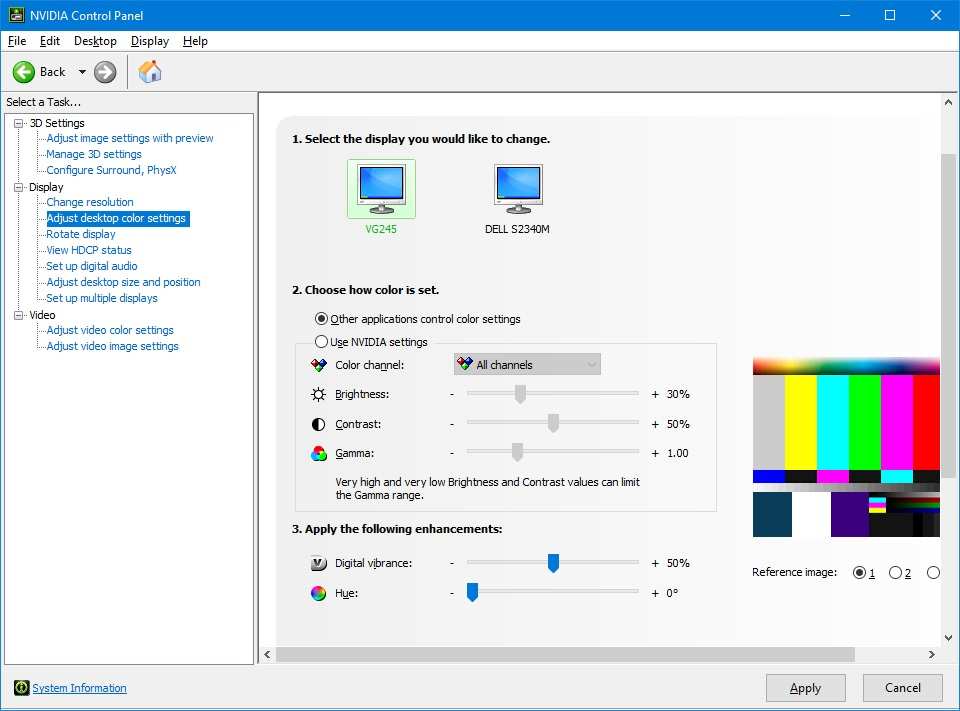
Here's the correct sequence:
- Open NVIDIA Control Panel (right-click desktop)
- Navigate to Display > Set up G-Sync
- Check "Enable G-Sync" and select your monitor
- Choose "Enable for full screen mode" (windowed mode support is optional and can cause issues)
- Go to Change Resolution and confirm your refresh rate is set to maximum
- Open Windows Settings > System > Display
- Toggle HDR to On (only appears if your monitor supports it)
- Open the Windows HDR Calibration app from the Microsoft Store for proper tonemapping
After enabling both, test with a game that supports HDR. If you see flickering, black screen flashes, or HDR turning off randomly, your specific monitor likely has a firmware issue with the HDR + VRR combination.
When HDR and G-Sync Don't Play Nice Together
Even when everything looks right on paper, real-world performance can throw you some curveballs. These are the most common issues people run into when combining HDR with G-Sync.
Flickering During Scene Transitions
This is the number one complaint. You're playing a game, the scene changes, and the screen flickers for a split second before stabilizing.
What's happening: the monitor is rapidly switching between HDR tonemapping states as the average frame brightness shifts. G-Sync is adjusting the refresh rate at the same time, and the two processes briefly conflict.
How to fix it:
- Update your monitor's firmware (manufacturers often patch flickering issues)
- Lock your frame rate 3 to 5 FPS below your monitor's maximum refresh
- Disable "instant frame pacing" in your monitor's OSD if available
- Try switching between fullscreen and borderless windowed mode
HDR Mode Disabling VRR on Some Monitors
Certain monitors, particularly older HDR models, simply cannot process HDR and variable refresh rate simultaneously. When you enable one, the other drops out.
This is a hardware limitation, not a settings issue. The monitor's scaler chip can't handle both processing pipelines at once. Your only options are to choose one or the other, or upgrade to a monitor that supports both natively.
Check your monitor's manual. If the spec sheet says "HDR: Yes, Adaptive Sync: Yes" but doesn't explicitly say "HDR + Adaptive Sync: Yes simultaneously," you might hit this wall.
The LFC Handoff Problem at Low Frame Rates
Low Framerate Compensation kicks in when your frame rate drops below the monitor's minimum VRR range. The monitor doubles or triples the frame rate to stay within its adaptive sync window.
The problem: during the handoff point (say, 48 FPS on a 48-144Hz monitor), some HDR monitors exhibit visible stutter or brightness flickering. The HDR backlight modulation and the frame doubling don't always sync cleanly.
This is especially common on VA panel monitors with aggressive local dimming. IPS panels tend to handle the transition more gracefully.
Bandwidth Bottlenecks with Older Cables
Running HDR at high refresh rates requires serious bandwidth. If your cable can't keep up, you'll get dropped frames, color compression, or the monitor will silently fall back to a lower refresh rate.
Quick reference for what each connection handles:
| Connection | Max HDR Resolution | Max Refresh with HDR |
|---|---|---|
| HDMI 2.0 | 4K | 60Hz |
| DisplayPort 1.2 | 4K | 60Hz (8-bit only) |
| DisplayPort 1.4 + DSC | 4K | 120Hz (10-bit) |
| DisplayPort 2.1 | 4K | 240Hz+ |
| HDMI 2.1 | 4K | 120Hz (10-bit) |
If you're trying to run 4K HDR at 144Hz over HDMI 2.0, something has to give. Usually that "something" is chroma subsampling, which makes text look fuzzy and colors look slightly off.
G-Sync vs FreeSync Premium Pro for HDR Gaming
If you're choosing between these two standards specifically for HDR gaming, the differences matter more than the logos suggest.
G-Sync Ultimate guarantees a minimum HDR experience because NVIDIA certifies the entire pipeline. FreeSync Premium Pro guarantees HDR support too, but only on AMD GPUs. On NVIDIA GPUs, FreeSync Premium Pro monitors are running in "un certified" mode.
Here's the practical breakdown:
G-Sync Compatible + HDR monitor:
- Works with NVIDIA GPUs out of the box
- HDR quality depends on the monitor, not the adaptive sync standard
- Usually the safest choice for NVIDIA GPU owners
FreeSync Premium Pro + HDR monitor:
- Designed for AMD GPUs
- May work with NVIDIA if the monitor is also G-Sync Compatible
- HDR implementation often better than budget G-Sync Compatible monitors
- Risk of incompatibility if NVIDIA doesn't recognize the monitor
G-Sync Ultimate + HDR monitor:
- Most expensive option
- Zero guesswork for HDR + VRR
- Best for users who want guaranteed performance
If you already own an NVIDIA GPU, stick with G-Sync Compatible or G-Sync Ultimate monitors. The FreeSync Premium Pro route introduces unnecessary uncertainty.
What DisplayHDR Certification Actually Tells You About G-Sync Compatibility
DisplayHDR certification and G-Sync certification come from completely separate organizations with completely separate testing criteria. One has almost nothing to do with the other.
VESA's DisplayHDR standard measures:
- Peak brightness (nits)
- Black level
- Color gamut coverage
- Bit depth
- Local dimming performance (at higher tiers)
NVIDIA's G-Sync certification measures:
- VRR range width
- Flickering behavior
- Frame skipping
- LFC implementation
- Ghosting and overdrive performance during VRR
A DisplayHDR 400 monitor can be G-Sync Compatible. A DisplayHDR 1400 monitor can also be G-Sync Compatible. The HDR rating tells you nothing about whether adaptive sync will work.
What DisplayHDR does tell you is how good the HDR experience will actually look. And this is where a lot of people get disappointed.
DisplayHDR 400 monitors hit 400 nits peak brightness but typically lack local dimming. The HDR effect is minimal, barely better than a good SDR display. You're paying for the HDR label without getting meaningful HDR improvement.
DisplayHDR 600 is a step up. Some local dimming, better contrast, more visible HDR impact. Still not reference-quality, but noticeably better than SDR.
DisplayHDR 1000 and 1400 are where HDR starts to look genuinely impressive. Real local dimming zones, sustained high brightness, deep blacks. These are the monitors where HDR gaming feels like a real upgrade.
The takeaway: don't buy a monitor assuming DisplayHDR certification means anything about G-Sync compatibility. Check both certifications separately.
Real-World Setups That Work (and Ones That Don't)
Let's look at some common combinations and what you can realistically expect.
The Ideal Setup: G-Sync Ultimate + DisplayHDR 1000+
This is the no-compromise configuration. You get guaranteed adaptive sync across the full refresh range, HDR that actually looks like HDR, and zero troubleshooting.
What it costs: typically $800 to $1,500+ for the monitor alone. The G-Sync module premium is real.
Who it's for: enthusiasts who want everything working perfectly and are willing to pay for it.
The Common Compromise: G-Sync Compatible + DisplayHDR 400/600
This is where most gamers land. The monitor works with NVIDIA's adaptive sync, and HDR is present but not spectacular.
What to expect: smooth VRR performance, decent HDR in supported games, occasional flickering that may need troubleshooting. The HDR won't blow you away, but the tear-free gaming experience is solid.
Who it's for: the majority of NVIDIA GPU owners who want adaptive sync and are fine with "good enough" HDR.
The Frustrating Middle: FreeSync Premium Pro Monitor with NVIDIA GPU
This is where people get burned. They buy a FreeSync Premium Pro HDR monitor because it looks great on paper, then discover NVIDIA support is hit or miss.
What happens: sometimes it works perfectly. Sometimes G-Sync option doesn't appear in the control panel at all. Sometimes it works but with flickering or limited VRR range.
You're relying on NVIDIA's GPU driver to play nice with a monitor it wasn't designed for.
Who it's for: only people who enjoy troubleshooting and don't mind returning the monitor if it doesn't work.
Common Mistakes People Make When Combining HDR and G-Sync
These are the errors we see most often. Avoiding them saves hours of frustration.
Mistake 1: Using the wrong cable. HDMI 2.0 cable on a monitor that needs DisplayPort 1.4 for full HDR + high refresh. Always check your monitor's manual for which port supports the full feature set.
Mistake 2: Enabling HDR in Windows but not in the game. Windows HDR needs to be on, and the game itself needs to support HDR rendering. Having one without the other gives you a washed-out image or no HDR at all.
Mistake 3: Running V-Sync in-game with G-Sync enabled. The correct setup is V-Sync ON in NVIDIA Control Panel and V-Sync OFF in the game's own settings. Running both creates input lag. Running neither allows tearing above your refresh rate.
Mistake 4: Not updating monitor firmware. Manufacturers frequently release firmware updates that fix HDR + VRR compatibility issues. If you're having problems, check the support page for your specific model.
Mistake 5: Assuming HDR looks good just because it's enabled. Many monitors, especially DisplayHDR 400 models, look worse with HDR turned on. The panel can't actually deliver the brightness or contrast that HDR content expects. Test it yourself before committing.
Mistake 6: Ignoring the VRR range. If your monitor only does 48-144Hz in VRR and your game drops to 40 FPS, LFC should kick in. But on some monitors, the handoff is messy. Know your monitor's range and try to stay within it.
Quick Decision Guide: Should You Enable HDR + G-Sync Right Now?
Use this to make a fast decision based on your current setup.
Enable both if:
- Your monitor is G-Sync Compatible or G-Sync Ultimate certified
- You're using DisplayPort 1.4 or HDMI 2.1
- Your GPU is GTX 10-series or newer
- Your game supports HDR natively
Enable G-Sync only (disable HDR) if:
- Your monitor's HDR implementation looks washed out or dim
- You're experiencing flickering with both features on
- You're playing competitive games where input lag matters more than visuals
- Your monitor is DisplayHDR 400 with no local dimming
Enable HDR only (disable G-Sync) if:
- Your frame rate is consistently above your monitor's refresh rate
- You're watching HDR video content (not gaming)
- G-Sync causes flickering on your specific monitor that you can't resolve
Disable both if:
- You're experiencing persistent issues you can't troubleshoot
- Your monitor doesn't officially support the combination
- You need rock-solid stability for work tasks
Frequently Asked Questions
Does G-Sync work with HDR on all monitors?
No. Only monitors with G-Sync Compatible or G-Sync Ultimate certification are validated for adaptive sync with NVIDIA GPUs. HDR support is a separate feature that may or may not coexist with G-Sync on any given monitor.
Can I use G-Sync with HDR on an AMD FreeSync monitor?
Sometimes. NVIDIA GPUs can enable adaptive sync on many FreeSync monitors, but it's not guaranteed. HDR functionality depends on the monitor's own implementation.
Check if your specific model appears on NVIDIA's compatibility list.
Does DisplayHDR 1000 guarantee G-Sync works?
No. DisplayHDR 1000 certifies HDR performance only. It says nothing about adaptive sync compatibility.
You need to check for G-Sync certification separately.
Why does my screen flicker when HDR and G-Sync are both enabled?
This usually happens during frame rate transitions or scene changes. The monitor's HDR processing and VRR timing briefly conflict. Try updating your monitor firmware, using a better cable, or capping your frame rate slightly below the maximum.
Is G-Sync Ultimate worth the extra cost over G-Sync Compatible?
For HDR gaming, yes, if you want guaranteed performance. G-Sync Ultimate monitors have dedicated hardware that handles HDR + VRR without compromise. G-Sync Compatible relies on software and may have edge cases that don't work perfectly.
Do I need DisplayPort for HDR with G-Sync?
In most cases, yes. DisplayPort 1.4 with DSC supports 4K HDR at high refresh rates. HDMI 2.1 also works on newer monitors, but many G-Sync monitors only support adaptive sync over DisplayPort.
Check your monitor's specifications.
Final Recommendation
Here's the bottom line. If you're buying a new monitor and want HDR + G-Sync to work without hassle, look for G-Sync Ultimate certification with DisplayHDR 1000 or higher. You'll pay more, but everything just works.
If you already own a G-Sync Compatible HDR monitor, enable both features and test thoroughly. Most combinations work fine. You might need to tweak settings or update firmware, but the experience is usually solid.
If you're running a FreeSync HDR monitor with an NVIDIA GPU, check NVIDIA's compatibility list first. If your monitor isn't listed, you're rolling the dice. It might work perfectly.
It might flicker like crazy. Be prepared to return it if it doesn't.
The technology has matured significantly. As of 2026, HDR + G-Sync is far more reliable than it was even three years ago. Driver updates, better monitor firmware, and improved standards have smoothed out most of the rough edges.
Just make sure your specific combination is validated before you invest your time or money.

Similar Posts





















