Do Curved Gaming Monitors Support G Sync
Yes, but curvature doesn't matter. G-Sync support depends on the monitor's internal hardware and certification, not whether the screen is curved or flat.
The confusion is understandable. Manufacturers slap "gaming" and "curved" on boxes without clearly explaining which VRR standard they actually support. You might assume a premium curved monitor works with your NVIDIA GPU out of the box.
Sometimes it does. Sometimes it doesn't.
By the end of this guide, you'll know exactly how to verify G-Sync support on any curved monitor, step by step. No guesswork, no marketing fluff.
The Quick Answer: Curvature Doesn't Determine G-Sync Support
Curved gaming monitors can support G-Sync. The curve rating has nothing to do with it.
What matters is the monitor's scaler board and firmware. NVIDIA maintains a certified G-Sync Compatible list you can check.
If your monitor isn't on that list, G-Sync might still work. You'll just need to enable it manually and test it yourself.
Why People Get Confused About Curved Monitors and G-Sync
Here's the core problem. Monitor marketing focuses on the curve. You see "1500R curved gaming monitor" in big letters on the box.
G-Sync support, if mentioned at all, sits in a spec table somewhere on page six of the manual.
Most curved gaming monitors actually ship with AMD FreeSync or VESA Adaptive-Sync. That's the open standard baked into DisplayPort since version 1.2a. NVIDIA later decided to support that same standard through what they call "G-Sync Compatible" mode.
But here's where it gets messy.
A curved monitor might be:
- G-Sync Compatible (NVIDIA tested and certified it)
- FreeSync only (works with AMD, might work with NVIDIA unofficially)
- G-Sync Ultimate (has the physical NVIDIA hardware module)
- No adaptive sync at all (rare in 2024, but still exists on budget models)
The curve rating, whether it's 1000R, 1500R, or 1800R, tells you nothing about which category above your monitor falls into. You need to check the actual specs.
The Three Types of G-Sync (And Why It Matters for Your Curved Monitor)
Not all G-Sync is the same. NVIDIA uses three distinct tiers, and the differences affect performance, price, and compatibility.
Native G-Sync (Hardware Module)
This is the original. NVIDIA puts a proprietary FPGA chip inside the monitor. It handles all the variable refresh rate processing independently.
Key characteristics:
- Guaranteed performance with no edge cases
- Includes variable overdrive for better motion clarity
- Adds roughly $100 to $200 to the monitor's cost
- Only works over DisplayPort
- Found on higher-end models from ASUS, Acer, Alienware
If your curved monitor has a native G-Sync module, you're covered. Period. The module handles everything at the hardware level.
G-Sync Compatible (NVIDIA-Certified FreeSync)
This is the most common setup you'll find on curved gaming monitors in 2024. The monitor uses a standard Adaptive-Sync scaler. NVIDIA has tested it and confirmed it meets their quality bar.
Key characteristics:
- No additional hardware cost
- Works with many affordable curved monitors
- Requires manual enable in NVIDIA Control Panel on some models
- May have narrower VRR range than native G-Sync
- Certification means NVIDIA validated it for flicker-free operation
As of 2024, NVIDIA has certified over 500 monitors as G-Sync Compatible. Many of those are curved panels from Samsung, LG, Dell, and Acer.
G-Sync Ultimate (Premium Tier with HDR)
This is the top tier. You get the hardware module plus HDR certification (typically DisplayHDR 600 or DisplayHDR 1000).
Key characteristics:
- Full NVIDIA G-Sync module inside
- HDR support with local dimming
- Wide color gamut (often 98% DCI-P3 or better)
- Highest price premium
- Found on flagship curved ultrawides like Samsung Odyssey Neo G9
For most gamers, G-Sync Compatible hits the sweet spot. G-Sync Ultimate matters if you want HDR and have the budget for it.
How to Check If Your Curved Monitor Actually Supports G-Sync
This is the decision tree. Follow these steps in order. By the end, you'll know exactly where your monitor stands.
Step 1: Check the Monitor's Official Specs
Go to the manufacturer's product page. Look for one of these terms in the specifications:
- "NVIDIA G-Sync" (native module)
- "NVIDIA G-Sync Compatible" (certified Adaptive-Sync)
- "G-Sync Compatible" (may appear in NVIDIA Control Panel even without official certification)
- "Adaptive-Sync" or "FreeSync" (might work, not guaranteed)
If you see "G-Sync Compatible" or "G-Sync Ultimate" in the specs, you're done. Move on to Step 4.
If you only see "FreeSync" or "Adaptive-Sync," continue to Step 2.
Step 2: Look It Up on NVIDIA's G-Sync Compatible List
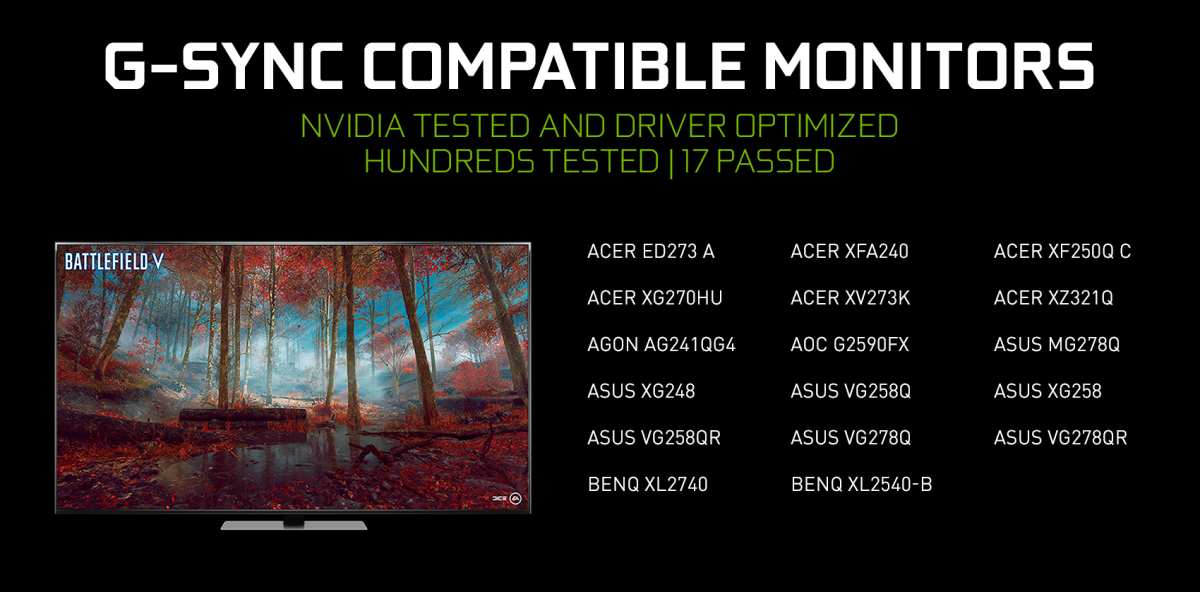
NVIDIA maintains a list of certified monitors on their website. Search for your exact model number. If it appears, NVIDIA has tested it and confirmed it works with G-Sync over DisplayPort.
If your monitor is on the list: You're certified. Proceed to setup.
If your monitor is NOT on the list: Don't panic. Many uncertified FreeSync monitors still work with NVIDIA GPUs. You'll need to test it manually in Step 5.
Step 3: Verify Your GPU Supports It
G-Sync Compatible requires a GeForce GTX 10-series GPU or newer. That's the Pascal architecture from 2016 onward.
Compatible GPUs include:
- GTX 1050 and up (GTX 10-series)
- GTX 16-series
- RTX 20-series, 30-series, 40-series
- Any RTX card
If you're still on a GTX 900-series or older, you're out of luck for G-Sync Compatible. You'd need a native G-Sync module monitor, and even then, support is limited on older GPUs.
Step 4: Connect With the Right Cable (DisplayPort Matters)
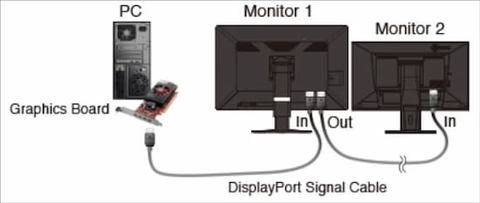
This catches people constantly. G-Sync Compatible requires a DisplayPort connection. HDMI does not support Adaptive-Sync for NVIDIA GPUs on most monitors.
The rules:
- Use DisplayPort 1.2a or newer (most DisplayPort cables sold after 2016 meet this)
- Connect directly from your GPU to the monitor, not through a hub or adapter
- Make sure the cable is fully seated on both ends
- Some monitors only support VRR on one specific DisplayPort input (check your manual)
HDMI 2.1 does support VRR, and NVIDIA added HDMI VRR support in drivers. However, monitor support varies wildly. DisplayPort remains the reliable choice for G-Sync Compatible.
Step 5: Enable G-Sync in NVIDIA Control Panel
Right-click your desktop. Open NVIDIA Control Panel. Navigate to "Display" then "Set up G-SYNC."
If your monitor is detected and supports it, you'll see a checkbox for "Enable G-SYNC, G-SYNC Compatible." Check it. Choose whether to enable it for fullscreen mode only or both fullscreen and windowed mode.
If the option doesn't appear:
- Your monitor may not be detected as G-Sync Compatible
- Try updating your GPU drivers to the latest Game Ready version
- Some monitors require you to enable "Adaptive-Sync" or "VRR" in the monitor's on-screen display (OSD) menu first
Step 6: Confirm VRR Is Active in Your Monitor's OSD
Many curved gaming monitors have a setting in their OSD menu to enable or disable Adaptive-Sync. This is separate from the NVIDIA Control Panel setting.
Open your monitor's menu. Look for settings labeled:
- "Adaptive-Sync"
- "Variable Refresh Rate"
- "FreeSync" (enable this even for NVIDIA GPUs)
- "VRR" or "VRR Control"
Enable it. Then verify G-Sync is working by running NVIDIA's Pendulum Demo or checking the G-Sync indicator in the NVIDIA Control Panel overlay.
Curved Monitor Specs That Actually Affect G-Sync Performance
Now that you know how to check and enable G-Sync, let's talk about the specs that impact your actual experience. These matter more than whether the screen is curved.
VRR Range and Low Framerate Compensation
The VRR range tells you at which frame rates adaptive sync actually works. A monitor rated "48-144Hz" only syncs between 48 and 144 frames per second.
Why this matters: If your game drops to 42fps, G-Sync stops working. You get tearing or stuttering again.
Low Framerate Compensation (LFC) fixes this. When your framerate drops below the minimum VRR range, the monitor multiplies the signal. For example, at 35fps with a 48Hz minimum, the monitor displays each frame twice at 70Hz.
G-Sync stays active.
Look for:
- VRR range that starts at 1Hz or at least below 40Hz
- LFC explicitly listed in specs
- Wide range like "1-240Hz" rather than "48-240Hz"
Most G-Sync Compatible certified monitors include LFC. Native G-Sync module monitors always include it.
Panel Type and Ghosting With VRR Enabled
Curved monitors typically use VA or IPS panels. Some newer models use OLED. Each behaves differently with VRR.
VA panels (most common on curved monitors):
- Best contrast ratios (3000:1 or higher)
- Slower pixel response times can cause ghosting
- Some models show more overshoot when VRR is active
- Look for models with "Fast IPS" or "Nano IPS" if ghosting bothers you
IPS panels (common on flat, available on curved):
- Faster response times
- Better color accuracy
- Lower contrast (1000:1 typical)
- Less ghosting with VRR enabled
OLED (premium curved models):
- Near-instant response times
- No ghosting issues
- Perfect blacks and infinite contrast
- Risk of burn-in with static HUD elements
Refresh Rate and Resolution Combinations
Higher resolutions demand more from your GPU. If your GPU can't push enough frames at your monitor's resolution, you'll spend more time in the low-framerate zone where LFC kicks in.
Common pairings that work well:
- 1080p at 144Hz (works with mid-range GPUs like RTX 4060)
- 1440p at 144Hz to 165Hz (sweet spot for RTX 4070 and up)
- 4K at 144Hz (requires RTX 4080/4090 for demanding titles)
- Ultrawide 3440×1440 at 144Hz (similar to 1440p demand)
The curve itself doesn't affect performance. A curved 1440p 165Hz monitor performs identically to a flat one with the same specs.
G-Sync vs. FreeSync on Curved Monitors: What's the Real Difference?
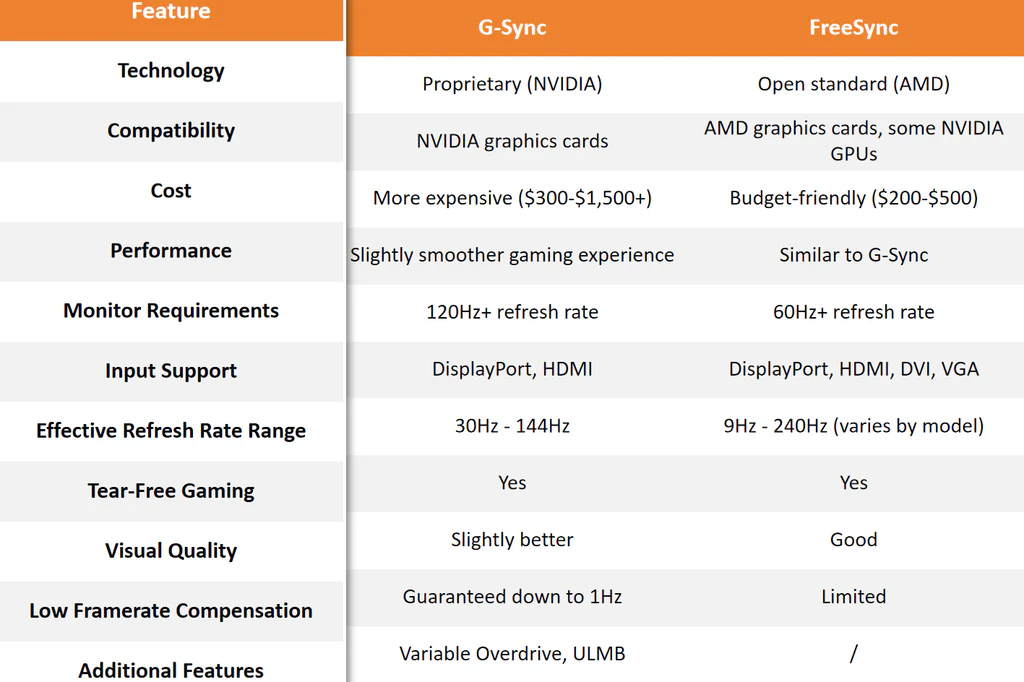
The underlying technology is nearly identical. Both use VESA Adaptive-Sync, which is part of the DisplayPort standard. The real difference is in quality control and extra features.
| Feature | Native G-Sync Module | G-Sync Compatible | FreeSync Only |
|---|---|---|---|
| Hardware module inside monitor | Yes | No | No |
| NVIDIA certified and tested | Yes | Yes | No |
| Variable overdrive | Yes | No | No |
| Guaranteed flicker-free | Yes | Yes | Not guaranteed |
| Typical price premium | $100-200 more | No premium | No premium |
| Works with NVIDIA GPUs | Yes | Yes | Maybe (manual enable) |
| Works with AMD GPUs | No | Yes | Yes |
| HDR support (G-Sync Ultimate) | Yes (Ultimate tier) | No | No |
The bottom line for curved monitor buyers: If you have an NVIDIA GPU, G-Sync Compatible gives you 90% of the experience at no extra cost. Native G-Sync matters most for competitive players who want guaranteed variable overdrive and zero edge cases.
Common Problems When Running G-Sync on a Curved Monitor
Even when everything checks out on paper, real-world setup can throw curveballs. Here are the issues that come up most often.
Flickering or Blanking on Boot
Some G-Sync Compatible monitors flicker briefly during Windows startup or when switching resolutions. This is the most common complaint in user reviews.
What causes it: The monitor's scaler takes a moment to handshake with the GPU. This happens more often on VA panels than IPS panels.
How to fix it:
- Update your monitor's firmware (check the manufacturer's support page)
- Update to the latest NVIDIA Game Ready driver
- Disable "Fast Startup" in Windows power settings
- Try a different DisplayPort cable (certified DP 1.4 cables reduce handshake issues)
If flickering persists during gameplay, not just on boot, your monitor may have a poor VRR implementation. Check if other users report the same issue for your specific model.
G-Sync Option Not Showing Up
You open NVIDIA Control Panel and the G-Sync option is missing entirely. Frustrating, but usually fixable.
Common causes and fixes:
- You're connected via HDMI instead of DisplayPort. Switch to DP.
- Adaptive-Sync is disabled in your monitor's OSD. Enable it first.
- Your GPU is too old. GTX 900-series and older don't support G-Sync Compatible.
- Outdated drivers. Download the latest from NVIDIA's website.
VRR Only Works Above 48fps
Your monitor's VRR range starts at 48Hz. When your framerate drops below that, G-Sync stops working and you get stuttering.
The fix: Look for a monitor with LFC support. LFC multiplies frames to keep the refresh rate within the VRR range. Most G-Sync Compatible certified monitors include LFC, but budget FreeSync monitors sometimes skip it.
You can check your monitor's VRR range on the manufacturer's spec sheet or in detailed reviews that test VRR behavior.
G-Sync Disables When Switching to HDMI
You had G-Sync working over DisplayPort. Then you switched to HDMI to connect a second device, and now G-Sync is gone.
Why this happens: Most monitors only support Adaptive-Sync over DisplayPort. HDMI VRR support is newer and inconsistent. Some monitors support HDMI VRR for Xbox and PlayStation but not for PC.
The solution: Keep your PC connected via DisplayPort. Use HDMI for consoles or other devices. If you need to switch inputs, G-Sync returns when you switch back to the DisplayPort input.
Best Curved Monitors for G-Sync in 2024 (By Budget)
Based on manufacturer specifications and aggregate review data, here are curved monitors that pair well with NVIDIA GPUs at different price points.
Budget-Friendly G-Sync Compatible Curved Options
Samsung Odyssey G5 (S27CG550NU, 27" 1440p 144Hz)
- G-Sync Compatible certified
- VA panel with 1ms response time
- 144Hz refresh rate at 1440p
- Typically priced around $250-300
Acer Nitro XZ272U (27" 1440p 170Hz)
- G-Sync Compatible
- VA panel with 1500R curvature
- 170Hz overclocked refresh rate
- Good value around $200-250
Mid-Range With Strong VRR Performance
Dell G2724DSD (27" 1440p 165Hz)
- G-Sync Compatible certified
- Fast IPS panel (better motion clarity than VA)
- 165Hz refresh rate
- Reliable brand with good warranty support
- Around $300-350
LG 27GP850-B (27" 1440p 165Hz)
- G-Sync Compatible
- Nano IPS panel with 1ms GtG
- Excellent color accuracy (98% D3)
- Popular choice for gaming and content creation
- Around $350-400
Premium Picks With Native G-Sync Modules
ASUS ROG Swift PG27AQN (27" 1440p 360Hz)
- Native G-Sync module
- 360Hz refresh rate for competitive gaming
- 1440p resolution
- Premium pricing around $800-1000
Samsung Odyssey Neo G9 (57" 7680×2160 240Hz)
- G-Sync Ultimate with HDR 1000
- Mini-LED backlight with 1,196 dimming zones
- 240Hz at dual-4K resolution
- Flagship pricing around $1,300-1,500
Expert Tips for Getting the Best G-Sync Experience on a Curved Screen
These are the settings and optimizations that make a real difference. Most people never touch these.
Enable the G-Sync indicator in NVIDIA Control Panel. Under the "Display" menu, turn on the G-Sync indicator. This shows a floating "G-SYNC" label when adaptive sync is active. It confirms everything is working correctly.
Cap your framerate 3-5fps below your monitor's maximum refresh rate. If your monitor runs at 144Hz, cap at 140fps. This prevents G-Sync from disengaging when you hit the ceiling. Use NVIDIA Reflex or RTSS (RivaTuner Statistics Server) for the cap.
Set your monitor's overdrive to the middle setting. High overdrive causes inverse ghosting (overshoot). Low overdrive leaves trailing. The middle setting usually gives the best balance with VRR enabled.
Disable V-Sync in games but enable it in NVIDIA Control Panel. This sounds counterintuitive. NVIDIA recommends enabling V-Sync in the control panel as a fallback. It only activates when your framerate exceeds the VRR range.
In-game V-Sync adds input lag, so leave it off there.
Use the "Preferred refresh rate" setting. In NVIDIA Control Panel, set "Preferred refresh rate" to "Highest available." This ensures your monitor runs at its maximum refresh rate at all times.
Check your monitor's firmware updates. Manufacturers occasionally release firmware updates that improve VRR behavior. Samsung and LG have both released updates that fixed flickering issues on specific models.
Final Decision Guide: Which G-Sync Setup Is Right for You?
Your ideal setup depends on your GPU, budget, and what you play.
If you have an NVIDIA RTX 4060 or lower:
Go G-Sync Compatible. You don't need a native module. Spend the savings on a better panel or higher refresh rate.
A $300 G-Sync Compatible curved monitor serves you well.
If you play competitive shooters (Valorant, CS2, Apex):
Prioritize refresh rate over resolution. A 240Hz or 360Hz 1080p or 1440p curved monitor with G-Sync Compatible gives you the smoothest experience. Native G-Sync with variable overdrive is nice but not essential.
If you play single-player AAA titles:
Consider G-Sync Ultimate for the HDR benefit. The hardware module plus HDR 600 or 1000 makes a visual difference in games like Cyberpunk 2077 or Alan Wake 2. Budget for $500+.
If you're on a tight budget (under $250):
Look for a 1080p 144Hz curved monitor with FreeSync. Enable G-Sync Compatible manually in NVIDIA Control Panel. It may not be certified, but many uncertified monitors work fine.
Check user reviews for confirmed success stories.
If you already own a curved monitor and aren't sure about G-Sync support:
Follow the six-step verification process above. Check NVIDIA's list. Enable it manually.
Test it. You might already have G-Sync working without knowing it.
Frequently Asked Questions
Does monitor curvature affect G-Sync performance?
No. Curvature is a physical panel design choice. G-Sync is a function of the monitor's scaler board and firmware.
A 1500R curved monitor and a flat monitor with the same panel and scaler perform identically with G-Sync.
Can I use G-Sync on a curved monitor with an AMD GPU?
No. G-Sync requires an NVIDIA GPU. With an AMD GPU, you'd use FreeSync or Adaptive-Sync instead.
Most curved monitors support FreeSync natively.
Why does G-Sync flicker on my curved monitor?
Flickering usually happens during the handshake between GPU and monitor. Update your monitor firmware and GPU drivers. Use a certified DisplayPort 1.4 cable.
If it persists, your monitor may have a poor VRR implementation.
Do I need to enable FreeSync on my monitor for G-Sync Compatible to work?
Yes, in most cases. G-Sync Compatible uses the Adaptive-Sync protocol, which monitors typically expose as "FreeSync" or "Adaptive-Sync" in their OSD. Enable it in the monitor menu first, then enable G-Sync in NVIDIA Control Panel.
Is G-Sync Compatible as good as native G-Sync?
For most people, yes. G-Sync Compatible covers the core variable refresh rate feature. Native G-Sync adds variable overdrive and guaranteed quality control.
Competitive players notice the difference. Casual gamers typically don't.
Can I use G-Sync on a curved ultrawide monitor?
Yes. Many ultrawide curved monitors (34" 3440×1440 or 38" 3840×1600) are G-Sync Compatible certified. The same rules apply.
Use DisplayPort, enable Adaptive-Sync in the OSD, and turn on G-Sync in NVIDIA Control Panel.

Similar Posts





















