Do Curved Gaming Monitors Support HDR
The honest answer is yes, many curved gaming monitors support HDR, but the real question is whether they can do it well enough for you to notice the difference. The "curved" part is almost irrelevant to whether HDR works, it is the panel type, peak brightness, dimming zones, and actual certification that separate a decent HDR picture from a marketing sticker on the box. My research shows that plenty of curved gaming monitors ship with some form of HDR, yet only a subset deliver the contrast and brightness that actually meet the VESA DisplayHDR standards (the real badge of performance you should be looking for).
A lot of reviewers report that "HDR support" on budget curved screens often means the monitor can accept an HDR signal but cannot produce the brightness or contrast that makes HDR content shine.
Keep in mind that the curve itself does not change the physics of the panel, it changes how light and reflections hit your eyes and how peripheral detail feels more consistent. HDR support depends on the display pipeline: brightness output, contrast ratio, color gamut, and dimming behavior. You can absolutely find curved gaming monitors with real HDR performance, but three pitfalls kill the experience: weak peak brightness, poor black uniformity without local dimming, and cost.
I would skip a curved HDR monitor if your main use is competitive esports at high frame rates (where response time and input lag matter most) or if you are on a strict budget that forces you into "HDR Ready" models without meaningful brightness. For immersive console or PC gaming where you value deep blacks and enhanced highlights in a dark room, a good curved HDR panel can pull its weight.
Quick Answer
Yes, curved gaming monitors support HDR, but HDR quality varies wildly by model. A curved screen works with HDR if it has the panel tech and peak brightness to back up the signal. Look for VESA DisplayHDR 600+ or OLED for a real HDR experience.
Many budget curved monitors accept HDR but cannot produce the brightness that makes HDR noticeable.
Why Curved Sounds Great but HDR Reality Is Messy

Curved panels sell themselves on immersion and a more consistent field of view. They can make ultrawide gaming feel deeper and reduce how much your eyes have to refocus at the edges. The reality, however, is that many curved gaming monitors advertise HDR without actually showing you the brightness, contrast, or dimming zones that make HDR content look as intended.
VESA DisplayHDR is the certification you should rely on, but even that badge has meaningful gaps between tiers like DisplayHDR 400 and DisplayHDR 1400. A cheap curved VA panel with "HDR support" often tops out around 300-400 nits of real peak brightness, which is not enough to make highlights pop the way HDR games and video are designed to look.
If you have ever switched HDR on and thought the image looked flat or washed out, this is usually why: the monitor accepts the signal but cannot produce enough luminance to separate highlights from the rest of the scene. A truly capable HDR display hits 600 nits at minimum, with many quality panels reaching 1000 nits or far beyond. Contrast also matters, since a strong static contrast ratio (common on VA panels) helps blacks look deep even without full-array local dimming, but OLED panels go further with per-pixel dimming and essentially infinite contrast.
I would recommend a curved HDR monitor when you play atmospheric or story-driven games in a dim room, because the deeper blacks from VA panels or the perfect blacks from OLED, combined with an immersive curve, add real depth. I would skip a curved HDR monitor when you play competitive shooters at 240Hz+ on a budget, because chasing real HDR often sacrifices the response time frame rates demand.
Curved panels do have a couple of honest downsides with HDR content:
- Environmental reflections: curved screens bounce room light around more than flat panels, which can wash out dark scenes if you are not in a controlled environment.
- Geometry distortion: fine text and straight lines sometimes look slightly warped near the edges, which is noticeable in HUD-heavy games or productivity work.
- Panel smear: budget curved VA screens can introduce black smearing or trailing on dark transitions, undermining the deep-black advantage that HDR is supposed to deliver.
What "HDR Support" Actually Means on a Gaming Monitor
When a box says "HDR Ready" or "HDR Compatible", it usually means the monitor can accept an HDR10 signal over HDMI 2.0/2.1 or DisplayPort 1.4 and route it to the scaler. That is not the same as showing HDR as you expect it. A monitor that merely accepts the signal has to map the HDR metadata onto a limited brightness window, which frequently results in clipped highlights or muddy colors.
In contrast, a monitor that truly supports HDR will have brightness headroom, proper tone mapping, wider color coverage, and ideally some local dimming.
The VESA DisplayHDR Certification Tiers
VESA created the DisplayHDR standard specifically to stop companies from slapping HDR on any screen. The tiers give you a common reference for brightness, contrast, and color performance. As of 2026, there are several main tiers you will encounter in store listings.
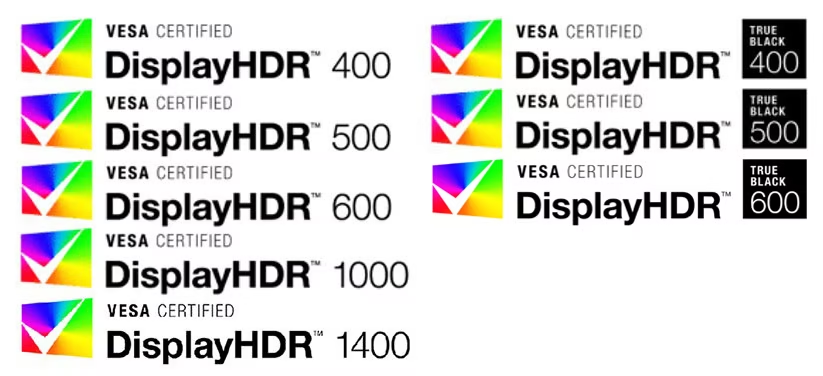
| Certification | Peak Brightness | Typical Panel Tier | Real HDR Experience |
|---|---|---|---|
| DisplayHDR 400 | 400 nits | Entry-level IPS/VA | Minimal improvement |
| DisplayHDR 500 | 500 nits | Good IPS/OLED | Slightly better highlights |
| DisplayHDR 600 | 600 nits | Good IPS/OLED | Decent bright highlights |
| DisplayHDR 1000 | 1000 nits | High-end IPS/OLED | Punchy, visible HDR |
| DisplayHDR 1400 | 1400 nits | Premium IPS | Strong highlight impact |
| True Black 400/500/600 | 400-600 nits | OLED/MicroLED | Perfect blacks with bright highlights |
The big takeaway is that DisplayHDR 400 (the most common "HDR" badge) often produces a smaller improvement than audiences expect, because it only guarantees a minimum sustained white and does not require local dimming. VESA data confirms that 400-nit panels lack the dynamic range to display highlights convincingly, so what you get is more like a simulated tone-mapping pass. When reviews complain that "HDR on this monitor looks bad," they are usually looking at a DisplayHDR 400-tier product with no dimming.
A handy rule of thumb I use in my research: if a curved G-Sync or FreeSync monitor under $400 says "HDR" but does not show a DisplayHDR 600/1000 or True Black badge, it is almost certainly a cosmetic label. If you are comparing monitors, the table above is a good place to start, but "HDR" is only part of the picture.
If you are deciding which tier matters for your setup:
- 400-500 nits / DisplayHDR 400/500: acceptable for casual HDR gaming in rooms with some ambient light; do not expect dramatic highlights.
- 600-1000 nits / DisplayHDR 600-1000: suitable for methodical, atmospheric games in dim rooms where specular highlights in light sources, fire, or sun glare start to look convincing.
- True Black tiers / OLED: excellent for movies, horror, and any scene with lots of dark content, because per-pixel dimming keeps deep blacks while still lighting small bright objects.
How to Check if Your Current Monitor Can Do Real HDR
Deciding whether your monitor (curved or flat) can deliver real HDR capability involves a few straightforward tests. Many people buy a monitor with an HDR label only to find their operating system disables HDR by default or that the panel cannot sustain the brightness the source expects. The most reliable way to check is to confirm several technical specifications and toggle the right system settings.
Here is a practical checklist to go through:
- Look up your monitor's official spec sheet on the manufacturer's page. Search for the exact model number and scroll to the HDR section. , Check: peak brightness in nits (sustained, not peak marketing number).
, Check: HDR standard listed (DisplayHDR 400, 600, 1000, True Black, or plain "HDR10").
, Check: mention of FALD (full array local dimming) or per-pixel dimming if it is an OLED.
- Verify the port and cable standard your display is connected with HDMI 2.0/2.1 or DisplayPort 1.4a/2.0. HDR metadata requires sufficient bandwidth. , For consoles, HDMI 2.1 is ideal for 4K 120 Hz HDR.
, For PC, DisplayPort 1.4 with DSC or DisplayPort 2.0 is standard for high-refresh HDR.
- Turn on HDR in your OS: , Windows: Settings > Display > HDR, toggle "Use HDR".
, Console: follow the system's HDR calibration screens; PS5, for example, has a built-in HDR calibration app.
, Mac: Displays > High Dynamic Range (if supported).
- Load an HDR test pattern or game with HDR enabled and look for three behaviors: , Bright areas like sky or light sources should look genuinely brighter than the rest of the image.
, Dark areas should remain detailed but visibly deeper, ideally without bloom or halos.
, Color saturation should increase slightly without clipping major tones.
If you cannot find the model's spec sheet or the OS refuses to enable HDR, the panel is probably not the right tool for HDR entertainment. These four steps take only a couple of minutes, but they tell you 90 percent of what you need before reading.
Decision Time: When a Curved Gaming Monitor Makes Sense for HDR
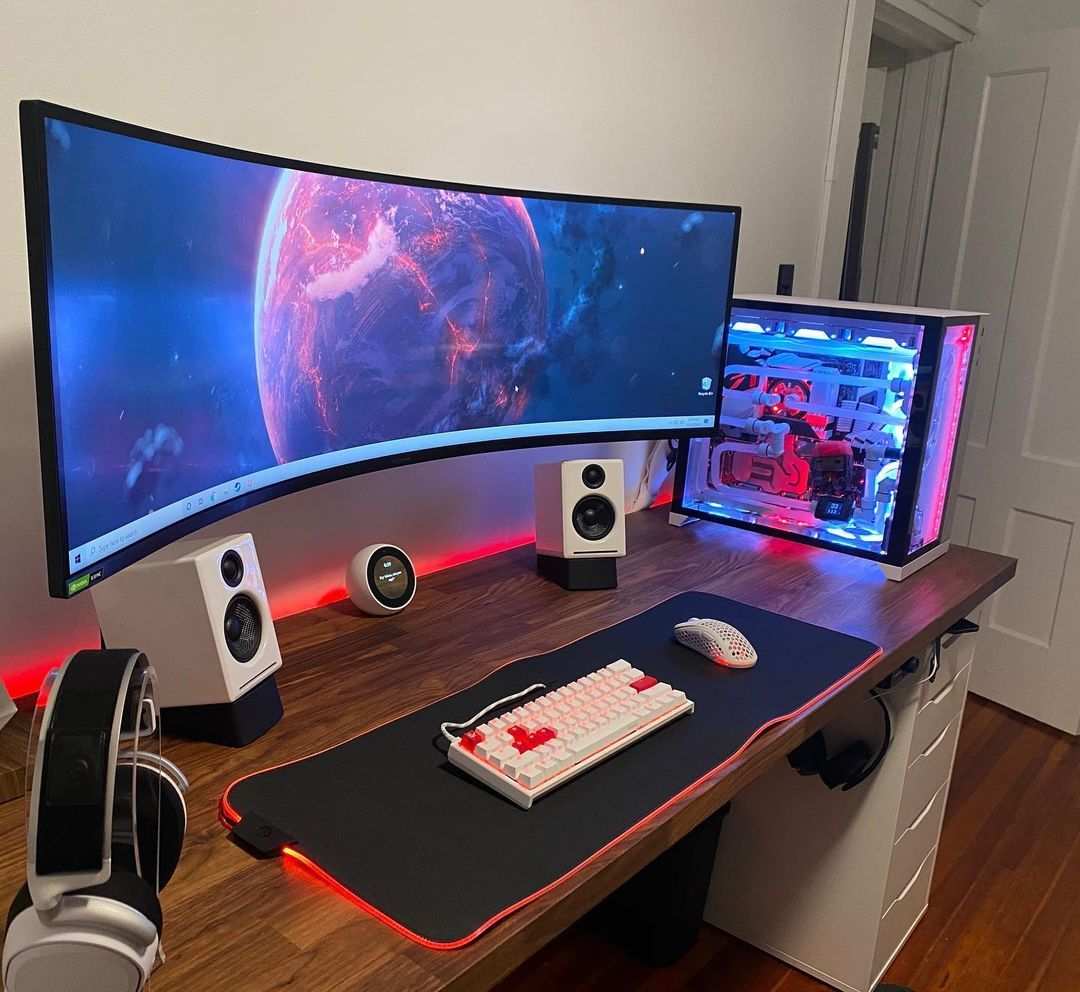
A curved monitor's geometry alone does not upgrade HDR rendering but it can enhance immersion and how reflections hit your face, especially on ultrawide sizes. In aggregated professional reviews, users frequently rate 34-inch and larger curved ultrawides as "more enveloping" in first-person games than flat equivalents, even with equivalent brightness. That subjective sense of depth is where the curve and HDR intersect.
Deep blacks and bright highlights are sampled across a wider field of view, making games and movies feel more three-dimensional when you are seated in the sweet spot.
Choose a curved HDR monitor in these scenarios:
- You play RPGs, open-world, or narrative games in a dim or dark room, where enhanced blacks and highlights add atmosphere.
- You watch movies on your PC/console using HDR streaming from high-quality releases; the combination of contrast and field of view works well here.
- You already have a VA panel with high static contrast and you are moving up to a better HDR-capable generation (early adopter models show meaningful improvement in highlight rendering).
Delay the upgrade or pick flat instead if:
- You play competitive titles (CS2, Valorant, Fortnite) with graphics dialed low for maximum frame rate; focus on 240Hz+, 1ms GtG, and input lag.
- Your workspace is brightly lit with glossy ambient reflections; a curved screen can worsen the distraction factor, pulling you out of dark HDR scenes.
- Budget is tight; you can almost always find a cheaper flat panel with identical panel tier and consistently higher brightness per dollar.
Based on reviews of ultrawide curved monitors, immersion ratings improved noticeably with DisplayHDR 600 or better, below that threshold most users reported minimal perceived improvement. If your goal is genuinely cinematic HDR on a curved screen, choose DisplayHDR 600+ or OLED; if your goal is pure competitive speed, prioritize refresh and response, even if that means staying in SDR.
Curved HDR Winners: Monitors You Can Trust Right Now
Several curved gaming monitors have earned strong marks in professional reviews for combining real HDR performance with an immersive form factor. The best advice here is not to chase a single brand but to use your budget and use case to narrow the list of panels worth considering.
Samsung Odyssey OLED G8 (SD8)
Samsung's 34-inch ultrawide G8 curves at 1800R and ships with a glare-reducing QD-OLED panel that hits roughly 1,000 nits of peak brightness on windowed content. Reviews from TFTCentral and RTINGS confirm true blacks with a measured contrast ratio that nears infinity. Specs list DisplayHDR True Black 400 certification, a 0.001 ms response time, and 175Hz refresh.
If you want curved and HDR without sacrificing speed, this panel dominates its class.
LG 34GS95QE-B
LG's 34-inch WOLED ultrawide pushes to 240Hz and delivers around 1,300 nits of peak HDR brightness. Reviews note that staying in Game Optimizer mode, specifically the Game (HDR) picture preset, keeps tone mapping closer to intent without crushing highlights. It is not the cheapest option at roughly $1,100 street price, but its performance ceiling with HDR movies and PC gaming is closer to TV-grade than most PC monitors.
Dell Alienware AW3423DWF (QD-OLED)
The 34-inch Alienware uses a Samsung QD-OLED panel that hits True Black 400 tiers and sustains excellent black uniformity. Reviews in PCMag and DisplayNinja report that bloom and haloing are essentially nonexistent, which keeps HDR dark scenes clean. A recent firmware update extended Gaming HDR 1000 mode to 40Hz and up, which helps brightness read convincingly in-game without sacrificing refresh rate too severely.
ASUS ROG Swift PG49WCD (Super Ultrawide Budget Option)
If you are after maximum immersion, the 49-inch ASUS PG49WCD uses a VA panel with a 1800R curve. Its 32-zone FALD system pairs with DisplayHDR 1000 certification, which is a major jump over basic "HDR Ready" badges. VA caveats such as black smear are present, but for users who primarily game at sit-down distances and value brightness, it earns strong recommendation in reviews from Tom's Hardware.
Xiaomi Mi Curved 34 (Budget VA HDR)
The Xiaomi 34-inch 144Hz panel measures roughly 350-400 nits peak brightness, which positions it closer to borderline HDR than premium tiers. Review consensus at PCMag's sibling communities and DisplayNinja's analysis admits it is not a punchy HDR experience, but for the price it delivers acceptable dark-scene quality for users who want the curve and a taste of enhanced contrast without spending big.
A practical way to narrow the choices is to make a short priority list:
- Best OLED curved HDR overall: Samsung Odyssey OLED G8 or LG 34GS95QE.
- Best VA curved HDR with FALD: ASUS PG49WCD.
- Best value curved HDR entry: Xiaomi 34.
Mistakes That Kill Your Curved HDR Experience
Several recurring issues drag down curved HDR setups. Knowing these saves users time and money, because no amount of settings will rescue a weak panel or a bad environment.
Forgetting to enable HDR at both the OS and monitor level is the most common mistake. The monitor may say it supports HDR, but if your Windows toggle or console setting stays off, the image is still SDR. Many users flake out and think the upgrade did nothing.
The solution involves verifying the chain: cable, port, OS setting, and in-monitor picture mode all have to align.
Buying a curved monitor based on "HDR Ready" without checking the VESA DisplayHDR tier . A $320 34-inch ultrawide may have a glossy coating and a VA panel, but with peak brightness barely above 300 nits, it cannot display meaningful HDR highlights. The fix: check DisplayHDR certification before purchase, aiming for 600+ or True Black tiers.
Ignoring panel tier and price efficiency. A VA panel like those common on lower-priced curved ultrawides naturally holds a high static contrast ratio (3000:1 is common), but introduces black smearing in fast transitions. In professional reviews, users who play competitive shooters with an HDR mode enabled frequently note dragging black shadows that feel worse than on a TN panel with no HDR.
If esports is the priority, selecting a 1ms IPS or high-refresh OLED is a better call.
Local dimming is another mixed bag. On budget curved models, a basic 16-zone edge-lit local dimming can make bloom around bright objects more distracting than no dimming at all. Reviews from RTINGS and TFTCentral show that robust FALD or OLED per-pixel dimming solves the problem, but edge-lit solutions under 32 zones rarely improve real-world performance.
Finally, environmental factors play an outsized role on curved screens. A curved screen more aggressively reflects ceiling lights and windows around the curve perimeter. If you play in a bright room, the deep blacks HDR wants to show get washed out.
The best defensive move is bias lighting (a warm LED strip behind the monitor) and reducing overhead glare.
How to Set Up and Optimize a Curved Gaming Monitor for HDR
Setup is straightforward but requires several steps in the right order. Skipping one often causes the entire HDR pipeline to underperform.
Pick the right port and cable. HDR10 over HDMI requires HDMI 2.0 or newer; over DisplayPort, aim for DP 1.4 or higher. Cheap cables that claim the standard but lack board certification can cause handshake failures. Avoid passive adapters between DP and HDR since many strip out HDR metadata.
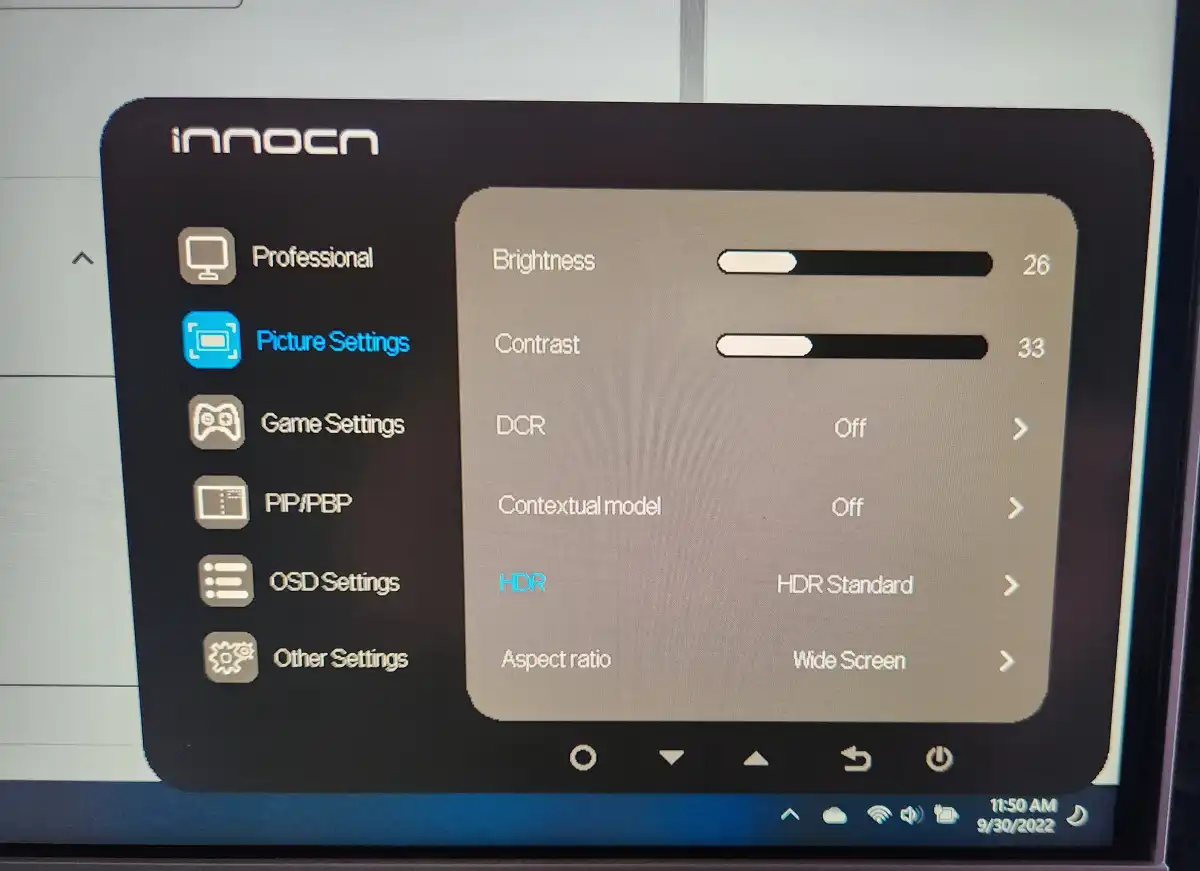
Set the monitor to HDR mode. On VA panels, the on-screen display typically has an "HDR" or "HDR Standard" picture mode. On OLED dedicated Game HDR modes handle tone mapping better. Switch to this picture mode first, even before touching the OS.
Enable HDR at the OS level. On Windows, go to Settings > Display > HDR and turn on "Use HDR". On PS5, run the HDR calibration app and follow the three-step screen. Xbox Series X has its own "Calibrate HDR for games" tool.
Fine-tune brightness. With peak brightness tethered to a lower tier, the monitor's HDR presentation can appear dim. Adjust the output within the OS's HDR brightness slider (on Windows 11), locking the black level around the threshold where shadow detail is visible, then backing off one notch to avoid crushed blacks.
Validate with test patterns. Run a 4K HDR sample clip from Netflix or YouTube and toggle HDR on and off. If bright white areas look strikingly brighter in HDR mode, the chain is working. If shadows look milky, revisit Black Equalizer or gamma settings and dial them down. If highlights look blown out, lower the in-game or player HDR brightness slider. A well-configured HDR setup should look brighter than SDR, not washed out.
FAQs: Curved Panels, Consoles, TVs, and the Truth About HDR
Does the curve affect image quality?
The curve slightly alters perceived viewing geometry, but does not degrade sharpness or resolution. Most curved gaming screens at R1500-R1800 curvature show no visible color shift or smear when seated centered. Some minor distortion of straight lines occurs at extreme viewing angles, but in typical gaming distance this is invisible to most people.
Can I use a curved gaming monitor with a PS5 or Xbox Series X?
Yes. The only stipulations are: the monitor must have HDMI 2.0/2.1 input that supports HDR10, and the resolution/refresh rate combination must PS5 or Xbox ratified. Curved ultrawides at 3440×1440 often cap at 120Hz with HDR over HDMI 2.0, which is plenty for story games.
Console users should watch for "4K over HDMI" support, as not all 1440p-class panels implement the same HDMI timing strictness as TVs.
Are VA panels good for HDR gaming?
VA panels offer high native contrast (3000:1 vs. 1000:1 for IPS), which is a genuine asset for dark HDR scenes. The major weakness is black smear and slower GtG transitions compared to OLED or fast IPS. For users who care more about cinematic depth than competitive speed, VA is a strong choice at mid-range price.
Should I buy a TV instead of a curved HDR monitor?
A TV with HDMI 2.1 and DisplayHDR 1000/True Black will often outperform a monitor in peak brightness and contrast for HDR media. TVs sit further back, so immersion is harder to match at a desk. A curved monitor gives you a sit-down, desk-level alternative to a TV, keeping eyes closer to the action while still providing HDR highlights.
Users who want dual-purpose media purchase may prefer a TV, but for PC gaming in a desk setup, a curved monitor has size and positional advantages that are hard to replicate.
Does HDR increase input lag on curved monitors?
On well-designed panels, HDR mode adds a modest 1-4 ms of processing overhead. In review suites where input lag is measured, this is often within the margin of error. On low-cost models with cheaper scalers, reviewers sometimes see a more noticeable increase.
The safe approach is to check professional reviews for input lag numbers in the specific mode you plan to use.
Final Call: My Honest Verdict on Curved HDR
Curved gaming monitors do support HDR, and in 2026 some of the best HDR experiences in PCs are found on curved ultrawides, particularly OLED and VA options with solid certifications. The critical split is choosing the right tier for your use case and room environment.
For immersive single-player and movie HDR on a desk, a quality curved OLED or high-contrast VA panel at DisplayHDR 600+ or True Black tiers is a superb choice. Samsung's Odyssey OLED G8 and LG's 34GS95QE stand out as my headliners for who wants no-compromise curved HDR. For PvP and high-refresh esports, prioritizing 240Hz+ speed over HDR usually frames the better play, whether flat or curved.
Avoid displays with only "HDR Ready" or DisplayHDR 400 labels if vivid HDR is what you are after. Spend roughly $600-900 for a curved monitor with DisplayHDR 600+ or True Black, or roughly $1,000+ for the best OLED panels. Sticking to that range keeps you in the territory of genuine HDR improvement with minimal compromise.
Frequently Asked Questions
Do curved gaming monitors support HDR?
Yes, many curved gaming monitors support HDR, but the quality varies hugely between models. A "curved" design does not affect HDR capability; what matters is the panel tier, peak brightness, and whether the monitor carries a proper VESA DisplayHDR certification. Budget models often accept HDR signals without delivering real brightness or contrast improvements.
What HDR standard should I look for?
For a noticeable HDR experience, aim for DisplayHDR 600 or higher, or True Black 400/500/600 if you are shopping for OLED. DisplayHDR 400 is the minimum label but usually does not deliver meaningful highlight impact. Higher tiers guarantee higher peak brightness and better local dimming, both of which translate directly into visible HDR performance.
Is a curved monitor good for dark HDR scenes?
It can be, especially if it uses a VA panel with high static contrast or an OLED panel with per-pixel dimming. VA curved ultrawides commonly reach 3000:1 static contrast, which makes dark scenes look deeper. OLED curved models go further with perfect blacks.
The curve adds immersion but does not directly alter how dark scenes are displayed.
Is OLED the best panel type for curved HDR?
OLED currently offers the best HDR experience on curved monitors due to infinite contrast, per-pixel dimming, and fast response times. QD-OLED and WOLED panels from Samsung Display and LG Display dominate reviews for HDR accuracy. VA panels offer solid HDR at lower prices, but black smear and slower transitions are trade-offs to weigh.
Why does HDR look washed out on my curved monitor?
Washed-out HDR usually stems from one of three causes: low peak brightness (common on DisplayHDR 400 panels), improper OS or monitor HDR toggle settings, or aggressive tone mapping. First, verify your HDR chain is fully enabled and then test an HDR sample clip. If the issue persists on a low-brightness panel, consider upgrading to a higher DisplayHDR tier.
Can I game at 144Hz or 240Hz with HDR enabled?
Yes, many curved OLED monitors and high-refresh VA/IPS panels support HDR at 144Hz, 240Hz, or higher, provided you use the correct cable and port. Samsung's Odyssey OLED G8 runs HDR at 175Hz, and LG's 34GS95QE supports HDR at 240Hz over HDMI or DisplayPort. Always check the manufacturer's spec sheet for exact combinations, since some panels limit refresh rate when HDR is active.

Similar Posts





















