Do 144Hz Monitors Support HDR
Do 144Hz monitors support HDR? Yes, they absolutely can. But here's the thing that trips most people up.
The "HDR" label on the box doesn't mean what you think it means. Plenty of 144Hz monitors technically accept an HDR signal and display it. The real question is whether they can actually show you what HDR is supposed to look like.
And for a lot of them, the honest answer is no.
The problem isn't that HDR and 144Hz are incompatible. They're not. The problem is that most monitors in this price range cut too many corners on the hardware side.
They'll take the HDR signal, sure. But without proper peak brightness, local dimming, and color depth, the image ends up looking flat or washed out. Sometimes it looks worse than just leaving HDR off entirely.
Let's break down what actually matters before you spend your money.
Quick Answer
Yes, 144Hz monitors can support HDR. Many models accept HDR10 signals and display them. However, most affordable 144Hz HDR monitors use DisplayHDR 400 certification.
This tier delivers a mediocre HDR experience at best. True HDR performance requires DisplayHDR 600 or higher with local dimming. As of 2026, excellent 144Hz HDR monitors exist but cost significantly more.
Why the HDR Label on a 144Hz Monitor Can Be Misleading
Here's where most buyers get burned. A manufacturer slaps "HDR Compatible" or "HDR Ready" on the box. You assume that means the monitor can actually do HDR well.
It doesn't. In most cases at the 144Hz price point, it just means the monitor accepts an HDR signal without throwing an error.
That's a big difference.
A monitor that merely "supports" HDR can receive the signal and map it to the screen. But if the panel only hits 250 to 300 nits of brightness and has no local dimming, you're not getting the expanded contrast range that makes HDR look like HDR. You're getting a compressed, muddy version of what the content creator intended.
This is exactly why VESA created the DisplayHDR certification system. Before that, every monitor manufacturer defined "HDR" however they wanted. The certification at least gives us a common baseline to compare against.
But even within DisplayHDR, the tiers vary wildly. And the lowest tier, DisplayHDR 400, is where most 144Hz monitors sit.
So when someone asks whether 144Hz monitors support HDR, the technically correct answer is yes. The practically useful answer is: it depends entirely on which monitor you're looking at and what tier of HDR it actually delivers.
How HDR and High Refresh Rate Actually Work Together
HDR and high refresh rate aren't competing technologies. They address completely different aspects of image quality. Refresh rate controls how many times per second the image updates.
HDR controls the range between the darkest blacks and the brightest whites in each individual frame.
You can absolutely have both. The challenge is that delivering a good HDR experience requires additional hardware. You need brighter backlights, better contrast handling, and often local dimming zones.
All of that adds cost. And in the 144Hz market, where buyers are already price-sensitive, manufacturers tend to prioritize the refresh rate spec over the HDR hardware.
Bandwidth: The Hidden Bottleneck Between Resolution, Refresh, and HDR
Here's something most people don't think about until they're troubleshooting a black screen. Sending a high-resolution, high-refresh, HDR signal requires a lot of bandwidth. And your cable and port combination might not be able to handle it.
Let's look at the numbers.
| Connection | Max Bandwidth | 1440p 144Hz HDR? | 4K 144Hz HDR? |
|---|---|---|---|
| HDMI 2.0 | 18 Gbps | Yes (with compression) | No (capped at 60Hz) |
| HDMI 2.1 | 48 Gbps | Yes | Yes (up to 120Hz) |
| DisplayPort 1.4 | 32.4 Gbps | Yes | Yes (with DSC) |
| DisplayPort 2.0 | 77.3 Gbps | Yes | Yes (uncompressed) |
If you're connecting a PS5 or Xbox Series X, you need HDMI 2.1 for 4K at high refresh with HDR. If you're on PC, DisplayPort 1.4 with DSC (Display Stream Compression) handles 4K 144Hz HDR just fine. But if you're using an older cable or the wrong port, you might get the resolution and refresh rate but lose HDR.
Or get HDR but lose the refresh rate. It's a negotiation between your GPU, cable, and monitor, and the weakest link wins.
Panel Technology: Why Your IPS HDR400 Looks Washed Out
The panel type matters a lot for HDR. And this is where most budget 144Hz monitors fall short.
IPS panels are popular at 144Hz because they offer good color accuracy and decent response times. But traditional IPS panels have relatively poor native contrast ratios. We're talking 1000:1 or even 800:1.
That means blacks look grayish even in SDR. When you add HDR into the mix, the lack of contrast becomes even more obvious. The monitor is trying to show bright highlights and deep shadows on the same screen, but the blacks can't get dark enough to create that sense of depth.
VA panels have better contrast, often 3000:1 or higher. They do better with HDR content. But they tend to have slower pixel response times, which can introduce smearing at high refresh rates.
It's a tradeoff.
OLED is the gold standard for HDR because each pixel produces its own light and can turn off completely for true black. But OLED gaming monitors at 144Hz are still relatively new and expensive as of 2026. They're getting more common, but you're paying a premium.
Local Dimming: The Single Biggest Factor Nobody Talks About
If there's one spec that separates real HDR from fake HDR, it's local dimming. This is the ability of the monitor to control brightness in different zones of the screen independently. When a scene has a bright object against a dark background, local dimming lets the monitor brighten the object while keeping the surrounding area dark.
Without local dimming, the entire backlight is either on or off at a uniform level. So if you're watching a scene with stars in a night sky, the whole screen has to be bright enough to show the stars. Which means the dark sky around them isn't actually dark anymore.
It's gray. And that's exactly what makes cheap HDR look washed out.
Most 144Hz monitors with DisplayHDR 400 don't have local dimming at all. Some DisplayHDR 600 monitors have basic edge-lit local dimming with a handful of zones. DisplayHDR 1000 and above typically have full-array local dimming with dozens or hundreds of zones.
The more zones, the better the HDR performance.
DisplayHDR Tiers Explained: What Each Level Actually Delivers
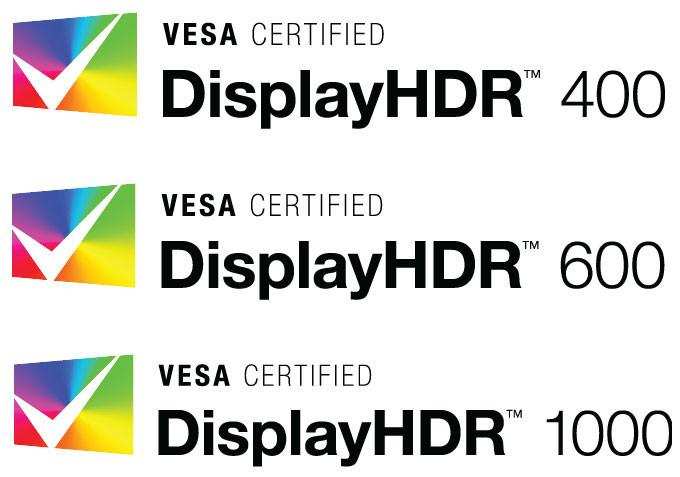
VESA's DisplayHDR certification gives us a standardized way to compare HDR capability across monitors. But the tiers are broad, and the marketing around them can be confusing. Let's walk through each one and what it actually means for your experience.
DisplayHDR 400: The Marketing Trap
DisplayHDR 400 is the most common certification you'll see on 144Hz monitors. And it's the one that causes the most disappointment.
Here's what it requires: 400 nits peak brightness, 8-bit color depth, 95% sRGB coverage, and a global dimming backlight. That last part is the killer. Global dimming means the entire screen brightens or dims as one unit.
There's no local dimming.
In practice, a DisplayHDR 400 monitor can get bright enough to show HDR highlights. But without local dimming, the contrast improvement over SDR is minimal. Many reviewers have noted that DisplayHDR 400 often looks identical to or slightly worse than a good SDR display.
The HDR mode can actually introduce washed-out colors because the tone mapping isn't sophisticated enough to compensate for the hardware limitations.
If you see a 144Hz monitor advertising "HDR" without specifying a DisplayHDR tier, assume it's HDR400 or equivalent. That's the baseline. And the baseline isn't great.
DisplayHDR 600: The Minimum for "Real" HDR
DisplayHDR 600 is where things start to get genuinely better. This tier requires 600 nits peak brightness, at least 10-bit color processing (or 8-bit with FRC), and some form of local dimming. The local dimming requirement is the key differentiator.
A DisplayHDR 600 monitor won't match the performance of a DisplayHDR 1000 unit. The dimming zones are fewer and less precise. But you will notice a real difference in HDR content.
Highlights pop more. Shadows have more depth. The image has a sense of dimensionality that HDR400 simply can't deliver.
For 144Hz gaming, DisplayHDR 600 is the tier where HDR starts to feel worth enabling. You're still not getting reference-quality HDR, but you're getting a noticeable improvement over SDR in supported content.
DisplayHDR 1000 and 1400: Where HDR Actually Starts to Matter
DisplayHDR 1000 requires 1000 nits peak brightness, at least 32 local dimming zones, and true 10-bit color depth. This is where HDR on a monitor starts to rival what you'd see on a good HDR television.
At this tier, specular highlights like sunlight reflecting off metal or explosions in a game genuinely look bright. Not just "brighter than the rest of the screen" but perceptibly punchy in a way that adds to the experience. The local dimming is good enough that you won't see severe haloing around bright objects in most content.
DisplayHDR 1400 pushes even further with 1400 nits peak brightness and stricter requirements on dimming zone count and response. This is enthusiast-level territory. Monitors at this tier tend to use Mini-LED backlighting with hundreds of zones.
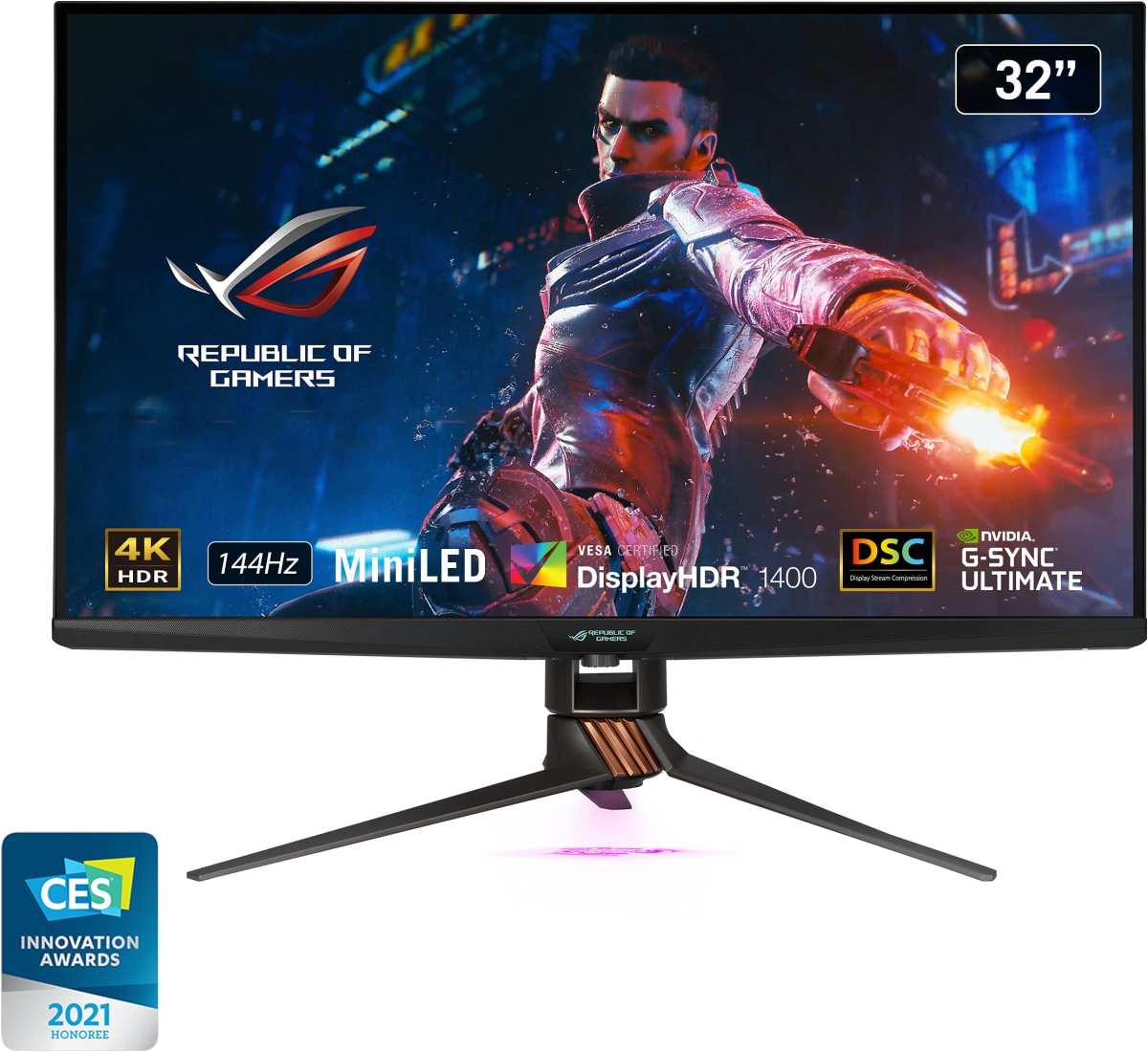
The catch? 144Hz monitors at DisplayHDR 1000 and above are expensive. As of 2026, you're typically looking at $600 to $1,200 or more depending on size and resolution. The ASUS ROG Swift PG32UQX, Acer Predator X32, and similar models sit in this range.
They're excellent displays, but they're a significant investment.
144Hz HDR Monitors vs. Other Options: What You're Really Choosing
When you're shopping for a 144Hz HDR monitor, you're not just choosing whether to get HDR. You're choosing between several different configurations, each with real tradeoffs. Let's look at the most common comparisons.
144Hz HDR Monitor vs. 240Hz SDR Monitor
If you play competitive shooters like Valorant, CS2, or Apex Legends at a high level, you probably care more about refresh rate than HDR. A 240Hz SDR monitor will give you smoother motion clarity and potentially lower input lag. For competitive play, that matters more than HDR visuals.
But if you split your time between competitive games and story-driven AAA titles, a 144Hz HDR monitor gives you a better overall experience. The 144Hz refresh rate is still excellent for most gaming. And when you fire up something like Cyberpunk 2077 or Alan Wake 2 with HDR, the visual improvement is dramatic compared to SDR.
The practical advice here: if 80% or more of your gaming is competitive multiplayer, go 240Hz SDR. If you play a mix, the 144Hz HDR route gives you more versatility.
144Hz HDR Monitor vs. 60Hz HDR TV
A 60Hz HDR TV, especially an OLED like the LG C4 or G4, will give you a far better HDR experience than any LCD gaming monitor under $1,500. The per-pixel dimming on OLED means perfect blacks and essentially infinite contrast. HDR content looks stunning.
But you're locked at 60Hz. For PC gaming and fast-paced console games, that's a hard ceiling. Some TVs now support 120Hz, which is better, but 144Hz at the monitor form factor is still the preference for most PC gamers.
If you're primarily a console gamer playing single-player titles and you don't need high refresh rates, a good HDR TV is arguably the better HDR experience. If you're on PC or play fast-paced games, the 144Hz monitor wins despite the HDR compromise.
144Hz HDR at 1080p vs. 1440p vs. 4K
Resolution affects the HDR experience more than you might think. At 1080p, HDR is easier to drive at 144Hz because there are fewer pixels to push. You can get 1080p 1440Hz HDR on a mid-range GPU without issue.
But at 1080p, the pixel density on a 27-inch monitor is low enough that HDR's improved color and contrast don't look as sharp or detailed.
1440p at 144Hz with HDR is the current sweet spot for most gamers. The resolution is sharp enough to appreciate the extra color volume and contrast that HDR provides. And modern GPUs like the RTX 4070 and RX 7800 XT can handle 1440p 144Hz in most titles, though you might need to tweak settings in demanding games.
4K at 144Hz with HDR is the premium option. It requires a high-end GPU and often DisplayPort 1.4 with DSC or HDMI 2.1. The visual fidelity is outstanding, but the hardware cost is significant.
If you're already spending $1,000+ on a GPU, a 4K 144Hz HDR monitor makes sense. Otherwise, 1440p is the more practical choice.
Who Should Actually Buy a 144Hz HDR Monitor
Not everyone needs HDR at 144Hz. The hardware requirements and price premium mean this combination only makes sense for specific use cases. Let's figure out where you fall.
Competitive Gamers Who Also Play AAA Titles
If you split your time between ranked multiplayer matches and visually rich single-player games, a 144Hz HDR monitor serves both needs well. You get the smooth motion clarity for competitive play and the enhanced visuals for those atmospheric narrative experiences.
A DisplayHDR 600 or higher monitor with a 144Hz refresh rate would be ideal here. These typically start around $400-$600 as of 2026. The Dell S2722DGM and LG 27GP850 are popular options in this range, though exact HDR capability varies by model and firmware version.
Console Gamers on PS5 or Xbox Series X
Both current-gen consoles support HDR output. The PS5 and Xbox Series X can send HDR signals at up to 120Hz when connected via HDMI 2.1. If you're using a monitor for console gaming and want the best visual experience, a 144Hz HDR-capable display is a solid choice.
The key here is making sure your monitor has HDMI 2.1. The LG 27GP950 and ASUS ROG Strix XG27ACS support the necessary bandwidth for full HDR at high refresh rates from consoles. Without HDMI 2.1, you'll be limited in what combinations of resolution, refresh rate, and HDR you can achieve.
Content Creators Who Game on the Side
If you work in photo editing, video production, or color grading and also game, a 144Hz HDR monitor can pull double duty. The wider color gamut and higher peak brightness useful for HDR content review translate well to gaming.
Look for monitors with true 10-bit color depth and at least 95% DCI-P3 coverage. The ASUS ProArt series and BenQ PD line offer creator-focused models with both good refresh rates and genuine HDR capability. Premium pricing applies for this tier, with QC and hardware calibration driving up cost.
People Who Should Skip It Entirely
If you only play esports titles and care solely about competitive performance, a 240Hz or 360Hz SDR monitor gives you a measurable edge in motion clarity and input latency. HDR hardware adds cost without benefiting your gameplay.
Similarly, if you're on a tight budget and choosing between a 144Hz HDR monitor and a better 144Hz SDR monitor at the same price, take the better SDR panel. The HDR implementation at lower price points rarely justifies the compromises made in panel quality, contrast, or color accuracy to get there.
How to Set Up HDR on a 144Hz Monitor Without Ruining Your Experience
Getting HDR working properly requires more than just flipping a switch. A few key settings determine whether HDR looks spectacular or terrible. Here's the setup sequence that works.
Windows HDR Settings You Need to Get Right
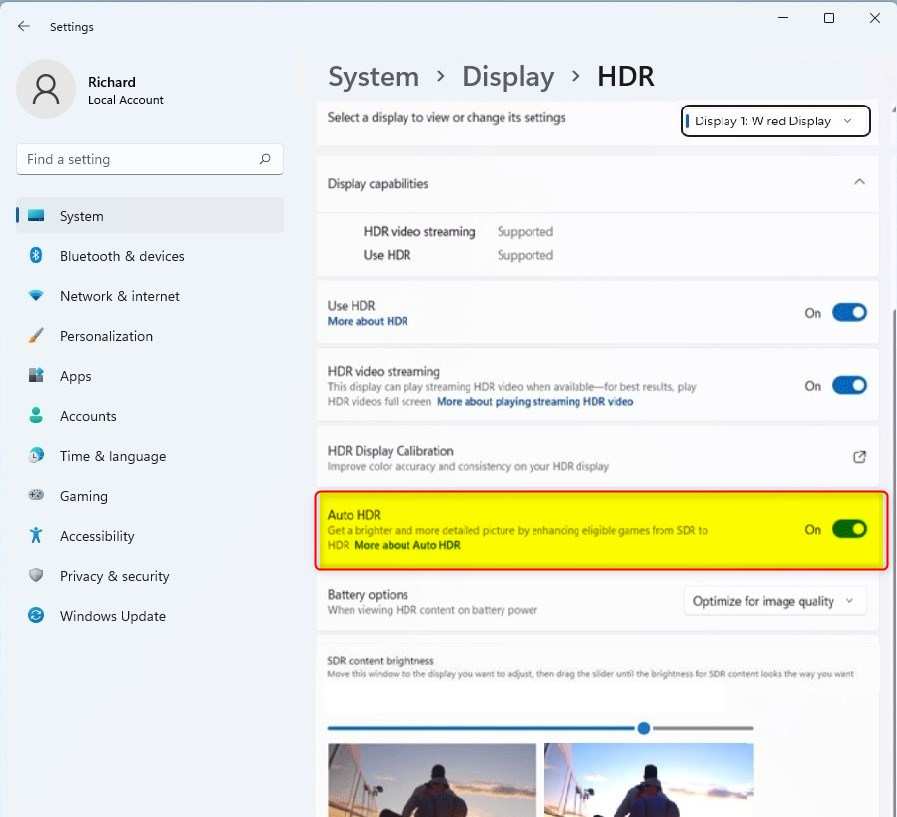
Open Settings, then System, then Display. Find the HDR toggle and switch it on. This seems simple, but there are a few nested settings that matter.
First, set the SDR content brightness slider to around 40-50. This controls how standard desktop elements, your browser, file explorer, and non-HDR applications appear when HDR mode is active. Too low and you'll struggle to read text.
Too high and HDR content won't have enough contrast range.
Second, check the "Use HDR" toggle specifically. Windows 11 also has an "Auto HDR" feature for games that don't natively support HDR. This attempts to extend the SDR color range into something resembling HDR.
Results vary dramatically from game to game. Some titles look noticeably better. Others look oversaturated and unnatural.
Toggle it per game and judge for yourself.
Third, run the Windows HDR Calibration app from the Microsoft Store. It walks you through setting the correct peak brightness, black point, and color saturation for your specific monitor. This takes five minutes and makes a visible difference.
Console HDR Setup (PS5 and Xbox Series X)
On PS5, go to Settings, then Screen and Video, then Video Output. Set HDR to "On When Supported." The PS5 will automatically negotiate the best available HDMI signal with your monitor.
The PS5 has a built-in HDR calibration screen in its system settings. Follow it carefully. It sets the correct black level and peak brightness threshold for your display.
If you skip this step, HDR games will look washed out or too dark.
Xbox Series X handles things similarly. Go to Settings, then General, then TV and Display Options, then Video Modes. Enable HDR and run the Xbox calibration tool.
The Xbox calibration is slightly more detailed than the PS5's, with separate adjustments for HDR10 and Dolby Vision if your display supports it.
Both consoles require HDMI 2.1 for HDR at refresh rates above 60Hz. Confirm your cable and port support the full bandwidth before troubleshooting display issues.
Cable and Port Checks Most People Miss
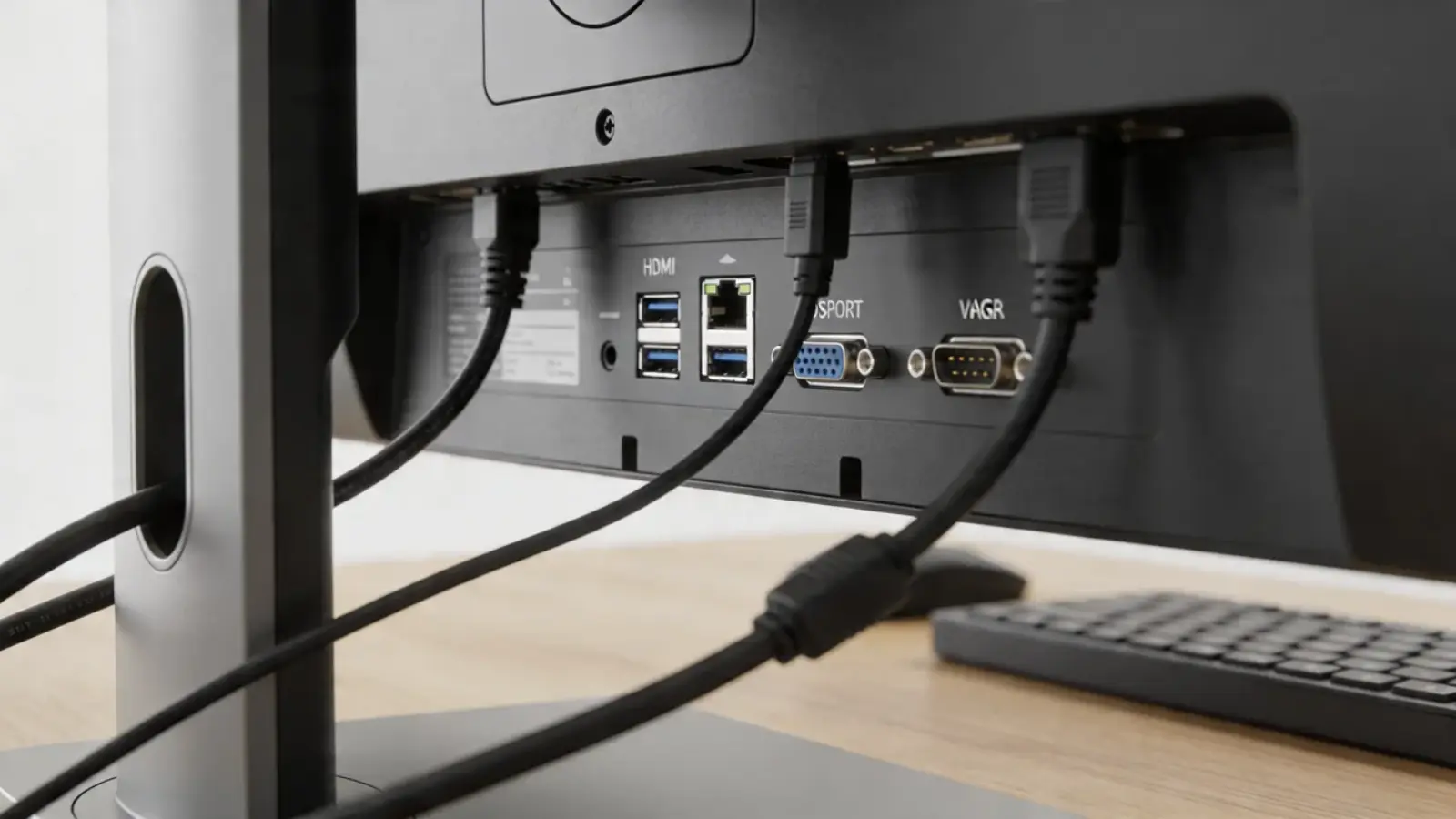
This trips up more buyers than any other setup issue. Not all ports on your GPU support the same bandwidth.not all HDMI cables are rated for the same data rate.
Check your GPU manual to confirm which ports support HDMI 2.1 or DisplayPort 1.4 with DSC. Many GPUs mix port types, and the port closest to the motherboard isn't always the best one.
For cables, look for "Ultra High Speed HDMI" certification for HDMI 2.1. For DisplayPort, cables rated for DisplayPort 1.4 HBR3 (High Bit Rate 3) support the necessary bandwidth. Using an older cable can result in fallback to lower refresh rates, reduced color subsampling, or loss of HDR entirely.
Common Mistakes People Make With 144Hz HDR Monitors
Even when the hardware is capable, setup errors can make HDR look worse than SDR. These are the most frequent mistakes we see in user reports and forum troubleshooting threads.
Enabling HDR globally on Windows without per-game testing. Desktop applications don't benefit from HDR and often look worse with it enabled. If you're not actively playing an HDR game, toggle it off.
Using "HDR400" monitors expecting OLED-quality results. The gap between DisplayHDR 400 and DisplayHDR 1000 is massive. If your budget only reaches HDR400, you might be better off keeping HDR disabled and enjoying the SDR image quality.
Ignoring tone mapping settings in games. Most HDR games have their own internal HDR calibration screens. They let you set peak brightness, paper white level, and black point. If these don't match your monitor's actual capabilities, the image will look off. Adjust them to match your panel's rated specs.
Running HDMI 2.0 cables for HDR at high refresh rates. HDMI 2.0 can handle 1440p 144Hz with HDR only if chroma subsampling is applied, which reduces color resolution. For full-color HDR at high refresh, you need HDMI 2.1 or DisplayPort 1.4 with DSC.
Not updating monitor firmware. Several monitors have received firmware updates that improve HDR tone mapping, fix HDMI handshake issues, or unlock higher refresh rate HDR modes. Check the manufacturer's support page periodically.
Forgetting to set the refresh rate in Windows. After enabling HDR, Windows sometimes resets the refresh rate to 60Hz. Go to Display Settings, then Advanced Display Settings, and confirm your monitor is set to 144Hz (or its maximum). This catches more people than you'd expect.
Pricing Reality: What You Actually Pay for True HDR at 144Let's talk numbers. Because the price gap between fake HDR and real HDR at 144Hz is significant. And you should know what you're getting into.
| Tier | Typical Price Range (27") | What You Get |
|---|---|---|
| DisplayHDR 400 (144Hz) | $200-$350 | Basic HDR acceptance, poor real-world HDR |
| DisplayHDR 600 (144Hz) | $400-$600 | Noticeable HDR improvement, some local dimming |
| DisplayHDR 1000 (144Hz) | $600-$1,200 | Strong HDR with full-array local dimming |
| OLED 144Hz+ HDR | $800-$1,500+ | Perfect blacks, per-pixel HDR, premium pricing |
The jump from HDR400 to HDR600 is where most people notice the difference. You're paying roughly $150-$250 more for a meaningfully better HDR experience. For many buyers, that's the sweet spot.
DisplayHDR 1000 monitors deliver genuinely impressive HDR. But the price jump is steep. You're essentially paying for a premium display feature that most content still doesn't fully exploit.
If you primarily game in SDR and only occasionally view HDR content, the value proposition weakens.
OLED gaming monitors at 144Hz represent the best HDR experience available. The per-pixel dimming eliminates haloing entirely and delivers true blacks. The tradeoff is cost and the risk of burn-in with static HUD elements, though modern OLED panels have mitigation features that reduce this concern significantly.
Frequently Asked Questions
Can I use HDR and 144Hz at the same time?
Yes, on monitors that support both features simultaneously. The combination depends on your connection bandwidth. DisplayPort 1.4 with DSC or HDMI 2.1 handles 1440p 144Hz with HDR comfortably.
Older connections may force you to choose between high refresh rate and HDR.
Does HDR increase input lag on 144Hz monitors?
It can. Some monitors add 1-8ms of processing latency when HDR is active due to tone mapping. The exact impact varies by monitor model.
Competitive players who are sensitive to input lag should test this before committing to HDR gaming.
Is DisplayHDR 400 worth it for gaming?
For most people, no. DisplayHDR 400 lacks local dimming and the contrast improvement over SDR is minimal. If you're buying a monitor specifically for HDR, aim for DisplayHDR 600 at minimum.
If HDR is a secondary concern, a good SDR 144Hz monitor might serve you better at the same price.
Do I need HDMI 2.1 for HDR at 144Hz?
For console gaming at 4K with HDR above 60Hz, yes. For PC gaming at 1440p 144Hz with HDR, DisplayPort 1.4 with DSC works fine. HDMI 2.1 gives you more headroom and is necessary for uncompressed 4K 120Hz HDR signals.
Does Auto HDR on Windows work well?
Results vary significantly from game to game. Auto HDR extends the color range of SDR games into something resembling HDR. Some titles look noticeably better.
Others appear oversaturated or have incorrect shadow rendering. Test it per game and disable it for titles where the results look off.
Can I use HDR on a 1080p 144Hz monitor?
Technically yes, if the monitor supports HDR input. However, 1080p monitors with meaningful HDR capability are rare. Most 1080p HDR monitors are HDR400 tier at best.
The lower resolution also means you're less able to appreciate the fine detail that HDR's improved contrast and color volume provide.

Similar Posts





















