Is 144Hz Monitor Enough for Competitive Gaming
Is 144Hz monitor enough for competitive gaming? For most people stepping up from a standard 60Hz display, yes, it's a massive leap that you'll actually feel. But "enough" depends entirely on what games you play, what hardware you're running, and how serious you are about competitive performance.
A 144Hz refresh rate means your screen redraws 144 times per second, cutting frame delivery time to just 6.94ms compared to 16.67ms at 60Hz. That's a real, measurable reduction in input lag and motion blur. Whether it's the right ceiling for you though, that's where things get more nuanced.
Let's walk through it.
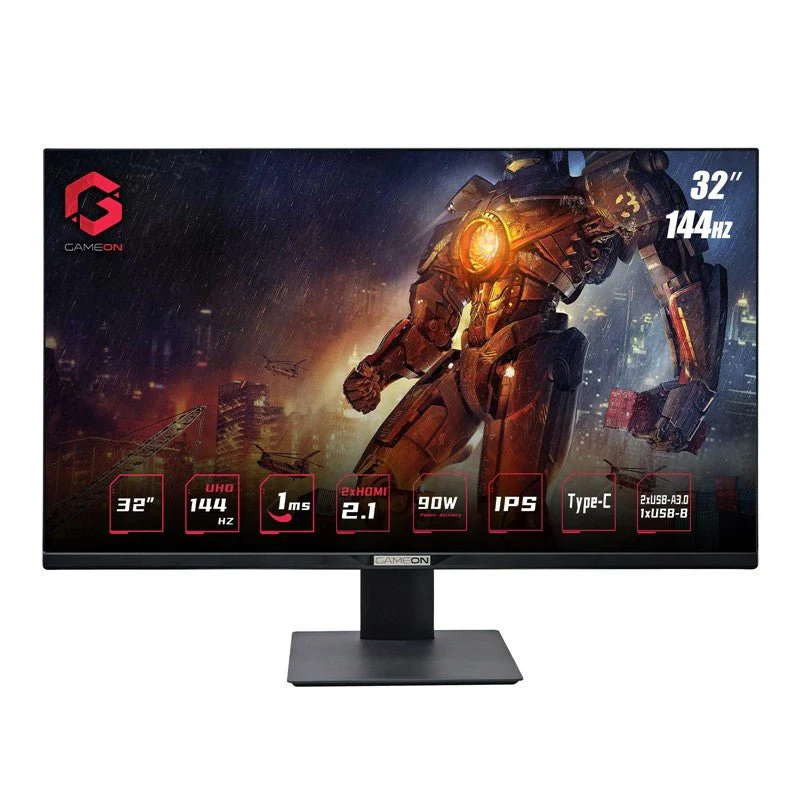
The Short Answer (And Why It's Complicated)
144Hz is enough for the majority of competitive gamers. It delivers a dramatically smoother experience over 60Hz at a price point that makes sense. Most players will not gain a meaningful advantage by jumping to 240Hz.
However, if you play fast-paced competitive titles and your GPU can push well beyond 144 frames per second, a higher refresh rate monitor will show you things 144Hz physically cannot display. The benefit is real but narrow.
Your answer depends on three things. What games you play. What your hardware can output.
What you're currently using.
What Actually Matters: The Variables That Change Your Answer
Before you decide whether 144Hz is your finish line or a stepping stone, you need to understand the variables that actually determine whether you'll benefit. Buying a 144Hz monitor and never enabling it, or pairing it with hardware that can't keep up, is a waste of money.
Your GPU and the FPS It Can Push
Here's the thing most refresh rate discussions skip. Your monitor can only display what your GPU sends it. If you buy a 144Hz panel but your graphics card tops out at 90 FPS in your game of choice at your target resolution, you're running a 144Hz monitor at 90Hz in practice.
For 1080p competitive gaming in titles like CS2, Valorant, or Apex Legends, a mid-range GPU like an NVIDIA RTX 4060 or AMD RX 7600 can often push 200 to 400+ FPS depending on settings. That's plenty of headroom for 144Hz. But step up to 1440p, and those frame rates drop significantly.
The same GPU might deliver 120 to 180 FPS in CS2 at 1440p with competitive settings, which is right on the edge.
At 4K, forget about it with mid-range hardware. You'd need a top-tier GPU like an RTX 4080 or RTX 4090 to approach 144+ FPS in competitive shooters at ultra settings. This is why resolution and refresh rate are deeply linked decisions, not separate ones.
The rule of thumb: Your GPU should consistently deliver at least 20% more FPS than your monitor's refresh rate. For a 144Hz monitor, that means you want your 1% low frame rates (the dips, not the averages) sitting above 144 FPS. Frame time consistency matters as much as peak numbers.
What Games You Play Changes Everything
Not all competitive games benefit equally from high refresh rates. The genre you main is probably the single biggest factor in whether 144Hz is enough for you.
Fast-paced competitive shooters (CS2, Valorant, Apex Legends, Overwatch 2, Call of Duty)
These are where high refresh rates matter most. Flick shots, tracking moving targets, and reacting to peeks all improve when you're seeing more frames per second. At the highest levels of play, many professionals have moved to 240Hz or 360Hz.
That doesn't mean you need it to be competitive, but it means 144Hz is a floor, not a ceiling, if you're serious about climbing.
Battle royales (Fortnite, Warzone, PUBG)
High refresh rates help here too, but these games are often more GPU-bound due to larger maps and more complex scenes. Many players find 144Hz perfectly adequate, especially if they're not playing at the absolute highest competitive level.
MOBAs (League of Legends, Dota 2)
144Hz is more than enough. These games don't demand the same twitch reflexes as FPS titles. The visual smoothness is nice, but you won't gain a meaningful competitive edge going beyond 144Hz.
A stable 144 FPS with good frame times will serve you well.
Fighting games (Street Fighter 6, Tekken 8)
Most fighting games are locked at 60 FPS by design. A 144Hz monitor won't give you more frames, though the faster pixel response time can reduce perceived input lag. In this case, response time matters more than refresh rate.
Racing games and sims
144Hz provides a noticeably smoother experience over 60Hz, but these genres benefit more from resolution, color accuracy, and ultrawide aspect ratios than raw refresh rate.
Resolution vs Refresh Rate: The Tradeoff Nobody Talk About
This is where a lot of buyers trip up. You generally have to choose between higher resolution and higher refresh rate, especially at the budget and mid-range price points.
A 1080p 144Hz monitor is the sweet spot for competitive gaming as of 2026. It's easier to drive at high frame rates, it's cheaper, and at 24 to 25 inches, the pixel density is perfectly fine for gaming. This is what most competitive players use, and it's what you'll find at tournaments.
A 1440p 144Hz monitor gives you sharper image quality and more screen real estate, but it demands significantly more GPU power. If your hardware can sustain 144+ FPS at 1440p in your games, this is an excellent choice. If it can't, you're paying for pixels you can't fully utilize.
A 4K 144Hz monitor exists, but it requires top-tier hardware and it's expensive. For purely competitive gaming, most players get more performance benefit from 1080p at 240Hz or higher than from 4K at 144Hz.
Quick comparison:
| Resolution | GPU Demand for 144+ FPS | Best For | Typical Price Range |
|---|---|---|---|
| 1080p | Moderate (RTX 4060 / RX 7600 level) | Pure competitive play, esports | $150 to $250 |
| 1440p | High (RTX 4070 Ti / RX 7800 XT level) | Competitive + visual quality | $250 to $450 |
| 4K | Very High (RTX 4080+ level) | Single-player + occasional competitive | $500 to $900+ |
144Hz vs Higher Refresh Rates: When the Upgrade Actually Helps
If you're wondering whether to stop at 144Hz or push for 240Hz or beyond, the answer comes down to diminishing returns. Each jump gives you less perceptible improvement than the last.
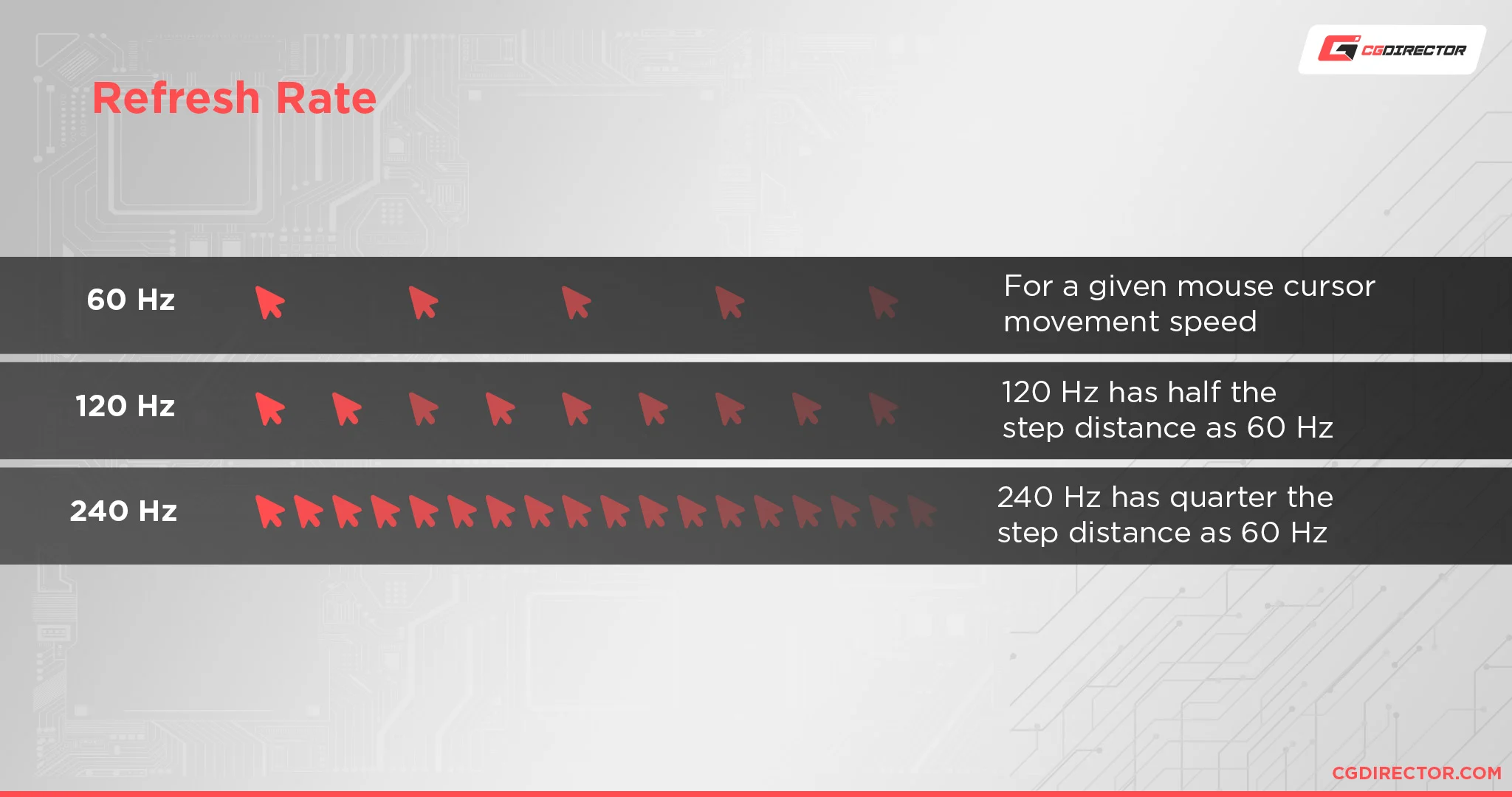
144Hz vs 240Hz
The jump from 60Hz to 144Hz is transformative. Everything feels smoother, input lag drops noticeably, and your ability to track moving targets improves. It's the single biggest upgrade most gamers will ever experience.
The jump from 144Hz to 240Hz is real but much smaller. Frame time drops from 6.94ms to 4.17ms. You get slightly smoother motion and marginally lower input lag.
In aggregate testing and player feedback, the difference is most noticeable in fast-paced competitive shooters where your eyes are constantly tracking fast movement.
240Hz is worth considering if:
- You play competitive FPS titles at a high level
- Your GPU can consistently push 240+ FPS at your resolution
- You're coming from 144Hz and specifically notice motion blur or feel a desire for smoother tracking
- The price difference fits your budget (typically $100 to $200 more than equivalent 144Hz models)
144Hz is the better choice if:
- You play a mix of game genres
- Your GPU struggles to maintain 240+ FPS
- You're on a tighter budget
- You're upgrading from 60Hz (the difference will be night and day regardless)
144Hz vs 360Hz and Beyond
360Hz and 500Hz monitors exist, and they're genuinely impressive pieces of technology. But they're aimed at a very narrow audience: professional or aspiring esports athletes who play fast-paced competitive titles exclusively and have hardware that can actually drive those frame rates.
For everyone else, the difference between 240Hz and 360Hz is essentially imperceptible. The price premium is steep, the hardware requirements are extreme, and the competitive advantage over 144Hz or 240Hz is marginal at best.
Quick Comparison Table
| Refresh Rate | Frame Time | Perceptible Difference | GPU Requirements | Best For |
|---|---|---|---|---|
| 60Hz | 16.67ms | Baseline | Low | Casual gaming, single-player |
| 144Hz | 6.94ms | Huge jump from 60Hz | Moderate | Most competitive gamers |
| 240Hz | 4.17ms | Noticeable over 144Hz | High | Serious competitive FPS players |
| 360Hz | 2.78ms | Small over 240Hz | Very high | Professional/esports competitors |
| 500Hz | 2.00ms | Minimal over 360Hz | Extreme | Top-tier esports professionals |
The Decision Framework: Is 144Hz Right for You?
Let's cut through the noise. Here's a practical decision tree based on your specific situation. Find the branch that matches your circumstances and follow it to your answer.
Branch 1: You're Coming From 60Hz
144Hz is absolutely enough. Stop here and buy the monitor.
The difference between 60Hz and 144Hz is the single most impactful monitor upgrade you can make for gaming. Everything will feel dramatically smoother. Input lag will drop.
Motion clarity will improve. You will wonder how you ever played on 60Hz.
Going beyond 144Hz is a luxury upgrade at this point, not a necessity. Get comfortable with 144Hz first. You can always move to 240Hz later if you feel the need.
Branch 2: You Play Competitive FPS Games Seriously
This is where the answer gets conditional.
If you're ranked Diamond or below in Valorant, or equivalent in other titles: 144Hz is enough. Your mechanical skill, game sense, and positioning matter far more than the difference between 144Hz and 240Hz. Invest your money in a good mouse, a quality mousepad, or coaching instead.
If you're ranked Ascendant+ or playing semi-professionally: Consider 240Hz if your hardware supports it. At higher ranks, the marginal advantage of smoother tracking and lower input lag can matter in tight duels. It's not a game-changer, but it's a real edge when the skill gap between players is small.
If you're a content creator or streamer who also competes: 144Hz is fine for your own gameplay. Your viewers watching at 30 to 60 FPS won't see the difference anyway. Spend the money on your streaming setup instead.
Branch 3: You Play MOBAs, Strategy, or Slower-Paced Games
144Hz is more than enough. You could even argue 75Hz would suffice.
League of Legends, Dota 2, Civilization, and similar titles don't demand high refresh rates for competitive advantage. The visual smoothness is pleasant, but you're not flicking to heads or tracking strafing targets. A good quality 144Hz monitor will serve you perfectly, and you should prioritize color accuracy, resolution, and panel quality over chasing higher refresh rates.
Branch 4: You're on Console
The PlayStation 5 and Xbox Series X support up to 120Hz in select games. A 144Hz monitor will work fine for console gaming, but you'll be capped at 120Hz by the console's output. That's still excellent for competitive play.
Just make sure your monitor has HDMI 2.0 or HDMI 2.1 support. Some budget 144Hz monitors only hit their maximum refresh rate over DisplayPort, which means you'd be limited to 60Hz on console. Check the specs before you buy.
Branch 5: Your GPU Can't Push 144+ FPS
This is a hardware problem, not a monitor problem.
If your GPU can't sustain 144+ FPS in your game at your resolution, buying a 144Hz monitor won't magically make your games run at 144 FPS. You'll be running at whatever your GPU can deliver, and you might not notice much difference from your current 60Hz setup.
In this case, you have two options. Upgrade your GPU first, then buy the 144Hz monitor. Or buy a 144Hz monitor now as a future-proofing investment, knowing you'll unlock its full potential when you eventually upgrade your graphics card.
If you're getting 80 to 100 FPS consistently, you'll still see some benefit from 144Hz thanks to reduced frame delivery times and lower input lag, even if you're not hitting the full 144. It's not optimal, but it's not wasted money either.
Common Mistakes People Make With 144Hz Monitors

Buying the monitor is only half the battle. These are the mistakes we see people make most often, and they all result in you not actually getting 144Hz even though you paid for it.
Not Actually Enabling 144Hz in Windows
This is the number one mistake, and it's incredibly common. You plug in your shiny new 144Hz monitor, and Windows defaults to 60Hz. You never change the setting.
You game at 60Hz for six months. You leave a review saying "can't tell the difference from my old monitor."
Here's how to fix it:
- Right-click your desktop and select Display Settings
- Scroll down and click Advanced Display Settings
- Select your monitor from the dropdown
- Click Display Adapter Properties for Display 1
- Go to the Monitor tab
- Under Screen Refresh Rate, select 144Hz
- Click Apply and OK
If 144Hz doesn't appear as an option, the problem is usually your cable or your GPU output. Move on to the next section.
Using the Wrong Cable
Not all cables can carry a 144Hz signal. This catches people constantly, especially when they reuse old cables from their previous setup.
For 1080p 144Hz: You need at minimum a DisplayPort 1.2 cable or an HDMI 2.0 cable. DVI-D dual link also works but is increasingly rare on modern monitors and GPUs.
For 1440p 144Hz: DisplayPort 1.2 or HDMI 2.0 will work. DisplayPort is generally preferred for PC gaming.
For 4K 144Hz: You need DisplayPort 1.4 with Display Stream Compression (DSC) or HDMI 2.1. This is non-negotiable.
The safe bet: Use the cable that came in the box with your monitor. Manufacturers include cables that are guaranteed to support the monitor's full specifications. If you need a longer cable, buy one that's explicitly rated for the standard you need.
Ignoring Frame Time Stability
Average FPS tells you part of the story. Frame time consistency tells you the rest. You might be averaging 200 FPS in CS2, but if your 1% lows dip to 80 FPS during smokes or chaotic fights, you're going to feel stuttering that a simple FPS counter won't explain.
This is where adaptive sync technologies like NVIDIA G-Sync and AMD FreeSync become valuable. They match your monitor's refresh rate to your GPU's output in real time, eliminating screen tearing and reducing perceived stutter when frame rates fluctuate.
Enable adaptive sync in your GPU control panel:
- NVIDIA: Open NVIDIA Control Panel, go to Display, Set up G-Sync, enable it for your monitor
- AMD: Open AMD Software, go to Display, enable FreeSync
Then go into your monitor's on-screen display (OSD) menu and make sure adaptive sync is turned on there too. Some monitors have it disabled by default.
Buying 144Hz at 1440p or 4K Without Checking GPU Headroom
We covered this earlier, but it bears repeating. A 144Hz monitor at 1440p or 4K is only useful if your GPU can actually push 144+ FPS at those resolutions. Check benchmarks for your specific GPU in the games you play at the resolution you want.
Don't assume. Verify.
If you're getting 90 to 110 FPS average in your game at 1440p, you're not fully utilizing a 144Hz panel. You might be better served by either lowering your resolution to 1080p for higher frame rates, or accepting that 120Hz is your effective ceiling and saving money with a 120Hz 1440p monitor.
Setup Checklist: Getting the Most From Your 144Hz Monitor
You've got the monitor. Now make sure it's actually running at 144Hz and configured properly. This takes about five minutes.
Step 1: Verify Windows is outputting 144Hz
Right-click desktop, Display Settings, Advanced Display Settings, check the refresh rate dropdown. If it shows 60Hz, change it to 144Hz.
Step 2: Confirm in your GPU control panel
NVIDIA Control Panel or AMD Software will show you the active refresh rate. This is a good secondary check that Windows is actually sending the signal it claims to be sending.
Step 3: Enable adaptive sync if supported
Go into your monitor's on-screen display menu. Look for FreeSync, G-Sync Compatible, or Adaptive Sync. Turn it on.
Then enable it in your GPU control panel.
Step 4: Set your in-game frame rate cap
Most competitive games let you cap your frame rate. Set it to 3 FPS below your refresh rate (so 141 FPS on a 144Hz monitor). This keeps adaptive sync active without hitting its ceiling, which can introduce input lag.
Step 5: Test it
Use Blur Busters' UFO Test in your browser. It'll show you definitively whether your monitor is running at 144Hz or something else. If the UFOs look smooth and the test confirms 144Hz, you're good.
Real Scenarios: Who Should Stick With 144Hz and Who Should Upgrade
Let's put this all together with some specific situations.
Scenario 1: You play Valorant, your GPU hits 300+ FPS at 1080p, and you're ranked Platinum. Stick with 144Hz. Your rank ceiling is not your monitor. A better mouse or more practice time will improve your game more than a new display.
Scenario 2: You play CS2, your GPU hits 400+ FPS at 1080p, and you're ranked Supreme or Global. Consider 240Hz. At this level, the marginal advantage of smoother tracking can win you duels that would otherwise be coin flips.
Scenario 3: You play League of Legends at 1440p and your GPU hits 200+ FPS. 1440p 144Hz is perfect for you. Don't change anything. Your setup is ideal for that game.
Scenario 4: You play on PS5 with a 144Hz monitor. You're capped at 120Hz by the console. That's still great. Make sure your monitor has HDMI 2.0 or 2.1 and that you've enabled 120Hz in your console's display settings.
Scenario 5: Your GPU hits 80 to 100 FPS at 1440p in competitive games. Either drop to 1080p for higher frame rates, or consider a 1080p 144Hz monitor instead. You're not fully utilizing 144Hz at your current resolution.
Frequently Asked Questions
Can you actually see the difference between 144Hz and 240Hz?
Yes, but it's subtle compared to 60Hz versus 144Hz. The difference is most noticeable when you're specifically looking for it in fast motion. In blind testing, many players struggle to consistently identify which is which.
Is 144Hz good for PS5 gaming?
Yes. The PS5 outputs up to 120Hz, which a 144Hz monitor handles without issue. Just confirm your monitor supports 120Hz over HDMI, which requires HDMI 2.0 or newer.
Does 144Hz make you a better gamer?
It makes your existing skill more accurately reflected in your gameplay. It won't teach you crosshair placement or game sense. But it removes a hardware limitation that was holding you back.
Should I get 144Hz or 165Hz?
The difference between 144Hz and 165Hz is negligible. If the price gap is small, get whichever is cheaper. If the 165Hz monitor has better specs overall (panel type, response time, color accuracy), then it's worth considering for those reasons, not the refresh rate bump.
Is 144Hz enough for Fortnite competitive?
For most Fortnite players, yes. The game is fast-paced but not as twitch-dependent as CS2 or Valorant. Unless you're competing at the highest levels, 144Hz with good frame rates will serve you well.
What's more important, refresh rate or resolution?
For competitive gaming, refresh rate matters more. For single-player or casual gaming, resolution matters more. If you can only prioritize one, let your primary game genre decide.
Final Verdict: The Decision Tree Simplified
If you're upgrading from 60Hz, 144Hz is a massive improvement and enough for most competitive gamers. If you're already on 144Hz and wondering whether to go higher, the answer is probably not, unless you're a serious competitive FPS player with hardware that can push 240+ FPS.
The smartest move for most people is a 1080p 144Hz IPS monitor with adaptive sync, paired with a GPU that can sustain frame rates above 144 in your games. That combination will keep you competitive without overspending on diminishing returns.
Spend the money you save on a good mouse, a quality mousepad, and more practice time. Those will improve your performance far more than any monitor upgrade beyond 144Hz.

Similar Posts





















