Do 144Hz Monitors Support Freesync
Do 144Hz monitors support FreeSync? Yes, virtually every 144Hz monitor on the market supports some version of AMD FreeSync. That part is straightforward.
But the label alone doesn't tell you whether it'll actually work well with your specific graphics card, your cable choice, or the frame rates you hit in real games.
The real question underneath your question is messier: will FreeSync function properly on this particular 144Hz monitor with your hardware? That depends on the FreeSync tier, your GPU brand, your connection type, and whether the monitor's variable refresh range covers the frame rates you actually play at. VESA's Adaptive-Sync standard, which FreeSync is built on, is open and royalty-free.
That openness is both a strength and a source of inconsistency across implementations.
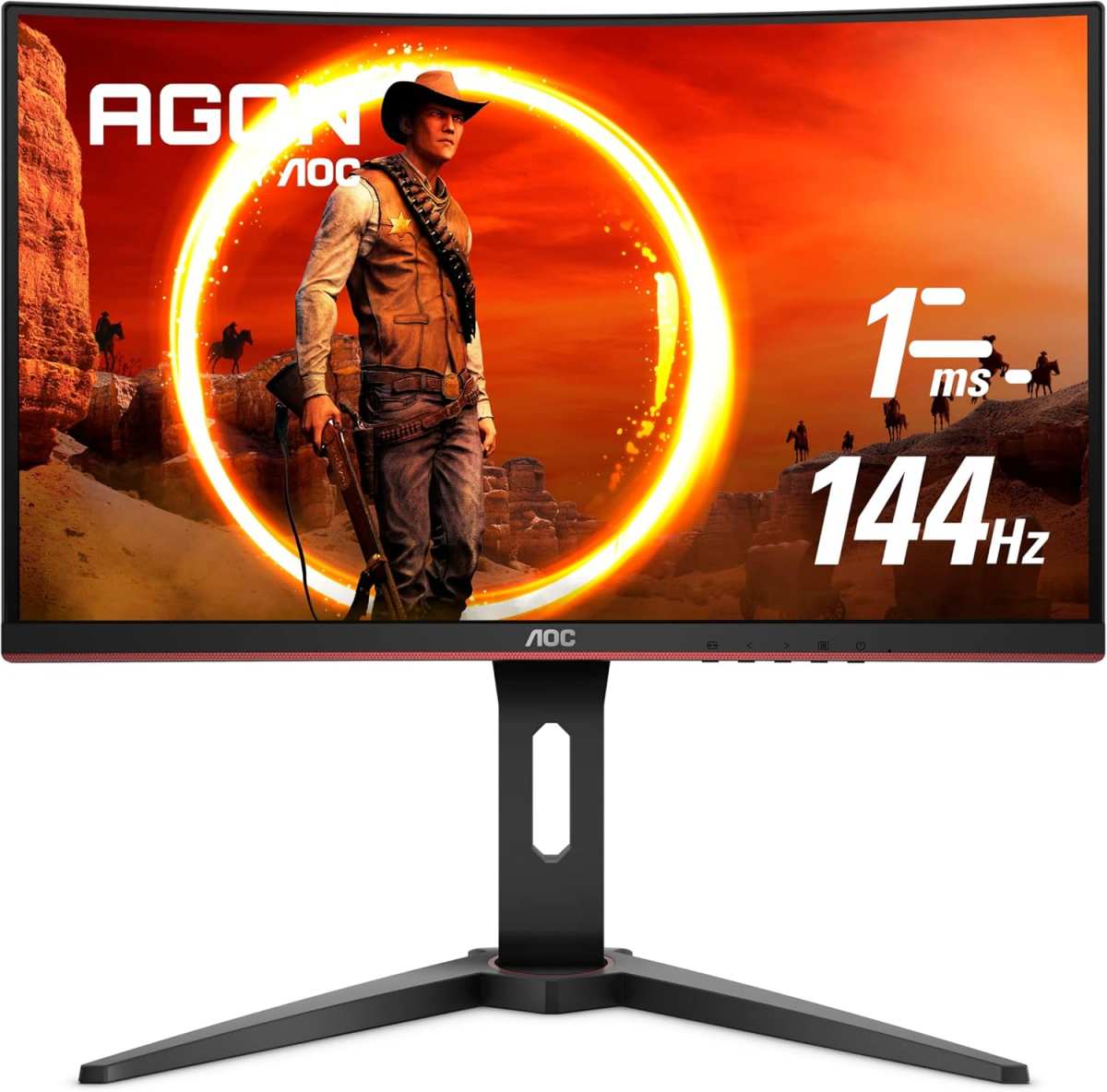
Quick Answer
Yes, 144Hz monitors support FreeSync. Most 144Hz monitors include some tier of AMD FreeSync. The experience varies by monitor tier and your GPU.
FreeSync Premium and higher tiers offer better performance. Always check the specific FreeSync range before buying.
The Short Answer (That Doesn't Tell You Enough)
Here's the problem with a simple "yes." A monitor can be 144Hz and "FreeSync" and still deliver a terrible variable refresh experience. The FreeSync tier matters enormously, and most shoppers never look past the branding on the box.
A monitor advertising "48-144Hz FreeSync" means that below 48 frames per second, FreeSync simply turns off. Your GPU might be pushing 40fps in a demanding scene, and you're right back to screen tearing or V-Sync input lag. A monitor with Low Framerate Compensation, which is required for FreeSync Premium and above, handles this by repeating frames.
So 35fps gets displayed as 70 refreshes, all still within the FreeSync window. Night and day difference.
The other variable most people miss is their GPU brand. NVIDIA handles Adaptive-Sync differently than AMD does, and that changes which monitors work seamlessly and which require manual configuration. We'll get into that in detail shortly.
What FreeSync Actually Needs to Work
FreeSync relies on VESA Adaptive-Sync, an open standard built into the DisplayPort specification. For it to function, three things need to line up: your monitor, your GPU, and your cable. Miss one and you're troubleshooting a black screen or flickering.
On the GPU side
- AMD Radeon cards (RX 400 series and newer): FreeSync works natively over both HDMI and DisplayPort. This is AMD's own technology, so support is comprehensive.
- NVIDIA GeForce cards (GTX 10-series and newer): NVIDIA added Adaptive-Sync support in early 2019, but only over DisplayPort. They only officially certify specific monitors as "G-Sync Compatible."
- Intel Arc GPUs: Support Adaptive-Sync over DisplayPort and HDMI 2.1. Newer to the market but fully capable.
On the cable side
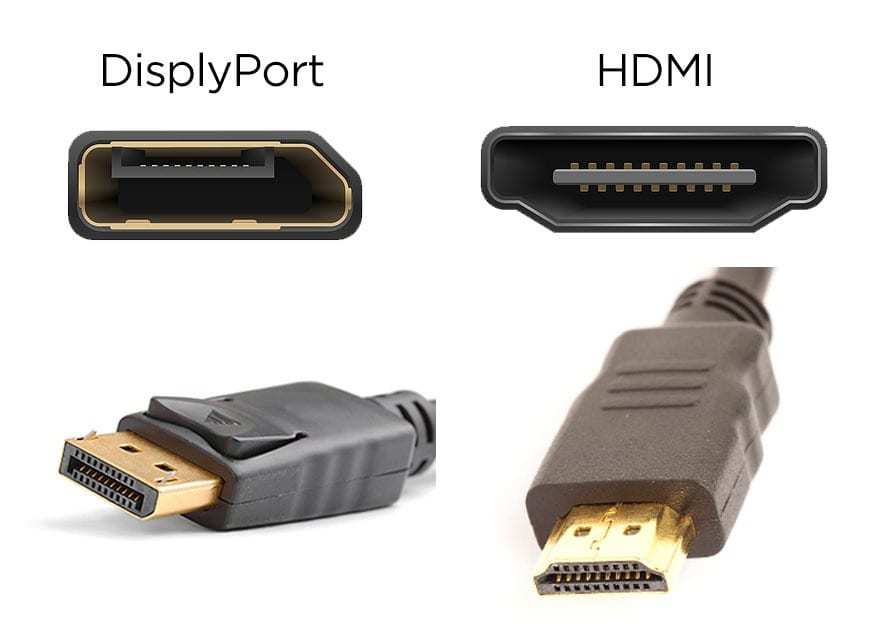
- DisplayPort 1.2a or newer: Fully supports Adaptive-Sync. This is the gold standard for VRR on PC.
- HDMI 2.0: Supports Adaptive-Sync on many monitors, but not all. Depends entirely on the manufacturer implementing it properly.
- HDMI 1.4 and older: Does NOT support FreeSync. Don't use this cable if you want variable refresh.
- HDMI 2.1: Supports Adaptive-Specific widely and cleanly, especially on newer monitors and next-gen consoles.
A practical tip that saves a lot of headaches: if FreeSync isn't working, swap to a certified DisplayPort cable first. More often than not, that's the entire fix. Cable quality matters more than most people think, especially at higher resolutions and refresh rates.
The 144Hz Monitor Trap: Why the Tier Matters More Than the Number
This is where people get burned. The "FreeSync" label on the box is not a single standard. AMD certifies monitors at different tiers, and the differences between them are significant.
| FreeSync Tier | What You Actually Get | Real-World Experience |
|---|---|---|
| FreeSync (no tier specified) | Basic variable refresh rate, often 48-144Hz range | Works fine above 48fps. Below that, stuttering and tearing return. |
| FreeSync Premium | LFC required, 120Hz+ at 1080p minimum | LFC doubles frames below the minimum range. Smooth even at 35-40fps. |
| FreeSync Premium Pro | Adds HDR support on top of Premium | HDR plus VRR together. Monitor quality varies hugely at this tier. |
The critical spec most people miss is the FreeSync range. A monitor with a bottom of 48Hz and no LFC is a partial solution. It works when your frame rate stays high, but the moment a game gets demanding and your FPS drops into the 30s or 40s, you lose the benefit entirely.
When you're shopping, always find the exact FreeSync range listed in the monitor's specifications. If the listing only says "FreeSync" with no tier and a bottom of 48Hz, treat it as a budget option that works best in less demanding titles. For AAA games at high settings, you want FreeSync Premium or better.
FreeSync vs. G-Sync Compatible: The NVIDIA Complication
If you're running an NVIDIA card, this is the section that actually matters to you. NVIDIA does not automatically let every FreeSync monitor work as G-Sync Compatible. They test and certify specific models, and the distinction affects your experience significantly.
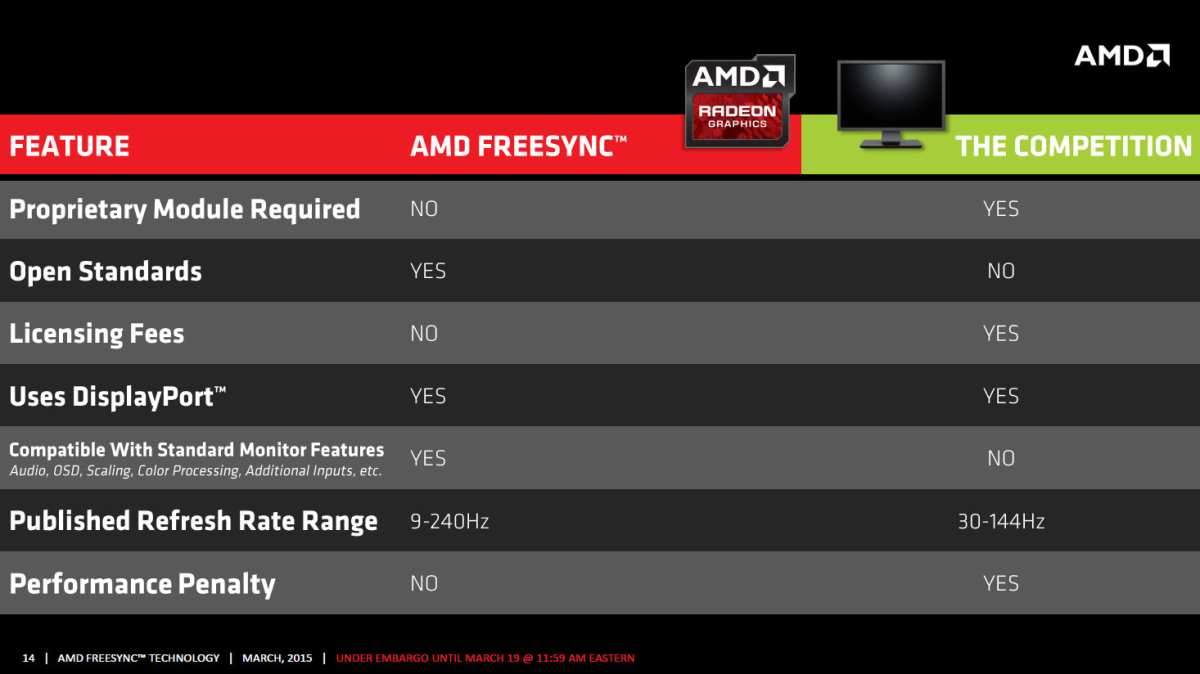
| NVIDIA GPU + Monitor Combo | What Happens |
|---|---|
| G-Sync Compatible certified monitor | Works perfectly. VRR enabled by default in NVIDIA Control Panel. |
| FreeSync monitor on NVIDIA's supported list | Works in most cases. May need manual enabling. |
| Uncertified FreeSync monitor | May work if you force-enable it. Quality not guaranteed. |
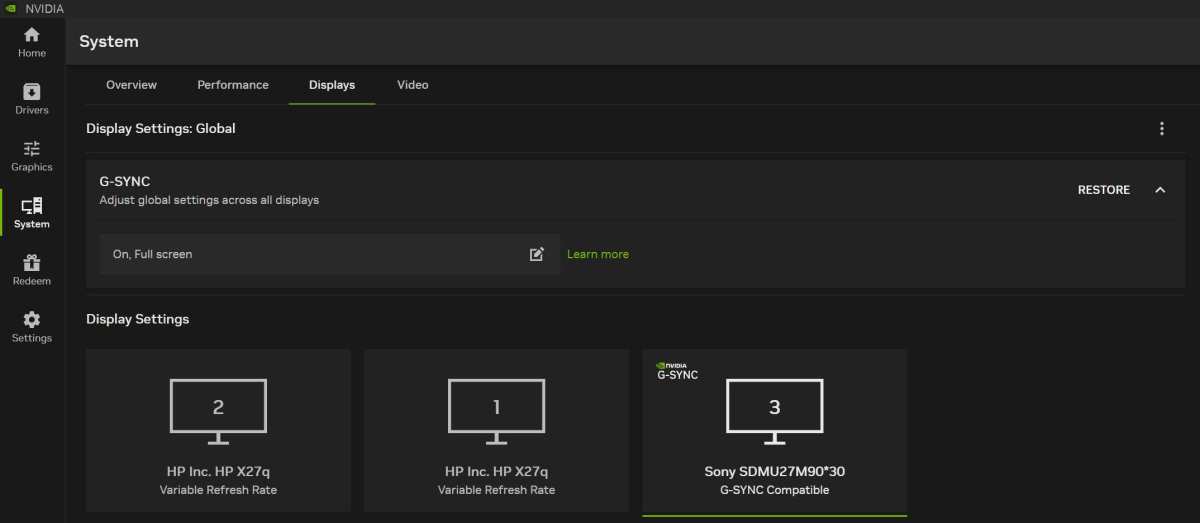
You can absolutely force Adaptive-Sync on an uncertified monitor through the NVIDIA Control Panel. Just navigate to the Display section and enable "G-Sync, G-Sync Compatible." Sometimes it works flawlessly. Sometimes you'll get flickering, blanking, or ghosting.
You won't know until you try, and that uncertainty is exactly what official certification eliminates.
NVIDIA's official compatibility list is the safest starting point. But in practice, a large number of non-certified monitors work just fine with Adaptive-Sync over DisplayPort. The risk is higher with HDMI connections and with older monitor models that predate NVIDIA's Adaptive-Sync support entirely.
For peace of mind, especially if you're spending more than $250 on a monitor, check NVIDIA's list before you buy. If the monitor you want isn't on it, read user forums and reviews specifically from NVIDIA GPU owners using that model. Real-world reports are often more useful than official lists, which tend to be conservative and incomplete.

Similar Posts





















