Which 144Hz Monitor Is Best for Budget
Everyone hunting for which 144hz monitor is best for budget runs into the same wall. Dozens of models look identical on paper, yet the actual experience can be wildly different once it's on your desk. The trick is knowing which specs actually matter and which ones are just marketing fluff.
The good news is that as of 2026, the budget 144Hz market is genuinely excellent. You can get a sharp, responsive panel for well under $200 that would have cost twice that just a few years ago. Let's break down what separates the real standouts from the ones that look good in a spec sheet but disappoint in practice.
Quick Answer
The best budget 144Hz monitor depends on your priorities. For most people, a 24-inch 1080p IPS panel with FreeSync and G-Sync Compatible certification hits the sweet spot. Expect to spend between $150 and $220 for a reliable model.
Prioritize IPS over TN for better colors, and always verify the adaptive sync range before buying.
Why 144Hz Is the Sweet Spot for Budget Gamers
The jump from 60Hz to 144Hz is one of the most noticeable upgrades you can make. Everything feels smoother, from aiming in a shooter to just moving your mouse across the desktop. Once you've used 144Hz for a week, going back to 60Hz feels like wading through mud.
What makes 144Hz the budget sweet spot is simple economics. Panels above 144Hz, like 240Hz or 360Hz, carry a steep price premium that only competitive esports players truly benefit from. Meanwhile, 75Hz monitors are cheaper but don't deliver that same "wow" factor.
At 144Hz, you get roughly 80% of the smoothness benefit at half the cost of high-end alternatives.
Here's what you're actually gaining at 144Hz compared to 60Hz:
| Aspect | 60Hz | 144Hz |
|---|---|---|
| Frame interval | 16.6ms | 6.9ms |
| Motion clarity | Noticeable blur | Significantly sharper |
| Input lag feel | Slightly delayed | Near-instant response |
| Competitive edge | Baseline | Meaningful advantage |
| Everyday smoothness | Adequate | Noticeably fluid |
The other reason 144Hz dominates the budget conversation is adaptive sync. FreeSync and G-Sync Compatible monitors in this tier are everywhere now. That means you get tear-free gaming without paying extra for proprietary hardware.
At higher refresh rates, adaptive sync still matters, but the price gap between FreeSync and native G-Sync gets wider fast.
What Actually Makes a 144Hz Monitor "Good" at a Low Price
Not all 144Hz monitors are created equal. Two models can share the same refresh rate and resolution but feel completely different to use. Here's what separates a genuinely good budget pick from a disappointing one.
Panel quality matters more than the spec sheet suggests. A cheap IPS panel with poor color calibration will look washed out no matter how fast it refreshes. Look for monitors that cover at least 99% sRGB out of the box. Some budget models now ship with 125% sRGB coverage, which gives you richer colors without needing professional calibration.
The adaptive sync range tells you a lot about real-world performance. A monitor that supports FreeSync from 48 to 144Hz will handle frame drops gracefully. But if the range starts at 60Hz, you'll get tearing whenever your framerate dips below that threshold. Always check the lower bound of the FreeSync range before buying.
Response time claims need context. Manufacturers love advertising "1ms GtG," but that's usually only achievable with aggressive overdrive settings that introduce inverse ghosting. A realistic 4ms GtG with well-tuned overdrive often looks better in practice than a poorly implemented 1ms mode.
Build quality and stand ergonomics are where budget monitors cut corners hardest. A monitor with a fixed tilt-only stand will frustrate you within a week. Height adjustment, even without swivel or pivot, makes a real difference for long gaming sessions.
The Real Trade-Offs: IPS vs VA vs TN on a Budget
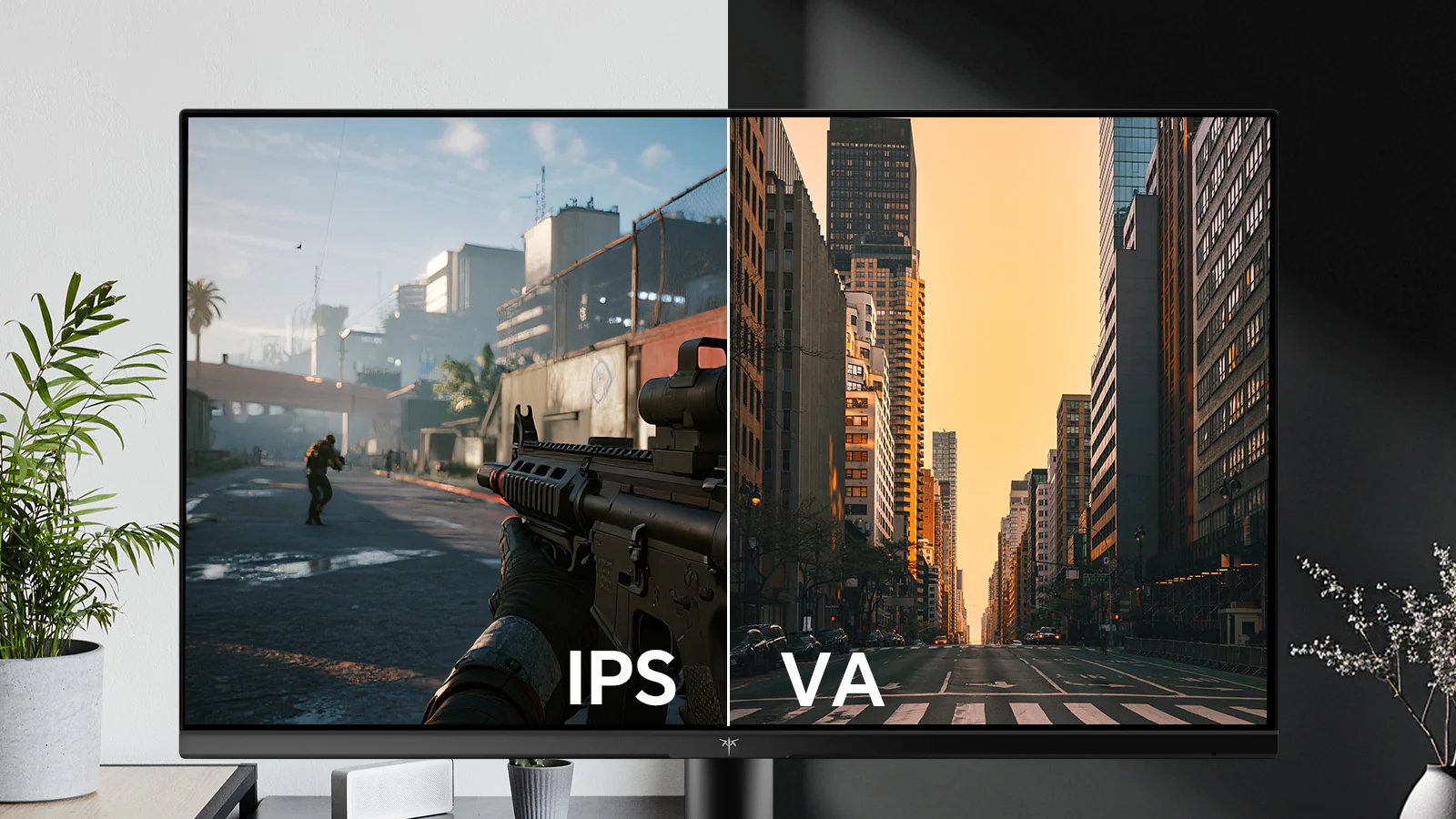
Panel type is the single biggest decision you'll make, and each option comes with genuine compromises at this price point.
IPS (In-Plane Switching) is the default recommendation for most budget buyers, and for good reason. Colors look accurate and consistent from wide viewing angles. Modern budget IPS panels have closed the gap on response times, with many now hitting 4ms GtG or better.
The main downside is IPS glow, a slight light bleed in the corners that's most visible in dark scenes. It's a physical limitation of the technology, not a defect.
VA (Vertical Alignment) panels offer the best contrast ratios you'll find at any budget price. We're talking 3000:1 or higher compared to IPS's typical 1000:1. That means deeper blacks and a more cinematic look in dark games.
The trade-off is smearing, where dark pixels transition slowly and leave visible trails behind moving objects. If you play a lot of horror games or watch movies, VA's contrast is hard to beat. For fast competitive shooters, the smearing can be distracting.
TN (Twisted Nematic) panels are the budget wildcard. They offer the fastest native response times and the lowest prices, but colors shift dramatically when you view the screen from even a slight angle. If you sit directly in front of your monitor and only care about competitive performance, a TN panel can still make sense.
For anyone who values image quality or uses their monitor for anything beyond gaming, TN is hard to recommend in 2026.
Here's a quick comparison to help you decide:
| Factor | IPS | VA | TN |
|---|---|---|---|
| Color accuracy | Excellent | Good | Poor |
| Viewing angles | Wide | Moderate | Narrow |
| Contrast ratio | ~1000:1 | ~3000:1 | ~800:1 |
| Response time | 4ms GtG typical | 4-8ms GtG typical | 1ms GtG typical |
| Black uniformity | IPS glow issues | Deep blacks | Mediocre |
| Best for | All-around use | Dark room gaming | Pure competitive |
| Budget price range | $150-$220 | $140-$200 | $120-$170 |
For most people asking which 144hz monitor is best for budget, a 24-inch IPS panel at 1080p is the safest bet. You get good colors, decent response times, and wide viewing angles without any single weakness that ruins the experience.
Best Budget 144Hz Monitors Worth Buying Right Now
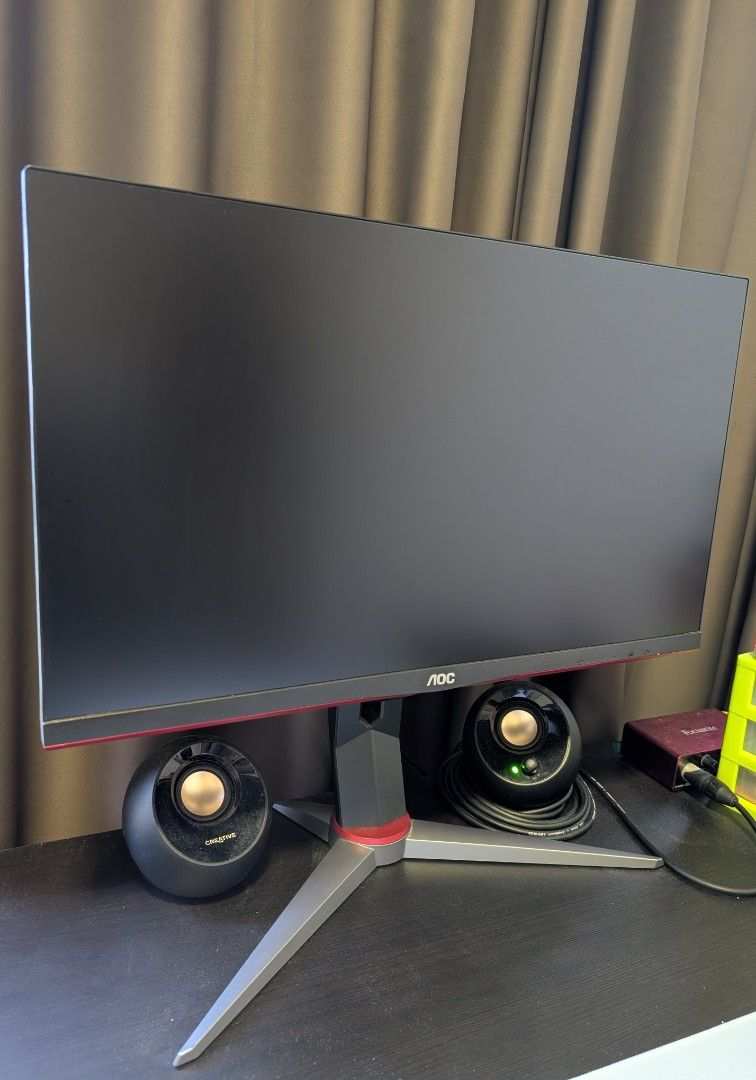
The budget 144Hz market moves fast, but a few models consistently rise to the top based on aggregate reviews and verified buyer feedback. These are the ones that deliver the best balance of performance, features, and reliability at their price point.
24-inch 1080p IPS models dominate the sub-$200 category. This size and resolution combination gives you roughly 92 pixels per inch, which is sharp enough that you won't notice individual pixels at a normal viewing distance. It's also the resolution where most mid-range graphics cards can actually push 144 frames per second in modern games without breaking a sweat.
Look for models that include these features as a baseline:
- IPS panel with 99% sRGB or better
- FreeSync with a range starting at 48Hz or lower
- G-Sync Compatible certification (not just FreeSync)
- DisplayPort 1.2 or higher and at least one HDMI 2.0 port
- Height-adjustable stand or VESA mount compatibility
- Response time of 4ms GtG or better with usable overdrive
27-inch 1080p models exist but come with a caveat. At this size, 1080p drops to about 82 PPI, which means you'll start to see slight pixelation in text and fine details. Some people don't mind it, especially if they sit a bit farther back. But if you also use your monitor for work or reading, 24 inches is the safer choice for 1080p.
27-inch 1440p 144Hz monitors are creeping into the upper budget range. If you can stretch to $250-$350, you'll find models that give you both the higher refresh rate and a sharper image. This is the sweet spot for people with mid-range GPUs who want a monitor that'll last several years before needing an upgrade.
One thing worth noting: manufacturer specifications can be misleading. A monitor advertised with "1ms response time" might only achieve that in an overdrive mode that creates visible artifacts. Always check independent measurements of response time and input lag rather than relying solely on the product page.
Side-by-Side: How the Top Budget 144Hz Monitors Compare
When you're trying to figure out which 144hz monitor is best for budget, a direct comparison cuts through the noise. Here's how the most recommended models stack up across the factors that actually matter.
| Feature | 24" 1080p IPS (Entry) | 24" 1080p IPS (Mid) | 27" 1080p IPS | 27" 1440p IPS |
|---|---|---|---|---|
| Typical price | $130-$160 | $170-$220 | $160-$200 | $250-$350 |
| Pixel density | ~92 PPI | ~92 PPI | ~82 PPI | ~109 PPI |
| Panel quality | Decent | Good | Decent to good | Good to very good |
| FreeSync range | 48-144Hz typical | 48-144Hz typical | 48-144Hz typical | 48-144Hz or 48-165Hz |
| G-Sync Compatible | Sometimes | Usually | Sometimes | Usually |
| Stand adjustability | Tilt only | Height + tilt | Tilt or height | Height + tilt typical |
| HDR | No or HDR400 | HDR400 | No or HDR400 | HDR400 |
| Best for | Tightest budget | Best all-rounder | Larger screen preference | Future-proofing |
The entry-level 24-inch IPS models are where most budget buyers should start. You get the core 144Hz experience with decent colors and adaptive sync, and you can often find these on sale for under $150. The main compromises are a basic tilt-only stand and sometimes a narrower FreeSync range.
Stepping up to the mid-range 24-inch category gets you a better stand, more consistent panel quality, and usually confirmed G-Sync Compatible certification. This is the category that delivers the best overall value for most people.
The 27-inch 1080p option makes sense if you want a bigger screen and sit a bit farther back. Just be aware that the lower pixel density is noticeable if you use the monitor for text-heavy work. For gaming from a normal desk distance, most people adapt within a day or two.
The 27-inch 1440p models are the "stretch budget" pick. You're paying more, but you're getting a noticeably sharper image and a monitor that won't feel outdated as games get more demanding. If your graphics card can push 1440p at reasonable frame rates, this is worth the extra investment.
Best Budget 144Hz Monitor for Competitive FPS Gaming
If you're primarily playing Valorant, CS2, Apex Legends, or similar fast-paced shooters, your priorities shift. Response time and motion clarity matter more than color accuracy or screen size.
For competitive FPS, a 24-inch 1080p IPS panel with a well-implemented overdrive mode is the ideal budget choice. You want the smallest screen that still feels comfortable, because it lets you see the entire display without moving your eyes as much. That's a real advantage when you're tracking enemies at the edge of your vision.
Key features to prioritize for competitive play:
- Low input lag, ideally under 5ms measured at the center of the screen
- Usable overdrive that reduces ghosting without creating visible overshoot artifacts
- FreeSync range that starts at 48Hz or lower, so adaptive sync works even during frame drops
- 24-inch screen size for better peripheral awareness
- Stable stand that doesn't wobble when you flick your mouse aggressively
TN panels still get mentioned in competitive circles because of their fast native response times. But modern IPS panels have closed the gap enough that the color and viewing angle advantages of IPS outweigh the marginal response time difference for all but the most serious tournament players.
One thing that doesn't get talked about enough: make sure your graphics card can actually push 144 frames per second in the games you play. There's no benefit to a 144Hz monitor if your system is only producing 80fps. You might be better off with a cheaper monitor and putting the savings toward a GPU upgrade.
Best Budget 144Hz Monitor for Console Gaming (PS5 and Xbox Series X)
Console gaming adds a different set of requirements. Both the PS5 and Xbox Series X support 1440p output at up to 120Hz, which changes the calculus a bit compared to PC gaming.
For console gamers, a 27-inch 1440p 144Hz monitor is actually the better budget pick. Here's why: consoles are fixed hardware, so you know exactly what resolution and refresh rate you're targeting. Both consoles can output 1440p at 120Hz, which means you'll use the full capability of a 1440p high-refresh display.
The key things to check for console compatibility:
- HDMI 2.0 or higher is required for 1440p at 120Hz. HDMI 1.4 tops out at 1440p 60Hz, which defeats the purpose.
- 1440p resolution support over HDMI. Some monitors only accept 1440p through DisplayPort, which won't work with consoles.
- HDR10 support is a nice bonus, though budget HDR is more of a checkbox feature than a genuine visual upgrade.
- VRR (Variable Refresh Rate) over HDMI. Both consoles support HDMI Forum VRR, which works similarly to FreeSync.
A 27-inch 1080p monitor works for console gaming too, but you're leaving performance on the table. The PS5 and Xbox Series X can both output 1440p, and the image quality difference is noticeable on a 27-inch screen. If your budget allows, the 1440p option is the smarter long-term investment for console players.
One practical note: console gaming doesn't benefit from G-Sync Compatible certification since that's an NVIDIA PC feature. Focus on HDMI VRR support and a good FreeSync range over HDMI instead.
Best Budget 144Hz Monitor for Mixed Use (Gaming + Work)
If your monitor needs to handle spreadsheets and video calls during the day and gaming at night, color accuracy and ergonomics move up the priority list.
For mixed use, a 24-inch 1080p IPS panel with good out-of-box color calibration is the sweet spot. You want at least 99% sRGB coverage so colors look accurate for photo editing or design work. A height-adjustable stand is non-negotiable if you're sitting at the monitor for eight hours a day.
Here's what matters most for mixed use:
- IPS panel for accurate colors and wide viewing angles
- Height-adjustable stand to get the screen at eye level
- 99% sRGB or better for decent color accuracy without calibration
- Anti-glare coating that doesn't make the screen look hazy
- Blue light mode for late-night work sessions
- VESA mount compatibility if you want to use a monitor arm later
The 24-inch 1080p size works well here because text looks crisp at 92 PPI. A 27-inch 1080p screen would make text slightly fuzzy, which gets annoying during long work sessions. If you want 27 inches for the extra screen real estate, step up to 1440p to keep text sharp.
Budget monitors in this category sometimes include built-in speakers, but they're almost always terrible. Plan on using headphones or a separate speaker setup. The money saved by skipping built-in speakers is better spent on a panel with better color accuracy.
Common Mistakes People Make Buying a Cheap 144Hz Monitor
Even when you know what to look for, it's easy to get tripped up. These are the mistakes that show up most often in verified buyer feedback and return reports.
Assuming all 144Hz monitors perform the same. Two monitors with identical specs on paper can look and feel completely different. Panel quality varies even within the same model line due to manufacturer sourcing. Always check recent reviews for the specific model and revision you're buying.
Ignoring the stand. A wobbly, tilt-only stand ruins an otherwise great monitor. If the included stand is bad, factor in the cost of a VESA monitor arm, which typically runs $25-$50. That effectively raises the total cost of the monitor.
Buying based on response time claims alone. "1ms GtG" looks great in a product title, but the real-world overdrive implementation matters more. A monitor with a true 4ms response time and well-tuned overdrive will look better than one with a poorly implemented 1ms mode that creates inverse ghosting.
Forgetting to check port selection. Some budget monitors only have one HDMI port and no DisplayPort. If you want to connect both a PC and a console, or run a dual-monitor setup, limited ports become a real problem fast.
Overlooking dead pixel policies. Budget monitors are more likely to ship with a dead or stuck pixel. Check the manufacturer's dead pixel policy before buying. Some require multiple dead pixels before they'll honor a replacement, which is frustrating when you've got one bright pixel right in the center of the screen.
Not verifying adaptive sync compatibility with your specific GPU. FreeSync works with AMD cards natively and with NVIDIA cards through G-Sync Compatible mode. But not every FreeSync monitor is validated as G-Sync Compatible. If you have an NVIDIA card, check the official G-Sync Compatible list or recent user reports before buying.
How to Set Up Your 144Hz Monitor So It Actually Runs at 144Hz
Here's something that catches a lot of people off guard: your new 144Hz monitor probably isn't running at 144Hz out of the box. Windows defaults to 60Hz, so you need to change a few settings manually.
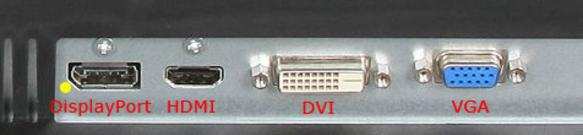
Step 1: Use the right cable. Plug your monitor in using DisplayPort or HDMI 2.0. Older HDMI cables, specifically HDMI 1.4, can't carry 1080p at 144Hz. They'll cap you at 120Hz or even 60Hz depending on the monitor.
DisplayPort 1.2 or higher is the safest bet.
Step 2: Change the refresh rate in Windows. Right-click your desktop, go to Display Settings, then Advanced Display Settings. Select 144Hz from the refresh rate dropdown. If you don't see 144Hz as an option, your cable or port is likely the bottleneck.
Step 3: Enable adaptive sync. For NVIDIA users, open the NVIDIA Control Panel and enable G-Sync or G-Sync Compatible. For AMD users, enable FreeSync in Radeon Software. This eliminates screen tearing without adding input lag.
Step 4: Adjust the overdrive setting. Most monitors have an overdrive option in the on-screen menu. Set it to medium or normal first. If you see ghosting, bump it up.
If you see bright trails behind moving objects, dial it back down.
Step 5: Verify everything is working. Test your refresh rate using an online motion test. You should see noticeably smoother motion at 144Hz compared to 60Hz. If something looks off, double-check your cable and settings before assuming the monitor is faulty.
When It Makes Sense to Spend More (and When It Doesn't)
The budget 144Hz category is good enough for most people, but there are situations where spending extra makes sense.
Spend more if you want 1440p. The jump from 1080p to 1440p at 27 inches is significant. Text is sharper, games look more detailed, and the monitor ages better as games get more demanding. If your GPU can handle it, the extra $100-$150 is worth it.
Spend more if you need better HDR. Budget HDR400 monitors technically support HDR, but they lack the brightness and local dimming to make it look good. If HDR matters to you, you need to step up to at least HDR600, which starts around $350-$400.
Don't spend more just for a higher refresh rate. Going from 144Hz to 240Hz costs significantly more but delivers a much smaller perceptual improvement than the jump from 60Hz to 144Hz. Unless you're competing at a high level, 144Hz is the point of diminishing returns.
Don't spend more for built-in speakers or USB hubs. These features are convenient but almost always mediocre on monitors. A $20 pair of desktop speakers will outperform any built-in monitor audio. A dedicated USB hub is more reliable than one built into a monitor stand.
Final Verdict: Which Budget 144Hz Monitor Should You Actually Buy?
For most people asking which 144hz monitor is best for budget, the answer is a 24-inch 1080p IPS panel with FreeSync, G-Sync Compatible certification, and a height-adjustable stand. This combination delivers the best balance of gaming performance, image quality, and everyday usability at a price between $170 and $220.
If you're on a tighter budget, a 24-inch 1080p IPS at $130-$160 still gives you the core 144Hz experience. You'll likely sacrifice the height adjustment and maybe the G-Sync Compatible certification, but the gaming experience is still excellent.
Console players should lean toward a 27-inch 1440p 144Hz monitor with HDMI 2.0 and VRR support. It costs more upfront but takes full advantage of what the PS5 and Xbox Series X can output.
Whatever you choose, prioritize panel quality and adaptive sync range over marketing claims about response time or HDR. Those two factors will affect your daily experience more than any spec sheet number.
Frequently Asked Questions
Is 144Hz really worth it over 60Hz for gaming?
Yes, the difference is immediately noticeable. Motion looks smoother, input feels more responsive, and fast-paced games become easier to play. It's one of the most impactful upgrades you can make to a gaming setup.
Can I run 144Hz with an HDMI cable?
You need HDMI 2.0 or higher for 1080p at 144Hz. Older HDMI 1.4 cables max out at 120Hz for 1080p. DisplayPort 1.2 or higher is the most reliable option for 144Hz.
Do I need G-Sync if I have FreeSync?
Not necessarily. Most FreeSync monitors work with NVIDIA graphics cards through G-Sync Compatible mode. Check NVIDIA's official compatibility list to confirm your specific monitor is validated.
Is a 27-inch 1080p monitor bad for gaming?
It's not bad, but the lower pixel density means slightly softer text and less detailed images compared to 24-inch 1080p. For gaming alone, most people adapt fine. For mixed work and gaming, 24-inch 1080p or 27-inch 1440p is sharper.
How long should a budget 144Hz monitor last?
A decent budget 144Hz monitor should last 4-6 years before you feel the need to upgrade. IPS panels don't degrade quickly, and 144Hz is still the mainstream standard as of 2026.

Similar Posts





















