How to Check If Monitor Is Running at 144Hz
Figuring out how to check if your monitor is running at 144Hz takes about 30 seconds once you know where the setting lives. Most people never bother to verify, then wonder why their expensive gaming display still feels sluggish. The refresh rate your monitor actually runs at is controlled in three different places, and if any one of them is wrong, you're stuck at 60Hz.
The fix is usually straightforward. But you need to check Windows settings, your GPU control panel, the cable you're using, and your monitor's own on-screen display. A 144Hz panel can only reach its rated speed over DisplayPort 1.2 or HDMI 2.0 at 1080p, and the bandwidth limits get tighter at higher resolutions.
Let's walk through each check in order.
Quick Answer
- Open Settings > System > Display > Advanced display on Windows 10 or 11.
- Look at the Refresh rate dropdown. It should list 144Hz.
- If it only shows 60Hz, check your GPU control panel next.
- Verify the cable is DisplayPort 1.2+ or HDMI 2.0+ for 1080p 144Hz.
- Confirm on your monitor's OSD under the Information or Display section.
Why Your 144Hz Monitor Might Actually Be Stuck at 60Hz
This is way more common than you'd think. You bought a 144Hz panel, plugged it in, and assumed it's running at full speed. Windows doesn't always default to the maximum refresh rate either.
It often boots into 60Hz for safety, especially after a driver update or fresh install.
The frustrating part is that your games might still show high frame rates on an FPS counter. That doesn't mean the monitor is actually refreshing that many times per second. The GPU can pump out 200 frames, but if the display is locked at 60Hz, you're only seeing 60 of them.
You paid for 144Hz. You should actually be using it.
The Quick Check: Is Your Monitor Running at 144Hz Right Now?
Here's the fastest way to check without downloading anything. Right-click your desktop and select Display settings. Scroll down and click Advanced display.
Look at the Choose a refresh rate dropdown menu.
If you see 144Hz selected, great. You're done. If the highest option is 60Hz, something is limiting your refresh rate.
Don't panic. Windows hasn't broken anything. It just hasn't detected the correct capability, or your hardware chain can't support it.
The next few sections will help you pinpoint exactly why.
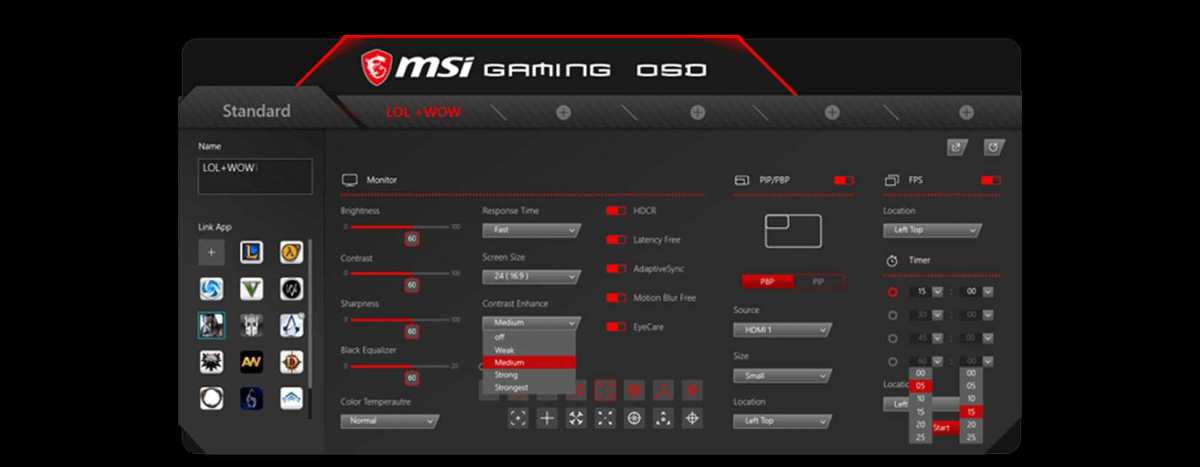
You can also check the monitor's own OSD. Monitor OSD displays the active refresh rate. Look for a model like the ASUS VG279QM.
The Three Places Your Refresh Rate Is Actually Controlled
Your refresh rate isn't set in just one spot. Three separate locations can control it, and they don't always agree with each other. If Windows says 144Hz but your GPU panel says 60Hz, the GPU setting usually wins.
If the monitor OSD disagrees with both, trust the OSD. It reads the actual signal the panel is receiving.
The three control points:
- Windows Display Settings, the OS-level refresh rate selector.
- GPU Control Panel, NVIDIA Control Panel or AMD Radeon Software, which can override Windows.
- Monitor On-Screen Display (OSD), shows the actual incoming refresh rate and lets you enable the maximum in some models.
If you only check one of these, you might miss the real bottleneck. Let's go through each one.
Windows Display Settings (First Place to Check)
This is where most people look, and it's the right place to start. On Windows 11, go to Settings > System > Display > Advanced display. Under the refresh rate dropdown, you should see the maximum your monitor supports.
If 144Hz appears in the list but isn't selected, click it. If 144Hz doesn't appear at all, the problem is upstream. Your GPU driver, cable, or port is telling Windows that 144Hz isn't possible.
Check your GPU control panel next. Then investigate the cable.
NVIDIA Control Panel (When Windows Isn't Enough)
If you have an NVIDIA GPU, the control panel sometimes overrides what Windows shows. Right-click the desktop and open NVIDIA Control Panel. Navigate to Display > Change resolution.
On the right side, you'll see a Refresh rate dropdown. This list is often more complete than Windows, especially for custom resolutions.
If 144Hz is available here but not in Windows settings, select it and apply. Then go back to Windows and check again. Sometimes the two need to sync up.
If NVIDIA's panel also maxes out at 60Hz, your cable or port is the likely culprit.
AMD Radeon Software (For AMD GPU Users)
AMD's Adrenalin software handles this differently. Open AMD Radeon Software and go to the Display tab. Look for the Refresh rate toggle or slider.
Some AMD drivers also show a Custom Resolutions section where you can manually add 144Hz if it's missing.
If the option is grayed out, check that AMD FreeSync isn't conflicting with the refresh rate. Try toggling it off temporarily to see if 144Hz unlocks. Also make sure you're not running in some kind of power-saving or hybrid graphics mode that limits the output.
Your Monitor's Own OSD Menu (The Most Overlooked Spot)
This is the one almost nobody checks. Your monitor's built-in menu tells you what signal it's actually receiving. Press the physical buttons on your monitor to open the OSD.
Look for an Information or Display section. It should list the current resolution and refresh rate.
If the OSD shows 60Hz while Windows claims 144Hz, something in the chain is lying. Usually it's the cable dropping frames or the GPU not actually sending the full signal. The OSD is ground truth.
Trust it over software readouts.
The Cable and Port Problem Nobody Talks About
Here's where most 144Hz problems actually live. Not in software. In the physical connection between your GPU and your monitor.
The cable you're using, the port it's plugged into, and the version of that port all determine whether 144Hz is even possible.
DisplayPort vs HDMI: Which One Do You Actually Need?
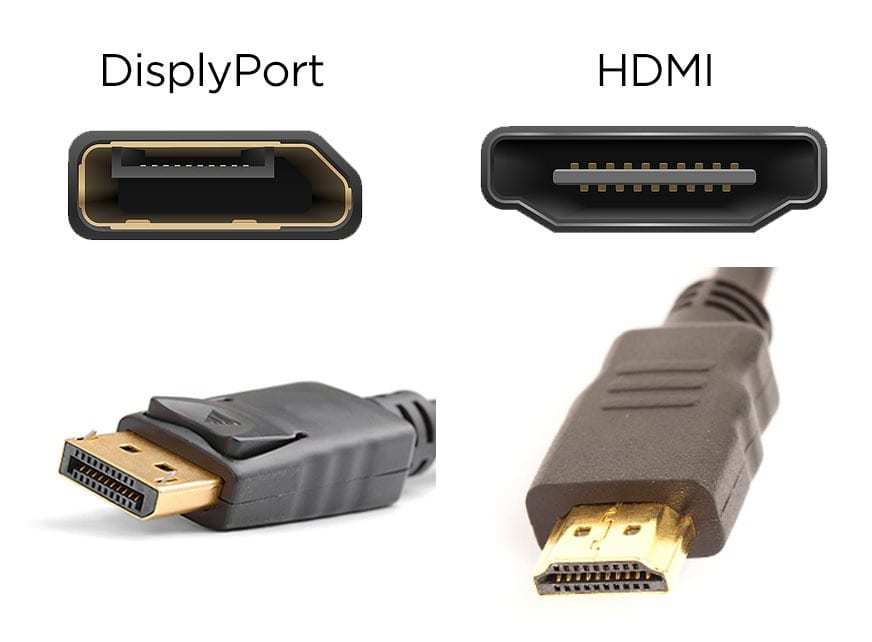
Not all cables are created equal. The version printed on the cable determines its bandwidth, and bandwidth determines your maximum refresh rate at a given resolution.
| Standard | Max Bandwidth | 1080p 144Hz | 1440p 144Hz | 4K 144Hz |
|---|---|---|---|---|
| HDMI 1.4 | 10.2 Gbps | Yes | No | No |
| HDMI 2.0 | 18.0 Gbps | Yes | Yes | No |
| HDMI 2.1 | 48.0 Gbps | Yes | Yes | Yes |
| DisplayPort 1.2 | 17.28 Gbps | Yes | Yes | No |
| DisplayPort 1.4 | 25.92 Gbps | Yes | Yes | Yes (with DSC) |
| DisplayPort 2.0 | 77.37 Gbps | Yes | Yes | Yes |
For most 144Hz gaming monitors at 1080p, a DisplayPort 1.2 cable or HDMI 2.0 cable works fine. At 1440p, you need HDMI 2.0 or DisplayPort 1.2 minimum. At 4K, you need HDMI 2.1 or DisplayPort 1.4 with DSC.
Why the Port on Your GPU Matters More Than You Think
This mistake costs people more headaches than anything else. If your motherboard has video outputs and your GPU has video outputs, you need to be plugged into the GPU. Period.
The motherboard ports connect to the integrated graphics processor, which often can't drive 144Hz reliably, and in many cases won't pass through the discrete GPU's signal at all.
Look at the back of your PC. If your cable is plugged in horizontally near the top of the case, it's probably in the motherboard. Move it down to the GPU slots, which are usually lower and oriented vertically or at a different angle depending on the case.
This single fix resolves a surprising number of "my 144Hz isn't working" posts.
Also check which port on the monitor itself you're using. Some monitors have multiple input ports, and not all of them support the maximum refresh rate. A monitor might support 144Hz over DisplayPort but only 60Hz over HDMI, or only on Input 1 and not Input 2.
Check your monitor's manual or spec sheet to confirm which port supports the full refresh rate.
Step-by-Step: How to Check and Fix Your Refresh Rate
Let's put it all together in order. Work through these steps one at a time. Stop when you find the issue.
Step 1: Verify in Windows Display Settings
Right-click the desktop. Select Display settings. Scroll to Advanced display.
Check the Refresh rate dropdown. If 144Hz is available, select it. If it's not listed, move to Step 2.
Step 2: Check Your GPU Control Panel
Open NVIDIA Control Panel or AMD Radeon Software. Navigate to the resolution or display settings. Look for the refresh rate option.
If 144Hz appears here but not in Windows, apply it from the GPU panel. Then recheck Windows.
Step 3: Confirm on the Monitor's On-Screen Display
Press the buttons on your monitor. Open the OSD menu. Find the Information page.
It should show the active resolution and refresh rate. If it reads 60Hz, your cable or port is the problem.
Step 4: Test with UFO Test in Your Browser
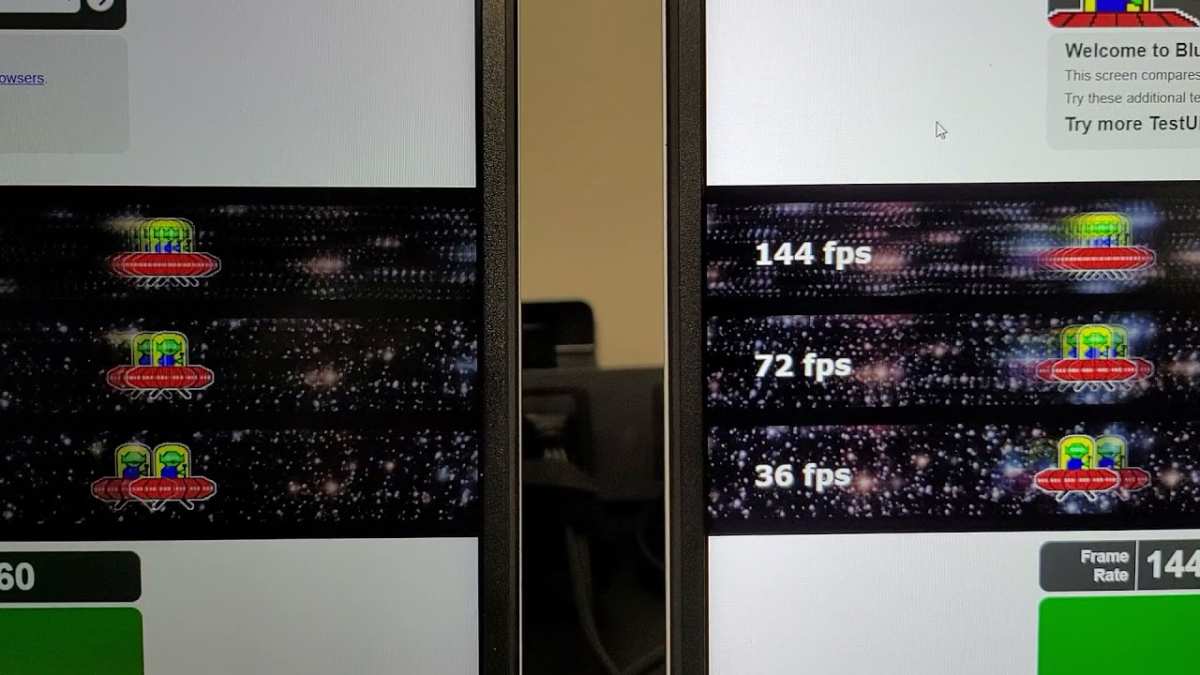
Open your browser and go to testufo.com. The site displays a series of UFOs moving across the screen. Below them, it shows your detected refresh rate.
If it says 144Hz, you're good. If it says 60Hz, go back and check your cable and port.
Common Reasons 144Hz Isn't Showing Up
If you've checked everything above and still can't get 144Hz, one of these is almost certainly the cause.
You're Plugged Into the Motherboard, Not the GPU
This is the number one mistake. Your CPU's integrated graphics output won't drive a 144Hz gaming monitor properly. Move the cable to the dedicated GPU ports lower on the back of your case.
Your Cable Doesn't Have Enough Bandwidth
That old HDMI cable from your DVD player won't cut it. You need at least HDMI 2.0 or DisplayPort 1.2 for 144Hz at 1080p. Check the printing on the cable itself.
If it says "High Speed HDMI," that's HDMI 2.0. If it's unlabeled, assume it's older and replace it.
Windows Reset Your Settings After a Driver Update
GPU driver updates sometimes reset the refresh rate to 60Hz as a safety default. This happens more often than GPU manufacturers admit. After every driver update, check your refresh rate.
It takes ten seconds and saves a lot of frustration.
HDR or Color Depth Is Eating Your Bandwidth
Enabling HDR or switching to 10-bit color depth consumes extra bandwidth on the cable. If you're already at the limit of what your cable can handle, adding HDR can force the refresh rate down to 60Hz. Try disabling HDR temporarily to see if 144Hz becomes available.
Your Monitor Has Multiple Ports and You're on the Wrong One
Some monitors only support the maximum refresh rate on specific inputs. Check your monitor's manual. You might need to switch from HDMI 1 to HDMI 2, or from DisplayPort to a different DP input.
The OSD usually shows which input is active.
FPS vs Refresh Rate: They're Not the Same Thing
People confuse these constantly. FPS (frames per second) is how many frames your GPU produces. Refresh rate (Hz) is how many times per second your monitor updates the image.
They're related but completely independent.
Your GPU can render 300 frames per second while your monitor only shows 60 of them. You'll see the benefit in reduced input lag, but you won't see the smoothness. To actually see 144 frames per second, your monitor needs to be refreshing at 144Hz.
Both numbers need to match up for the full experience.
This is why checking the actual refresh rate matters. An FPS counter in your game tells you what the GPU is doing. It tells you nothing about what the display is doing.
Use the UFO Test or your monitor's OSD to verify the real refresh rate.
How to Check 144Hz on macOS and Linux
Not everyone's on Windows. If you're on a different OS, the process changes.
macOS
Apple hides this setting. Go to System Settings > Displays. Hold the Option key and click Scaled.
A list of available refresh rates will appear. Select 144Hz if it's listed. On some Macs, especially those connected via USB-C or Thunderbolt to an external monitor, the refresh rate options depend entirely on the cable and adapter being used.
Linux
On Linux, the most reliable tool is xrandr. Open a terminal and type xrandr --verbose. Look for the active resolution mode.
It will show the refresh rate next to the resolution. To set 144Hz, use xrandr --output DISPLAYNAME --mode 2560x1440 --rate 144. Replace DISPLAYNAME with the output shown in the xrandr listing.
On Wayland-based desktops, use your display manager's settings panel or a tool like gnome-randr.
Quick Reference: Cables, Ports, and Maximum Refresh Rates
Here's a cheat sheet for what cable you need at each resolution to hit 144Hz.
| Resolution | Minimum Cable for 144Hz | Recommended Cable |
|---|---|---|
| 1920×1080 (1080p) | DisplayPort 1.2 or HDMI 2.0 | DisplayPort 1.4 |
| 2560×1440 (1440p) | DisplayPort 1.2 or HDMI 2.0 | DisplayPort 1.4 |
| 3840×2160 (4K) | DisplayPort 1.4 (with DSC) or HDMI 2.1 | HDMI 2.1 or DisplayPort 2.0 |
If you're buying a new cable, go with DisplayPort 1.4. It handles everything up to 4K 144Hz with DSC and is the most widely compatible option for gaming monitors as of 2026. Cheap cables from no-name brands sometimes fail to hit their rated bandwidth.
Stick with certified cables from reputable manufacturers.
Final Checklist: Make Sure 144Hz Is Actually Working
Before you close this tab, run through this quick checklist.
- Windows Display Settings shows 144Hz selected.
- GPU Control Panel confirms 144Hz.
- Monitor OSD reads 144Hz.
- UFO Test detects 144Hz.
- Cable is DisplayPort 1.2+ or HDMI 2.0+.
- Port is on the GPU, not the motherboard.
- Monitor input supports 144Hz on the port you're using.
If all seven check out, you're genuinely running at 144Hz. Enjoy the smoothness.
Frequently Asked Questions
How do I know if my monitor is actually running at 144Hz?
The most reliable way is to check your monitor's on-screen display menu. The OSD shows the actual signal the panel is receiving. You can also use the UFO Test website in your browser, which detects your current refresh rate automatically.
Why is my 144Hz monitor only showing 60Hz in Windows?
The most common cause is an outdated or wrong cable. HDMI 1.4 and older DisplayPort cables can't always handle 144Hz. Another frequent issue is being plugged into the motherboard's video output instead of the dedicated GPU.
Windows driver updates can also reset the refresh rate to 60Hz.
Can I run 144Hz over HDMI?
Yes, but only with HDMI 2.0 or higher for 1080p and 1440p. For 4K at 144Hz, you need HDMI 2.1. Check the printing on your cable to confirm the version.
Many monitors ship with HDMI 2.0 cables, but not all of them.
Does my GPU support 144Hz?
Almost any dedicated GPU from the last decade supports 144Hz at 1080p. Integrated graphics can be hit or miss. Check your GPU's specifications on the manufacturer's website.
The bigger limitation is usually the cable or the monitor input, not the GPU itself.
What's the difference between 144Hz and 144fps?
144Hz is the monitor's refresh rate. 144fps is the GPU's frame output. For the smoothest experience, both should match. If your GPU outputs 60fps on a 144Hz monitor, you're only seeing 60 unique frames per second.
If your GPU outputs 144fps on a 60Hz monitor, the monitor can't display all those frames.
Do I need DisplayPort for 144Hz?
Not necessarily. HDMI 2.0 supports 144Hz at 1080p and 1440p. DisplayPort is more reliable for high-refresh setups, especially with adaptive sync technologies like G-Sync and FreeSync.
If you have both options available, DisplayPort is generally the safer choice for gaming.

Similar Posts





















