Which 27 Inch Monitor Is Best for Designers
When designers ask which 27 inch monitor is best for designers, the honest answer isn't a single model, it's a short list shaped by how you actually work. A photographer retouching skin tones at 200% zoom needs different things than a UI designer checking spacing at 1:1 pixel mapping. The differences between these monitors come down to color consistency, panel quality over time, and whether the connections keep your workflow clean rather than cluttered.
The 27-inch sweet spot still delivers the best balance of workspace and pixel density in 2026. At 4K resolution, you get around 163 pixels per inch, which keeps text crisp and UI elements sharp without scaling issues eating your real estate. That density, combined with factory-calibrated panels and wide color gamut support, is where the real contenders separate themselves.

Quick Answer
For pure all-around design work, the ASUS ProArt PA279CV gives the most balanced package. It covers 100% sRGB, carries a factory-delta-E-under-2 rating, and offers a connectivity suite that actually works for mixed Mac and PC setups. Budget flagships LG UltraFine and Dell's UltraSharp U2723QE are close runners-up.
For mission-critical print or prepress, push up to dedicated reference displays like SW271C or CG2700S.
Why a 27-Inch Monitor Is Still the Sweet Spot for Designers
The 27-inch form factor has stuck around for a reason. It sits at a physical size that fills your natural field of vision without forcing you to constantly pan around. Pair that with 4K resolution and you get enough room to keep toolbars open while your actual content retains detail.
Designers working in Figma, Photoshop, or Illustrator notice the difference immediately, especially at 1:1 zoom levels.
What most people skip over is the relationship between screen size and desk depth. A 32-inch panel at 4K often requires you to push back to around 30 inches for comfortable viewing, which not every home or studio desk allows. A 27-inch 4K display works well at 20 to 24 inches of viewing distance.
That's the typical sweet spot for most people's natural sitting posture.
On top of that, 27-inch monitors tend to hit the best price-to-performance ratio in the pro space. You're paying for a professional-grade panel without the steep jump in cost that drives 32-inch reference monitors above the $2,000 mark.
The Two Questions You Actually Need to Answer Before Anything Else
Before touching spec sheets, figure out what kind of designer you are and what "good color" means for your work. If you mostly produce content for screens, websites, apps, social media, broadcast, then DCI-P3 coverage matters more than Adobe RGB. If your work hits physical printing regularly, Adobe RGB and proofing tools become non-negotiable.
The other question ties to your setup. Do you need a single cable that charges your laptop while driving the display? That immediately filters out monitors offering less than 65 to 90 watts over USB-C or Thunderbolt.
Do you switch between two machines at the same desk? KVM capability in the monitor itself saves you from a tangle of cables and adapters.
Nail these two filters before anything else. Everything else on the spec sheet runs secondary.
- Screen-first work (web, UI, motion) → prioritize resolution, PPI, clean scaling, and sRGB/DCI-P3 coverage.
- Print and cross-media work → prioritize Adobe RGB, hardware calibration, uniformity compensation, and a panel that holds calibration over time.
- Shared setup or mixed OS → prioritize Thunderbolt or USB-C power delivery and built-in KVM.
The Contenders: Monitors That Meet the Real Designer Bar
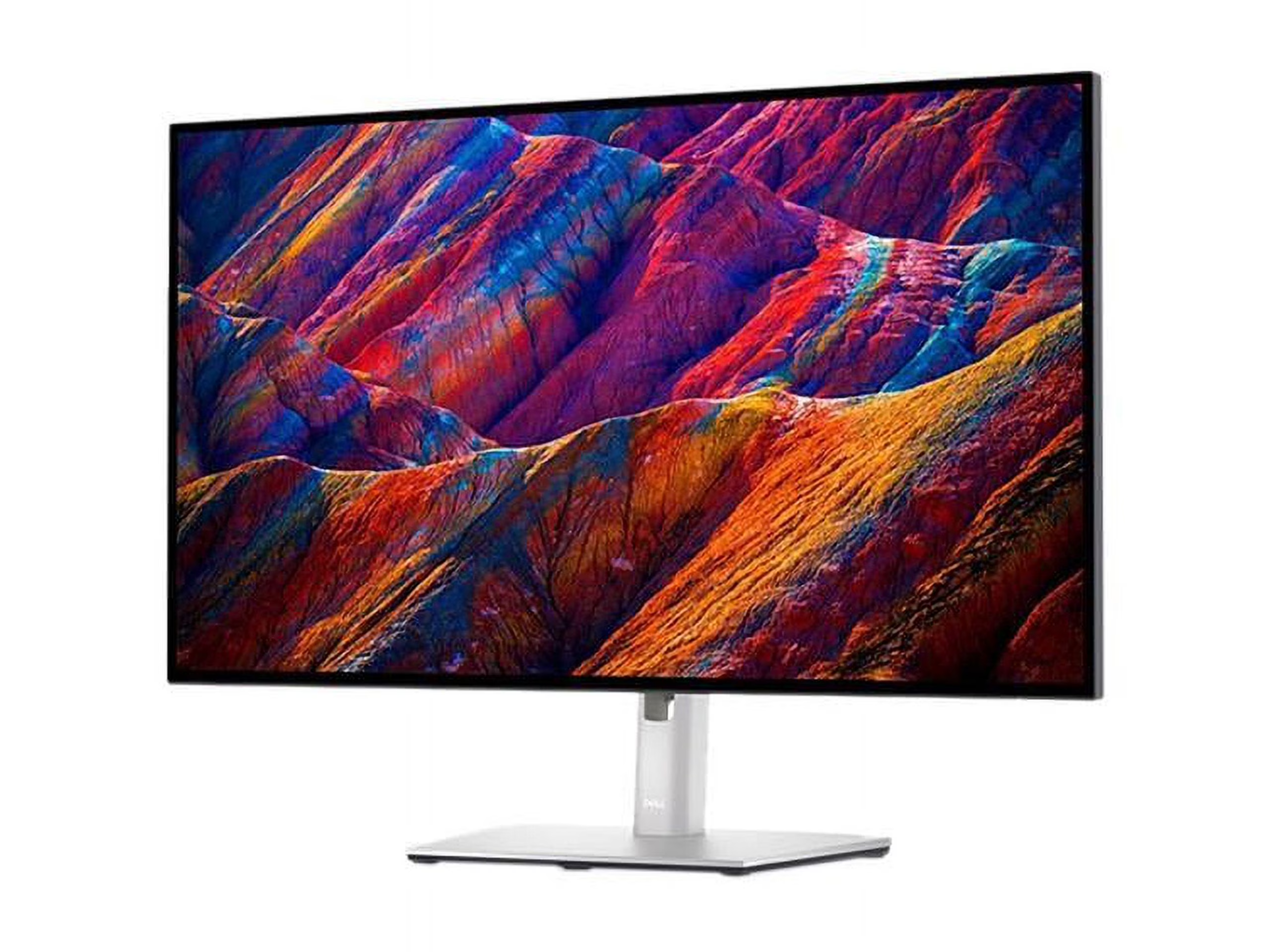
Here are the 27-inch monitors that genuinely satisfy professional-use thresholds as of 2026, without mixing in budget options that cut too many corners.
Dell UltraSharp U2723QE
Dell's 27-inch flagship IPS Black panel brings deeper contrast, rated around 2,000:1, compared to the 1,000:1 typical of older IPS designs. It covers 100% sRGB and 98% DCI-P3, ships with a delta-E-under-2 report, and offers a full USB-C hub with 90 watts of power delivery (USB 3.2 Gen2).
ASUS ProArt PA279CV
The PA279CV stands out as the most balanced option across brand ecosystems. It delivers 100% sRGB coverage, a verified delta-E-under-2 score through a factory-calibrated Calman-verified reference mode, and wide connectivity that includes USB-C with 65 watts of power delivery. The OSD includes actual design presets rather than recycled gaming profiles.
BenQ SW271C
BenQ's PhotoVue line targets shooters and retouchers specifically. The SW271C covers 99% Adobe RGB, 95% DCI-P3, and includes a hardware calibration LUT compatible with X-Rite and Calibrite colorimeters. It also ships with a hood and supports 16-bit 3D LUT processing for long gradient retention.
EIZO ColorEdge CG2700S
The CG2700S anchors the reference category with an integrated calibration sensor built directly into the bezel. It self-calibrates on a schedule you define, which eliminates drift throughout longs hours of critical work. 99% Adobe RGB, 98% DCI-P3, and a very strong build quality justify the higher price tag.
LG UltraFine 27MD5KL-B
LG's 5K UltraFine panel pushes pixel density to around 218 PPI, which Mac users who favor pixel-perfect rendering will hit naturally. Coverage is strong through P3 with factory tuning, making it a natural pairing for consumer MacBooks, but without additional screen real estate scaling.
Side-by-Side: What Actually Matters When You Compare Them
Raw specs only tell part of the story. These are the dimensions that change how a monitor functions on your desk during a working week.
Color Calibration and Calibration
Out-of-box calibration is just the starting point. Designers need a monitor that holds close to spec for a useful period. Analyses of long-run calibration data show how only the most disciplined monitors, running 123-point corrections in hardware LUTs, manage to stay under a Delta-E limit of 1.0 through the first year.
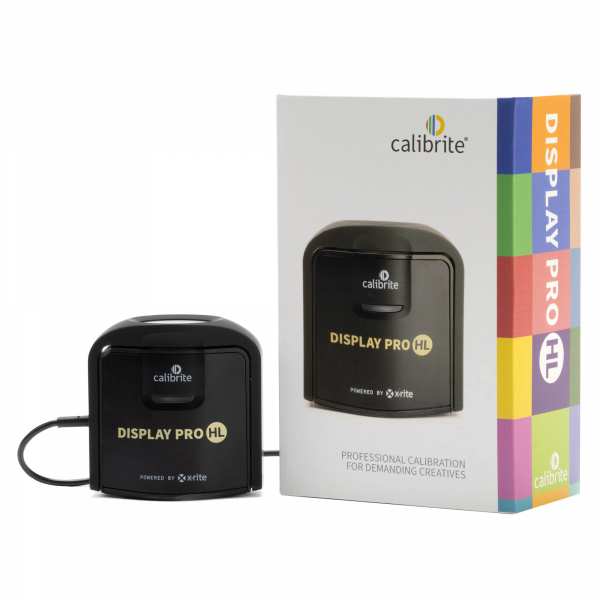
Consumer modes without this tend to drift, and for regular recalibration you'll need an external colorimeter like the Calibrite ColorChecker Display Plus.
Comfort and Day-Long Use
Heat buildup and flicker-free backlighting matter. Across professional studio environments, monitors that comply with TÜV Rheinland Flicker-Free standards have been reported to reduce subjective eyestrain complaints. Look for adjustable stands that promote good ergonomics, low blue light modes tuned for a warmer color point, and anti-glare coatings that don't introduce distracting micro-grain.
Build and Connections
Hub monitors can genuinely simplify a desk but need to deliver. Thunderbolt 4 with 90 watts tends to run cool, but early implementations under heavy GPU load can cause moment to moment flicker. VESA 100×100 mounting gives you proper arm flexibility, useful in commercial studios where adjustability is critical.
Performance and Longevity
Over time, IPS panels develop tinting unevenly, which usually becomes visible first toward the corners. Some professional lines use pixel-by-pixel internal brightness compensation to correct this under controlled conditions. This doesn't defeat panel lottery, but it can extend the useful life of the display where otherwise uniformity issues would demand early replacement.
Side-by-Side Spec Snapshot
| Model | Panel Type | Color Coverage | Power Delivery | Pixel Density (Approx.) | Calibration Method | Key Connectivity | Price Range |
|---|---|---|---|---|---|---|---|
| ASUS ProArt PA279CV | IPS, 4K UHD | 100% sRGB, 95% DCI-P3 | 65W (USB-C) | ~163 PPI | Factory, software LUT | USB-C, HDMI 2.0, DP | $400 – $500 |
| Dell UltraSharp U2723QE | IPS Black, 4K UHD | 100% sRGB, 98% DCI-P3 | 90W (USB-C) | ~163 PPI | Factory, software Calman | USB-C, Thunderbolt 4, DP, RJ45 | $570 – $700 |
| BenQ SW271C | IPS, 4K UHD | 99% Adobe RGB, 95% DCI-P3 | Not applicable (power brick) | ~163 PPI | Hardware 16-bit LUT | HDMI 2.0, DP, USB-C (no PD charging) | $1,100 – $1,200 |
| EIZO ColorEdge CG2700S | IPS, 4K UHD | 99% Adobe RGB, 98% DCI-P3 | 60W (USB-C) | ~163 PPI | Built-in calibration sensor | USB-C (TB3), DP, HDMI | $1,700 – $1,900 |
| LG UltraFine 27MD5KL-B | IPS, 5K UHD | 99% DCI-P3 | 85W (Thunderbolt 3) | ~218 PPI | Factory P3-optimized | Thunderbolt 3 | $1,200 – $1,300 |
Best Pick by Type of Designer
Different creative workplaces put pressure on a display in different ways. The value of a monitor matches precision needs to its production intent.
Graphic and Brand Design
For branding, visual identity, and general graphic work, consistency is king. The ASUS ProArt PA279CV keeps it simple: clean margins and a correct sRGB-proof mode without any auto-brightness interference.
UI/UX and Frontend Work
UI work demands consistent implementation at design zoom levels and a native HiDPI or Retina-equivalent, 4K display scaled. LG UltraFine's 5K panel remains ideal for Mac users in this spot. On Windows, Dell U2723QE's deeper contrast helps shadows and dark UI backgrounds resolve with better control.
Photography and Retouching
Adobe RGB matters here because retouching work often crosses from CMYK to print coordination. BenQ SW271C has proven Adobe RGB coverage in the 99-percent range, retaining print design intent absent in lower-cost panels.
Video Editing and Color Grading
Color volume and gamut bandwidth are the deciding factors. Watch for DCI-P3 98% capability. For pre-grade checking, the LG UltraFine and Dell U2723QE both represent a clean P3 reference preview.
Print and Prepress
This is where ref displays stand apart from consumer models. EIZO ColorEdge's built-in self-calibration mechanism makes it an efficient choice, since drift accumulates gradually and prepress workflows favor scheduled recalibration intervals.
Freelance Mixed Media on a Tight Budget
When funds are constrained, the ASUS ProArt PA279CV delivers genuine professional-grade quality below the $500 mark while retaining the full factory verification.
Setup and Workflow Steps That Keep the Monitor Running Right
Getting a calibrated display desk-ready is straightforward, but skipping steps introduces inconsistent output, soft-proofing mistakes, and wasted afternoons. These steps form a baseline flow. Adapt them across hardware calibration targets and ICC profiles per your print vendor's requirements, if applicable.
- Unbox on a flat surface and visually inspect the panel under cool white room lighting, before powering on, for any obvious defects like screen cracks or severe backlight bleed along the corners. Minor edge glow is typical on IPS, but uneven clusters indicate a panel lottery issue.
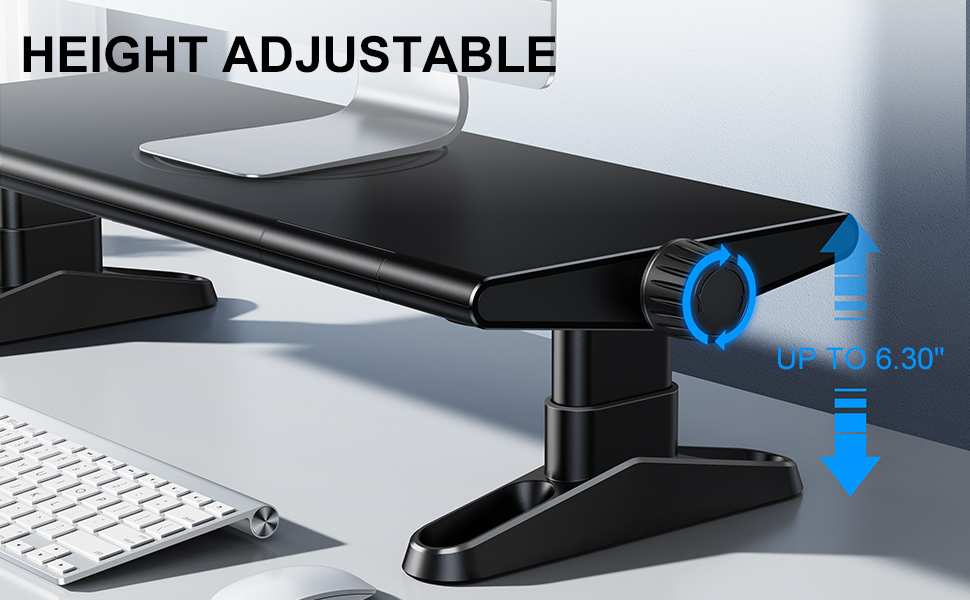
- Set the stand on your desk or connect to a VESA arm rated for the monitor's weight. Adjust the display height so your eye line sits near the top of the viewing area. Tilt should sit around -5 degrees for a neutral vertical working angle.
- Connect USB-C to a recent Mac or PC as the primary connection for video and power delivery. Verify that the laptop indicates adequate charging power before releasing the cable.
- Set the color mode intended for your primary work mode through the monitor's on-screen display. For sRGB-restricted modes, confirm the mode limiter is locked and comfort view is disabled to prevent unintended warm shifts.
- Run hardware calibration on the third boot cycle once the display has warmed up for 30 minutes. Allow any calibration to fully boot before use.
- Set a calibration reminder depending on the monitor's ICC management. EIZO's built-in engine automates this, but most displays will benefit from a monthly check against discoloration.
- Check brightness relative to room lighting. Adjust your room ambient light down or up to reduce fatigue in long editing sessions.
- Match any soft-proofing profiles saved by the layout software to the display ICC profile from calibration, if a closed-loop workflow applies.
What to Watch Out For When Buying a 27-Inch Design Monitor
- Confirm Delta-E numbers relate to factory calibration out of the box, not generic panel capability ratings. Cherry-picked numbers can lie.
- Thunderbolt 3 compatibility with Apple silicon Macs usually works with USB-4 hosts, but always verify a specific monitor model supports the M1/M2/M3 native connection in reviews before purchase.
- Watch for "HDR600" labels without verifying real contrast performance. Edge-lit zones can't produce it accurately.
- Anti-glare coatings on IPS panels often use a 3H micro-texture, but budget panels can introduce a sparkle pattern at fine detail. Seek texture-free or minimally textured panels for critical retouching.
- Verifying VESA mount dimensions is important for desk management. Some stands require a separate hold to disconnect from the panel.
- USB-C compatibility should match your notebook's power adapter rating. If your machine needs 90 watts for full performance under load, a 65-watt monitor will slowly drain battery under heavy use.
- Check if your daily calibration workflow involves a hardware LUT present in the monitor. Externally-only correction can drift as channel control curves stretch.
How Does Panel Type Affect Color Work on a 27-Inch Display?
IPS panels dominate professional 27-inch options for good reason. They deliver stable color at off angles without the marked gamma shift you'd see on VA or TN alternatives, which matters when you examine an image multiple times from varied postures.
IPS Black, the latest generation that manufacturers like Dell use, pushes native contrast from 1,000:1 to roughly 2,000:1. On a U2723QE, near-black shadow scenes show noticeably more depth. For standard brightness work, that change doesn't shift white point or gamut measurement, but it does improve low-end rendering.
Matte coatings protect against reflections but can introduce texture. Subsurface sparkle on budget panels can be tiring over time. Professional lines generally mitigate this with a neutral, buttery matte coat that keeps refined UI gradients smooth.
When Should You Recalibrate a Design Monitor?
Follow a middle ground: schedule checks monthly. Shorter intervals are mandated by regulated broadcast or medical markets, but for design and photography, a monthly check will catch any shift in color temperature offset before it affects a client proof.
Hardware calibration via an internal LUT (like BenQ or Palette Master Element) stays for the life of the OS. Software OS-level LUTs release when the GPU driver or card changes. EIZO's built-in self-calibration sensor rescues professionals who don't want to remember the task.
How Do You Maintain a Professional Display Over the Long Term?
- Comply with pause between calibration cycles to allow panel thermal equilibrium (around 30 minutes post warm-up).
- Avoid aggressive blue modes for long periods. Software-based eye-care modes can occasionally mute tones unevenly.
- Clean the screen with a microfiber cloth. Avoid chemicals except mild water-based or OEM-recommended cleaning solutions.
- Disable DDC/CI for diagnostic purposes when you need raw signal integrity for your soft proofing.
- Keep ambient temperatures in the room stable. Hard variations in heating shifts backlight phosphor aging rates and reduces yellowing and warm bias.
- Test with target test images after updates like GPU driver changes or ICC profile changes, and reapply calibration after any network-based color-card check.
What Is a Reasonable Budget for a 27-Inch Design Monitor?
Round numbers for 2026:
- $400 to $550: ASUS ProArt PA279CV, Dell S2722QC. Good for freelancers and students.
- $550 to $750: Dell U2723QE, LG 27UN850-W. Strong all-rounders for studio use.
- $1,100 to $1,300: BenQ SW271C, LG UltraFine 27MD5KL-B. For print and Mac-specific workflows.
- $1,700 to $1,900: EIZO ColorEdge CG2700S. For prepress and color-critical environments.
Aim for the Dell or ASUS tier if you're starting out. Move up to BenQ or EIZO when client work demands it.
Frequently Asked Questions
Is 4K at 27 inches good enough for design work?
Yes. At 163 PPI, 4K on a 27-inch panel keeps text crisp and UI elements sharp without scaling headaches. Most designers find it the sweet spot between workspace and pixel density.
Do I need Adobe RGB coverage for web design?
No. Web and screen-first work lives in sRGB and DCI-P3. Adobe RGB matters when your output crosses into print, packaging, or physical production where CMYK conversion is involved.
Can I use a 27-inch gaming monitor for design work?
Some gaming panels cover wide gamuts, but they often skip factory calibration and hardware LUT support. You can calibrate one manually, but you'll likely fight uneven out-of-box gamma and missing presets.
How long do professional IPS panels last before color shifts become noticeable?
Most professional IPS panels hold usable calibration for three to five years under normal workloads. Budget panels can show visible drift within 18 months, especially in the blue channel.
Should I choose the LG UltraFine 5K or a 4K panel?
If you're deep in the Apple ecosystem and want pixel-perfect rendering without scaling, the 5K UltraFine is excellent. For mixed Mac and PC setups, a 4K panel with USB-C and Thunderbolt offers more flexibility.
Is hardware calibration worth the extra cost?
For print, prepress, or any client-facing color-critical work, yes. Hardware LUT calibration survives OS changes and GPU swaps, and it corrects at the panel level rather than relying on software adjustments that can clip data.

Similar Posts





















