How to Adjust Brightness on 27 Inch Monitor
Figuring out how to adjust brightness on 27 inch monitor shouldn't feel like solving a puzzle. Your 27-inch monitor is likely set to near-maximum brightness straight from the factory. Most users find that painfully harsh.
This guide covers every method that actually works, whether you've got physical buttons, just a joystick on the back, or need a software workaround because your monitor lacks easy access controls.
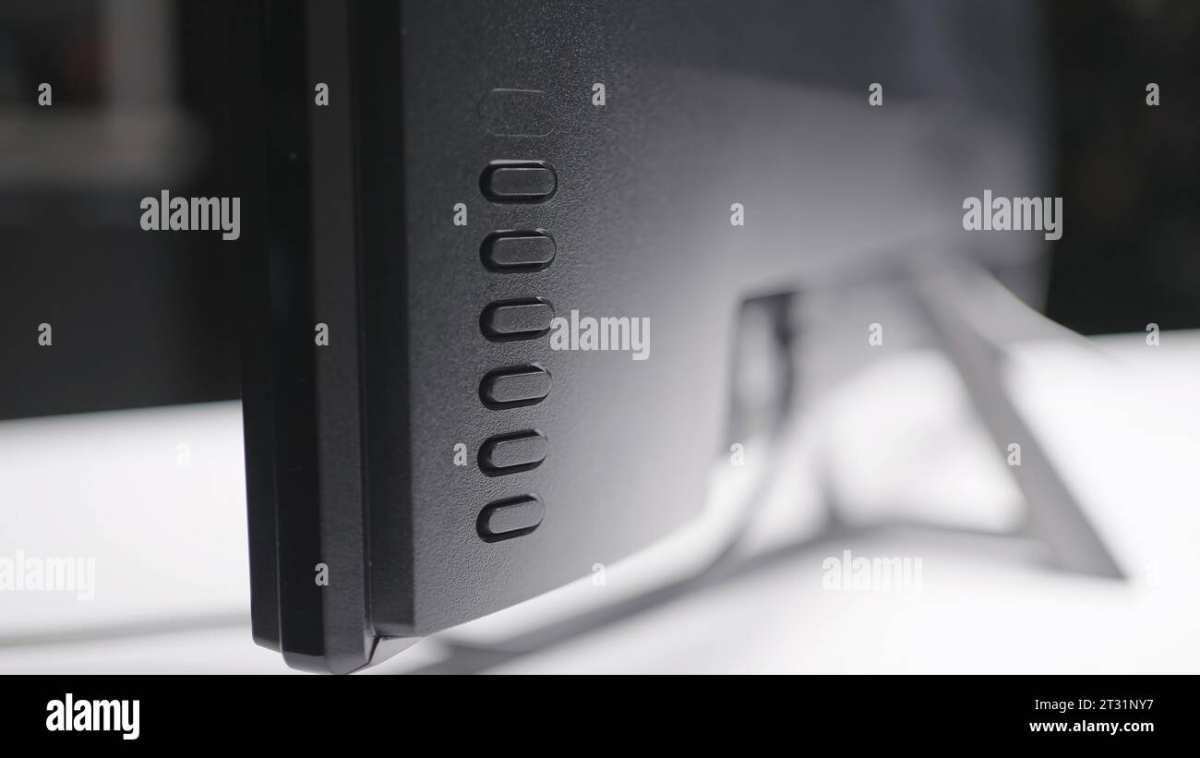
Image source: Bing (Web)
Quick Answer
Here's the fastest way to know how to adjust brightness on 27 inch monitor. Most 27-inch monitors have physical buttons or a joystick on the back or bottom bezel. Press the menu button to open the on-screen display.
Navigate to the brightness setting and adjust it with the same controls. If your monitor lacks easy physical controls, use your graphics card's control panel for software-based brightness adjustment.
First: Which Brightness Fix Matches Your Setup?
Not every 27-inch monitor gives you the same options. The right method depends on which brand you own and what connections you're using. Before diving in, let's figure out your situation.
Check for physical controls first. Most budget and mid-range 27-inch monitors from brands like Acer, ASUS, LG, and Samsung include buttons or a small joystick, usually on the back right side or under the bottom bezel. Gaming monitors often have a more prominent joystick.
If you're connecting a 27-inch external monitor to a laptop, your laptop keyboard's brightness keys won't control the external screen by default. You'll need one of the software methods covered below.
Got a Mac with an external 27-inch monitor? Apple's built-in brightness slider doesn't always appear for third-party displays. There's a workaround for that later in this guide.
The decision flow is straightforward:
- Physical buttons or joystick present. Use the monitor's on-screen display (OSD) menu. This is the most direct method and affects the panel's actual backlight output.
- No accessible buttons or OSD not responding. Use your GPU's control panel. This adjusts brightness at the graphics driver level through software.
- Want quick access from the taskbar. Try a third-party tool like Monitorian or ClickMonitorDDC.
- Mac with external 27-inch monitor. You'll need the specific macOS workaround covered in Method 4.
Quick question before you proceed. Has your brightness been acting up in other ways?
Then check out our guides on why brightness might be stuck, why it keeps resetting automatically, or how to disable adaptive brightness.
Method 1: Use the Physical Monitor Controls (Works on Most 27-Inch Monitors)
Physical controls remain the most reliable way to adjust brightness. They change the actual backlight intensity of your panel. This means better contrast and no loss of detail in dark areas compared to software dimming.
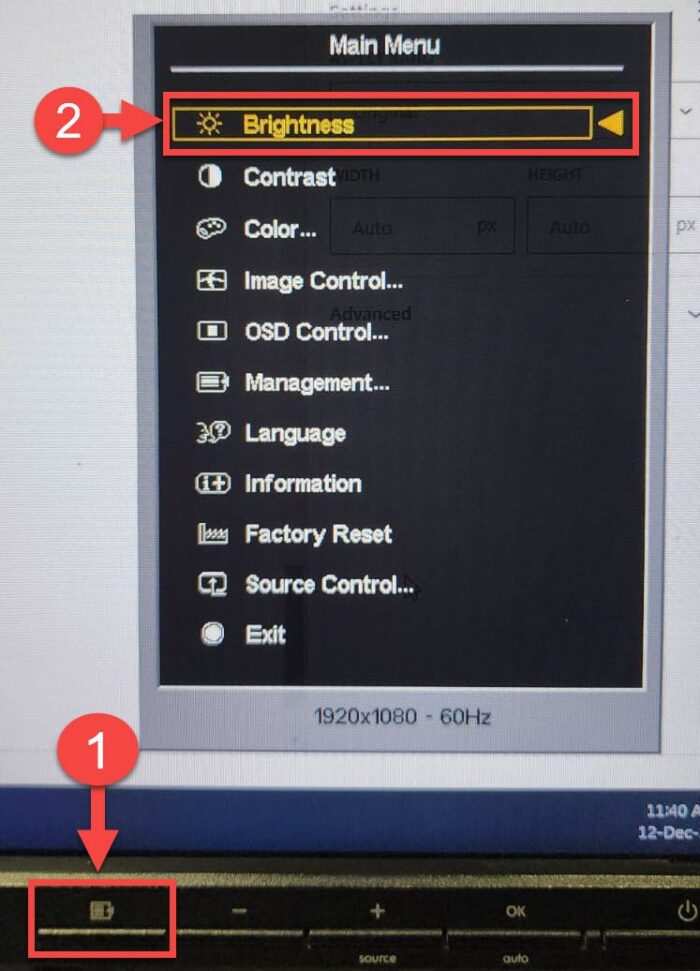
Image source: Bing (Web)
Where to Actually Find Your Monitor's Buttons or Joystick
This is where most people get stuck. Manufacturers love hiding controls in annoying spots. Here's where to look based on common 27-inch monitor brands.
| Brand | Common Control Type | Typical Location |
|---|---|---|
| Dell | Buttons or joystick | Bottom right bezel or back right |
| LG | Joystick (most models) | Center underside of bottom bezel |
| Samsung | Joystick or single button | Back right or center underside |
| ASUS | Buttons | Back right or bottom bezel right |
| Acer | Buttons | Back right or bottom bezel right |
| BenQ | Buttons | Back right side |
| ViewSonic | Buttons | Back right or bottom bezel |
| HP | Buttons or touch zone | Back right or bottom edge |
The joystick type is easiest to use. It's a small nub you push in directions and click inward to select. Think of it like a laptop trackpad button compressed into a stick.
If your monitor has separate buttons, one is usually marked with a menu icon or power symbol. That's your entry point to the OSD.
On upper-midrange and premium 27-inch models around 2024 onward, some brands have moved to touch-sensitive zones with no physical movement. These respond to a finger tap near an LED indicator on the bottom bezel. No clicking required.
Step-by-Step: Adjusting Brightness Through the OSD Menu
Follow these steps once you've located your controls. The exact wording varies by brand, but the logic is universal across every 27-inch monitor.
Step 1: Open the OSD menu. Press the menu button or click the joystick inward. The on-screen display should appear over whatever's on your screen. Usually this takes less than a second.
Step 2: Navigate to Brightness or Display settings. On joystick monitors, push the joystick left or right to switch between menu categories. Look for labels like "Picture," "Display," "Brightness/Contrast," or simply "Brightness."
Step 3: Adjust the brightness value. The brightness slider typically runs from 0 to 100. Factory defaults on most 27-inch monitors sit between 80 and 100. That's way too bright for indoor use.
Step 4: Set a comfortable level. For a normally lit room, try 40 to 60 percent. For a dark room, drop to 20 to 40 percent. Your eyes will thank you within minutes.
Step 5: Exit the OSD. Wait for it timeout automatically or press the back/exit button. Some monitors auto-save. Others require you to confirm before exiting.
On Dell 27-inch monitors specifically, you can often press the brightness button twice quickly to jump straight to the brightness slider without entering the full OSD. Same trick works on many BenQ models.
Pro tip: while you're in the OSD, check if there's a "DDC/CI" setting. It's usually buried in the system or setup menu. DDC/CI lets software on your computer talk directly to the monitor's brightness controls.
Enable it now if you plan to use the software methods below.
Method 2: Use Your GPU's Control Panel (When Monitor Buttons Aren't Enough)
Software brightness control through your graphics driver is the fallback that always works. It doesn't change the backlight. Instead, it tells the GPU to darken the image signal before it reaches the monitor.
The difference is subtle but visible, especially in dark scenes where software dimming can crush shadow detail.
Choose the right control panel based on your graphics hardware.
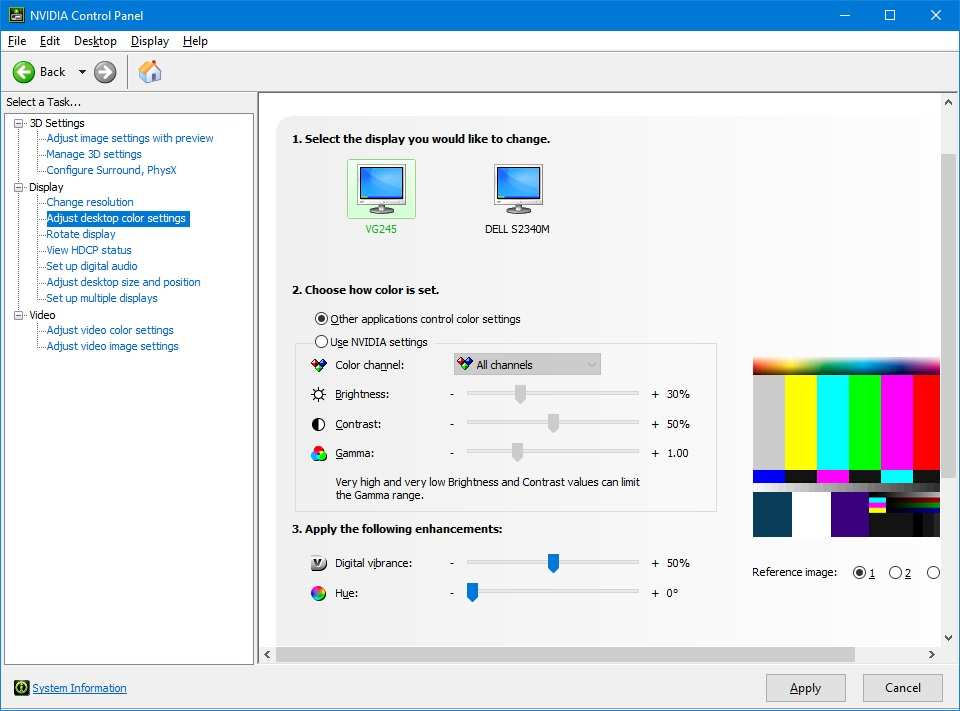
Image source: Bing (Web)
Intel Graphics Command Center (Built Into Most Windows Laptops and Desktops)
Most laptops and many budget desktop PCs rely on Intel integrated graphics. This applies even with a 27-inch external monitor connected.
Step 1: Open Intel Graphics Command Center. Right-click on your desktop background. Look for "Intel Graphics Command Center" in the menu. If it's not there, search for it in the Start menu or install it from the Microsoft Store.
Step 2: Go to Display settings. Select "Display" from the left sidebar. Make sure the correct 27-inch monitor is selected if you have more than one connected.
Step 3: Find the brightness slider. Under the "Color" or "Color Enhancement" section, you'll see a brightness slider. Drag it left to dim or right to increase.
Step 4: Apply and check. Changes apply immediately. If the slider looks unresponsive, make sure DDC/CI is enabled in your monitor's OSD.
Intel also added an "Adaptive Brightness" feature in recent versions of the Command Center. It uses your webcam or an ambient light sensor to adjust brightness automatically. If you find your screen dimming randomly, this feature might be the culprit.
NVIDIA Control Panel (For Dedicated NVIDIA GPU Setups)
If your PC has a dedicated NVIDIA graphics card, this is your path.
Step 1: Open NVIDIA Control Panel. Right-click the desktop and select "NVIDIA Control Panel" from the context menu. Alternatively, search for it in the Start menu.
Step 2: Navigate to Adjust desktop color settings. Under the "Display" section in the left panel, click "Adjust desktop color settings."
Step 3: Select your monitor. If multiple displays are connected, click the one showing your 27-inch monitor. The connected display will be highlighted.
Step 4: Adjust the Brightness slider. Under the "Apply color corrections" area, you'll see a Brightness slider with a default value of 0. Move it left to decrease or right to increase brightness.
Step 5: Apply the changes. Click "Apply" to confirm. The change should be immediate.
A caveat with NVIDIA's software brightness: it adjusts the gamma curve rather than the actual backlight. Fine for casual use. Not ideal for color-critical work where you want true hardware-level control.
AMD Software: Adrenalin Edition (For AMD GPU Setups)
AMD's current driver suite is called AMD Software. Here's where to find brightness controls.
Step 1: Open AMD Software. Right-click the desktop and select "AMD Software: Adrenalin Edition." Or search for "AMD Software" from the Start menu.
Step 2: Go to Display settings. Click the "Display" tab at the top of the window.
Step 3: Adjust the brightness slider. Each connected monitor gets its own brightness slider on this page. Find the one for your 27-inch display and drag to your preferred level.
Step 4: Check for Vari-Bright. AMD laptops sometimes include "Vari-Bright" which auto-adjusts brightness. Turn it off if you want manual control only.
AMD's software brightness works similarly to NVIDIA's. It's a driver-level adjustment, not a backlight change. Good enough for everyday use.
Method 3: Third-Party Software Tools (The Real Power User Fix)
Third-party tools shine when you want quick access without digging through menus every time. They work by talking directly to your monitor through the DDC/CI protocol.
The catch: DDC/CI must be enabled in your monitor's OSD menu first.
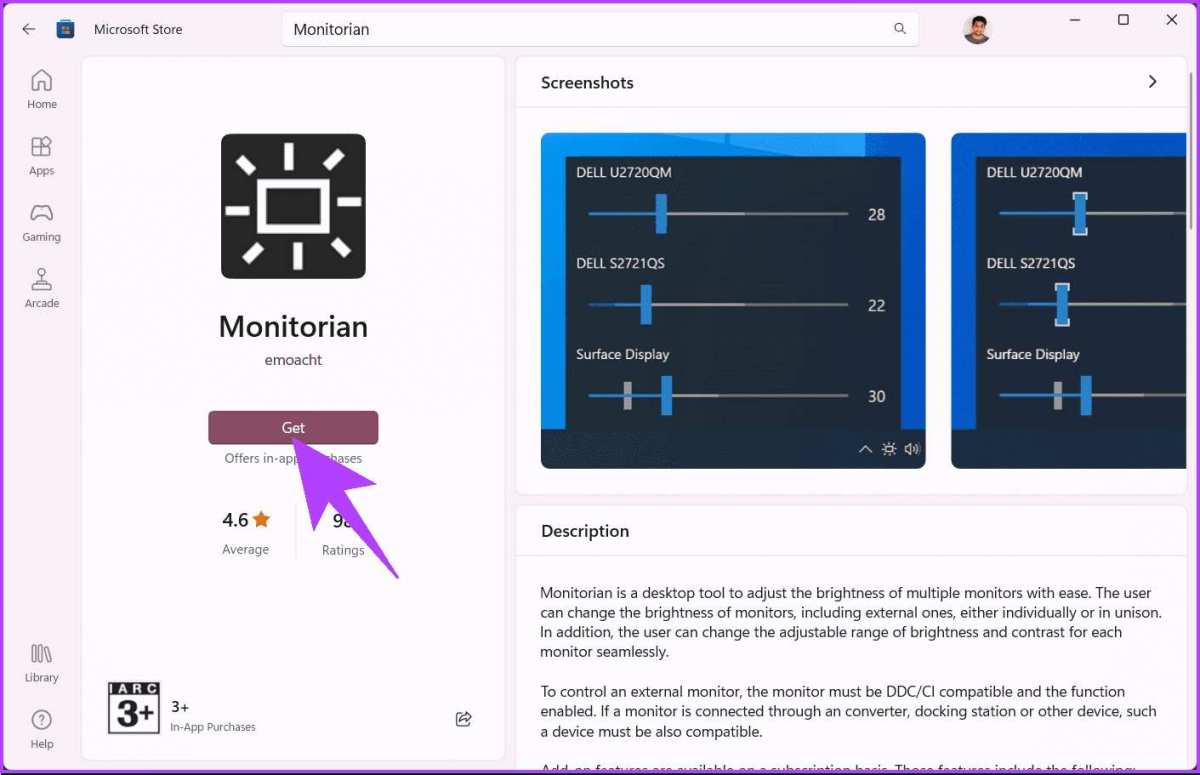
Image source: Bing (Web)
Monitorian (Clean and Simple)
Monitorian is a free, lightweight app that sits in your system tray. It's perfect if you want a quick slider without fuss. It supports up to four monitors simultaneously.
Step 1: Install Monitorian. Get it from the Microsoft Store. It's free with no ads.
Step 2: Open the app. It runs from the system tray. Click the Monitorian icon near your clock.
Step 3: Adjust brightness. You'll see a slider for each detected monitor. Move the slider left or right to dim or brighten your 27-inch display.
Monitorian communicates directly with your monitor's backlight controller via DDC/CI. This means actual hardware brightness adjustment from software. Better quality than GPU-level dimming.
Known limitation: Some monitors don't fully support DDC/CI. If your monitor doesn't show up in Monitorian, check the OSD for a DDC/CI toggle. If there isn't one, your monitor might not support it at all.
ClickMonitorDDC (DDC/CI Control for Power Users)
ClickMonitorDDC gives you command-line access to every DDC/CI parameter your monitor supports. Brightness is just the start. You can also adjust contrast, color temperature, and even switch input sources from your PC.
Step 1: Download and extract. ClickMonitorDDC is portable. No installer needed. Grab the latest version and extract the files.
Step 2: Run the main executable. The interface shows sliders for brightness, contrast, and various color channels. Adjust the brightness slider directly.
Step 3: Use command-line for automation. You can set brightness via command line: ClickMonitorDDC.exe 10 12 sets monitor 1's brightness to 12 percent. This is handy for scripts or scheduled tasks.
This tool is ideal if you want your monitor to automatically dim at night without installing anything heavy.
f.lux (Brightness and Blue Light Combined)
f.lux is best known for its blue-light filtering, but it also handles brightness. It adjusts based on your local sunrise and sunset times.
Step 1: Install f.lux. Download and install it. On first launch, you enter your location. f.lux uses this to calculate natural daylight times.
Step 2: Configure brightness presets. f.lux lets you set a daytime brightness and a nighttime brightness. It transitions smoothly between them.
Step 3: Use the quick menu. Click the f.lux icon in the system tray for quick access to brightness presets. You can also temporarily disable it for color-accurate work.
f.lux's brightness control works best as a secondary tool alongside your monitor's hardware settings. Set your monitor to a comfortable mid-range level in the OSD. Let f.lux handle the fine-tuning throughout the day.
Method 4: macOS External Monitor Brightness (The Often-Missing Slider)
Here's a frustrating truth. macOS doesn't always show a brightness slider for external 27-inch monitors. Even Apple's own Studio Display sometimes confuses users with this.
If you plug in a third-party 27-inch monitor, the brightness slider simply doesn't appear in System Settings. That's by design when the monitor doesn't support Apple's specific brightness protocol.
But you have options.
Option A: Check for a slider anyway. Go to System Settings > Displays. Look for a brightness slider beneath your monitor's name. Some recent LG and Dell models do show one.
Option B: Enable DDC/CI in the monitor's OSD. Many monitors ship with DDC/CI disabled. Turn it on. This allows macOS apps to communicate with your monitor's brightness controls.
Option C: Use a macOS-compatible tool. Apps like MonitorControl and Lunar fill this gap nicely.
MonitorControl adds a software brightness slider that works through DDC/CI. It integrates with your Mac's native brightness keyboard shortcuts if you're using a MacBook alongside your 27-inch monitor.
Lunar goes further with adaptive brightness based on your Mac's ambient light sensor, time of day, or even external brightness sensors. It's free with a paid premium tier.
Option D: Adjust from the monitor itself. The simplest workaround is still your monitor's physical controls. It's less elegant but always works regardless of what your Mac supports.
Edge case: Apple Studio Display and Pro Display XDR
These Apple-branded displays do offer native brightness control from macOS. If you're using a Studio Display as your 27-inch monitor equivalent (it's actually 27.2 inches), brightness controls appear in System Settings and the Control Center. You can also use the volume/brightness keys on a Magic Keyboard with Touch ID.
Quick Troubleshooting
Even when you follow the right steps, things sometimes go sideways. Here are the most common speed bumps and how to clear them.
Common Problems and Fixes
Brightness slider missing in Windows settings. Windows sometimes hides the external monitor brightness slider. Open Device Manager. Find your monitor under "Monitors." Right-click and select "Update driver." Restart your PC.
The slider should reappear after reboot on many systems.
Monitor buttons unresponsive. If you press the button behind your 27-inch monitor and nothing happens, unplug the monitor from power for 30 seconds. This soft-resets the internal controller. Plug it back in.
The OSD should respond normally.
Brightness keeps resetting to maximum after reboot. That's almost always adaptive brightness or an energy-saving feature. Go to Settings > System > Display. Turn off "Change brightness automatically when lighting changes." Also check your monitor's OSD for any "Eco Mode" or "Smart Brightness" settings.
Disable them.
DDC/CI isn't working in any software tool. Not all monitors support DDC/CI over every connection type. It works reliably over DisplayPort and HDMI on most monitors. But some budget models only support it over DVI or VGA.
Check your monitor's manual or support page. If your connection type supports DDC/CI, make sure it's enabled in your monitor's OSD menu under system settings.
GPU control panel brightness slider doesn't affect the external display. Some laptops route the external video output through a different GPU than the one you're configuring. A laptop with both Intel and NVIDIA graphics might use Intel for the HDMI port and NVIDIA for DisplayPort. Open both control panels to see which one responds.
Night mode or blue light filter making the screen look warmer instead of dimmer. Blue light filters like Windows Night Light, macOS Night Shift, or f.lux change the color temperature. They don't touch the actual brightness level. If your screen looks "different" but not "dimmer," that's the color adjustment at work.
Disable night mode to confirm.
Brightness stuck at maximum with no way to lower it on a 27 inch gaming monitor. Some 27-inch gaming monitors have an "FPS Mode" or "Game Mode" that locks brightness. Look for these presets in your monitor's OSD. Switch back to Standard or Custom mode.
Then adjust brightness freely.
Pro Tips for 27-Inch Monitor Brightness
These tips go beyond basic adjustment. They help you get the best experience from your specific setup.
Set brightness based on room lighting. Use around 40 to 50 percent in a well-lit office. Drop to 25 to 35 percent for evening use in a dim room. Most 27-inch monitors can go even lower for complete darkness.
Calibrate once and forget it. Use a free online calibration tool like the one at lagom.nl/lcd-test. Adjust the brightness until you can barely distinguish the darkest test pattern from black. You'll end up around 30 to 40 percent on most 27-inch panels.
Match brightness across multiple monitors. If you're running a 27-inch with a smaller secondary display, set them by eye using a white background open on both. Match them visually. Hardware calibration tools help if you need exact matching for photo or video work.
Adjust based on content. Watching a dark movie at 30 percent brightness crushes shadow detail. Browse the web at 90 percent brightness hurts your eyes. Switch presets if your monitor supports them.
Most 27-inch gaming monitors have built-in display profiles.
Don't run at 100 percent brightness constantly. It isn't just uncomfortable. It shortens the LED backlight lifespan over years of use. And it wastes power.
Even the brightest 27-inch monitor looks plenty vivid at 50 to 60 percent in a normal room.
Use dark mode in apps as a complement. Apps like Windows, macOS, Firefox, and Chrome all support dark mode. Pairing a lower monitor brightness with a dark interface reduces eye strain more than either change alone.
Frequently Asked Questions
Where are the brightness buttons on a 27-inch monitor?
Most 27-inch monitors have controls on the back right side or the center underside of the bottom bezel. Joystick controls sit under the bottom edge in the center on LG, Samsung, and newer Dell models. Separate buttons cluster on the right side on ASUS, Acer, and BenQ.
Why can't I adjust brightness on my external monitor on a Mac?
macOS doesn't natively support brightness control for most third-party external monitors. You need a third-party app like MonitorControl or Lunar. Make sure DDC/CI is enabled in your monitor's on-screen display menu first.
Is software brightness the same as hardware brightness?
No. Hardware brightness changes the monitor's actual backlight intensity, giving you true dimming without image quality loss. Software brightness tells the GPU to darken the signal before sending it to the monitor, which can crush shadow detail and reduce image fidelity.
What's the best brightness setting for a 27-inch monitor?
For a normally lit room, 40 to 60 percent works well on most 27-inch monitors. For dark rooms, 20 to 40 percent is comfortable and reduces eye strain significantly.
Can I control monitor brightness from my keyboard on Windows?
Laptop keyboard brightness keys control the laptop's built-in screen only. Most don't affect external monitors by default unless the monitor supports DDC/CI and you're using third-party software like Monitorian to bridge that connection.
Why does my monitor brightness keep changing on its own?
Adaptive brightness is usually the culprit. Check Windows Settings, your monitor's OSD for "Smart Brightness" or "Eco Mode," and your GPU control panel for auto-adjustment features. Disable all of them for full manual control.

Similar Posts





















