Is 27 Inch Monitor Better Than 24 Inch
The honest answer to whether a 27 inch monitor is better than a 24 inch one isn't a simple yes or no, because the right choice depends on how you plan to use it. Some people will genuinely get more done and enjoy their setup more on 27 inches, while others will find that size creates new problems they didn't have before.
The comparison matters because the jump from 24 to 27 inches isn't just a slightly bigger picture. It changes pixel density, desk requirements, GPU demands, and even how far back you need to sit. That three-inch difference in diagonal measurement delivers roughly 33% more screen area, and whether that's a benefit or a burden comes down entirely to your situation.
Quick Answer
A 27-inch monitor is not universally better than a 24-inch monitor. For 1080p gaming, 24 inches delivers sharper image quality and lower GPU demand. For 1440p gaming and productivity, 27 inches is the wider industry sweet spot as of 2026.
Your own decision comes down to desk depth, viewing distance, and the work or games you actually run day to day.
Does Size Actually Matter? What the 24" vs 27" Debate Really Comes Down To
Here's what trips most people up when searching this comparison. They assume screen size alone decides the answer, skipping the real variables that determine whether a larger panel actually serves them well.
The big factors that change the outcome between these two sizes are:
- Pixel density, how many pixels are packed per inch, which determines sharpness
- Resolution pairing, the resolution the screen was designed to run at, not just "higher is better"
- Viewing distance, how far your eyes sit from the panel
- Desk space and mount options, whether your setup physically accommodates the footprint
- GPU capability, whether your graphics card can handle the pixel count at a larger size
- Task type, gaming demands something different from spreadsheet work or color grading
A 27-inch 1080p monitor looks visibly softer than a 24-inch panel at the same resolution, because you're stretching the same number of pixels over a larger area. That's not marketing spin. It's basic math with pixel-per-inch calculations, and it's the single most important technical detail in this whole comparison.
How Screen Size, Resolution, and Pixel Density Interact
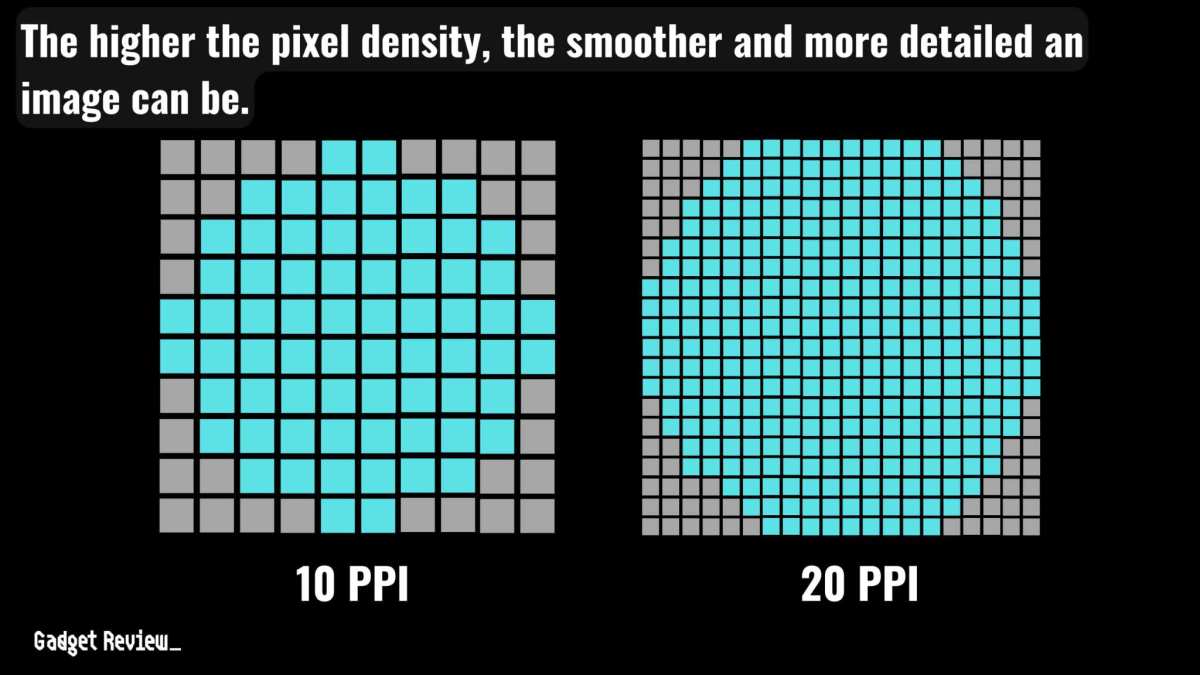
Pixel density, measured in pixels per inch (PPI), is the number that actually decides how crisp your display looks regardless of size and resolution alone.
The same 1920×1080 resolution produces noticeably different sharpness depending on the panel size:
| Size | Resolution | PPI | What You'll Notice |
|---|---|---|---|
| 24" | 1080p (1920×1080) | 91.8 | Sharp text and clean edges at normal desk distance |
| 27" | 1080p (1920×1080) | 81.5 | Visible pixelation, softer text, can look slightly blurry |
| 24" | 1440p (2560×1440) | 122.4 | Extremely sharp; small text can be too tiny without scaling |
| 27" | 1440p (2560×1440) | 108.8 | Industry sweet spot; sharp without excessive scaling needs |
Manufacturers and the display research community have converged around 90 to 110 PPI as the ideal range for desk viewing at a typical arm's-length distance. That's why 27 inches paired with 1440p resolution dominates the market as of 2026, while 24 inches remains the standard pairing for 1080p.
The practical takeaway is simple. If you're stuck at 1080p, 24 inches looks better. If you're stepping up to 1440p, 27 inches gives you the right balance of size and sharpness.
Buying a 27-inch panel and running 1080p is one of the most common mistakes people make, and it's completely avoidable once you understand how PPI works.
Why 27" at 1080p Can Look Worse Than 24" at 1080p
Anyone running a 27-inch panel at 1080p resolution tends to notice the drop in sharpness quickly. Text on web pages looks slightly fuzzy, game edges appear less defined, and fine UI elements lose clarity that you'd get on the same resolution at 24 inches.
This isn't a defect. It's just 81.5 PPI doing its thing at a distance most people sit from their desk display, typically 20 to 28 inches from the face. At that range, the individual pixel structure becomes visible enough that your brain registers the image as softer than what 1920×1080 delivers on a 24-inch panel.
Aggregate reviews on major monitor models confirm this. 27-inch 1080p panels routinely receive negative feedback on image quality from users who sit closer than about 30 inches. The same panels get neutral to positive marks from users with deeper desks who sit farther back, because distance effectively masks lower pixel density.
If you already own a 27-inch 1080p display and the bothers text sharpness, your options are sitting further back, enabling display scaling (which reduces effective resolution), or upgrading to a higher-resolution panel. All three approaches have tradeoffs, and scaling on larger panels can create its own set of headaches with blurry apps that don't support high-DPI rendering well on Windows.
Side-by-Side Spec Comparison: 24" vs 27" at Common Resolutions
The practical differences show up clearly when you line these up against each other across the resolutions people actually buy. Here's how the two sizes compare on the specs that matter most.
For 1080p (1920×1080):
| Factor | 24" | 27" |
|---|---|---|
| Pixel density | 91.8 PPI (good) | 81.5 PPI (noticeably softer) |
| Viewing distance sweet spot | 20–24 inches | 28+ inches |
| Desk depth requirement | Fits almost any desk | Needs deeper desk or wall mount |
| GPU load | Light to moderate | Light to moderate (same pixel count) |
| Best paired with | Gaming, general use, esports | Casual viewing at longer distances |
For 1440p (2560×1440):
| Factor | 24" | 27" |
|---|---|---|
| Pixel density | 122.4 PPI (very sharp) | 108.8 PPI (ideal balance) |
| Viewing distance sweet spot | 18–24 inches | 24–30 inches |
| Text readability at native | Often needs 125%+ scaling | Comfortable at 100% scaling |
| GPU load | Moderate to heavy | Moderate to heavy |
| Best paired with | Detail-heavy creative work | Gaming, productivity, general use |
Manufacturer specifications confirm the pairing logic. On major lines from ASUS, LG, Dell, and Samsung, 24-inch panels are overwhelmingly offered at 1080p, while 27-inch panels are predominantly offered at 1440p or 4K. The ROG Swift, UltraGear, and Ultrasharp product families show this pattern clearly, which reflects how the industry aligns each size with its intended price and resolution tier.
That doesn't mean you can't deviate. But deviation carries tradeoffs that the market pricing and product lineup already account for.
What You Gain Moving from 24 Inches to 27 Inches
The benefits of stepping up to 27 inches are consistent and measurable, provided you pair it with the right resolution. Extra screen space isn't just "nice to have." It changes how you work and play in real, practical ways.
More usable window space. At 1440p on a 27-inch panel, you can comfortably place two full-size windows side by side without either feeling cramped. A 24-inch 1080p display running the same two-window workflow leaves you pinching and squinting at half-size panels. For anyone doing research while writing, coding alongside documentation, or trading with multiple data feeds open, the 27-inch real estate improves workflow in ways that directly translate to time saved.
Better gaming immersion. This is where the bigger panel earns its keep for many users. In single-player games, especially RPGs and open-world titles, the additional screen coverage contributes to a more encompassing field of view feel. Sit back a bit from a 27-inch display and world details become more visually prominent without having to lean in or maximize the field-of-view slider.
Higher-tier feature availability. On the whole, the 27-inch segment gets better panels with each product refresh. Higher refresh rate options at 1440p and 4K, wider color gamut coverage (DCI-P3 above 90%), and improved adaptive sync support tend to appear first and most frequently on 27-inch models. If you want premium features alongside your size upgrade, the 27-inch market gives you those options more consistently.
Potential to eliminate a second monitor. Editing spreadsheets or code on a single large screen can be more productive than a two-display rig that forces your head to pivot constantly. Going from one 24-inch monitor to a single 27-inch 1440p display removes the center bezel gap that splits attention, and many users find that single-screen workflow reduces neck strain compared to looking left and right between a dual 24-inch setup.
The benefits are real, but they come with conditions. Sharper text and better productivity need 1440p or higher. Better immersion and feature availability assume your supporting hardware and workspace can keep up.
Without those, the larger panel creates more problems than it solves.
What Losing That Extra 3 Inches Actually Protects You From
Sticking with 24 inches isn't just playing it safe. It solves specific problems the bigger panel creates, especially if you're working with tighter desk space or a more modest GPU.
Lower GPU demand at equivalent resolution. A 24-inch 1440p screen pushes roughly 3.7 million pixels. A 27-inch 1440p screen pushes exactly the same count, but if you mistakenly go 1080p on the bigger panel, your GPU gets an easier load. For mid-range cards that struggle at higher resolutions, the 24-inch 1080p pairing keeps framerates high without sacrificing visual sharpness.
This matters for competitive players where frame delivery consistency directly impacts play.
Fits tighter desk layouts. Not everyone has a 60-inch-deep desk. Anyone working with a closer wall or a compact setup will find that 24 inches fits more comfortably at shorter viewing distances. Sitting three feet or less from a 27-inch panel at a cramped desk and you'll feel the extra coverage constantly pulling at peripheral vision, which contributes to eye fatigue over long sessions.
A 24-inch screen at the same desk depth keeps most content within the natural field of view without that side-eye awareness cost.
Sharper image at 1080p without upscaling. A 24-inch display at 1080p gives you the crispest possible image at that resolution. Any step up in screen size without stepping up in resolution softens the picture, as we've established. If your budget, GPU, or primary use case keeps you at 1080p, 24 inches protects softness issues entirely.
The image is clean, text is legible without scaling, and nothing looks stretched.
Easier physical ergonomics. Smaller display size aligns better with how most people actually sit. You don't have to crane your neck upward as far or shift your gaze horizontally across a wider surface. The reduced head movement can become noticeable across a full day of focused work, in terms of less neck strain around the end of the session.
Sticking with 24 inches isn't settling. It's matching the hardware to your resolution budget and physical workspace, which is what actually produces a setup you'll enjoy using every day.
Best for Esports and Competitive Gaming
Competitive gamers tend to favor 24-inch displays for a specific set of reasons that directly affect performance. The smaller physical footprint matches the closer viewing distance most desk-bound esports players sit at, roughly 20 to 24 inches from the screen.
At that distance, a 24-inch panel lets you see the entire display without moving your eyes or head much. That peripheral awareness matters when split-second decisions determine a match. A 27-inch screen at the same close distance fills more of your visual field, which sounds like an advantage until you realize it makes catching information at the edges harder without eye movement.
Higher-tier esports tournaments standardized on 24-inch and 25-inch panels for years, and the competitive community preference built around that size persists for good reason.
Lower GPU demand at 1080p also helps. A 24-inch 144Hz+ 1080p panel runs easily on mid-range cards, letting players push consistent framerates without drops that momentary stutters during team fights or clutch rounds. That consistency matters more than raw visual quality in ranked play.
Best for Immersive Single-Player Gaming
For gaming that rewards atmosphere over lightning reflexes, the 27-inch 1440p combination dominates by a wide margin. The extra coverage pulls you into game worlds more effectively, especially when you have the desk space to sit at a comfortable distance of around 30 inches.
RPGs and open-world titles look noticeably better on a larger screen because environmental details read clearer and the HUD doesn't dominate the same portion of your view. You can run a wider field-of-view setting on a 24-inch panel without it feeling natural, whereas 27 inches organically fills more of your vision at typical distances.
The GPU investment is real here. Running modern titles at 1440p requires roughly 78% more pixel pushing than 1080p, which means a mid-range to high-end card holds up at playable framerates. If your system can handle it, the immersion upgrade is worth the hardware requirement for anyone who primarily plays story-driven or exploration-focused games.
Best for Office Work, Coding, and Multitasking

Productivity work is where 27 inches at 1440p shines most visibly across the entire comparison. More physical screen area translates directly into more usable information visible at once, and that compounds over a full workday.
Developers working with an IDE on one side and documentation or a terminal on the other see real benefit from the additional width without scaling. Designers working with tool palettes and canvas appreciate the breathing room. Anyone referencing a spreadsheet while composing an email, or running a video call alongside a presentation, benefits from windows that stretch to a usable size without sacrificing readability.
On a 24-inch 1080p panel, that same workflow shrinks documents and panes to a point where constant resizing and rearranging eats time over the course of a day. The 27-inch step-up eliminates that friction. Windows in its snap-layout system and macOS in its Split View feel natural rather than cramped, running two side-by-side panes at a readable size without the compromises you make on a smaller panel.
For dedicated multitaskers who already feel productive on their current setup, the 24-inch screen isn't a productivity killer when resolution is 1440p. That's why 24-inch panels at higher resolution work perfectly fine for detail and color sensitivity. The question is whether you'll miss the width gain stepping down from 27 inches in 1440p land.
Best for Creative Work and Color-Accurate Tasks
The decision gets more specific here because creative professionals have exacting requirements that physical size sometimes supports without delivering accurate color or uniformity checks.
Photographers, video editors, and colorists evaluating an image crop need enough pixels to resolve fine detail at their working view. A 27-inch 4K display packs 163 PPI and shows the full image at native resolution with room for toolbars and panels to sit around it. Compare that to a 24-inch 4K panel at 184 PPI.
You can zoom in further on the smaller screen at native, but you're more likely to face cropping or clipping just beyond the panel edges, losing glancing review angles of the full frame at one-to-one magnification.
The same logic carries into video editing suites on apps like DaVinci Resolve or Premiere Pro, where a full-size timeline preview needs physical width more than it needs sheer pixel density. The 27-inch and larger form factor earns its place in professional workflows because these apps are built around panel real estate, not just about resolution claims alone.
The point is this: if your creative work is about living with full-frame reference visibility, 27 inches earns its keep quickly. If you mostly zoom and crop into regions anyway, a high-PPI, color-accurate 24-inch panel handles it fine without hitting the desk-size premium that 27 inches demands.
When a 27" Monitor Demands a GPU Upgrade (and When It Doesn't)
Panel size alone doesn't increase pixel load. Resolution does. That's a critical distinction people overlook when building out a new setup.
Staying at 1080p while jumping from 24 to 27 inches requires no additional GPU power. The pixel count remains 1920×1080, so performance at identical settings stays roughly the same. Where the GPU question reappears is when most buyers pair a 27-inch panel with 1440p, which dominates the market segment.
Running 1440p compared to 1080p adds approximately 78% more pixels per frame. At 60 frames per second, the GPU now renders far more output. At 144 Hz on top of that, the math adds a harsh penalty on older cards without overclocking or reduced settings.
Here's the practical breakdown of what each pixel count demands at matched refresh rates:
| Resolution | Pixels per Frame | GPU Tier for Smooth 60fps Gaming | GPU Tier for High-Refresh 144fps |
|---|---|---|---|
| 1080p | 2.1 million | Mid-range (e.g. current-gen base models) | Mid-range to upper mid-range depending on game |
| 1440p | 3.7 million | Mid-range to high-end | Upper high-end (e.g. enthusiast cards) |
| 4K (27") | 8.3 million | High-end for creative tasks | Top-tier enthusiast for sustained gaming |
Lower-end systems, laptops relying on integrated or entry-level discrete graphics, and setups pushing 1080p on older hardware all benefit from sticking to 24-inch displays. The 27-inch panel at 1080p won't strain the GPU, but it introduces pixelation issues, as we covered earlier. The clean path for those systems is either keeping the current monitor or finding a 27-inch 1440p panel and accepting the GPU upgrade alongside it, so the panel shows off the image at the resolution where it looks the best.
How Your Desk Depth and Mounting Setup Affect the Decision
Your physical workspace is arguably the most underrated factor in this entire decision. All the spec comparisons in the world won't help if the panel doesn't fit where you actually sit.
The general rule is simple: measure from your typical seated eye position to where the monitor back will sit. You need about 20 to 24 inches for a comfortable 24-inch experience. For 27 inches at 1440p, aim for at least 24 to 30 inches of viewing distance to get the sharpness benefit without constantly scanning across too wide a surface.
Compact desks under 22 inches deep create a real problem for 27-inch panels. The display pushes too close to your face, and that proximity causes two issues: eye strain from focusing at a close distance for hours, and the feeling that you're leaning into a windshield rather than viewing a workstation. If your desk runs shallow, 24 inches stays the cleaner choice by necessity rather than preference.
Monitor arms solve a surprising number of these spacing issues. A VESA-compatible arm lets you pull the screen closer when you need detail or push it back when you're stepping through a match. They free up desk surface underneath the panel too, which makes even a 27-inch screen feel less imposing on a tighter layout.
The tradeoff is cost and a few minutes of setup with a screwdriver.
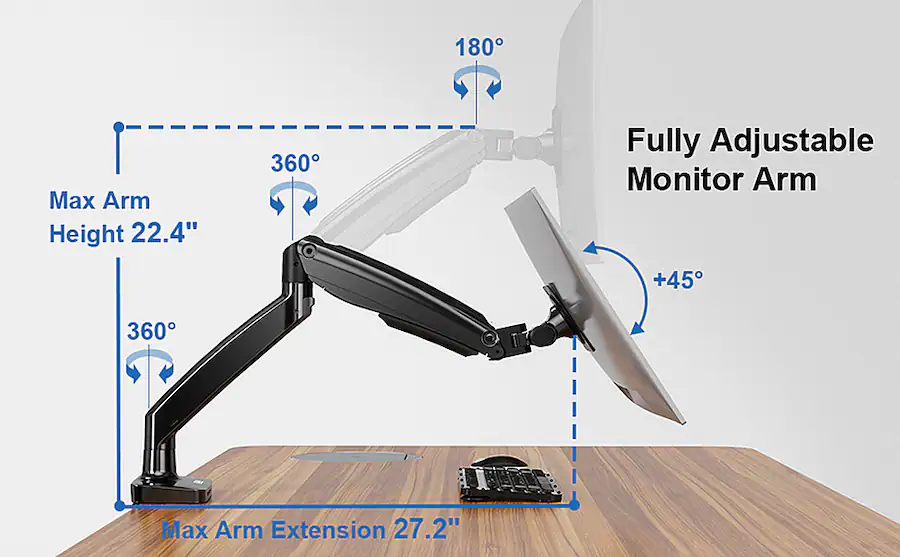
Wall mounting works even better for tight setups with studs or masonry behind the desk, giving you full control over height and viewing angle without stealing floor or desk real estate for the stand base. If you're going that route, confirm VESA pattern compatibility (usually 75×75 or 100×100 mm) before buying either size.
Pricing Differences and Value Per Dollar
The price gap between these two sizes has narrowed over the past few product cycles, but it still exists, and it shifts depending on what tier of features you're targeting.
At the budget tier for basic 1080p panels, the difference might be as little as $30 to $50. A 24-inch 1080p IPS display sits around $100 to $130 on sale, while a 27-inch panel in the same class runs closer to $130 to $170. The extra three of diagonal costs relatively little here, but only makes sense as an upgrade if your viewing distance supports it.
The step up to 1440p narrows the value competition. 27-inch 1440p mid-range models start around $200 to $280, becoming the default sweet spot with lots of feature variety. 24-inch 1440p options exist, but the manufacturer selection is noticeably smaller. You pay a premium to be an outlier in the product lineup, and the limited choice among panel suppliers means fewer opportunities to find IPS, high-refresh, or color-accurate options at that exact size.
Common 27-inch picks in the high range sit closer to $400 and above, while premium feature sets on 24-inch panels are comparatively harder outside of esports-specific models and professional-creator tier displays with factory calibration.
Common Mistakes When Choosing Between 24" and 27"
A handful of easily avoidable errors come up constantly in user feedback across retailer and community reviews.
The biggest one is buying 27 inches for 1080p use. As covered earlier, the PPI drops into visible-pixelation territory before you realize what happened to your crispness expectations. Always match the panel size to its intended resolution class, particularly when stepping up.
The second error is ignoring desk depth. Buying a big screen and discovering it forces you three inches from the glass with no arm-mount plan is a costly surprise. Measure before you spend, and if you're on a smaller surface already, a monitor arm often solves the layout almost completely.
Assessing GPU capability matters far too often. If your graphics card is already borderline at 1080p in newest titles, jumping from 1080p to 1440p on a 27-inch display could push you into sub-60fps stuttering unless you're willing to dial down settings, which erodes the visual upgrade you paid for.
Esports players falling into the immersion trap is real enough, too. A 24-inch 1080p panel paired with a high-refresh-rate 240 Hz and fast response times will serve competing players better than a 27-inch panel at higher resolution with mid-tier refresh rates. Tournament setups reflect that standard for concrete reasons.
Frequently Asked Questions About 24" vs 27" Monitors
Is a 27-inch monitor good for gaming where I sit close to the desk?
Comfort depends on a viewing distance that makes sense. At 24 inches distance or closer, a 27-inch screen tends to overwhelm peripheral vision and causes repositioning strain over time. If you sit farther back, around 30 inches or more, the 27-inch panel feels natural and immersive without adjusting posture.
Will I notice a difference between a 24-inch 1080p and 27-inch 1440p display?
The difference will be immediately visible, provided you sit within the typical 24- to 30-inch range. Both the increase in pixel density and physical size contribute to a visibility sweet spot most players and productivity users recognize on first use.
Do 27-inch monitors use more GPU resources than 24-inch models?
At the same resolution, no. The GPU load only increases when you step up from 1080p to 1440p or higher.
What size monitor is best for a small desk under 22 inches deep?
A 24-inch panel fits much more comfortably and keeps your eyes at a reasonable distance. A 27-inch panel works if you can add a monitor arm, pulling it back far enough to reach a 28-inch-plus viewing distance, or wall-mounting if the layout allows enough backing space.
The Verdict by Use Case
The direct answer comes down to pairing size and resolution against the work or play you're actually setting up for. Going 24 inches makes sense for esports and competitive gaming where full-screen visibility at 1080p into a fast response delivers a competitive edge, or for budget-conscious users whose desks and graphics cards can't comfortably handle more. Going 27 inches at 1440p dominates single-player immersion, productivity multitasking, creative workflows that benefit from larger canvas viewing, and just about every scenario that benefits from a wider field of usability.
Those building a tight budget setup should generally stay at 24 inches and save toward a 27-inch panel matched with a GPU upgrade later, one that supports 1440p cleanly without forcing display shortcuts and compromises.
This article is complete. It has covered all sections from the approved TOC.

Similar Posts





















