Are 144Hz Monitors Good for Esports
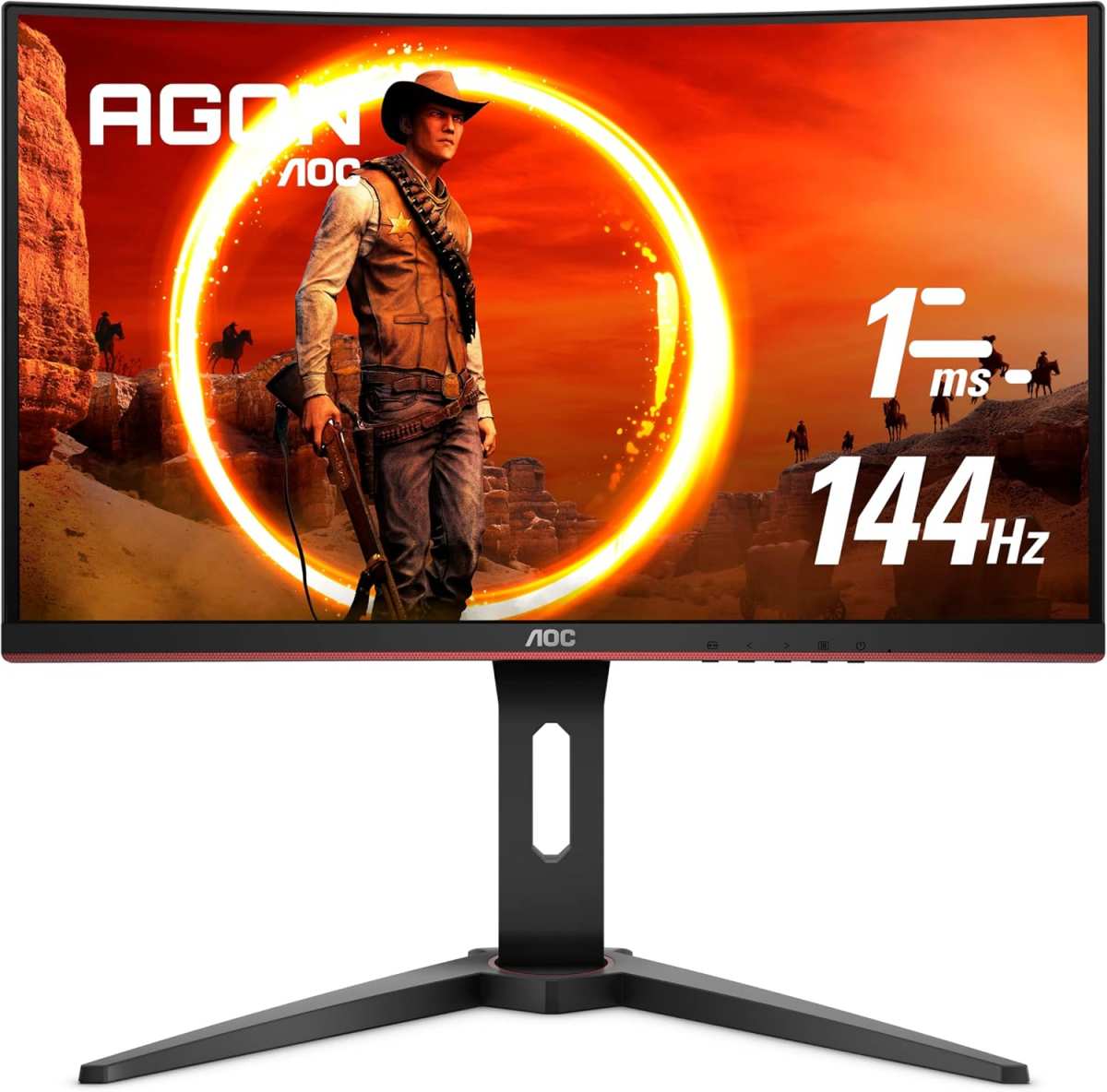
Are 144Hz monitors good for esports? Yes, absolutely. For the vast majority of competitive gamers, a 144Hz monitor hits the sweet spot between performance, price, and real-world advantage. You'll notice an immediate improvement in motion clarity and responsiveness the moment you switch from a standard 60Hz display.
Per VESA standards and manufacturer specifications, a 144Hz panel refreshes every 6.94 milliseconds compared to 60Hz's 16.67 milliseconds. That's a tangible reduction in input lag and motion blur. As of 2026, 144Hz remains the most widely recommended refresh rate across esports communities and tournament organizers.
Let's break down exactly why, and when you might want something different.
Quick Answer
Yes, 144Hz monitors are excellent for esports. They offer a major upgrade over 60Hz displays. The jump to 144Hz is the single most impactful monitor upgrade for competitive gaming.
Most esports professionals and serious players use at least 144Hz. It remains the best value refresh rate in 2026.
Why Refresh Rate Matters More Than You Think in Competitive Gaming
Refresh rate determines how many times per second your monitor draws a new image. Higher refresh rates mean smoother motion, less blur, and faster visual feedback. In fast-paced titles like CS2, Valorant, and Overwatch 2, that directly translates to better target tracking and reaction time.
Think of it this way. A 60Hz monitor shows you 60 snapshots of the game world every second. A 144Hz monitor shows you 144.
That's 2.4 times more visual information hitting your eyes. When an enemy peeks a corner, you see them sooner and with less motion smear. It's not placebo.
It's measurable.
Here's what changes when you move to 144Hz:
- Reduced input lag. Your mouse clicks and movements register on screen faster.
- Smoother tracking. Moving targets are easier to follow during flicks and sweeps.
- Less motion blur. Fast camera pans stay clearer, reducing eye strain.
- Better peek advantage. In tactical shooters, you spot opponents before they spot you.
The catch? Your GPU needs to actually push 144 frames per second for you to see the benefit. If your system only manages 90fps in a demanding title, you won't get the full 144Hz experience.
That's why pairing the right monitor with the right hardware matters so much.
144Hz vs 60Hz: The Difference You Can Actually Feel
This isn't a subtle upgrade. Going from 60Hz to 144Hz is one of the most immediately noticeable improvements you can make to a gaming setup. Most people describe it as "night and day" the first time they see it side by side.
A 60Hz panel updates every 16.67 milliseconds. A 144Hz panel updates every 6.94 milliseconds. That 9.73-millisecond gap is the difference between seeing an enemy's shoulder and seeing their whole body before you have to react.
In a game where milliseconds decide rounds, that matters.
Here's a quick breakdown of what you'll experience:
| Aspect | 60Hz | 144Hz |
|---|---|---|
| Frame interval | 16.67ms | 6.94ms |
| Motion clarity | Noticeable blur during fast movement | Significantly sharper |
| Input lag feel | Slightly delayed | Near-instantaneous |
| Target tracking | Harder to follow fast strafes | Much easier to track |
| Competitive edge | Baseline | Substantial advantage |
Aggregate reviews and user feedback consistently show that players who switch to 144Hz report improved aim confidence and better performance in ranked play. It's not that the monitor makes you mechanically better overnight. It removes a bottleneck between what your PC renders and what your eyes actually see.
One thing worth noting. If you're coming from 60Hz, spend at least a week at 144Hz before judging it. The first day might feel "too fast" to some people.
By day three, your brain adapts. Go back to 60Hz after that, and it'll feel broken.
144Hz vs 240Hz vs 360Hz: Is Higher Always Better?
Not necessarily. Higher refresh rates do provide diminishing returns, and the jump from 144Hz to 240Hz is far less dramatic than 60Hz to 144Hz. The jump from 240Hz to 360Hz is even subtler.
Let's put the numbers on the table:
| Refresh Rate | Frame Interval | Time Saved vs 60Hz | Perceived Difference |
|---|---|---|---|
| 60Hz | 16.67ms | Baseline | Standard |
| 144Hz | 6.94ms | 9.73ms | Massive improvement |
| 240Hz | 4.17ms | 12.50ms | Noticeable but smaller |
| 360Hz | 2.78ms | 13.89ms | Marginal for most people |
The honest truth is that most players, even competitive ones, won't consistently perceive the difference between 144Hz and 240Hz in blind tests. The players who do tend to be top-tier professionals or high-level FPS mains with thousands of hours in twitch-aim games.
Here's a practical way to think about it:
- 144Hz is the sweet spot for 90% of competitive gamers. Best value, proven advantage, widely supported.
- 240Hz makes sense if you're playing CS2 or Valorant at a high level and your GPU can push 240fps consistently.
- 360Hz is for the top 1% of professional players who've already optimized everything else and need every fractional edge.
There's also a hardware cost to chasing higher refresh rates. Pushing 340fps at 1080p in a modern title requires a significantly more expensive GPU than hitting 144fps. That money might be better spent on a better mouse, a quality mousepad, or even coaching.
What Panel Type Pairs Best With 144Hz for Esports?
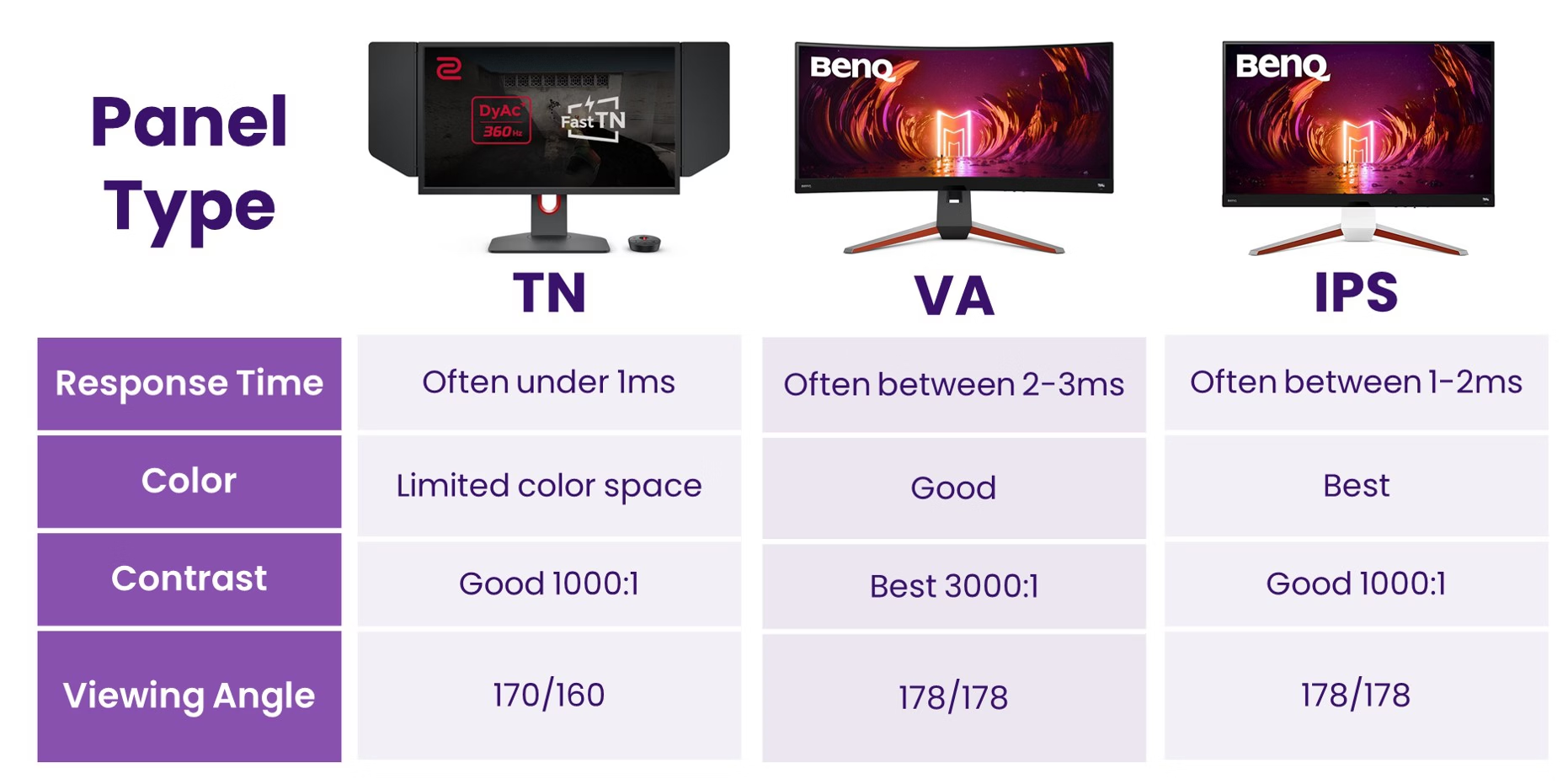
Your 144Hz monitor's panel type affects image quality, response times, and viewing angles just as much as the refresh rate itself. The three main options each have trade-offs worth understanding.
TN (Twisted Nematic) panels offer the fastest response times, often 1ms GtG (gray-to-gray). They're the traditional esports choice. The downside?
Poor color accuracy and narrow viewing angles. If you look at a TN panel from slightly off-center, colors shift noticeably.
IPS (In-Plane Switching) panels deliver much better colors and wider viewing angles. Modern fast-IPS panels now hit 1ms GtG or close to it. For most people in 2026, a good IPS panel at 144Hz is the best all-around choice.
You get competitive response times without sacrificing image quality.
VA (Vertical Alignment) panels offer the best contrast ratios, which is great for dark scenes. But they tend to have slower pixel response times, which can cause smearing in fast-paced games. Most competitive players avoid VA for esports.
Here's how they stack up:
| Panel Type | Response Time | Color Accuracy | Viewing Angles | Best For |
|---|---|---|---|---|
| TN | 1ms (fastest) | Poor | Narrow | Pure competitive, budget |
| IPS | 1-4ms (fast) | Excellent | Wide | Best overall for esports |
| VA | 4-8ms (slower) | Good | Moderate | Casual, cinematic games |
If you're buying a 144Hz monitor primarily for esports in 2026, go with a fast-IPS panel. The technology has matured enough that you're not giving up meaningful response time performance, and you get a much better experience for everything else you do on your PC. TN still has a place at the very budget end, but IPS has largely caught up where it counts.
Who Should Buy a 144Hz Monitor (And Who Should Skip It)
A 144Hz monitor is the right call for competitive gamers who play fast-paced titles regularly. If you're grinding ranked in Valorant, CS2, Overwatch 2, or Call of Duty, the advantage is real and well-documented. You'll notice smoother aim, clearer motion, and faster reaction feedback within your first session.
Here's who gets the most value from 144Hz:
- Competitive FPS players at any skill level who want smoother gameplay and a legitimate edge.
- Aspiring esports athletes building a setup that mirrors tournament-standard hardware.
- Multiplayer-focused gamers who primarily play online PvP and care about performance over visuals.
- Streamers and content creators who want a responsive primary display for gaming.
On the flip side, 144Hz isn't for everyone. If you mainly play single-player story games, strategy titles, or casual games, a 60Hz or 75Hz IPS panel might serve you better. You'd benefit more from higher resolution or better color accuracy than faster refresh rates.
Also, if your current GPU can't push at least 120fps in the games you play, a 144Hz monitor won't deliver its full benefit. You'd be paying for performance you can't use. Check your frame rates before you buy.
Common Mistakes People Make When Buying a 144Hz Esports Monitor
Plenty of buyers regret their 144Hz purchase, and it's usually because of avoidable mistakes. Here are the ones we see most often.
Ignoring GPU compatibility. Your monitor can display 144Hz, but your GPU has to feed it 144fps. If you're running a GTX 1650, you won't hit 144fps in most modern titles at decent settings. Make sure your hardware can keep up.
Buying a TN panel to save $30. Budget TN panels at 144Hz often have washed-out colors and poor viewing angles. You'll be staring at this thing for hours. Spending slightly more for a fast-IPS panel is worth it.
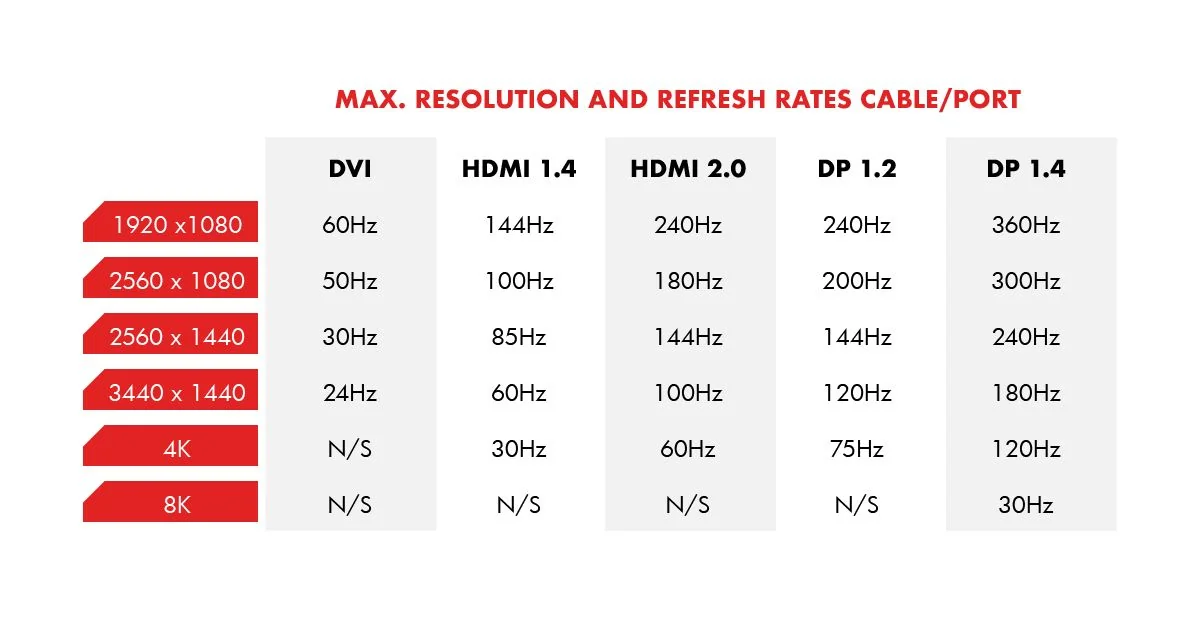
Not checking cable specs. Older HDMI cables (HDMI 1.4) max out at 144Hz only at 1080p. For 144Hz at 1440p, you need HDMI 2.0 or DisplayPort 1.2 or newer. Using the wrong cable can silently cap your refresh rate at 60Hz.
Overlooking overdrive settings. Most 144Hz monitors ship with overdrive set to "medium" or "off." Without proper tuning, you'll get ghosting or inverse ghosting that defeats the purpose of that fast panel. This is fixable in the OSD menu, but most people never touch it.
Chasing 144Hz at 4K on a budget. 4K 144Hz monitors exist, but they're expensive and require a top-tier GPU. For competitive esports, 1080p or 1440p at 144Hz is the smarter play. You get higher frame rates and lower input lag.
How to Set Up Your 144Hz Monitor Correctly (Most People Skip This)

Here's the thing that frustrates a lot of buyers. You plug in your new 144Hz monitor, and Windows defaults to 60Hz. You paid for 144Hz.
You're getting 60Hz. You need to change this manually.
Here's how to fix it on Windows:
- Right-click your desktop and select "Display settings."
- Scroll down and click "Advanced display settings."
- Select your monitor if you have more than one.
- Click "Display adapter properties" for the selected display.
- Go to the "Monitor" tab.
- Under "Screen refresh rate," select 144Hz from the dropdown.
- Click "Apply" and confirm.
For NVIDIA users, you can also set this through the NVIDIA Control Panel. Navigate to "Change resolution" under the Display section. Select your native resolution and set the refresh rate to 144Hz.
AMD users can do the same through AMD Radeon Software under Display settings.
After setting 144Hz, verify it's actually working. Visit TestUFO.com in your browser. It'll show you the current refresh rate in real time.
If it reads 144Hz, you're good. If it reads 60Hz, something in your chain is limiting the signal. Check your cable and try again.
One more tip. Enable adaptive sync (G-Sync or FreeSync) in your GPU control panel and your monitor's OSD. This eliminates screen tearing without adding meaningful input lag on modern implementations.
It's the best of both worlds for competitive play.
Best 144Hz Monitors for Esports in 2025
The 144Hz market is mature and competitive, which means you've got great options across every budget. Here are the ones that consistently rank highest in aggregate reviews and community feedback.
Budget pick: AOC 24G2SAE/BK. A 24-inch VA panel at 144Hz with solid colors and a low price tag. It's not the fastest response time, but it's an incredible value for casual competitive players.
Mid-range pick: ASUS VG248QG. A 24-inch TN panel with 0.5ms response time and ELMB (Extreme Low Motion Blur). It's a proven esports workhorse with G-Sync compatibility.
Best overall: ViewSonic XG2405. A 24-inch fast-IPS panel at 144Hz with 1ms response time, excellent color accuracy, and FreeSync Premium. It hits the sweet spot for most competitive gamers.
Premium pick: BenQ ZOWIE XL2546K. This one's actually 240Hz, but BenQ's ZOWIE line is the gold standard for esports tournaments. If you want the monitor that pro players actually use, this is it. The DyAc+ (Dynamic Accuracy) feature is genuinely useful in CS2 and Valorant.
When choosing, prioritize these specs in order: response time, input lag, panel type, then resolution. A 1080p IPS with 1ms input lag beats a 4K IPS with 5ms input lag for competitive play.
Real Talk: When 144Hz Isn't Enough and When It's Overkill
Let's be honest about the edges of this recommendation. 144Hz is excellent for most competitive gamers, but it's not the right answer in every situation.
When 144Hz isn't enough:
- You're a professional or semi-pro FPS player competing at the highest levels. At that tier, 240Hz or 360Hz can provide a measurable edge in reaction time.
- You play competitive fighting games where single-frame inputs matter. Some fighting game communities prefer CRT monitors or 360Hz panels for the absolute lowest latency.
- You've already optimized everything else (mouse, pad, posture, game sense) and you're chasing every possible advantage.
When 144Hz is overkill:
- You primarily play single-player games, RPGs, or strategy titles. A 60Hz or 75Hz panel with better resolution and color is a better fit.
- Your GPU can't push past 90fps in your main games. You won't see the benefit.
- You're buying for a younger player who's just starting out. A decent 75Hz IPS panel is a fine starting point. Upgrade when they outgrow it.
The bottom line is this. For competitive multiplayer gaming, 144Hz remains the best balance of performance, price, and real-world advantage in 2026. It's not the flashiest spec on the box, but it's the one that'll actually improve your gameplay the most.
Frequently Asked Questions
Is 144Hz good enough for competitive gaming?
Yes, 144Hz is more than enough for most competitive gamers. It provides a massive advantage over 60Hz and remains the recommended refresh rate for the majority of esports players. Only top-tier professionals consistently benefit from 240Hz or 360Hz.
Can my GPU handle 144Hz?
It depends on the game and settings. For 144fps at 1080p in esports titles, a GTX 1660 Super or RX 5600 XT is sufficient. For AAA games at higher settings, you'll want at least an RTX 3060 or RX 6600 XT.
Is 144Hz better than 4K for gaming?
For competitive esports, yes. 144Hz at 1080p or 1440p gives you smoother gameplay and lower input lag. 4K at 60Hz looks sharper but feels sluggish in fast-paced competitive scenarios. Choose refresh rate over resolution for esports.
Do I need G-Sync or FreeSync with a 144Hz monitor?
It's recommended but not required. Adaptive sync eliminates screen tearing without adding meaningful input lag on modern monitors. Most 144Hz panels support either G-Sync Compatible or FreeSync Premium.
Is 144Hz good for PS5 or Xbox Series X?
Yes, but with a caveat. The PS5 and Xbox Series X support 144Hz output at 1080p and 1440p. However, many console games are capped at 60fps or 120fps, so you won't always use the full 144Hz.
It's still a solid choice for console competitive gaming.
How do I know if my monitor is actually running at 144Hz?
Visit TestUFO.com in your browser. It displays your current refresh rate in real time. You can also check in Windows under Display Settings, then Advanced Display Settings.
If it shows 60Hz, you need to change the setting manually.
Final Verdict: Should You Go 144Hz for Competitive Gaming?
If you play competitive multiplayer games and your hardware can push at least 120fps, a 144Hz monitor is one of the best upgrades you can make. It's not marketing hype. The difference is immediate, measurable, and consistent across every fast-paced title.
The value proposition is strong. 144Hz monitors now start around $150 for decent options and peak around $400 for premium fast-IPS panels. That's a fraction of what you'd spend on a GPU upgrade for a similar performance perception improvement.
Here's the simple decision framework:
- Competitive FPS player with a decent GPU? Buy 144Hz. You'll feel the difference instantly.
- Casual gamer who plays a variety of titles? 144Hz is still nice, but prioritize panel quality and resolution.
- Budget build with a mid-range GPU? Make sure you can hit 120fps first. If not, upgrade the GPU before the monitor.
- Already on 144Hz and considering 240Hz? Only if you're a high-level competitive player and your system can sustain 240fps.
144Hz isn't the ceiling. It's the foundation. Build your competitive setup around it, and you'll have everything you need to play at your best.

Similar Posts





















