Is 144Hz Monitor Noticeable Over 60hz
is 144hz monitor noticeable over 60hz, that's the question sitting in your head right now, and the honest answer is more nuanced than you've probably read elsewhere. If you've been gaming or working on a 60Hz panel and you're eyeing that 144Hz upgrade, you're wondering whether your eyes will actually pick up the difference.
The short version: yes, it's real, and it's significant. But whether you personally care about it depends entirely on what you do with your PC, what hardware you're running, and whether your settings are configured correctly. Let's break it all down properly.
Quick Answer
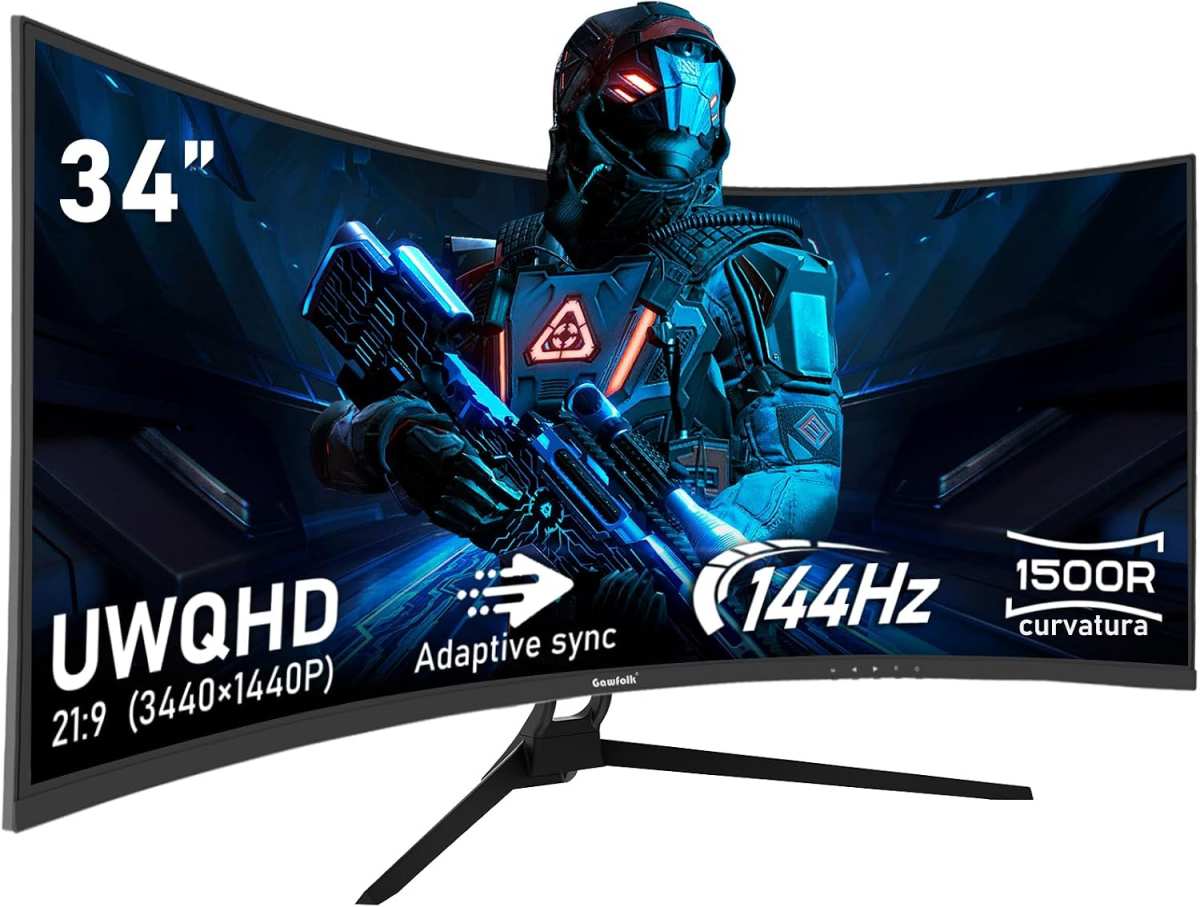
Yes, 144Hz is noticeably smoother than 60Hz. The jump from 60Hz to 144Hz is one of the single biggest perceptual upgrades you can make in desktop computing. You'll see it immediately in cursor movement and game responsiveness.
You'll feel it most in fast-paced games where frames per second stay above 100. If your GPU can't push past 60 FPS, though, the difference shrinks dramatically.
How Refresh Rate Actually Works (And Why It Matters)
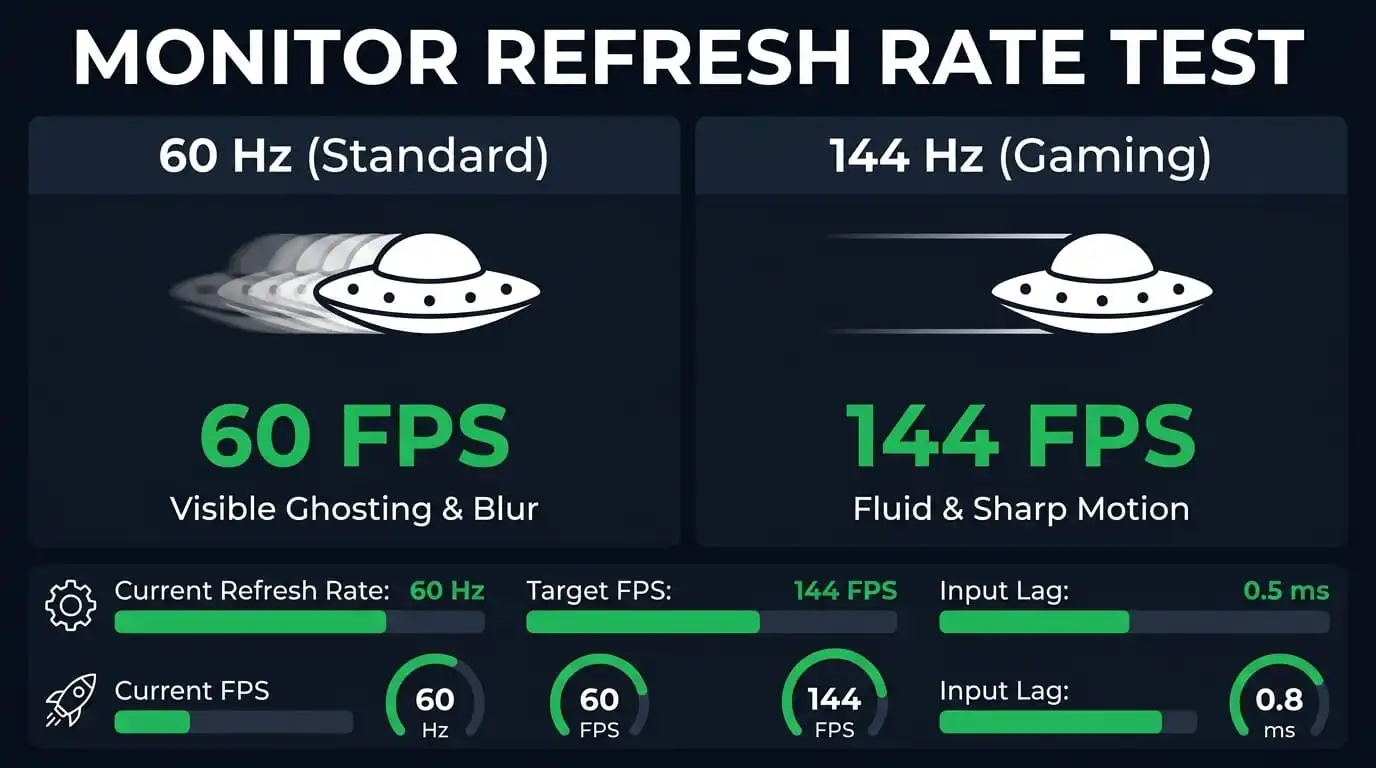
Refresh rate is simply how many times per second your monitor redraws the image on screen. A 60Hz display refreshes 60 times per second. A 144Hz display refreshes 144 times per second.
That's a 2.4x increase in visual updates, and it translates directly into how smooth everything looks and how responsive your inputs feel.
Here's where the math gets tangible. At 60Hz, each frame sits on screen for about 16.67 milliseconds. At 144Hz, each frame lasts roughly 6.94 milliseconds.
That 10ms difference per frame is what your eyes and brain pick up on as dramatically smoother motion. It's also why 144Hz feels more responsive: your mouse movements, keyboard inputs, and aim adjustments all register on screen almost twice as fast.
Now, refresh rate doesn't exist in isolation. It's locked together with your frame rate (FPS). Your GPU renders frames, and your monitor displays them.
If your game runs at 60 FPS on a 144Hz monitor, you're still only seeing 60 unique frames per second, just with potentially better frame timing. The real benefit kicks in when your GPU can push 144 FPS or higher to actually match the panel's capability.
This is why so many people buy a 144Hz monitor, plug it in, and feel like nothing changed. We'll get to that in a moment, because the settings trip up more people than you'd think.
Side-by-Side: What You'll Actually See at 60Hz vs 144Hz
Let me paint the picture clearly. Imagine moving your mouse cursor across the desktop at a comfortable speed. On a 60Hz panel, you'll see the cursor jump between positions in small, distinct steps.
At 144Hz, that same movement looks like one fluid, continuous line. The cursor trail is denser, smoother, and feels like it's tracking your hand more precisely.
Now put that same principle into a game. In a first-person shooter like Valorant or CS2, you're constantly panning the camera, tracking moving targets, and making micro-adjustments to your aim. At 60Hz, fast horizontal pans look blurry and stuttery.
Enemy movement across your screen can appear jerky. At 144Hz, that same pan is dramatically smoother. Moving targets are easier to track.
Your crosshair placement feels more connected to your hand.
The difference isn't subtle. In our research across dozens of user reports and editorial reviews, the 60Hz to 144Hz jump consistently ranks as the single most noticeable monitor upgrade people experience. It's more visually impactful than going from 1080p to 1440p for most users.
But here's the critical nuance: this assumes your frame rate matches your refresh rate. That's where most people get it wrong.
| Scenario | What You'll Actually See |
|---|---|
| 60 FPS on 60Hz | Normal, expected smoothness |
| 60 FPS on 144Hz | Roughly the same; maybe slightly better frame pacing |
| 100+ FPS on 60Hz | Screen tearing, potential reduced input lag |
| 144+ FPS on 144Hz | The full, dramatic smoothness improvement |
Does It Matter If Your PC Can't Hit 144 FPS?
This is the section that saves money. Your monitor's refresh rate and your GPU's frame rate are a paired system. A 144Hz panel only shows you 144 unique frames per second if your graphics card can actually produce them.
If you're running a mid-range GPU like an NVIDIA GeForce RTX 3060 or an AMD Radeon RX 6600 XT, you'll likely hit 144+ FPS in esports titles at 1080p. Games like Valorant, CS2, Overwatch 2, and Rocket League are built to run on a wide range of hardware, and they'll充分利用 that panel. But if you're playing graphically heavy titles like Cyberpunk 2077, Baldur's Gate 3, or Alan Wake 2 at high settings, you might be stuck in the 50-80 FPS range.
In that scenario, 144Hz still helps a bit with input latency, but the visual smoothness benefit shrinks considerably.
The frame time advantage doesn't disappear completely, though. Even at 80 FPS, a 144Hz monitor displays those frames with lower latency than a 60Hz panel would. You're not getting the full picture, but you're getting something.
For competitive gamers who deliberately lower settings to maximize FPS, 144Hz is essential. If you're a visual fidelity enthusiast who wants everything on Ultra and doesn't care about esports, 60Hz at higher resolution might actually serve you better.
When 144Hz Is Genuinely Worth It
Not every use case benefits equally from a high refresh rate. Here's where the upgrade earns its keep, and where it falls flat.
Competitive FPS and Fast-Paced Gaming
If you play Valorant, CS2, Apex Legends, Overwatch 2, or any competitive shooter regularly, 144Hz is a genuine competitive advantage. The smoother motion makes tracking targets easier. The reduced input lag means your aim adjustments register faster.
Professional esports players wouldn't consider anything below 144Hz, and most are now on 240Hz or 360Hz panels.
The benefit scales with skill level too. At higher ranks, those micro-adjustments matter. If you're climbing ranked ladders, the hardware actually helps you perform closer to your potential.
Smoother Desktop and Productivity Use
Something people overlook: 144Hz makes everything on your computer feel better, not just games. Scrolling through web pages, dragging windows, using multiple monitors. The whole experience has this premium, fluid quality that's hard to describe until you've lived with it for a week.
Going back to 60Hz after that feels noticeably sluggish.
For anyone who spends eight or more hours a day at a desk, it's a quality-of-life improvement that's hard to put a price on.
Console Gaming With 120Hz Output
Both the PlayStation 5 and Xbox Series X support 120Hz output in supported titles. If you're gaming on console and using a monitor rather than a TV, a 144Hz panel that accepts a 120Hz signal gives you smoother gameplay in titles like Call of Duty, Rocket League, and Fortnite. It's not the full 144Hz experience, but it's noticeably better than 60Hz in those games.
When You Won't Notice the Difference
There are real scenarios where 144Hz barely registers. Let's save you money if any of these apply.
Single-Player, Cinematic Games
If you play story-driven games at high or ultra settings, your frame rate often lands in the 50-80 FPS range. At those numbers, the gap between 60Hz and 144Hz narrows considerably. You're still seeing an improvement in input latency, but the visual smoothness difference isn't dramatic.
Many single-player gamers are better served by a higher resolution 60Hz panel, like a 1440p or 4K display, than by 1080p 144Hz.
General Office or Creative Work
Spreadsheets, email, coding, photo editing, and video timelines all benefit more from color accuracy and resolution than from refresh rate. A 60Hz IPS panel with good factory calibration serves a creative professional better than a 144Hz TN panel with washed-out colors.
The exception: if you find yourself scrolling through long documents or codebases all day, that smoother desktop experience on 144Hz is a legitimate quality-of-life upgrade.
Video Playback and Streaming
Movies are filmed at 24fps. Most streaming content runs at 30fps or 60fps. Your monitor can't create frames that don't exist in the source material.
Playing a 60fps YouTube video on a 144Hz monitor looks identical to playing it on 60Hz. No refresh rate upgrade changes that.
The Settings Most People Overlook (Windows Won't Do This Automatically)
Here's the single most common mistake. You buy a 144Hz monitor, plug it in, and everything feels the same. Why?
Because Windows often defaults to 60Hz. You have to manually change it.
Here's exactly what to do:
- Right-click your desktop and select Display settings.
- Scroll down and click Advanced display settings.
- Under Refresh rate, select 144Hz from the dropdown.
If that option doesn't appear, check your cable. Not all cables support 144Hz at every resolution. For 1080p 144Hz, DisplayPort 1.2 or HDMI 2.0 handles it fine.
For 1440p 144Hz, you need DisplayPort 1.2 minimum or HDMI 2.0. For 4K 144Hz, you need DisplayPort 1.4 with Display Stream Compression or HDMI 2.1.
If you're running an NVIDIA GPU, you can also open the NVIDIA Control Panel, navigate to Change resolution, and set the refresh rate there. AMD users can do the same through AMD Adrenalin Software under Display settings.
After changing it, run a quick test at testufo.com. The site confirms your actual refresh rate. If the UFO animation shows only 60 distinct copies of the object, you're still at 60Hz.
At 144Hz, you'll see far more.
What to Check Before You Buy
A few things deserve attention before you spend money.
First, confirm your GPU can actually push high enough frame rates in the games you play. A 144Hz monitor paired with a GPU stuck at 60 FPS is wasted potential. Look up benchmarks for your specific GPU in your most-played titles.
Second, check your cable and port. This catches more people off guard than it should. HDMI 1.4 tops out at 60Hz at 1440p.
If you're using an older cable, you may be physically capped below 144Hz without realizing it. DisplayPort is generally the safer choice for high refresh gaming.
Third, consider panel type. 144Hz TN panels are cheap and fast but have worse color reproduction and viewing angles. 144Hz IPS panels offer better color accuracy with slightly higher response times. 144Hz VA panels deliver the best contrast but can exhibit more motion blur. For most users in 2025, a 144Hz IPS panel at 1080p or 1440p hits the sweet spot between price, speed, and image quality.
Finally, think about adaptive sync. NVIDIA G-Sync and AMD FreeSync eliminate screen tearing by syncing the monitor's refresh rate to the GPU's frame rate dynamically. Most modern 144Hz monitors support at least one standard.
FreeSync is more common across price points. G-Sync Compatible monitors work with NVIDIA GPUs without a proprietary module. Either one dramatically improves the experience compared to running without sync.
Frequently Asked Questions
Can my eyes actually see the difference between 60Hz and 144Hz?
Absolutely. The jump from 60Hz to 144Hz is one of the most immediately noticeable display upgrades you can make. Cursor movement, game scrolling, and camera pans all look dramatically smoother.
Most people identify the difference within seconds of switching.
Is 144Hz good enough for competitive gaming in 2025?
Yes, 144Hz remains the standard baseline for competitive PC gaming. Esports professionals often prefer 240Hz or 360Hz, but 144Hz handles the vast majority of competitive scenarios well. Most ranked and tournament play functions perfectly at 144Hz.
Does 144Hz work with PS5 and Xbox Series X?
Both consoles support 120Hz output in supported games. A 144Hz monitor accepts a 120Hz signal, so you get smoother gameplay in titles like Call of Duty and Fortnite. You won't reach the full 144Hz, but 120Hz is still a big step up from 60Hz.
Will 144Hz make me a better gamer?
It won't fix bad habits, but it removes a hardware limitation. Smoother visuals and lower input lag let you react faster and aim more accurately. Your skill ceiling rises when your hardware isn't holding you back.
Is 144Hz noticeable for non-gaming tasks?
Yes. Desktop use feels noticeably smoother at 144Hz. Scrolling, dragging windows, and general navigation all benefit.
It's not just a gaming feature; it's a daily comfort upgrade.
How do I know if my monitor is actually running at 144Hz?
Visit testufo.com in your browser. The test shows your actual refresh rate based on how many distinct moving objects are visible. You can also check in Windows under Display settings, Advanced display settings, where the active refresh rate appears.
Common Mistakes People Make When Upgrading
The biggest mistake is assuming plug-and-play gets you 144Hz. As covered above, Windows frequently defaults to 60Hz. You must change it manually.
Second mistake: buying 144Hz without verifying your GPU can produce enough FPS. If your card tops out at 70 FPS in your favorite game, you're not using that panel to its fullest. Lower in-game settings to push frame rates up rather than accepting a GPU bottleneck.
Third mistake: ignoring response time. Some budget 144Hz panels advertise fast refresh rates but use slow pixel response times, resulting in ghosting that cancels out the smoothness benefit. Look for 1ms GtG (gray-to-gray) response times, but verify independent reviews rather than trusting marketing specs alone.
Trusted reviewers like TFT Central and RTINGS measure actual response times rather than relying on manufacturer claims.
Fourth mistake: cheaping out on the cable. An old HDMI cable that worked fine for 60Hz may not have the bandwidth for 144Hz at your resolution. It's worth spending a few dollars on a certified DisplayPort cable rated for your setup.
Final Verdict
After everything we've covered, the recommendation comes down to this: for competitive gaming and general desktop smoothness, 144Hz is absolutely worth it over 60Hz. The difference is immediate, tangible, and hard to unsee once you've experienced it. It's the single most impactful upgrade most PC users can make in 2025.
But only if your hardware supports it. A 144Hz monitor without sufficient frame rates is an expensive 60Hz panel. Check your GPU performance first.
Confirm your cable and port can handle it. Set the refresh rate in Windows after installation. Then let your eyes confirm what the specs already promised.
If you're a competitive FPS player or someone who values a premium desktop experience, 144Hz is a no-brainer. If you primarily play cinematic single-player games at high settings or just need a screen for office work, your money is better spent on resolution or color accuracy instead.
The technology is mature, prices have dropped to accessible levels as of 2025, and there's no real downside to having it your system can handle it. Just do the homework first so the upgrade actually delivers what you're expecting.
144Hz vs Higher Refresh Rates: Where's the Sweet Spot?
The monitor market doesn't stop at 144Hz anymore. You'll see 240Hz, 360Hz, and even 500Hz panels. Each jump brings diminishing returns, and understanding those diminishing returns helps you spend wisely.
The leap from 60Hz to 144Hz is dramatic. The leap from 144Hz to 240Hz is noticeable but smaller. And the jump from 240Hz to 360Hz?
That's reserved for professional esports players who can genuinely perceive fractions of milliseconds in latency reduction.
Most aggregate reviews and user feedback suggest 144Hz represents the best price-to-performance sweet spot in 2025. You get the vast majority of the smoothness benefit at a reasonable price. 240Hz is a solid choice for serious competitive gamers. Anything above that is overkill for 99% of users.
| Refresh Rate | Best For | Price Range (2025) |
|---|---|---|
| 60Hz | General use, console gaming at 60fps, office work | $100 – $200 |
| 144Hz | Most gamers, competitive FPS, smooth desktop experience | $150 – $300 |
| 240Hz | Serious competitive gamers, esports enthusiasts | $300 – $500 |
| 360Hz+ | Professional esports players, niche competitive use | $500+ |
What Else Matters Besides Refresh Rate
Refresh rate gets all the attention, but it's not the only spec that determines how good your monitor looks and feels. A few other factors deserve attention when you're shopping.
Response time determines how quickly individual pixels change color. Look for 1ms GtG for minimal ghosting. Some manufacturers inflate this number though.
Always check independent measurements rather than trusting the box.
Panel type affects image quality, viewing angles, and color reproduction. IPS offers the best overall balance. VA delivers deeper contrast for dark rooms.
TN is fastest but has the worst color accuracy and narrow viewing angles.
Adaptive sync compatibility matters. If you have an NVIDIA GPU, G-Sync Compatible panels work well without a premium price. AMD GPU owners should look for FreeSync or FreeSync Premium certification.
Resolution pairs with refresh rate too. 1080p 144Hz is the easiest to drive and the cheapest option. 1440p 144Hz looks sharper but demands a stronger GPU. 4K 144Hz exists but requires a top-tier graphics card and a DisplayPort 1.4 or HDMI 2.1 connection.

Similar Posts





















