Do Office Monitors Support HDR
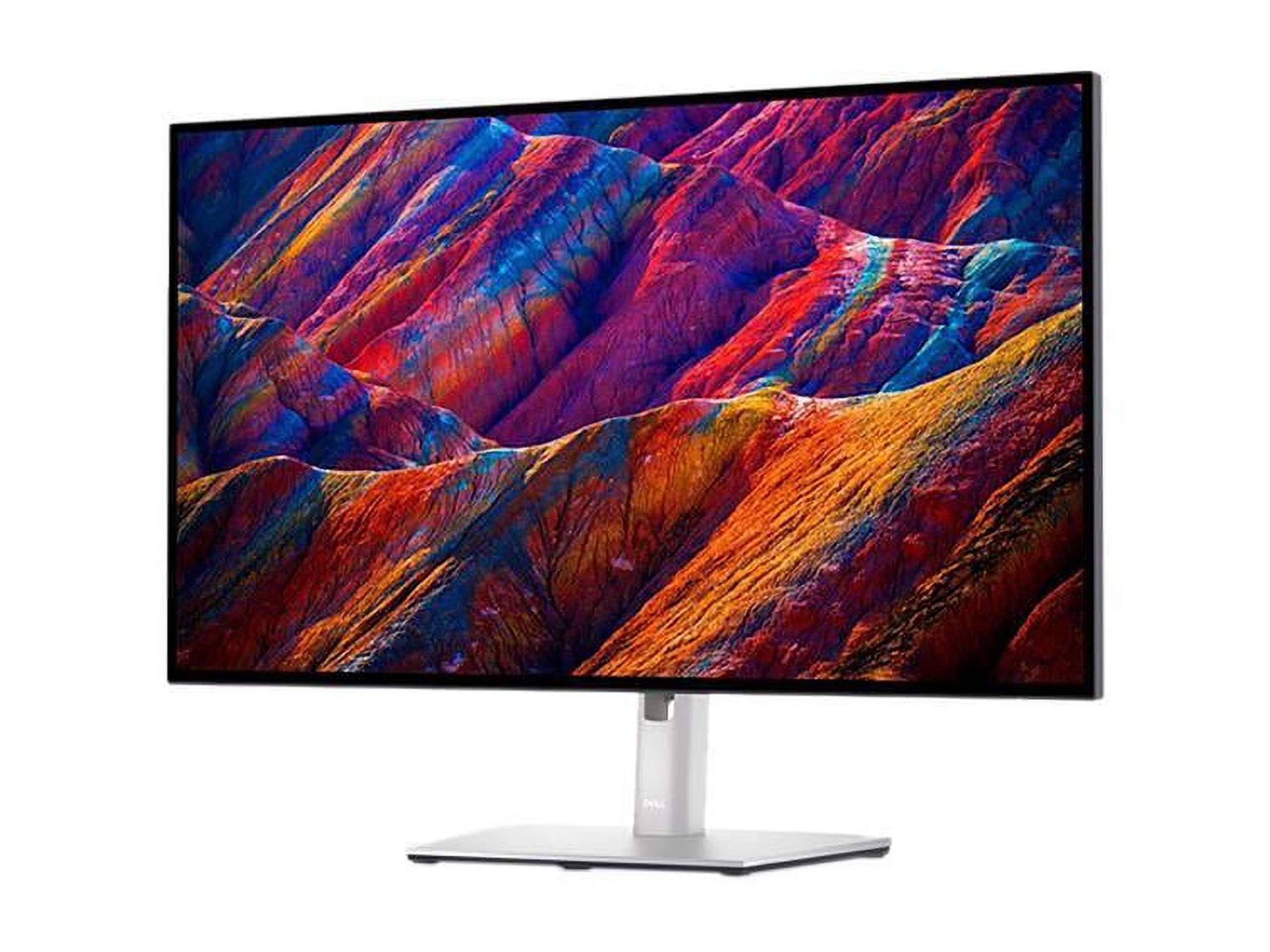
Do office monitors support HDR? The short answer is: some do, many claim to, but almost none do it well. It's one of those specs that looks great on a product page and then disappoints the moment you actually toggle it on.
The problem is that "HDR support" on an office monitor can mean anything from genuine high dynamic range capability to the bare minimum technical checkbox. Let's walk through what's actually going on, so you can figure out if your current monitor handles HDR or if your next purchase will.
Quick Answer
Some office monitors support HDR with genuine capability. Most that claim HDR support use budget panel technology. Good HDR hardware is found in higher-quality, more expensive office displays.
Check your specific monitor to determine capability.
Why This Question Doesn't Have a Simple Yes or No
HDR on office monitors is a spectrum, not a binary. You've got monitors that technically accept an HDR signal and then display it terribly sitting right next to displays that genuinely handle HDR content with proper color and contrast.
The VESA DisplayHDR standard created certification tiers to bring some order to this, but manufacturers still find ways to game the system. A monitor can earn a legitimate HDR certification and still deliver a mediocre experience because the certification doesn't account for everything that matters. That's the core of the problem.
Your specific situation determines the answer. What monitor model you own, what you're connecting it to, what operating system you're running, and what you're actually trying to do with HDR all play a role. Two people asking "do office monitors support HDR" can get completely different answers depending on their setup.
What HDR Actually Requires From a Monitor
HDR isn't just one thing. It's a combination of hardware capabilities working together, and missing any one of them breaks the experience. Here's what a monitor actually needs.
Panel Hardware You Need
The panel itself has to hit certain thresholds. Forget software tricks. The physical display matters most.
Peak brightness of at least 600 nits. HDR10 content is mastered assuming your display can hit high luminance levels. A monitor stuck at 250 or 300 nits can't reproduce highlights properly. Everything looks dim and flat.
10-bit color depth (or 8-bit with dithering). HDR10 uses 10-bit color. That means 1.07 billion colors instead of the 16.7 million you get with 8-bit SDR panels. Many budget office monitors are 6-bit panels with dithering.
They simulate more colors, but it's not the same.
Wide color gamut coverage. You need at least 90% DCI-P3 coverage for HDR to look right. Most office monitors cover 95% to 99% sRGB but only hit 65% to 75% DCI-P3. HDR content mastered in DCI-P3 looks muted and wrong on those panels.
Local dimming is the big one. This is where most office monitors fall apart. Without local dimming zones, the display can't brighten highlights while keeping shadows dark. You get a washed-out gray look instead of real contrast.
Only higher-end office monitors include meaningful local dimming.
The Connection Matters More Than You Think
Your monitor might have HDR-capable hardware. That doesn't matter if the cable or port can't carry the signal.
HDMI 2.0 supports HDR at 4K 60Hz. But only if the monitor's HDMI port is actually HDMI 2.0 or higher. Some monitors ship with HDMI 1.4 ports that can't handle the bandwidth.
DisplayPort 1.4 handles HDR comfortably. This is generally the safer bet for PC connections. It has enough overhead for 4K HDR at 60Hz with full color.
USB-C with DisplayPort Alt Mode works too. Many modern office laptops connect via USB-C. If the port supports DP Alt Mode, it can carry HDR signals. Not all USB-C ports do this.
You need to check your laptop's specs.
macOS handles HDR differently than Windows. Apple's HDR support for external monitors has historically been limited. As of 2026, macOS Sequoia improved external display HDR handling, but compatibility still varies significantly by monitor model. Windows gives you more direct control over the HDR toggle.
If you're plugging in and nothing looks right, the connection is the first thing to verify before blaming the monitor itself.
What Those HDR Labels Really Mean
This is where manufacturers get creative. The labeling around HDR on office monitors is deliberately confusing.
HDR10 or HDR Ready means the monitor accepts an HDR10 signal. That's it. It doesn't guarantee the display can actually show HDR well.
It just won't throw an error when you feed it HDR content.
VESA DisplayHDR certification is more meaningful, with tiers from 400 to 1400. But even the lowest tier (DisplayHDR 400) technically qualifies. These monitors barely outperform good SDR displays.
DisplayHDR 600 is where things start getting decent. DisplayHDR 1000 and above is where HDR actually looks like HDR.
Dolby Vision support is rare on office monitors. It's more common on laptops and TVs. If you see it listed, it's a genuine plus, but verify it's hardware-level support and not just software decoding.
Here's a quick breakdown of what each tier actually gets you:
| Certification | Peak Brightness | Local Dimming | Color Gamut | Real HDR Experience |
|---|---|---|---|---|
| DisplayHDR 400 | 400 nits | Not required | sRGB | Barely |
| DisplayHDR 600 | 600 nits | Limited | 90%+ DCI-P3 | Decent |
| DisplayHDR 1000 | 1000 nits | Required | 90%+ DCI-P3 | Good |
| DisplayHDR 1400 | 1400 nits | Premium FALD | 95%+ DCI-P3 | Very good |
The honest truth? DisplayHDR 400 on an office monitor is mostly a marketing badge. You won't get a meaningful HDR experience from it.
DisplayHDR 600 is the minimum worth considering if HDR matters to you.
How to Check If YOUR Office Monitor Supports HDR
Rather than guessing, let's walk through a concrete process. Follow these steps in order.
Step 1: Check Your Monitor's Spec Sheet
Find your exact monitor model number. It's usually on a sticker on the back or bottom. Then look up the official spec sheet on the manufacturer's website.
Search for these specific terms:
- HDR10, HDR Ready, or HDR Support
- VESA DisplayHDR certification tier
- Peak brightness in nits
- Color gamut coverage (DCI-P3 percentage)
- Local dimming (yes/no, and how many zones)
If the spec sheet doesn't mention HDR at all, your monitor doesn't support it. If it mentions HDR but doesn't list a DisplayHDR tier or peak brightness, assume it's bare-minimum support.
Dell, LG, and BenQ tend to list specs honestly. Some lesser-known brands are vaguer. If you can't find clear specs, that's a red flag.
Step 2: Verify Your Connection Type
Check what ports your monitor has and what ports your computer has. You need matching capabilities.
Look at the physical ports. HDMI 2.0 and DisplayPort 1.4 are what you want. If your monitor only has HDMI 1.4 or DisplayPort 1.2, HDR at 4K won't work properly.
You might get HDR at lower resolutions, but that's a compromise.
Also check what cable you're using. Not all HDMI cables are rated for HDR. You need a Premium High Speed HDMI cable or better.
For DisplayPort, make sure it's DP 1.4 certified.
Step 3: Enable HDR in Your Operating System
Having the hardware isn't enough. You need to turn it on in software.
On Windows 10 or 11:
- Right-click the desktop and select Display Settings
- Click the display you want to configure
- Under HDR, toggle "Use HDR" on
- You can also press Win + Alt + B as a quick toggle
When you toggle HDR on, the screen will flicker briefly. If nothing happens or the option is grayed out, your monitor isn't reporting HDR capability to Windows. That usually means either the connection doesn't support it or the monitor's EDID doesn't advertise HDR.
On macOS:
- Open System Settings
- Click Displays
- Look for an HDR or Dynamic Range option
- Not all external monitors show this option
macOS is pickier about which monitors it allows HDR on. If the option doesn't appear, macOS has decided your monitor doesn't meet its internal thresholds.

Step 4: Test It Actually Works
Don't trust the toggle. Verify the result.
Open an HDR test video on YouTube. Search for "HDR10 test pattern" or "HDR demo." If the video looks noticeably brighter and more vibrant in HDR mode versus SDR mode, your monitor is doing something real.
If the HDR version looks the same or worse (washed out, grayish, dim), your monitor is accepting the signal but not displaying it properly. That's the most common outcome with budget HDR office monitors.
You can also use the Windows HDR calibration app. Search for "HDR Calibration" in the Microsoft Store. It generates a test pattern and helps you set the correct peak brightness and color saturation for your specific display.
When HDR on an Office Monitor Is Actually Worth It
HDR isn't equally useful for every office task. Let's be honest about where it helps and where it doesn't.
Where It Helps
Photo and video editing in HDR formats. If you're editing content that will be viewed on HDR displays, you need an HDR monitor to see what your audience will see. This is the strongest case for HDR on an office display.
Reviewing HDR content. Marketing teams, content creators, and anyone approving HDR deliverables needs to actually view HDR output. Guessing isn't good enough.
Media consumption during breaks. Watching HDR content on YouTube or streaming services looks genuinely better. If you eat lunch at your desk and watch videos, a decent HDR monitor improves that experience.
Design work targeting HDR displays. UI designers and digital artists creating content for HDR screens need to see their work in context.
Where It Doesn't Matter
Spreadsheets, documents, and email. HDR provides zero benefit for standard office productivity. Your Excel sheets don't need wide color gamut.
Web browsing. Most web content is SDR. Browsing in HDR mode can actually make SDR content look worse because the monitor is trying to map SDR into an HDR container.
Programming and development. Unless you're developing HDR applications or games, your IDE doesn't benefit from HDR.
Video conferencing. Zoom, Teams, and similar apps are SDR. Your webcam feed isn't HDR. No benefit here.
The practical takeaway: if your office work is primarily documents, email, and web apps, HDR is a nice-to-have at best. If you work with visual content professionally, it's a legitimate requirement.
The Big Trap: "HDR Compatible" vs. Good HDR
This is where most people get burned. Manufacturers know buyers look for HDR on the spec sheet. So they slap "HDR Ready" or "HDR Compatible" on monitors that have no business displaying HDR.
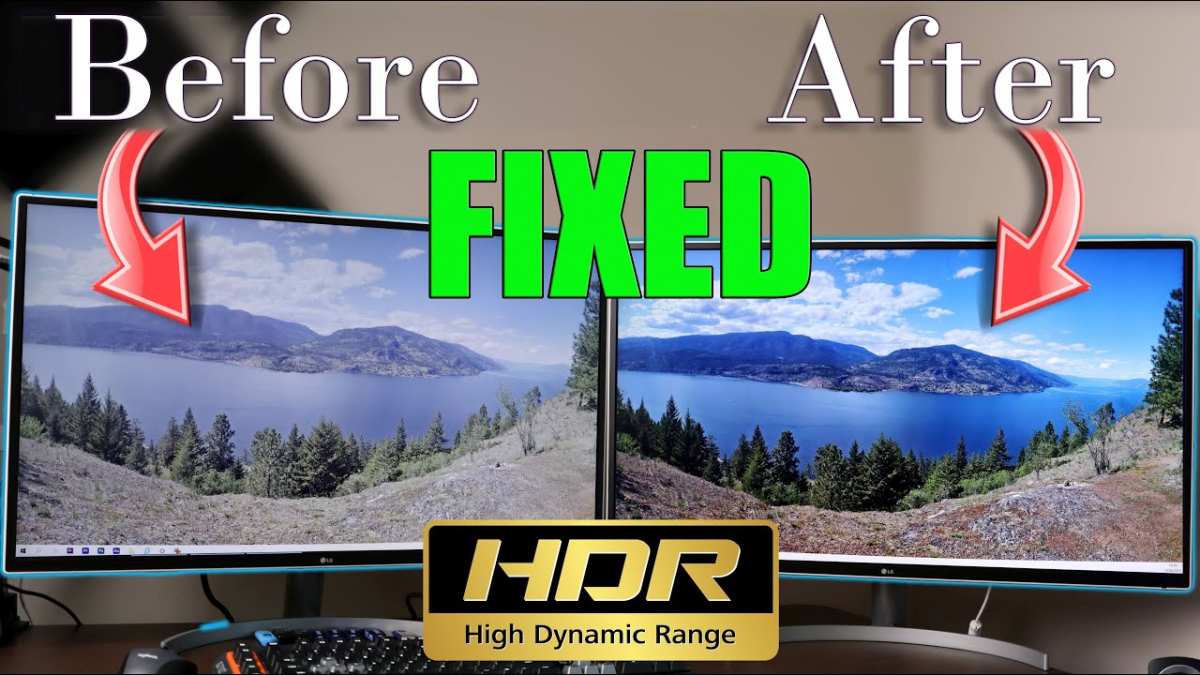
Here's what happens with a typical budget HDR office monitor. You toggle HDR on. The screen dims slightly.
Colors look washed out. Blacks turn gray. Highlights don't pop.
Everything looks worse than SDR. You toggle HDR back off and think "I don't need that."
But that's not what HDR is supposed to look like. That's a monitor accepting an HDR signal and displaying it on hardware that can't actually handle HDR. The experience is worse than not having HDR at all.
The difference between bad HDR and good HDR comes down to three things: peak brightness, local dimming, and color volume. Miss any of these and you're not getting real HDR.
A monitor with 300 nits peak brightness and no local dimming will display HDR poorly. Highlights can't get bright enough. Contrast suffers.
The image looks flat and gray.
A monitor with 600+ nits and local dimming starts to show what HDR can actually do. Highlights pop. Shadows stay dark.
Colors have more depth.
A monitor with 1000+ nits and full array local dimming delivers genuine HDR that looks meaningfully different from SDR.
Most office monitors claiming HDR support fall into that first category. They technically support HDR input. They just can't display HDR well.
Common Mistakes People Make With HDR on Office Monitors
Even when someone has a capable monitor, they often set it up wrong. Here are the most frequent issues.
Leaving HDR on all the time. Windows in HDR mode makes SDR content look desaturated. Your desktop, apps, and documents all look washed out. You should toggle HDR on only when you're viewing HDR content and off when you're doing regular work.
The Win + Alt + B shortcut makes this quick.
Not adjusting SDR content brightness in HDR mode. Windows has a slider for SDR content appearance when HDR is active. If you leave it at default, SDR apps look too dim or too bright. Adjust this slider until your desktop apps look normal while HDR is enabled.
Using the wrong cable. An old HDMI cable that worked fine for SDR might not have the bandwidth for HDR at your resolution. If HDR won't enable, try a different cable before assuming the monitor doesn't support it.
Ignoring the monitor's own HDR settings. Many monitors have HDR settings in their on-screen display menu. Some have an HDR mode toggle separate from the OS setting. If Windows says HDR is on but the monitor's OSD shows HDR off, you won't get proper HDR.
Expecting OLED-level HDR from an IPS monitor. IPS panels with HDR can look decent, but they can't match the per-pixel contrast of OLED. If you're comparing your office monitor to an HDR TV or laptop with OLED, you'll be disappointed. Set realistic expectations.
Not updating GPU drivers. HDR handshake issues between your graphics card and monitor are often fixed in driver updates. If HDR won't enable or flickers, update your GPU drivers before troubleshooting further.
Real Office Monitor HDR Examples (What to Expect at Different Price Points)
Let's ground this in actual products. Here's what HDR looks like across common office monitor tiers.
Under $300: Budget 4K office monitors. These typically accept HDR10 signals but have 300 to 350 nits peak brightness and no local dimming. HDR content looks slightly worse than SDR. You're better off keeping HDR disabled.
Examples include basic 4K panels from Acer and ASUS in their entry-level lines.
$300 to $600: Mid-range office monitors. This is where you start seeing DisplayHDR 400 certification. Peak brightness hits 400 nits. Color gamut might reach 80% DCI-P3.
HDR looks acceptable but not impressive. The Dell U2723QE and LG 27UN880 fall in this range. HDR is usable but not a selling point.
$600 to $1,000: Higher-end office monitors. DisplayHDR 600 becomes common here. Peak brightness reaches 600 nits. Some models include basic edge local dimming.
HDR content starts looking genuinely better than SDR. The Dell U3223QE is a solid example. HDR is a legitimate feature at this level.
$1,000 and above: Professional HDR monitors. DisplayHDR 1000 or higher. Full array local dimming with dozens or hundreds of zones. 95%+ DCI-P3 coverage. These are reference-grade displays for content creation.
The ASUS ProArt PA32UCG and similar models. HDR here actually means something.
The sweet spot for most office users who want functional HDR is the $600 to $1,000 range. Below that, you're paying for a checkbox. Above that, you're paying for professional-grade accuracy that most office work doesn't require.
Should You Buy an HDR Office Monitor?
This depends entirely on what you do at your desk. Let's break it down.
Decision Guide: Is It Right for You?
Yes, prioritize HDR if you:
- Edit photos or video professionally in HDR formats
- Review HDR content as part of your job
- Design for HDR displays
- Want a dual-purpose monitor for work and media consumption
- Already have an HDR-capable laptop and want a matching external display
No, skip HDR if you:
- Primarily work with documents, email, and spreadsheets
- Use your monitor for coding or development
- Are on a tight budget and HDR would mean compromising on other specs
- Don't consume HDR media regularly
- Are happy with your current SDR display
Maybe, consider it if you:
- Work in a creative field but don't need reference-grade accuracy
- Want future-proofing for when HDR content becomes more common
- Can afford a monitor with at least DisplayHDR 600 certification
- Already notice that your current display feels limiting for visual content
The practical advice: don't buy an office monitor just for HDR. Buy a good monitor first, and treat HDR as a bonus if it's there. If HDR is a priority, make sure you're getting at least DisplayHDR 600 with some form of local dimming.
Anything less is a checkbox, not a feature.
Frequently Asked Questions
Does my current office monitor support HDR?
Check the manufacturer's spec sheet for your exact model number. Look for HDR10, DisplayHDR certification, or peak brightness ratings. If none of these are listed, your monitor likely doesn't support HDR.
You can also check Windows Display Settings to see if the HDR toggle appears.
Is DisplayHDR 400 good enough for real HDR?
DisplayHDR 400 is the bare minimum certification. It's technically HDR but the experience is barely better than good SDR. You'll notice some improvement with HDR content, but it won't be dramatic.
DisplayHDR 600 is where HDR starts feeling worthwhile.
Why does my monitor look worse with HDR turned on?
This usually means your monitor accepts HDR signals but can't display them properly. Common causes include insufficient peak brightness, no local dimming, or poor tone mapping. Try toggling HDR off for regular SDR work and only enable it for HDR content.
Do I need a special cable for HDR?
You need at least a Premium High Speed HDMI cable or a DisplayPort 1.4 cable. Older cables may not have enough bandwidth for HDR at higher resolutions. If HDR won't enable, try a different cable before assuming your monitor doesn't support it.
Does macOS support HDR on external monitors?
macOS has limited HDR support for external monitors as of 2026. It works with some models but not all. Windows generally offers broader HDR compatibility with external displays.
Check your specific monitor model for macOS HDR compatibility before relying on it.
Can I add HDR to a monitor that doesn't support it?
No. HDR requires specific hardware capabilities including adequate peak brightness, proper color depth, and usually local dimming. Software solutions can simulate some HDR effects, but they can't replicate true HDR hardware performance.
If your monitor doesn't support HDR natively, no software fix will change that.

Similar Posts





















