Are Adjustable Office Monitors Better
If you've ever wondered "are adjustable office monitors better," you're probably dealing with one of two things: a desk setup that hurts by 3 PM, or a coworker who raved about her monitor arm and now you're curious. The short answer is, in most cases, yes. But the real answer depends on your work style, your desk, and how much you're willing to spend.
Adjustable monitor arms have become standard in ergonomic workspaces, and the numbers back it up. The VESA FDMI standard (Video Electronics Standards Association Flat Display Mounting Interface) is used by nearly every major monitor manufacturer, meaning most screens are mountable. As of 2026, the monitor arm market has matured enough that you no longer have to overspend to get solid quality.
Let's break down exactly what you're gaining, what you're giving up, and whether it's worth it for you.
Quick Answer
Adjustable monitor monitors offer superior ergonomics over fixed OEM stands. You get more desk space, better posture options, and easier multi-monitor setups. Premium arms cost $150, $330 but last up to a decade.
Budget arms start at $20 and work fine for lighter screens.
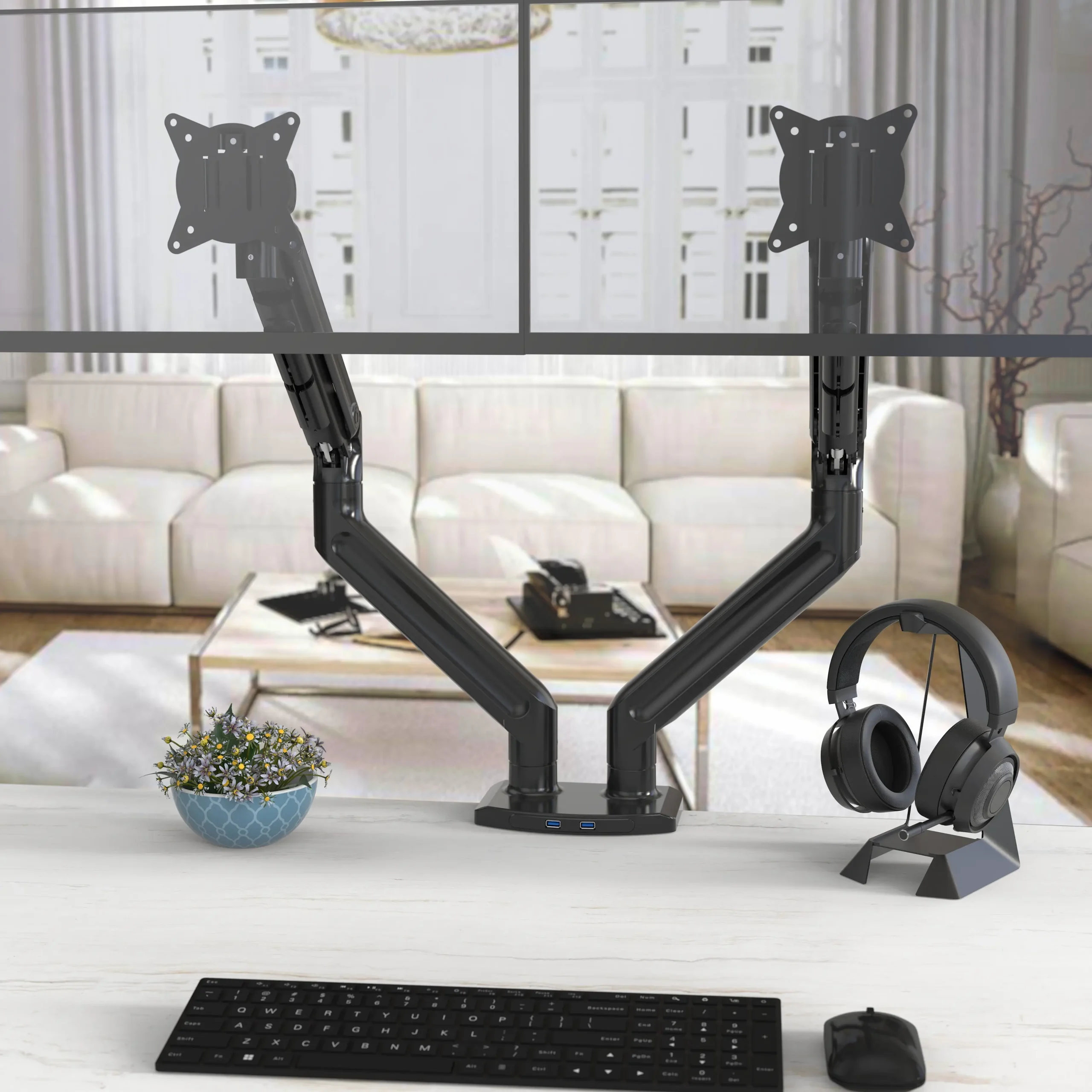
Image source: Bing (Web (fair-use with source credit))
What We're Really Comparing: Arms vs. OEM Stands
Let's get clear on what's actually at stake here. On one side, you've got the standard fixed stand that came bolted to the back of your monitor when you bought it. It holds the screen at a set height with maybe a couple inches of tilt and, if you're lucky, some vertical slide.
On the other side, you've got an articulating monitor arm, typically a gas spring or mechanical spring arm that clamps to your desk (or wedges through a grommet hole) and lets you move the screen in virtually any direction.
The key difference comes down to degrees of freedom. A standard OEM stand gives you two or three: you can tilt the screen, maybe slide it up and down slightly, and that's about it. A quality monitor arm gives you six or more: height adjustment, tilt, swivel, pivot (portrait to landscape), forward reach, and rotation around the vertical axis.
That difference sounds technical until you actually try to show your screen to someone sitting next to you without pulling a neck muscle.
Most people don't realize how much they compensate for a fixed monitor. You lean in. You crane your neck.
You stack books under the base to raise it. An adjustable arm basically removes all those little compensations by letting the screen meet your body where it actually is.
Side-by-Side Breakdown: Adjustable Arms vs. OEM Stands
Here's where things get concrete. Let's look at how these two options stack up across the factors that actually matter when you're setting up or upgrading a work desk.
Ergonomics and adjustability
This is the arms' biggest selling point, and it's not hype. A typical OEM monitor stand offers around 2 to 5 inches of vertical height adjustment, if any at all. Most budget and mid-range monitors ship with stands that don't adjust vertically at all.
A standard gas spring monitor arm, even a $30 one, typically gives you 6 to 10 inches of smooth vertical travel. Premium models like the Ergotron LX push that to around 13 inches.
The tilt and swivel ranges matter too. An OEM stand might let you tilt the screen forward or backward 10 to 15 degrees. An adjustable arm generally offers forward tilt up to 35 degrees and backward tilt around 5 to 15 degrees, plus up to 360 degrees of rotation on the vertical axis.
That range means you can find a genuinely comfortable position rather than settling for the least uncomfortable one.
Desk space and footprint
Here's something you notice immediately after switching. An OEM monitor stand typically takes up about 8 to 12 inches of desk depth and 8 to 12 inches of width at the base. That's real estate you can't use for anything else, right in prime desk territory directly in front of you.
A monitor arm clamps to the back edge of your desk and uses roughly a 2- to 4-inch diameter circle as its footprint. The screen itself hovers above your desk base instead of sitting on it. For anyone working with a shallow desk (24 inches or less) or a compact home office setup, this difference is immediately practical.
Multi-monitor capability
If you run two or more monitors, the case for adjustable arms gets even stronger. Fixed stands make it nearly impossible to position two screens at the same height, angle, and distance without a fight. Even when you manage it, you're stuck with that arrangement forever.
Dual-monitor arms let you independently adjust each screen. You can angle them slightly inward in a V-shape, rotate one to portrait mode for code or documents, and match both screens at exactly the same eye level. The productivity and comfort gains here are hard to overstate for anyone who lives in a multi-screen workflow.
Cost and value
Let's talk money honestly. A fixed stand costs you nothing extra because it comes with the monitor. A decent monitor arm runs anywhere from $20 for a basic single-arm budget model to $330 for a premium human-scale or Ergotron setup with a 10-year warranty.
The sweet spot for most people sits between $40 and $100, where you get reliable gas spring action, decent weight capacity, and usable cable management.
Ease of setup and long-term reliability
This is where the story gets more nuanced. An OEM stand is ready to go the moment you pull the monitor out of the box. Zero installation, zero adjustments, zero risk of something going wrong.
A monitor arm requires you to clamp it to the desk (or drill a hole for a grommet mount), attach the VESA plate to the back of your monitor, hang the screen on the arm, and then calibrate the gas spring tension so the arm doesn't sag or float upward.
That setup process usually takes 15 to 40 minutes depending on your comfort level. Long-term, the main reliability concern with arms is gas spring fatigue. Cheaper arms (under $30) can start losing tension within 12 to 24 months, causing the monitor to slowly droop.
Premium arms rated for 50,000 motion cycles or more can maintain their tension for five to ten years without issues. The warranty tells you a lot: Ergotron offers 10 years, while most budget brands cover one to three years.
| Factor | Adjustable Monitor Arm | Fixed OEM Stand |
|---|---|---|
| Height adjustment | 6–16+ inches of travel | 2–5 inches typically |
| Tilt range | Wide (-5° to +35°) | Limited by stand design |
| Swivel / rotation | 180°–360° | Usually none |
| Portrait mode | Yes (most arms) | Rarely supported |
| Desk space used | Minimal (clamp/grommet) | 8"–12" depth footprint |
| Cost | $20–$350 | Included with monitor |
| Ergonomic precision | High | Low to moderate |
| Setup complexity | Moderate | None |
| Long-term durability | Varies by quality | Generally solid |
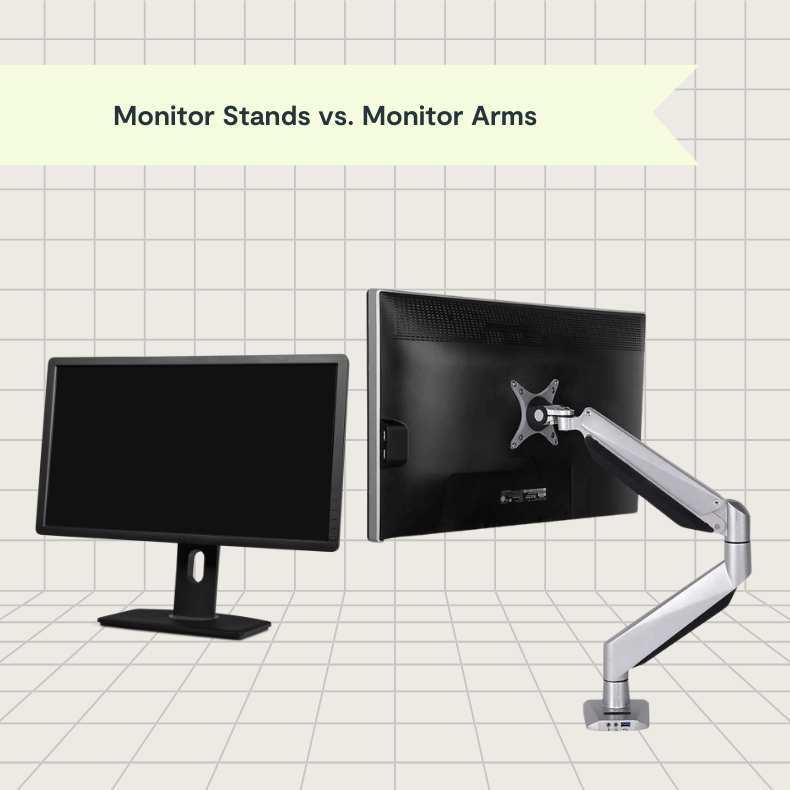
Image source: Bing (Web (fair-use with source credit))
When an Adjustable Arm Is Clearly Worth It
Not every situation calls for a monitor arm, but some situations practically demand one. If any of the following sound like your setup, you're almost certainly better off with an adjustable arm.
You use a sit-stand desk. This is the strongest case. When you raise your desk to stand, your monitor needs to come up with you. An OEM stand stays at the same desk level, which means you're looking down at a sitting height screen while standing.
A monitor arm lets you raise the screen in seconds.
You run dual or triple monitors. Managing multiple fixed stands is a constant annoyance. Independent arms give each screen its own height, angle, and distance. You can also position them in a slight arc, which reduces the head-turning that causes neck strain.
Your desk is small or shallow. If you're working with 24 inches of desk depth or less or a compact nook setup, removing the OEM stand's footprint reclaims a surprising amount of usable workspace that directly improves your everyday comfort.
You need portrait mode. Software developers, document editors, and UX designers often prefer rotating one screen to portrait for reading long code blocks or full-page layouts. Most fixed stands don't support rotation at all.
You share a desk or hot-desk. If you're moving between desks or sharing a workspace, an adjustable arm makes it quick to dial in your preferred position when you arrive.
You experience neck, back, or eye strain from your current setup. Per guidelines summarized from the American National Standards Institute (ANSI/HFES 100-2007) and OSHA computer workstation recommendations, the top of your screen should sit at roughly eye level at arm's length away. An adjustable arm makes hitting that target easy.
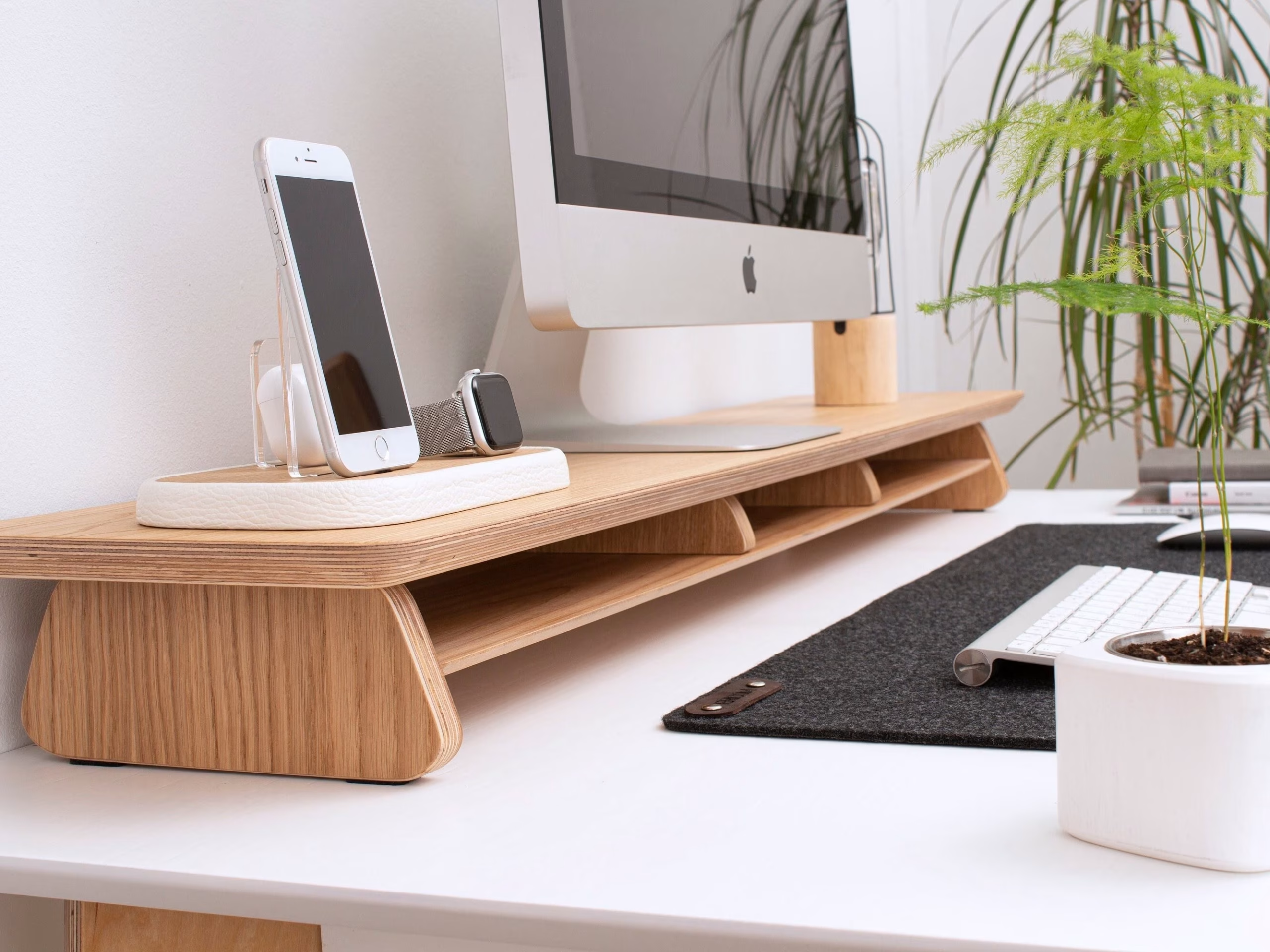
Image source: Bing (Web (fair-use with source credit))
When a Fixed Stand Is Actually Fine
Before you feel pressured into buying an arm, know that fixed stands work perfectly well in plenty of common situations.
You sit at one height all day. If your chair and desk are set once and never change, and you don't stand while working, a fixed stand that puts the screen at a comfortable angle is doing its job. The adjustability of an arm adds less value if you never adjust it.
You have a single monitor and plenty of desk depth. If your desk is 30 inches deep or more and you only run one screen, the space-efficiency argument for an arm mostly disappears.
You're on an extremely tight budget. Your monitor came with a stand. It works. Spending $20 to $300 on an arm is a real expense.
If your current setup doesn't cause discomfort, putting that money toward other upgrades (a better chair, a quality keyboard, better lighting) might serve you more.
Your desk can't support clamps. Glass desks, very thin laminate desks (under 0.5 inches thick), and desks with metal support rails running underneath just aren't compatible with clamp mounts. Grommet mounts require drilling a hole. Freestanding arms exist, but less desk free space can influence whether a mid-range arm is worth the cost in that scenario.
You prioritize zero setup and zero maintenance. An arm requires assembly, installation, and occasional tension adjustments. A stand just sits there and works. For some people, that simplicity is worth more than adjustability.
The Real Trade-Offs Nobody Talks About
Both options have downsides that don't always make it into product marketing. Here's what aggregate user reviews and editorial analysis highlight honestly.
Adjustable arms: durability and wobble concerns. Cheap monitor arms under $30 often develop two problems: gas spring sag over time, where the monitor slowly sinks to the lowest position, and wobble at full extension, where the screen bounces when you type or touch it. Arms with lower maximum weight capacity also tend to show these symptoms sooner.
Setup isn't always straightforward. You need to verify VESA compatibility first. Many monitors use standard 75 x 75mm or 100 x 100mm patterns, but some monitors, particularly all-in-one PCs and ultra-thin displays, use proprietary mounting systems or no VESA pattern at all. If yours doesn't have a VESA-compatible back, you can't mount an arm without an adapter, and adapters add instability.
Clamp mounts can damage certain desks. Under tight clamp pressure, glass tops can crack, thin laminate can delaminate, and wood surfaces can get permanent impression marks. Always check your desk's thickness rating against the clamp's specified range. Most clamp mounts support 0.4 to 2.4 inches of desk thickness.
Cable management is a moving target. With a fixed monitor stand, cables stay put. With an articulated arm, every time you adjust the screen, cables flex and rub at the pivot points. Over years of daily adjustments, this can lead to cable wear.
Integrated cable channels on the arm help, but they solve the problem only if you route cables through them properly during setup.
Dual-arm setups eat more desk edge space than you'd expect. Each clamp or grommet mount takes up desk edge real estate. If you're mounting two arms plus other accessories, a desk that is 60 inches wide or more is usually needed without crowding the workspace.
Fixed stands: the hidden limitations. You can't easily share screen views with a colleague. You can't pull the screen closer for detailed work and push it back for relaxed reading. You can't pivot to portrait for code reviews or long documents.
And every time you want to rearrange your setup, you're physically lifting a monitor and stand.
What to Check Before You Buy
Doing a five-minute compatibility check saves real headaches when buying a monitor arm. Here's the sequence that matters most.
Step 1: Check your monitor's weight without the stand. Remove the existing stand and weigh just the screen. Manufacturer specs list this, but they don't always match real-world readings. You need this number because arms are rated for maximum weight, and you want your monitor to sit well under that limit.
A good guideline is to stay at 75% or less of the arm's rated capacity for smooth, long-lasting performance.
Step 2: Verify the VESA pattern. Flip your monitor over or check the spec sheet for mounting hole dimensions. The two standard patterns are 75 x 75mm (common on smaller or budget monitors) and 100 x 100mm (common on 24-inch to 32-inch monitors). Ultra-wide and curved monitors sometimes use 100 x 200mm or other patterns.
If your monitor lacks a VESA-compatible mount entirely, consider a VESA adapter plate, but note that these can be expensive.
Step 3: Measure your desk thickness and check what's underneath. Use a tape measure at the edge where you want to clamp. Run your fingers along the underside to feel for metal support rails, crossbars, or cable trays. A clamp mount needs a clear, flat section of at least 3 to 4 inches in diameter.
If your desk has an obstruction where the clamp would go, consider a grommet mount or a freestanding base instead.
Step 4: Decide on mount type. Clamp mounts are the easiest to install and remove. Grommet mounts require drilling a hole, but they offer the cleanest look and most stable base. Wall mounts work well if you want to free up all desk edge space, but they need a stud or solid anchor point and are usually worth considering for permanent single-monitor setups.
Step 5: Match the arm's weight range to your monitor and expected upgrades. If you're using a 14-pound 27-inch monitor on an arm rated for 2 to 13 pounds, that's cutting it too close. If you expect to upgrade to a heavier monitor later in a couple of years, choose an arm with higher capacity now.
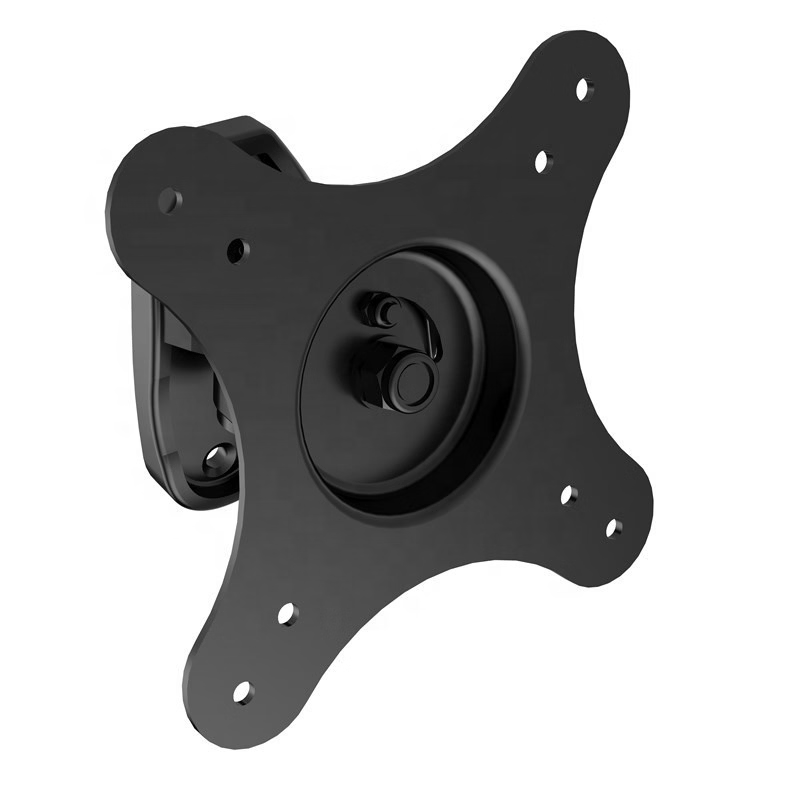
Image source: Bing (Web (fair-use with source credit))
Common Mistakes People Make
Every product category has its predictable error patterns, and here’s what research and reviews repeatedly show with monitor arms.
Buying an arm rated for exactly the monitor's weight. This is probably the most common misstep. An arm right at its maximum capacity will sag sooner and feel stiff when you try to adjust. Budget for headroom.
Skipping VESA verification until the arm arrives. You open the box, realize the mounting holes don't match your monitor, and now you're waiting days for an adapter or returning the arm.
Ignoring desk material and construction. Clamping to a hollow-core desk without reinforcement leads to clamp slippage or desk damage. Clamping to glass without checking weight limits leads to cracks.
Skipping cable management during initial setup. Proper cable routing makes the whole system cleaner and helps protect cables from flex damage if adjustments are made later. Route cables through every channel and leave enough slack at articulation points.
Tensioning the gas spring wrong, or not at all. Many people hang the monitor on the arm, notice it floats up or sinks down, and never adjust the tension screw. Most gas spring arms have an allen key adjustment on the joint. Dial it in so the monitor stays at any height you set it to, without rising or falling on its own.
Expecting a $20 arm to perform like Ergotron. Budget arms work well for smaller, lighter monitors in single-screen setups where you're not constantly repositioning the screen. For heavier monitors, frequent adjustments, or dual-arm stability, you will need to invest at least $50 to $100 per arm for acceptable long-term performance.
Pricing Tiers: What You Get at Each Level
Monitor arms fall into three clear tiers based on quality, weight capacity, features, and warranty.
| Tier | Price Range | Key Examples | What You Get |
|---|---|---|---|
| Budget | $20–$50 | VIVO, FITUEYES, Amazon Basics | 2–13 lb capacity, basic articulation, 1–3 year warranty, functional cable management. Good for 24" or lighter monitors where you don't adjust frequently. |
| Mid-range | $50–$150 | AMGEtobinc, WALI, Mount-It! | 2–17 lb capacity, smoother gas spring, better build, integrated cable channels, 3–5 year warranty. Sweet spot for most people. |
| Premium | $150–$350 | Ergotron LX, Humanscale M8 | 7–25 lb capacity, 10-year warranty, near-zero sag over product lifetime, tight wobble control, premium cable management, and proven durability over tens of thousands of adjustment cycles. |
A solid $50 to $80 mid-range single arm gives you 90% of what a $200 Ergotron provides for typical desk work. Premium arms shine in multi-monitor setups, heavy monitors (curved 34-inch ultrawides, 32-inch 4K screens), and scenarios where you adjust position multiple times daily.
Specialized use cases justify spending up. If you work in CAD, financial trading, or video editing where you're constantly pushing screens around, paying for a premium arm with proven longevity makes financial sense over a decade of use. If you're a remote employee occasionally setting up at a client site, similarly investing in a high-end arm that travels well and lasts through frequent reconfiguration can be worth it.
Frequently Asked Questions
Can I use an adjustable arm with any monitor?
Nearly, but not quite. Most monitors with VESA 75 x 75mm or 100 x 100mm mounting hole patterns can be used with articulating arms. The key exceptions are ultra-thin monitors with fully integrated stands, Apple Thunderbolt and Studio Displays (which have built-in stands and require special adapters), and some budget monitors in the 15-inch to 19-inch range without mounting holes.
Always check your monitor's spec sheet before ordering.
Will a monitor arm damage my desk?
Clamp mounts distribute load across a small area, but they can crack glass (especially without a rubber pad), dent soft wood, and dimple laminate under high clamping force. If your desk is glass, confirm that the arm is designed for use with it before attaching. For hollow-core desks, a reinforcement plate below the clamp point helps spread the load.
The safest mounting options across delicate desks are freestanding monitor arm bases, which don't require any clamping.
Do gas spring arms wear out over time?
Yes, but the timeline varies a great deal. Budget arms are commonly reported to start losing tension within 12 to 24 months of regular use. Manufacturers like Ergotron test their gas springs for 50,000 cycles or more, which translates to roughly 10 years or more of normal daily adjustment.
The difference is in seal quality and gas charge specifications. Premium arms simply use more durable components that take longer to degrade.
Can I mount a curved monitor or an ultra-wide?
Yes, with attention to weight and VESA pattern. Most curved 34-inch ultrawide monitors weigh between 15 and 22 pounds, which limits you to mounts rated for at least that much. Ultrawide monitors also need arms with enough horizontal reach to accommodate the width when swiveled.
Look for 20 inches or more of horizontal extension. Check the monitor manufacturer's spec sheet for its exact weight with the stand removed and the VESA bolt pattern used.
Is a dual-arm setup worth it or should I buy two separate single arms?
For most people, two separate single arms are more practical. They give you more flexibility in mounting placement, let you upgrade or replace one arm independently, and don't require the extra support needed for a Y-shaped dual-arm desk clamp. All-in-one dual-monitor arms work well but tend to limit positioning flexibility compared to two independent mounts and can be slightly harder to set up from scratch.
The Verdict: Who Should Switch and Who Shouldn't
Adjustable office monitors are better for the majority of people who work at a desk, but they're not universally necessary. The upgrade from a fixed stand to a quality monitor arm delivers clear, tangible improvements in comfort, desk space, and flexibility. It's worth doing if you care about ergonomics at all.
Switch to an adjustable arm if:
- You use a sit-stand desk regularly
- You run two or more monitors
- Your desk is shallow (24 inches/61 cm or less) or you crave more desk space
- You experience neck, shoulder, or eye strain from your current fixed setup
- You share desks or need to reconfigure often
Stick with the fixed stand if:
- Your current setup is already comfortable and you don't change positions
- Your desk can't support clamp or grommet mounting (glass without rail, very thin laminate, hollow core with internal reinforcements)
- Budget is tight and the money would be better spent on a quality chair, proper lighting, or ergonomic keyboard and mouse
- You absolutely don't want to deal with even moderate setup or occasional tension readjustments
For most people reading this, a $40 to $80 mid-range single gas spring arm is the pragmatic sweet spot. Confirm your monitor's VESA pattern and weight, measure your desk, and pick an arm with a weight rating above your monitor's weight. You'll gain desk space, better posture options, and long-term flexibility that a factory stand simply can't provide.
Your neck and back will notice the difference even on your first day.
(No remaining H2 sections to continue with. The FAQs and Verdict sections were already covered in the first batch of the article.)

Similar Posts





















