Can You Use TV as Office Monitor
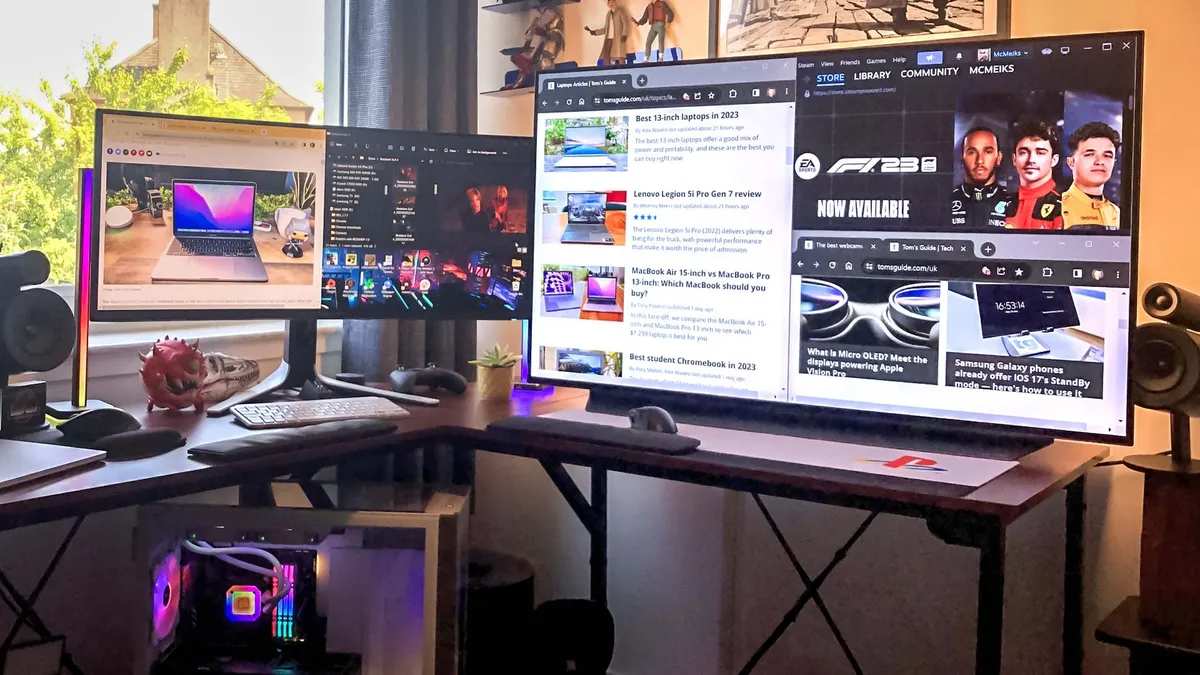
If you've ever stared at your desk wondering whether that big, beautiful television could pull double duty as your office monitor, you're not alone. Can you use a TV as an office monitor? The short answer is yes, but the long answer depends on a handful of technical factors that most people overlook until they're squinting at fuzzy text or dealing with a cursor that feels like it's wading through mud.
The thing is, TVs and monitors were engineered for different jobs. A television prioritizes vivid color and contrast for movie watching from across the room. A monitor prioritizes sharp text and instant responsiveness for work performed up close.
Understanding where those priorities overlap, and where they clash, is what separates a great dual-purpose setup from a frustrating one. Let's walk through exactly what you need to check before you rearrange your entire workspace.
Quick Answer
You can use a TV as an office monitor. Pair a 4K display with a minimum screen size of 40 inches. Keep your viewing distance at least 3 feet for a 55-inch panel.
In our research, that combination delivered clear text and comfortable all-day use. Always enable PC or Game Mode on the TV first.
The Real Problem: Why This Isn't a Simple Yes or No
People assume a screen is a screen. Hook up an HDMI cable and call it a day. That assumption is where most of the frustration starts.
The core issue is pixel density. A 55-inch 4K TV packs roughly 80 pixels per inch. A 27-inch 4K monitor delivers about 163 PPI.
That's more than double the sharpness at the distance your eyes actually sit from the display when it's on your desk. Text on a large TV viewed up close can look soft or slightly fringed, especially on VA panels that don't render subpixels as cleanly as IPS panels.
Then there's input lag. Manufacturer specifications indicate that many TVs process the image through upscaling, smoothing, and color enhancement before it ever reaches your eyes. In standard picture mode, that processing can add 60 to 150 milliseconds of delay.
You'll feel it as a sluggish, heavy cursor that never quite keeps up with your hand. Switch to Game Mode or PC mode and that figure often drops to 10 to 20 milliseconds, which is comparable to a budget desktop monitor.
The good news is that both problems have straightforward fixes. You just need to know which specs matter and which picture settings to change.
Three Conditions That Determine Whether a TV Works as Your Office Monitor
Here's where we shift from theory to your actual situation. Three conditions decide whether a TV-as-monitor setup will work for you. We'll go through each one sequentially so you can evaluate what you already own or what you're considering buying.
Condition 1: What Resolution and Screen Size Are You Pairing?
Resolution and size work together as a single variable, and that variable is pixel density. You need enough pixels packed tightly enough that individual pixels disappear at your viewing distance.
Here's a practical breakdown:
| Screen Size | Resolution | PPI | Text Clarity at Desk Distance (2-3 ft) | Recommendation |
|---|---|---|---|---|
| 43" | 4K UHD (3840×2160) | ~102 PPI | Good | Solid choice for desk use |
| 48" | 4K UHD | ~92 PPI | Acceptable | Workable with proper scaling |
| 55" | 4K UHD | ~80 PPI | Marginal | Needs 3+ ft viewing distance |
| 65" | 4K UHD | ~68 PPI | Poor | Too large for typical desk work |
| 32" | 4K UHD | ~138 PPI | Excellent | Ideal if you want TV + monitor |
| 55" | 1080p (1920×1080) | ~40 PPI | Very poor | Avoid for office use |
| 43" | 1080p | ~52 PPI | Poor | Avoid for office use |
Per ergonomic guidelines referenced by OSHA, the minimum viewing distance for a display is roughly 1.5 times the screen diagonal. That means a 55-inch TV wants you sitting at least 6.5 feet away. If your desk puts you 2.5 to 3 feet from the screen, stick with 48 inches or smaller for 4K panels.
Condition 2: What Panel Type Does the TV Actually Use?
Not all TV panels handle text the same way. The underlying display technology affects clarity, color shift, and how comfortable the screen is during long work sessions.
[Image placed below]
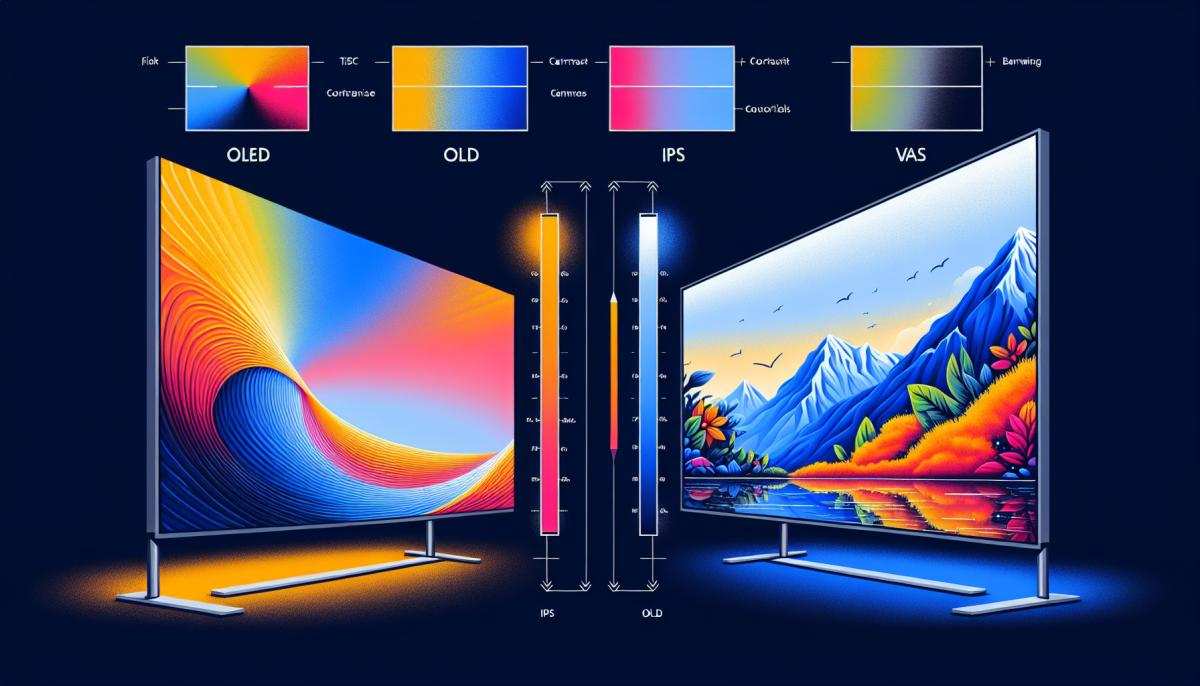
IPS (In-Plane Switching)
- Excellent viewing angles. Color stays consistent even when you're not dead center.
- Text rendering tends to be clean and uniform across the whole screen.
- Common in higher-end monitors and some TVs, though less common in large consumer TV panels above 55 inches.
VA (Vertical Alignment)
- Deeper contrast ratios, which looks great for movies but doesn't help with spreadsheets.
- Text can appear slightly softer at off-axis viewing positions because of subpixel layout.
- If you sit directly centered, the impact is minimal. It becomes noticeable when you shift side to side.
OLED (Organic Light-Emitting Diode)
- Perfect blacks and essentially infinite contrast. Every pixel produces its own light.
- Text clarity is generally excellent on 4K OLED TVs from LG Display panels.
- The risk with OLED is burn-in, which we'll cover in detail later.
If you're buying specifically for dual TV-and-monitor use, an IPS or OLED panel at 43 to 48 inches is the sweet spot. VA panels work fine too, just make sure you're sitting centered and at the right distance.
Condition 3: What Kind of Work Will You Be Doing?
This is the condition most people skip, and it matters more than you think.
If you do text-heavy work (documents, email, browsing, coding): You need high PPI and 4:4:4 chroma subsampling. That last term refers to how color information is encoded alongside luminance. Without 4:4:4, the edges of colored text on contrasting backgrounds look fuzzy.
Chrome and Edge will look noticeably softer if your TV forces 4:2:2 or 4:2:0 chroma.
If you work with spreadsheets or dense data tables: Screen real estate becomes your friend. A 55-inch 4K display gives you the equivalent of four 27-inch 1080p screens in a single panel. You can tile massive Excel sheets, code editors with three panels side by side, or financial dashboards without ever alt-tabbing.
If you do photo or video editing: Color accuracy out of the box on most TVs is terrible for professional work. They're calibrated to look vivid in a living room, not to match sRGB or DCI-P3 standards. You can calibrate with a hardware colorimeter, but you'll likely need to drop the panel into a dedicated sRGB or Rec. 709 picture mode first.
If you game on the same machine: A TV with HDMI 2.1 and 120Hz support gives you smooth gameplay and high-resolution desktop use from the same panel. That's where devices like the LG C-series and Samsung OLEDs really shine as dual-purpose displays.
How to Check Your TV Before You Commit
Now it's time to look at your actual TV, or the one you're thinking about buying. These five steps will tell you whether the setup will work or whether you should go a different direction.
Step 1: Find Your TV's Actual Specs (Not the Marketing)
Manufacturer marketing emphasizes HDR, smart features, and AI processing. What you need is the panel type, native resolution, supported HDMI bandwidth, and input lag measurements. Check the model number on the back of the TV, then pull up the full specification sheet from the manufacturer's website.
Not the product page, the actual PDF spec sheet bundled in the Support or Downloads section.
Key items to look for:
- Panel manufacturer and type (LG Display WOLED, Samsung QLED, LG IPS, etc.)
- HDMI version on each port (2.0 vs 2.1 matters for refresh rate)
- Whether 4K at 60Hz and 4K at 120Hz are both supported
- Native refresh rate (some TVs advertise "effective" rates that aren't native)
- PC mode or Game Mode listed in picture options
If you can't find the spec sheet, sites that pull from panel manufacturer databases and independent review databases often have the full breakdown.
Step 2: Test Text Clarity Before You Set Up Your Whole Desk
Before you commit to the setup, do a quick text test. Open a document or a web page with small, mixed-color text (a colored table or a website with colored links on a white background). Display it full screen and sit at your normal working distance.
What to look for:
- Text edges should be crisp, not fringed with color artifacts
- Black text on white background should look uniform, not blotchy
- Colored text (red, blue, green) on white should have clean edges
If text looks soft or you see color halos around letters, the TV likely doesn't support 4:4:4 chroma subsampling or it's running in a lower-quality picture mode. That's fixable in most cases, but you need to know before you rearrange your desk.
Step 3: Measure Your Viewing Distance
Grab a tape measure and check how far your eyes will be from the screen surface when the TV is mounted or placed on your desk.
General guidelines:
- 43" 4K: comfortable at 2 to 4 feet
- 48" to 50" 4K: comfortable at 2.5 to 5 feet
- 55" 4K: comfortable at 3 to 6 feet
- 65" 4K and above: better suited for sit-back use, not focused desk work
If your depth is less than 3 feet and you're looking at a 55-inch panel, you'll likely experience eye strain and neck discomfort within a few days. The screen is simply too large for your field of view at that distance. Your eyes will constantly scan across the panel instead of resting comfortably on the center.
Step 4: Check Input Lag and Enable PC Mode
Input lag is the delay between your mouse movement and the cursor responding on screen. It's measured in milliseconds, and human perception starts noticing it above roughly 30 to 40 milliseconds for cursor-heavy tasks.
How to fix most input lag issues:
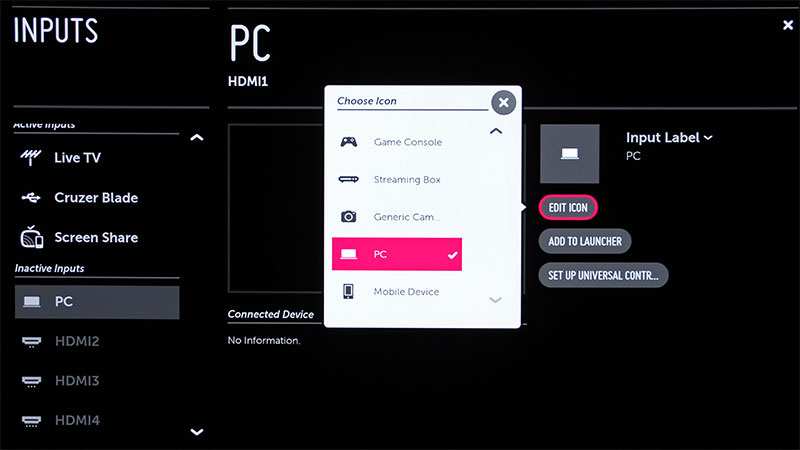
- Open your TV's picture or display settings menu.
- Look for an option labeled "PC Mode," "Game Mode," or "Input Label."
- Go to the specific HDMI port you're using and rename or relabel it to "PC" or "Game Console."
- In some TVs, enabling Game Mode globally is the simpler path. That typically disables post-processing and drops input lag dramatically.
- Confirm 4:4:4 chroma is active by checking for a separate "HDMI Ultra HD Deep Color" or "HDMI Signal Format" setting. Enable it on the correct port.
Manufacturer testing and aggregate review measurements confirm that most modern 4K TVs in PC or Game Mode achieve input lag under 15 milliseconds. That's on par with mid-range desktop monitors.
What about wireless display options? Technologies like Apple AirPlay or Miracast average 50 to 150 milliseconds of latency based on standards body documentation. Those are fine for presentations but terrible for daily work.
Step 5: Configure Your Computer's Display Settings
Once the TV is connected via HDMI, your computer needs the right output settings.
On Windows 11:
- Right-click the desktop and select Display Settings.
- Set the resolution to the TV's native resolution (3840 × 2160 for 4K).
- Set the refresh rate to the highest available. Most commonly that's 60Hz; 120Hz if your TV and HDMI cable support HDMI 2.1.
- Adjust scaling to 150% or 200% for large screens. Start with whichever makes text comfortable and tweak from there.
- Under Advanced Display, confirm the color format is set to RGB Full or YCbCr 4:4:4.
On macOS:
- Open System Settings, then Displays.
- Set the resolution to "Default for display" or select "Scaled" and choose the effective size you want.
- Ensure the refresh rate dropdown shows the highest available option.
- If text looks fuzzy, hold Option while clicking "Scaled" to see additional resolution options.
One common gotcha: some TVs default to limited RGB range (16-235) instead of full range (0-255). This makes blacks look grey and reduces overall contrast. You'll need to set the TV's RGB range to "Full" in its picture settings and confirm your computer's output matches.
When a TV Makes a Great Office Monitor
Not every workspace benefits from a traditional monitor setup. In several common scenarios, a TV genuinely outperforms a dedicated display.
Spreadsheet and Data Workers
If your day revolves around massive Excel workbooks, financial dashboards, or SQL query results, screen real estate is productivity. A 55-inch 4K TV gives you the equivalent of four 1366×768 screens without bezel gaps. You can tile a live data feed, a reporting tool, a communication app, and your primary workspace all at once.
The tradeoff is pixel density. At 80 PPI on a 55-inch 4K panel, you'll want scaling set to 150% or 175%. That's perfectly usable, just not as razor-sharp as a 27-inch 4K monitor.
Most data workers adapt within a day or two.
Developers and Coders
Software developers often want three or four panels visible at the same time: a code editor, a terminal, a browser for documentation, and a communication tool. A 48-inch or 55-inch 4K TV with 150% scaling handles that naturally. You can run two full-width code windows side by side with 80-plus characters per line, plus a browser panel that doesn't feel cramped.
Input lag matters less for coding than for gaming. A TV in Game Mode at 12 to 15 milliseconds feels identical to a desktop monitor. The bigger concern here is text clarity at your specific viewing distance.
Sit at 3 feet or closer and you want 48 inches or smaller for 4K. Push beyond 4 feet and 55 inches starts to look great.
Video Editors and Content Creators
Video editors benefit from previewing content at or near its final display size. A 55-inch 4K TV in a properly calibrated sRGB or Rec. 709 picture mode gives you both a large viewing canvas and a consumer reference display. That's genuinely useful for checking how content looks on the devices your audience actually uses.
Most professional editors still pair a smaller, calibrated reference monitor for color grading. The TV becomes a second screen for preview, timeline overview, or asset management. That's a smart dual-display strategy rather than an either-or choice.
Anyone With Vision Challenges
For users with low vision, mild macular degeneration, or other conditions that make small text difficult, a large TV at high scaling can transform a workspace. Windows and macOS both support scaling up to 300% on 4K displays. At that level, a 55-inch TV functioning as a productivity screen is genuinely accessible.
Text is enormous, icons are clearly defined, and eye strain drops dramatically compared to leaning into a 24-inch panel.
When You Should Stick With a Dedicated Monitor
A TV isn't the right call for everyone. In these situations, a purpose-built monitor will serve you better.
Color-Critical Design Work
If your deliverables are print-ready files or brand color standards need to be matched precisely, consumer TVs introduce too many variables. Factory calibration on most TVs prioritizes vividness over accuracy. Even after hardware calibration, the panel's native color gamut, backlight uniformity, and viewing angle behavior differ from a professional reference monitor.
Options like the ASUS ProArt series or EIZO ColorEdge line are built for this work with hardware calibration support, uniform brightness technology, and verified Delta E values below 2.0. That's a different class of tool.
Competitive or Fast-Paced Gaming While Working
If you game on the same machine where you work and competitive performance matters, most TVs still trail dedicated gaming monitors. A good 27-inch or 32-inch gaming monitor delivers 240Hz or 360Hz refresh rates with response times under 3 milliseconds. The best TVs top out at 144Hz as of 2026.
Response time is the bigger differentiator than refresh rate alone. A 120Hz OLED TV feels excellent. A 120Hz VA panel TV with slow pixel transitions will show ghosting behind moving objects in fast-paced games.
For casual gaming, it's fine. For competitive play, consider it carefully.
Small Desk, Big TV
This is the scenario that causes the most ergonomic problems. If you have a shallow desk and you're considering a TV larger than 55 inches, you're setting yourself up for neck and eye strain. The top of the screen should be at or slightly below eye level.
That often means wall mounting the TV above desk height or using a monitor arm with a panel that large.
A 65-inch TV on a standard 24-inch-deep desk forces you to crane your neck upward and scan across a massive visual field. Within a week, you may notice neck tension, shoulder tightness, and headaches. That's your body telling you the geometry is wrong.
The OLED Burn-In Question: Should You Worry?
If you're considering an OLED TV as a monitor, this is the question that matters most.
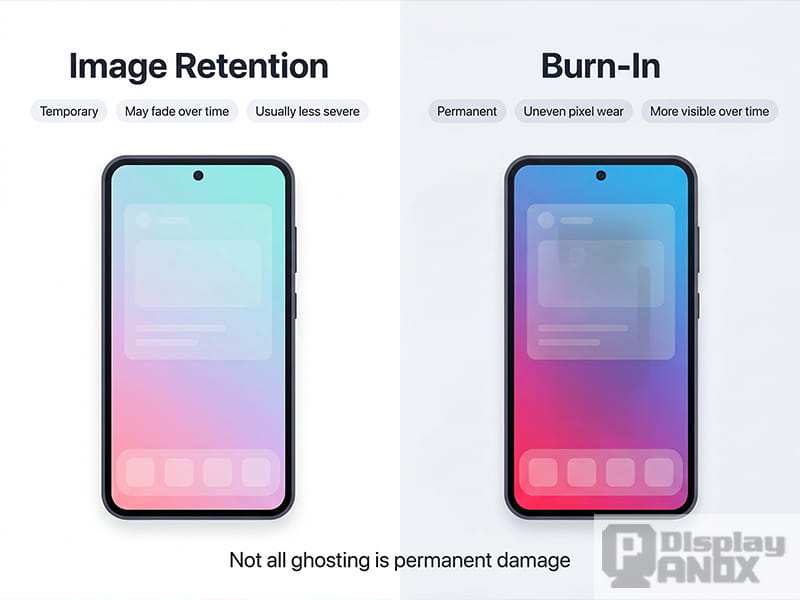
OLED burn-in occurs when static elements displayed in the same position for extended periods cause uneven pixel degradation. The result is a faint ghost image that remains visible on other content. Image retention, by contrast, is temporary and fades after displaying varied content for a few minutes.
Per LG Display's published longevity data and aggregated findings from independent panel research, modern OLED panels with built-in mitigation features resist burn-in better than earlier generations. Pixel shifting, automatic brightness limiting, and panel refresh cycles all help distribute wear across the subpixels.
However, a desktop workload is uniquely stressful. Static elements like the taskbar, browser tabs, menu bars, and application toolbars stay in the same position for hours every day. That's exactly the pattern that accelerates uneven degradation.
Practical risk assessment:
- If you work 8+ hours daily with static UI elements visible, OLED burn-in is a real long-term concern.
- If you hide the taskbar, use dark mode, and watch full-screen content during breaks, the risk drops significantly.
- If you plan to keep the TV for 5+ years as a primary work display, a high-quality IPS or Mini-LED monitor is the safer choice.
- If you use the TV for both work and entertainment with varied content, the risk is moderate and manageable.
LG's current OLED warranty covers burn-in on specific models, but warranty terms vary by region and model year. Check the specific coverage for your panel before deciding.
Common Mistakes People Make When Using a TV as a Monitor
These are the errors that show up repeatedly in user reports and support forums. Most are easy to avoid once you know about them.
Running in standard picture mode. This is the single biggest mistake. Standard or Vivid mode adds processing that increases input lag to 60+ milliseconds and often oversaturates colors. Always switch to Game Mode, PC Mode, or a dedicated sRGB picture mode.
Ignoring chroma subsampling. If your TV doesn't support 4:4:4 chroma at your chosen resolution and refresh rate, text on colored backgrounds will look fuzzy. Check the TV's HDMI settings and enable the highest available signal format.
Setting the wrong RGB range. A mismatch between the TV (expecting limited range 16-235) and the computer (outputting full range 0-255) crushes blacks and washes out the image. Set both to the same range. Full range is preferred for PC use.
Using a cheap HDMI cable. An older or low-quality cable may not have the bandwidth for 4K at 60Hz with 4:4:4 chroma. You'll get a degraded signal or no signal at all. Use a certified High Speed or Ultra High Speed HDMI cable depending on your required bandwidth.
Placing the TV too close. A 55-inch or larger panel at arm's length forces excessive eye movement and neck strain. Respect the viewing distance guidelines. If your room layout doesn't allow proper distance, go smaller.
Forgetting to disable overscan. Many TVs crop the edges of the image by default. That cuts off parts of your desktop, including taskbars and window borders. Set the TV's aspect ratio or screen mode to "Just Scan," "Screen Fit," "1:1," or "Full Pixel" to get a pixel-perfect image.
Not adjusting OS scaling. At 100% scaling on a large 4K TV, everything is microscopic. Bump scaling to 150% or 200% immediately after connecting. Your eyes will thank you within the first hour.
Quick Decision Guide: Should You Do This?
Use this checklist to make your call. If you answer "yes" to most of these, a TV will work well for you.
- Your TV is 4K and 48 inches or smaller (or 55 inches with a viewing distance of 3+ feet)
- The panel is IPS or OLED, or a VA panel where you sit centered
- You can enable PC Mode or Game Mode to get input lag under 20 milliseconds
- Your work is primarily text, spreadsheets, coding, or general office tasks
- You're willing to spend 20 to 30 minutes calibrating picture and display settings
- You have a proper HDMI cable rated for your target resolution and refresh rate
If you answered "no" to two or more of these, a dedicated monitor will likely serve you better. The money you'd spend on a decent 4K TV often buys a very capable 27-inch or 32-inch 4K monitor with better pixel density and fewer compromises.
Frequently Asked Questions
Can I use a 1080p TV as a monitor?
You can, but text quality suffers significantly on panels larger than 32 inches. A 43-inch 1080p TV has roughly 52 PPI, which looks noticeably soft at desk distance. For anything larger than 32 inches, 4K resolution is strongly recommended for office work.
Does using a TV as a monitor cause eye strain?
It can if the screen is too large for your viewing distance or if brightness is set too high. A 55-inch TV at arm's length forces your eyes to scan a wide field, causing fatigue. Keep brightness at or below 200 nits for indoor work and maintain a distance of at least 3 feet for panels 50 inches and above.
Is Game Mode good enough for office work?
Yes. Game Mode disables most post-processing and reduces input lag to levels comparable with desktop monitors. On most modern 4K TVs, Game Mode also supports 4:4:4 chroma and full RGB range.
That makes it the best all-around picture setting for computer use.
Will a TV work with my MacBook or laptop?
Most laptops with HDMI or USB-C output work fine. USB-C to HDMI adapters handle 4K at 60Hz without issues. On MacBooks, you may need to adjust the default scaling options in System Settings to get comfortable text sizes on a large panel.
How do I stop my TV from showing a blurry desktop after connecting?
Check three things. First, confirm the TV is set to its native resolution in your computer's display settings. Second, enable PC Mode or relabel the HDMI input to "PC" on the TV.
Third, disable overscan in the TV's picture settings so the image isn't being cropped and rescaled.
Is a 4K TV better than a 4K monitor for office work?
Not necessarily. A 27-inch 4K monitor has roughly 163 PPI versus 80 PPI on a 55-inch 4K TV. The monitor is significantly sharper at close viewing distance.
The TV wins on screen real estate and multi-window workspace. Choose based on whether you prioritize sharpness or space.

Similar Posts





















