Which Office Monitor Is Best for Multitasking
Figuring out which office monitor is best for multitasking comes down to how you actually work, not which spec sheet looks the biggest. If you're juggling spreadsheets, Slack, a browser with 14 tabs, and a video call all at once, a single screen eventually becomes a game of window Tetris. The right monitor fixes that by giving you enough real estate to keep everything visible without constant alt-tabbing.
Our research into current lineups as of 2026 shows the sweet spot for most office multitaskers is a 34 to 40 inch ultrawide with at least QHD-class resolution and USB-C power delivery. Manufacturer specs and aggregate reviews consistently point to a few standout models that balance screen space, text clarity, and single-cable docking. Let's break down what actually matters before you spend money.
Quick Answer
The Dell U4025QW is the best overall office monitor for multitasking in 2026. It offers a 40 inch 5120 by 2160 panel with Thunderbolt 4 and a built-in KVM switch. For most people, a 34 to 38 inch ultrawide with USB-C power delivery hits the best balance of space and value.
Dual 27 inch monitors remain a solid alternative if you prefer hard separation between work contexts.
Why Most "Best Monitor" Lists Miss the Point for Multitasking
Most roundups rank monitors by contrast ratios, refresh rates, or gaming performance. That's fine if you're playing Cyberpunk. But multitasking productivity is a completely different problem.
You need enough horizontal space to arrange windows side by side, sharp text so you're not squinting at 12 point fonts for eight hours, and a connection setup that doesn't turn your desk into a cable nest.
The metrics that actually matter for office work are pixel density, panel type for viewing angles, color accuracy for any visual work, and whether the monitor can charge your laptop over one cable. A 49 inch super-ultrawide sounds amazing on paper. But if it's a VA panel with mediocre viewing angles, the edges of your screen will look washed out when you're sitting at a normal desk distance.
That's the kind of detail generic lists skip.
What we've found across verified buyer feedback and professional reviews is that the best multitasking monitor is the one that disappears. You stop noticing it. You just work.
That happens when the screen is big enough, the resolution is sharp enough, and the setup is clean enough that you're not fiddling with adapters every morning.
The Real Question: One Big Screen or Two?
This is the first decision that shapes everything else. A single ultrawide gives you one continuous workspace with no bezel gap in the middle. A dual-monitor setup lets you dedicate each screen to a specific task or application and physically separate your contexts.
Neither answer is universally right. It depends on how your brain organizes work.
If you tend to group related windows together, like a code editor next to a terminal next to documentation, an ultrawide keeps everything in one visual field. You turn your head less. Your eyes travel shorter distances.
That adds up over a full workday.
If you need hard mental separation, like keeping email and Slack on one screen while your actual work lives on the other, dual monitors create a physical boundary that an ultrawide can't replicate. Some people genuinely focus better when they can say "work is on the left, everything else is on the right."
Here's a practical way to think about it. Grab a piece of paper and sketch your ideal window layout. If you'd draw one wide canvas, go ultrawide.
If you'd draw two distinct rectangles, go dual.
When One Ultrawide Wins
- You work with wide spreadsheets, timelines, or code that benefits from horizontal space
- You hate the bezel gap in the middle of a dual setup
- Your desk is too narrow for two monitors side by side
- You want a cleaner, simpler setup with fewer cables
- You use window management tools like FancyZones or Magnet to snap layouts
When Dual Monitors Win
- You need to full-screen a video call on one display while working on the other
- You prefer physical separation between work and communication tools
- You already own one monitor and adding a second is cheaper than replacing it
- Your workflow involves two completely different applications that each need full attention
- You work with a laptop open and want one external screen for reference while the other is your main workspace
Screen Size and Aspect Ratio: What Actually Fits on Your Desk
Size matters, but bigger isn't always better. A 49 inch super-ultrawide sounds incredible until you realize it needs about 40 inches of desk width and a viewing distance of at least three feet to be comfortable. Most office desks are 24 to 30 inches deep.
That means a super-ultrawide will wrap into your peripheral vision in a way that feels more distracting than helpful.
Here's how the common sizes break down for real-world multitasking.
| Size | Aspect Ratio | Best Resolution | Ideal For |
|---|---|---|---|
| 27 inch | 16:9 | 3840 by 2160 (4K) | Single-screen productivity, laptop pairing |
| 32 inch | 16:9 | 3840 by 2160 (4K) | More comfortable 4K at native scaling |
| 34 inch | 21:9 | 3440 by 1440 (UWQHD) | Entry ultrawide, replaces dual 24 inch |
| 38 inch | 21:9 | 3840 by 1600 (UWQHD+) | Sweet spot for most office multitaskers |
| 40 inch | 16:10 (5K2K) | 5120 by 2160 | Maximum productivity, 40 inch class |
| 49 inch | 32:9 | 5120 by 1440 (DQHD) | Replaces dual 27 inch, needs deep desk |
The 34 to 38 inch ultrawide range is where most people land, and for good reason. You get roughly the width of a standard monitor plus about 40 percent more horizontal space. That's enough to comfortably run two full-size windows side by side or three narrower ones in a pinch.
A 27 inch 4K monitor is still a fantastic choice if you're pairing it with a laptop screen. At 140 pixels per inch, text is razor sharp at native scaling. The tradeoff is you don't get as much total screen area as an ultrawide, so you'll still be stacking and switching windows more often.
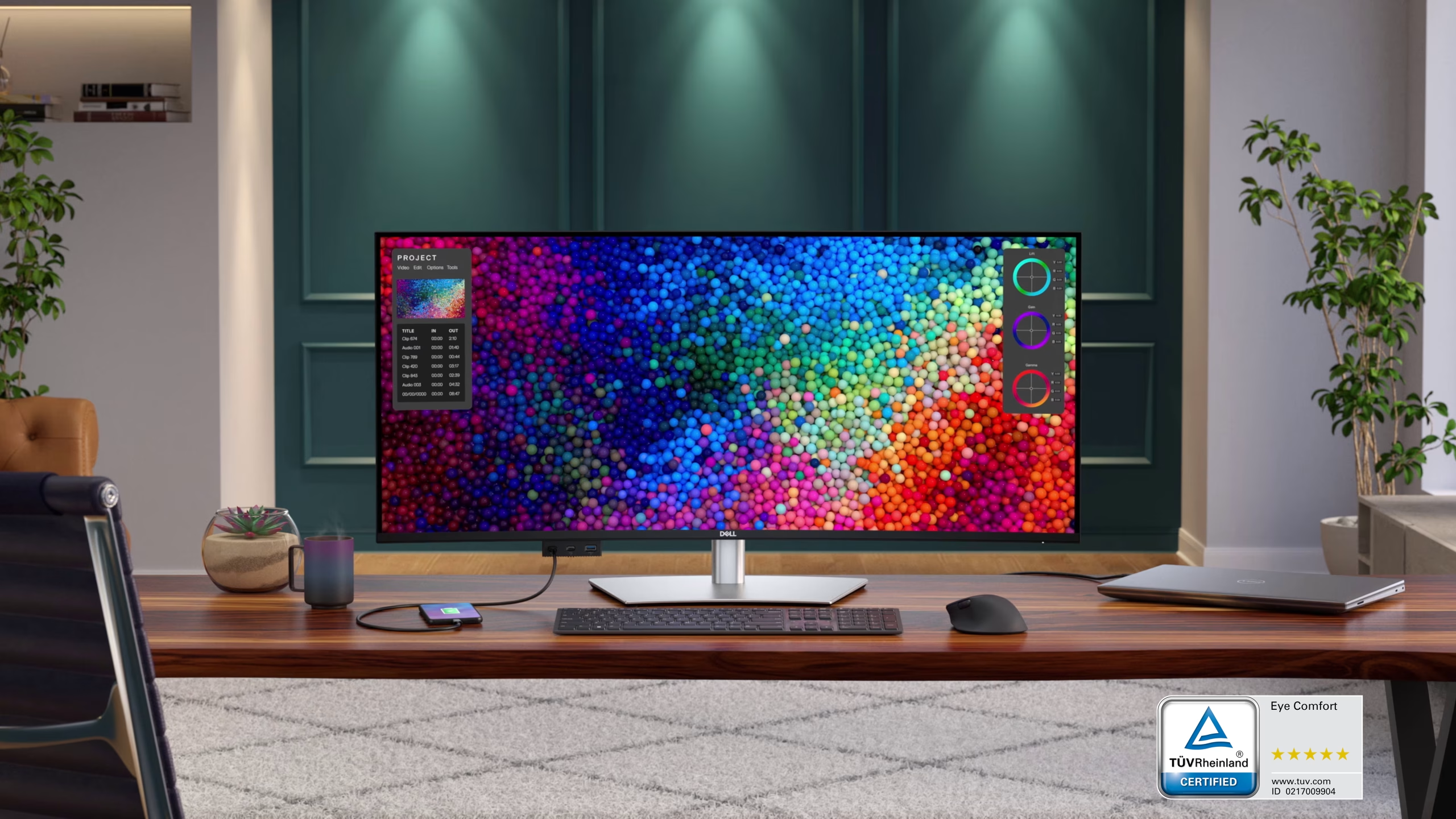
The 40 inch 5K2K monitors like the Dell U4025QW are the current gold standard for serious multitasking. You get the width of an ultrawide with the vertical space closer to a 16:9 display, which means documents and web pages don't feel cramped vertically. The catch is price.
These start around $1,000 and climb fast.
Resolution and Pixel Density: Sharp Text Isn't Optional
Resolution determines how much content fits on screen. Pixel density determines how good that content looks. Both matter, and they're directly related to screen size.
A 34 inch ultrawide at 3440 by 1440 gives you about 110 pixels per inch at normal viewing distance. That's perfectly fine for most office work. Text is clear, images look good, and your graphics card isn't working overtime.
Step up to a 38 inch at 3840 by 1600 and you're around 115 PPI. Slightly sharper, slightly more screen real estate.
The jump to 5K2K at 40 inches (5120 by 2160) pushes you to roughly 140 PPI, similar to a 27 inch 4K display. That's where text looks genuinely print-quality. If you spend all day reading documents, writing code, or reviewing spreadsheets, the difference is noticeable and worth the premium.
Here's the practical advice. For a 34 to 38 inch ultrawide, don't go below 3440 by 1440. For a 40 inch, insist on 5120 by 2160.
For a 27 inch standard monitor, 4K is the sweet spot. Anything lower than 2560 by 1440 on a screen 32 inches or larger will look soft, especially if you're coming from a laptop with a high-density display.
One important note on scaling. Windows handles high-DPI displays reasonably well in 2026, but some older applications still blur when scaled. macOS is generally better at this because Apple controls the hardware and software stack. Linux has improved significantly with Wayland, but your mileage may vary depending on the desktop environment.
If you rely on legacy software, test your actual workflow before committing to a high-PPI display.
Panel Types Explained: IPS, VA, and OLED for Office Work
The panel technology behind the screen affects viewing angles, contrast, color accuracy, and how comfortable the display is over long sessions. For office multitasking, three panel types dominate the conversation.
IPS (In-Plane Switching) is the default recommendation for most office users. Colors stay consistent even when you're looking at the screen from an angle, which matters on a wide display where the edges are naturally at an oblique angle. Text looks clean, and modern IPS panels have improved their contrast ratios significantly.
The downside is IPS glow, a slight brightening in the corners visible in dark rooms. For office lighting, it's a non-issue.
VA (Vertical Alignment) offers better contrast ratios, often 3000:1 compared to IPS at 1000:1. That means deeper blacks and more punchy images. The tradeoff is slower pixel response times, which can cause smearing on dark backgrounds when you scroll quickly.
For office work with lots of text, this can be mildly distracting. VA panels are common in budget ultrawides and curved monitors.
OLED delivers perfect blacks, infinite contrast, and the best color accuracy you can get. It's stunning for creative work and media consumption. For office multitasking, the concern is burn-in.
Static elements like taskbars, toolbars, and status bars can leave ghost images over months of daily use. Manufacturers have implemented mitigation strategies like pixel shifting and ABL (Automatic Brightness Limiting), but the risk remains for users who keep the same layout on screen for years.
Our recommendation for office multitasking in 2026 is IPS for most people, OLED for creative professionals who also do color-critical work, and VA only if budget is the primary constraint and you're getting a curved ultrawide.
Connectivity That Makes or Breaks the Setup
You can have the perfect panel and the wrong ports, and your daily experience will be worse than a cheaper monitor that actually connects cleanly to your laptop. This is where a lot of people get tripped up.
USB-C with DisplayPort Alt Mode is the minimum you should accept in 2026. A single cable from your laptop to the monitor carries video, data, and power. The power delivery wattage matters.
Some monitors only provide 15 to 60 watts over USB-C, which is enough to charge a thin-and-light laptop slowly but won't keep up with a power-hungry workstation under load. Look for at least 90 watts if you want reliable charging during heavy use.
Thunderbolt 4 takes this further. You get 40 Gbps data throughput, daisy-chain capability, and up to 100 watts of power delivery. Monitors with Thunderbolt 4, like the Dell U4025QW, essentially function as a docking station.
You plug in one cable and your laptop has power, display output, and access to all peripherals connected to the monitor's USB hub.
HDMI 2.0 and DisplayPort 1.4 are still relevant, especially for desktop PCs or older laptops. HDMI 2.0 supports 4K at 60 Hz, which is fine for office work. DisplayPort 1.4 handles higher resolutions and refresh rates if you're pushing a 5K2K panel.
Just know that these connections won't charge your laptop, so you'll need a separate power cable.
Built-in KVM switches are an underrated feature for multitaskers. A KVM (Keyboard, Video, Mouse) switch built into the monitor lets you connect two computers, like a work laptop and a personal desktop, and toggle between them with one button press while using the same keyboard and mouse. The Dell U4025QW and several LG ultrawides include this.
If you regularly switch between two machines, it's a genuine quality-of-life upgrade.

Similar Posts





















