Why Are Ergonomic Office Monitors Important
If you've ever ended a workday with a stiff neck, aching shoulders, or a headache that starts right behind your eyes, your monitor setup is probably the culprit. Understanding why are ergonomic office monitors important isn't about buying expensive gear. It's about recognizing that the position of your screen directly shapes your posture, your eye health, and your long-term musculoskeletal function.
Research consistently links poor monitor positioning to chronic neck tension, computer vision syndrome, and reduced productivity over long work sessions. The ANSI/HFES 100 standard exists specifically because incorrect screen height, distance, and angle create measurable strain on the cervical spine and ocular system. Getting this right is one of the highest-impact, lowest-cost changes you can make to your workspace.
Quick Answer
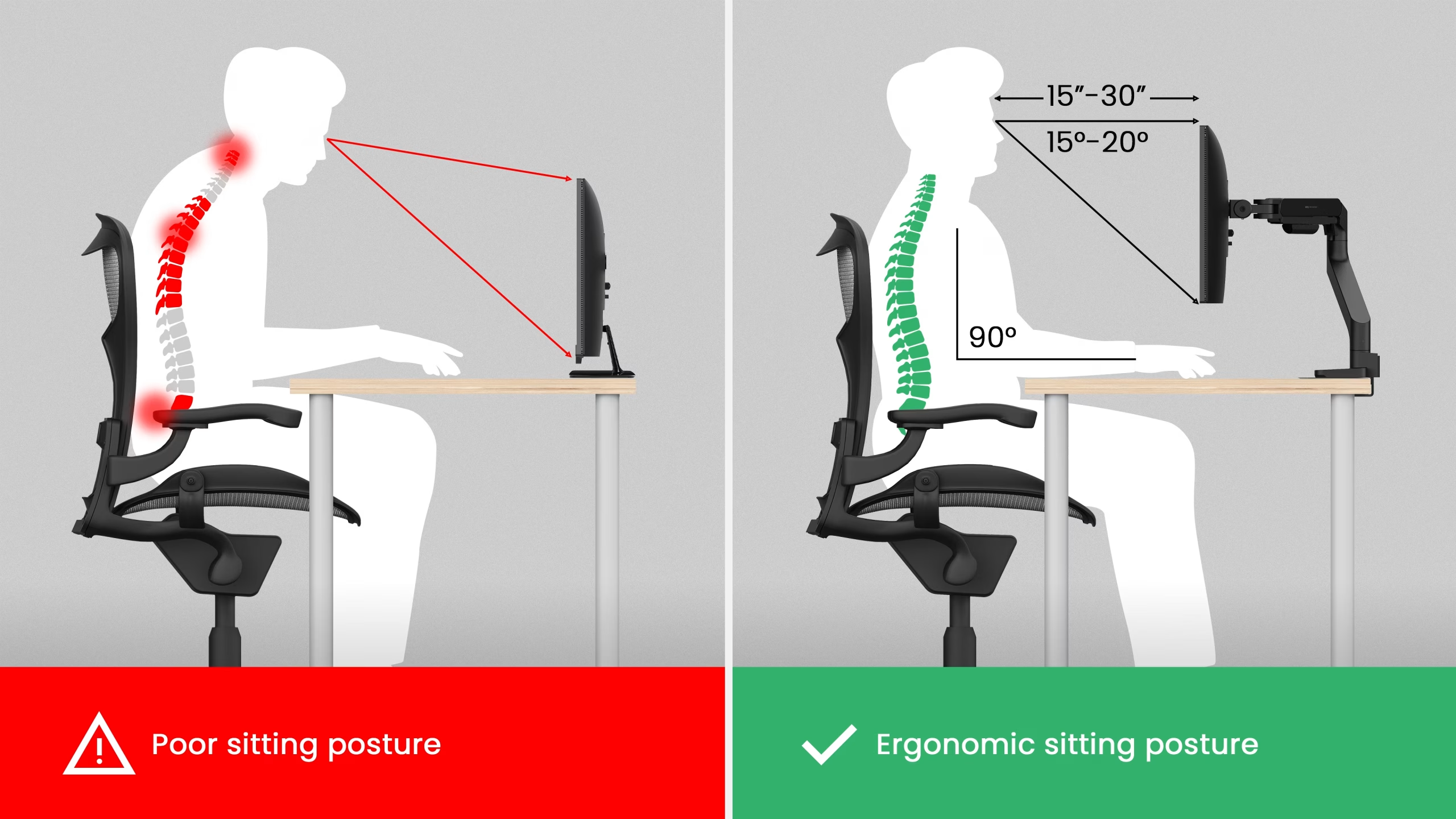
Ergonomic office monitors reduce neck strain, eye fatigue, and long-term musculoskeletal damage. Proper screen positioning aligns your cervical spine and decreases ciliary muscle stress. The ANSI/HFES 100 standard defines optimal height and distance guidelines.
Adjustable stands and monitor arms make correct positioning achievable for different body types.
The Real Cost of a Bad Monitor Setup
Most people don't connect their daily discomfort to their screen position. They assume the neck ache is from sleeping wrong, or the headaches are from stress. But when you look at the biomechanics, the monitor is often the primary driver.
Here's what the data tells us. The American Optometric Association notes that 50 to 90% of regular computer users experience some form of computer vision syndrome. That's not a small risk group.
That's nearly everyone sitting in front of a screen all day.
On the musculoskeletal side, OSHA reports that work-related musculoskeletal disorders account for roughly one-third of all worker injury and illness cases. Forward head posture, the kind you get from looking down at a laptop or a monitor set too low, increases the effective weight on your cervical spine by up to 60 pounds. Your neck muscles weren't designed to hold that load for eight hours.
The financial cost adds up too. Workers' compensation claims related to repetitive strain and postural injuries are among the most common in office environments. Employers who skip ergonomic assessments end up paying for it through absenteeism, reduced output, and insurance claims.
For individuals, the cost shows up as chiropractor visits, missed workdays, and chronic pain that becomes harder to reverse the longer you ignore it.
How Your Monitor Position Affects Your Body — The Biomechanics
Your head weighs about 10 to 12 pounds in a neutral position. Tilt it forward 15 degrees to look down at a low screen, and the force on your cervical spine jumps to roughly 27 pounds. At 60 degrees, you're looking at over 60 pounds of sustained load on muscles, ligaments, and discs that are doing their best to compensate.
This isn't theoretical. It's basic biomechanics documented in spinal research. And it's happening in real time every time you glance down at a monitor that's sitting too low on your desk.
What happens when your monitor is too low
When your screen sits below eye level, you unconsciously tilt your head forward and down. This creates sustained contraction in the suboccipital muscles at the base of your skull. Over hours, that tension radiates upward into tension headaches and downward into shoulder and upper back pain.
You also tend to round your upper back and slump your shoulders forward to compensate. That thoracic kyphosis posture compresses your rib cage, reduces lung capacity, and can even affect digestion over time. The immediate symptom is fatigue.
The long-term consequence is a postural pattern that becomes harder to correct.
What happens when your monitor is too close or too far
Distance matters just as much as height. A monitor pushed too close forces your ciliary muscles to maintain a constant state of contraction to keep the image focused. That sustained accommodative effort is what causes eye strain, blurred vision, and the feeling of "heavy" eyes after a long session.
Too far away, and you start leaning forward. That forward lean pulls your head out of alignment with your spine, reintroducing the cervical strain you were trying to avoid. The sweet spot, per most ergonomic guidelines, falls between 20 and 26 inches from your eyes for a standard desktop display.
The eye-neck connection most people miss
Here's the part that catches most people off guard. Your visual system and your postural system are tightly coupled. Where your eyes go, your neck follows.
If you're wearing progressive lenses and tilting your head back to see the screen through the intermediate zone of the lens, you're hyperextending your cervical spine. If you're craning forward to see a screen that's too small or too far, you're loading your neck extensors.
This is why a proper ergonomic setup isn't just about the monitor. It's about the relationship between the screen, your eyes, your prescription if you wear glasses, and your seated posture. All four have to work together.
What Makes a Monitor "Ergonomic" — Features That Actually Count
Not every monitor marketed as "ergonomic" earns the label. The features that genuinely matter fall into two categories: mechanical adjustability and display quality. One addresses your posture.
The other addresses your eyes.
Height, tilt, and the adjustments you need
A truly ergonomic monitor stand or mount gives you at least three degrees of freedom. Height adjustment is non-negotiable. You need to be able to set the top of the screen at or slightly below eye level, and that measurement changes depending on your seated height.
Tilt adjustment lets you angle the screen upward 10 to 20 degrees. This reduces the need for your neck to compensate and helps minimize glare from overhead lighting. Swivel and pivot matter too, especially if you share your screen with a coworker or switch between landscape and portrait orientation.
The VESA mount standard, either 75x75mm or 100x100mm, is the universal interface that lets you attach a third-party monitor arm. If your monitor has VESA compatibility, you're not locked into whatever stand it came with. That flexibility is often more valuable than any built-in feature.
Display specs that reduce eye strain
Resolution and screen size work together to determine pixel density. A 27-inch 4K display has roughly 163 pixels per inch, which means text renders sharply without you needing to lean in. A 27-inch 1080p display has only about 82 PPI, and you'll notice the difference in eye fatigue over a full day.
Panel type matters for viewing angles. IPS panels maintain color accuracy and contrast at off-angles, which means your image doesn't wash out if you're not sitting dead center. TN panels shift color when viewed from below or above, which can cause you to unconsciously adjust your posture to compensate.
Blue light emission and flicker are two other factors. Low blue light modes reduce the short-wavelength light that disrupts circadian rhythms, especially if you work evening hours. Flicker-free backlighting eliminates the imperceptible strobing that contributes to eye strain and headaches over extended use.
Mounting options and why VESA matters
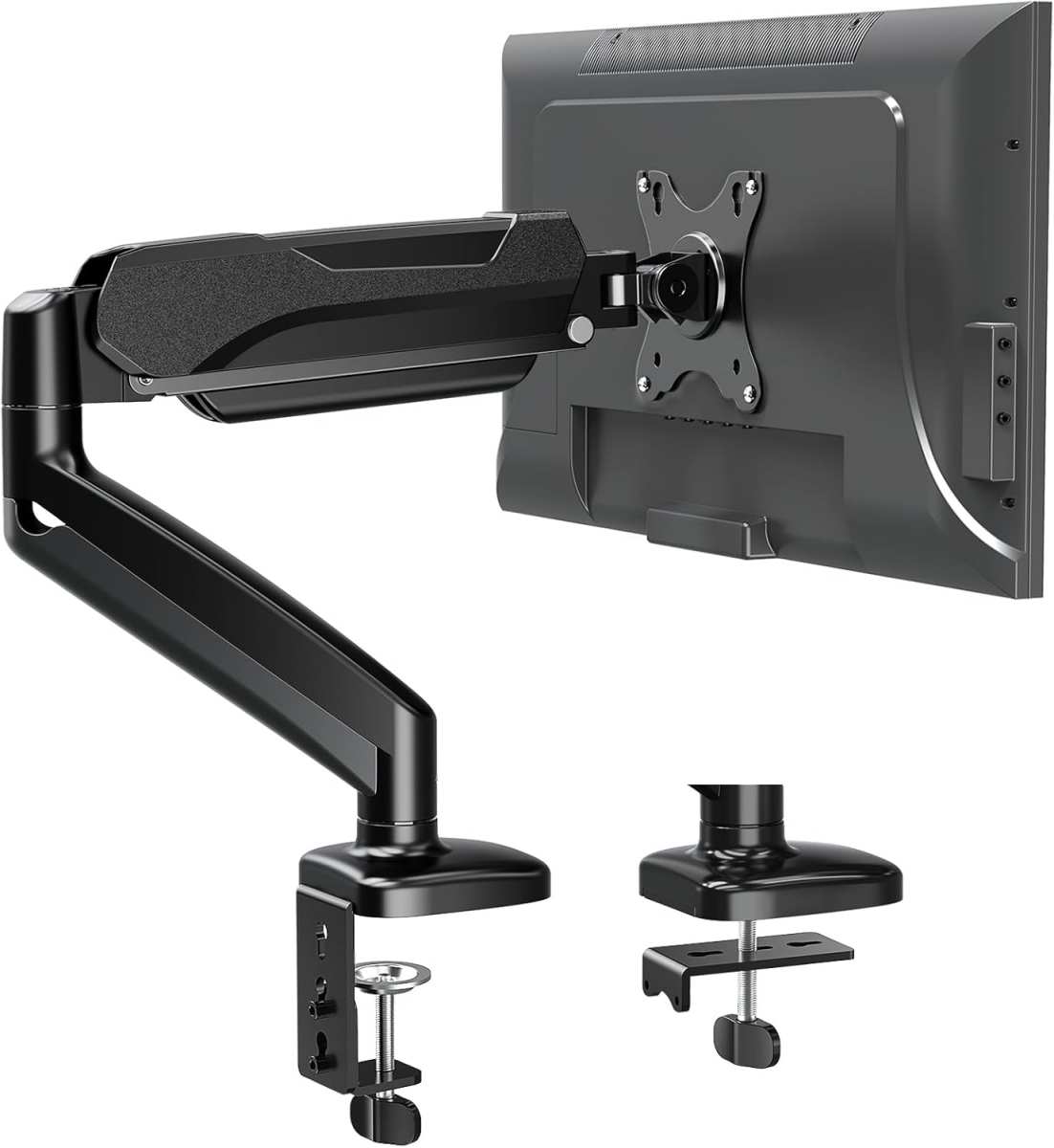
A monitor arm with a gas spring mechanism gives you smooth, tool-free height adjustment. You can reposition your screen in seconds, which encourages you to actually adjust it throughout the day instead of leaving it in one fixed position forever.
Wall-mounted arms save desk space and offer a clean aesthetic. Desk-mounted clamp arms are easier to install and remove, which matters if you're renting or working in a corporate space where you can't drill into walls. Freestanding monitor risers are the budget option, but they offer less range of movement and take up desk real estate.
The key advantage of any mounting solution over a fixed stand is dynamic adjustability. Your ideal screen position when sitting isn't the same as when standing. If you use a sit-stand desk, a monitor arm is practically essential.
How to Set Up Your Ergonomic Monitor — Step by Step
Getting your monitor position right doesn't require a professional assessment. You can do it yourself with a tape measure and about 15 minutes. The order of operations matters, though.
Start with your body, then adjust the screen to match.
Step 1: Start with your chair, not your screen
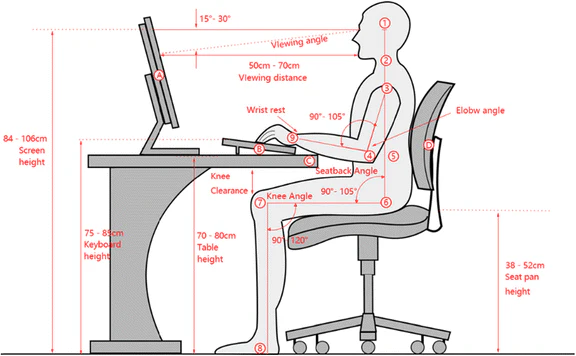
Before you touch the monitor, get your chair height right. Your feet should rest flat on the floor with your thighs roughly parallel to the ground. Your armrests should let your elbows sit at about 90 degrees with your forearms parallel to the desk surface.
If your chair isn't adjusted correctly, no monitor position will save you. You'll either be reaching up, hunching over, or craning your neck regardless of where the screen sits.
Step 2: Set the right height
Sit in your normal working posture. Look straight ahead. The top edge of your screen should land at or up to 2 to 3 inches below your eye level.
This slight downward gaze angle, roughly 10 to 20 degrees, keeps your neck in a relaxed neutral position without forcing you to tilt your head.
If you're using a laptop with an external monitor, the same rule applies to the external display. The laptop screen, if used as a secondary display, should be positioned at the same height and angle. Stacking a laptop below an external monitor creates a terrible neck angle for whichever screen you use more.
Step 3: Dial in the distance and angle
Measure from your eyes to the screen surface. Aim for 20 to 26 inches. If you're using a high-resolution display at 27 inches or larger, you may need to push it back slightly farther to keep the entire screen within your comfortable field of view.
Tilt the screen upward 10 to 20 degrees. This reduces glare and makes the top edge easier to see without leaning forward. If you notice reflections from windows or overhead lights, adjust the tilt before repositioning the monitor itself.
Step 4: Adjust brightness, contrast, and color temperature
Set your monitor brightness to roughly match the ambient light in the room. If your screen looks like a light source against the wall behind it, it's too bright. A common test: a white background on your screen should look like a piece of white paper held next to it.
Reduce color temperature in the evening. Most modern monitors have a low blue light or "warm" mode that shifts the display toward amber tones. This reduces the blue light exposure that can interfere with melatonin production and sleep quality.
Step 5: Account for glasses, especially progressives
If you wear bifocals or progressive lenses, your optimal screen position changes. Progressive lenses have distinct zones for distance, intermediate, and near vision. The intermediate zone, which you use for computer work, sits off-center in the lens.
You may need to raise your monitor slightly or tilt your head to find the sweet spot where text is clear without neck strain.
Single-vision computer glasses set to your intermediate viewing distance can solve this problem entirely. An optometrist can prescribe these based on your exact screen distance. If you wear progressives and find yourself tilting your head back to see the monitor, your setup needs adjustment, not your lenses.
Ergonomic Monitors vs Monitor Arms vs DIY Fixes
You have three paths to a better monitor position. Each works. The right choice depends on your budget, your desk setup, and how much flexibility you need.
Built-in ergonomic stands
Many mid-range and premium office monitors come with integrated height adjustment, tilt, swivel, and pivot. These are the simplest solution. You unbox the monitor, set it on your desk, and adjust.
No extra parts, no installation.
The downside is limited range. Built-in stands typically offer 4 to 6 inches of height adjustment. If you're particularly tall or short, or if you use a sit-stand desk with a wide height range, that may not be enough.
Aftermarket monitor arms
A VESA-compatible monitor arm gives you significantly more range. Gas spring arms offer smooth, continuous height adjustment across 10 inches or more. You can pull the screen close, push it back, swivel it, and rotate it between landscape and portrait.
The tradeoff is cost and installation. A quality single-monitor arm runs $30 to $150. Dual-arm setups run $60 to $300.
You also need a desk edge that can support a clamp mount, or a grommet hole for a bolt-through mount.
The laptop problem
Laptops are ergonomic nightmares by design. The screen and keyboard are attached, which means you can't position both optimally at the same time. If your screen is at the right height, your arms are reaching up.
If your keyboard is at the right height, you're looking down.
The fix is simple but non-negotiable. Use an external keyboard and mouse with your laptop raised on a stand or connected to an external monitor. This decouples the screen from the input devices and lets you position each independently.
Quick comparison table
| Solution | Height Range | Cost | Best For |
|---|---|---|---|
| Built-in stand | 4–6 inches | Included with monitor | Standard desk, average height users |
| Monitor arm | 10–14 inches | $30–$300 | Sit-stand desks, shared workspaces |
| Laptop stand | 6–12 inches | $20–$60 | Laptop-only setups |
| DIY (books/riser) | Limited | $0–$15 | Temporary or budget fix |
Who Benefits Most — And Who's Most at Risk
If you work at a computer for more than two hours a day, proper monitor ergonomics matter for you. But certain groups face higher stakes and see faster results from getting this right.
Remote workers who don't have an IT department setting up their workstation are the most vulnerable. No one is checking your setup. No one is handing you a monitor arm.
You're on your own, and the default configuration of most desks and laptops works against you.
People with existing neck pain, shoulder tension, or chronic headaches should treat monitor positioning as a medical intervention, not a comfort preference. If you're already symptomatic, a poorly positioned screen is actively making things worse every hour you sit there.
Users of progressive lenses or bifocals face a unique challenge. The optical geometry of those lenses creates a narrow sweet spot for intermediate-distance viewing. Even a few inches of screen mispositioning can push you out of that zone and into compensatory postures that strain your neck.
Developers, writers, and anyone who stares at text all day benefit from higher pixel density and blue light management. The sustained near-focus work they do places heavy demand on the ciliary muscles. Sharp text and appropriate color temperature reduce that load measurably.
Standing desk users need a monitor arm more than anyone else. A fixed-height monitor that's perfect when you're sitting becomes too low the moment you stand up. An articulated arm lets you adjust screen height in seconds as you transition between positions throughout the day.
Common Mistakes That Make Things Worse
The most common mistake is setting the monitor too low. This happens with laptops, with monitors on fixed stands, and with desks that are too high for the user. The result is the same: forward head posture, neck strain, and upper back pain that builds throughout the day.
The second most common mistake is ignoring glare. A monitor positioned directly opposite a window creates a constant battle between screen brightness and background light. Your eyes work harder to adapt, and you squint without realizing it.
The fix is to position your screen perpendicular to windows, not facing them.
Using a monitor that's too small or too low-resolution for the work you do forces you to lean in. That sustained forward head posture loads your cervical spine and fatigues your eye muscles faster. If you're leaning forward to read text, your screen is either too far away, too small, or both.
Stacking monitors at different heights without adjusting each one independently creates a situation where one screen is always in the wrong position. If you use a dual-monitor setup, both screens should be at the same height and angle, with the primary monitor directly in front of you and the secondary at the same level to the side.
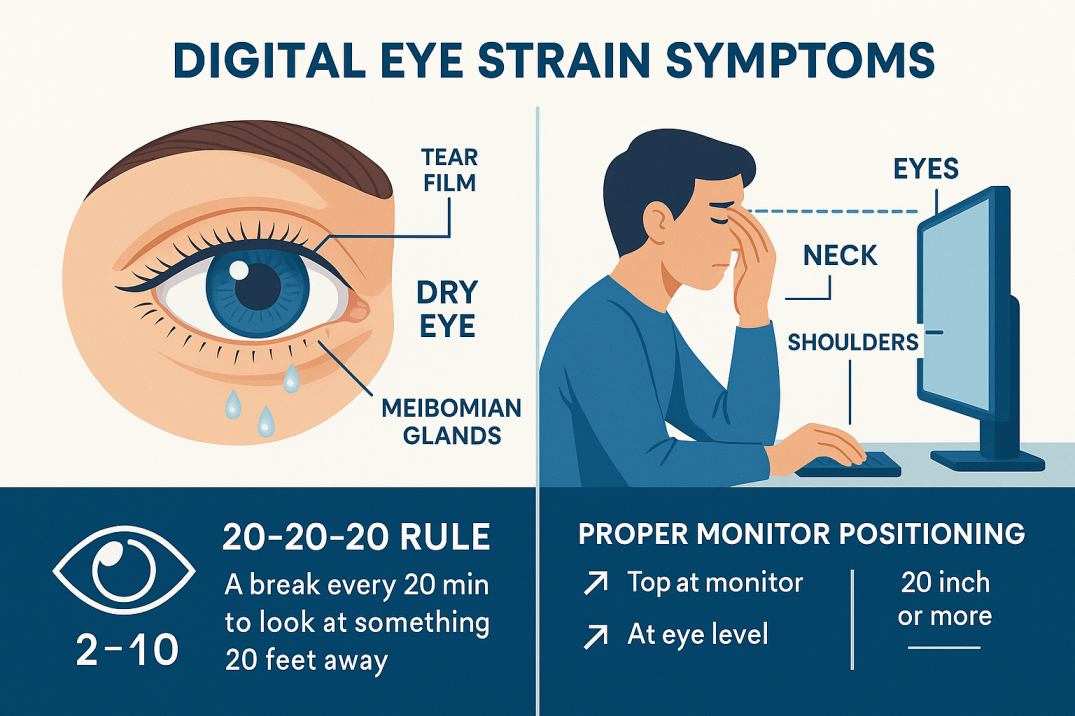
Ignoring the 20-20-20 rule is a mistake that compounds over months. Every 20 minutes, look at something 20 feet away for 20 seconds. This lets your ciliary muscles relax from the sustained close-focus demand.
Without regular breaks, eye strain accumulates and becomes harder to reverse within a single workday.
What the Research and Regulations Actually Say
OSHA's General Duty Clause requires employers to provide a workplace free from recognized hazards. That includes ergonomic risks from improperly positioned computer workstations. OSHA publishes a Computer Workstation Checklist that covers monitor height, distance, glare, and break recommendations.
The ANSI/HFES 100 standard, developed by the Human Factors and Ergonomics Society, is the definitive technical reference for computer workstation design. It specifies viewing distance, screen height, tilt angles, and display characteristics based on biomechanical and visual research.
In the European Union, the Display Screen Equipment Directive (92/27/EEC) mandates that employers assess and mitigate ergonomic risks for workers who use screens regularly. The UK's Health and Safety (Display Screen Equipment) Regulations 1992 impose similar obligations.
The American Optometric Association recognizes computer vision syndrome as a legitimate condition associated with prolonged screen use. Their clinical guidelines recommend proper monitor positioning, regular breaks, and appropriate corrective lenses as primary interventions.
NIOSH, the National Institute for Occupational Safety and Health, has published extensive research linking poor workstation ergonomics to musculoskeletal disorders. Their recommendations align with OSHA and ANSI standards on monitor height, distance, and postural alignment.
When to See a Professional
If you've adjusted your monitor position correctly and you're still experiencing neck pain, headaches, or eye strain after two to three weeks, it's time to see someone. A persistent problem despite a proper setup suggests an underlying issue that ergonomic adjustments alone won't solve.
Start with an optometrist or ophthalmologist if your primary symptoms are visual. Blurred vision, double vision, dry eyes that don't improve with breaks, or difficulty shifting focus between distances can indicate uncorrected refractive errors or binocular vision dysfunction. These conditions need prescription solutions, not just better screen positioning.
See a physical therapist, chiropractor, or physician if your symptoms are musculoskeletal. Chronic neck pain, shoulder tightness, upper back stiffness, or headaches that don't resolve with postural changes may indicate existing injury, muscle imbalance, or cervical spine issues that require targeted treatment.
If you're an employer, a certified professional ergonomist (CPE) can assess your entire workstation fleet and identify systemic issues. Individual adjustments help one person. A proper ergonomic program reduces injury rates across your entire workforce.
Frequently Asked Questions
How high should my monitor be?
The top of your screen should sit at or up to 2 to 3 inches below your eye level. This creates a comfortable downward gaze angle of 10 to 20 degrees. Your neck stays relaxed and your eyes can scan the full screen without head movement.
Is a monitor arm worth it?
If you use a sit-stand desk, share your workspace, or fall outside average height ranges, a monitor arm is worth the investment. The adjustability range far exceeds what built-in stands offer, and it takes seconds to reposition throughout the day.
Can an ergonomic monitor fix my neck pain?
Proper monitor positioning can reduce or eliminate neck pain caused by poor screen setup. If your pain persists after correcting your setup for two to three weeks, see a healthcare professional. The monitor may not be the only factor.
How far should I sit from your monitor?
Aim for 20 to 26 inches between your eyes and the screen. Larger or higher-resolution displays may need to be pushed back slightly farther. If you find yourself leaning forward, move the screen closer or increase text size.
Do blue light filters actually help?
Low blue light modes reduce eye strain and may improve sleep quality if you work evening hours. They're not a substitute for proper screen distance and regular breaks, but they're a useful addition to an overall ergonomic setup.
What about dual monitors?
Both monitors should be at the same height and angle. Place your primary monitor directly in front of you and the secondary to the side at the same level. If you use both equally, center the seam between them so you're turning your head equally in both directions.
Costs, Pricing, and What You Actually Need to Spend
You don't need to spend hundreds of dollars to fix your monitor setup. A basic laptop stand costs $15 to $25 and immediately solves the most common problem. A single monitor arm runs $30 to $80 for a reliable gas spring model.
Premium arms with dual-screen support reach $200 or more, but most single-monitor users don't need that.
Ergonomic monitors with built-in height adjustment typically start around $250 for a 27-inch IPS display. The adjustability is convenient, but you're paying a convenience premium over buying a standard monitor and a separate arm.
The cost of not fixing your setup is harder to measure but real. Aggregate workplace data indicates that employees with poor ergonomic setups tend to have higher rates of discomfort and more frequent breaks, which over weeks and months can erode productive output. That compounds across an workforce quickly.
In our research, most people find the best value in a three-part approach: a mid-range external monitor with good resolution, a $40 to $60 single-monitor arm, and a basic laptop riser if they use a notebook. Total investment usually falls between $150 and $350. That's far less than a single chiropractor visit or a week of missed work.
Expert Tips and Pro Advice
Set your monitor once and forget it, and it'll stop working for you. Your posture shifts throughout the day. You slump after lunch.
You lean forward when you're focused. A setup that felt perfect at 9 a.m. might be wrong by 2 p.m.
If you use a monitor arm, leave it slightly loose so you can nudge it throughout the day. Small adjustments keep your neck and eyes from locking into one fixed position for hours.
Bias lighting, a soft light behind your monitor, reduces the contrast between your bright screen and a dark wall. That alone can cut eye strain noticeably. A simple LED strip behind the desk costs under $15.
If you wear progressives, talk to your optometrist about computer-specific lenses. A single-vision intermediate prescription matched to your exact screen distance eliminates the neck compromise you're making right now.
The Bottom Line and What to Do Next
Here's your short list. Sit at your desk right now with your chair properly adjusted. Check that the top of your screen is at or slightly below eye level.
Measure roughly 20 to 26 inches from your eyes to the display. Tilt the screen up 10 to 20 degrees.
If your current setup can't achieve that, buy a monitor arm or a stand that can. If you're on a laptop, get an external keyboard and raise the screen. Those two moves solve 80% of the problem for most people.
Then give it two weeks. Your body needs time to unlearn the old posture and settle into the new one. If pain persists after a proper setup and regular breaks, see a professional.
Your neck and eyes are worth the effort.

Similar Posts





















