Is Ips Monitor Better for Multitasking
You've probably asked yourself: is IPS monitor better for multitasking? It's a fair question, especially if you're staring at a screen all day juggling spreadsheets, browser tabs, chat windows, and maybe a video call on the side. The short answer is yes for most people, but the full picture depends on what kind of multitasking you actually do and what you're comparing IPS against.
In our research, we've dug into manufacturer specifications, aggregate professional reviews, and real-world productivity feedback to give you a clear answer. As of 2026, IPS (In-Plane Switching) panels dominate the productivity and professional monitor market for good reason. Let's break down exactly why, where they fall short, and whether one is right for your setup.
Quick Answer
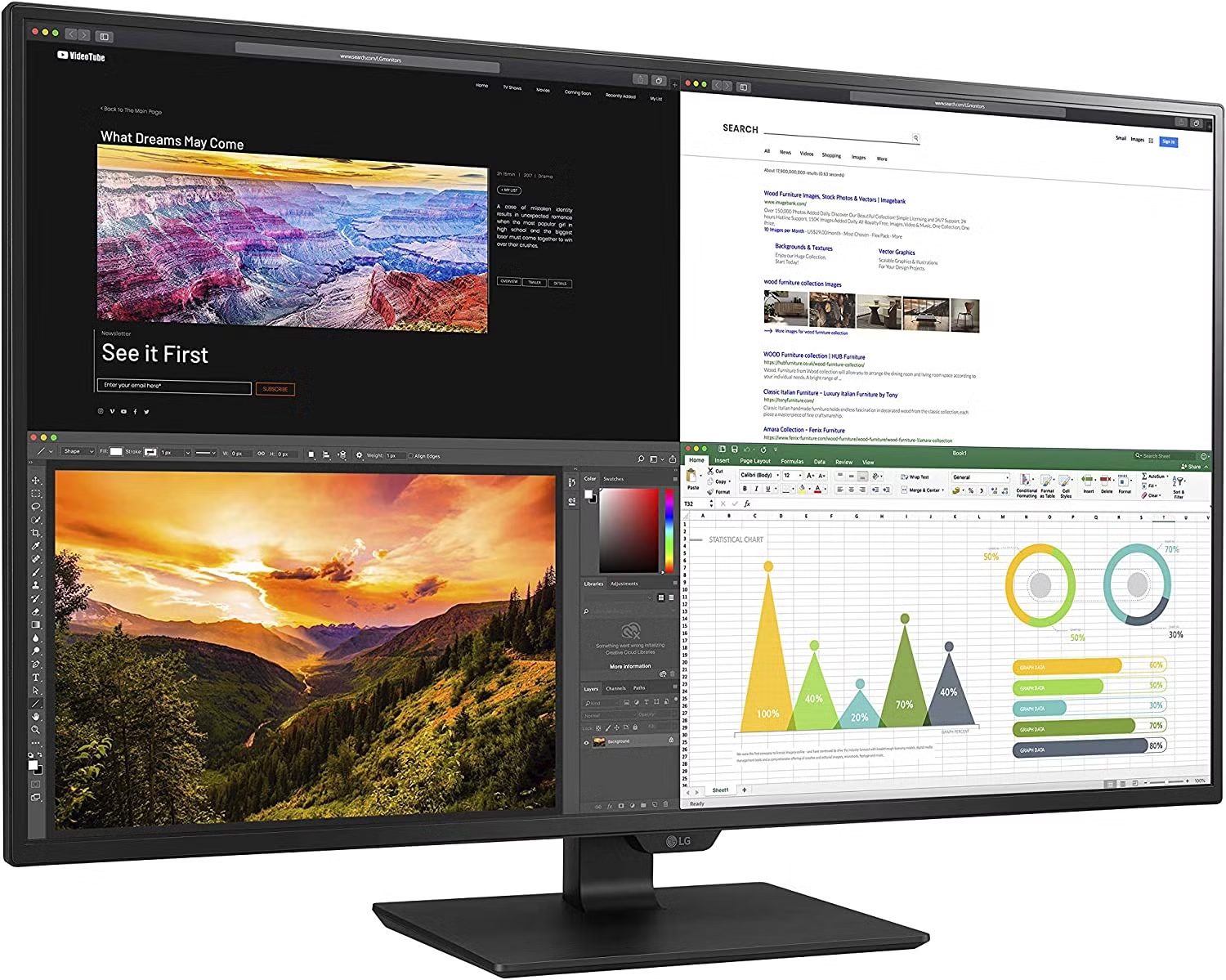
Yes, an IPS monitor is generally better for multitasking. IPS panels deliver wider viewing angles than TN or VA alternatives. Colors stay consistent across the entire screen surface.
This matters when you're running multiple windows side by side. For most productivity workflows, IPS is the safer choice.
Why Panel Type Matters More Than You Think When You're Juggling Windows
Most people shopping for a monitor focus on size, resolution, and price. Those matter, obviously. But the underlying panel technology quietly shapes your entire daily experience in ways specs sheets don't always make obvious.
Here's the thing. When you're multitasking, you're not staring dead center at one thing. Your eyes move across the screen.
You glance at a sidebar, check a notification in the corner, reference something at the top while typing at the bottom. Every time your gaze shifts off-center, a TN panel starts shifting colors or washing out. A VA panel might hold contrast but smear colors at an angle.
An IPS panel keeps what you're looking at looking correct, no matter where on the screen it sits.
This isn't just about comfort. It affects how quickly you can read information, how accurately you can judge colors in a design, and how much eye strain you accumulate over an eight-hour workday. Per ISO 9241-307 ergonomic standards, consistent luminance and color across the display surface directly impact visual comfort during extended use.
How IPS Panels Work (And Why It Matters for Multitasking)
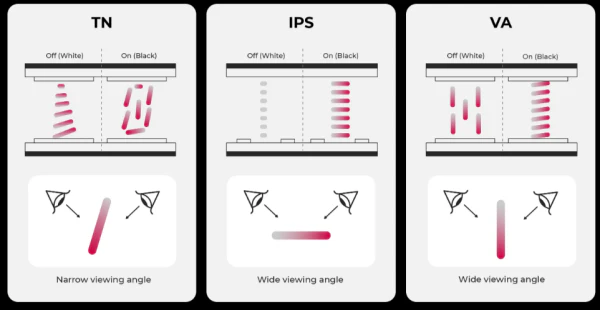
IPS stands for In-Plane Switching. The liquid crystals inside the panel rotate horizontally (in-plane) when voltage is applied, unlike TN (Twisted Nematic) panels where the crystals twist vertically. This horizontal rotation is the key to everything.
What that means for you in practical terms:
- Wider viewing angles. Most IPS panels deliver 178°/178° viewing angles. Colors and brightness barely shift even when you're looking at the screen from the side or from above.
- Consistent color across the surface. The center of the screen looks the same as the edges. This is huge when you've got a reference image on one side and your working document on the other.
- Better color accuracy out of the box. Many IPS panels ship with 95-100% sRGB coverage and Delta E values under 2, meaning colors are accurate enough for professional work without calibration.
The tradeoff? Traditional IPS panels have slightly slower response times than TN panels. Manufacturer specs for typical IPS panels list 4-8ms grey-to-grey (GtG), while TN panels hit 1-2ms.
For gaming or fast video, that difference shows. For productivity and multitasking, it's essentially invisible.
IPS vs TN vs VA: Side-by-Side Breakdown for Multitasking
Let's put the three main panel types head to head. This is where the decision gets real.
| Factor | IPS | TN | VA |
|---|---|---|---|
| Viewing Angles | Excellent (178°/178°) | Poor (color shift at angles) | Moderate (better than TN, worse than IPS) |
| Color Accuracy | Very good to excellent | Mediocre | Good |
| Response Time | 4-8ms GtG (1ms on Fast IPS) | 1-2ms GtG | 4-12ms GtG |
| Contrast Ratio | ~1000:1 | ~1000:1 | ~3000:1 or higher |
| Price | Mid to high | Low | Mid |
| Best For | Productivity, creative work | Competitive gaming | Media consumption, dark rooms |
Viewing Angles and Why They Matter With Split Screens
This is IPS's biggest win for multitasking. When you snap two windows side by side, the left edge of the right window and the right edge of the left window are viewed at an angle by your eyes. On a TN panel, those edges look washed out or color-shifted.
On an IPS panel, they look the same as the center.
If you use portrait mode (rotating the monitor 90°), this becomes even more critical. VA panels invert colors when viewed from above or below in portrait orientation. IPS handles it gracefully.
Color Consistency Across the Screen Surface
Color consistency isn't just for photographers and designers. If you're comparing two documents, reading colored status indicators, or even just reading text against a colored background, you want the colors to be uniform. IPS delivers this better than the other two panel types.
Response Times and Ghosting: Does It Affect Productivity?
For scrolling through documents, moving windows around, and general desktop use, the response time differences between IPS and TN are negligible. You won't notice ghosting on an IPS panel during normal productivity work. Where TN still pulls ahead is in competitive gaming scenarios where every millisecond counts.
That's a different conversation entirely.
Contrast and Dark Mode Workflows
Here's where VA panels fight back. A typical VA panel offers 3000:1 contrast ratio or higher, compared to around 1000:1 for IPS. If you work in dark mode, in a dimly lit room, or do a lot of video/photo editing where shadow detail matters, VA's deeper blacks are genuinely better.
IPS can't match that. It's the one area where IPS objectively loses for multitasking in dark environments.
The Real Pros of IPS for Multitasking
Let's get specific about what IPS actually gives you during a real workday.
Side-by-side window work feels natural. When you're comparing two documents or referencing one window while working in another, you don't have to constantly re-center your gaze. The edges of each window stay readable. On a TN panel, the half of the window furthest from your eyes looks faded.
Portrait mode actually works. A lot of developers and writers rotate their second monitor to portrait orientation for reading long documents or code files. IPS handles this without the color inversion that VA panels suffer from when viewed vertically. The text stays crisp and colors stay accurate from top to bottom.
Collaboration is easier. If a coworker leans over to look at your screen, they'll see what you see. No one has to be positioned directly in front of the monitor. This sounds minor until you're in back-to-back meetings sharing your screen with people sitting at different angles.
Color-critical work becomes possible without extra hardware. Many IPS panels ship factory-calibrated with Delta E under 2. That's accurate enough for photo editing, UI design, and content creation right out of the box. You'd need to calibrate a TN panel just to get close, and even then the viewing angle limitations work against you.
The Cons Nobody Talks About
IPS isn't perfect. There are real tradeoffs that get gloss over in most reviews.
IPS glow is real and annoying in dark rooms. Look at a dark screen in a dim room, especially near the corners. You'll see a silvery or yellowish glow that bleeds in from the edges. It's a byproduct of the horizontal crystal rotation.
It doesn't affect bright content much, but if you use dark mode IDEs or watch movies at night, you'll notice it.
Backlight bleed varies by unit. This is the infamous "panel lottery." Two identical IPS monitors can have different levels of backlight bleed. Some units are clean. Others have visible bright patches, especially along the bottom edge.
Aggregate user reviews suggest this is more common on budget IPS models.
Response times still lag behind TN. For most productivity work, the 4-8ms GtG response time on a standard IPS panel is fine. But if you're also gaming on the same monitor, you might see some ghosting in fast-paced scenes. Fast IPS panels solve this, but they cost more.
Power consumption is slightly higher. A typical 27-inch IPS monitor draws 25-35 watts during use. A comparable TN panel might draw 18-25 watts. Over years of use, that difference adds up on your electricity bill.
It's not dramatic, but it's there.
Best Monitor Type for Your Specific Multitasking Style
Not all multitasking is the same. Here's how to match panel technology to your actual workflow.
Coding and Development
IPS is the clear winner here. Developers typically run an IDE, a browser, a terminal, and documentation simultaneously. Text clarity across the full screen matters.
Portrait mode for reading long code files is a popular setup that IPS handles perfectly. Look for a 27-inch 4K IPS or a 34-inch ultrawide IPS at minimum. The extra screen real estate paired with consistent viewing angles makes a noticeable difference during long coding sessions.

Creative Work (Photo, Video, Design)
IPS is essentially non-negotiable. Color accuracy, wide gamut coverage, and consistent color across the screen are baseline requirements. Look for panels covering at least 95% DCI-P3 or Adobe RGB, depending on your workflow.
Factory calibration with Delta E under 2 is a must. Professional lines like the ASUS ProArt, BenQ DesignVue, and Dell UltraSharp series use IPS panels for good reason.
Office and Business Productivity
IPS works well, but you don't need to overspend. If you're primarily working in spreadsheets, email, web apps, and video calls, a budget IPS panel with 100% sRGB coverage handles everything comfortably. A 27-inch 1440p IPS hits the sweet spot for most office multitasking.
You get enough space for three or four tiled windows without scaling issues.
Trading and Data-Heavy Workflows
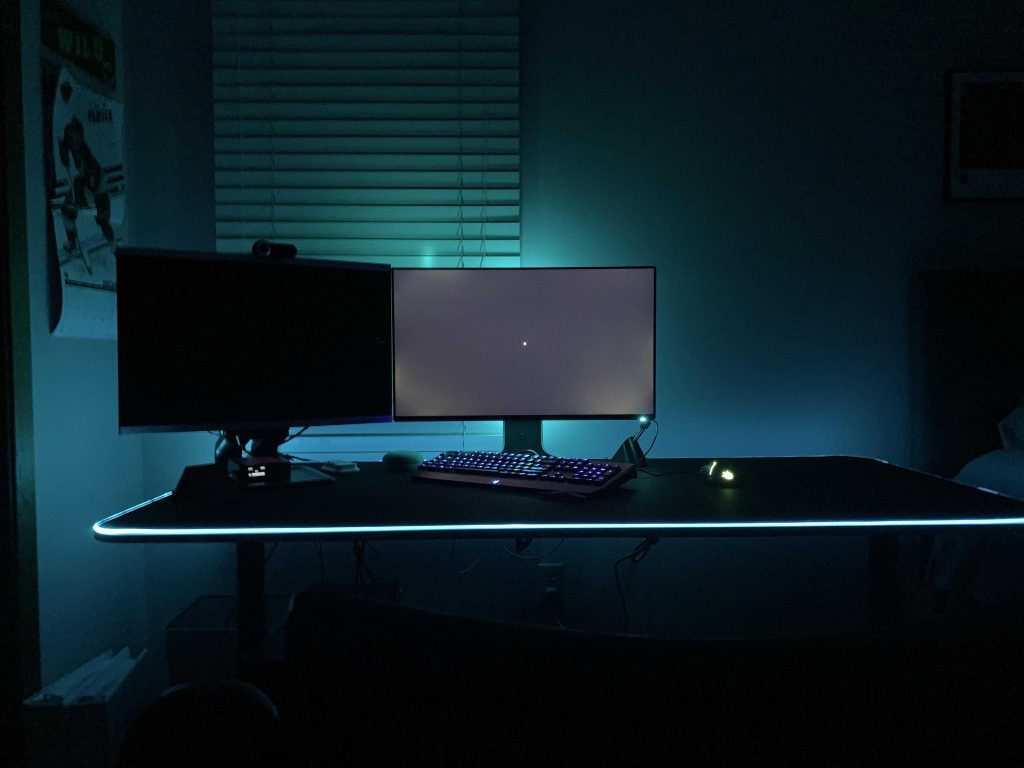
This one depends on your setup. If you're running a single large screen with multiple data panels, IPS keeps everything readable across the display. But if you're running a multi-monitor array where some screens are viewed at sharp angles, consider IPS for your center screen and cheaper TN or VA panels for the peripheral ones.
Many traders use this hybrid approach to save money without sacrificing the primary display quality.
Casual Multi-Window Use
Honestly, any modern IPS panel will serve you well. Streaming a show while browsing social media, keeping an eye on a chat window while working, or managing a few browser tabs doesn't demand premium specs. A mid-range 27-inch IPS with 1080p or 1440p resolution and a 75Hz refresh rate is more than enough.
Don't overpay for features you won't use.
Common Mistakes People Make When Choosing a Multitasking Monitor
Buying based on size alone. A 32-inch TN panel sounds impressive on paper. But the color shift at the edges when you're sitting close makes multitasking uncomfortable. Size matters, but panel technology matters more for productivity.
Ignoring the stand ergonomics. You can have the best IPS panel in the world, but if the stand doesn't support height adjustment, tilt, or pivot, you'll end up hunched over. For multitasking, being able to position the screen at the right height and angle reduces neck strain significantly over a full workday.
Chasing high refresh rates for office work. A 144Hz or 240Hz IPS panel sounds great, but if you're not gaming, you're paying for a feature you won't benefit from. A 60Hz or 75Hz IPS panel handles productivity tasks identically. Save the money or put it toward better color accuracy or a larger screen.
Not checking the subpixel layout. Some IPS panels use unusual subpixel arrangements that can make text look slightly fringed, especially at lower resolutions. This affects readability during long work sessions. Check reviews that specifically test text clarity before buying.
Assuming all IPS panels are the same. There's a massive difference between a budget IPS panel with 60% sRGB coverage and a professional IPS panel with 99% DCI-P3. The panel type is a starting point, not a guarantee of quality. Always check the specific panel's color gamut, contrast ratio, and factory calibration specs.
What You'll Actually Pay: Pricing and Value Breakdown
Here's what the market looks like as of 2026.
| Category | Price Range | What You Get |
|---|---|---|
| Budget IPS | $150-$250 | 24-27", 1080p or 1440p, 60-75Hz, decent sRGB coverage |
| Mid-Range IPS | $300-$500 | 27", 1440p or 4K, 60-120Hz, good color accuracy, better build quality |
| Professional IPS | $600-$1,200 | 27-32", 4K, factory calibrated, wide gamut, USB-C connectivity |
| Ultrawide IPS | $400-$900 | 34-38", 3440×1440 or higher, curved or flat, great for multi-window |
| Fast IPS (Gaming/Productivity Hybrid) | $350-$700 | 27", 1440p or 4K, 144Hz+, 1ms GtG, good color accuracy |
The sweet spot for most multitasking users is the $300-$500 range. You get a quality IPS panel with enough resolution for comfortable window tiling, good color accuracy, and a decent stand. Going below $150 usually means compromising on color accuracy or build quality.
Going above $500 is worth it only if you need professional-grade color or specific features like USB-C power delivery.
Expert Tips for Getting the Most Out of an IPS Multitasking Setup
Calibrate your brightness to your room. Most IPS monitors ship at maximum brightness, which is way too high for indoor use. Drop it to 120-150 cd/m² for a well-lit room. This reduces eye strain and minimizes the visibility of IPS glow.
Use dark mode strategically, not everywhere. Dark mode reduces eye fatigue in low light. But on an IPS panel, dark mode also makes IPS glow more visible. If you work in a dark room, a light or mixed theme might actually look better.
In a bright room, dark mode works fine.
Set up proper window management. Even the best IPS panel feels cramped without good window management. Use built-in OS tools like Windows Snap or third-party options like FancyZones. On Linux, tiling window managers make ultrawide IPS panels sing.
The hardware is only half the equation.
Check for firmware updates. Some IPS monitors receive firmware updates that improve response times, fix backlight issues, or add features. It's not as common as GPU driver updates, but it's worth checking the manufacturer's support page, especially in the first few months after purchase.
Consider a matte coating over glossy. Most productivity IPS panels use a matte anti-glare coating. It diffuses reflections from windows and overhead lights. Glossier coatings look more vibrant in a dark room but become mirrors in a typical office.
For multitasking in varied lighting, matte wins.
Frequently Asked Questions
Is IPS good for multitasking?
Yes. IPS panels are excellent for multitasking. Their wide viewing angles and consistent color across the screen surface make them ideal for running multiple windows side by side.
Text stays readable at the edges, and colors don't shift when you glance away from the center.
Is IPS better than VA for productivity?
For most productivity tasks, yes. IPS offers wider viewing angles and more consistent color across the screen. VA panels have better contrast ratios, which helps in dark rooms.
But for typical office multitasking with multiple windows, IPS is the more reliable choice.
Do IPS monitors have good text clarity?
Generally yes. Most modern IPS panels deliver sharp text, especially at 140 PPI or higher (like a 27" 1440p or 4K display). Some budget IPS panels have subpixel layouts that cause slight fringing.
Always check text clarity reviews before buying a specific model.
How long do IPS monitors last?
IPS monitors typically last 50,000 to 70,000 hours of use. That's roughly 6 to 8 years of 8-hour daily use before noticeable backlight degradation. The panel technology itself is very durable.
Most people replace monitors due to outdated features, not panel failure.
Can I use an IPS monitor for gaming and work?
Absolutely. Modern Fast IPS panels offer 1ms GtG response times and high refresh rates while maintaining good color accuracy. They cost more than basic IPS or TN panels, but they handle both productivity and gaming well.
Look for models with adaptive sync support.
Is IPS glow a defect?
No. IPS glow is a normal characteristic of the panel technology. It's caused by light passing through the liquid crystal layer at slight angles near the edges.
Only extreme glow that disturbs normal viewing would qualify for a warranty replacement. Minor corner glow is expected on virtually all IPS panels.
Final Verdict: Should You Go IPS for Multitasking?
For the vast majority of people who multitask on a daily basis, IPS is the right choice. The combination of wide viewing angles, consistent color accuracy, and strong text clarity makes it the most versatile panel technology for productivity work in 2026.
The exceptions are specific. If you primarily work in a dark room and care deeply about deep blacks, a VA panel might serve you better. If you're on a very tight budget and only need basic office work, a TN panel gets the job done for less money.
If you want the absolute best image quality and budget isn't a concern, OLED is the new frontier, though burn-in risk remains a consideration for static desktop elements.
But for the average user running a mix of documents, browsers, communication apps, and creative tools across multiple windows, IPS delivers the best balance of performance, comfort, and value. It's the safe bet that rarely disappoints.

Similar Posts





















