How to Reduce Eye Strain on Office Monitor
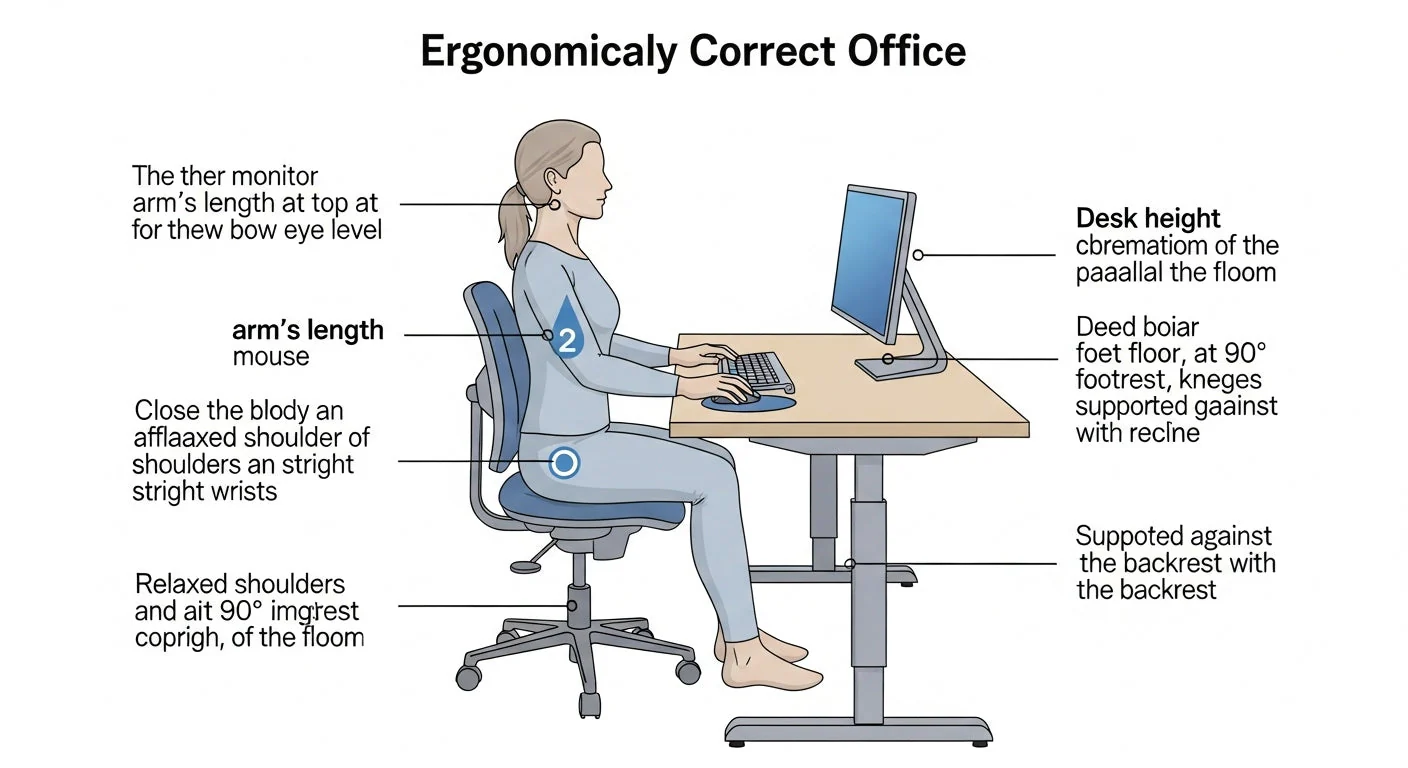
If you've ever reached the end of a workday with dry, aching eyes and a dull headache, you've wondering how to reduce eye strain on office monitor setups. The fix usually isn't one magic setting. It's a combination of your environment, your screen configuration, and how your eyes interact with the display.
Research on computer vision syndrome shows that the biggest culprits are often things you can change in about five minutes. Let's walk through each one, step by step.
Quick Answer
Adjust your monitor to match the brightness of your room. Keep the screen 20 to 28 inches from your face with the top edge at or slightly below eye level. Use a blue light filter in the evening.
Follow the 20-20-20 rule: every 20 minutes, look at something 20 feet away for 20 seconds. Address dryness with lubricating drops and proper blinking habits.
Quick Assessment: What's Causing Your Eye Strain Right Now
Before you buy anything or download another app, figure out which part of your setup is actually working against you. The fixes are different depending on what's going wrong.
Here's a rough decision path to follow:
- If your eyes feel dry and gritty: Start with the Branch 3 section on eye-specific fixes.
- If you get headaches or nausea within an hour of screen work: Check refresh rate and PWM flicker (Branch 2).
- If your screen looks like a mirror: You're dealing with glare and lighting (Branch 1).
- If you lean forward or tilt your head: Your monitor positioning is off (Branch 4).
- If symptoms persist after trying the obvious fixes: See Branch 3's section on getting a real eye exam.
Only one or two of these are probably your main trigger. Fix those first. Everything else is fine-tuning.
Branch 1: Your Room Lighting Is Working Against You
This is the one most people skip. You can calibrate your monitor perfectly, but if your room has the wrong lighting, your eyes are still fighting an uphill battle.
How Bad Lighting Makes Screen Fatigue 10x Worse
Your pupils constantly adjust between the brightness of your screen and the brightness surrounding it. When there's a big mismatch, the muscles that control your iris get overworked. Think of it like walking on uneven ground all day.
Your legs would be screaming by lunchtime.
The worst combo? A bright screen in a pitch-black room. Your eyes straddle two extremes every second.
Your irises never settle.
Fix 1: Reposition Your Light Sources
Overhead fluorescents bouncing off your screen are brutal. So is a window directly behind or in front of your monitor.
Here's what works:
- Place your desk perpendicular to windows. Side lighting is ideal.
- Use indirect floor or desk lamps overhead.
- Avoid pointing lamps toward your screen surface.
- If overhead lights are unavoidable, get an anti-glare matte monitor or a matte screen filter.
A matte finish scatters reflections. Glossy screens act like mirrors, especially in offices with overhead banks of fluorescent tubes.
Fix 2: Add Bias Lighting Behind Your Monitor
This is the single most underrated fix for screen fatigue from our research
Bias lighting is a soft light source placed behind your monitor that raises the ambient brightness of the wall without shining directly at your eyes. Your pupils have an easier time because the contrast between your screen and its surroundings narrows.
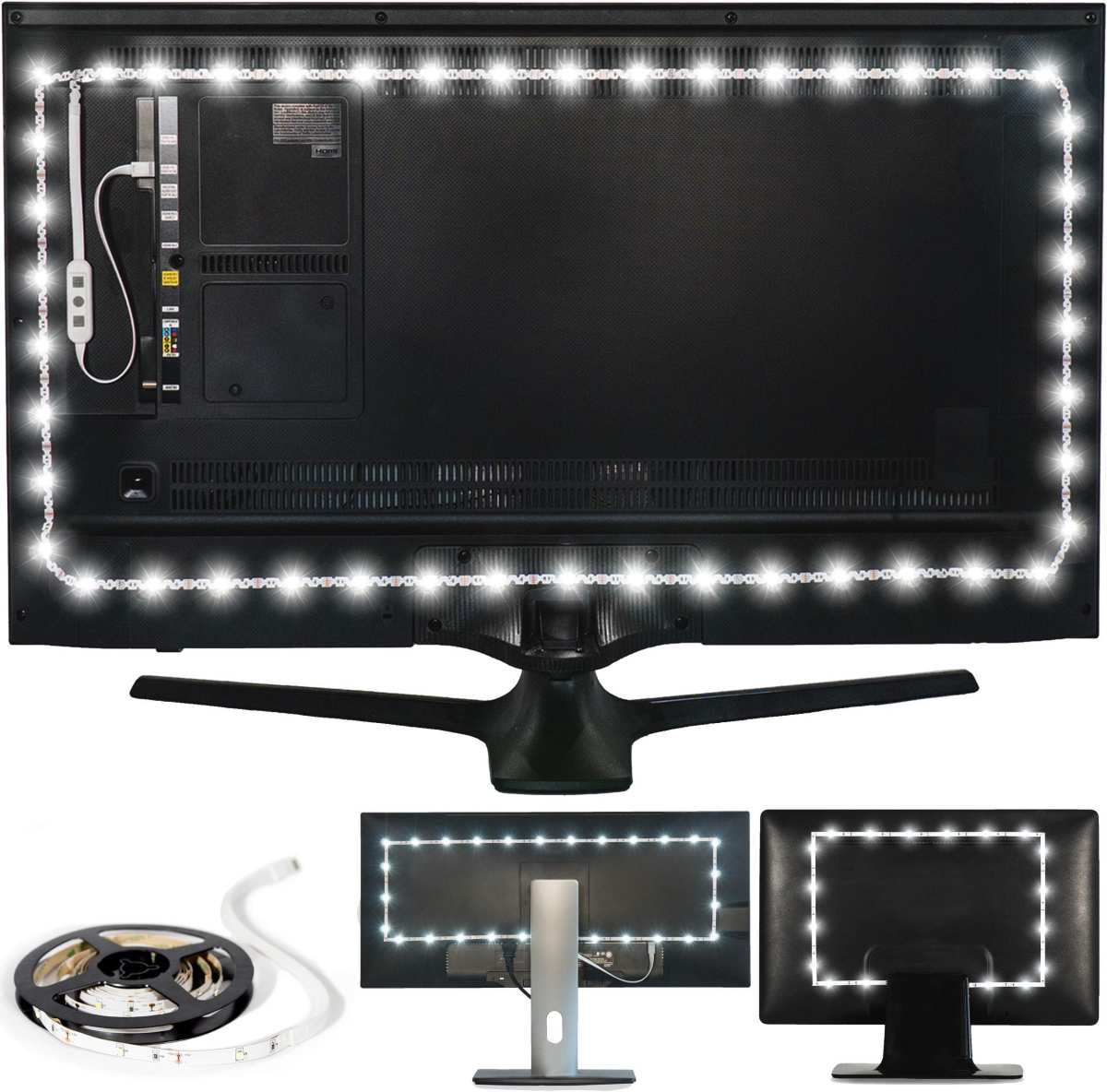
The setup is cheap and simple:
- Clip an LED strip or place a small bias light on the back edge of your monitor.
- Aim for a neutral white around 6500K during the day.
- Keep the light output moderate. It's not supposed to light up the room.
USB-powered LED strips designed for monitor bias lighting run about $10 to $25 as of 2026. Worth every cent.
Fix 3: Kill the Glare Without Ruining Your Panel
If repositioning lights doesn't cut it, consider a physical anti-glare filter. These are matte films that attach over your screen.
Pros: Cheap, immediate, effective in hostile lighting.
Cons: They can soften image clarity slightly. Not ideal for color-critical design work.
Alternatively, if your monitor supports it, switching from a glossy to a matte panel finish is the cleaner fix. Some manufacturers offer both finishes within the same product line.
Branch 2: Your Monitor Settings Are Out of Sync With the Room
Now that the room match is better, make sure your screen cooperates.
The Brightness-Matching Rule Nobody Tells You
Hold a blank white document or webpage open on your screen. Hold a piece of white paper next to your monitor. If the screen looks like a light source compared to the paper, it's way too bright.
If the screen looks dull and dim compared to the paper, you're squinting without realizing it.
Your screen should blend in with the room. Competing against it. That sounds simple, but it's the rule that most eye doctors mention, and most people ignore.
Here's a quick calibration reference:
Refresh Rate and Flicker: The Hidden Headache
This one's sneaky. You might not see the flicker, but your eyes and brain absolutely register it.
Most modern LED monitors dim their backlights using Pulse Width Modulation (PWM). At lower brightness levels, the backlight switches on and off rapidly. If the frequency is low enough (under about 2000 Hz per IEEE 1789-2015), some people develop headaches, nausea, and eye strain without any visible flickering.
Look up your monitor model's PWM frequency before buying:
| Monitor Type | PWM Risk | Flicker-Free? |
|---|---|---|
| Budget office monitors (low brightness) | Often low-frequency PWM | Usually No |
| Mid-range IPS with "Flicker-Free" badge | DC dimming | Yes |
| High-end / professional panels | DC dimming standard | Yes |
| OLED laptop screens | PWM at low brightness | Check specs |
If you're stuck with a PWM-heavy panel, you might mitigate it by keeping brightness higher (relying on software dimming). Software tools like f.lux can dim the display output at the GPU level, which adds a software dim layer on top. This doesn't eliminate the underlying flicker, but it can reduce perceived intensity.
Color Temperature: Why Your Screen Should Change With the Sun
Blue light gets blamed for a lot, and deservedly after sunset. During the day, a standard 6500K color temperature mimics natural daylight. That's energizing.
Appropriate.
But after dark, a 6500K/blue-heavy screen in a dim room disrupts your circadian rhythm. It signals melatonin suppression. Your brain thinks noon just happened at 9 PM.
Researchers have studied the link between evening light exposure and sleep issues extensively.
The fix is scheduling color temperature shifts:
| Time | Target Color Temperature | Tool |
|---|---|---|
| Daytime (7 AM–6 PM) | 5500–6500K | Native monitor setting |
| Evening (6 PM–9 PM) | 3400–4000K | f.lux, Night Shift, or monitor OSD |
| Night (9 PM onwards) | 2700–3000K | Low-blue-light mode + dim |
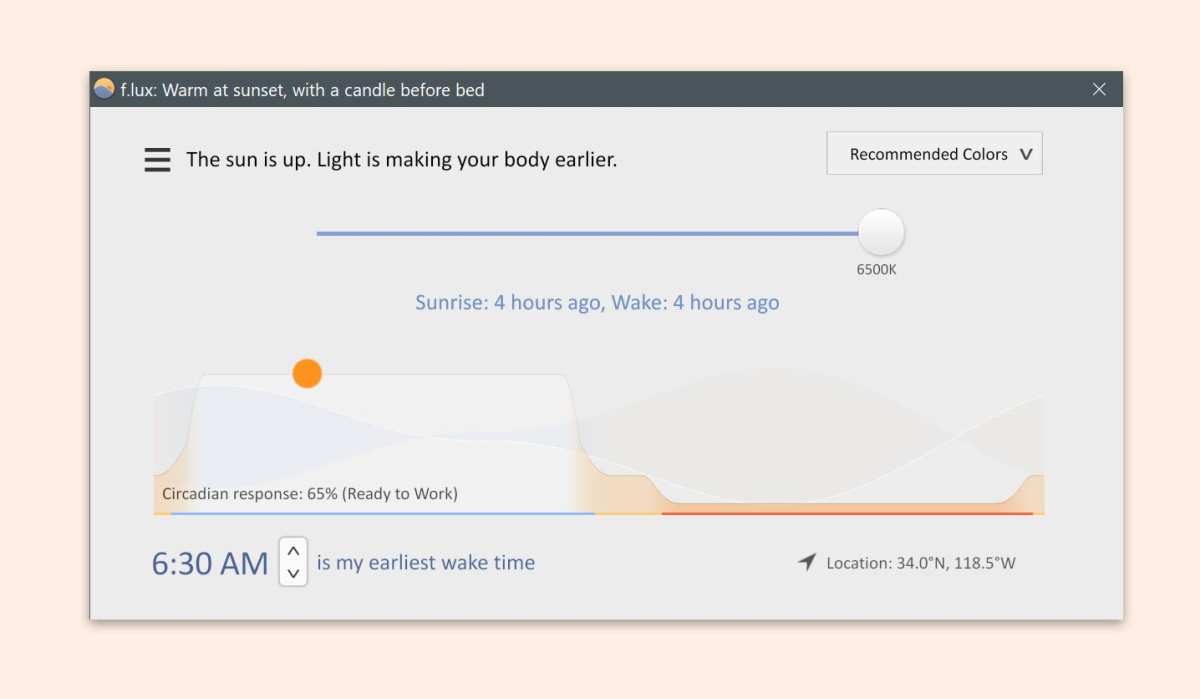
Built-in options:
- Windows Night Light (Settings > Display > Night Light)
- macOS Night Shift (System Settings > Displays > Night Shift)
- Monitor on-screen display (OSD) with "Low Blue Light" mode
Third-party:
- f.lux. More customizable than native OS features. Lets you set location-based timing and movie mode.
- Dedicated dimming control software adjusts display output at the GPU level.
You shouldn't even notice the color shift happening. Should look natural.
Software Tools That Actually Work (f.lux, Night Shift, and More)
The color temperature tools mentioned above are well-supported and widely used. Some extend with features backed by research-related logic:
- Automatic time-based transitions for smooth adaptation.
- Short movie mode that temporarily removes the warm overlay.
- Short wake timer for temporary overrides.
If you want more control, research into hardware-level color calibration is possible. Some monitor calibration tools improve color accuracy but their effect on eye fatigue is indirect. Better color rendering eases the cognitive load of reading, but this is less impactful than proper brightness and contrast.
Bottom line on tools: Just turn on Night Shift or Night Light if you don't want complexity. That single change is immediately beneficial.
Branch 3: Your Eyes Themselves Need Help
Sometimes the problem isn't the screen at all. It's your eyes meeting the screen.
Why You Blink 66% Less When You're Focused
Normal blink rate is about 15 to 20 times per minute. Staring at a monitor? Studies show it drops to about 4 to 7 blinks per minute.
That's a massive reduction. Your tear film evaporates between blinks, leaving the surface of your cornea dry and irritated.
You probably know the 20-20-20 rule by now. But it works not just because distance rests your focusing muscles. It reminds you to blink fully and reset your gaze.
Artificial Tears: Which Ones Won't Make It Worse
Not all eye drops are the same:
- Preservative-free artificial tears. Best for frequent use. Single-use vials. No chemical buildup.
- Redness-relief drops. Visine, Clear Eyes, etc. These constrict blood vessels. They provide temporary cosmetic relief. Avoid regular use. Rebound redness is real.
- Gel drops. Thicker. Longer-lasting. Good for severe dryness but can blur vision temporarily.
Use them before you feel the dryness, not after. If you're reaching for drops every hour, your root cause is still unfixed
Computer Glasses vs. Your Regular Prescription
Your distance glasses are optimized for objects 20 feet and beyond. A monitor at 24 inches requires a different focal demand. Reading glasses are optimized for 14 to 16 inches.
A monitor sits in an awkward intermediate zone.
Computer glasses solve this by focusing on that intermediate distance. They can include a mild blue-blocking tint, but the real benefit comes from the optical power being correct for the distance.
If you wear progressives or bifocals, you're likely tilting your head back to see the monitor through the lower portion of the lens. That strains your neck and forces an unnatural eye position.
Prescription glasses vs. software filters:
| Feature | Computer Glasses | Software Blue Light Filter |
|---|---|---|
| Fixes focal distance | Yes | No |
| Reduces blue light | Optional tint | Yes |
| Reduces glare | Anti-reflective coating | No |
| Cost | $50–$200+ (custom) | Free (built-in OS) |
| Works for anyone wearing contacts | Yes | Yes |
Custom computer glasses with anti-reflective coating address multiple issues at once. For contacts or budget, software filtering plus correct monitor setup is the practical route.
When It's Not Screen Strain at All
Sometimes what feels like screen fatigue is actually an underlying condition being aggravated by screen use:
- Meibomian gland dysfunction (MGD). Your eyelids produce less oil. Tears evaporate rapidly. Warm compresses daily. Treatable.
- Presbyopia onset (age 40+). Your lenses lose flexibility. Computer glasses or progressive lenses help significantly.
- Uncorrected astigmatism. Small amounts cause noticeable strain after hours. An updated prescription fixes it.
- Diabetic blood sugar fluctuations. Vision shifts with glucose levels. Screen fatigue can mask this.
- Medication side effects. Antihistamines, antidepressants, isotretinoin. They reduce tear production. Mention eye symptoms to your prescribing doctor.
If your symptoms persist despite an ergonomic setup, see an optometrist or ophthalmologist. Specifically ask for a dry eye assessment and a computer-distance refraction. General eye exams sometimes only check distance and near vision, missing the intermediate gap.
Branch 4: Your Posture and Setup Are Forcing Your Eyes to Work Harder
Even with perfect lighting and screen settings, bad positioning forces your eyes into a constant state of compensation.
Monitor Distance: The 20–28 Inch Sweet Spot
Too close: your ciliary muscles (which control lens shape) stay contracted all day. This leads to a temporary condition called accommodative spasm. Your eyes "lock" in near-focus mode, and distance vision blurs temporarily when you look up.
Too far: you squint. Leans forward. Rests chin on hand.
Neck strain follows.
The 20 to 28 inch range is the standard recommendation per ISO 9241-307 display ergonomics. For 27-inch 4K monitors, you may need to push back toward 28 inches and increase text scaling to 150 percent to read comfortably without leaning in.
Height Matters More Than You Think
Your monitor's top edge should sit at or slightly below eye level (about 0 to 5 cm below). When the screen sits too high, you look upward, which exposes more of the ocular surface to air. Tear evaporation accelerates.
Quick test: Sit upright in your chair. Look straight ahead. Your gaze should land roughly in the top third of the screen.
If you're looking at the bottom half, your monitor is too low. If you're craning your neck up, it's too high.
| Problem | Symptom | Fix |
|---|---|---|
| Monitor too low | Neck pain, leaning forward | Raise with stand, arm, or monitor riser |
| Monitor too high | Dry eyes, headaches, top-of-skull tension | Lower stand or use shorter arm |
| Single ultrawide | Head turning, unequal focus distance | Center primary work area in front of you |
Single Monitor vs. Dual: Which Is Easier on Your Eyes?
Dual monitors create a problem at the seam. Your eyes constantly refocus and reposition between two surfaces at slightly different angles and distances. The bezels force constant small head turns.
If both monitors are the same model, same height, same distance, the strain is manageable. If one is higher, farther, or a different panel type, fatigue compounds.
For eye comfort: One large, high-resolution monitor (27" 4K or 32" 4K) is generally easier on your eyes than two 1080p panels. You get more screen real estate with fewer bezels and a consistent focal plane.
That said, if your workflow genuinely requires dual monitors, position the primary monitor straight ahead and the secondary at the same height and angle to the side. The secondary should only be where you glance, not where you read.
The 20-20-20 Rule and Other Habits That Prevent End-of-Day Burnout
The 20-20-20 rule is simple. Every 20 minutes, look at something at least 20 feet away for at least 20 seconds. It works because it forces your ciliary muscles to relax.
Those are the muscles that contract to focus on near objects. They stay locked in contraction during prolonged screen work.
But the rule only works if you remember to do it. Some research suggests gentle reminders make a real difference:
Timer and break reminder tools like Workrave or Stretchly let you set micro-break intervals.
Enabling a recurring timer might be a practical starting point.
Set yourself an hourly reminder. Tag it to a physical action: stand up, refill water, stretch, look out the window.
The point is that these reminders keep a neglected routine on your radar until it becomes automatic.
Blinking consciously for a few seconds during each break helps too. Full blinks, not half-blinks. Your upper and lower lids should actually touch.
Most people do partial blinks when staring at screens, which doesn't spread tears effectively across the cornea.
Common Mistakes That Make Eye Strain Worse, Not Better
Some well-meaning advice backfires. Here's what to watch out for:
Cranking brightness to maximum. If your screen looks like a lamp, it's way too bright. The most common default setting is 100 percent. Drop it to match your room.
Most offices are fine around 30 to 60 percent.
Using eye drops with preservatives all day. Preserved drops used more than four times per day contribute to ocular surface irritation. Switch to preservative-free vials if you're dosing frequently.
Only filtering blue light. Blue light isn't the only driver of eye strain. Contrast mismatch, flicker, poor positioning, and dry eyes all contribute. A bias light or brightness fix might solve more than a color filter.
Ignoring your neck and shoulders. Forward head posture shifts your gaze upward, increasing ocular surface exposure and tear evaporation. Fix the neck too.
Never updating your prescription. Even a small change (0.25 diopter) may cause noticeable fatigue after several hours of screen use. If you haven't had an eye exam in over a year, that could explain why the screen feels harder each day.
The Decision Guide: Your Personal Fix-It Plan Based on Your Symptoms
Use this to prioritize. You do not need to do everything at once. Start with the row that matches your primary symptom.
Symptom Matcher Chart
| Your Main Symptom | Most Likely Cause | Highest-Impact Fix |
|---|---|---|
| Dry, gritty eyes | Reduced blinking, screen too high, dry air | Lower monitor top edge. Use preservative-free drops. Conscious blinking. |
| Headaches within an hour | PWM flicker, brightness too high, uncorrected astigmatism | Check flicker-free certification. Lower brightness. Eye exam. |
| Blurred distance vision after work | Accommodative spasm from near-focus lock | 20-20-20 rule strictly. Push monitor to 26+ inches. |
| Neck and upper back pain | Monitor too high or too far | Reposition to eye level. Move closer by 2-3 inches. |
| Eyes burn and water | Tear film instability (dry eye, MGD) | Warm compress 5 min daily. Preservative-free drops. Optometrist visit. |
| Symptoms worse at night | Blue-heavy light at night, circadian disruption | Enable 2700-3000K mode after 8 PM. Bias light behind monitor. |
Add one fix at a time over a week. Note whether symptoms shift or persist. This is the fastest path to figuring out which lever matters most for your specific setup.
Frequently Asked Questions
Do blue light glasses really help with eye strain?
Maybe. Blue-blocking lenses can reduce the blue light hitting your retina. This helps most with sleep quality than perceptible pain during the day.
Blocking a small fraction of blue light may be noticeable for some people.
The bigger wins come from proper screen positioning, appropriate brightness, and regular breaks. Blue light glasses are an add-on, not the primary solution. Spend your budget on a monitor arm or bias light first.
How often should I take breaks from my monitor?
The American Optometric Association recommends the 20-20-20 rule. Look at something 20 feet away for 20 seconds every 20 minutes. That resets your focus and reminds you to blink if it has slipped out of your routine.
Break reminder tools like Stretchly or Workrave can provide pop-up reminders if you want a tech-forward nudge. Some people tape a note to their bezel. Any method works if you actually keep up the habit.
Why do my eyes hurt even after I've tried everything?
If you've fixed brightness, positioning, glare, and humidity and you still hurt, see an optometrist. You may have meibomian gland dysfunction, mild uncorrected astigmatism, or early presbyopia. Not everything is posture and settings.
A dry eye assessment and a computer-distance refraction can reveal this. These tests are quick. Many complaints in the office are the same: "I tried the usual advice and it only got me so far." Our research suggests that once ergonomic fixes are done, persistent dry or gritty discomfort often has a physiological root.
Does monitor resolution matter for eye strain?
Resolution plays a role. Higher pixel density means text looks sharper. Sharper text reduces the effort your eyes put into reading.
A 27-inch 4K panel at 163 PPI looks cleaner than a 27-inch 1080p at 82 PPI.
The benefit levels off above about 110 to 140 PPI for office work. 4K on a 27-inch screen is above that threshold. Running non-native resolution causes blurry output. Set the resolution to the panel's native spec.
Ideal scale in your OS to 125 to 150 percent for 27" 4K. Keep brightness matched to ambient light. This combination reduces squinting for many users.
Should I use dark mode all day?
It depends. Dark mode works best in dim environments. Black background with white text reduces the light output hitting your retinas.
This can feel more comfortable late at night.
In a bright office, light mode is better. Dark backgrounds in a lit room can cause halation. That's a glow effect around text.
It fatigues your eyes.
Switch based on time of day. Light mode in the morning and early afternoon. Dark mode in the evening.
Tools like f.lux or OS-level scheduling toggle the mode on a timer. Pick one that matches your room.
How often should I get an eye exam if I work at a screen daily?
The American Academy of Ophthalmology says adults need a comprehensive eye exam every one to two years. Average-risk adults under 40 can go two years. Anyone 40 and older should go annually.
Have your optometrist note your working distance (typically 20 to 28 inches) on your prescription form. Mention how many hours per day you spend on screens. This will help them tailor the prescription for computer use.
Ask about driving-hour complaints or symptoms you notice after work. Computer glasses focus at that distance. A small power tweak often makes a noticeable difference.
Does blinking more help prevent eye strain?
Yes. Your tear film evaporates constantly. Each full blink spreads it across the cornea.
Screen-focused people blink less often and do incomplete blinks deliberately. The lids need to fully close for oil to seethes from the Meibomian glands.
Next time you're reading, try ten full blinks in a row. Deliberate, slow, full-contact blinks. Those spread tears evenly and slow evaporation.
One meaningful reset each few hours fights dryness that no eye drop can fully correct.
Image source: Bing (Web (fair-use with source credit))

Similar Posts































