Is 144Hz Monitor Better for Eye Strain
The short answer to whether is 144hz monitor better for eye strain is: it can be, but the refresh rate alone doesn't determine how comfortable your eyes feel. Most people asking this question have been dealing with headaches, tired eyes, or that gritty burning sensation after a long day at the screen and are hoping a display upgrade will fix it. The reality is more nuanced than the marketing suggests.
What actually causes digital eye strain involves a mix of flicker, brightness, blue light, ergonomics, and your own visual habits. Per American Optometric Association guidelines, discomfort during prolonged screen use is influenced by multiple factors including lighting, distance, and blink rate. Refresh rate is just one piece of that puzzle.
Image source: Bing (Web)
Quick Answer
A 144Hz monitor can reduce motion-related eye discomfort. It is not a guaranteed fix for eye strain. Flicker-free backlighting matters more than refresh rate.
Blue light output and ergonomic setup are equally important. Always prioritize a well-calibrated panel over raw Hz numbers.
What Really Causes Eye Strain (And What Doesn't)
Digital eye strain, also called computer vision syndrome or asthenopia, is not caused by any single display specification. It is a combination of environmental, physiological, and hardware-related factors that compound over time. Understanding what actually drives the discomfort helps you make smarter choices than simply chasing a higher refresh rate.
The primary contributors include reduced blink rate (which drops from around 15-20 times per minute to 4-6 during focused screen use), blue light exposure in the 400-495 nanometer range, and sustained near-focus demand on your ciliary muscles. Flicker from pulse width modulation backlight dimming is another major factor that most consumers never think about. The American Optonomic Association notes that symptoms include dryness, irritation, blurred vision, and headaches.
Refresh rate enters the picture primarily through motion clarity. A 144Hz display updates the image 2.4 times more frequently than a 60Hz display. This means smoother cursor tracking, less visible stutter during scrolling, and fewer micro-jitters that force your eyes to constantly refocus.
For people who are sensitive to motion artifacts, this difference can be genuinely noticeable and more comfortable. But it does nothing to address blue light, dryness, or poor ergonomics.
The Refresh Rate Piece: How 144Hz Actually Performs
Here is what the Hz number actually means. A 144Hz monitor refreshes the displayed image 144 times every second. When your GPU outputs frames at or near that rate, motion appears significantly smoother than at 60Hz.
This is most obvious when scrolling text, moving the cursor quickly, or panning across images. Your eyes do not have to work as hard to track a stable edge or follow a smooth motion path.
The benefit varies by use case. Gamers running titles at high frame rates see the most dramatic improvement. Office workers scrolling through long documents notice smoother text rendering during fast scrolls.
However, if you are primarily reading static web pages, writing documents, or viewing photos, the perceptual difference between a good 60Hz panel and a 144Hz panel narrows considerably.
Manufacturer specifications for 144Hz monitors typically list pixel response times between 1ms and 5ms gray-to-gray. Lower response times reduce ghosting and motion blur, which in turn reduces the strain of your eyes trying to resolve a moving object. But here is the catch: the backlight flicker behavior and dimming method of a 144Hz monitor can vary wildly between models and brands.
This is where the conversation gets more technical and more important. A 144Hz monitor that uses low-frequency pulse width modulation for brightness control can cause more eye discomfort than a flicker-free 60Hz display. Some budget 144Hz panels use PWM frequencies as low as 200Hz, which sensitive individuals can perceive as subtle flicker.
Others use DC dimming or high-frequency PWM above 2000Hz, which is considered imperceptible. The refresh rate number on the box tells you nothing about this.
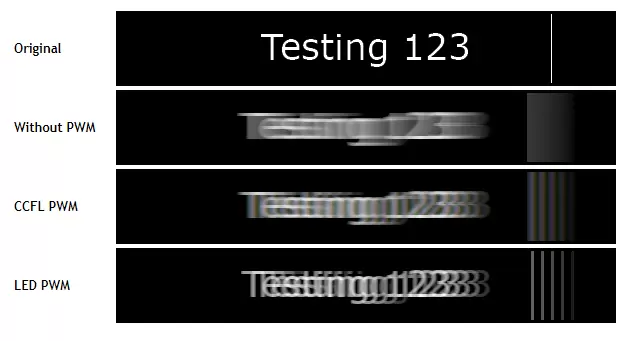
Image source: Bing (Web)
What Generic AI Gets Wrong About 144Hz and Eye Comfort
Most generic content on this topic leads with "higher refresh rate equals less eye strain" and calls it a day. That misses the mark in three critical ways. A real expert in display technology and visual ergonomics would flag these gaps immediately.
Flicker-Free Backlights Matter More Than Refresh Rate for Most People
This is the biggest oversight. Flicker from pulse width modulation is a well-documented trigger of asthenopia symptoms. Multiple studies published in optometry and ophthalmology journals have linked low-frequency visible and invisible flicker to headaches and visual fatigue.
A monitor with TÜV Rheinland flicker-free certification eliminates this variable entirely, regardless of refresh rate.
If you are choosing between a flicker-free 60Hz IPS panel and a 144Hz TN panel with PWM dimming at 220Hz, the 60Hz option may actually be easier on your eyes. The spec sheet will not tell you this. You need to check independent reviews that measure flicker percentage and flicker index, or look for explicit flicker-free certification labels.
Blue Light Exposure Is a Separate Problem From Refresh Rate
Blue light in the violet-blue range (roughly 400-495 nm) has been shown to affect circadian rhythm and may contribute to photochemical retinal stress at very high cumulative exposures. A 144Hz monitor does not inherently emit less blue light than a 60Hz monitor. The blue light output depends on the LED backlight spectrum and panel filtering, not the refresh rate.
Some manufacturers like BenQ and ASUS include hardware-level low blue light modes that shift the color temperature at the panel level rather than relying on a software overlay. These modes reduce blue light output by 30-50% while maintaining better color accuracy than a software-only solution. Look for monitors with TÜV Rheinland Low Blue Light certification if this is a concern for you.
Panel Quality and Factory Calibration Trump Hz Numbers
The panel technology (IPS, VA, TN, OLED) and its factory calibration have a much larger impact on eye comfort than refresh rate alone. An IPS panel with wide viewing angles and accurate gamma tracking will cause less strain than a cheap TN panel with poor color reproduction and aggressive overdrive, regardless of refresh rate. Higher refresh rate monitors in the budget range often cut corners on panel quality to hit the price point.
Contrast ratio, brightness uniformity, and anti-glare coating quality all contribute to how hard your eyes work to interpret the image. A display with uneven backlight bleed or a harsh glossy coating forces your visual system to constantly compensate. A matte coating with good uniformity at the right brightness level (around 120-140 cd/m² for typical indoor lighting) does more for comfort than the jump from 60Hz to 144Hz.
What Kind of Monitor Actually Helps Most With Eye Strain?
| Factor | Impact on Eye Strain | What to Look For |
|---|---|---|
| Flicker-free backlight | Very high | TÜV Rheinland flicker-free certification, DC dimming, or PWM above 2000Hz |
| Blue light reduction | Moderate | TÜV Rheinland Low Blue Light certification, hardware-level filtering |
| Panel quality | High | IPS or VA panel, good factory calibration, matte anti-glare coating |
| Brightness and contrast | High | 120-140 cd/m² output, even backlight uniformity, adjustable range |
| Motion clarity | Moderate | 144Hz or higher, 1-5ms response time, adaptive sync support |
| Ergonomic adjustability | Very high | Height, tilt, swivel, and pivot adjustments on the stand |
The monitor that helps most with eye strain is the one that performs well across all six of these categories, not just refresh rate. A 144Hz display with an IPS panel, flicker-free backlight, hardware low blue light mode, a fully adjustable stand, and a matte coating will serve you far better than a 240Hz gaming monitor that sacrifices on panel quality and flicker control.
Budget 144Hz monitors often prioritize response time and refresh rate while using cheaper TN or VA panels with aggressive PWM dimming to control costs. Higher-end 144Hz displays typically use IPS panels with better viewing angles and more consistent color reproduction. OLED monitors offer excellent motion clarity and contrast but introduce their own concerns around burn-in and potential low-frequency flicker at lower brightness levels.
The best approach is to prioritize flicker-free certification and ergonomic adjustability first. Then consider panel quality and blue light handling. Refresh rate is a secondary consideration during this process, not the primary one.
It matters most for people who notice motion artifacts or spend significant time viewing fast-moving content.
How to Set Up a 144Hz Monitor for Maximum Eye Comfort
Choosing the right display is only half the battle. Setting it up correctly makes a measurable difference in how your eyes feel after a full day of use. Follow these practical steps to get the most comfortable experience possible.
Start with the physical positioning.
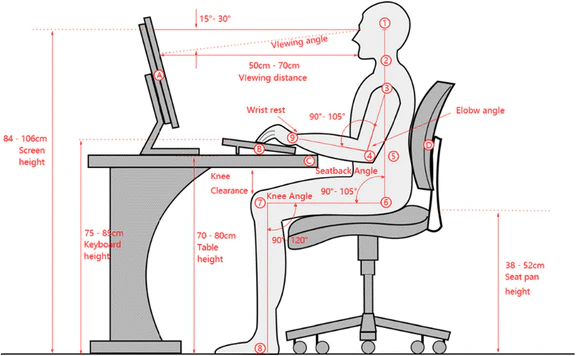
Image source: Bing (Web)
Place the screen at arm's length away, roughly 20 to 26 inches for a standard 24-inch display. The top of the screen should sit at or slightly below eye level. This angle encourages a natural downward gaze that keeps more of your eyelid covering the eye surface, reducing tear evaporation.
If your monitor stand does not offer height adjustment, a simple monitor riser or arm mount solves this.
Set brightness to match your room.
A monitor that is significantly brighter than your surrounding environment forces your pupils to constantly adjust between the bright screen and the darker room. Aim for a brightness level around 120 to 140 cd/m² in a typical office or bedroom. An easy test: a white background on your screen should look like a white piece of paper held next to it.
If the screen looks like a light source, it is too bright.
Enable your low blue light mode.
Most modern monitors include a low blue light setting in the on-screen display menu. Enable it at a level you find comfortable. Hardware-level implementations (found on many BenQ and ASUS Eye Care models) are preferable because they reduce blue light at the panel layer without the heavy yellow tint that software overlays like f.lux or Windows Night Light introduce.
Activate flicker-free mode or verify it is active.
Most flicker-free monitors enable this by default. Check your display settings or manual to confirm. If your monitor uses PWM dimming at a low frequency, there is no software toggle to fix it.
In that case, consider raising the brightness to a level where the flicker percentage drops, or replacing the display with a flicker-free certified model.
Implement the 20-20-20 rule.
No monitor hardware can substitute for basic visual hygiene. Every 20 minutes, shift your gaze to something at least 20 feet away for at least 20 seconds. This relaxes the ciliary muscles that stay contracted during close-focus screen work.
Set a timer if you need to. Most people forget this habit within minutes without a reminder.
Add bias lighting behind the screen.
A soft white LED strip mounted behind your monitor raises the ambient light level in your immediate viewing area without creating glare on the screen itself. This reduces the contrast between the bright display and the dark wall behind it, lowering the workload on your pupils. A color temperature around 6500K matches the standard display white point and keeps colors looking natural.
Frequently Asked Questions
Does 144Hz reduce eye strain compared to 60Hz?
Yes, for motion-sensitive use cases like gaming, video, and fast scrolling. The smoother motion reduces micro-stutter that forces your eyes to constantly refocus. For static tasks like reading or writing, the difference is minimal.
Flicker-free backlighting and proper ergonomics provide more relief than the refresh rate jump alone for office users.
Can a 4K monitor be better for eye strain than 144Hz at lower resolution?
For text-heavy work, yes. Higher pixel density produces sharper text that is easier on the eyes during reading. A 4K display at 27 inches delivers roughly 163 pixels per inch, which makes text look nearly print-sharp without scaling.
If your primary concern is reading comfort rather than motion smoothness, resolution may matter more than refresh rate. Of course, some 4K monitors also offer 144Hz or higher refresh rates in the premium category.
Is a 60Hz monitor inherently harder on the eyes?
Not inherently. A well-calibrated 60Hz IPS panel with a flicker-free backlight, low blue light mode, and good ergonomic setup can be more comfortable than a poorly made 144Hz display. The 60Hz refresh rate becomes a problem only when you are sensitive to visible motion artifacts or when frame rates drop below 60fps and cause tearing.
The display quality itself matters far more than the number on the spec sheet.
Final Verdict: Should You Buy a 144Hz Monitor for Eye Strain?
Here is the honest take. A 144Hz monitor can reduce eye strain if you currently experience discomfort related to motion clarity, or if you game and scroll frequently on a daily basis. It is not a medical device and it will not cure digital eye strain on its own.
The bigger wins come from choosing a flicker-free display with proper blue light handling, setting up your workstation ergonomically, and following good visual habits like the 20-20-20 rule.
If you already have a decent 60Hz IPS panel with flicker-free certification and you still experience eye strain, a higher refresh rate alone is unlikely to fix it. Look at your room lighting, screen brightness, viewing distance, and blink rate first. Those factors cause more discomfort than 60Hz ever will for most people.
If you are buying a new monitor and eye comfort is a priority, prioritize flicker-free certification and ergonomic adjustability first. Choose a 144Hz panel if you want the smooth motion benefit. But do not chase the highest Hz number at the expense of everything else.
The best monitor for your eyes is the one that checks all the boxes, not just one.

Image source: Wikimedia Commons / Unknown author
If your eye strain persists despite optimizing your display and setup, see an optometrist. Persistent headaches, double vision, or chronic dryness can indicate underlying conditions that no monitor upgrade will resolve. You should rule out uncorrected refractive errors, binocular vision dysfunction, or meibomian gland issues before spending money on hardware as a fix.
A comprehensive eye exam is a better investment than any display.

Similar Posts





















