Do 27 Inch Monitors Support G Sync
Yes, 27-inch monitors support G-SYNC. But it depends on the specific model. Some have a dedicated hardware module.
Others use G-SYNC Compatible mode. Screen size alone doesn't determine support.
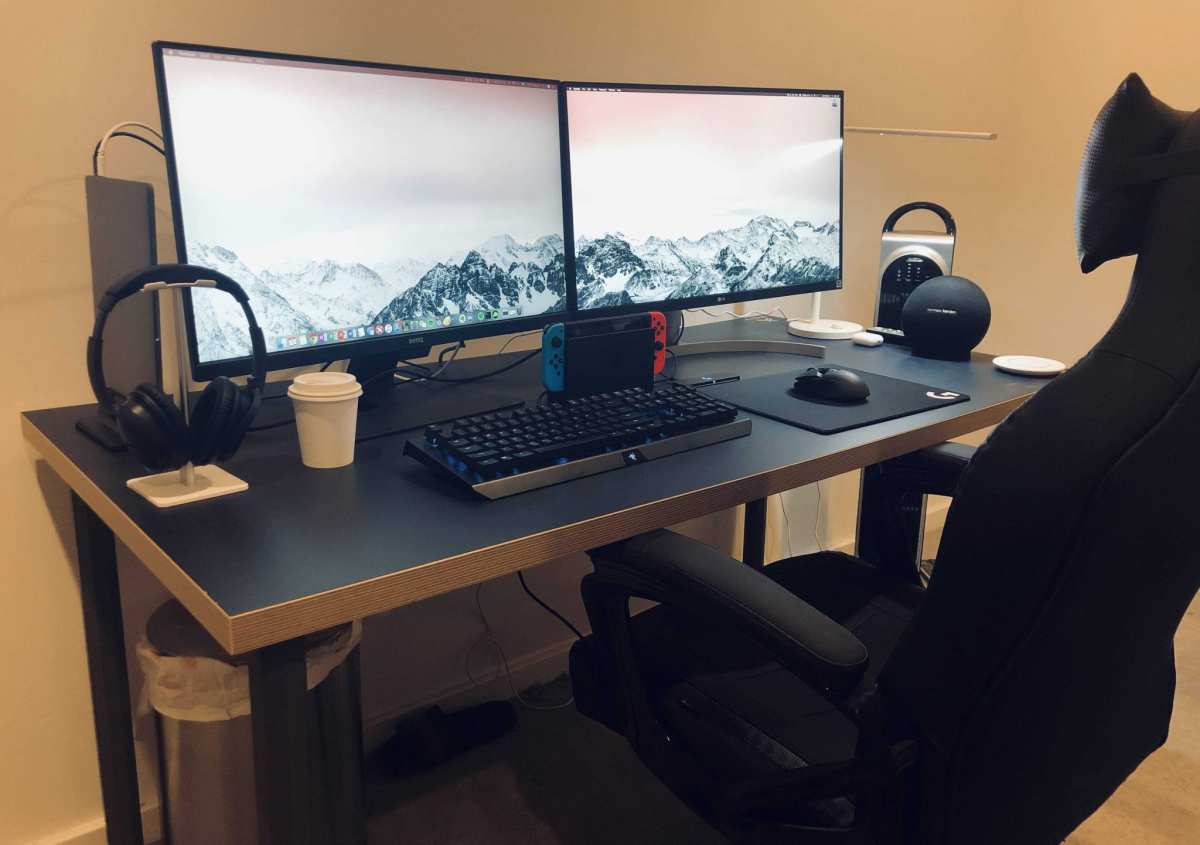
Do 27 inch monitors support G-SYNC? It's one of those questions that sounds like it should have a simple yes-or-no answer, but the reality is a bit more nuanced. The short version is yes, plenty of 27-inch monitors do support G-SYNC.
The catch is that support varies wildly depending on the specific monitor model, the panel type, and whether you're talking about true hardware G-SYNC or the newer G-SYNC Compatible certification.
As of 2026, the 27-inch form factor is arguably the most popular size for PC gaming. You'll find options across every resolution tier, from 1080p esports panels to 4K high-refresh displays. G-SYNC availability spans that entire range, but the way it's implemented differs significantly.
Let's break down exactly what you need to know before you buy.
What G-SYNC Actually Means at 27 Inches
G-SYNC is NVIDIA's variable refresh rate technology. It synchronizes your monitor's refresh rate to your GPU's frame output in real time. This eliminates screen tearing and minimizes stutter without the input penalty of traditional V-Sync.
At 27 inches, G-SYNC works the same way it does at any other size. The technology is resolution-agnostic and size-agnostic. What matters is the monitor's internal hardware and firmware.
There are two distinct flavors of G-SYNC you'll encounter on 27-inch monitors. Understanding the difference between them is critical before you spend any money.
G-SYNC Module vs. G-SYNC Compatible — The Real Difference
This is where most buyers get confused, and honestly, NVIDIA hasn't done the best job naming things.
True G-SYNC (Hardware Module)
A true G-SYNC monitor contains a proprietary NVIDIA FPGA chip. This chip handles all the variable refresh processing independently. It offers the most consistent experience with the widest VRR range, often down to 1 Hz.
These monitors undergo individual certification and testing by NVIDIA. They tend to cost more because the module adds significant manufacturing cost.
G-SYNC Compatible (Software/Adaptive-Sync)
G-SYNC Compatible monitors use the VESA Adaptive-Sync standard built into DisplayPort. This is the same underlying technology as AMD FreeSync. NVIDIA tests these monitors and certifies specific models as "Compatible." They don't have the dedicated hardware chip.
The experience is generally very good, but quality varies more between models since NVIDIA isn't controlling the hardware.
Here's a quick comparison:
| Feature | G-SYNC Module | G-SYNC Compatible |
|---|---|---|
| Dedicated NVIDIA chip | Yes | No |
| VRR range | 1 Hz to max refresh | Typically 48 Hz to max refresh |
| Quality consistency | Very high | Varies by model |
| Price premium | $100–$300+ | Minimal |
| Overdrive optimization | Per-frame tuning | Varies by manufacturer |
| Input lag | Extremely low | Low to very low |
| Availability in 27" | Declining | Expanding rapidly |
The trend in 2026 is clear. Fewer new 27-inch monitors ship with the dedicated G-SYNC module. NVIDIA has largely shifted toward the Compatible certification path.
That doesn't mean quality has dropped. Some G-SYNC Compatible monitors perform nearly as well as module-based ones in real-world use.
Why Monitor Size Doesn't Determine G-SYNC Support
This is worth stating plainly because it trips people up. G-SYNC support has nothing to do with whether a monitor is 24 inches, 27 inches, or 32 inches. It's entirely about what's inside the monitor.
A 27-inch monitor might have a G-SYNC module. It might be G-SYNC Compatible. It might have no variable refresh support at all.
The size only affects pixel density and viewing experience, not sync technology compatibility.
What 27 inches does affect is the sweet spot for resolution. At this screen size, 1440p (2560×1440) is the dominant gaming resolution. It balances visual clarity with performance demands. 4K at 27 inches is growing in popularity, especially with DLSS and frame generation making high frame rates more achievable. 1080p at 27 inches is mostly found in budget or ultra-high-refresh esports panels.
Which 27-Inch Monitors Have G-SYNC (And Which Don't)
Let's get specific. The 27-inch G-SYNC landscape splits into two clear categories.
True G-SYNC Module Monitors at 27 Inches
These monitors contain NVIDIA's proprietary G-SYNC hardware module. They represent the premium tier.
Notable models include:
- ASUS ROG Swift PG27AQN, 1440p, 360 Hz, one of the fastest G-SYNC module monitors at 27 inches
- Acer Predator X27 S, 4K, 144 Hz, G-SYNC Ultimate with HDR 1000
- Dell Alienware AW2725DF, 1440p, 360 Hz, newer module-based option
- ASUS ROG Swift PG27UQ, 4K, 144 Hz, G-SYNC Ultimate
The challenge is that NVIDIA has been phasing out the dedicated module in many product lines. The G-SYNC module requires a scaler board that adds cost and complexity. As DisplayPort 2.1 and HDMI 2.1 VRR have matured, the industry has moved toward Adaptive-Sync as the baseline.
This means true G-SYNC module monitors at 27 inches are becoming rarer. They still exist, particularly at the high end, but the selection is narrower than it was even two years ago.
G-SYNC Compatible (FreeSync) Monitors at 27 Inches
This is where the vast majority of the market has moved. These monitors support Adaptive-Sync over DisplayPort and are certified by NVIDIA as G-SYNC Compatible.
Popular options include:
- LG 27GP850-B, 1440p, 165 Hz, widely reported as excellent G-SYNC Compatible performance
- Samsung Odyssey G7 (27-inch), 1440p, 240 Hz, strong Adaptive-Sync implementation
- Gigabyte M27Q X, 1440p, 240 Hz, KVM switch included
- Dell S2721DGF, 1440p, 165 Hz, well-reviewed for G-SYNC Compatible use
- ASUS VG27AQ1A, 1440p, 170 Hz, solid mid-range option
The key thing to understand is that G-SYNC Compatible doesn't mean "lesser." It means the monitor uses the open Adaptive-Sync standard instead of NVIDIA's proprietary chip. In practice, the visual difference is often imperceptible for most users.
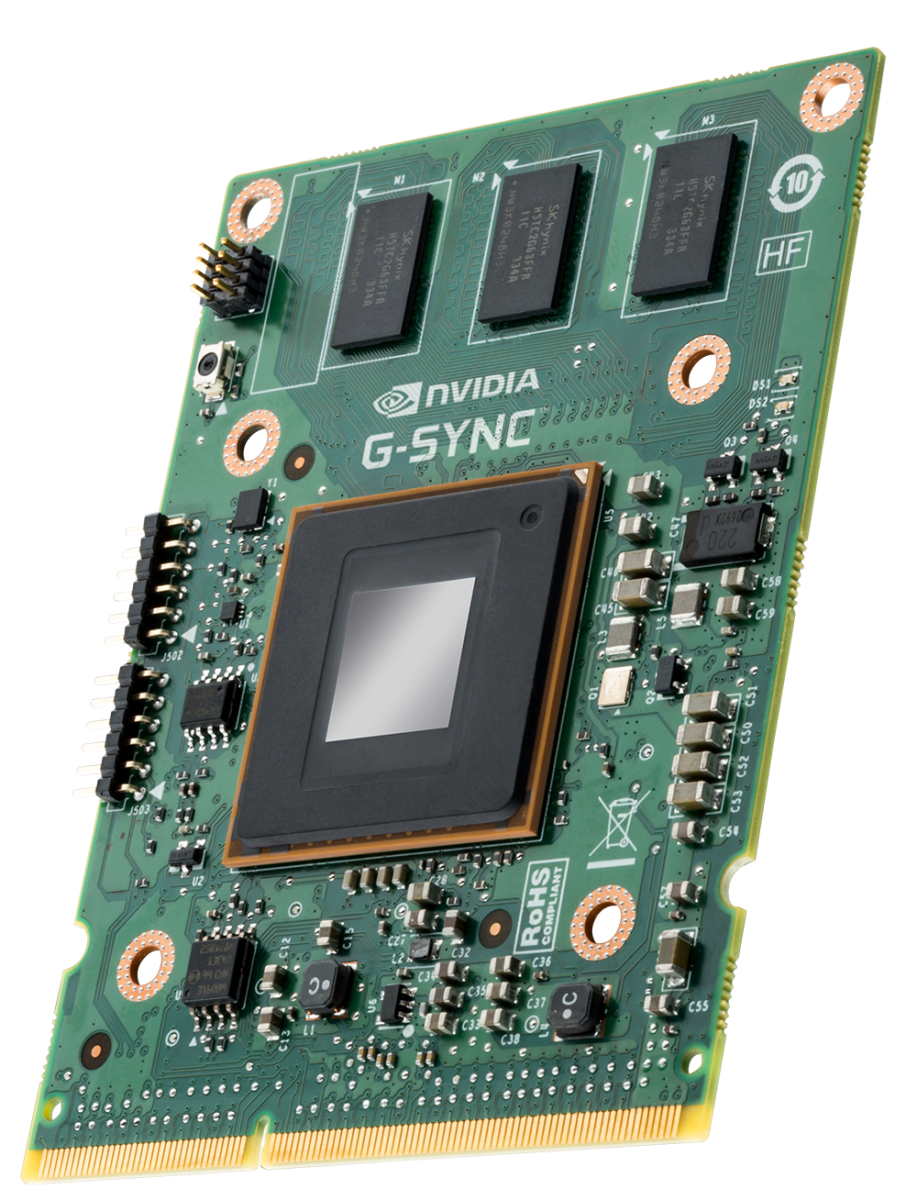
Side-by-Side: G-SYNC Module vs. G-SYNC Compatible at 27 Inches
Let's put the two approaches head-to-head so you can see where each one wins.
Where the G-SYNC module wins:
- Wider VRR range, often down to 1 Hz, which helps at very low frame rates
- Consistent overdrive tuning that adapts per frame
- Guaranteed quality control since NVIDIA certifies each unit
- Better behavior during frame rate spikes and drops
- No flickering during boot or loading screens (a common Adaptive-Sync issue)
Where G-SYNC Compatible wins:
- Significantly lower price, often $100 to $300 less than equivalent module monitors
- Much wider selection of models to choose from
- Works with AMD GPUs too (bonus if you switch teams)
- Continuously improving as NVIDIA refines its Compatible certification
- Newer panel technologies reach Compatible certification faster
The honest assessment:
For most gamers, G-SYNC Compatible delivers 95% of the experience at 60-70% of the price. The G-SYNC module still holds an edge in edge cases, like sub-60 fps scenarios and frame-pacing consistency. But if you're running an RTX 4070 or better and staying above 60 fps in your games, you'll likely never notice the difference.
The exception is competitive players who demand absolute consistency. If you're playing Valorant or CS2 at 240+ fps and every frame matters, the module's tighter quality control might justify the premium.
Best 27-Inch G-SYNC Monitors by Use Case
Rather than a generic ranking, let's match monitors to actual use cases. This is how you should be thinking about your purchase.
Best for Competitive 1440p Gaming
If you're playing competitive titles at 1440p and want high refresh rates, look at the ASUS ROG Swift PG27AQN (module-based, 360 Hz) or the Samsung Odyssey G7 27-inch (G-SYNC Compatible, 240 Hz). Both deliver extremely low input lag and smooth motion. The ASUS costs more but offers the module's consistency.
The Samsung gives you most of that performance for significantly less money.
Best for 4K High-Refresh Gaming
The Acer Predator X27 S remains a standout for 4K 144 Hz with a true G-SYNC Ultimate module. For a Compatible option, the LG 27GP950-B supports 4K at 160 Hz over Adaptive-Sync and works well with NVIDIA GPUs. Your GPU choice matters here.
At 4K high-refresh, you want an RTX 4080 or better to actually push frame rates into the G-SYNC sweet spot.
Best Budget G-SYNC Compatible Option
The Dell S2721DGF regularly drops below $300 and delivers excellent G-SYNC Compatible performance at 1440p 165 Hz. It's IPS, it's well-built, and aggregate user reviews consistently praise its Adaptive-Sync behavior with NVIDIA cards. For budget-conscious builders, this is the sweet spot.
Best for Content Creation + Gaming
If you need color accuracy for creative work but also want G-SYNC for gaming, the ASUS ProArt PA279CRV supports Adaptive-Sync and covers 99% DCI-P3. It's factory-calibrated and G-SYNC Compatible. You get professional color without sacrificing gaming smoothness.
Common Mistakes When Buying a G-SYNC 27-Inch Monitor
Let me save you from the errors we see buyers make repeatedly.
Mistake 1: Assuming all G-SYNC is the same.
A monitor labeled "G-SYNC Compatible" is not the same as one with a G-SYNC module. Read the specs carefully. If it says "Adaptive-Sync" or "FreeSync" and then "G-SYNC Compatible," it's the software approach.
That's fine for most people, but go in with the right expectations.
Mistake 2: Not checking the VRR range.
G-SYNC Compatible monitors typically have a VRR range starting at 48 Hz. If your frame rate drops below that, you lose the benefit. True G-SYNC modules often go down to 1 Hz.
Check the manufacturer's specified VRR range before buying.
Mistake 3: Using the wrong cable.
Adaptive-Sync over DisplayPort requires a quality DisplayPort 1.4 cable or better. Cheap cables cause flickering, dropouts, and certification failures. Use the cable that came with the monitor or buy a VESA-certified one.
Mistake 4: Forgetting to enable it in software.
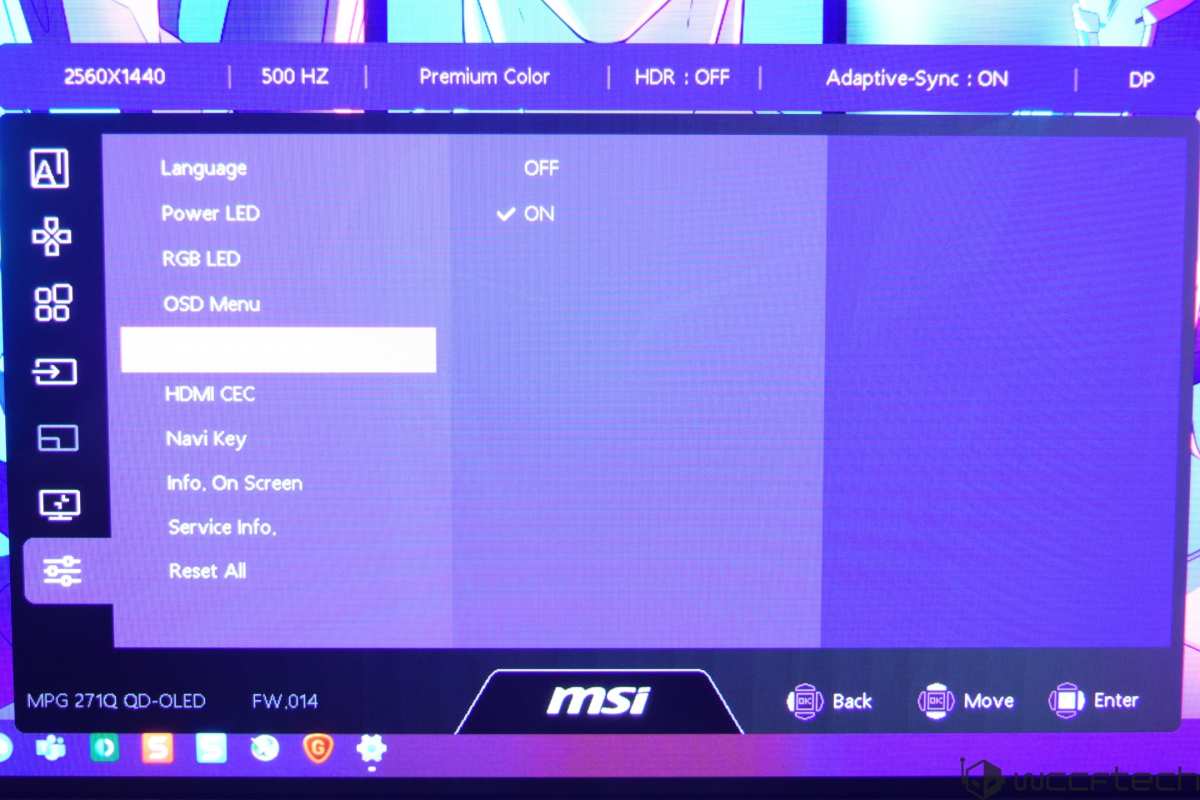
Buying a G-SYNC Compatible monitor isn't enough. You need to enable Adaptive-Sync in the monitor's OSD and then enable G-SYNC in the NVIDIA Control Panel. Many users complain about tearing without realizing they skipped one of these steps.
Mistake 5: Pairing a high-refresh monitor with an underpowered GPU.
A 27-inch 360 Hz G-SYNC monitor is wasted if you're running a GPU that pushes 80 fps in your games. Match the monitor to your GPU's actual performance. A 144 Hz or 165 Hz panel is a better match for mid-range GPUs.
How to Verify and Enable G-SYNC on Your 27-Inch Monitor
Once you've got your monitor, here's how to make sure G-SYNC is actually working.
Step 1: Enable Adaptive-Sync in the monitor's OSD.
Navigate to your monitor's on-screen display menu. Look for "Adaptive-Sync," "FreeSync," or "Variable Refresh Rate" and turn it on. This is required before the GPU can use G-SYNC Compatible mode.
Step 2: Connect via DisplayPort.
Use a DisplayPort 1.4 cable or better. HDMI 2.1 also supports VRR on newer monitors, but DisplayPort remains the most reliable path for G-SYNC Compatible.
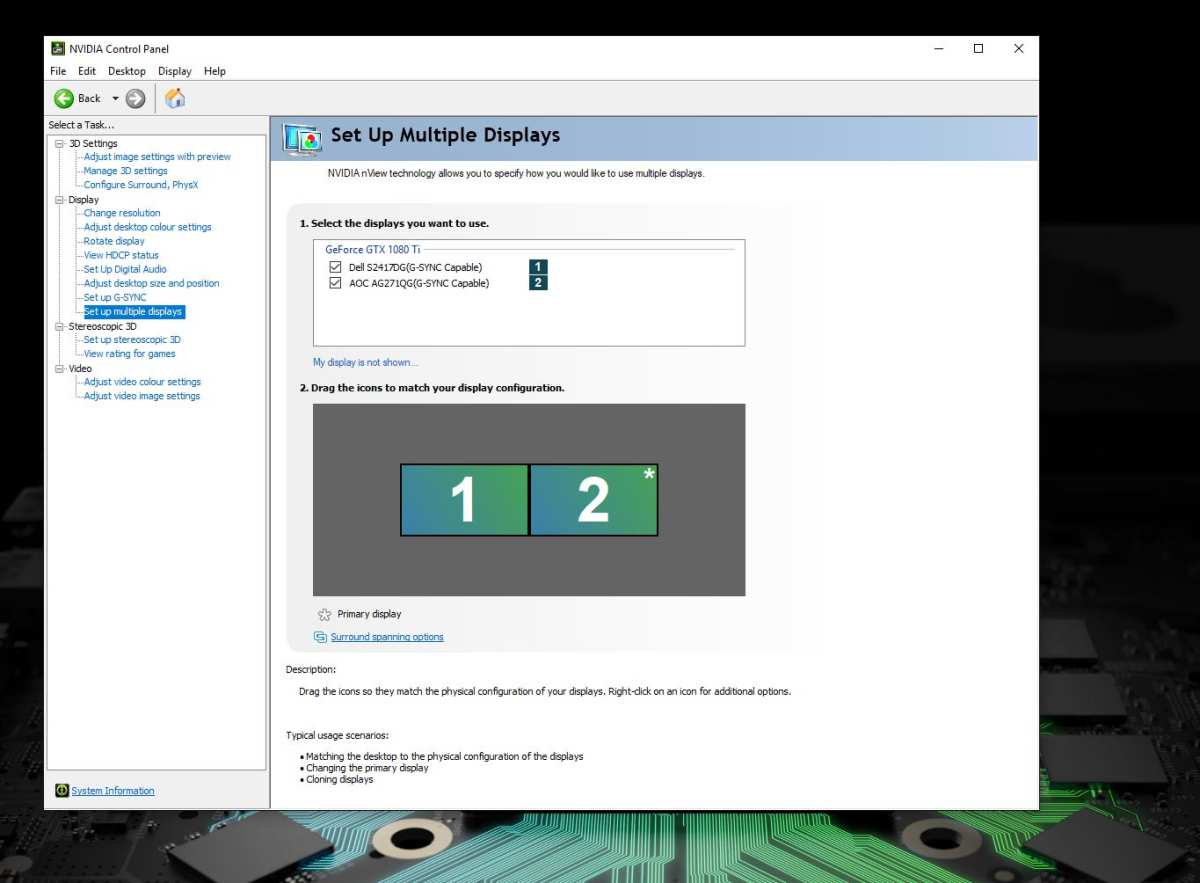
Step 3: Open NVIDIA Control Panel.
Right-click your desktop and select NVIDIA Control Panel. Navigate to "Display" in the left panel, then click "Set up G-SYNC."
Step 4: Enable G-SYNC.
Check "Enable G-SYNC, G-SYNC Compatible" and select your display. Choose whether to enable it for full-screen mode only or both windowed and full-screen mode. Full-screen only is more stable.
Step 5: Configure vertical sync.
In "Manage 3D Settings," set "Monitor Technology" to "G-SYNC Compatible" and set "Vertical Sync" to "On" in the NVIDIA Control Panel. This might sound counterintuitive, but NVIDIA recommends V-Sync on in the driver as a fallback for when frame rates exceed the monitor's VRR range.
Step 6: Verify it's working.
Enable the G-SYNC indicator in NVIDIA Control Panel under "Display" > "G-SYNC Indicator." A floating "G-SYNC" banner should appear in supported applications.
Troubleshooting common issues:
- No G-SYNC option appears: Update your GPU drivers. Make sure Adaptive-Sync is enabled in the monitor OSD. Try a different DisplayPort cable.
- Flickering during boot or loading screens: This is common with G-SYNC Compatible monitors. It's a known limitation of Adaptive-Sync. It doesn't indicate a defect.
- G-SYNC works in some games but not others: Check the game's windowed/full-screen mode. Some games need to run in full-screen or borderless windowed mode for G-SYNC to engage.
G-SYNC vs. FreeSync at 27 Inches — Does It Really Matter?
This is the question underneath the question. If most 27-inch G-SYNC Compatible monitors are just FreeSync monitors with NVIDIA certification, why not just buy FreeSync and save the hassle?
The practical answer: it barely matters for most users.
FreeSync and G-SYNC Compatible use the same underlying VESA Adaptive-Sync standard. A FreeSync monitor that isn't G-SYNC certified will often work with NVIDIA GPUs anyway. NVIDIA allows you to enable G-SYNC on uncertified Adaptive-Sync monitors through the Control Panel, though it's technically "unsupported."
Where it does matter:
- Certification guarantees: G-SYNC Compatible monitors have passed NVIDIA's testing. Uncertified FreeSync monitors might work perfectly or might have issues. It's a gamble.
- LFC (Low Framerate Compensation): G-SYNC Compatible monitors with LFC double frames when you drop below the VRR minimum. Not all FreeSync monitors implement LFC well.
- HDR behavior: G-SYNC Ultimate monitors have stricter HDR requirements. If HDR matters to you, the certification actually means something.
The bottom line:
If you're buying a 27-inch monitor specifically for an NVIDIA GPU, prioritize G-SYNC Compatible certified models. The certification adds a layer of assurance. But don't pay a massive premium for a true G-SYNC module unless you have specific competitive or professional needs that justify it.
Frequently Asked Questions
Do all 27-inch monitors support G-SYNC?
No. G-SYNC support depends on the specific monitor model, not the screen size. Some 27-inch monitors have a G-SYNC module.
Some are G-SYNC Compatible. Some have no variable refresh support at all. Always check the specs.
Can I use G-SYNC on a FreeSync 27-inch monitor?
In most cases, yes. NVIDIA GPUs can enable G-SYNC on most FreeSync monitors through the NVIDIA Control Panel. However, performance isn't guaranteed unless the monitor is officially G-SYNC Compatible certified.
Is G-SYNC Compatible as good as real G-SYNC?
For most users, yes. G-SYNC Compatible delivers a very similar experience. The hardware G-SYNC module offers a wider VRR range and more consistent quality control, but the practical difference is small for typical gaming scenarios.
What's the best 27-inch G-SYNC monitor for the money?
The Dell S2721DGF offers excellent G-SYNC Compatible performance at 1440p 165 Hz for a competitive price. It's consistently well-reviewed and represents strong value in the current market.
Does G-SYNC work over HDMI on 27-inch monitors?
It depends on the monitor. HDMI 2.1 supports VRR, and many newer 27-inch monitors support G-SYNC Compatible over HDMI 2.1. However, DisplayPort remains the most reliable connection for G-SYNC functionality.
Will G-SYNC work with an AMD GPU?
No. G-SYNC requires an NVIDIA GPU. If you're using an AMD graphics card, you'll use FreeSync instead.
Some G-SYNC Compatible monitors also support FreeSync, giving you flexibility if you switch GPU brands later.
Final Recommendation: Which Type Should You Buy?
Your choice comes down to three factors: budget, GPU performance, and how seriously you take competitive gaming.
Buy a G-SYNC module monitor if:
You have a high-end GPU, you play competitive titles where every frame matters, and you want the most consistent experience available. You're paying for peace of mind. The ASUS PG27AQN or Acer Predator X27 S are your best 27-inch options.
Buy a G-SYNC Compatible monitor if:
You want smooth variable refresh without the premium tax. This is the right choice for the vast majority of gamers. The Dell S2721DGF, LG 27GP850-B, and Samsung Odyssey G7 all deliver excellent real-world performance.
You'll likely never miss the hardware module.
Skip G-SYNC entirely if:
You're on a very tight budget or your GPU can't push frame rates high enough to benefit from variable refresh. A basic 60 Hz 27-inch monitor makes more sense for a display-connected office PC than a gaming rig.
Here's the decision framework we'd recommend:
- Set your budget first
- Determine what GPU you're pairing with
- Match the monitor's refresh rate to your GPU's realistic frame output
- Within that filtered list, prioritize G-SYNC Compatible certified models
- Only step up to a G-SYNC module if you have budget left and play competitively
The one thing to remember: Screen size doesn't determine G-SYNC compatibility. The specific monitor model does. At 27 inches, you have the widest selection of G-SYNC and G-SYNC Compatible monitors available.
That's actually an advantage, more options means better chances of finding the right fit for your setup.

Similar Posts





















