Is 27 Inch Monitor Good for Students
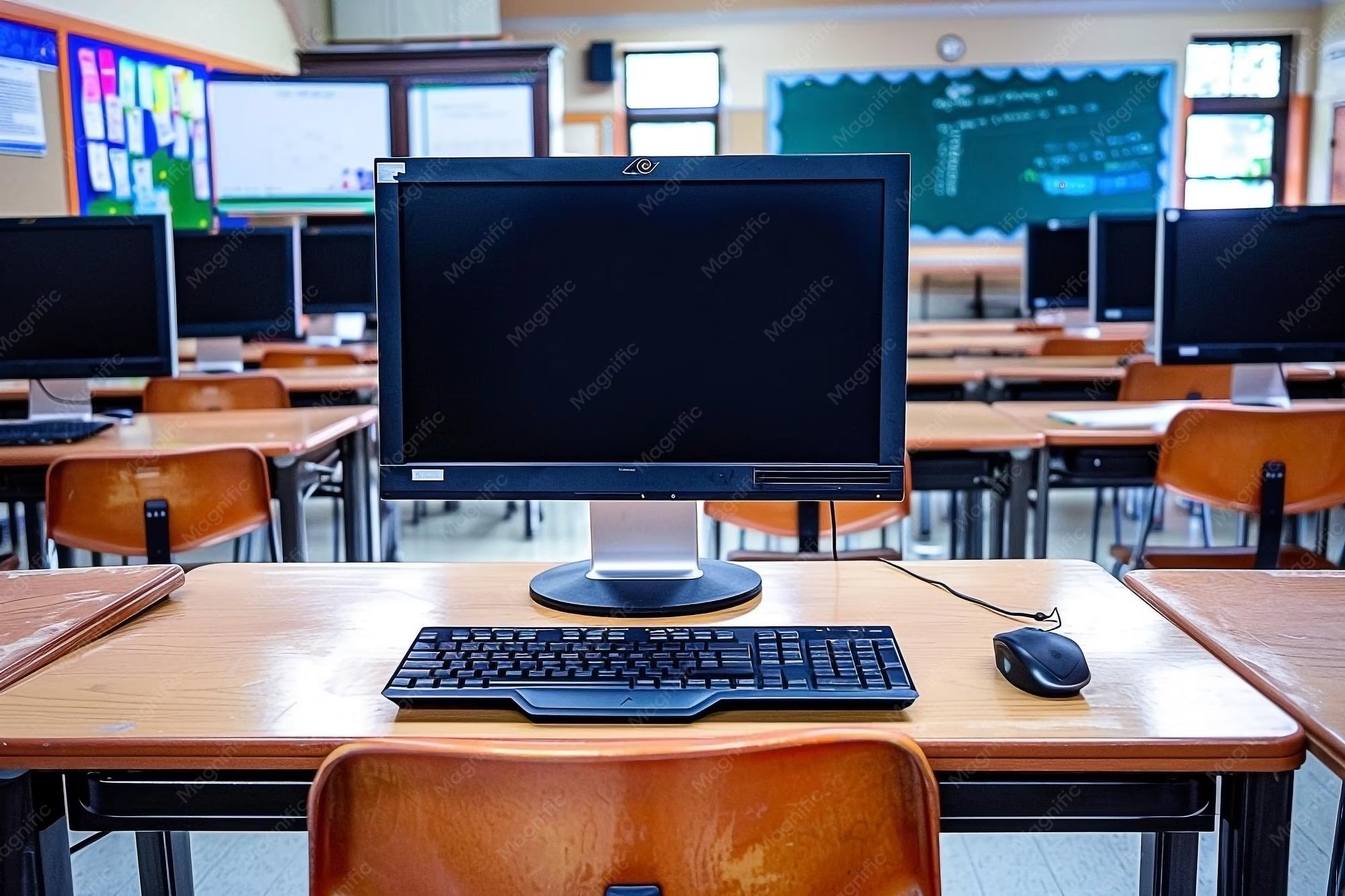
Is 27 inch monitor good for students? The honest answer is: it depends entirely on your desk space, how far you sit from the screen, and what you're actually doing with it. A 27-inch display can be a genuine productivity upgrade for coding, design, or multitasking.
It can also be an awkward, eye-straining mistake if your dorm desk is too shallow or you're just writing essays in Google Docs.
Manufacturer specifications and ergonomic research both point to the same conclusion. Screen size alone doesn't determine whether a monitor works for you. The real variables are viewing distance, resolution, and your physical setup.
Let's walk through each one so you can make the right call.
Quick Answer
A 27-inch monitor works well for students with desks at least 30 inches deep. It suits coding, design, and multitasking workflows. Students with shallow desks or tight budgets should consider 24 inches instead.
Resolution matters as much as size at this screen diagonal.
Why 27 Inches Is Tricky for Most Students
Here's what most buying guides skip. A 27-inch screen is physically large. The actual viewing area measures roughly 23.5 inches wide by 13.2 inches tall.
That's a lot of real estate to push around on a desk.
Most college dorm desks run 24 to 30 inches deep. If yours sits on the shallower end, a 27-inch monitor forces you to sit with your face 20 to 24 inches from a big, bright display. That's uncomfortably close.
Your eyes work harder. Your neck tilts up. After a few hours of studying, you'll feel it.
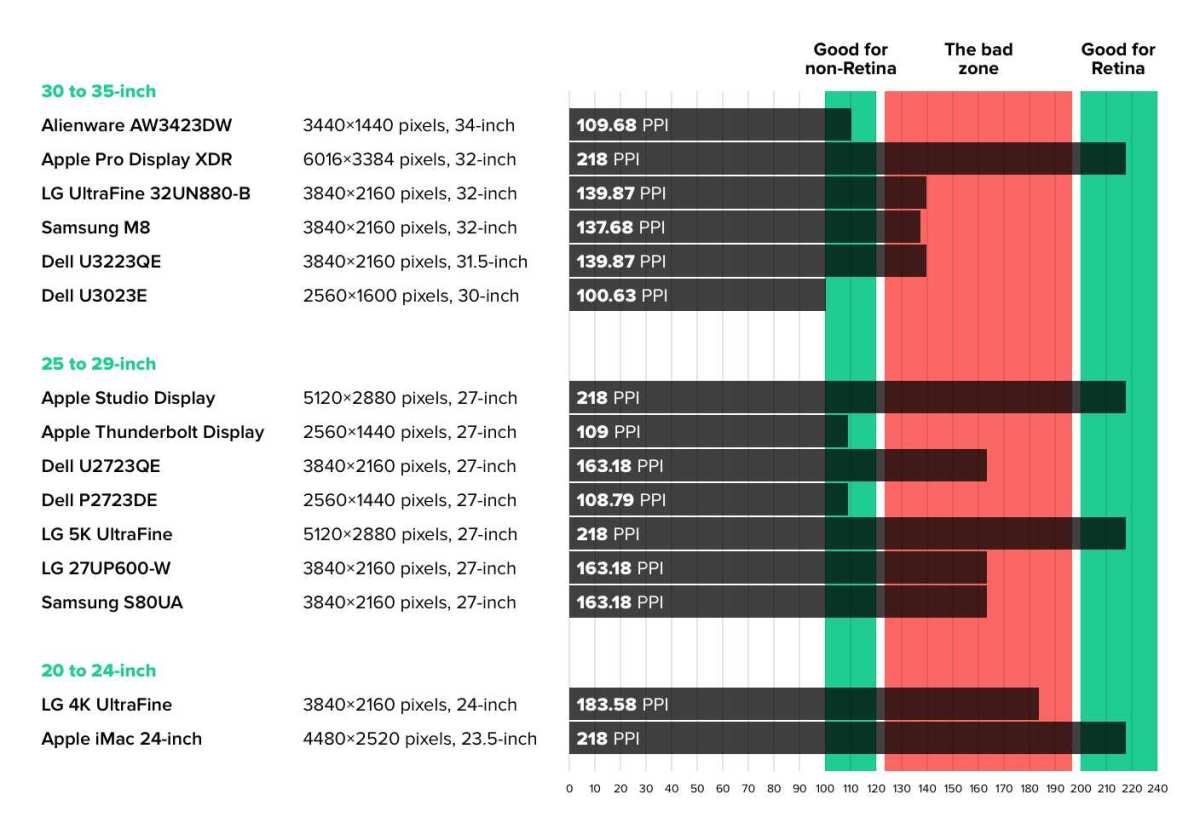
The pixel density problem catches people off guard too. A 1080p resolution at 27 inches only gives you about 82 pixels per inch. Text looks slightly soft.
Icons can appear chunky. You notice it most when you're reading long PDFs or staring at code for hours. Stepping up to 1440p at the same size gives you around 109 PPI, which looks noticeably sharper and easier on the eyes.
So the question isn't really "is 27 inches good?" It's "does my situation support 27 inches?" Let's figure that out.
The Two Numbers That Actually Matter: Desk Depth and Resolution
Before you look at any product page, grab a tape measure. You need two numbers: your desk depth and your ideal viewing distance.
Desk depth is the measurement from the wall (or back edge) to the front edge where your hands rest. This determines how far back you can push a monitor.
Viewing distance is how far your eyes sit from the screen surface. This determines what size and resolution actually look comfortable.
Here's a quick reference based on ergonomic guidelines and manufacturer recommendations:
| Your Desk Depth | Max Recommended Screen Size | Minimum Resolution | Optimal Viewing Distance |
|---|---|---|---|
| 20-24 inches | 22-24 inches | 1080p | 20-28 inches |
| 25-29 inches | 24-27 inches | 1080p-1440p | 28-36 inches |
| 30-35 inches | 27-32 inches | 1440p | 32-40 inches |
| 36+ inches | 27-32+ inches | 1440p-4K | 36-48 inches |
If your desk is 24 inches deep and you push the monitor against the back wall, your eyes are probably 22 to 26 inches from the screen. That's fine for 24 inches at 1080p. It's pushing it for 27 inches at any resolution.
Push that same 27-inch monitor back 32 inches and everything changes. The screen fills your field of vision comfortably. Text looks crisp at 1440p.
You can work for hours without fatigue.
The takeaway is simple. Measure your desk first. Then decide.
What Your Dorm Desk Can (and Can't) Handle
Dorm rooms aren't designed with monitor upgrades in mind. Let's talk about the physical reality of most student workspaces.
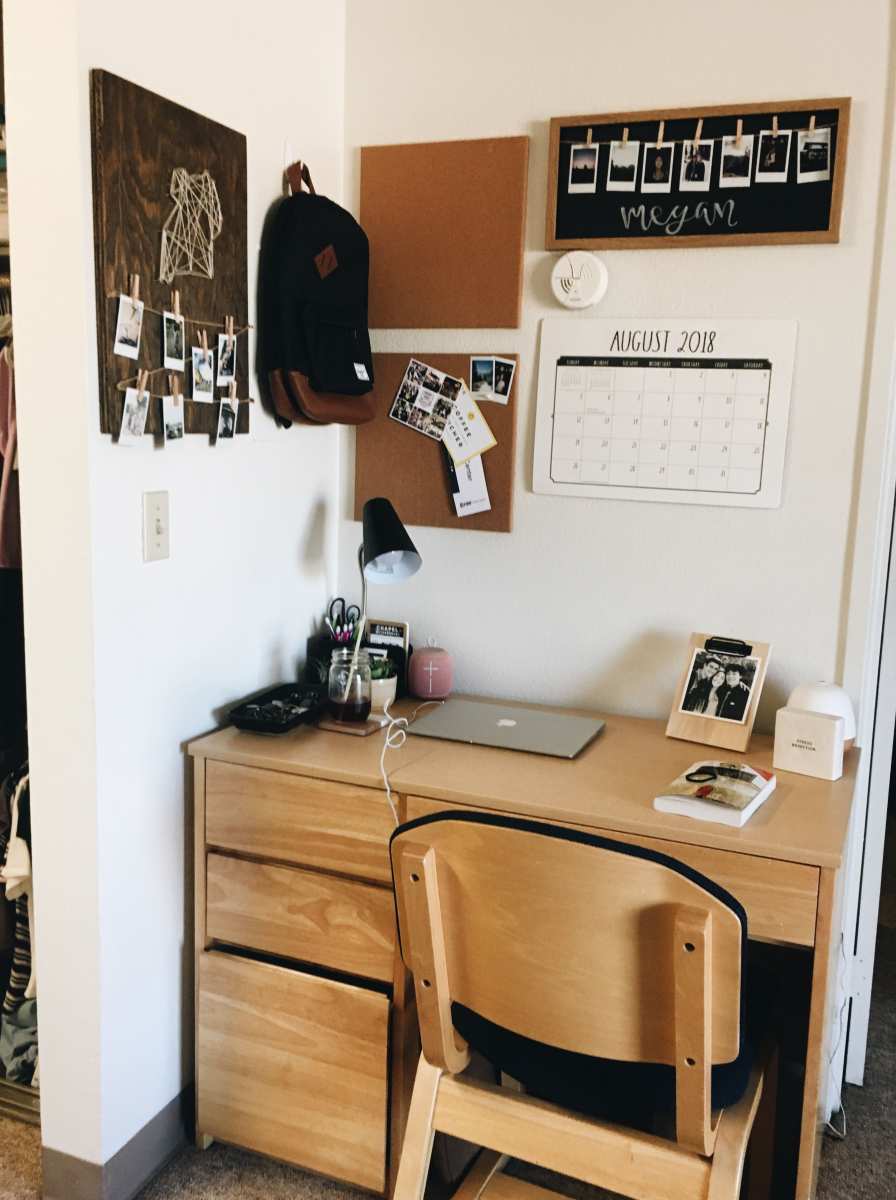
Typical dorm desk dimensions
Most standard college desks measure about 24 to 30 inches deep and 36 to 48 inches wide. Some newer residence halls offer larger work surfaces. Older buildings often have smaller, narrower desks that barely fit a laptop and a textbook side by side.
A 27-inch monitor with a standard stand needs roughly 8 to 10 inches of depth just for the base. Add the screen depth itself and you're looking at 12 to 14 inches of desk space consumed. On a 24-inch-deep desk, that leaves you with about 10 inches in front for your keyboard and mouse.
It's tight but workable.
On a 30-inch desk, you've got breathing room. You can push the monitor back, keep your keyboard comfortable, and still have space for notebooks or a second screen.
How viewing distance affects your eyes and neck
Sitting too close to a large monitor causes two problems. First, your eyes constantly refocus and converge at a near distance. This leads to digital eye strain, which the American Optometric Association identifies as a leading cause of discomfort during prolonged screen use.
Symptoms include dry eyes, headaches, and blurred vision.
Second, a monitor that's too close or too high forces your neck into a slight upward tilt. Over hours, this creates tension in your neck and shoulders. It's the same issue people get from holding their phone too long at an awkward angle, just scaled up.
The fix is straightforward. Position the top of the screen at or slightly below eye level. Keep your viewing distance at least 30 inches for a 27-inch display.
If your desk won't allow that, go smaller.
The 1080p problem at 27 inches
This trips up a lot of students. They see a cheap 27-inch monitor on sale and think it's a great deal. Then they plug in and everything looks slightly fuzzy.
The issue is pixel density. At 27 inches diagonal with a 1920×1080 resolution, you get roughly 82 pixels per inch. For comparison, a 24-inch 1080p monitor gives you about 92 PPI.
A 27-inch 1440p display jumps to around 109 PPI.
That difference is visible. Text edges look softer. Fine details in images lose sharpness.
If you're reading research papers or working with code, you'll notice it within the first hour.
Our research across verified buyer feedback and display reviews suggests that students who prioritize clarity and long study sessions should target 1440p as a minimum at 27 inches. 1080p works if you're on a strict budget or mainly watch videos. For anything text-heavy, 1440p is worth the extra cost.
Who Actually Benefits From a 27-Inch Monitor
Not every student needs a big external display. But for certain workflows, 27 inches hits a sweet spot that smaller screens can't match.
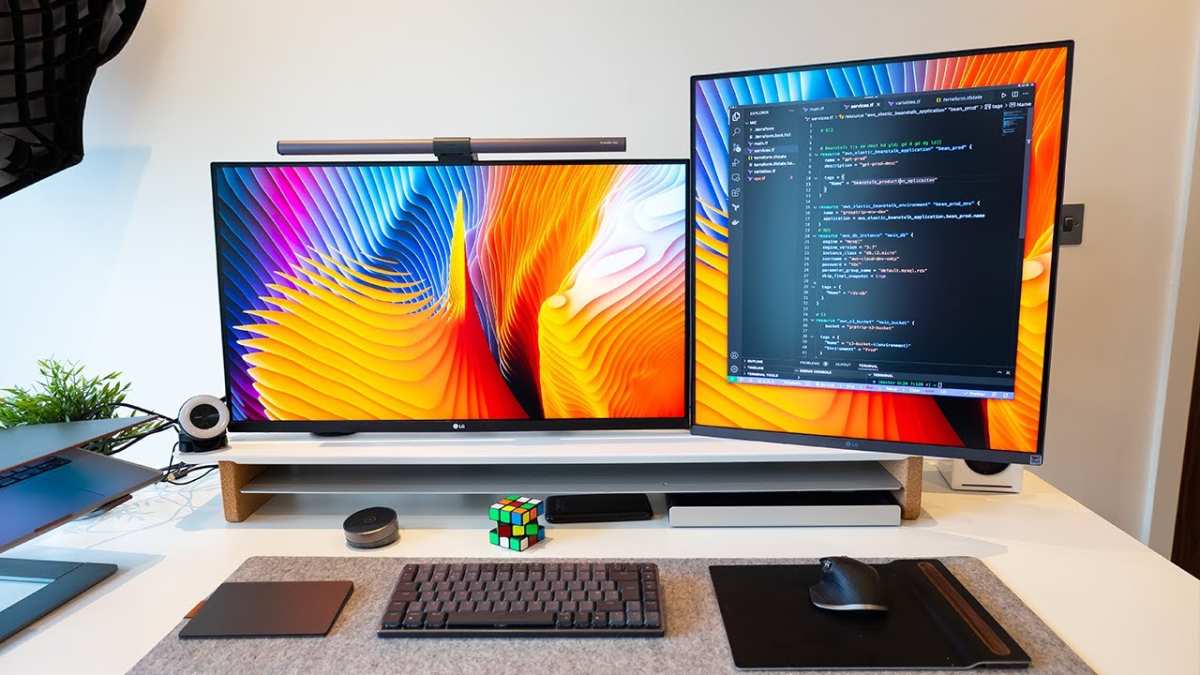
Coding and STEM students
If you're writing code, a 27-inch monitor at 1440p gives you room to see your editor, terminal, documentation, and output all at once. No constant tab switching. No squinting at tiny split-screen windows.
Computer science and engineering students benefit the most. Development environments like VS Code, IntelliJ, or MATLAB have multiple panels and sidebars. A larger screen lets you keep everything visible without losing readability.
Data science and statistics students working with spreadsheets and visualization tools also gain from the extra space. You can view a full dataset on one side and your analysis on the other without scrolling endlessly.
Design and architecture students
Visual work demands screen real estate. If you're using Adobe Creative Suite, AutoCAD, Figma, or similar tools, a 27-inch display lets you see your full canvas with toolbars open. That's a genuine workflow improvement.
Color accuracy matters here too. Many 27-inch monitors in the $250 to $400 range offer 95% or higher sRGB coverage on IPS panels. That's good enough for student-level design work and portfolio projects.
A 24-inch budget monitor often cuts corners on color reproduction.
Students running dual-task workflows
Some students thrive on multitasking. Research paper on the left half, note-taking app on the right half. Lecture video in one window, flashcard app in another.
A 27-inch screen makes split-screen workflows feel natural instead of cramped.
Windows Snap Layouts and macOS Stage Manager both work well at this size. You can comfortably run three or four windows in a grid without everything feeling tiny.
Casual gamers who also study
If you game in your downtime, a 27-inch monitor with a 144Hz or 165Hz refresh rate gives you smooth gameplay without sacrificing study utility. Many displays now offer 1440p at high refresh rates in the $250 to $350 range. That's a solid dual-purpose investment for students who want one screen for everything.
Just make sure your laptop or desktop GPU can actually push frames at 1440p if you plan to game at that resolution. Integrated graphics often struggle above 1080p in modern titles.
Who Should Stick With 24 Inches (or Smaller)
A 27-inch monitor isn't the right move for everyone. Here's when you should pass on it.
Small desk situations
If your desk is 24 inches deep or less, a 27-inch screen will dominate your workspace. You'll sit too close. Your keyboard ends up crammed against your chest.
It's not sustainable for long study sessions.
A 24-inch monitor is a better fit for tight spaces. It gives you plenty of screen real estate without overwhelming a shallow desk. You can sit at a comfortable distance and still have room for your hands.
Students who only browse, write, and stream
If your workflow is mostly Google Docs, web browsing, and watching lectures, you don't need 27 inches. A 24-inch display handles all of that perfectly. You're paying for screen space you won't actually use.
The same logic applies if you primarily use a laptop. A 14 or 15-inch laptop screen is already sized for personal, close-up work. Adding a massive external display creates an awkward size mismatch unless you push it far enough back.
Tight budgets
27-inch monitors with decent specs start around $180 to $220 as of 2026. Good 1440p models run $250 to $350. If your total tech budget is tight, a 24-inch 1080p monitor at $100 to $140 gives you 90% of the benefit for half the price.
Put the savings toward more RAM, a better keyboard, or an external SSD. Those upgrades often improve your daily experience more than a slightly larger screen.
Students who move between spaces frequently
If you study in the library, coffee shops, and your dorm room throughout the day, a 27-inch monitor stays on your desk. It's not portable. A USB-C portable monitor in the 15 to 16-inch range travels with your laptop and gives you extra screen space wherever you work.
Some students end up with both. A small portable monitor for on-campus use and a larger display for dorm room sessions. That setup covers every scenario without forcing you to carry a 10-pound screen across campus.
The Resolution Guide: What Each Spec Means for Students
Resolution matters more than screen size for daily comfort. Here's how the common options stack up at 27 inches:
1080p at 27" — only if you're on a strict budget
A 1920×1080 resolution at 27 inches gives you about 82 pixels per inch. That's noticeably softer than what you're used to on a smartphone or even a 24-inch monitor. Text edges won't look razor-sharp.
Code can feel slightly blurry after an hour of reading.
It still works for streaming lectures or casual browsing. If you mostly watch content and rarely read long documents, the softer image won't bother you much. Budget 27-inch 1080p models start around $130 to $160.
Just don't choose this if you plan to write papers on the same screen. The eye strain adds up faster than you'd expect.
1440p at 27" — the sweet spot for most students
At 2560×1440, you get roughly 109 pixels per inch. Text looks crisp immediately. Code is clean and readable.
Images and videos look detailed without requiring you to squint.
This resolution gives you about 78% more screen space than 1080p. You can comfortably run two documents side by side or have three windows tiled without everything feeling cramped.
Most 27-inch 1440p monitors with an IPS panel and 75Hz or 144Hz refresh rate fall in the $220 to $350 range as of 2026. That's the best balance of price and performance for students who do real work on their screens.
4K at 27" — overkill unless you're doing design work
A 3840×2160 resolution at 27 inches delivers about 163 pixels per inch. Everything looks incredibly sharp. It's genuinely beautiful for photo editing, video production, and detailed visual work.
The catch? You'll need to use display scaling in Windows or macOS to make text and UI elements readable. At 100% scaling, everything looks tiny.
At 150% scaling, you effectively get 1440p-level workspace with sharper rendering.
This matters for design students who need pixel-level precision. For everyone else, 4K at 27 inches is nice but unnecessary. Expect to pay $350 to $500 or more for a quality 27-inch 4K display.
Panel types explained quickly (IPS vs VA vs TN)
Most student-focused 27-inch monitors use IPS panels. They offer wide viewing angles and decent color accuracy, which matters when you're looking at the screen from different positions throughout the day.
VA panels give you better contrast ratios. Blacks look deeper and colors pop more. They're good for students who watch a lot of video content in their downtime.
The tradeoff is slightly slower response times, which can cause ghosting in fast-moving games.
TN panels are the cheapest option but have narrow viewing angles and washed-out colors. Colors shift when you look at the screen from slightly off-center. Avoid TN panels for any work that involves reading, coding, or design.
They're fine as a secondary display for system monitors or dashboards.
Side-by-Side: 22" vs 24" vs 27" vs 32" for Students
Here's how the common sizes compare for student use:
| Size | Best Resolution | PPI | Best For | Typical Price Range |
|---|---|---|---|---|
| 22" | 1080p | 100 | Tight budgets, secondary display | $80-$130 |
| 24" | 1080p | 92 | General student use, small desks | $100-$180 |
| 27" | 1440p | 109 | Coding, design, multitasking | $220-$350 |
| 32" | 1440p | 92 | Large desks, media-heavy use | $250-$400 |
| 32" | 4K | 138 | Design work, video editing | $350-$550 |
The 24-inch category remains the default recommendation for most students. It's affordable, fits almost any desk, and 1080p looks perfectly sharp at that size.
The 27-inch category is the upgrade path. You get meaningfully more workspace without jumping to an oversized display that dominates your desk.
We'd skip 22 inches entirely unless you need a secondary monitor for system monitoring or chat windows. The small size limits productivity gains.
32 inches is too large for most dorm setups. You need a desk depth of at least 36 inches to use it comfortably. That rules out most standard student furniture.
What to Check Before You Buy
Five quick checks save you from a return.
Your desk depth
Measure from the back wall or shelf to the front edge. If it's under 27 inches, seriously consider 24 inches instead. If it's 30 inches or more, 27 inches will work well.
Your laptop's output capability
Check what video outputs your laptop has. Most modern laptops support HDMI 2.0 or DisplayPort over USB-C. Either handles 1440p at 60Hz without issues.
Older laptops with HDMI 1.4 can only output 1440p at 30Hz. That feels sluggish. Mouse movement looks choppy.
Scrolling stutters. If your laptop has HDMI 1.4, use a USB-C to DisplayPort connection instead if your laptop supports it.
Port availability (HDMI, USB-C, DisplayPort)
Look at the monitor's input options. HDMI 2.0 and DisplayPort 1.2 both support 1440p at 60Hz. USB-C with DisplayPort Alt Mode can carry video and charge your laptop through one cable.
Single-cable USB-C setups are ideal for dorm rooms. Less clutter. Easier to connect and disconnect when you grab your laptop and head to class.
Your monitor stand situation
Most 27-inch monitors come with a basic tilt-only stand. That lets you angle the screen up or down but doesn't adjust height or swivel.
If the fixed stand height doesn't work for your desk, budget an extra $30 to $50 for a separate monitor arm or riser. VESA-compatible mounts (75×75 or 100×100mm) attach to most 27-inch displays and give you full height, tilt, and rotation adjustment.
Power outlet access in your dorm room
Check where your desk sits relative to wall outlets. You'll need one outlet for the monitor and another for your laptop. If your desk is far from the wall, you'll need a power strip with a longer cord.
Some dorm rooms have limited outlet access. A USB-C monitor that delivers 60W or more of power delivery to your laptop can reduce the number of adapters you need plugged in.
Real Student Scenarios: What Works and What Doesn't
Scenario 1: Computer science student, 28-inch-deep desk, 14-inch laptop.
This student runs VS Code, a terminal, and a browser with documentation open simultaneously. A 27-inch 1440p monitor fits the desk with room to spare. The external display sits at arm's length, roughly 30 inches from their eyes.
They push the laptop aside as a secondary screen for chat and email. This setup works well. The student reports less tab-switching and better focus during long coding sessions.
Scenario 2: English major, 24-inch-deep desk, 13-inch laptop.
This student primarily writes essays and reads PDFs. A 24-inch 1080p monitor fits the desk perfectly. They considered 27 inches but realized the larger screen would force them to sit too close.
The 24-inch display gives them a comfortable viewing distance of about 26 inches. Text looks sharp. They have space for a notebook beside the keyboard.
Scenario 3: Business student, 30-inch-deep desk, 15-inch laptop.
This student works with large spreadsheets and financial models. A 27-inch 1440p monitor lets them see an entire spreadsheet without scrolling horizontally. They also watch video lectures during study breaks.
The larger screen makes video content more enjoyable without sacrificing workspace. This is a strong use case for 27 inches.
Scenario 4: Shared dorm room, 22-inch-deep desk, limited space.
Two students share a small room with narrow desks. A 27-inch monitor would consume most of the available workspace. They each use a 24-inch monitor instead.
It's enough for their needs without making the room feel cramped. Sometimes the right answer is the smaller option.
Common Mistakes Students Make With Monitor Upgrades
Buying 27 inches without measuring the desk first. The monitor arrives and barely fits. The viewing distance is uncomfortable. The student ends up returning it or suffering through eye strain.
Choosing 1080p at 27 inches to save money. The pixel density is too low for comfortable text work. Everything looks slightly fuzzy. The student regrets not spending an extra $50 to $80 on a 1440p model.
Ignoring the laptop's output limitations. The monitor supports 1440p at 144Hz, but the laptop's HDMI port only handles 1080p at 60Hz. The student never sees the resolution they paid for.
Placing the monitor too high. The top of the screen sits above eye level. Neck strain sets in after a few days. The fix is simple: lower the monitor or raise the chair.
Forgetting about cable management. Dorm rooms have limited space and even fewer power outlets. Students who don't plan cable routing end up with a tangled mess behind their desk.
Assuming bigger is always better. A 32-inch monitor sounds impressive. On a shallow dorm desk, it's overwhelming. The student constantly turns their head to see the edges.
Productivity drops instead of increasing.
Quick Setup Tips Once You Get It Home
Unbox on a clean surface. Desks are small. Lay everything out before you start assembling.
Attach the stand or arm first. Most 27-inch monitors ship with the stand detached. Connect it to the monitor before placing it on the desk. Trying to attach a base once the screen is positioned is awkward and risks dropping it.
Adjust height immediately. The top edge of the screen should sit at or slightly below eye level when you're seated normally. If the fixed stand puts the screen too high, stack a few textbooks under it temporarily until you can get a monitor arm or riser.
Enable the blue light filter. Most monitors have a "Low Blue Light" or "Reading Mode" setting in the on-screen display menu. Turn it on, especially if you study in the evening. It reduces the harsh blue wavelengths that disrupt sleep patterns.
Set the correct resolution in your OS. Windows sometimes defaults to 1080p on a 1440p display. Right-click the desktop, go to Display Settings, and confirm you're running at the panel's native resolution. The difference in clarity is immediate.
Price Ranges and What You Actually Get
| Price Range | What You Get | Who It's For |
|---|---|---|
| $130-$170 | 27" 1080p, 60Hz, TN or basic IPS, tilt-only stand | Budget buyers who mainly stream video |
| $170-$250 | 27" 1080p or entry 1440p, 65-75Hz, IPS, better stand | Casual students upgrading from laptop-only |
| $250-$350 | 27" 1440p, 75-144Hz, IPS, better color, adjustable stand | Most students, the real sweet spot |
| $350-$500 | 27" 1440p or 4K, high refresh rate, premium IPS, USB-C PD | Design students, gamers, future-proof seekers |
| $500+ | Premium 4K, OLED, professional color calibration | Specialists, graduate students in visual fields |
The $250 to $350 range offers the best value for most students. You get 1440p resolution, a decent IPS panel, and a usable stand. Going below $200 means compromising on resolution or build quality.
Going above $400 gives you diminishing returns unless you have specific visual work requirements.
Watch for back-to-school sales in July through September and Black Friday deals in November. Discounts of 15% to 25% are common on popular student models during these periods.
Final Decision Flowchart: 27 Inch Monitor or Not?
Answer these questions in order:
1. Is your desk at least 28 inches deep?
If yes, continue. If no, go with 24 inches.
2. Do you spend more than 3 hours a day reading text on-screen?
If yes, target 1440p minimum. If no, 1080p is acceptable.
3. Does your laptop support 1440p output via HDMI 2.0 or USB-C DisplayPort?
If yes, you're set. If no, check what your laptop actually supports before buying.
4. Is your budget $200 or more?
If yes, you can get a solid 27-inch 1440p display. If no, save up or look at 24-inch options.
5. Will you be moving the monitor between locations regularly?
If yes, consider a portable USB-C monitor instead. If no, a 27-inch display is a great dorm room investment.
If you answered yes to questions 1 through 4 and no to question 5, a 27-inch monitor will serve you well through college.
If any of the first three answers was no, you're better served by a smaller display or a different setup. The goal is comfort and productivity, not just having the biggest screen possible.
Frequently Asked Questions
Is 27 inches too big for a dorm room?
Not necessarily. It depends on your desk depth, not the room size. A 27-inch monitor works fine on a desk that's 30 inches or deeper.
On a 24-inch-deep desk it feels overwhelming.
What resolution should a student get at 27 inches?
1440p is the minimum for comfortable text work. 1080p looks soft at this size. 4K is nice but overkill for most students, and it costs more.
Can I use a 27-inch monitor with my laptop?
Almost certainly yes. Check that your laptop has HDMI 2.0 or a USB-C port with DisplayPort Alt Mode. Both support 1440p at 60Hz without issues.
Do I need a monitor arm for a 27-inch display?
Not always, but it helps. Most included stands only tilt. A VESA-compatible monitor arm gives you height adjustment and frees up desk space.
Expect to pay $30 to $60 for a decent one.
How far should I sit from a 27-inch monitor?
Aim for at least 30 inches. 32 to 36 inches is even better. Sitting closer than 28 inches causes eye strain over long study sessions.
Is a 27-inch monitor good for gaming and studying?
Yes, if you pick one with a higher refresh rate like 144Hz instead of 60Hz. These displays handle both work and play well. Just make sure your GPU can push enough frames at 1440p.

Similar Posts





















