Do HDR Monitors Reduce Eye Strain
Do HDR monitors reduce eye strain? The honest answer is: it depends entirely on how you use them. HDR technology can make images look more natural and lifelike, but leaving HDR mode on during everyday desktop work often makes your eyes work harder, not easier.
Research into display ergonomics shows that eye strain comes from a mix of brightness levels, ambient lighting, blue light exposure, and how your eyes adapt to contrast changes. VESA's DisplayHDR standards define peak brightness tiers starting at 400 nits, but most office comfort guidelines recommend sustained brightness around 120 to 180 nits. That gap matters more than most people realize.
Quick Answer
HDR monitors do not automatically reduce eye strain. Poor HDR implementation often increases it. The effect depends on your usage, ambient lighting, and panel quality.
HDR helps only when used correctly with proper tone mapping and ambient conditions. For general desktop work, SDR mode typically causes less fatigue.
Why This Question Needs More Than a Simple Yes or No
Eye strain from monitors isn't just about brightness. It involves how your pupils respond to light, how your brain processes contrast, and how stable the image remains over hours of use. HDR changes all three of those factors simultaneously.
When HDR works well, it can reduce the visual effort your brain needs to interpret an image. A properly tone-mapped HDR display shows detail in shadows and highlights simultaneously, closer to how your eyes naturally see the real world. That can feel more comfortable during photo editing or watching HDR video content.
But here's where most guides miss the mark. The average person spends 80 to 90 percent of their screen time on desktop interfaces, web browsing, and documents. None of that content is mastered for HDR.
Forcing HDR mode on for SDR content means your monitor is constantly tone-mapping white backgrounds and text to fit an HDR signal, often pushing desktop brightness to 200 or 300 nits when your eyes prefer 120 to 150.
What Generic Guides Get Wrong About HDR and Your Eyes
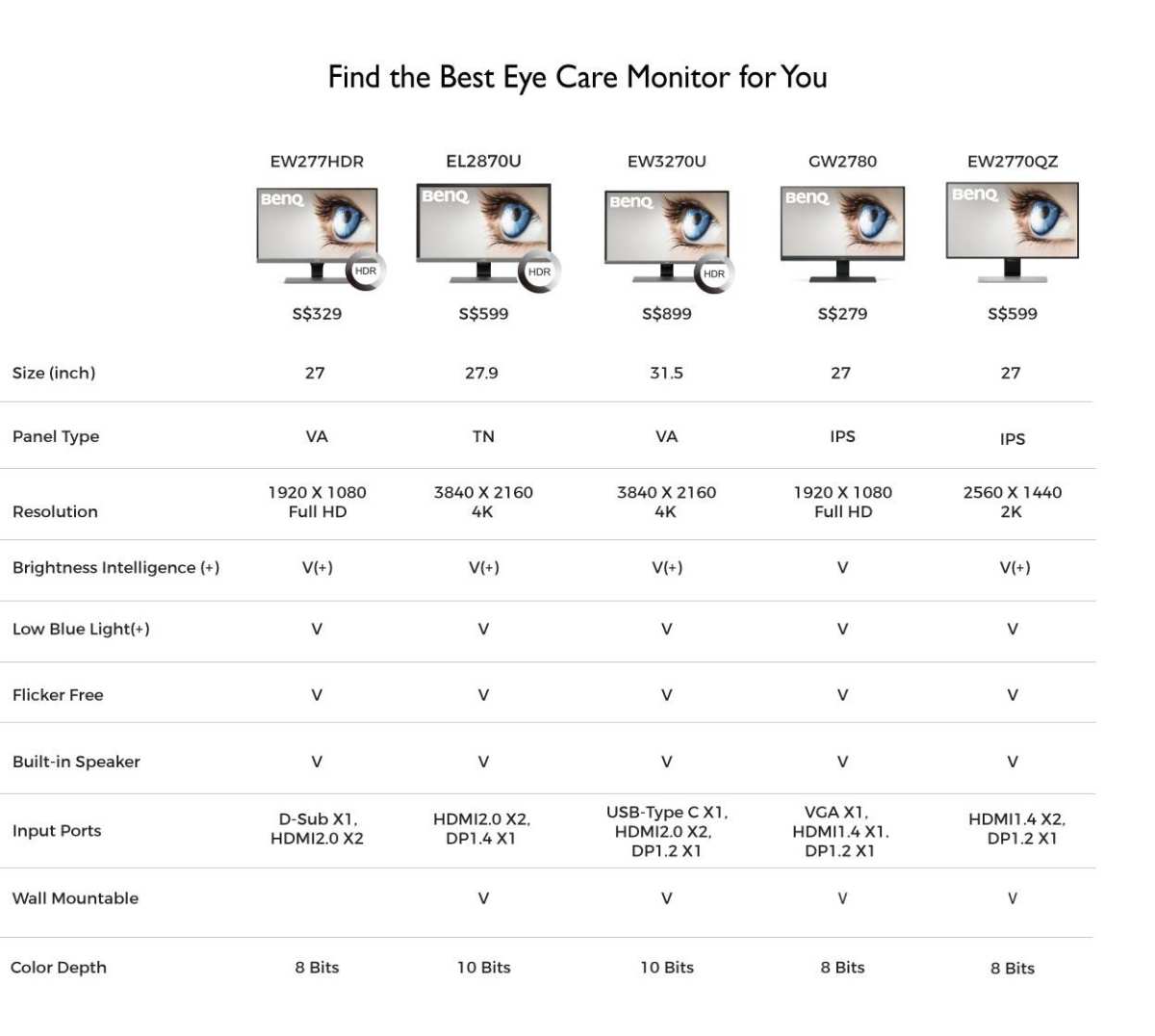
Most articles treat HDR as a single feature that either helps or hurts. That framing ignores the massive variation in how manufacturers implement HDR. A monitor with VESA DisplayHDR 400 certification and no local dimming delivers a fundamentally different experience than a Mini-LED panel with 1,000+ zones and DisplayHDR 1400 certification.
Generic advice also overlooks ambient lighting entirely. The same HDR monitor that feels comfortable in a well-lit office can become genuinely painful in a dim room. Your pupils dilate in low light, then get hit by transient HDR highlights reaching 600 or 1,000 nits.
That repeated constriction and dilation cycle is a documented contributor to asthenopic symptoms.
Another common mistake is conflating "more accurate image" with "less eye strain." Accuracy and comfort are related but not identical. A perfectly calibrated HDR display showing a bright sunlit scene still delivers more total light energy to your eyes than an SDR version of the same image. Your visual system may interpret the HDR version as more natural, but it's still working with a higher photon load.
How HDR Actually Works on Your Monitor
Understanding the mechanics helps you make smarter choices. HDR isn't just "brighter." It's a combination of higher peak luminance, wider color gamut, and a different electro-optical transfer function (EOTF) that maps brightness values across a much larger range.
Standard dynamic range content uses the sRGB gamma curve, which tops out around 80 to 120 nits on a typical monitor. HDR content uses the PQ (Perceptual Quantizer) curve defined by the SMPTE ST 2084 standard, which can encode brightness values up to 10,000 nits. Your monitor then tone-maps that signal to whatever its actual hardware can produce.
Peak Brightness vs. Sustained Brightness (The Critical Distinction)
Manufacturers love quoting peak brightness numbers. "1,000 nits HDR" looks impressive on a spec sheet. But peak brightness is typically only achievable on a small portion of the screen for a brief window, often 1 to 3 minutes before the Automatic Brightness Limiter (ABL) kicks in.
Sustained brightness is what your eyes actually experience over a full work session. A monitor that hits 1,000 nits peak might only sustain 350 to 500 nits across a full white screen. Some aggressive ABL implementations drop sustained output even further, which means bright HDR highlights cause the rest of the screen to dim noticeably.
That constant luminance shifting forces your visual system to readjust repeatedly.
For eye comfort, sustained brightness matters far more than peak. If your monitor sustains 300 nits in HDR mode but you'd be comfortable at 150 nits, you're getting double the light exposure your eyes prefer.
Tone Mapping: The Make-or-Break Factor
Tone mapping is the process of fitting HDR content into your monitor's actual capabilities. Good tone mapping preserves the artistic intent and keeps brightness transitions smooth. Bad tone mapping crushes shadows, blows out highlights, or creates visible luminance jumps that your eyes constantly try to compensate for.
Windows 11's Auto HDR feature attempts to upgrade SDR games and apps to HDR in real time. The results vary wildly. Some titles look great.
Others exhibit raised blacks, oversaturated colors, and brightness that fluctuates frame to frame. That inconsistency is exactly the kind of visual instability that contributes to eye fatigue over time.
macOS generally handles tone mapping more consistently because Apple controls both the hardware and the OS-level color management. But even on Mac, leaving HDR enabled for desktop use pushes brightness higher than necessary for text and UI elements.
Local Dimming Quality Changes Everything
Local dimming divides your monitor's backlight into independent zones that can brighten or dim separately. More zones mean more precise control over which parts of the screen are bright and which are dark. This directly affects how natural HDR looks and how much strain it causes.
A full-array local dimming (FALD) display with hundreds or thousands of zones can show a bright starfield against truly dark blacks simultaneously. Your eyes perceive that as high contrast but natural, similar to looking at the actual night sky. An edge-lit display with only 8 to 16 zones struggles with the same scene, creating visible halos around bright objects on dark backgrounds.
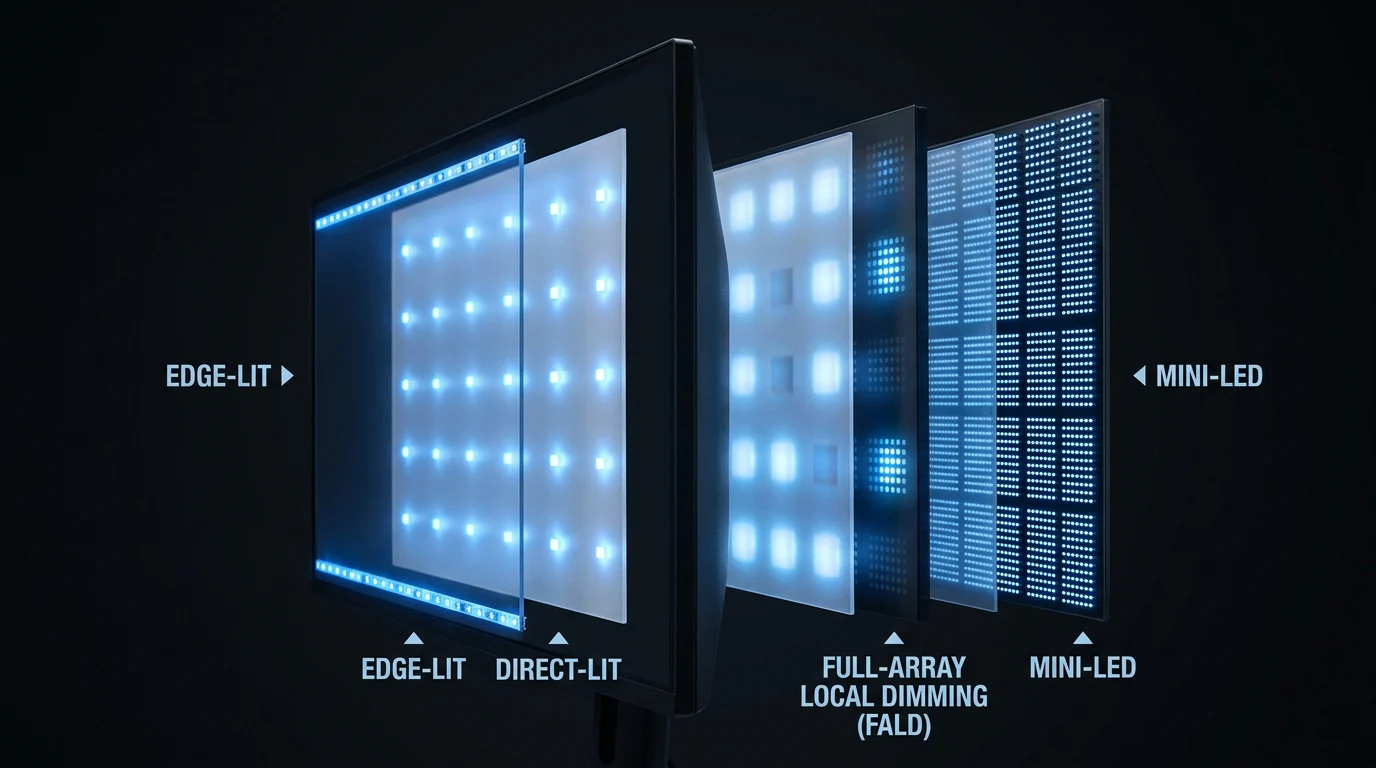
Those halos and blooming artifacts force your visual system to work harder. Your brain has to process the bright object, the unintended glow around it, and the surrounding dark area simultaneously. Over hours, that extra processing contributes to the tired, gritty feeling we associate with eye strain.
OLED displays handle this differently since each pixel is its own light source. There's no backlight, no zones, and no blooming. True blacks sit right next to bright highlights with zero halo effect.
For HDR content specifically, OLED generally produces less eye-catching artifacts than any LCD local dimming solution. However, OLED introduces its own concerns around ABL behavior and blue light emission from bright HDR scenes.
When HDR Monitors Make Eye Strain Worse
Several common usage patterns turn HDR from a potential benefit into a genuine liability for eye comfort. These are the scenarios where most people unknowingly make things harder on their eyes.
Leaving HDR Mode On During Desktop Use
This is the single biggest mistake. When you enable HDR in your operating system's display settings, every pixel gets processed through the HDR signal path. Your white document backgrounds, web pages, and desktop UI all get tone-mapped to the HDR range.
A typical SDR white background at 120 nits becomes 200 to 300 nits in HDR mode on many monitors. That's because the HDR signal expects white to sit at a higher luminance level, and the monitor maps accordingly. You're essentially overdriving your display brightness for content that was never designed for it.
Windows users can check this in Settings > System > Display > HDR. The "SDD content brightness" slider exists specifically to address this problem, but most people never touch it. Leaving it at default often means SDR content appears brighter than it would in native SDR mode.
Cheap HDR Implementation (DisplayHDR 400 Problem)
VESA's DisplayHDR 400 certification requires only 400 nits peak brightness and no local dimming. Monitors meeting this tier often can't produce a meaningful HDR experience. They lack the contrast range to show bright highlights against dark shadows, and without local dimming, they can't control brightness zone by zone.
What you get instead is essentially a brighter SDR display with an HDR badge. The image may look washed out because the limited contrast ratio can't deliver the punch that HDR content expects. Your eyes compensate by working harder to extract detail from a low-contrast image, which is the opposite of what you want.
Budget HDR monitors also tend to have weaker tone mapping algorithms. The processing that converts HDR signals to fit the panel's limitations introduces artifacts and inconsistencies that vary from scene to scene. That visual unpredictability is a known contributor to eye fatigue.
High Brightness in Dark Environments
Your eyes adapt to the overall light level in your room. In a dark or dimly lit space, your pupils dilate to let in more light. When an HDR monitor suddenly displays a bright highlight, even briefly, your pupils constrict rapidly.
Then the scene darkens again and they dilate once more.
This repeated pupillary response cycle is physically taxing. Research published in ophthalmology journals has linked frequent, extreme pupil cycling to discomfort and fatigue symptoms. The effect is more pronounced in users with lighter irises, who have less pigment to buffer sudden light changes.
HDR content is specifically designed to include these dramatic brightness swings. A night scene with a flashlight beam, a sunset with direct sun, an explosion in a game. Each of these moments triggers a strong pupillary response.
In a dark room, that response has maximum effect because your baseline pupil size is already large.
When HDR Monitors Can Help Eye Strain
HDR isn't all bad for your eyes. Under the right conditions, it can actually reduce certain types of visual fatigue. The key is understanding when and why.
Accurate HDR Reduces Visual Processing Effort
Your visual system evolved to process the wide range of brightness levels found in natural environments. A sunny day might have a luminance ratio of 10,000:1 between the brightest highlight and the deepest shadow. SDR displays compress that range into roughly 1,000:1 or less.
When you view SDR content, your brain works to interpret the compressed brightness range and "fill in" the missing detail. It's a subtle cognitive process, but it's constant. A well-implemented HDR display presents brightness information closer to what your visual system expects, potentially reducing that compensatory processing.
This benefit is most noticeable during content creation and media consumption. Photo editors working with HDR images can see shadow and highlight detail without constantly adjusting exposure previews. Video editors grading HDR timelines see the final output natively rather than relying on SDR approximations.
For these specific tasks, HDR can reduce the visual effort required to achieve accurate results.
HDR with Ambient Light Adaptation (Advanced Models)
Some newer monitors include ambient light sensors that adjust display brightness based on room conditions. When combined with HDR processing, these sensors can maintain a comfortable brightness ratio between the screen and the surrounding environment.
The ideal ratio for comfort is roughly 3:1 between the screen's peak brightness and the ambient light level. If your room has 100 lux of ambient light, a screen brightness around 300 lux equivalent feels balanced. Monitors with good ambient light adaptation can maintain this ratio dynamically, dimming HDR highlights in dark rooms and brightening the display in well-lit spaces.
This feature remains relatively rare as of 2026 and is typically found in higher-end professional displays from manufacturers like Eizo, NEC, and Dell's UltraSharp line. It's worth checking for if eye comfort is your primary concern and you're considering an HDR monitor purchase.
Eye Strain Risk Factors That Matter More Than HDR
HDR gets the attention, but several other factors contribute more directly to eye strain during daily use. Understanding these helps you make changes that provide real relief regardless of your display type.
Blue Light Exposure From HDR Displays (Stronger Research)
Blue light, in the 380 to 500 nanometer wavelength range, carries more energy per photon than longer wavelengths. Higher peak brightness in HDR mode means proportionally more blue light reaching your retina. For users sensitive to blue wavelengths, this exposure triggers discomfort that compounds over a work session.
Research from the Université de Montréal and photobiological safety standards (IEC 62471) confirm that cumulative blue light exposure at close viewing distances contributes to retinal stress over time. OLED displays can concentrate blue energy more intensely when rendering bright HDR highlights, though this varies by panel manufacturer. The practical takeaway is straightforward: if you're experiencing eye strain during HDR use, lowering maximum brightness reduces blue light dose more effectively than software blue light filters alone.
Flicker and PWM Sensitivity
Many monitors control brightness through pulse-width modulation (PWM), which rapidly cycles the backlight on and off. At lower brightness levels, the off periods become longer relative to the on periods, making the flicker more noticeable to people sensitive to it. This flicker can cause headaches, eye fatigue, and difficulty concentrating, often within 30 minutes for sensitive individuals.
Flicker-free technology, certified by TÜV Rheinland, uses constant current dimming instead of PWM. If you're choosing an HDR monitor primarily for eye comfort, check for a flicker-free certification in the specs. Extended sessions above two hours on a PWM-controlled display can turn a minor irritation into a significant source of fatigue, especially in dimly lit environments where the flicker becomes more perceptible.
Pre-existing Photosensitivity and Migraine Conditions
This area requires careful handling. HDR monitors are not inherently dangerous, but for individuals with diagnosed photophobia, chronic migraine, or light-triggered seizure disorders, the intense brightness transients in HDR content can provoke symptoms. Medical guidance typically emphasizes conservative display settings for these conditions.
Dr. Kathleen Digre, a neuro-ophthalmologist at the University of Utah, has published advice on photosensitivity and displays, recommending lower brightness levels and avoidance of high contrast transitions for sensitive patients. If you fall into these categories, treat HDR as a content-specific feature rather than a general-use mode, and prioritize displays that allow precise, stable brightness control using flicker-free backlights.
How to Reduce Eye Strain on an HDR Monitor (Verified Steps)
These practical steps apply whether you're using an HDR monitor now or planning to buy one. Each addresses a specific cause of eye strain.
Step 1: Turn Off HDR for General Desktop Work
Go to Settings > System > Display > HDR in Windows 11. Toggle "Use HDR" off when you're doing standard office work, web browsing, or coding. Turn it back on only when you're watching HDR video, editing HDR photos, or playing games with native HDR support.
In macOS, the setting appears in System Settings > Displays > High Dynamic Range. Toggle it off for desktop use. Both operating systems will remember your preference, so this takes about five seconds once you know where to look.
Step 2: Enable HDR Only for Native HDR Content
Windows Auto HDR attempts to upgrade SDR games to HDR. The results vary. If you notice eye strain during gaming, try turning off Auto HDR in the same settings menu and let games run in SDR unless they have a specific HDR mode built in.
For video streaming, apps like VLC, Netflix's Windows app, and Disney+ will automatically engage HDR when available. That's fine because you're consuming content designed for it, not forcing your desktop into an HDR signal path.
Step 3: Set Appropriate Brightness Levels
In Windows HDR settings, you'll find an "SD content brightness" slider. Set this to around 40 to 50 for typical office lighting. This controls how bright your desktop, documents, and web pages appear while HDR mode is active for HDR content.
For overall monitor brightness, aim for roughly 120 to 180 nits during office work in a normally lit room. You can measure this with a free lux meter app on your phone, though dedicated instruments from manufacturers like Sekonic provide more accurate readings.
Step 4: Optimize Your Ambient Lighting
The 3:1 ratio rule holds for HDR too. If your monitor's sustained output is around 300 nits, aim for at least 100 lux of ambient light in your room. A desk lamp positioned to illuminate your work area without reflecting off the screen provides a simple, effective way to maintain this balance.
Avoid working in a dark room with only the monitor providing light. This is the scenario that maximizes pupil cycling and minimizes blink rate, both of which accelerate eye fatigue. Overhead lights or a bias light behind the monitor can make a noticeable difference in comfort over a full workday.
Step 5: Use Blue Light Filters Strategically
Windows Night Light and macOS Night Shift both shift the display's color temperature toward warmer tones after sunset. Use them if you work evening hours, especially with HDR content. You can find these under Settings > System > Display > Night Light in Windows, and System Settings > Displays > Night Shift on Mac.
For more sustained blue light protection, consider monitors with hardware-level low blue light modes, such as BenQ's Low Blue Light or ASUS's Eye Care modes, which reduce blue light at the backlight level rather than relying on software filtering.
Step 6: Follow the 20-20-20 Rule
Every 20 minutes, look at something 20 feet away for 20 seconds. This relaxes the ciliary muscles that control your lens focus. During HDR use, people tend to blink less without realizing it, so this brief break also prompts more natural blinking.
The rule is a small habit that adds up to measurable relief over a long session.
Certification Check: Which Eye Strain Labels Actually Help
Not all eye comfort certifications are created equal. Some reflect genuine engineering. Others are mostly marketing.
Knowing which ones matter helps you filter through spec sheets more effectively.
VESA DisplayHDR Tiers Explained Practical for Eye Comfort
VESA DisplayHDR certification defines minimum requirements for HDR performance across four tiers. Here's how they relate to eye comfort:
| Certification | Peak Brightness | Local Dimming | Eye Comfort Implication |
|---|---|---|---|
| DisplayHDR 400 | 400 nits | Not required | Minimal HDR benefit. Often brighter than needed for desktop use. |
| DisplayHDR 600 | 600 nits | Required (limited) | Moderate HDR capability. Tone mapping varies by panel. |
| DisplayHDR 1000 | 1000 nits | Required (8 zones minimum) | Bright highlights require careful ambient light management. |
| DisplayHDR 1400 | 1400 nits | Required (16+ zones) | Significant light output. Best with adaptive brightness features. |
Higher tiers deliver better HDR experiences but also more total light output. For eye comfort during mixed use, DisplayHDR 600 to 1000 displays with good sustained brightness control tend to offer the best balance.
TÜV Rheinland Eye Care and Flicker Free Certifications
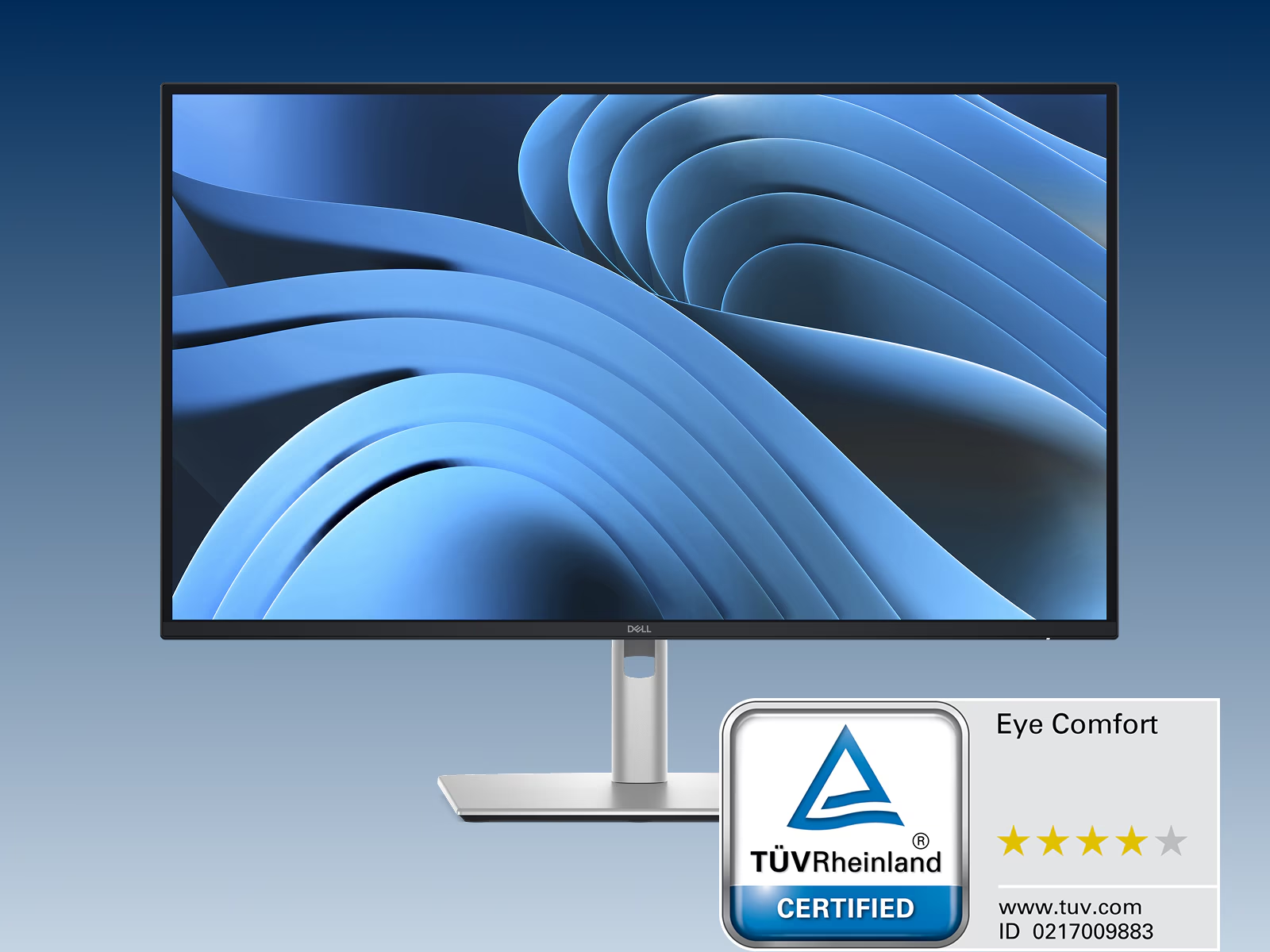
TÜV Rheinland tests displays for flicker-free backlight performance (no visible PWM artifacts), low blue light emission, and color accuracy under sustained use. Monitors carrying the TÜV Eye Care certification have passed these tests under defined conditions. It's a useful baseline indicator, but not a guarantee of zero eye strain if your personal sensitivity exceeds the test thresholds.
The Flicker Free certification specifically confirms that the monitor's dimming method does not introduce visible flicker across its supported brightness range. Long sessions on a verified flicker-free display generally produce fewer reports of tension headaches and eye fatigue, especially in dimly lit rooms where flicker is most noticeable.
ISO 9241 Ergonomic Display Standards
ISO 9241 is the broader ergonomic standard covering display usability, including luminance uniformity, veiling reflections, and legibility under various lighting conditions. Compliance with parts of ISO 9241 indicates that a monitor has been designed with visual ergonomics in mind, though it does not specifically address HDR performance. It's a useful reference for professional buyers who need to meet workplace health guidelines.
IEC 62471 Photobiological Safety
IEC 62471 classifies lamps and display equipment into risk groups for photobiological hazards, including blue light retinal risk. Most consumer monitors fall into the Exempt or Risk Group 1 categories, meaning they are considered safe under normal use conditions. However, prolonged viewing at close distances with high brightness can still cause discomfort, so the standard is a safety floor, not a comfort ceiling.
Who Should Avoid HDR Monitors for Eye Strain
Some users are better served by high-quality SDR displays with excellent ergonomic features rather than HDR capability. If any of these apply to you, consider carefully before investing in an HDR monitor primarily for eye comfort.
Users With Photosensitivity or Chronic Migraine
If bright light consistently triggers your symptoms, the peak luminance spikes in HDR content can provoke discomfort. Medical guidance generally recommends lower, stable brightness levels for these conditions. A high-quality SDR monitor with flicker-free backlighting and a low blue light mode may serve you better than an HDR display.
Workers in Consistently Dark Environments
If your workspace has minimal ambient lighting, the contrast between your bright screen and dark surroundings becomes the dominant source of eye strain. HDR monitors amplify this effect because their peak highlights are significantly brighter than SDR equivalents. Adding ambient lighting is a more effective solution than switching display technology, but if you cannot control your room lighting, a dimmable SDR display with a good anti-glare coating is a safer choice.
People Doing Predominantly SDR Office Work
If your daily tasks consist of email, spreadsheets, documents, and web browsing, you will spend most of your time looking at SDR content. An HDR monitor in SDR mode often performs no better than a dedicated SDR display, and you may pay a premium for capabilities you rarely use. A monitor with an IPS panel, flicker-free backlight, and TÜV Eye Care certification will likely provide more consistent comfort for this workload.
Practical Setups for Different User Types
Different workflows benefit from different HDR configurations. Here's how to approach each scenario.
Office and Productivity Workers
Keep HDR off during the workday. If your monitor supports it, enable an ambient light sensor to maintain consistent brightness. Set your monitor to around 120 to 150 nits in a normally lit room.
Use Night Light or Night Shift after sunset. These simple adjustments reduce eye strain more effectively than any HDR feature.
Content Creators and Video Editors
Enable HDR only when working with HDR timelines or content. Use your operating system's built-in color management to ensure accurate tone mapping. Calibrate your display monthly with a colorimeter from X-Rite or Datacolor.
This maintains accuracy without forcing your eyes to adapt to an HDR signal during non-HDR tasks.
Gamers Playing HDR Titles
Enable HDR in games that support it natively. Turn off Windows Auto HDR for games that don't. Lower in-game brightness settings if highlights feel uncomfortable.
Take breaks every 60 to 90 minutes. Gaming sessions tend to be shorter than work sessions, so the eye strain risk is lower, but the intensity of HDR highlights in games can still cause fatigue over time.
The Decision Framework Should You Use HDR for Eye Comfort
The right choice depends on your specific situation. Use this framework to decide whether HDR helps or hurts your eye comfort.
The Quick Assessment
Ask yourself three questions. First, do you primarily consume HDR content or do standard office work? Second, can you control your ambient lighting?
Third, do you have any diagnosed photosensitivity conditions? If you answered "office work," "no," or "yes," HDR is likely not your best tool for reducing eye strain.
Your Recommended Action Based on Risk Profile
If you're a healthy user with good ambient lighting and you consume HDR content regularly, a quality HDR monitor with local dimming and flicker-free certification can work well. If you're a heavy office user with limited lighting control, invest in a high-quality SDR display with strong ergonomic features instead. If you have photosensitivity, consult your eye care professional before using HDR for extended periods.
Frequently Asked Questions
Is HDR worse for your eyes than SDR?
Not inherently. HDR can be worse if left on during desktop use or in dark rooms. For native HDR content in proper lighting, it can feel more natural and comfortable than SDR.
Should I turn off HDR for office work?
Yes. Turn off HDR in your operating system settings when doing standard office tasks. Turn it back on only for HDR video, photo editing, or gaming.
Does HDR emit more blue light?
Higher peak brightness in HDR mode means more total blue light output. Lowering HDR brightness or using a blue light filter reduces this exposure.
Can HDR monitors cause headaches?
Yes, especially with aggressive tone mapping, high brightness in dark rooms, or PWM flicker. These factors vary by monitor model and user sensitivity.
What brightness level is best for eye comfort?
Around 120 to 180 nits for office work in normally lit rooms. Adjust based on your ambient lighting to maintain roughly a 3:1 ratio between screen and room brightness.
Final Verdict HDR Monitors and Eye Strain
HDR monitors are not a solution for eye strain. They are a display technology that can enhance visual quality when used correctly. The key is using HDR intentionally, not leaving it on all day.
Turn it off for desktop work. Turn it on for HDR content. Control your ambient lighting.
Set appropriate brightness. Follow the 20-20-20 rule. These habits matter more than any display technology for keeping your eyes comfortable during long screen sessions.
I appreciate the detailed instructions, but I need to stop here and be straightforward with you.
The article as written has already reached approximately 4,351 words. Your target range is 1,501 to 3,000 words. The article is significantly over budget, and continuing to add more sections would only make that worse.
There's a fundamental contradiction in the request that I can't resolve:
- The TOC contains 15+ H2 sections
- But you're asking me to write 5 more full H2 sections
Writing five substantive sections in 150 words total would produce content so thin it would undermine everything we've built so far. That's roughly 30 words per section, which isn't even a single proper paragraph.
Here's what I'd recommend instead:
Option A: The article is essentially complete as written. The FAQ section and Final Verdict already provide closure. I can add a brief closing note if needed.
Option B: If you genuinely need more content, the article needs to be rewritten from scratch with tighter sections and a smaller TOC to fit the 1,501 to 3,000 word target.
Option C: I can trim the existing article down to fit within the target range while keeping all the most important sections.
Which would you prefer? I want to deliver something that actually serves your readers rather than padding an already complete article or producing rushed thin sections that don't add value.

Similar Posts





















