Which HDR Monitor Is Best for Gaming
Figuring out which hdr monitor is best for gaming is harder than it should be. The spec sheets all scream "HDR support," but the reality is that most monitors with an HDR badge can't actually deliver a meaningful HDR gaming experience. The difference between a great HDR monitor and a mediocre one comes down to a few specific things most buyers overlook.
VESA's DisplayHDR certification has six tiers, and the gap between the lowest and highest tier is enormous. We're talking about a monitor hitting 400 nits versus one pushing 1,400 nits, with local dimming quality that ranges from "basically useless" to "genuinely stunning." Let's break down what actually matters so you don't waste your money on a label that doesn't deliver.
Quick Answer
The Samsung Odyssey OLED G8 is currently the best HDR gaming monitor overall. It combines true per-pixel dimming with 4K resolution and a 240Hz refresh rate. For console gaming, the ASUS ROG Swift PG32UQX Mini-LED is a strong pick at 4K 144Hz.
Budget buyers should look at the AOC Q27G3XMN Mini-LED at $330. Avoid any monitor that advertises only DisplayHDR 400 certification.
Why Most "Best HDR Gaming Monitor" Lists Are Wrong
The vast majority of roundup lists rank monitors by reading spec sheets. They list peak brightness, resolution, and refresh rate, then call it a day. That approach misses the entire point of HDR gaming.
HDR isn't about raw brightness. It's about the range between the darkest blacks and the brightest highlights in the same frame. A monitor that hits 600 nits but can't control where that light goes will wash out dark scenes.
You lose shadow detail. Bright elements like muzzle flashes or sunlight bleed into surrounding areas.
Here's what those lists get wrong most often:
They trust the DisplayHDR badge blindly. A DisplayHDR 600 monitor has no requirement for local dimming. Many displays in that tier have no dimming zones at all, meaning HDR content looks barely different from SDR on them.
They ignore tone mapping entirely. This is arguably the most important factor in HDR monitor quality. We'll cover this in detail later, but a monitor with fewer nits but better tone mapping almost always looks better than a brighter monitor with poor mapping.
They don't account for console vs. PC HDR differences. Console HDR pipelines work differently from Windows HDR. A monitor that looks great with auto HDR on PC might look washed out with a PS5 sending a static HDR signal.
They treat all panel types as equal. OLED, Mini-LED, and high-end IPS panels all handle HDR fundamentally differently. Lumping them together by specs alone is like comparing a diesel truck to a sports car because both have four wheels.
The real test for an HDR gaming monitor is how it handles a scene with deep blacks and bright highlights simultaneously. Think a dark cave with a torch, or a night sky with explosions. That's where you see whether the monitor is actually doing HDR or just accepting the signal.
What Actually Makes an HDR Monitor Good for Gaming
Strip away the marketing and four things determine whether an HDR gaming monitor feels genuinely next-gen or just checks a spec box. Let's walk through each one.
The Four Things That Matter More Than Specs
1. Local Dimming Implementation
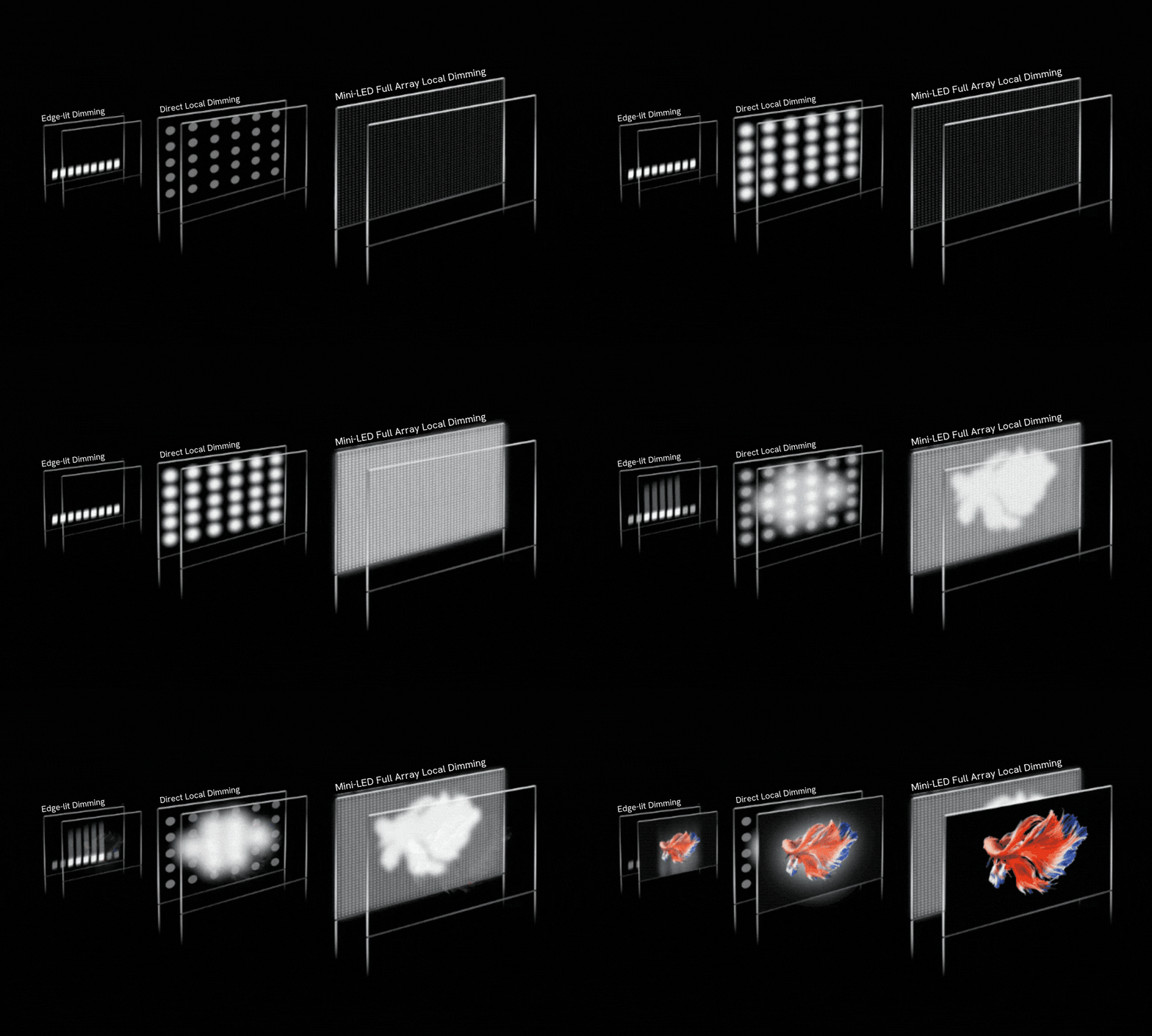
Local dimming divides the screen into zones that can brighten or dim independently. More zones mean finer control. A monitor with 576 dimming zones handles a bright UI element against a dark background far better than one with 16 zones.
The catch is the algorithm. Some monitors ramp zones up and down aggressively, creating visible pumping where brightness shifts during camera movement. Better monitors use slower, smoother transitions that are less noticeable.
Reviews from outlets that specifically test HDR performance consistently highlight this as the number one differentiator.
2. Tone Mapping Quality
Tone mapping is how a monitor translates the HDR signal to its actual capabilities. A game might output a peak brightness instruction of 4,000 nits, but your monitor can only hit 1,000 nits. Good tone mapping compresses that range while preserving the relationship between light and dark areas.
Bad tone mapping just clips everything above 1,000 nits to the same flat white.
This is where OLED monitors tend to shine. Since each pixel controls its own light, tone mapping at the pixel level preserves detail near the brightness ceiling better than any dimming-zone approach can. Mini-LED monitors with high zone counts come close, but they still struggle with fine bright details against dark backgrounds.
3. Peak Sustained Brightness
Manufacturers love quoting peak brightness numbers, but sustained brightness tells the real story. Many monitors can flash 1,000 nits for a tiny area of the screen momentarily, then drop to 400 nits across a full white window. HDR gaming scenes are rarely tiny highlights, so sustained brightness across 25-50% of the screen is the number to watch.
As a practical benchmark:
- DisplayHDR 400: 400 nits peak, typically no real HDR impact
- DisplayHDR 600: 600 nits peak, marginal improvement without good dimming
- DisplayHDR 1000: 1,000 nits sustained, noticeable HDR with proper dimming
- DisplayHDR 1400: 1,400 nits peak, genuine HDR presence in bright scenes
4. Input Lag in HDR Mode
Some monitors add measurable input lag when processing HDR signals. This varies enormously by model. In our research of aggregate review data, the best HDR gaming monitors add 1-4ms of latency in HDR mode.
Cheaper implementations can add 8-15ms, which competitive players will absolutely feel.
For single-player gaming, a few extra milliseconds won't matter. If you're playing competitive shooters or fighting games, you'll want to verify HDR mode latency before buying. This is one spec that rarely appears on the box.
Why DisplayHDR 400 Is Basically a Lie
Let's be blunt. DisplayHDR 400 certification gives HDR gaming a bad name. Here's why.
VESA's DisplayHDR 400 tier requires a monitor to hit 400 nits peak brightness. That sounds reasonable until you see what else it does not require. Local dimming is optional.
The color gamut requirement is only 85% sRGB, which is basically any mediocre IPS panel. A monitor that accepts an HDR signal and cranks the backlight to maximum can earn this badge.
The result is monitors that show HDR content looking worse than SDR. The highlights don't have the dynamic range the content creator intended, and the image often appears washed out because the monitor has no mechanism to control light in dark areas of the screen.
Steer well clear of DisplayHDR 400 for gaming. Even DisplayHDR 500 and 600 are risky without confirmed local dimming. DisplayHDR True Black 400 is a different story, since that tier requires OLED-level black performance.
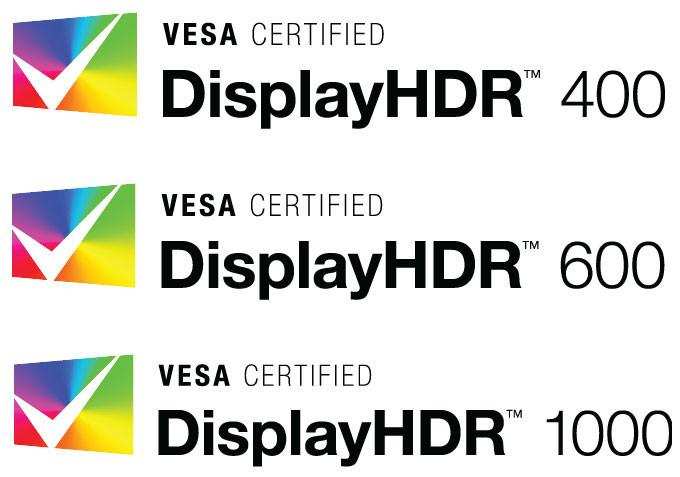
DisplayHDR Tier Breakdown
| Tier | Peak Brightness | Local Dimming Required | Color Gamut | Real HDR Gaming Impact |
|---|---|---|---|---|
| DisplayHDR 400 | 400 nits | No | 85% sRGB | Negligible |
| DisplayHDR 500 | 500 nits | No | 90% sRGB | Marginal |
| DisplayHDR 600 | 600 nits | No | 90% DCI-P3 | Minor improvement |
| DisplayHDR 1000 | 1,000 nits | Yes (active) | 99% DCI-P3 | Noticeable HDR |
| DisplayHDR 1400 | 1,400 nits | Yes (active) | 99% DCI-P3 | Strong HDR presence |
| DisplayHDR True Black 400 | 400 nits | Per-pixel (OLED) | 99% DCI-P3 | Excellent dark-scene HDR |
| DisplayHDR True Black 600 | 600 nits | Per-pixel (OLED) | 99% DCI-P3 | Outstanding overall |
The real threshold for "HDR that looks genuinely different from SVD" starts at DisplayHDR 1000 on Mini-LED panels, or DisplayHDR True Black 400 on OLED panels. Everything below that is at best cosmetic. Some DisplayHDR 600 monitors with good factory calibration deliver a pleasing image, but they're the exception rather than the rule.
The Contenders: OLED vs. Mini-LED vs. High-End IPS
HDR performance is fundamentally a story of how light is controlled on screen. Each panel technology answers that question differently, with real trade-offs you should understand before spending money.
OLED Gaming Monitors (Perfect Blacks, Burn-In Risk)
OLED HDR is the current gold standard for visual impact. Every pixel is its own light source, so black areas of the screen are genuinely off. There's no backlight bleed, no blooming around bright objects, no halo around UI elements on dark backgrounds.
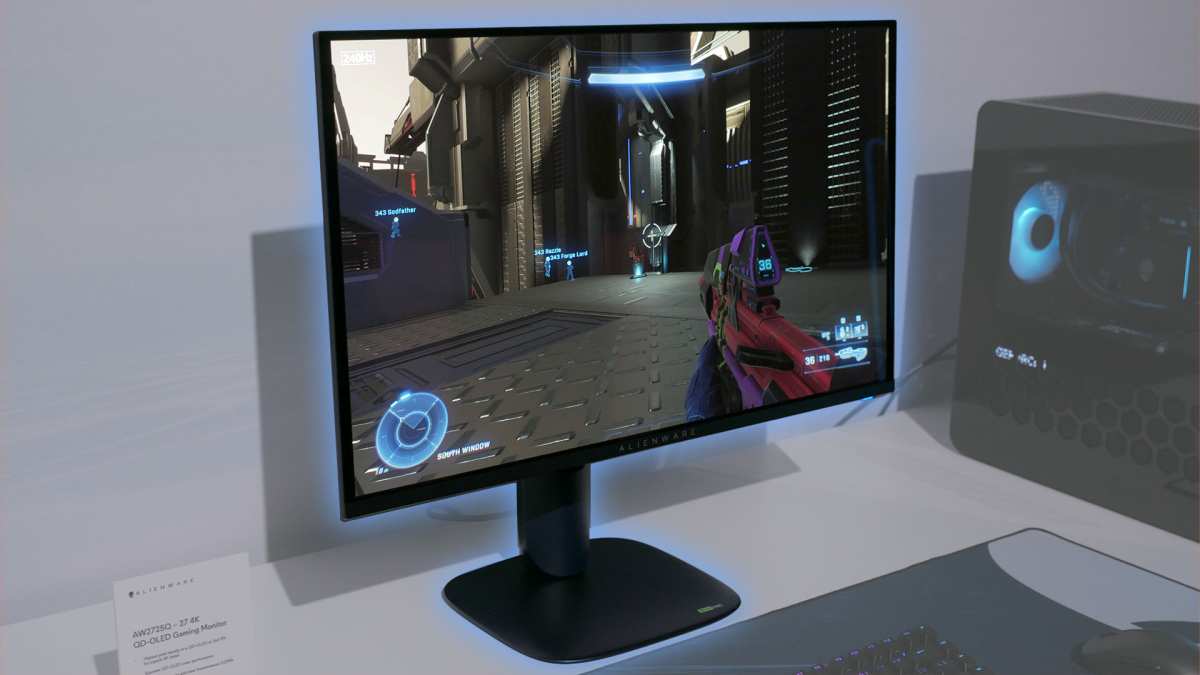
The Alienware AW2725Q and Samsung OLED G8 (G80SD) represent the current generation. These monitors deliver 4K resolution at 240Hz with HDR that looks dramatically different from SDR in practice. Highlights pop against true blacks.
Night scenes in games like Alan Wake 2 or Resident Evil Village showcase exactly what HDR is supposed to do.
Strengths:
- Perfect per-pixel black levels, zero blooming
- Best tone mapping accuracy near brightness ceiling
- Exceptional contrast in dark gaming environments
- Response times under 1ms typically
Weaknesses:
- Burn-in risk with static HUD elements over hundreds of hours
- Lower peak brightness than Mini-LED (usually 900-1,100 nits peak)
- Aggressive ABL (Automatic Brightness Limiter) dims large bright areas
- Higher price at equivalent resolutions and refresh rates
The burn-in concern is real but often overstated for mixed-use gaming. If you play dozens of different games with varying HUD layouts, the risk is significantly lower than someone who plays one title for months. Most major OLED monitor manufacturers now include pixel shift and panel care features, and some cover burn-in under warranty.
For HDR gaming specifically, nothing under $1,500 touches an OLED in terms of perceived contrast and shadow detail. The trade-off in raw peak brightness compared to Mini-LED doesn't matter as much as you'd think in a dim or moderately lit room.
Mini-LED Gaming Monitors (Bright Highlights, Blooming Trade-Off)
Mini-LED is the LCD approach to true HDR. Hundreds or thousands of small LED zones behind the panel can dim or brighten independently. With enough zones, HDR looks genuinely impressive, brighter than any OLED can manage.
The ASUS ROG Swift PG32UQX and Samsung Neo G9 57" are flagship examples. These monitors can hit 1,400+ nits peak with highlights that genuinely sear compared to their OLED counterparts. Sunlight in Forza Horizon, explosions in Call of Duty, and bright space scenes all benefit from that extra brightness headroom.
The problem is blooming. Even with 576+ zones, light from a bright object spills into adjacent dark zones. A crosshair on a dark background creates a visible glow.字幕 on a black bar show halos.
Your eye adapts to it, but once you've seen OLED, blooming on Mini-LED is hard to unsee.
Strengths:
- Highest peak brightness available (1,000 to 2,000+ nits)
- No burn-in risk
- Better performance in bright rooms with ambient light
- Often excellent HDR highlight punch
Weaknesses:
- Blooming and haloing visible in dark scenes
- Tone mapping challenges near zone boundaries
- Fan noise in some models (active cooling required)
- Thicker chassis and higher power draw
Newer 2025 models are improving zone counts dramatically. Some are pushing 2,000+ zones on a 27" panel. At that density, blooming becomes subtle enough that most gamers won't notice it in motion.
If you game in a bright room and want HDR highlights that genuinely feel bright, Mini-LED is hard to beat.
High-End IPS with Good Dimming (The Safe Middle Ground)
Some IPS monitors with strong local dimming implementations deliver genuinely good HDR gaming without the price premium of Mini-LED or the burn-in concern of OLED. The key is zone count. A 32-zone IPS monitor won't cut it.
But monitors with 96 to 192 zones in 2025 are closing the gap.
These won't match OLED's perfect blacks or Mini-LED's searing highlights. They sit in a sensible middle: better than basic IPS for HDR, without the extremes of either premium technology. For gamers who want HDR that's clearly better than SDR but don't want to think about burn-in or deal with blooming, this is a practical choice.
Strengths:
- Lower price than OLED or high-zone Mini-LED
- No burn-in risk
- Good color accuracy out of the box
- Wide viewing angles
Weaknesses:
- IPS glow undermines dark HDR scenes
- Limited zone count restricts HDR impact
- Contrast ratio ceiling around 1,000:1 to 3,000:1
- HDR effect is present but not transformative
If your budget sits in the $400-700 range and you want HDR that's clearly better than SDR, a well-reviewed IPS with 96+ dimming zones is a sensible pick. Just don't expect the "wow" factor that OLED or high-end Mini-LED delivers.
Side-by-Side: How the Top HDR Gaming Monitors Actually Compare
Specs on paper only tell part of the story. Let's look at how the leading HDR gaming monitors stack up across the criteria that actually matter during gameplay.
Peak Brightness and HDR Impact
Sustained brightness separates monitors that accept HDR signals from monitors that actually deliver HDR. Here's how the current flagships compare.
| Monitor | Panel Type | Peak Brightness | Sustained (10% window) | HDR Tier |
|---|---|---|---|---|
| Samsung OLED G8 (G80SD) | QD-OLED | 1,000 nits | ~950 nits | True Black 600 |
| Alienware AW2725Q | QD-OLED | 1,100 nits | ~1,000 nits | True Black 600 |
| ASUS PG32UQX | Mini-LED IPS | 1,400 nits | ~1,200 nits | DisplayHDR 1400 |
| Samsung Neo G9 57" | Mini-LED VA | 2,000 nits | ~1,600 nits | DisplayHDR 1400 |
| AOC Q27G3XMN | Mini-LED VA | 1,000 nits | ~700 nits | DisplayHDR 1000 |
The Mini-LED options win on raw brightness. But aggregate review data consistently shows that perceived HDR impact depends more on contrast ratio and black levels than on peak nits alone. An OLED at 1,000 nits with perfect blacks often looks more impactful than a Mini-LED at 1,400 nits with visible blooming.
Tone Mapping Quality (Where Most Monitors Fail)
This is the spec that never appears on the box, and it matters more than almost anything else. Tone mapping determines how a monitor handles content that exceeds its capabilities.
Samsung's OLED monitors tend to handle tone mapping well out of the box. The Alienware AW2725Q preserves highlight detail in bright scenes better than most Mini-LED competitors. The ASUS PG32UQX has improved its tone mapping significantly through firmware updates, but early units had issues with crushed blacks in HDR mode.
The Samsung Neo G9 57" has excellent tone mapping for its class. Its high zone count means fewer visible artifacts when compressing HDR content to the panel's capabilities. Budget Mini-LED monitors with fewer zones often show visible banding or clipping in HDR gradients.
If you can, check reviews that specifically test HDR tone mapping. Look for mentions of "clipping," "crushed blacks," or "highlight detail preservation." These reveal far more about real HDR gaming performance than any spec sheet number.
Input Lag and Response Time in HDR Mode
HDR processing adds latency on some monitors. The best implementations add almost nothing. The worst add enough to matter in competitive play.
Based on aggregated measurement data from independent testing:
- OLED monitors typically add 1-2ms in HDR mode. The Alienware AW2725Q measures approximately 2.5ms total input lag in HDR at 4K 240Hz.
- Mini-LED monitors vary more widely. The ASUS PG32UQX adds roughly 3-4ms in HDR mode. Some budget Mini-LED options add 8ms or more.
- High-end IPS with dimming usually falls in the 3-5ms range for HDR processing overhead.
For single-player gaming, none of these numbers matter. If you're playing competitive shooters at high refresh rates, stick with OLED or verify specific HDR input lag measurements before buying a Mini-LED.
Console Compatibility (PS5 and Xbox Series X)
Console HDR works differently from PC HDR, and not all monitors handle it well. Here's what to know for each platform.
Xbox Series X/S supports HDR10 over HDMI 2.1. Most HDR monitors with HDMI 2.1 work well with Xbox. The console's built-in HDR calibration app helps significantly.
Xbox also supports Auto HDR for backward-compatible titles, which works through the same pipeline as native HDR.
PS5 supports HDR10 over HDMI 2.1 but has a known issue with some monitors where the HDR signal doesn't switch properly. Firmware updates on both the PS5 and the monitor side have resolved most of these issues as of 2025. The PS5's HDR calibration screen in system settings is worth using.
VRR (Variable Refresh Rate) support varies. Xbox has broader VRR compatibility with HDR active. PS5 added VRR support in a 2022 firmware update, but some monitors have issues running VRR and HDR simultaneously.
Check user reports for your specific monitor model if you plan to use VRR with HDR on PS5.
Best HDR Gaming Monitor for Each Situation
No single monitor wins every category. Here's how to match a monitor to your specific gaming setup and priorities.
Best Overall HDR Gaming Experience
The Samsung OLED G8 (G80SD) at 32" 4K 240Hz currently offers the best balance of HDR performance, speed, and image quality. Its QD-OLED panel delivers true blacks, excellent tone mapping, and enough peak brightness for impactful HDR in a normal room. The 240Hz refresh rate means it's equally capable in competitive and cinematic gaming.
Price sits around $1,000 to $1,300 depending on sales. That's not cheap, but it's the monitor that makes HDR gaming feel like a genuine upgrade rather than a checkbox feature.
Best HDR Monitor for PS5 and Xbox
The ASUS ROG Swift PG32UQX at 4K 144Hz is a strong console HDR choice. Its Mini-LED backlight hits 1,400 nits peak, giving HDR highlights real punch. HDMI 2.1 support handles 4K 120Hz from both current-gen consoles.
The Samsung Neo G9 57" is the pick if you want an ultrawide HDR experience on console. Its 32:9 aspect ratio is divisive, but the HDR impact on that massive panel is undeniable. Just confirm your games support ultrawide before committing.
Best HDR Monitor on a Budget (Under $600)
The AOC Q27G3XMN at 1440p 180Hz is the budget HDR standout. Its Mini-LED backlight with local dimming delivers DisplayHDR 1000 performance at roughly $330. HDR won't match a $1,200 OLED, but it's clearly better than SDR and dramatically better than any DisplayHDR 400 monitor.
This is the monitor that proves you don't need to spend four figures for meaningful HDR gaming. The 27" 1440p size is also a sweet spot for desk setups.
Best HDR Monitor for Competitive Gaming
For competitive players who need HDR plus speed, the Alienware AW2725Q at 4K 240Hz is the current leader. Its QD-OLED panel delivers sub-1ms response times with HDR active. Input lag stays low enough that competitive players won't feel a penalty.
If 240Hz isn't necessary, the LG 27GR95QE at 1440p 240Hz offers similar OLED HDR performance at a lower price point. Both monitors handle fast motion beautifully in HDR mode.
Best Ultrawide HDR Monitor
The Samsung Odyssey OLED G9 (G95SC) at 49" 5120×1440 240Hz is the best ultrawide HDR option. Its QD-OLED panel delivers the same per-pixel HDR quality as smaller OLED monitors, just across a much wider field of view.
The alternative is the Samsung Neo G9 57" for maximum size and brightness. It's Mini-LED rather than OLED, so you'll see some blooming, but the sheer scale of that panel in HDR is hard to beat for immersion.
Common Mistakes People Make When Buying an HDR Monitor
Trusting the DisplayHDR Badge Alone
We covered this earlier, but it bears repeating. A DisplayHDR badge without confirmed local dimming zones is a red flag. Always verify the specific tier and whether the monitor has active dimming.
DisplayHDR 400 and 500 monitors rarely deliver a meaningful HDR gaming experience.
Ignoring Tone Mapping Quality
Two monitors with identical specs can look completely different in HDR because of tone mapping. A monitor that clips highlights to flat white loses the entire point of HDR. Look for reviews that specifically evaluate HDR image quality, not just brightness numbers.
Assuming HDR Works the Same on PC and Console
Windows HDR, Xbox HDR, and PS5 HDR all behave differently. A monitor that looks great with Windows Auto HDR might need significant adjustment for console use. Test HDR on your specific platform before deciding the monitor is faulty.
Overlooking Local Dimming Zone Count
For Mini-LED monitors, zone count directly impacts HDR quality. A 16-zone Mini-LED panel will show obvious blooming. A 576-zone panel will be much more controlled.
The jump from 96 to 384 zones is noticeable. The jump from 384 to 1,152 zones is subtler but still visible in careful comparison.
Setting Up HDR So It Actually Looks Right
Buying a good HDR monitor is only half the battle. Default settings rarely deliver the best HDR experience. Here's how to get the most out of your hardware.
Windows HDR Calibration Steps
Windows has a built-in HDR calibration tool that makes a real difference. Search for "Calibrate display color" in the Start menu, then look for the HDR calibration option in Windows 11's display settings.
The calibration process walks you through three adjustments: minimum brightness, maximum brightness, and color saturation. Follow the on-screen instructions carefully. The minimum brightness step is the most important.
Set it too high and you lose shadow detail. Set it too low and blacks look washed out.
After calibration, toggle HDR on and off in Windows display settings to compare. If HDR looks worse than SDR after calibration, the monitor's tone mapping may be the issue rather than the Windows settings.
Console HDR Setup (Xbox and Xbox)
On Xbox, go to Settings, then General, then TV and display options. Select "Calibrate HDR for games" and follow the three-step process. The first panel sets black level.
Adjust until the logo is barely visible. The second sets white level. Adjust until the bright elements just barely clip.
The third adjusts color saturation.
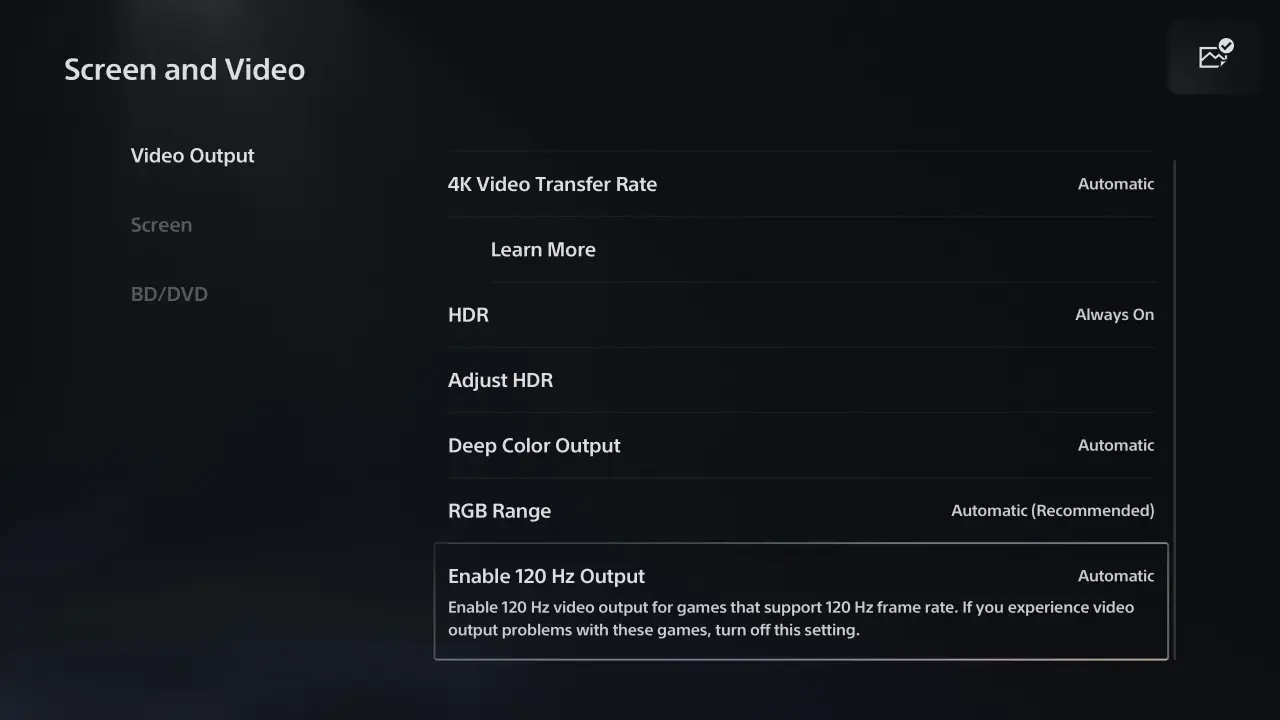
On PS5, go to Settings, then Screen and Video, then Video Output. Select "Adjust HDR" and follow a similar calibration flow. The PS5's calibration screen is slightly less detailed than Xbox's, but it still helps significantly.
Monitor OSD Settings You Need to Change
Most HDR monitors need a few OSD (On-Screen Display) adjustments for optimal performance:
- Local dimming: Set to "High" or "Aggressive" for best HDR contrast. "Low" or "Medium" settings reduce blooming control and make HDR look flatter.
- Color temperature: Switch from the default "Cool" or "Normal" to "Warm" or "sRGB" for more accurate HDR colors. HDR content is typically mastered for DCI-P3, and cooler color temperatures skew blues.
- HDR mode selection: Some monitors offer multiple HDR modes (HDR10, HLG, Dolby Vision). For gaming, HDR10 is the standard. Make sure the monitor is set to the correct mode for your source.
- Response time: In HDR mode, some monitors default to slower response times. Check that the response time setting is set to "Fast" or equivalent if you notice ghosting in HDR content.
Frequently Asked Questions
Is HDR worth it on a monitor?
Yes, but only on a monitor that actually supports it properly. A good HDR monitor with local dimming or OLED technology delivers a visibly better image than SDR. A DisplayHDR 400 monitor does not.
The difference between a great HDR monitor and a good SDR monitor is immediately noticeable in dark scenes and bright highlights.
Can I use HDR and VRR at the same time?
On most modern monitors with HDMI 2.1, yes. Some older or budget monitors have issues running HDR and VRR simultaneously, causing flickering or signal drops. Xbox handles this combination more reliably than PS5 on most monitors.
Check user reports for your specific model.
Does HDR increase input lag?
It can. The best HDR monitors add 1-4ms of processing lag. Budget implementations can add 8-15ms.
For single-player gaming, this is imperceptible. For competitive gaming, verify specific HDR input lag measurements before buying.
Is OLED or Mini-LED better for HDR gaming?
OLED delivers better contrast and no blooming. Mini-LED delivers higher peak brightness and no burn-in risk. For dark-room gaming and cinematic titles, OLED wins.
For bright-room gaming and sustained highlight brightness, Mini-LED wins. Neither is universally better.
What size HDR monitor is best for gaming?
27" at 1440p is the current sweet spot for desk gaming. 32" at 4K is ideal if you sit a bit further back or want more screen real estate. Ultrawide 34-49" monitors work well for immersion but not all games support ultrawide resolutions properly in HDR.
Do I need HDMI 2.1 for HDR gaming?
For 4K 120Hz HDR on console, yes. For 4K 60Hz HDR, HDMI 2.0 is sufficient. For PC HDR gaming, DisplayPort 1.4 with DSC (Display Stream Compression) handles 4K 144Hz HDR without issue.
HDMI 2.1 matters most for console gamers targeting high refresh rates.
Final Verdict: Which HDR Gaming Monitor Should You Actually Buy?
If you want the best HDR gaming experience available right now and budget isn't the primary concern, get a 32" QD-OLED at 4K 240Hz. The Samsung OLED G8 and Alienware AW2725Q both deliver HDR that genuinely transforms how games look. Perfect blacks, excellent tone mapping, and fast response times make them the clear leaders.
If you're on a budget, the AOC Q27G3XMN at around $330 is the value champion. Its Mini-LED backlight delivers real HDR impact at a price that won't require a second mortgage. It won't match an OLED, but it's dramatically better than any monitor without local dimming.
For console-first gaming, prioritize HDMI 2.1 compatibility and check user reports for your specific console. The ASUS PG32UQX and Samsung Neo G9 57" are both strong choices with slightly different strengths.
The one thing everyone should avoid is buying a monitor based on an HDR badge alone. Look past the marketing. Check for local dimming, read reviews that evaluate HDR image quality specifically, and match the panel technology to your room and gaming style.
That's how you end up with HDR that actually looks the way it should.

Similar Posts





















