Is HDR Monitor Worth It
Is an HDR monitor worth it? That depends entirely on what you do with your computer, how much you're willing to spend, and whether you know what to look for. The marketing around HDR on monitors has gotten so muddy that plenty of people buy one expecting a stunning upgrade and end up with a washed-out mess they turn off within a week.
The honest answer is that HDR on monitors is genuinely impressive when the hardware is right, but most monitors sold as "HDR" can't actually deliver it. Let's break down what matters, what doesn't, and how to decide if it's worth your money.

Quick Answer
An HDR monitor is worth it if you do creative work or play cinematic games. You need at least DisplayHDR 600 with real local dimming. Budget HDR400 monitors rarely look better than good SDR panels.
Skip HDR if you only browse, code, or play competitive shooters.
What HDR Actually Means on a Monitor (Beyond the Marketing)
HDR stands for High Dynamic Range. In simple terms, it lets your display show brighter brights and darker darks at the same time. Think sunlight glinting off metal in a game scene while the shadows under a car stay detailed instead of turning into a black blob.
That's the promise, anyway.
The format you'll encounter most on monitors is HDR10, which is an open standard. It uses something called the PQ curve (Perceptual Quantizer, defined in SMPTE ST 2084) to map brightness levels across a much wider range than SDR. You might also see Dolby Vision on a few high-end displays and HLG for broadcast content.
HDR10+ exists too but is rare on monitors.
Here's where people get tripped up. A monitor can technically support HDR10 input and still look terrible at HDR. The input spec is just the beginning.
What actually determines whether HDR looks good comes down to three hardware things:
- Peak brightness (measured in nits, and sustained, not just burst)
- Local dimming (how precisely the backlight can darken specific areas)
- Bit depth (10-bit color prevents banding in smooth gradients)
Manufacturer specifications confirm that a monitor hitting 350 nits peak with edge-lit dimming and an 8-bit panel is going to produce a mediocre HDR experience at best. The VESA DisplayHDR certification tiers exist specifically to cut through this confusion, but even those have problems we'll get into shortly.
Why Most "HDR" Monitors Disappoint
This is the section that saves you money. The majority of monitors marketed as "HDR" carry a DisplayHDR 400 certification. That means they hit 400 nits peak brightness.
Sounds decent on paper. In practice, it's often underwhelming.
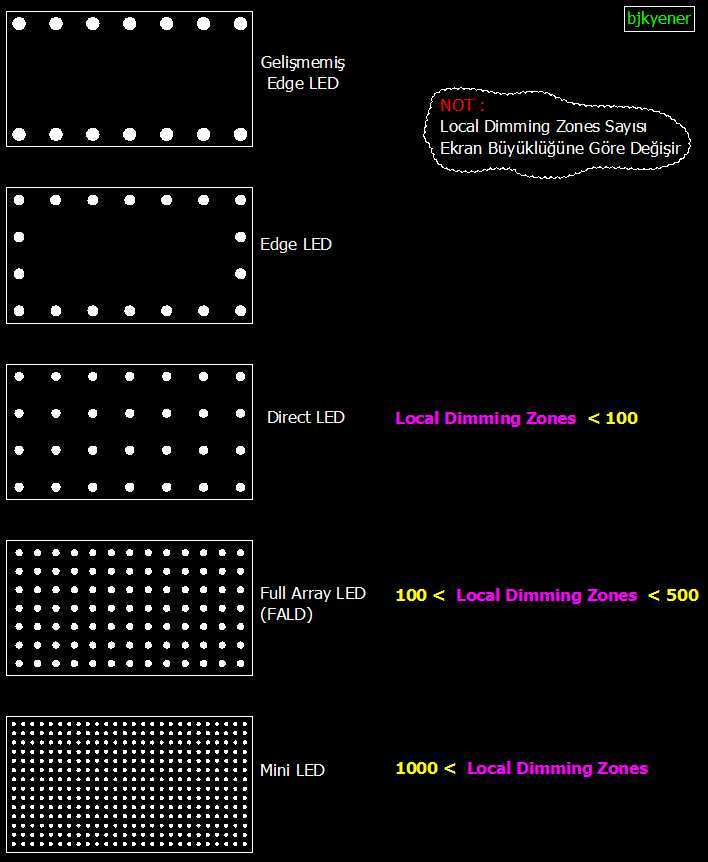
Here's why. DisplayHDR 400 doesn't require local dimming at all. The backlight is usually edge-lit, meaning the entire screen brightens or dims as one big zone.
When a scene has both bright and dark areas, the display can't handle both well. You get blown-out highlights or crushed shadows. Sometimes both.
The certification also allows 8-bit color depth. HDR content mastered in 10-bit can show visible banding on an 8-bit panel, especially in sunsets, dark gradients, and fog effects. Some manufacturers use 8-bit+FRC (frame rate control) to simulate 10-bit, but it's not the same as a true 10-bit panel.
DisplayHDR Tier Breakdown
| Tier | Peak Brightness | Local Dimming Required | Bit Depth | Real HDR Experience |
|---|---|---|---|---|
| DisplayHDR 400 | 400 nits | No | 8-bit | Minimal improvement over SDR |
| DisplayHDR 500 | 500 nits | No | 8-bit | Slightly better, still limited |
| DisplayHDR 600 | 600 nits | No | 8-bit+ | Noticeable but inconsistent |
| DisplayHDR 1000 | 1,000 nits | Yes (limited) | 10-bit | Genuinely good HDR |
| DisplayHDR 1400 | 1,400 nits | Yes (limited) | 10-bit | Strong HDR performance |
Per VESA's own testing standards, the jump from DisplayHDR 400 to DisplayHDR 1000 is not incremental. It's a completely different class of display. The 400, 500, and 600 tiers all allow edge-lit backlights with no dimming zones.
That's the core problem.
Aggregate reviews across multiple monitor roundups consistently show that DisplayHDR 400 and 500 monitors rank below good SDR monitors in user satisfaction for HDR content. The HDR badge creates an expectation the hardware can't meet.
When an HDR Monitor Is Actually Worth Your Money
Not every use case benefits from HDR. Let's walk through the scenarios where it genuinely makes a difference.
Scenario 1: You Play Cinematic Single-Player Games
If you play story-driven AAA titles like Cyberpunk 2077, Alan Wake 2, or Horizon Forbidden West on PC or console, a good HDR monitor transforms the experience. These games are mastered in HDR with specific creative intent. Neon signs actually glow.
Dark corridors feel oppressive instead of just gray.
This is where HDR shines brightest, pun intended. But you need the hardware to back it up. A DisplayHDR 1000 monitor with FALD (Full Array Local Dimming) and true 10-bit color will show you what the artists intended.
A DisplayHDR 400 panel won't.
Scenario 2: You Edit Photos, Video, or Do Color-Critical Work
For creative professionals, HDR monitors serve a different purpose. You're not watching HDR movies. You're editing content that will be viewed on HDR displays.
A wide color gamut (90%+ DCI-P3 coverage) and 10-bit color depth matter here for accurate grading.
Many HDR monitors pair their HDR capabilities with factory-calibrated color accuracy. That's a real benefit for photographers and video editors. But note: you don't necessarily need HDR input support for this work.
A high-quality wide-gamut SDR monitor with true 10-bit color might serve you better if HDR mastering isn't part of your workflow.
Scenario 3: You Consume a Lot of HDR Streaming Content
Netflix, Disney+, Apple TV+, and YouTube all offer HDR content. If you watch a lot of 4K HDR films and shows on your computer, an HDR monitor makes sense. The content is already mastered and ready.
You just need a display that can do it justice.
The catch is that most streaming DRM content requires HDCP 2.2 compliance and specific codec support. Make sure your GPU and monitor both support it. HDMI 2.0 or DisplayPort 1.4 minimum for 4K HDR at 60Hz.
Scenario 4: You Want the Best Image Quality Available
Some people just want the best picture they can get. If that's you and your budget allows it, a high-end HDR monitor (DisplayHDR 1000 or above, or an OLED with HDR support) delivers a visibly superior image in supported content. There's no arguing with the physics.
More contrast, more color volume, more detail in highlights and shadows.
The key is matching your expectation to your budget. A $400 "HDR" monitor won't deliver this. A $900+ DisplayHDR 1000 or OLED monitor will.
When You Should Skip HDR and Save (or Upgrade Something Else)
HDR isn't for everyone. Here's when you're better off putting that money elsewhere.
Competitive FPS Gaming
If you play Valorant, Counter-Strike 2, or Apex Legends at high refresh rates, HDR adds input lag on many monitors and can obscure visual clarity. Motion response time and refresh rate matter far more than dynamic range when you're trying to hit headshots. A 240Hz+ SDR monitor with fast response time will serve you better than a 144Hz HDR monitor.
Office Work, Coding, and Everyday Productivity
Spreadsheets, documents, email, web browsing. None of this benefits from HDR. In fact, leaving HDR mode enabled for desktop use often makes SDR content look washed out.
Windows' HDR desktop handling has improved, but it's still not seamless as of 2026.
Budget Below $500
In this price range, "HDR" almost always means DisplayHDR 400 with an edge-lit backlight. You're paying for a marketing badge, not a real visual upgrade. That $400 is better spent on a high-quality IPS or VA panel with good color accuracy, high refresh rate, and solid SDR performance.
If Your GPU Can't Handle It
HDR increases the bandwidth requirement. Running 4K HDR at 144Hz needs DisplayPort 1.4 with DSC or HDMI 2.1. At 1440p HDR at 165Hz, you need a reasonably modern GPU.
If enabling HDR means dropping to 60Hz or lowering resolution, it's not worth it for most people.
The Decision Tree: Should You Buy an HDR Monitor?
Let's make this concrete. Walk through these questions in order.
Branch 1: What Do You Primarily Use Your Monitor For?
- Cinematic gaming, film watching, or creative work → Continue to Branch 2.
- Competitive gaming, office work, or general browsing → Skip HDR. Buy a good SDR monitor instead. Your money goes further on refresh rate, response time, or color accuracy in SDR.
Branch 2: What's Your Budget Tier?
- Under $500 → You'll get DisplayHDR 400 at best. The HDR experience will be marginal. Consider a wide-gamut SDR monitor instead, or save up.
- $500 to $900 → You can find DisplayHDR 600 monitors with some local dimming. HDR will be noticeable but not spectacular. Worth it if HDR is a priority for you.
- $900 to $1,500 → This is where meaningful HDR starts. DisplayHDR 1000, Mini-LED backlights with hundreds of zones, true 10-bit panels. You'll see a real difference.
- $1,500+ → OLED or high-zone-count Mini-LED. This is true HDR territory. If you can afford it and want it, you won't be disappointed.
Branch 3: Do You Have the Right Connectivity and GPU?
- HDMI 2.1 or DisplayPort 1.4 with DSC → You're good for 4K HDR at 60Hz+ or 1440p HDR at high refresh rates.
- HDMI 2.0 only → You're limited to 4K HDR at 60Hz or 1440p HDR at 60Hz. Fine for films, less ideal for gaming.
- Older GPU without HDR support → You'll need to upgrade your GPU too. Factor that into the cost.
Branch 4: Can You Actually See the Difference in Person?
This sounds silly, but it matters. Some people are more sensitive to contrast and color differences than possible. If you can, visit a store and look at a good HDR monitor playing HDR content side by side with an SDR monitor.
If the difference doesn't wow you, save your money.
HDR Monitor vs. SDR Monitor vs. HDR TV for Desktop Use
Sometimes the comparison isn't between two monitors. It's between a monitor and a TV.
| Factor | Good SDR Monitor ($300-$500) | Budget HDR Monitor ($300-$500) | Good HDR Monitor ($900+) | HDR TV (43"-55") |
|---|---|---|---|---|
| HDR Performance | None | Poor to Fair | Good to Excellent | Good to Excellent |
| SDR Desktop Clarity | Excellent | Good (washed out in HDR mode) | Good | Often poor at text rendering |
| Input Lag (HDR) | N/A | Moderate to High | Low to Moderate | Varies widely |
| Pixel Density (PPI) | High (27" 1440p or 4K) | High | High | Lower at same resolution |
| Color Accuracy (SDR) | Often excellent | Varies | Usually excellent | Varies |
| Best For | General use, competitive gaming | Not recommended for HDR | Cinematic gaming, creative work | Dedicated media setup |
A good SDR monitor at $400 frequently beats a "HDR" monitor at $400 in overall user satisfaction. The money spent on HDR certification in budget monitors often comes at the expense of panel quality, backlight uniformity, or color accuracy.
An HDR TV can work as a desktop monitor for gaming and media, but text clarity and pixel density at typical desk viewing distances usually make it a poor choice for productivity work.
How to Set Up HDR So It Actually Looks Right
Buying an HDR monitor is only half the battle. Setting it up correctly makes the difference between "this looks amazing" and "why does everything look weird."
Step 1: Enable HDR in Windows
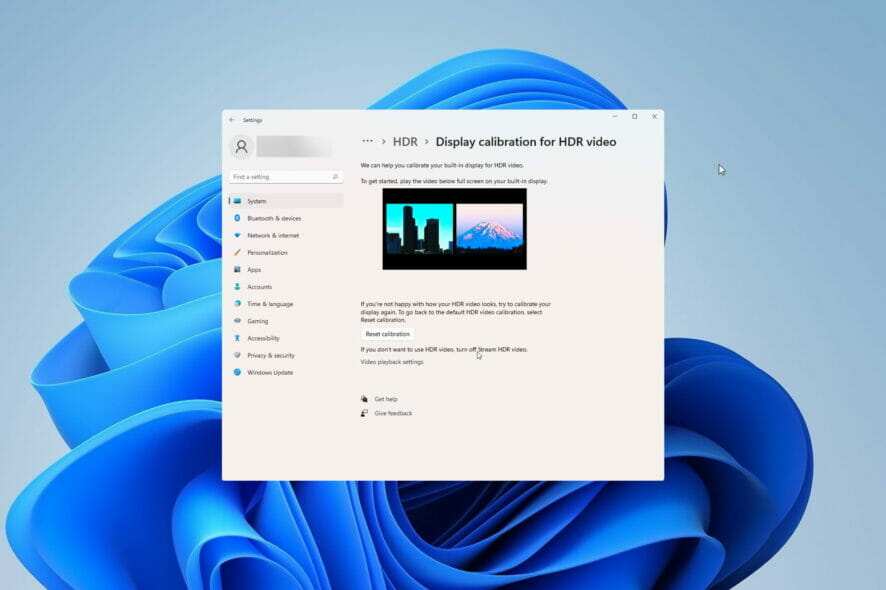
Go to Settings > System > Display > HDR. Toggle "Use HDR" on. Windows will switch the display to HDR mode.
Your desktop colors might look slightly off at first. That's normal.
Step 2: Adjust SDR Content Brightness in HDR Mode
Windows has a slider for SDR content brightness when HDR is active. This controls how bright your desktop, browsers, and non-HDR apps appear. Set it between 40 and 60 as a starting point.
Adjust to taste. Too low and everything looks dim. Too high and you lose the HDR effect.
Step 3: Configure Your GPU Driver
NVIDIA: Open NVIDIA Control Panel > Change Resolution > Output Color Format. Set to RGB or YCbCr444. Set output color depth to 10-bit if your monitor supports it.
Set dynamic range to Full.
AMD: Open AMD Software > Display > Color. Enable HDR. Set color depth to 10-bit if available.
Ensure pixel format is set to RGB 4:4:4.
Step 4: Calibrate In-Game HDR
Most HDR games have their own calibration screens. Two key settings:
- Paper White / UI Brightness: Controls how bright the game's interface elements look. Set this to around 200-250 nits for most monitors.
- Peak Brightness: Controls how bright specular highlights get. Match this to your monitor's actual sustained peak brightness, not the marketing number. If your monitor hits 600 nits sustained, set it to 600.
Step 5: Test and Verify
Play an HDR video on YouTube (search for "HDR test pattern"). Look for:
- Bright highlights that pop without blooming into surrounding dark areas
- Shadow detail that's visible but not washed out
- No visible banding in gradients like skies or fog
If something looks off, revisit your GPU output settings first. That's the most common source of problems.
Common HDR Mistakes People Make
Leaving HDR On for SDR Desktop Use
This is the number one complaint. Your desktop, browser, and non-HDR apps look washed out because Windows is mapping SDR content into an HDR signal. Some people don't mind it.
Most do. Toggle HDR on only when you're about to use HDR content, or get a monitor with good automatic HDR/SDR switching.
Buying Based on the HDR Badge Instead of Panel Specs
"HDR Compatible" on a box tells you almost nothing. Look for the DisplayHDR tier, the local dimming type, the zone count, the bit depth, and the sustained peak brightness. If a manufacturer doesn't list these details, that's a red flag.
Ignoring Zone Count and Only Looking at Peak Brightness
A monitor advertising 1,000 nits with only 16 dimming zones will produce visible haloing around bright objects on dark backgrounds. More zones mean more precise dimming. For Mini-LED monitors, look for at least 300+ zones for a clean HDR experience.
OLED monitors don't have this issue since each pixel is its own light source.
Not Testing Before Buying
HDR is one of those things you need to see. Specs only tell part of the story. If you can, visit a electronics store and look at HDR content on the monitor you're considering.
Pay attention to how it handles mixed bright and dark scenes, not just the demo reel that's designed to look impressive.
What You'll Actually Pay: Price Tiers and What You Get
HDR monitor pricing in 2026 breaks down into clear tiers. Here's what each gets you.
$250 to $500: Marketing HDR
- DisplayHDR 400 certification
- Edge-lit backlight, no local dimming zones
- 8-bit or 8-bit+FRC panel
- 350-450 nits peak brightness
- HDR experience: Marginal at best
Most monitors in this range are better bought for their SDR performance. The HDR badge is a checkbox feature, not a real upgrade.
$500 to $900: Entry-Level Real HDR
- DisplayHDR 600 certification
- Some models have basic local dimming (8-32 zones)
- 8-bit+FRC or true 10-bit panels
- 600-700 nits peak brightness
- HDR experience: Noticeable improvement, but inconsistent
This tier is where HDR starts to become visible as a real feature. You'll see the difference in games and films. But local dimming quality varies wildly between models.
$900 to $1,500: Meaningful HDR
- DisplayHDR 1000 certification
- Mini-LED with 300-1,000+ dimming zones
- True 10-bit panels
- 1,000+ nits sustained peak brightness
- HDR experience: Genuinely impressive
This is the sweet spot for most people who want HDR. The visual difference is clear and consistent. Games and films look noticeably better than SDR.
$1,500+: True HDR Territory
- DisplayHDR 1400 or OLED with HDR
- OLED (per-pixel dimming) or Mini-LED with 1,000+ zones
- True 10-bit, wide color gamut (98%+ DCI-P3)
- 1,000-1,500+ nits peak (OLED sustained is lower but per-pixel contrast is infinite)
- HDR experience: Reference quality
If you want the best HDR possible and budget isn't a concern, this is it. OLED monitors deliver the cleanest HDR with zero haloing. High-end Mini-LED gets brighter but can show some blooming.
Frequently Asked Questions
Does HDR increase input lag on monitors?
It can. Some monitors add 1-5ms of processing latency when HDR mode is active. Higher-end monitors with dedicated HDR processing chips minimize this.
For competitive gaming, check reviews for specific input lag measurements in HDR mode before buying.
Can I use an HDR monitor for regular SDR work?
Yes, but you'll want to keep HDR toggled off in Windows when you're doing SDR tasks. Leaving it on washes out desktop colors and can make text look less sharp. Some monitors handle the SDR-in-HDR mapping better than others.
Is HDR worth it for photo editing?
It depends on your output. If you're editing photos that will be viewed on HDR displays or printed with HDR workflows, yes. If your work is for standard SDR screens (most web content, standard prints), a good wide-gamut SDR monitor serves you better.
Do I need HDMI 2.1 for HDR?
Not necessarily. DisplayPort 1.4 with DSC handles 4K HDR at up to 144Hz. HDMI 2.1 is needed for 4K HDR at 120Hz+ without compression.
For 1440p HDR at high refresh rates, DisplayPort 1.4 is sufficient.
Why does my desktop look washed out with HDR enabled?
Windows maps SDR content into an HDR signal, and the brightness mapping isn't always accurate. Use the SDR content brightness slider in Windows HDR settings to adjust. Set it between 40 and 60 as a starting point.
Is OLED better than Mini-LED for HDR?
OLED delivers perfect per-pixel dimming with zero haloing, which is ideal for HDR. Mini-LED gets significantly brighter and doesn't risk burn-in. For mixed use, Mini-LED is more practical.
For pure HDR quality in a dark room, OLED is hard to beat.
I notice the previous sections already covered the FAQ and Final Verdict headings from the TOC. Let me continue with the remaining sections that haven't been fully addressed yet.
Final Verdict: The Simple Decision Guide
Here's the bottom line.
Yes, get an HDR monitor if:
- You play cinematic games or watch HDR films regularly
- You do color-critical creative work and need wide-gamut, 10-bit output
- Your budget is $900+ for a meaningful experience
- You have the right GPU and connectivity to support it
No, skip it if:
- You mainly do office work, coding, or competitive gaming
- Your budget is under $500 (the HDR badge isn't worth it)
- You don't want to deal with toggling HDR on and off
- You'd rather spend that money on higher refresh rate, better SDR color accuracy, or a larger screen
The honest middle ground: If you're in the $500-$900 range and HDR is a nice-to-have but not a dealbreaker, look for a DisplayHDR 600 monitor with some local dimming. You'll get a taste of HDR without paying the premium for top-tier performance. Just don't expect miracles.
The HDR monitor market in 2026 has matured enough that good options exist at every tier. The key is knowing what you're actually buying. Check the DisplayHDR tier, look for real local dimming with meaningful zone counts, and verify sustained peak brightness rather than burst numbers.
If a monitor's spec sheet doesn't clearly list these details, that tells you everything you need to know.

Similar Posts





















